

Telehealth & Virtual Consultations
The Telehealth Flow enables healthcare providers to conduct remote clinical consultations with patients seamlessly. In Mazecare, telehealth functionality is intentionally decoupled from the appointment engine, allowing virtual sessions to be scheduled as pre-booked calendar events, initiated on-demand, or managed within dedicated teleconsultation spaces.
Video Conferencing Methods in Mazecare
Mazecare provides two distinct video conferencing methods to support different clinical and organizational requirements:
- Google Meet (External Provider)
- Leverages Google Workspace infrastructure for reliable high-definition video calls.
- Requires setting up a Google Integration in Mazecare settings.
- Automatically synchronizes with Google Calendar for host scheduling.
- Supports external participants joining via web or mobile apps.
- Mazecare Video Call (Built-In Provider)
- Fully native, embedded teleconsultation experience powered by the Agora WebRTC & RTM SDK.
- Requires no external accounts or third-party integrations.
- Direct real-time media and signaling with low latency.
- Seamlessly integrated with Mazecare EMR charting and patient records.
Detailed Step-by-Step Walkthrough
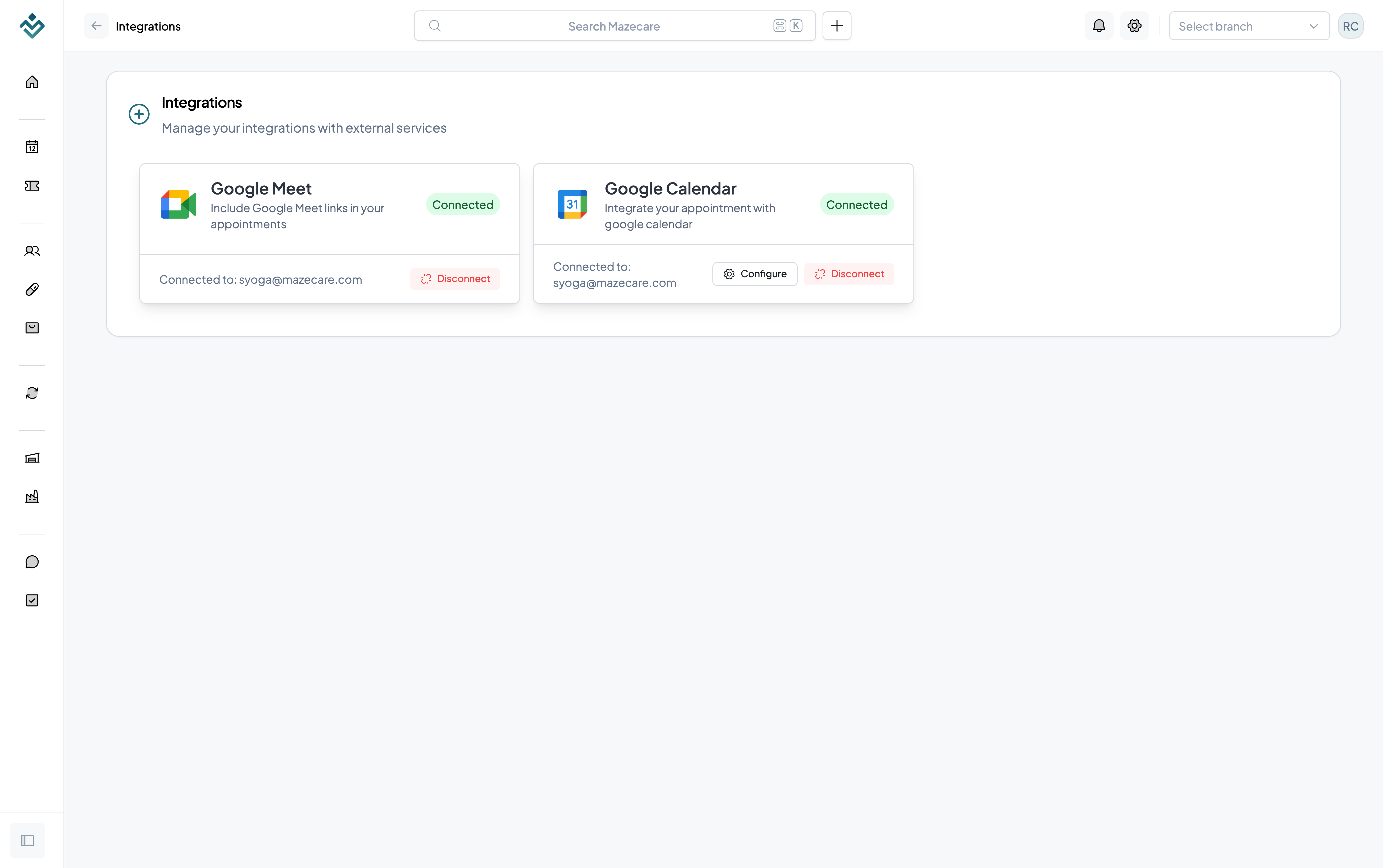
Step 1: Setting Up Google Integration for Google Meet & Calendar
To enable Google Meet video conferencing for appointments, connect your Google Workspace account:
- In the sidebar navigation, go to Settings → Integrations (
/settings/integrations). - Locate the Google Meet integration card.
- Click Connect and authenticate using your organization's Google Workspace account.
- Automatic Dual Linkage: Once connected to Google Meet, your account is automatically connected to Google Calendar as well. This unified connection allows Mazecare to assign you as a meeting host and synchronize calendar events bi-directionally without requiring separate authentication.
Step 2: Configuring Video Conferences in the Appointment Form
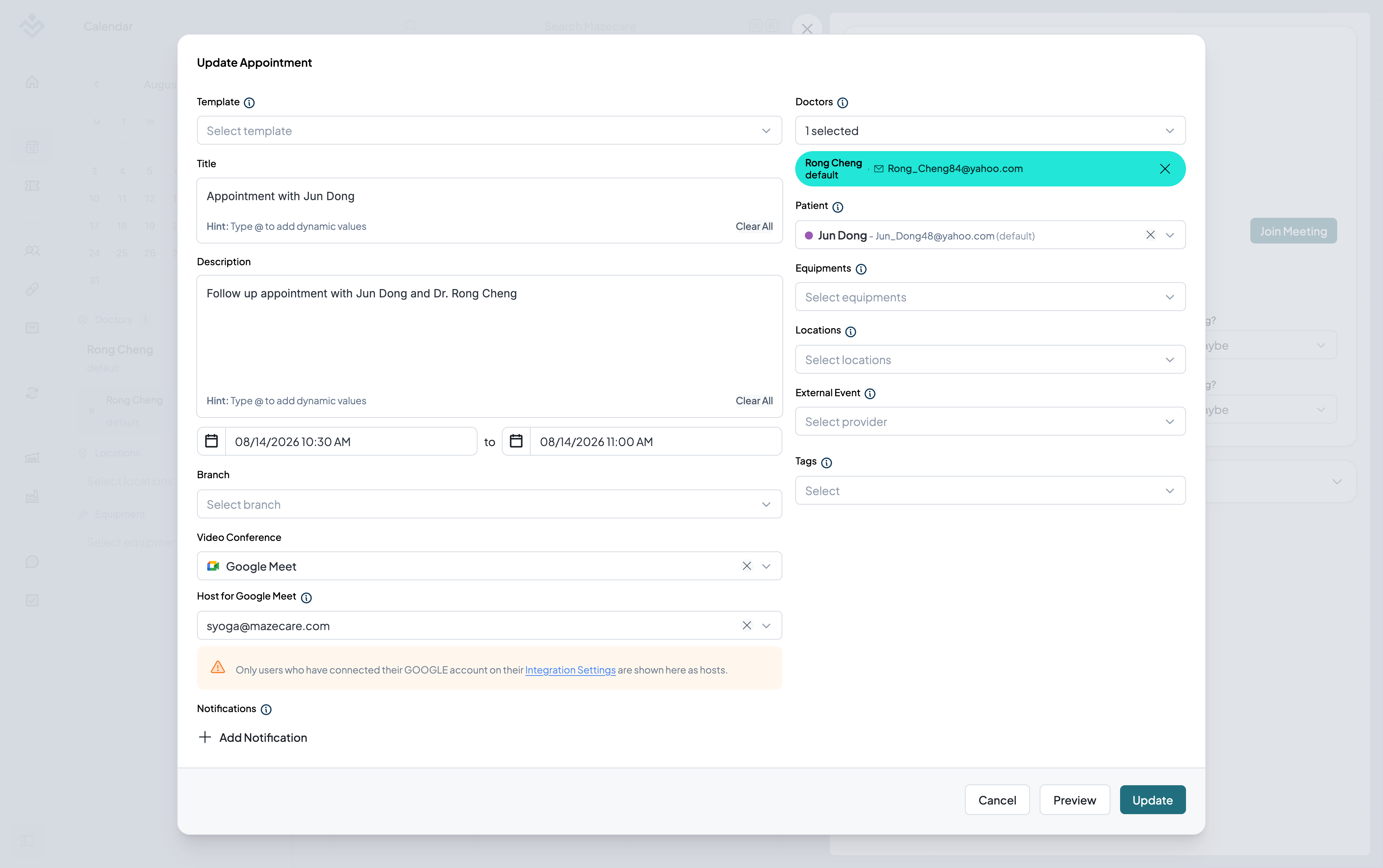
When scheduling or editing a patient consultation in the Calendar (/calendar), configure the desired video call provider in the appointment modal:
Option A: Configuring Google Meet
- Open the appointment modal and scroll to the Video Conference section.
- Select Google Meet from the provider dropdown.
- Under Host for Google Meet, select an authorized Google host account.
- Click Create (or Update). Mazecare automatically generates a unique Google Meet room URL (e.g.,
https://meet.google.com/...) linked to the appointment.
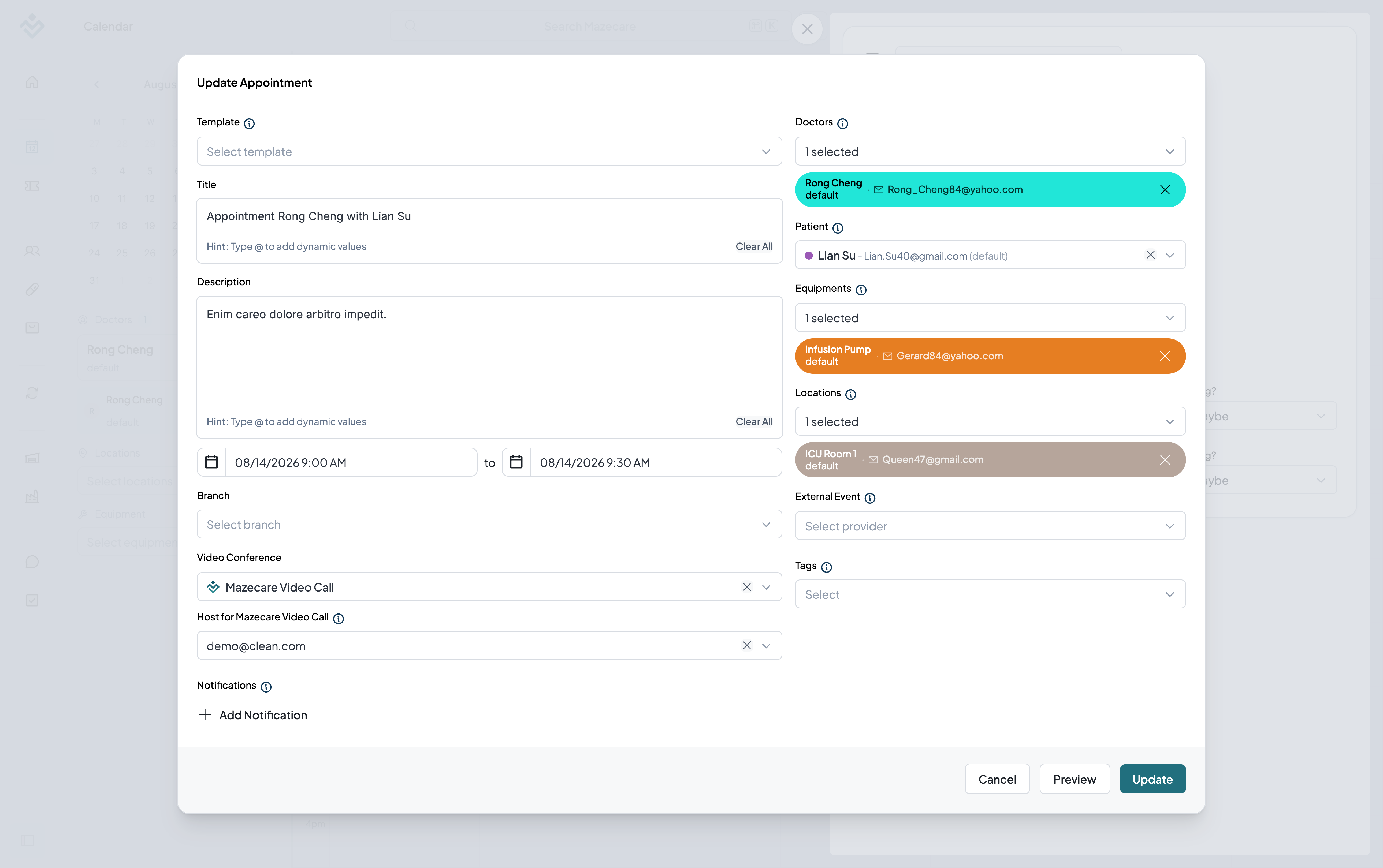
Option B: Configuring Mazecare Video Call
- Open the appointment modal and navigate to the Video Conference section.
- Select Mazecare Video Call from the provider dropdown.
- Under Host for Mazecare Video Call, select the attending practitioner host account.
- Click Create (or Update). The system provisions an internal teleconsultation space URL.
Step 3: Joining the Video Call from the Appointment
When it is time for the virtual consultation, both physicians and staff can launch the video conference directly from the Calendar view.
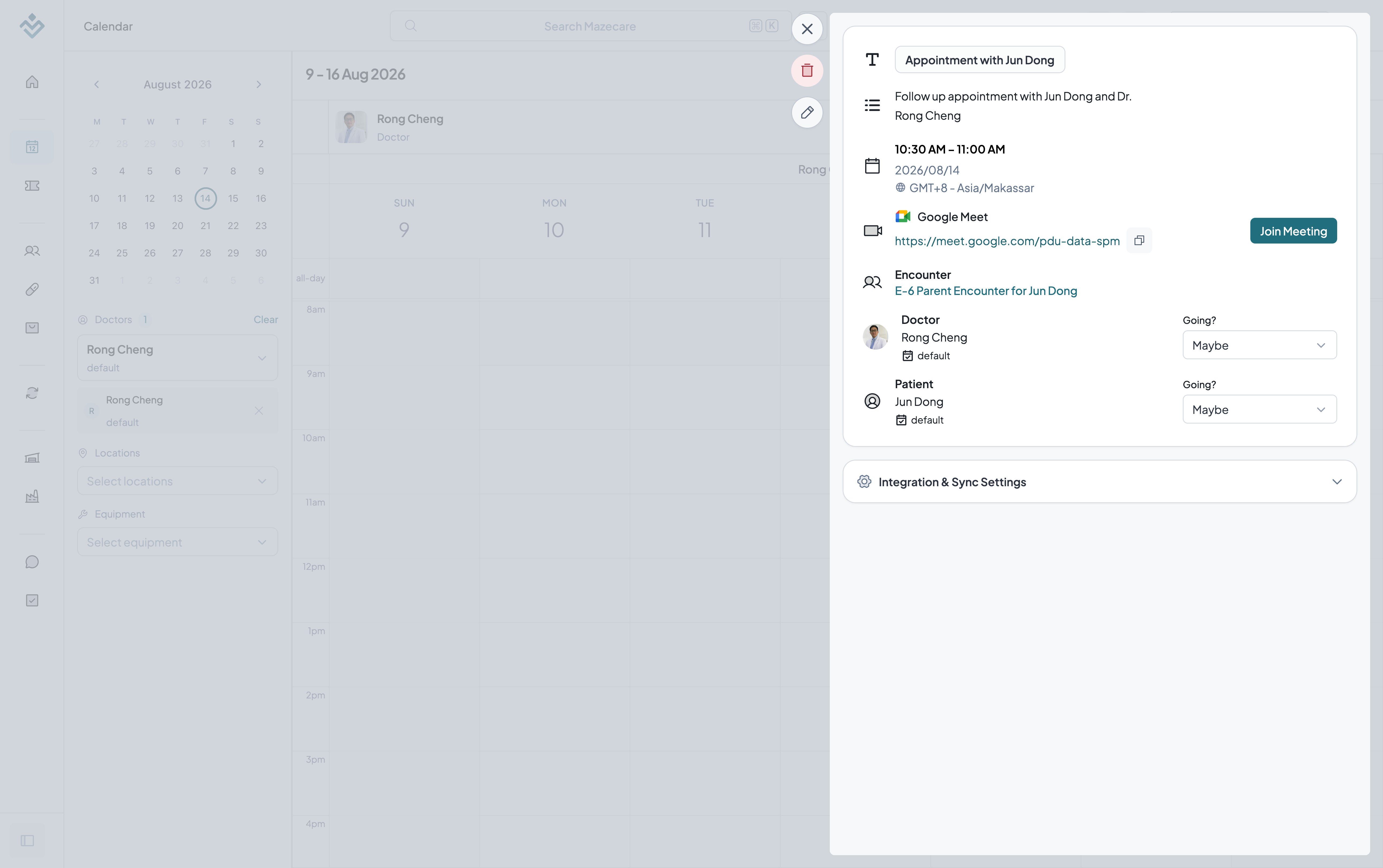
Method 1: Joining a Google Meet Session
- In the Calendar (
/calendar), click the patient's appointment block to open the Appointment Detail Slideover. - Locate the Google Meet integration card displaying the meeting link.
- Click the Join Meeting button to open the Google Meet room in a new browser tab.
Method 2: Joining a Mazecare Video Call Session
For native Mazecare video calls, the consultation follows a dedicated three-stage call lifecycle:
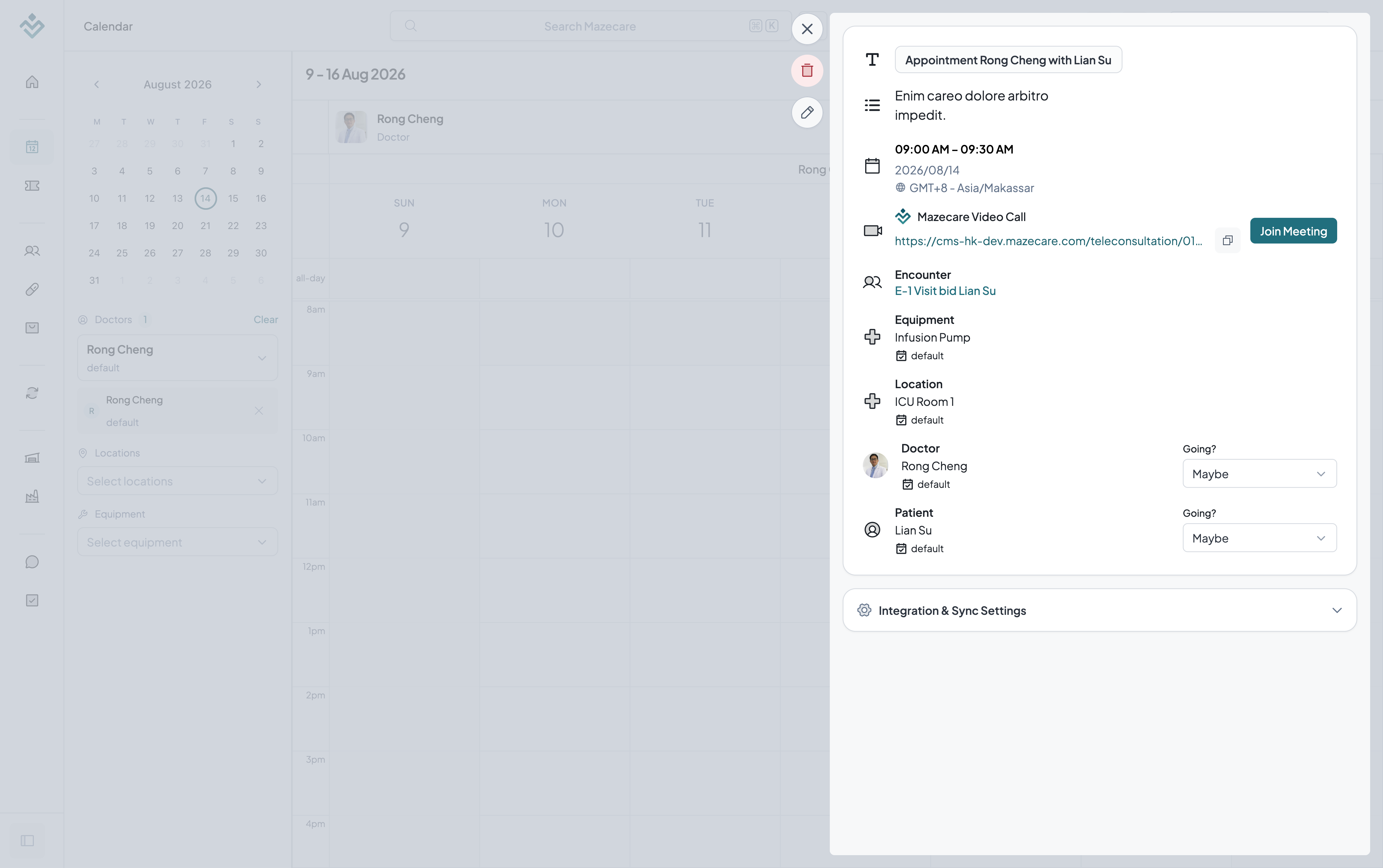
- Launch from Slideover:
- Open the patient's appointment block in the Calendar.
- In the Mazecare Video Call section, click Join Meeting.
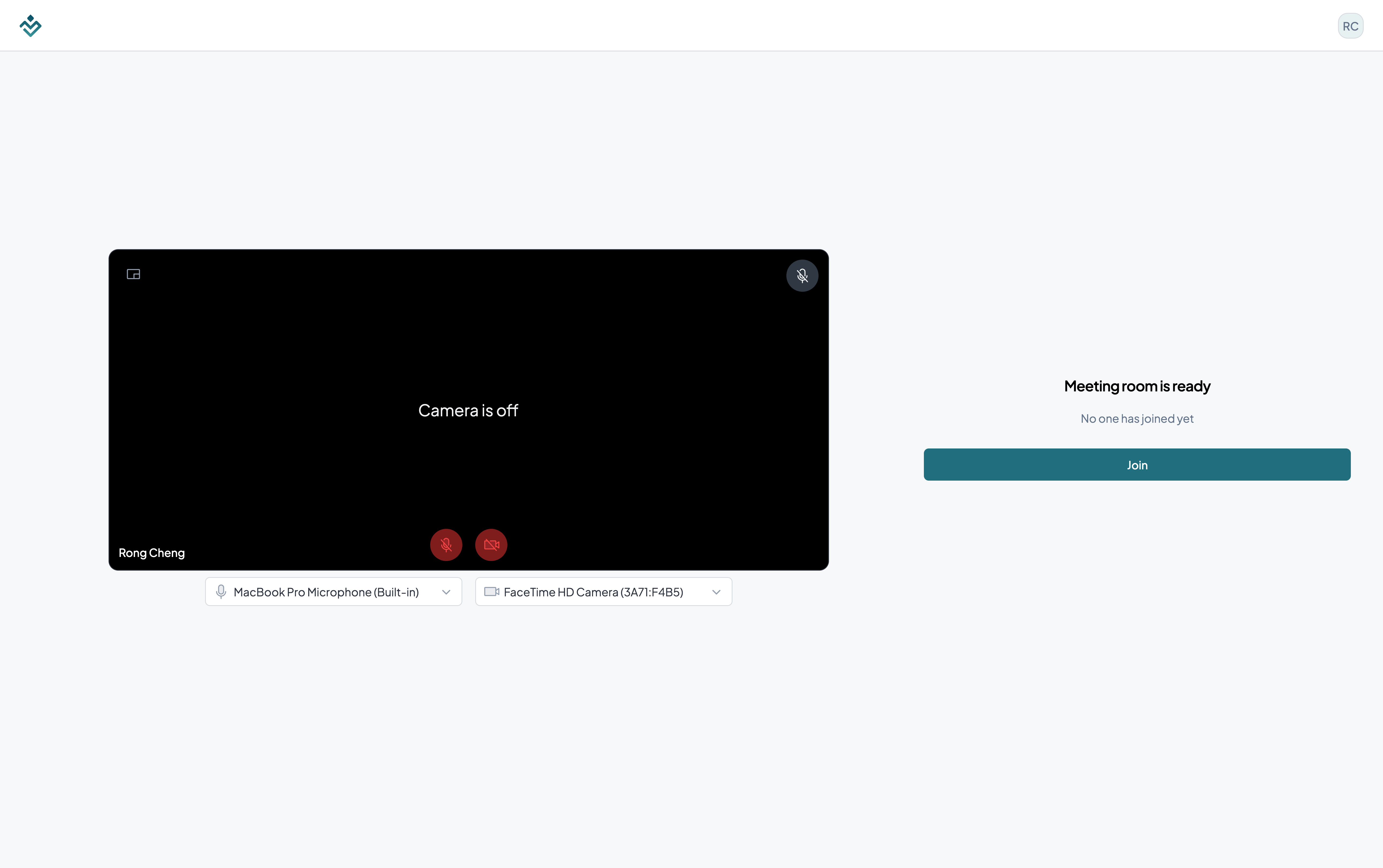
- Stage 1 — Pre-Call Preparation:
- A dedicated new browser tab opens to the teleconsultation room (
/teleconsultation/[spaceId]). - The participant is presented with the Pre-Join Preparation Screen before entering the live room:
- Verify and select hardware audio input (e.g., MacBook Pro Microphone).
- Verify and select camera video input (e.g., FaceTime HD Camera).
- Test microphone activity and camera preview.
- View room readiness and active participant counts (e.g., Meeting room is ready • No one has joined yet).
- Click the prominent Join button to enter the live call.
- A dedicated new browser tab opens to the teleconsultation room (
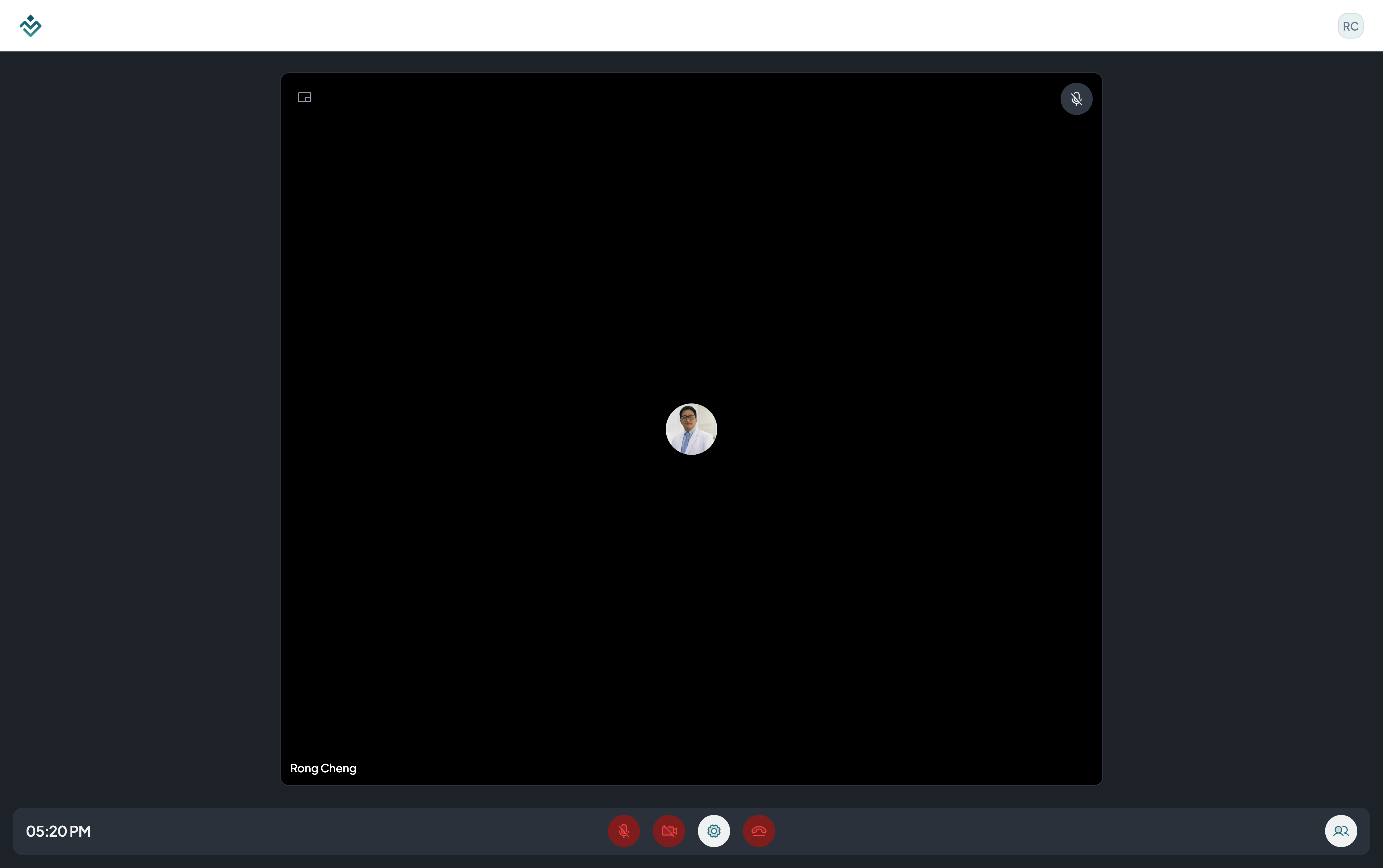
- Stage 2 — Active Call Room:
- The user enters the live teleconsultation space with high-quality real-time audio and video streaming.
- The interface displays the live consultation duration timer, participant identity, and quick-action media controls:
- Microphone Toggle: Mute / unmute audio.
- Camera Toggle: Enable / disable video feed.
- Device Settings: Switch audio outputs or cameras on the fly.
- The physician can conduct the clinical interview while maintaining an active connection.
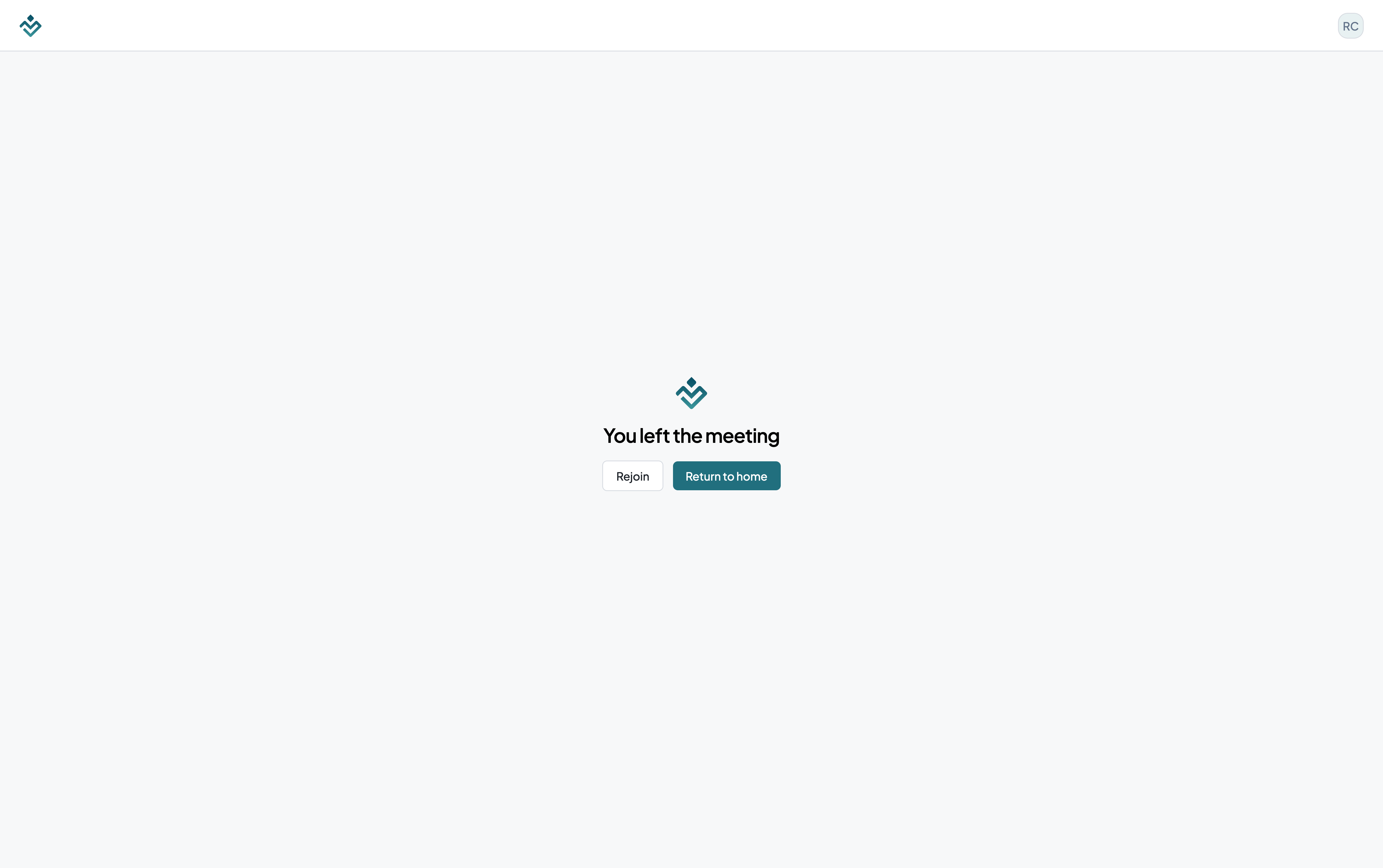
- Stage 3 — Disconnect & Post-Call Summary:
- Once the consultation is concluded, click the red Disconnect / Leave Call button.
- The screen transitions to the post-call confirmation page ("You left the meeting"), providing actions to:
- Rejoin: Re-enter the session if accidentally disconnected.
- Return to Home: Navigate back to the clinic dashboard.
Appointment Check-In
Standard operating procedure for admitting scheduled patients into live clinical queues from the Calendar module, configuring virtual visits, and synchronizing external calendar events.
Doctor Setup & Credentialing
Register clinical practitioners, configure medical licenses, regulatory identifiers, specialties, sub-specialties, digital signatures, consultation room assignments, and practice scopes.