

Queue Management System (QMS)
The Queue Management System (QMS) in Mazecare coordinates and optimizes the journey of patients through clinical and administrative care pathways. From initial reception and triage check-in to consultation, diagnostic imaging, inpatient admission, surgical allocation, and pharmacy dispensary/discharge, the QMS ensures transparent, equitable, and efficient patient flow across multi-specialty facilities and hospital branches.
!IMPORTANTCore Concepts of the QMS
- Lines: Logical queues dedicated to specific clinical workflows or departments (e.g., Consultation, Triage, Discharge, Inpatient Bed, Preauthorization).
- Service Points: Physical desks, consultation rooms, triage counters, or equipment stations where patients receive care (e.g., Counter 1, Consultation Room 2, Equipment Counter 5).
- Servants (Assigned Staff): The active healthcare personnel (Doctors, Clinical Staff, or Automated Agents) currently occupying and operating a Service Point.
- Triage Priorities: Multi-tier priority rules (Level 1, Level 2, Level 3, etc.) with drag-and-drop ranking and custom color badges that dictate ticket call sequences.
- Ticket Identifier Number Sequences: Configurable ticket numbering formulas (e.g., sequential prefix numbering like
A-001) bound to each line.
QMS Configuration Hub
To manage the Queue Management System, navigate to Settings > Queue Management (/settings/qms) using an Administrator account.
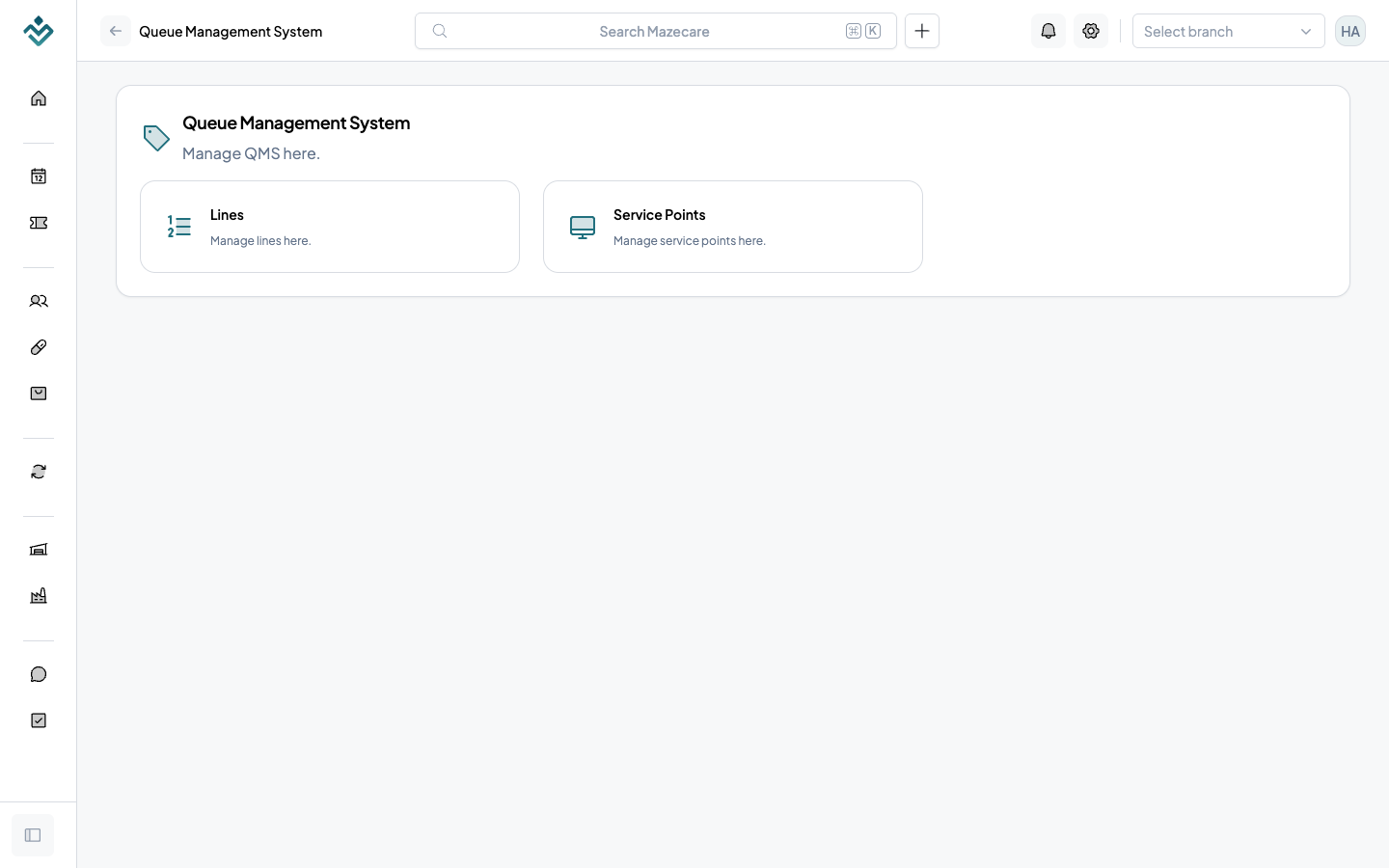
The hub provides access to two primary configuration modules:
- Lines (
/settings/qms/lines): Configure departmental queues, numbering rules, triage priorities, and branch bindings. - Service Points (
/settings/qms/service-points): Configure physical rooms, counter states, servant allocations, and line associations.
Managing Queue Lines (/settings/qms/lines)
Queue Lines represent the operational channels through which patient tickets are queued and processed.
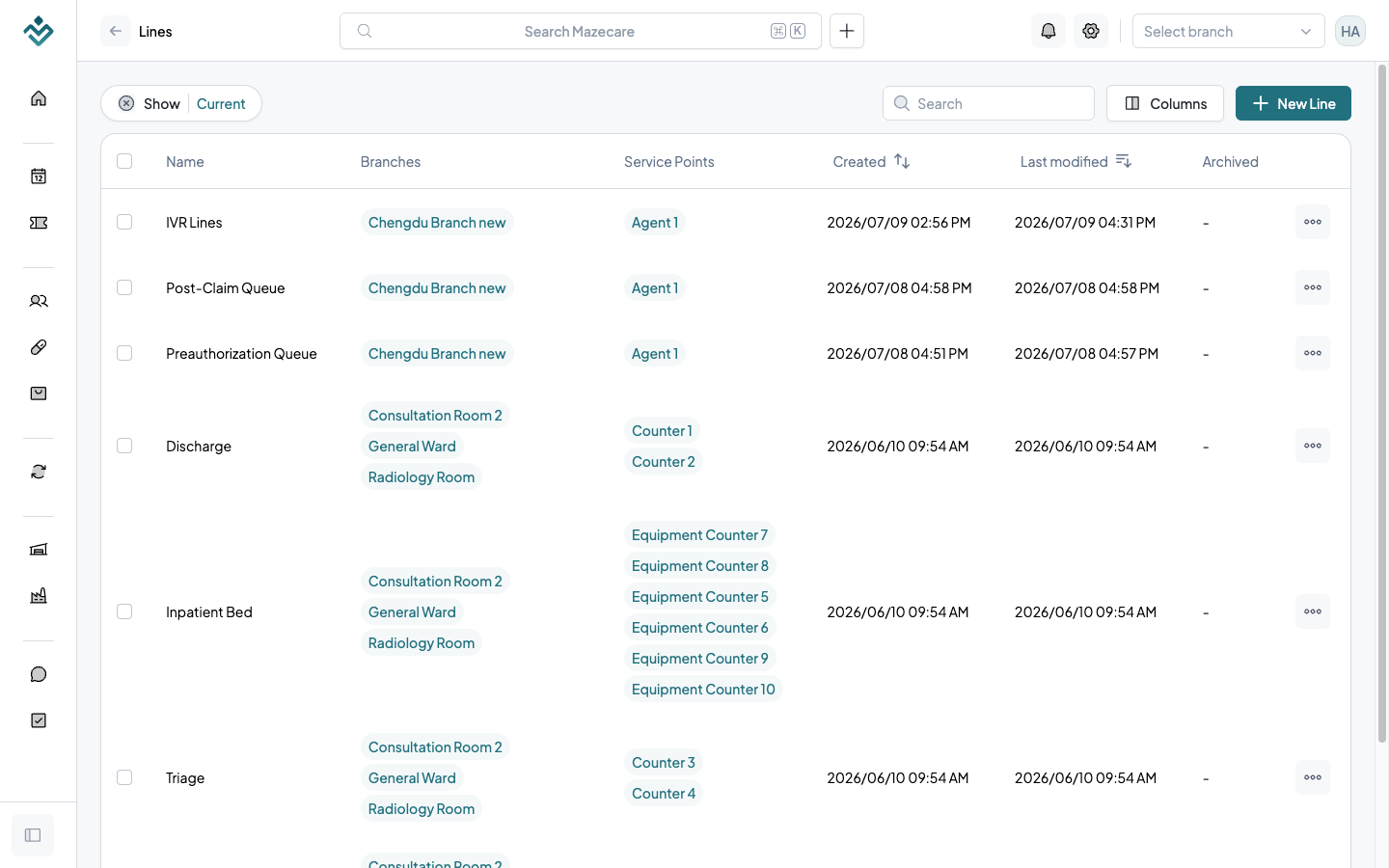
Lines Table Features
- Line Name & Status: Displays the line name, whether it is a Global line across all branches, and an indicator for the organization's Default Line.
- Bound Branches: Visual badges indicating all physical clinic branches and location entities linked to the line.
- Attached Service Points: Quick-access badges showing all service points (counters/rooms) servicing this line.
- Row Actions:
- Set as Default: Designates the line as the default selection when creating tickets or opening the queue dashboard.
- Archive: Archives obsolete queue lines with single-line or multi-line bulk archiving.
- Search & Filtering: Real-time search across line names and IDs, plus toggles to view active or archived lines.
Configuring Line Details
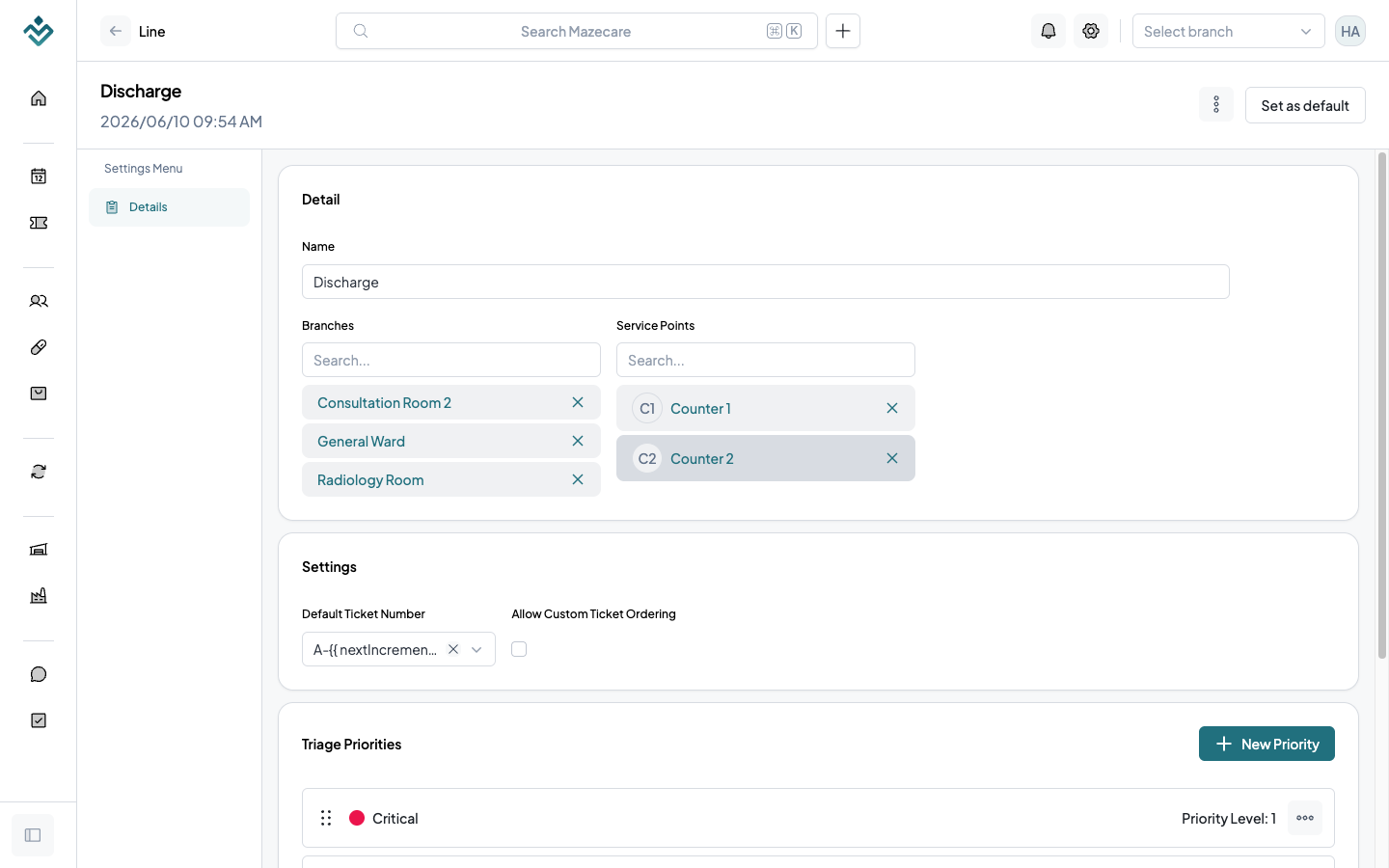
Clicking on any line from the list opens the comprehensive Line Configuration view.
1. General Details
- Name: The display name of the line (e.g.,
General Practice,Triage,Discharge,Inpatient Bed). - Branches: Multi-select dropdown mapping the queue line to one or more facility branches. You can also create a new branch directly inline or click on any branch tag to inspect its operational slideover.
- Service Points: Multi-select counter/room associations. Adding or removing service points dynamically updates the bi-directional relationship between the line and service points.
2. Queue Settings
- Default Ticket Number: Binds a dynamic ticket numbering schema (e.g., sequential prefix numbering like
A-001) managed by the Master Identifier Number sequences module. You can launch the number sequence builder modal directly from the field. - Allow Custom Ticket Ordering: When toggled ON, clinicians and receptionists can manually reorder ticket positions in the live queue if exceptional clinical circumstances require it.
Triage Priorities & SLA Hierarchy
Each queue line supports a fully customizable, multi-tier Triage Priority system to ensure high-acuity patients are seen first.
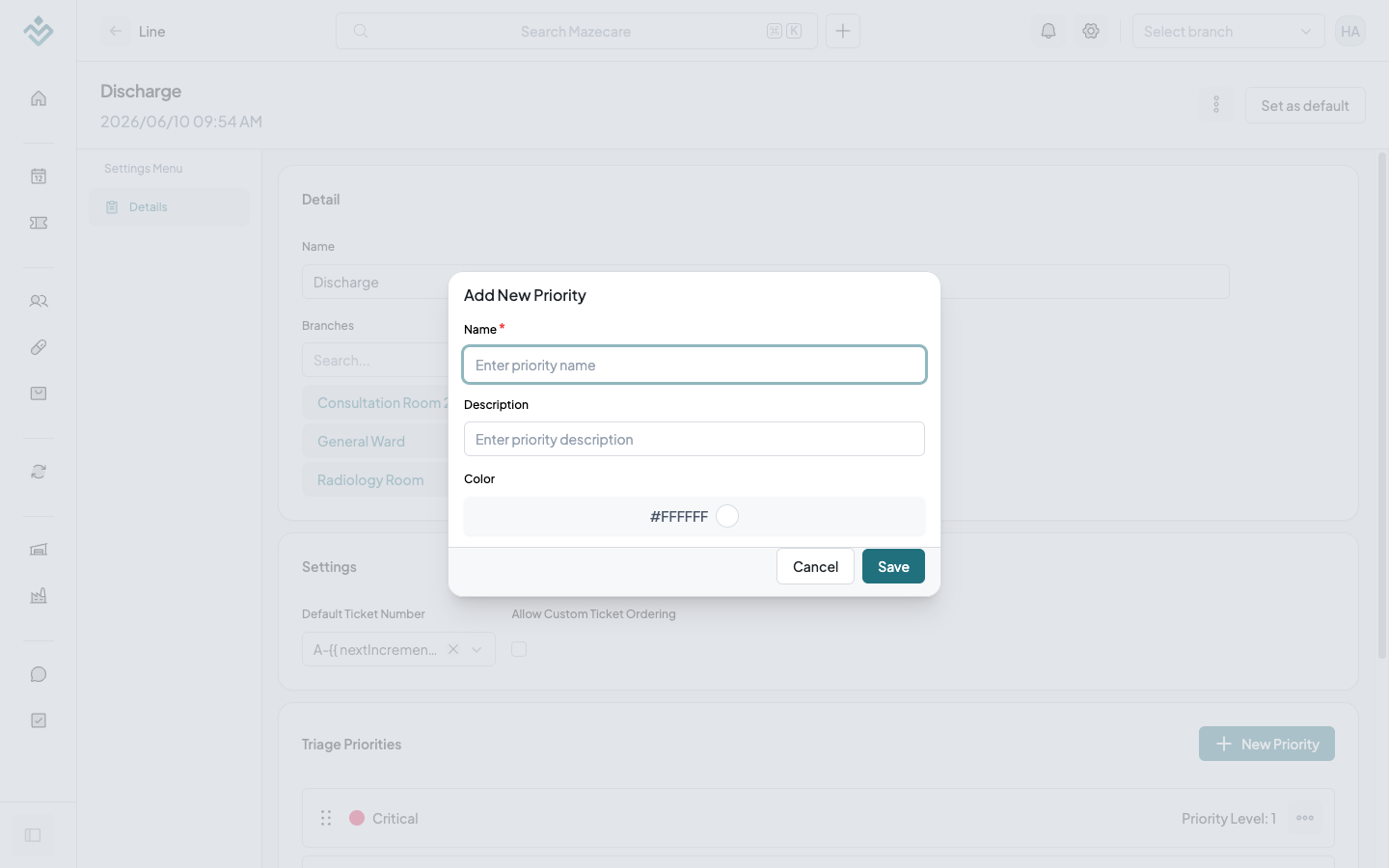
Priority Configuration Capabilities
- Hierarchical Priority Levels: Priority levels are ranked numerically (Level 1, Level 2, Level 3, etc.). Level 1 holds the highest priority in automated queue dispatching.
- Drag-and-Drop Reordering: Use the vertical drag handles on each priority item to reorder priorities dynamically. Changing ranks automatically recalculates priority levels across all pending queue tickets.
- Custom Color Badges: Select distinct visual colors for each priority tier using the integrated color picker with alpha scale support.
- Priority Metadata:
- Priority Name: E.g.,
Critical,Urgent,High,Medium,Low,Lowest. - Description: Clinical triage criteria (e.g., Chest pain, acute respiratory distress, severe trauma).
- Priority Name: E.g.,
Managing Service Points (/settings/qms/service-points)
Service Points represent the physical workstations, counters, consultation rooms, or bed units where healthcare services are delivered.
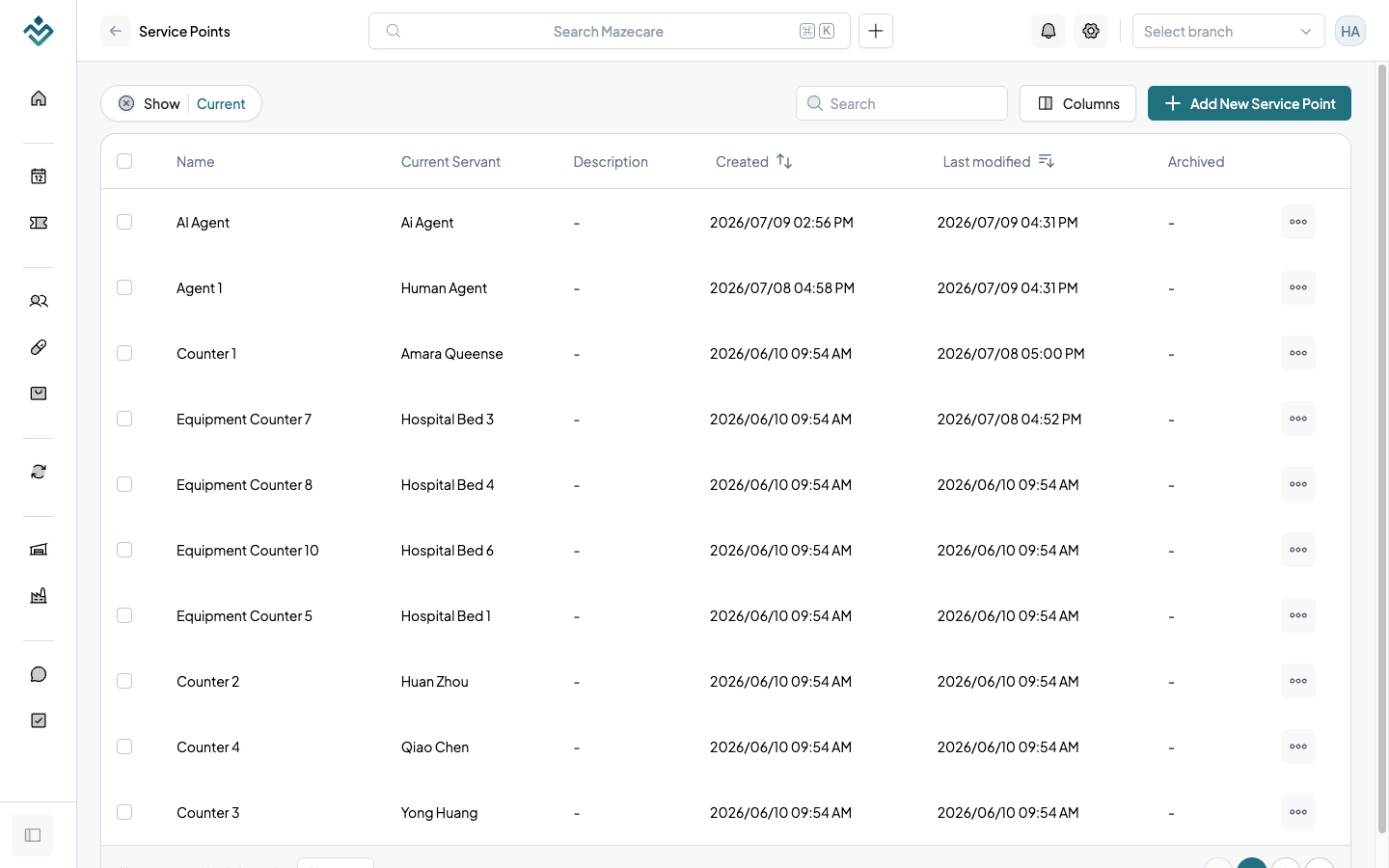
Service Points Table Features
- Name: The identifier of the workstation (e.g.,
Counter 1,Consultation Room 2,Equipment Counter 7). - Current Servant: The Doctor, Staff member, or equipment entity currently occupying the station.
- Description: Operational notes or workstation specifications.
- Archiving & Bulk Operations: Archive single or multiple service points when reconfiguring facility layouts.
Configuring Service Point Details
Clicking a service point opens its detailed parameters and operational bindings.
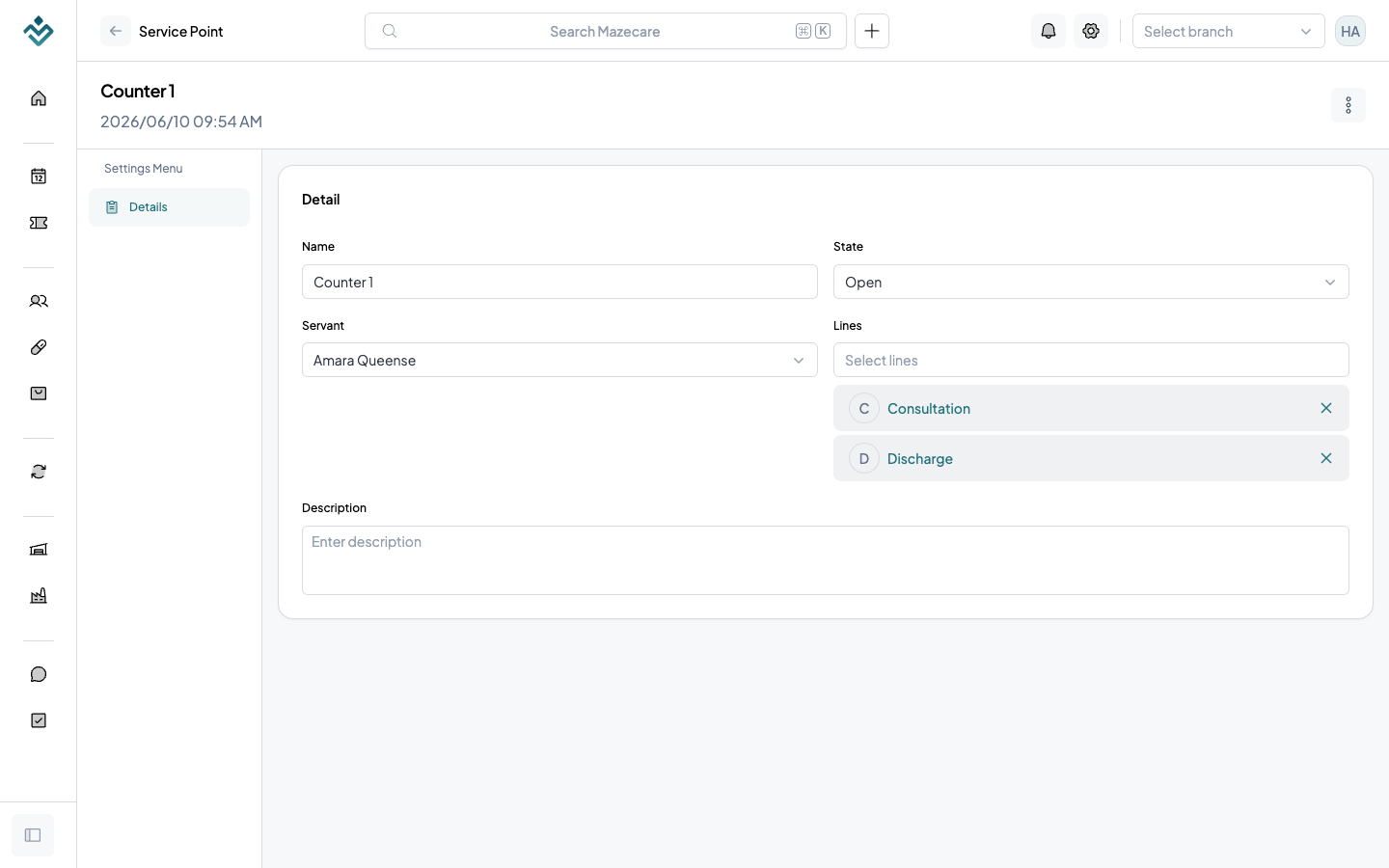
Service Point Configuration Parameters
- Name: The designated title or room number of the workstation.
- State: The real-time operational status of the service point:
OPEN: Actively available to call and admit patient tickets.PAUSED: Temporarily suspended (e.g., practitioner on meal break or clinical handover).CLOSED: Station closed or off-duty.
- Servant Assignment & Occupation:
- Lookup and select any registered Doctor, Staff, or Equipment entity.
- Selecting a new servant automatically assigns and occupies the service point, freeing the previous staff member and assigning the station to the active user.
- Assigned Lines:
- Select one or more Queue Lines that this service point services. A single consultation desk can handle multiple lines (e.g., both General Consultation and Follow-up Reviews).
- Description: Workstation notes or equipment details.
Live Queue Operations (/queue)
Once Lines and Service Points are configured, they power the real-time operational Queue Board at /queue.
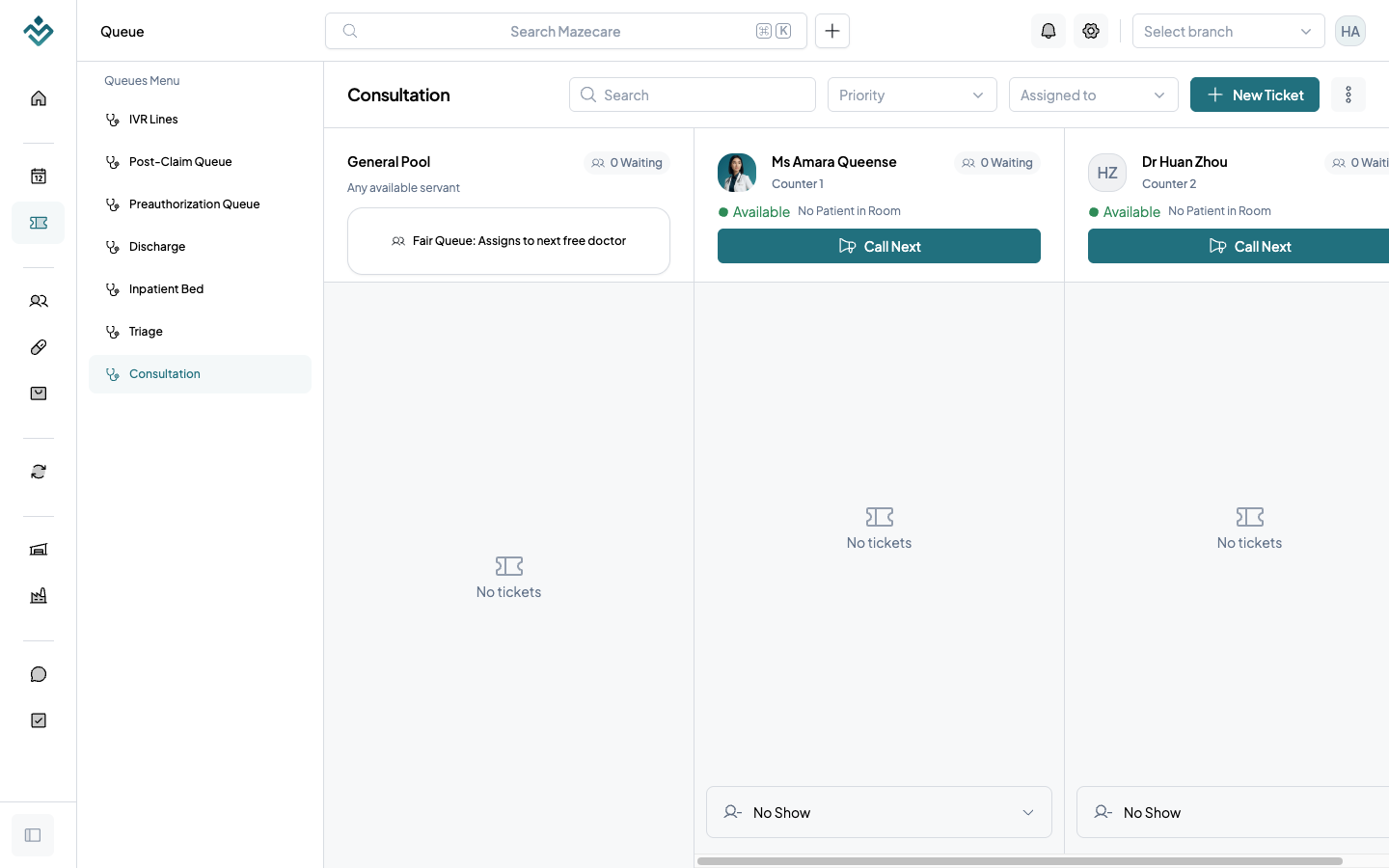
Operational Capabilities
- Queues Navigation Menu: Switch seamlessly between active lines (Consultation, Triage, Discharge, Inpatient Bed, Preauthorization).
- General Pool (Fair Queue): Aggregates unassigned waiting tickets. In fair queue mode, the system automatically routes the highest-priority, longest-waiting patient to the next available clinician.
- Practitioner Station Cards:
- Displays real-time station occupant, current room number, and waiting count.
- One-click Call Next to call the next eligible patient into the consultation room.
- Handles No Show tracking, ticket re-calling, and direct patient transfer between stations.
- Real-Time Synchronisation: Queue status, room occupancy, and ticket calls update automatically across all practitioner workstations and waiting area displays with zero lag.