

Service Offerings & Public Directory Publishing
Service Offerings connect clinical service items, clinic locations, pricing blocks, practitioner appointment schedules, and payment gateways into bookable packages for patients.
By configuring Service Offerings, practice administrators determine how clinical procedures, consultations, and screening packages are scheduled internally and made available for public patient self-booking.
Service Offering Architecture
A Service Offering acts as the central bridge combining several clinical and operational configurations:
Core Configuration Parameters
| Parameter | Operational Purpose & Configuration |
|---|---|
| Service | The underlying clinical service item selected from the Master Product Catalog (e.g. Specialist Consultation, Dental Scaling, Telehealth Follow-up). |
| Service Location (Branch) | The practice branch where the consultation or procedure takes place. |
| Service Price (Pricing Block) | The specific pricing block rate charged to self-paying or insured patients during booking. |
| Main Seller | Designates the financial entity receiving transaction payouts (either the practice branch entity or individual doctor). |
| Payment Provider | The configured payment gateway (e.g. Stripe) for processing online pre-payments, or left blank for in-clinic settlement. |
| Default Workflow | The booking and payment checkout workflow definition applied during appointment registration. |
| Appointment Template | Custom appointment confirmation template and email/SMS notification schema. |
| Booking Channels | Configures whether patients can book with any available doctor at the clinic (Location Channel) or choose specific doctors (Doctor Channels) with their respective appointment schedules. |
| Public Availability | Toggles public visibility on the Maze.care directory for patient discovery and direct online scheduling. |
Step-by-Step Configuration Guide
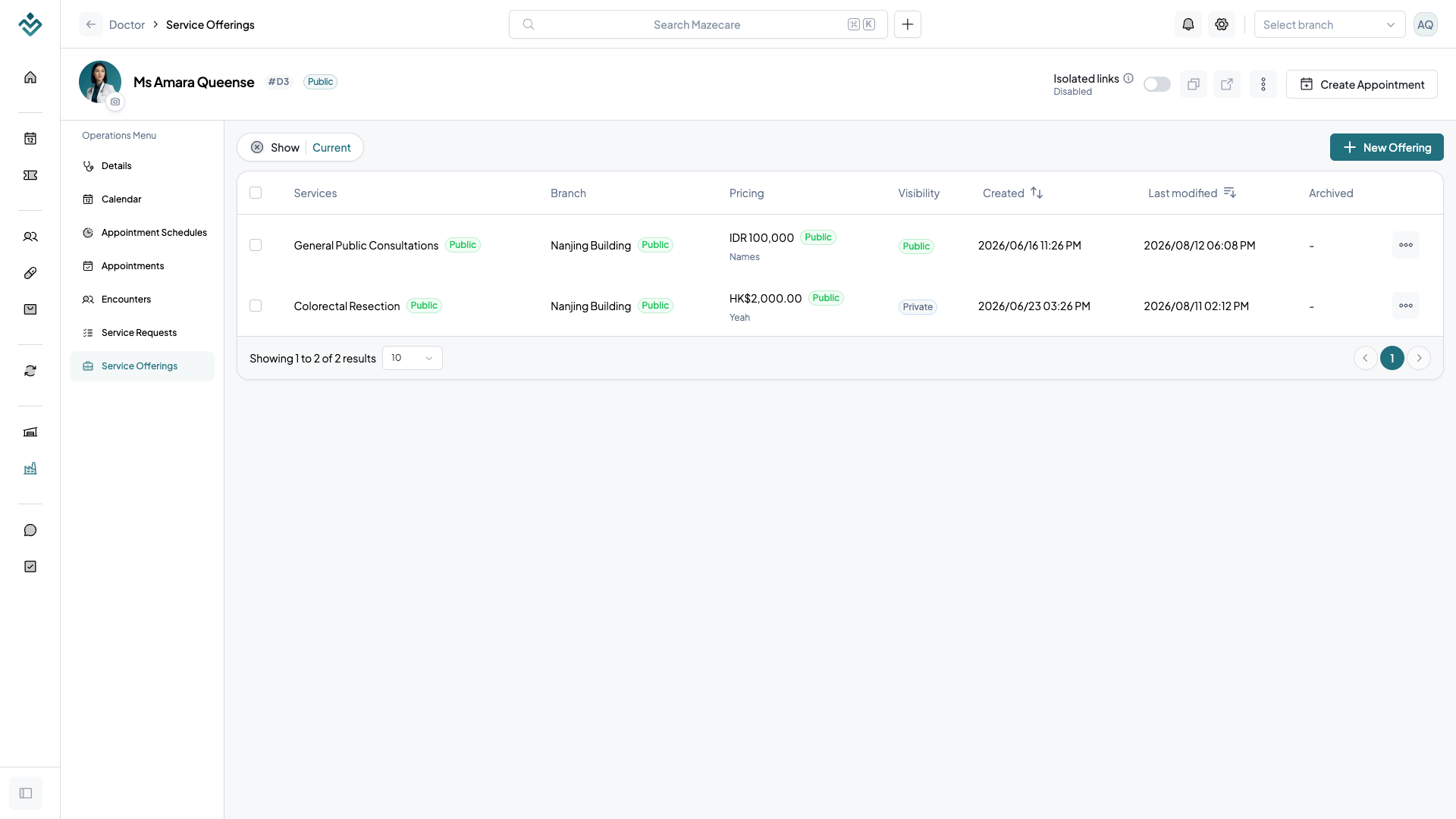
1. Access the Service Offerings Directory
Service Offerings can be managed from two operational entry points:
- Doctor Context: Navigate to Operations → Doctors, select a practitioner (e.g.
/operations/doctors/[doctorId]/service-offerings), and click Service Offerings in the left sidebar menu. - Branch Context: Navigate to Operations → Branches, select a branch location, and click Service Offerings in the left sidebar menu.
The table displays all active offerings with their linked Service Items, Clinic Branches, Pricing Rates, and Visibility statuses.
2. Create a New Service Offering
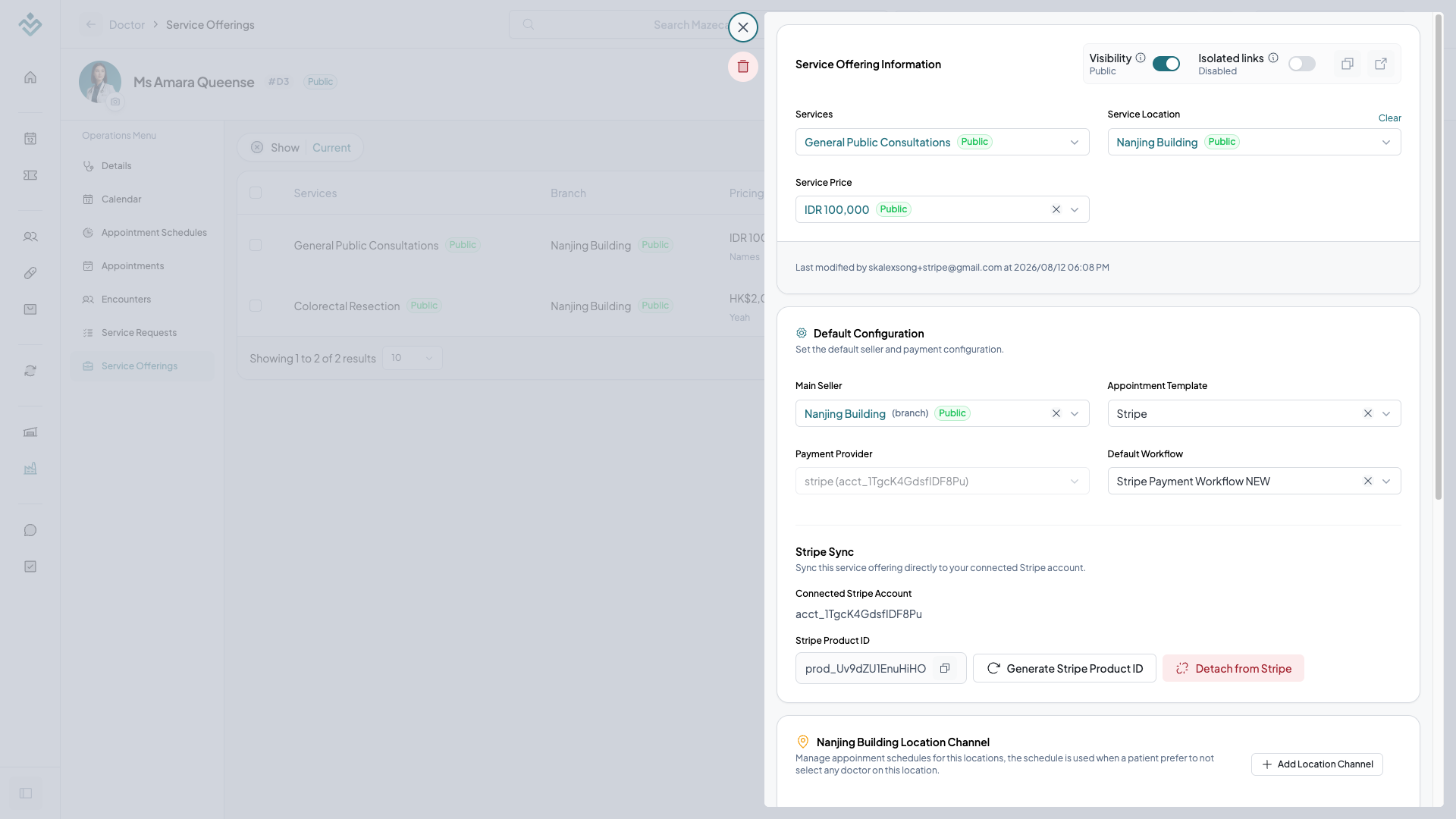
- Click + New Offering (or click an existing offering row) to open the configuration slide-over drawer.
- In the Core Offering Settings section:
- Services: Select the clinical procedure or consultation item from the Master Product Catalog.
- Service Location: Choose the clinic branch where this service is performed.
- Service Price: Select the pricing block containing the active fee schedule.
- In the Default Configuration (Seller & Payment Setup) section:
- Main Seller: Designate whether payment receipts route to the Branch or Practitioner.
- Payment Provider: Connect an integrated gateway (e.g. Stripe) for online card pre-payment, or leave blank for in-person settlement.
- Appointment Template: Attach the customized booking confirmation and reminder email/SMS template.
- Default Workflow: Select the checkout workflow definition.
3. Configure Booking Channels & Practitioner Schedules
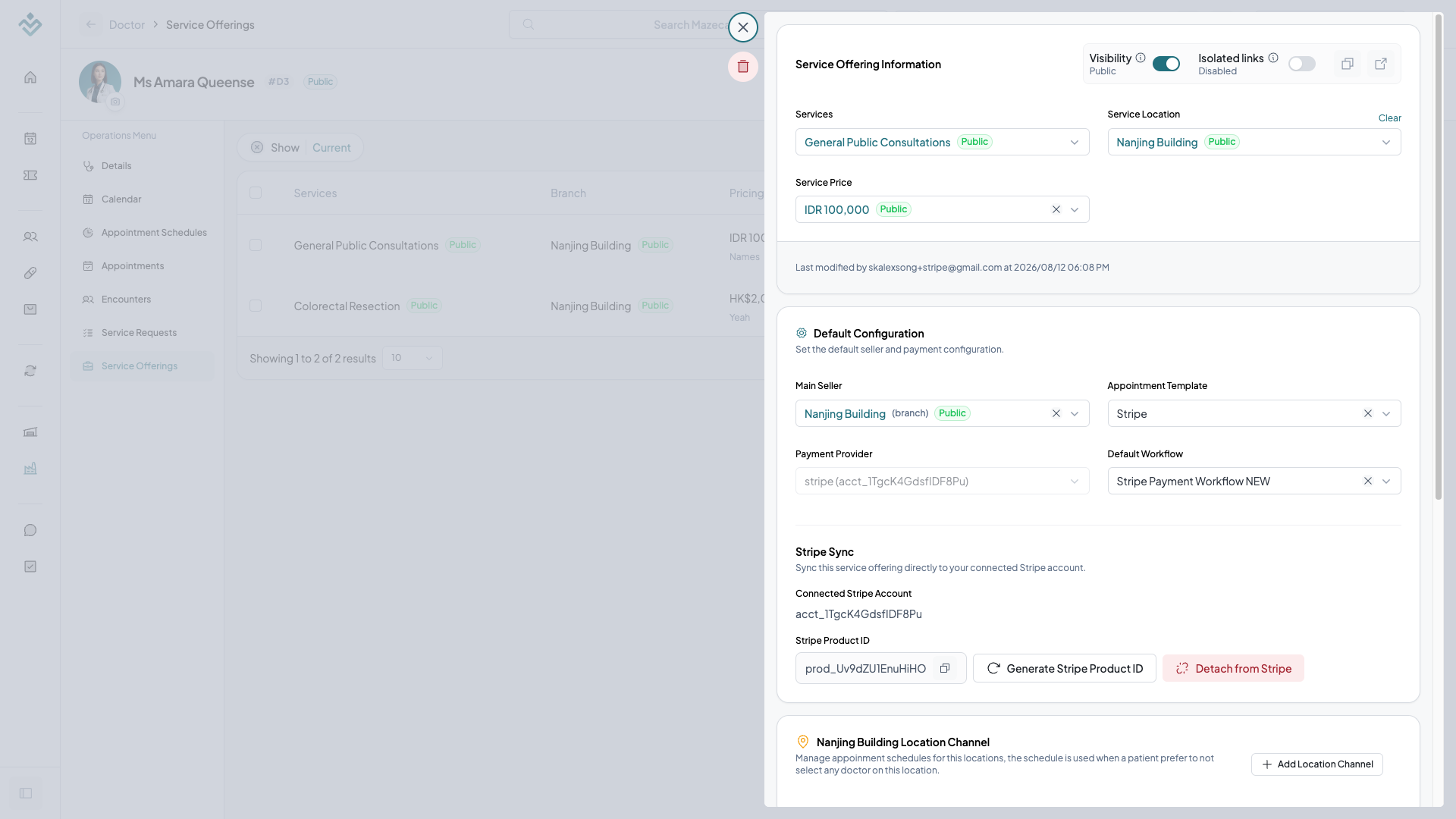
Service offerings route patient appointments through two distinct channel types:
- Location Channel:
- Represents general clinic bookings where patients book an available appointment slot at the location without requesting a specific doctor.
- Click Add Location Channel and attach the branch facility's appointment schedule.
- Doctor Channels:
- Represents practitioner-specific bookings where patients select a particular doctor.
- Click Select doctor to add... to add doctor channels, and attach each doctor's specific Appointment Schedule to publish their live calendar availability slots.
4. Publishing & Sharing Public Booking Links
To publish the Service Offering to the public Maze.care directory and obtain direct booking links:
- Switch the Publicly Available (Visibility) toggle to Public in the top right header of the slide-over drawer.
- Ensure that the linked Branch, Service Item, Pricing Block, and Doctor Schedules all have their Visibility toggles set to Public.
- Use the Copy Link (clipboard) button to copy the direct patient booking URL (with
?region=and optional&mode=isolatedparameters) to share on your clinic website, SMS confirmations, or social channels.
Related Documentation & Further Reading
- Publishing to Maze.care Directory — Full guide on directory visibility, doctor profiles, schedule previews, and isolated booking mode.
- Master Product & Drug Catalog — Configure master clinical service items, medical coding (CPT/ICD), and pricing blocks.
- Schedules & Rostering — Create practitioner work shifts, recurring slots, and calendar rules.
Master Product Catalog
Comprehensive guide for setting up pharmaceutical drugs, active ingredients, global standard items, clinical safety alerts, medical coding dictionaries, unit of measurement conversions, service catalog, and procurement pricing in Mazecare.
Registration & Demographics
Register new patients, maintain demographic records, manage identifiers and emergency contacts, and attach insurance policies in Mazecare OS.