

OHIF DICOM Medical Imaging Integration
The OHIF Data Source Configurations module connects Mazecare to Picture Archiving and Communication Systems (PACS) and DICOMweb servers (such as Orthanc, dcm4chee, AWS HealthImaging, or Google Cloud Healthcare API).
Once connected, clinicians and radiologists can search, retrieve, and review diagnostic medical images (X-Rays, CT Scans, MRIs, Ultrasounds, and PET scans) directly within the patient encounter workspace using the high-performance, zero-footprint OHIF Diagnostic Medical Image Viewer (Open Health Imaging Foundation).
Step-by-Step Configuration Guide
Step 1: Access OHIF Data Source Configurations
- Log in to the Mazecare platform as an Administrator or Clinical Director.
- Navigate to Settings from the main sidebar navigation.
- Under the Integrations & Settings menu, select OHIF Data Source Configurations.
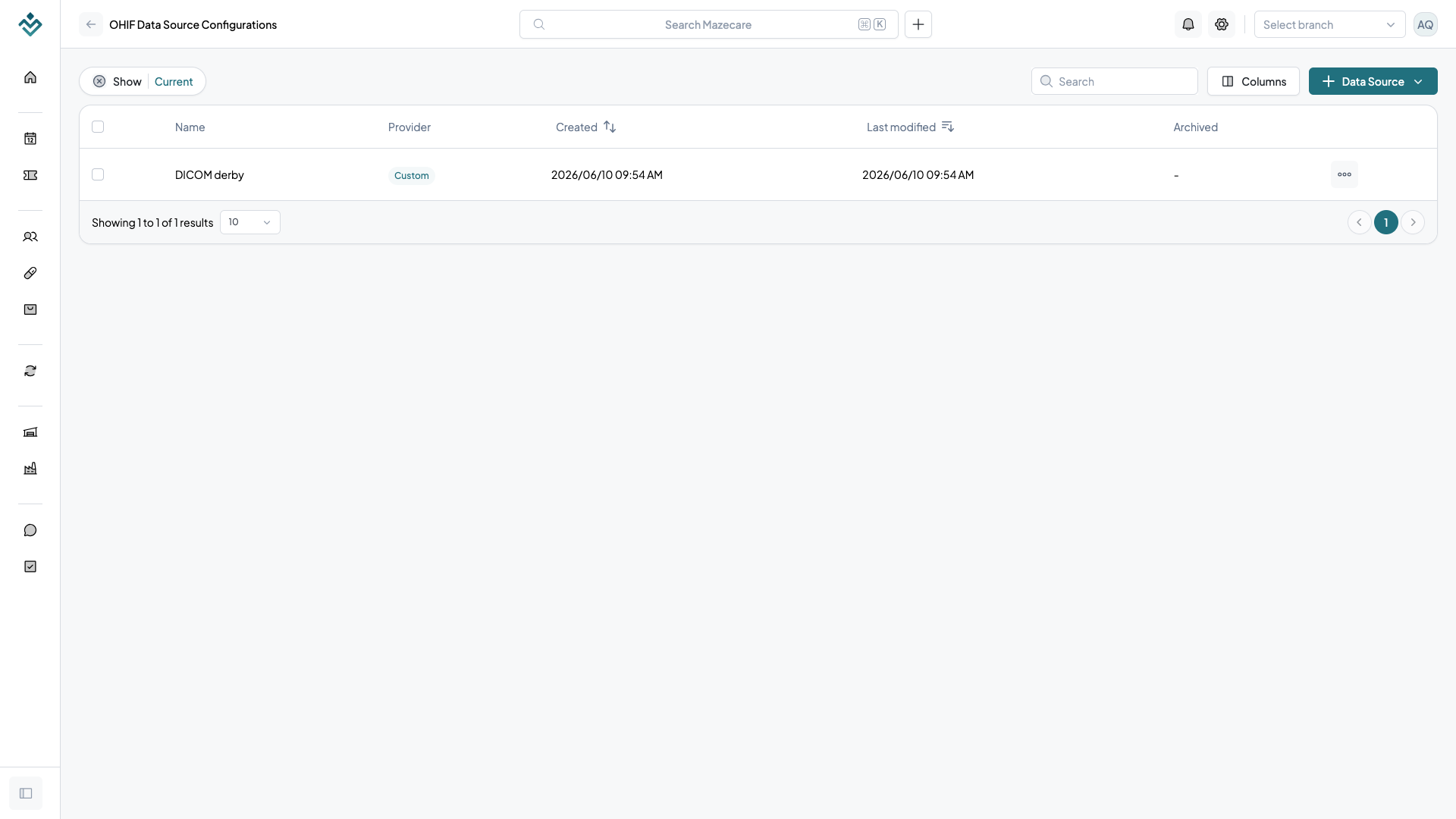
- The management dashboard displays all currently configured PACS and DICOMweb sources, including the configuration name, provider category, creation date, and last modified timestamp.
Step 2: Create a New DICOM Data Source
- In the top-right header of the OHIF Data Source Configurations table, click the Data Source action button.
- Select Create DICOM Data Source from the dropdown menu to open the creation dialog.
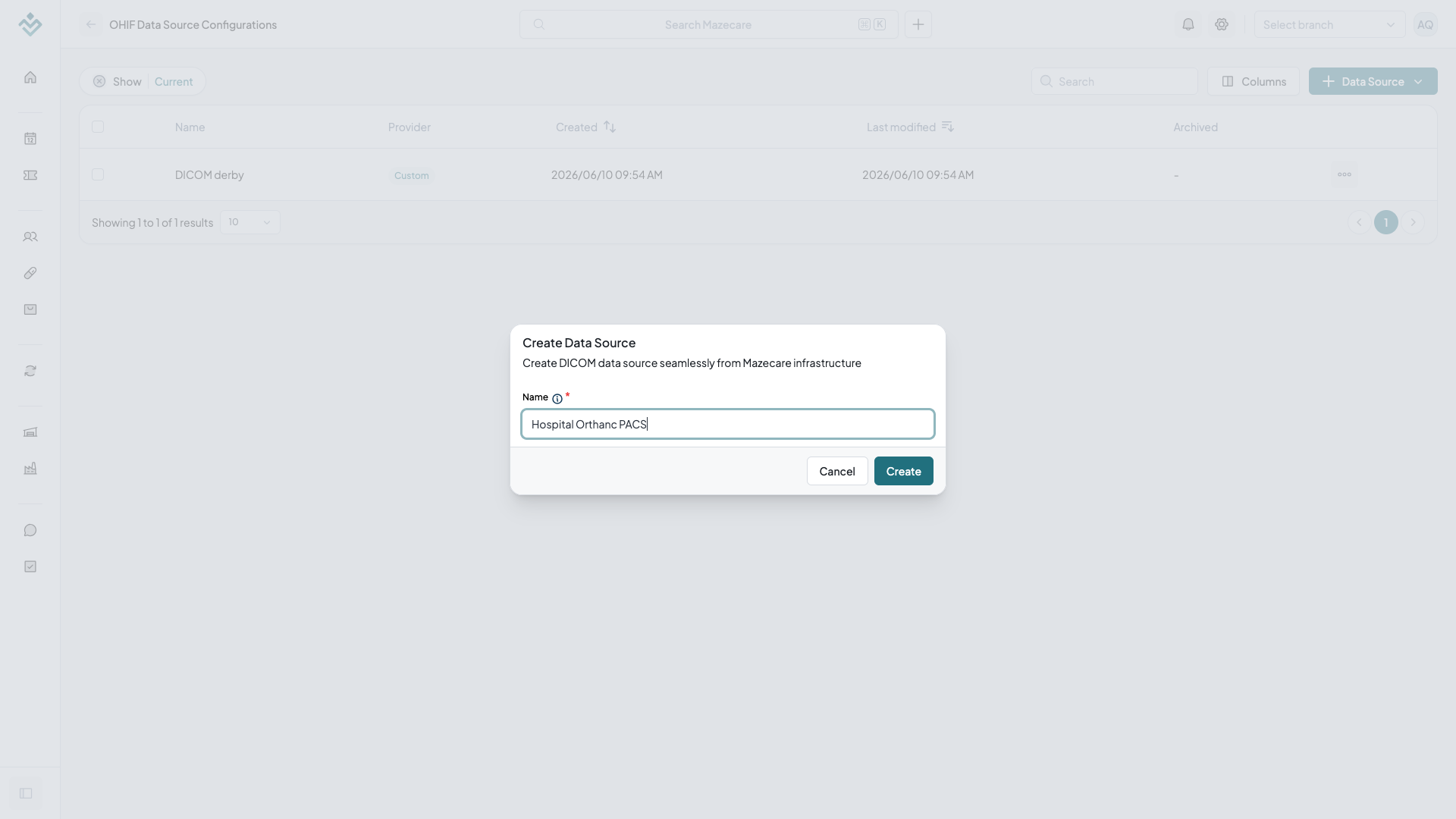
- In the Name input field, enter a clear descriptive name for your imaging server (e.g.,
Hospital Orthanc PACSorMain Radiology DICOMweb). - Click Create to initialize the data source record.
Step 3: Configure General Information & DICOMweb Service Endpoints
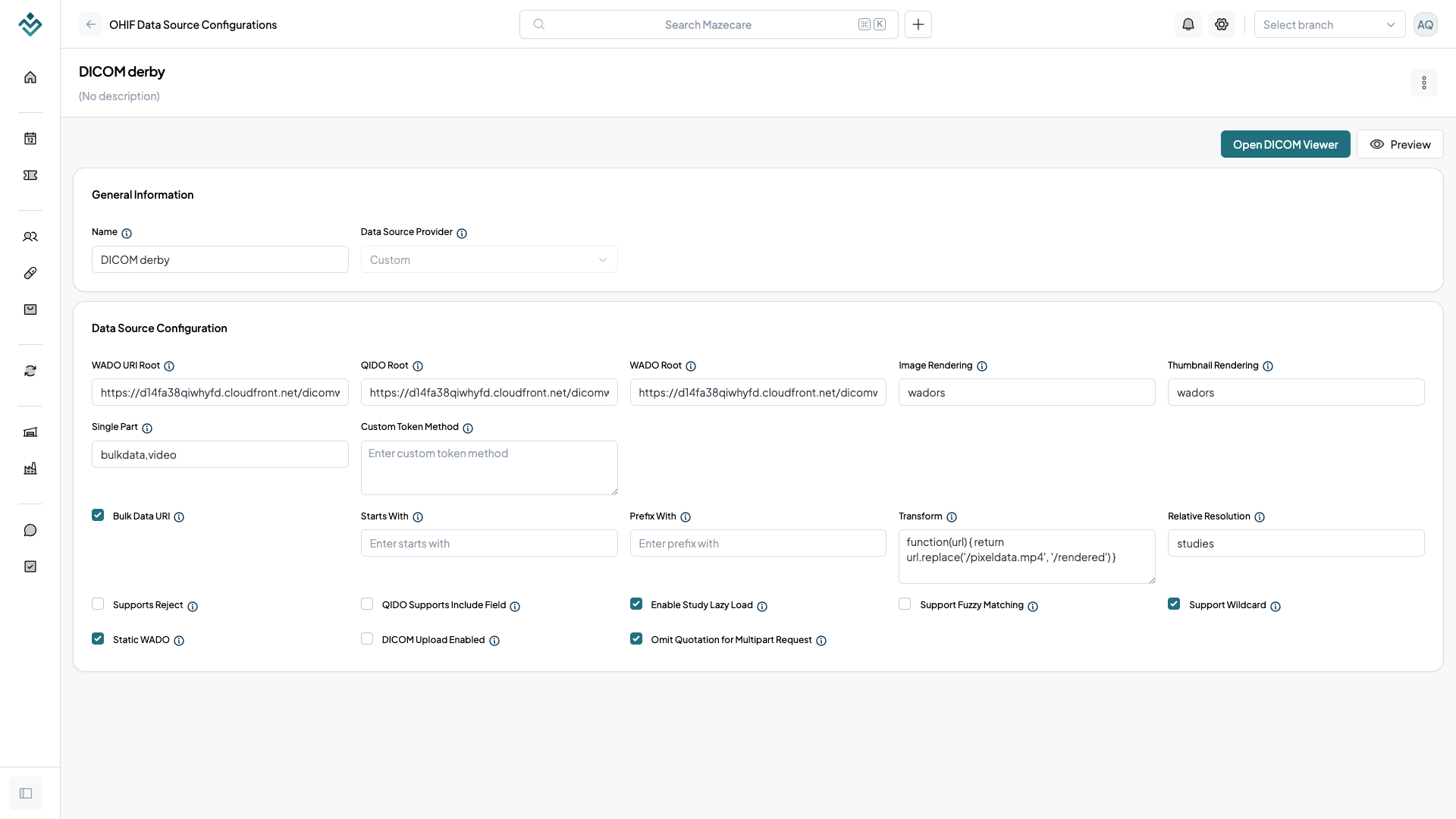
Click on the data source entry from the table to open its detailed configuration view.
General Information
- Name: The display name of the imaging data source shown throughout clinical interfaces.
- Data Source Provider: Indicates whether the configuration is system-managed (
Mazecare) or connected to an external PACS infrastructure (Custom).
DICOMweb Service Endpoints
Provide the secure URLs corresponding to your PACS server's DICOMweb API services:
| Field | URL Format Example | Description |
|---|---|---|
| WADO URI Root | https://pacs.clinic.domain/dicomweb | Endpoint for URI-based single-frame and instance retrieval. |
| QIDO Root | https://pacs.clinic.domain/dicomweb | Query endpoint used to search patient studies, series, and metadata by Patient ID, MRN, or Accession Number. |
| WADO Root | https://pacs.clinic.domain/dicomweb | RESTful WADO-RS endpoint used to stream full-resolution DICOM pixel data and rendered frames. |
| Image Rendering | wadors | Protocol used for high-fidelity viewport rendering. |
| Thumbnail Rendering | wadors | Protocol used for generating study series previews and thumbnail ribbons. |
| Single Part | bulkdata,video | Comma-separated media types for single-part payload transfers. |
| Custom Token Method | JavaScript snippet | Custom authentication script to inject dynamic access tokens into request headers. |
Step 4: Configure Bulk Data URI & Advanced Query Options
Scroll down to customize streaming parameters, query capabilities, and upload features to match your PACS server capabilities.
Bulk Data URI Settings
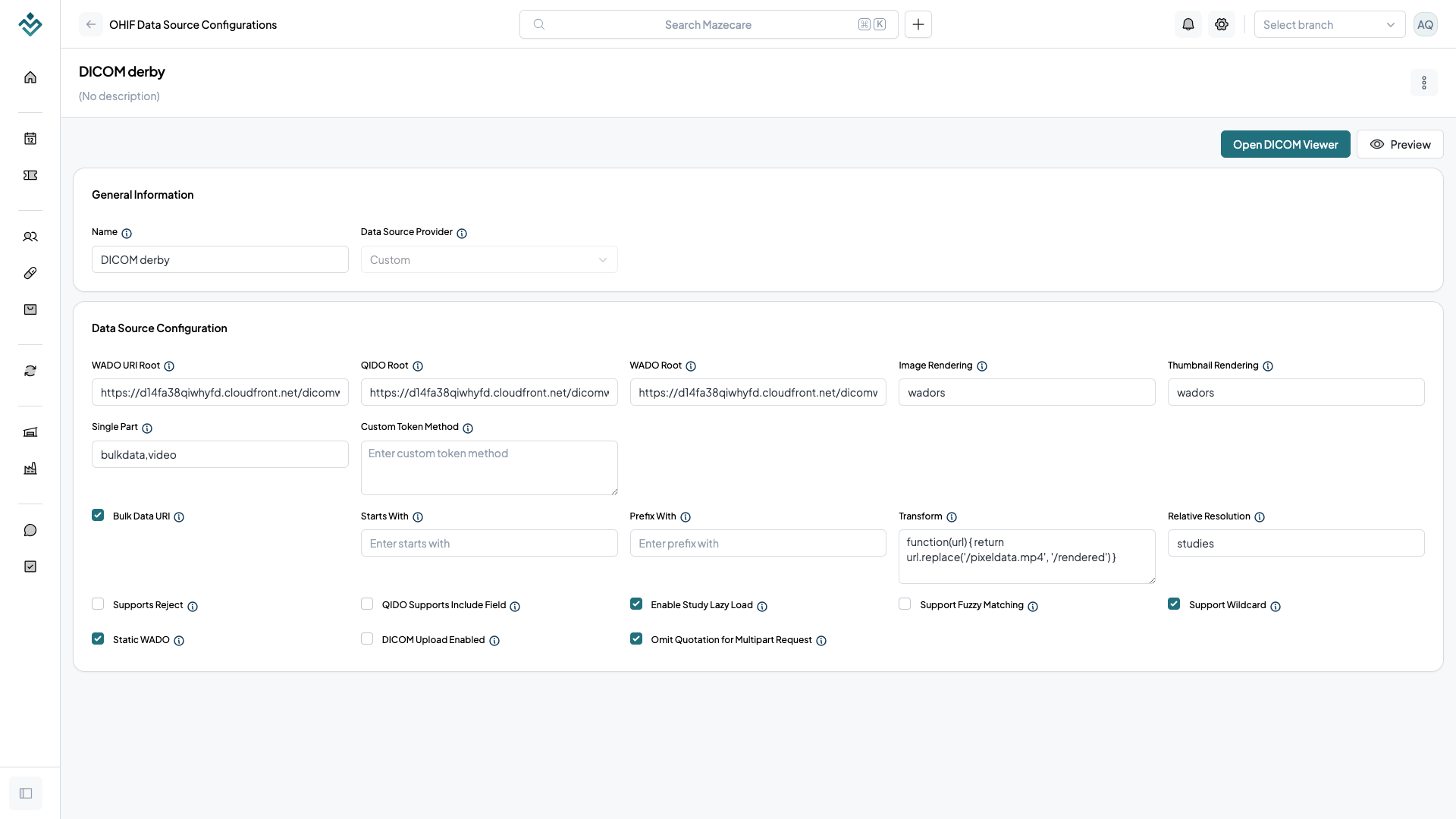
- Bulk Data URI: Toggle ON if your PACS server supports separate bulk data streams for large multi-frame series.
- Starts With: URL prefix pattern to identify bulk data references.
- Prefix With: Base URL prefix appended to relative bulk data paths.
- Transform: Transformation rule for handling specialized media streams (such as video playback endpoints).
- Relative Resolution: Scope level for resolving bulk data paths (e.g.,
studies).
Advanced Feature Toggles
| Setting | Recommended Value | Description |
|---|---|---|
| Supports Reject | Disabled | Allows clinicians or administrators to mark and reject invalid study instances when supported by the PACS. |
| QIDO Supports Include Field | Enabled / Server dependent | Appends specific query parameters to search requests for detailed study metadata retrieval. |
| Enable Study Lazy Load | Enabled | Dynamically loads study series and metadata on demand, significantly improving initial viewer load time. |
| Support Fuzzy Matching | Enabled | Enables approximate and case-insensitive patient name matching during study lookups. |
| Support Wildcard | Enabled | Allows wildcard search operators (such as *) when querying patient records or accession numbers. |
| Static WADO | Server dependent | Enables static object retrieval mode for pre-rendered DICOM archives and cloud storage buckets. |
| DICOM Upload Enabled | Enabled | Allows clinical staff to directly upload external DICOM files, CDs, or USB study packages into the PACS. |
| Omit Quotation for Multipart Request | Enabled | Resolves compatibility issues with PACS servers that do not accept quotation marks around multipart boundary headers. |
Step 5: Preview Configuration JSON
Before launching clinical workflows, verify that all JSON parameters and authentication callbacks are properly formatted:
- Click the Preview button in the top-right action bar.
- Inspect the formatted data source JSON payload to verify endpoints, feature flags, and token handlers.
- Click Cancel to close the preview modal.
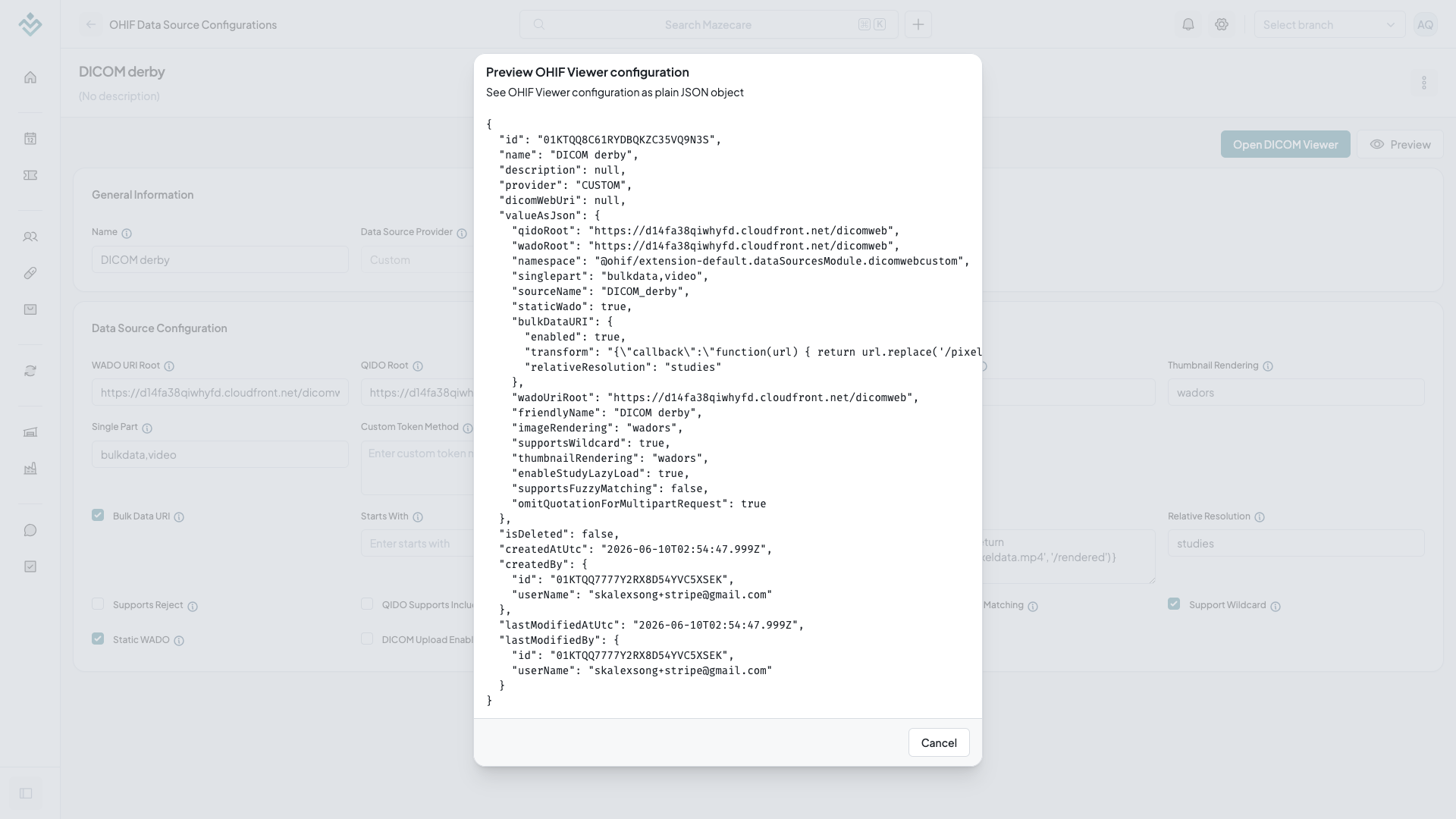
Step 6: Test & Review Studies in the OHIF Viewer
Opening the Study List
- From the data source details page, click Open DICOM Viewer.
- The integrated study list window connects directly to your PACS and displays all available diagnostic imaging studies.
- Use the filter bar to search by Patient Name, MRN, Study Date range, Modality (CT, MR, CR, DX, US, NM, PT), Accession Number, or Instances.
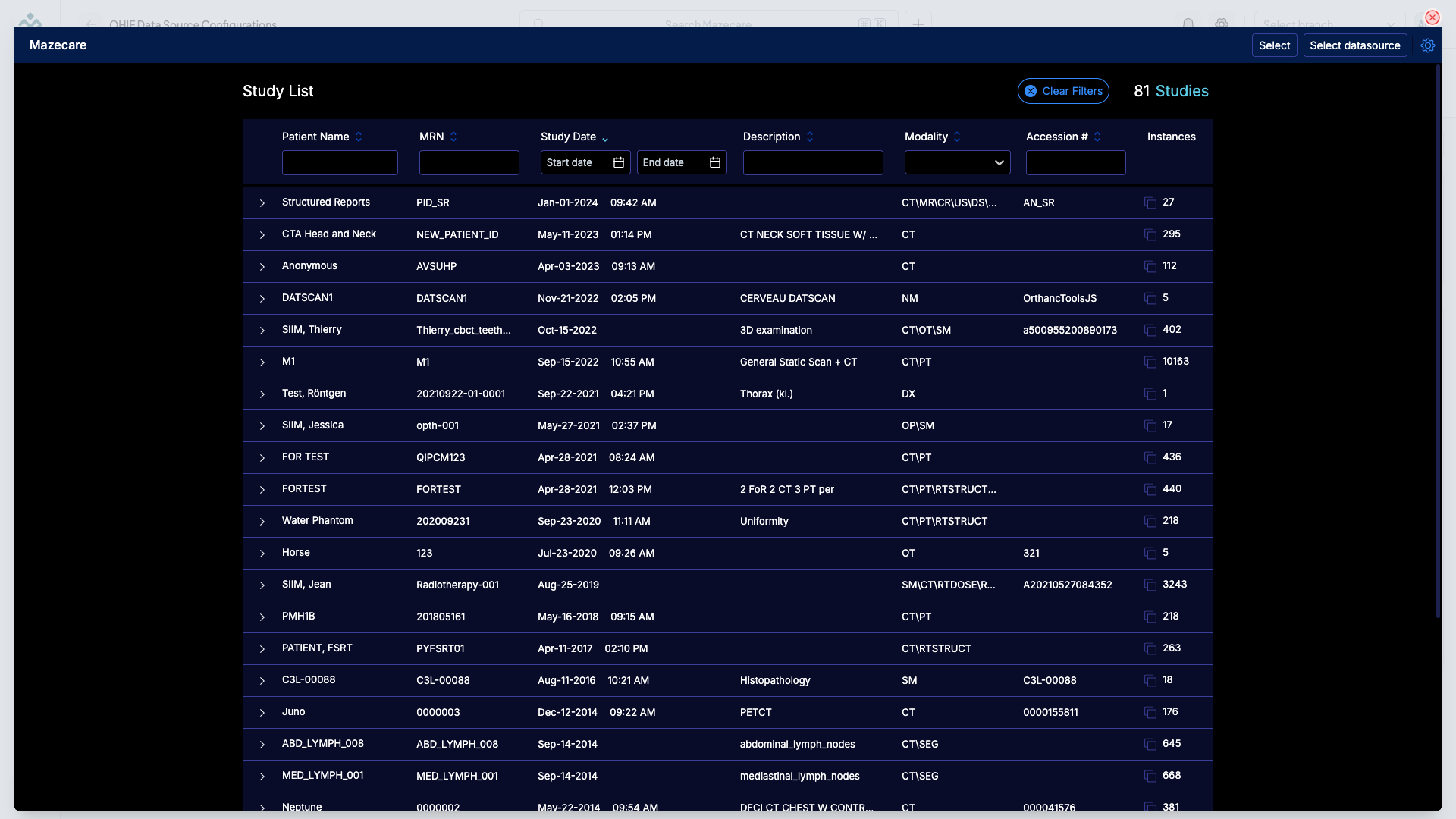
Interactive Diagnostic Viewing Workspace
Click on any study row or select Basic Viewer to open the full diagnostic imaging workspace:
- Viewport Controls: Window/Level adjustments with specialized presets (Bone, Lung, Soft Tissue, Brain, Abdomen).
- Series Ribbon: Thumbnail panel on the left displaying all acquisition series, cross-sectional slices, and contrast phases.
- Diagnostic Measurement Tools: Length calipers, elliptical ROI, angle measurements, Cobb angles, and pixel intensity probes.
- Advanced Navigation: Multi-planar Reconstruction (MPR), cine slice playback, pan, smooth zoom, study inversion, and side-by-side prior comparison.
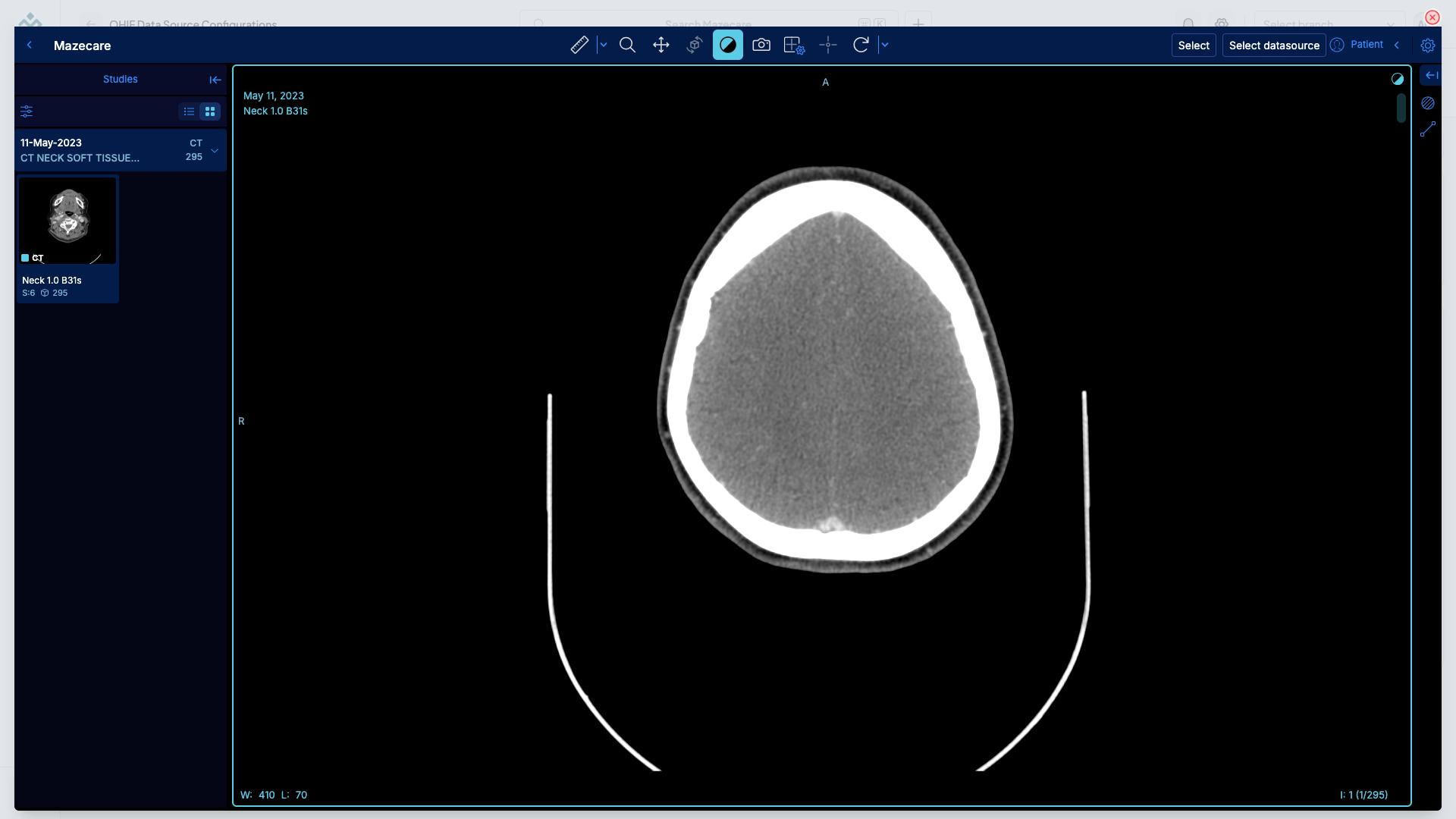
Clinical Workflow Integration
Once configured, the OHIF Viewer is seamlessly embedded across clinical modules in Mazecare:
- Patient Electronic Medical Records (EMR): Doctors can open diagnostic images directly from the Radiology & Imaging tab inside patient charts.
- Consultation & Encounter Workspace: When reviewing radiology orders during an active consultation, clicking the imaging link opens the viewer in a responsive overlay without leaving the consultation note.
- Teleconsultation & Second Opinions: High-resolution image streaming allows real-time review with remote specialists across standard web connections.
Numbering & Identifier Keys
Configure custom identification keys for patients and doctors, and define auto-incrementing numbering sequence patterns for tickets, encounters, and prescriptions.
System Master Data
Configure systemic demographic reference tables, favorite currencies, and custom entity contact keys in Mazecare OS.