

PDF Headers, Footers & Drawing Templates
The PDF Settings and PDF Drawing Templates modules provide healthcare organizations with complete control over document presentation, regulatory letterheads, legal disclaimers, and interactive graphical document templates.
Whether generating official discharge summaries, referral letters, medical certificates, specialized clinical questionnaires, prior-authorization requests, or patient consent forms, Mazecare combines structured document styling with interactive form overlays and digital signature pads.
Document Layout & Template Architecture
Mazecare separates document styling and interactive forms into three modular, reusable layers:
- Global PDF Headers: Standardizes organizational branding, hospital logos, accreditation credentials, facility addresses, and branch identifiers across all generated clinical documentation.
- Global PDF Footers: Embeds statutory legal notices, patient confidentiality disclaimers, dynamic pagination, and verification audit markers across multi-page clinical records.
- Interactive PDF Drawing Templates: Connects base PDF forms with patient record details, interactive checkboxes, text fields, and digital signature capture for clinicians and patients.
Part 1: Global PDF Layout & Letterhead Settings
Global PDF settings ensure every exported clinical note, invoice, prescription, and medical certificate conforms to strict institutional branding standards.
Step 1: Manage and Create PDF Headers
PDF Headers define the visual letterhead that sits at the top of every generated medical document page.
- Navigate to Settings → PDF Settings → Headers.
- Review the list of existing header templates with their names and last modified timestamps.
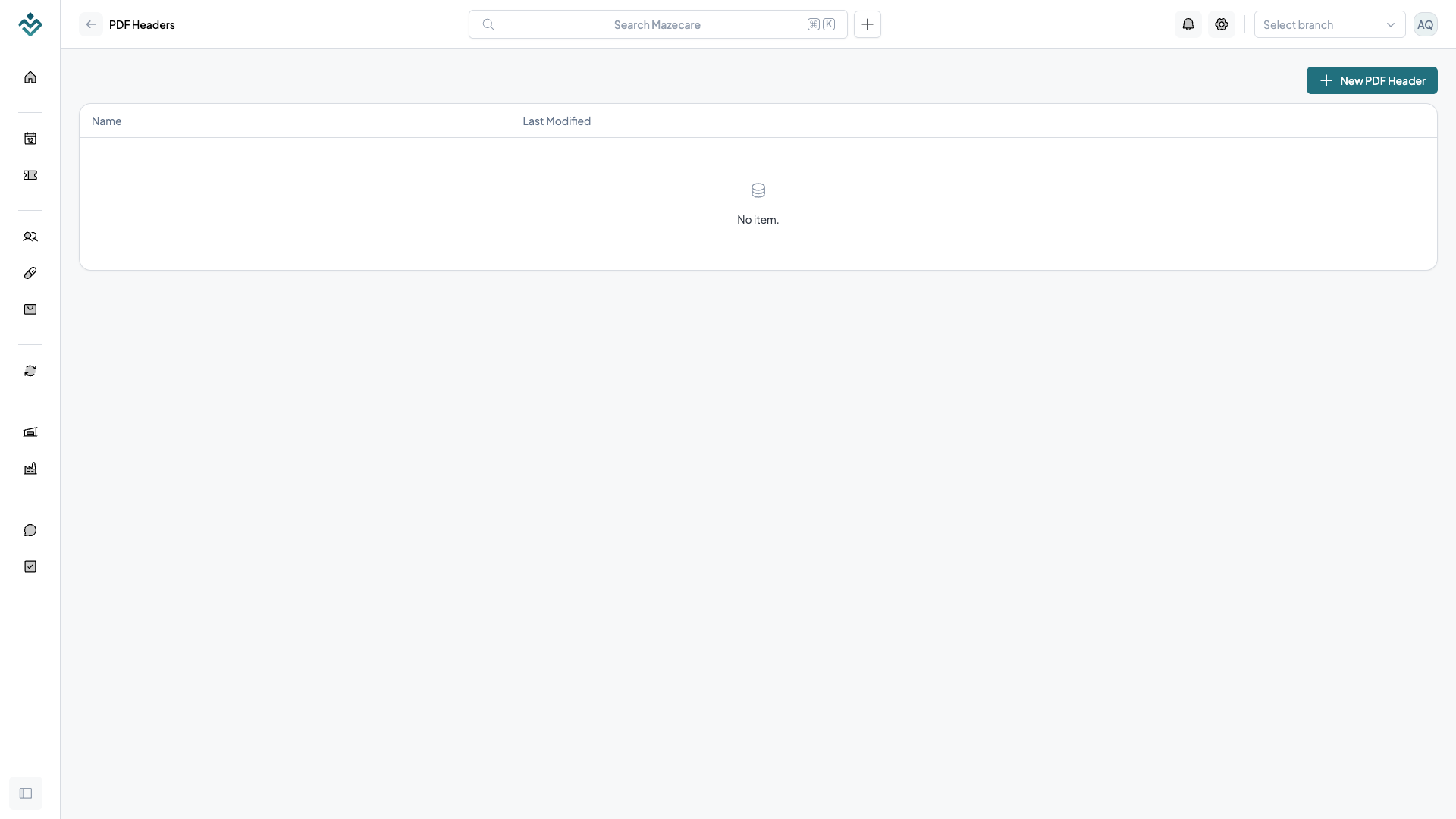
- Click New PDF Header in the top toolbar to open the layout editor.
- Set the header configuration:
- Template Title: Enter a recognizable identifier (e.g.,
Official Clinic Letterhead Header). - Letterhead Layout Editor: Customize headers, clinic logos, and addresses with full visual control over typography and layout.
- Integrated Media Library: Click Add Image to open the media gallery, upload clinic logos or accredited facility badges, and add image assets directly to your layout.
- Template Title: Enter a recognizable identifier (e.g.,
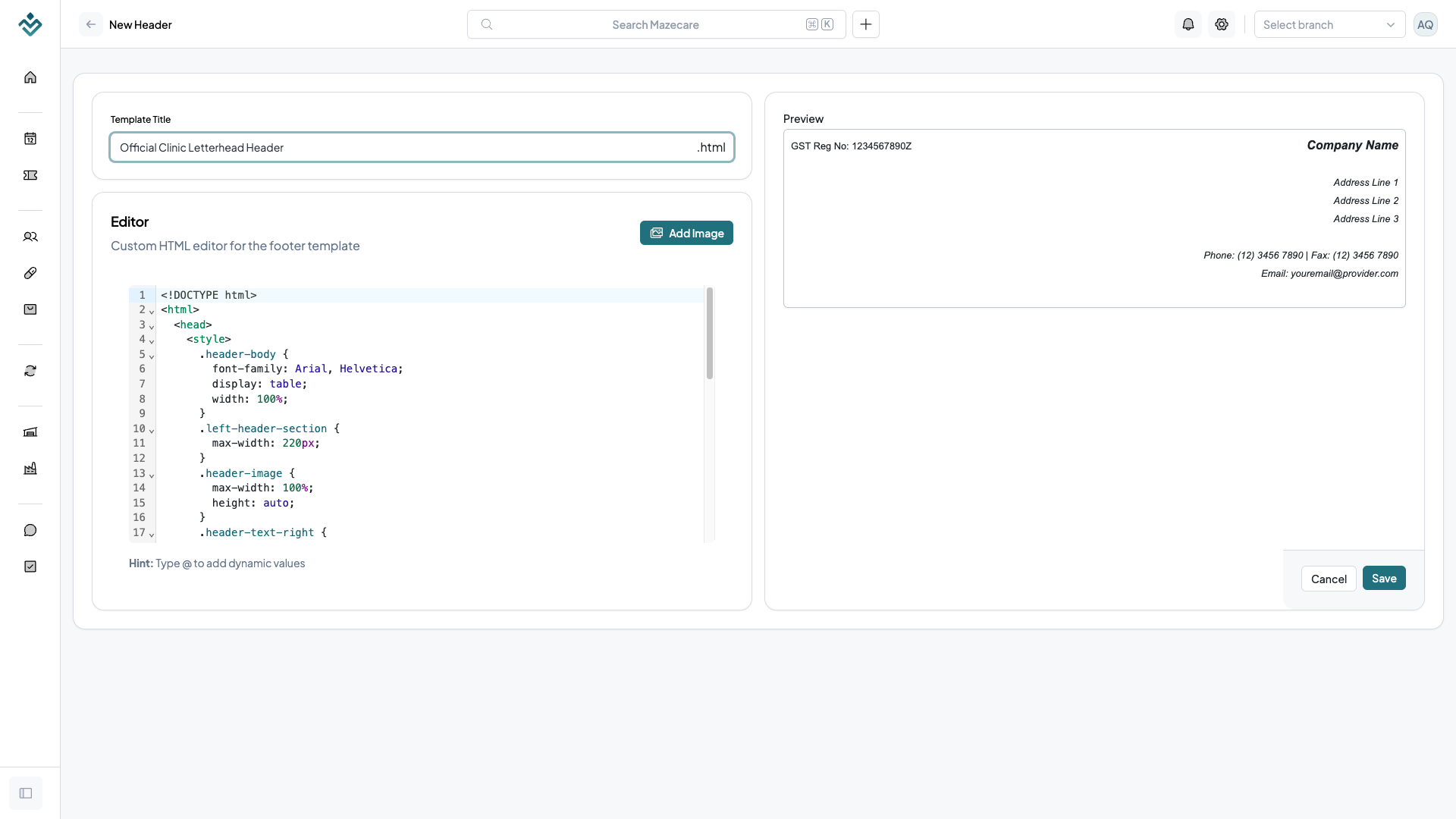
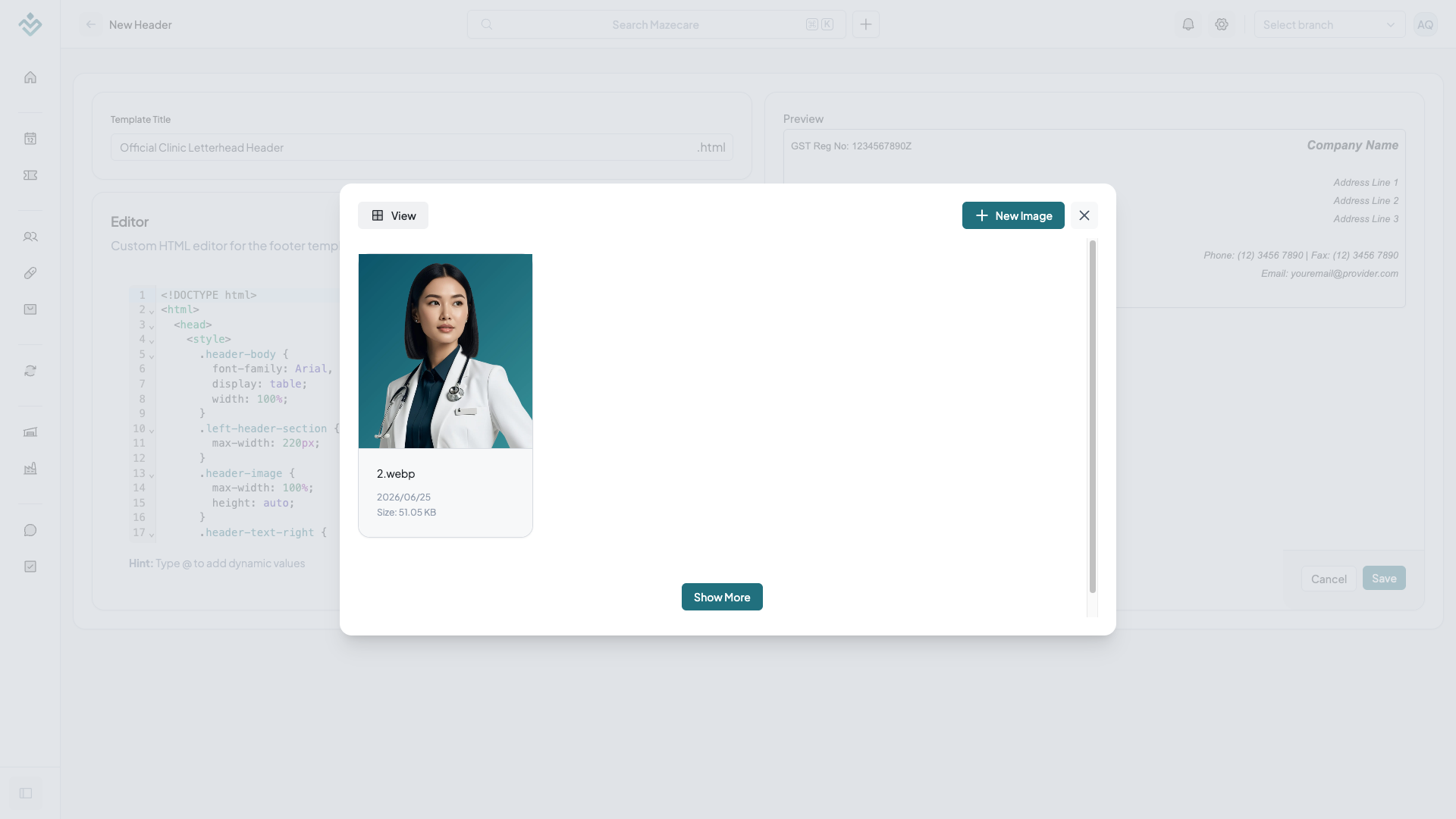
- Click Save to publish the header template for use across document workflows.
Step 2: Configure Legal Disclaimers & Footers
Footers provide standardized regulatory disclaimers, healthcare data confidentiality notices, and automated page numbering.
- Navigate to Settings → PDF Settings → Footers.
- View existing footer templates or click New PDF Footer.
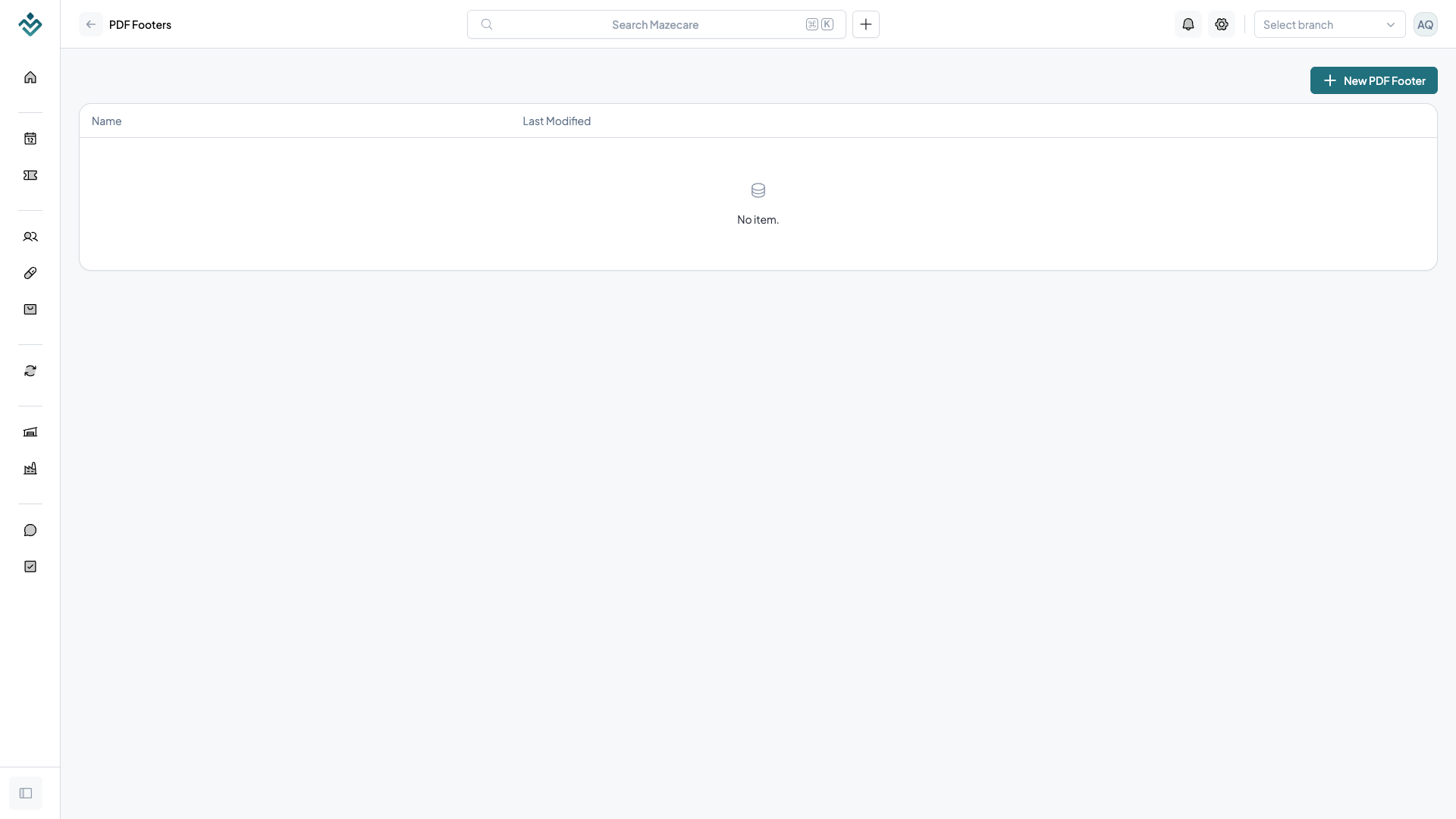
- Complete the footer definition:
- Template Title: Specify the footer role (e.g.,
Standard Legal & Pagination Footer). - Confidentiality & Privacy Statements: Add statutory disclosures indicating that the record contains protected health information.
- Dynamic Pagination: Embed automated page numbers (such as
Page 1 of 3) and document generation timestamps.
- Template Title: Specify the footer role (e.g.,
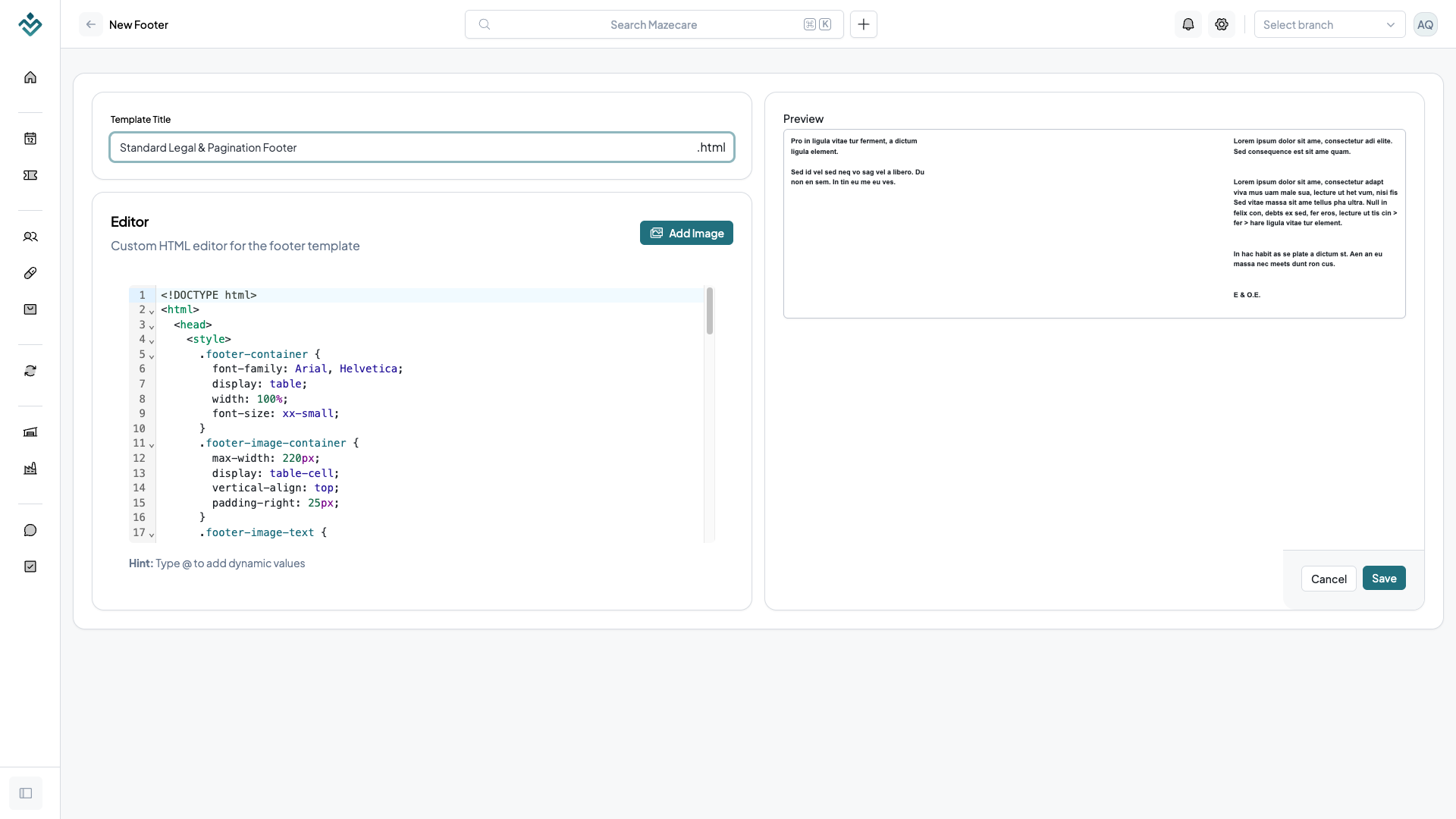
- Click Save to activate the footer configuration.
Part 2: Interactive PDF Drawing Templates
PDF Drawing Templates allow healthcare organizations to upload standardized forms (e.g., anatomical examination diagrams, dental charting sheets, insurance prior-authorizations, patient informed consent forms, ophthalmology grids) and place interactive, fillable fields and signature pads directly onto the document canvas.
Step 1: Create a PDF Drawing Template
- Navigate to Settings → PDF Drawing Templates.
- The central table displays all configured drawing templates, their source file identifiers, creation dates, and status.
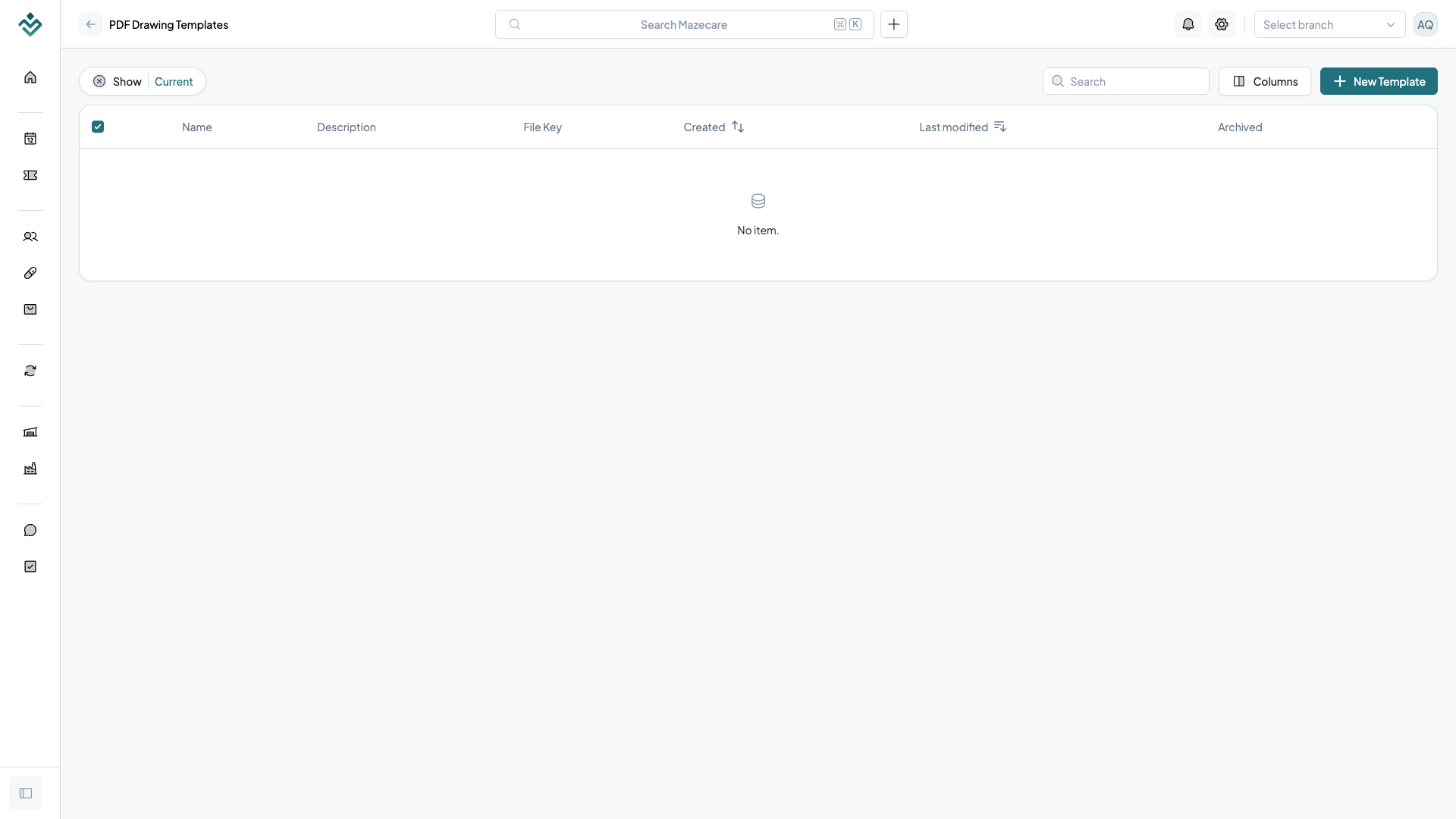
- Click New Template in the upper-right corner.
- In the creation modal, fill in the template details:
- Name: Enter a clear clinical or administrative title (e.g.,
Medical Insurance Pre-Authorization Form). - Source PDF: Drag and drop the original PDF document into the upload drop zone or click to select a file from your computer.
- Name: Enter a clear clinical or administrative title (e.g.,
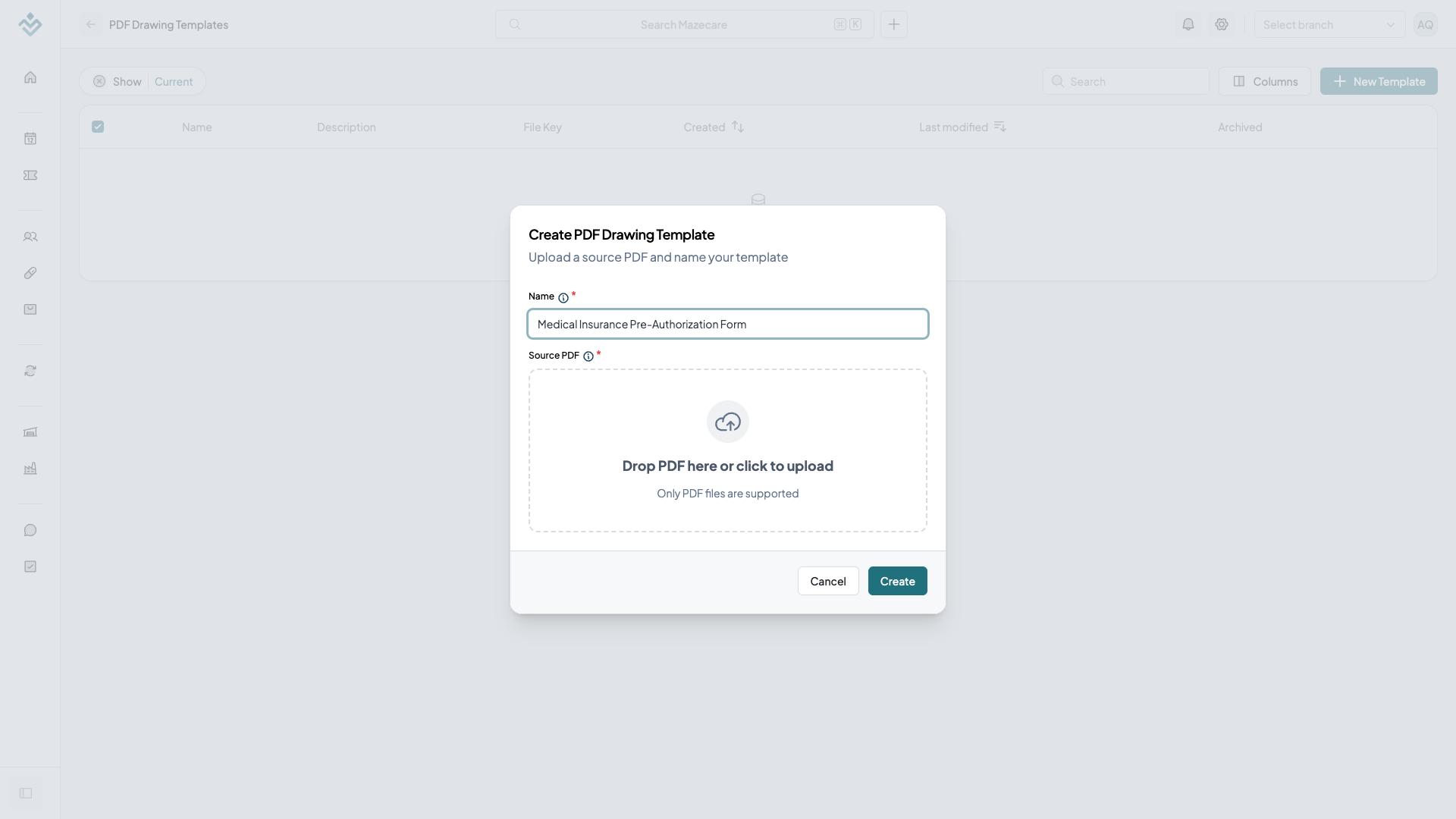
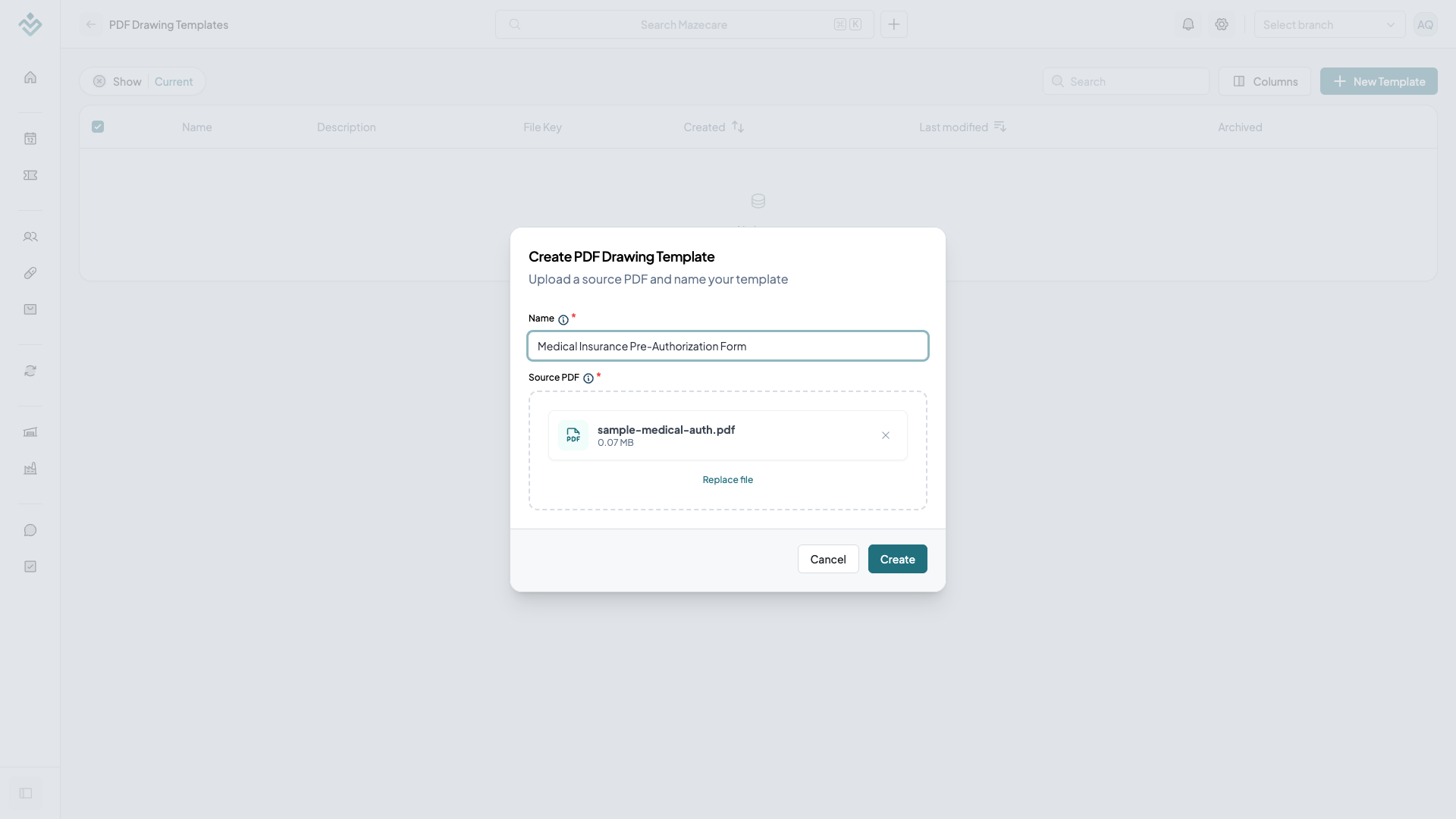
- Click Create to initialize the template and transition directly into the Visual Canvas Builder.
Step 2: Design with the Visual Canvas Builder
The Visual Template Builder renders the uploaded PDF as an interactive drafting surface where administrators and clinicians can draw and position fillable form elements.
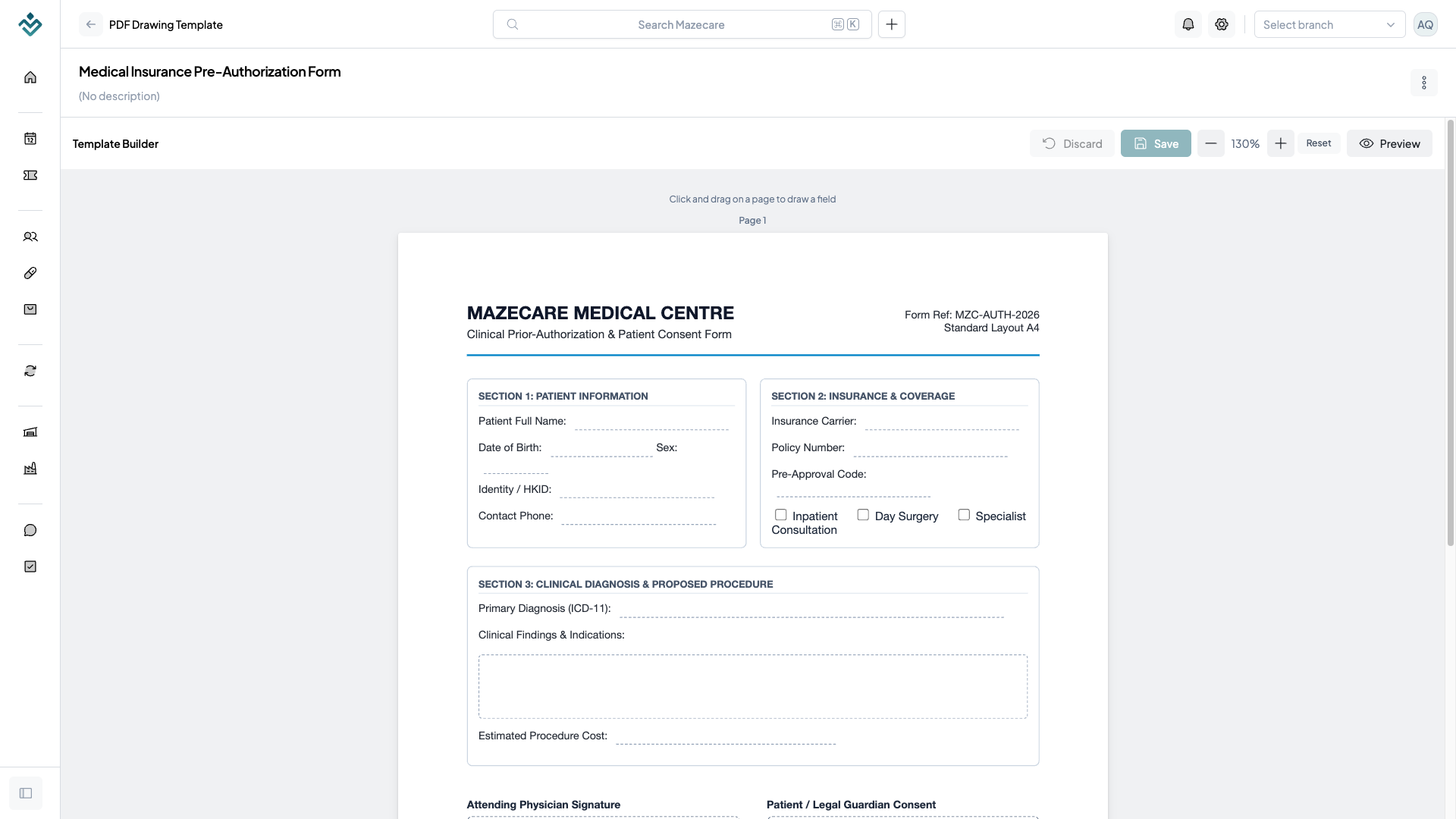
Builder Toolbar Controls
| Control | Description | Function |
|---|---|---|
| Drawing Surface | Multi-page PDF document view | Click and drag any rectangle on the page to create an interactive field overlay |
| Zoom Controls | Zoom In, Zoom Out, Reset | Magnify layout from 50% to 150% for precise alignment with underlying form lines |
| Page Navigation | Page indicator (Page 1, Page 2...) | Seamlessly scroll through multi-page clinical documents and agreements |
| Discard & Save | Save and discard buttons | Tracks pending changes and saves placed field positions |
| Preview | Live document preview | Test-renders the filled template with sample patient data |
Step 3: Configure Interactive Field Properties
Clicking any field overlay opens the Field Properties Slideover, allowing granular configuration of field behaviors, data sources, and visual styling:
flowchart LR
    FieldType["Field Type Selection<br/>(Text / Checkbox / Signature)"] --> SignerRole["Signer Role Assignment<br/>(Attending Doctor / Patient)"]
    SignerRole --> PrefillBinding["Dynamic Data Prefill<br/>(Patient Info, Diagnosis, Policy)"]
    PrefillBinding --> Typography["Typography & Alignment<br/>(Font, Size, Style, Alignment)"]
1. Supported Field Types
- Text: Single-line or multi-line text boxes for patient names, diagnosis descriptions, policy numbers, and clinical remarks.
- Checkbox: Selection boxes for procedure categories, medical history indicators, and consent acknowledgments.
- Signature: Digital signature capture pads for attending physicians and patient/guardian consent.
2. Signer Role Assignment
- Doctor: Flags the field or signature block for completion by the attending physician during the consultation encounter.
- Patient: Directs the field to the patient or guardian for digital completion on a tablet kiosk or online consent portal.
3. Dynamic Data Prefill
Fields can be connected to patient records, automatically filling in values when the document is generated:
- Patient Legal Name
- Date of Birth & Gender
- Contact Phone & Email
- Primary ICD-11 Diagnosis & Assessment Notes
- Insurance Carrier & Policy Identification Number
- Attending Physician Name & License Number
4. Typography & Layout Controls
- Font Family: Select standard typography matching institutional standards.
- Font Size: Adjust font scale to fit pre-printed boxes precisely.
- Font Style: Regular, Bold, Italic, Bold Italic, Underline, or Strikeout.
- Alignment: Left, Center, Right, Justify; with Top, Center, or Bottom vertical alignment.
- Precision Alignment: Displays exact page and position coordinates to fine-tune field placement.
Step 4: Validate with Live Template Preview
- Click the Preview button in the builder toolbar.
- The Template Preview modal renders the compiled document, simulating real-world patient data binding and demonstrating exact field placements over the background form.
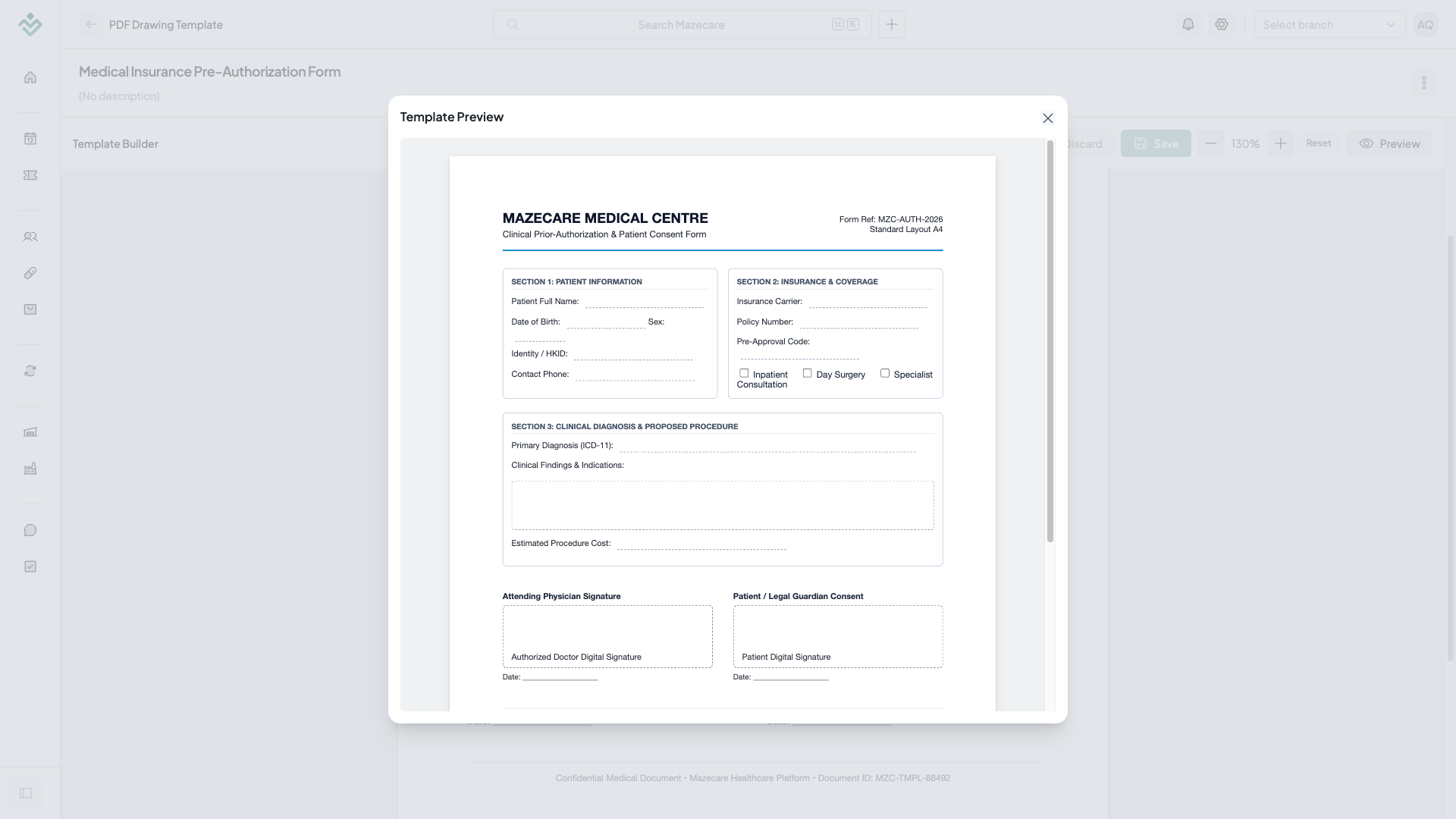
- Verify text wrapping, checkbox alignments, and signature dimensions.
- Click Close and then Save to make the template available across all clinic stations.
Part 3: Clinical Workflows & Digital Signature Capture
Once configured, PDF Drawing Templates integrate seamlessly into daily practice operations:
Clinical Use Cases:
- Prior-Authorization & Insurance Claims:
- Staff select an insurer-specific claim template.
- Patient demographics, policy numbers, and ICD-11 diagnosis codes auto-populate.
- The clinician checks relevant care categories, adds budget estimates, and digitally signs.
- Informed Consent & Surgical Agreements:
- Displays procedural risks and patient acknowledgments.
- Supports dual digital signatures (Doctor and Patient/Guardian) captured directly on tablet styluses.
- Specialty Clinical Diagram Annotations:
- Enables odontograms, dermatological body maps, and ophthalmological fundus grids with interactive overlays.
- Permanent Archival & Export:
- Once signed, Mazecare securely combines the completed fields and signatures into the document, creating a permanent, tamper-resistant record saved to the patient's medical history.
Best Practices & Compliance Guidelines
- High-Resolution Base PDFs: Upload high-resolution PDF files (or clear scanned documents) to ensure clean rendering on tablet displays and print output.
- Generous Signature Boundaries: Allocate sufficient rectangle area for signature boxes to accommodate natural handwriting and stylus input.
- Consistent Letterhead Margins: When designing PDF Headers and Footers, verify margin allocations (e.g.,
25mm–35mmtop margin) to avoid overlapping body content. - Scoped Signer Roles: Explicitly assign field ownership between Doctor and Patient to streamline guided document completion during kiosk check-ins or encounter reviews.
Medical Certificate Templates
Configure standardized medical certificates, sick leave notes, fitness-to-work clearances, digital doctor signatures, and customizable print layouts in Mazecare.
Prescription & Invoice Layouts
Configure medication dispensing labels, thermal roll printers, bundled prescription treatment packages, and itemized billing invoice templates in Mazecare.