

Dispensary Queue & Medication Fulfillment
The Pharmacy module in Mazecare tracks every prescription order from creation through payment and fulfillment. Pharmacists work the order queue, allocate stock to each line item using the built-in FEFO (First-Expired, First-Out) batch recommendation, and print bilingual medication labels. All of this is validated against real-time inventory, so a dispense can never push stock negative.
Dispensary Workflow Architecture
An order enters the pharmacy queue, then moves through a guided three-step dispense wizard before it's marked fulfilled:
Step-by-Step Dispensary Procedures
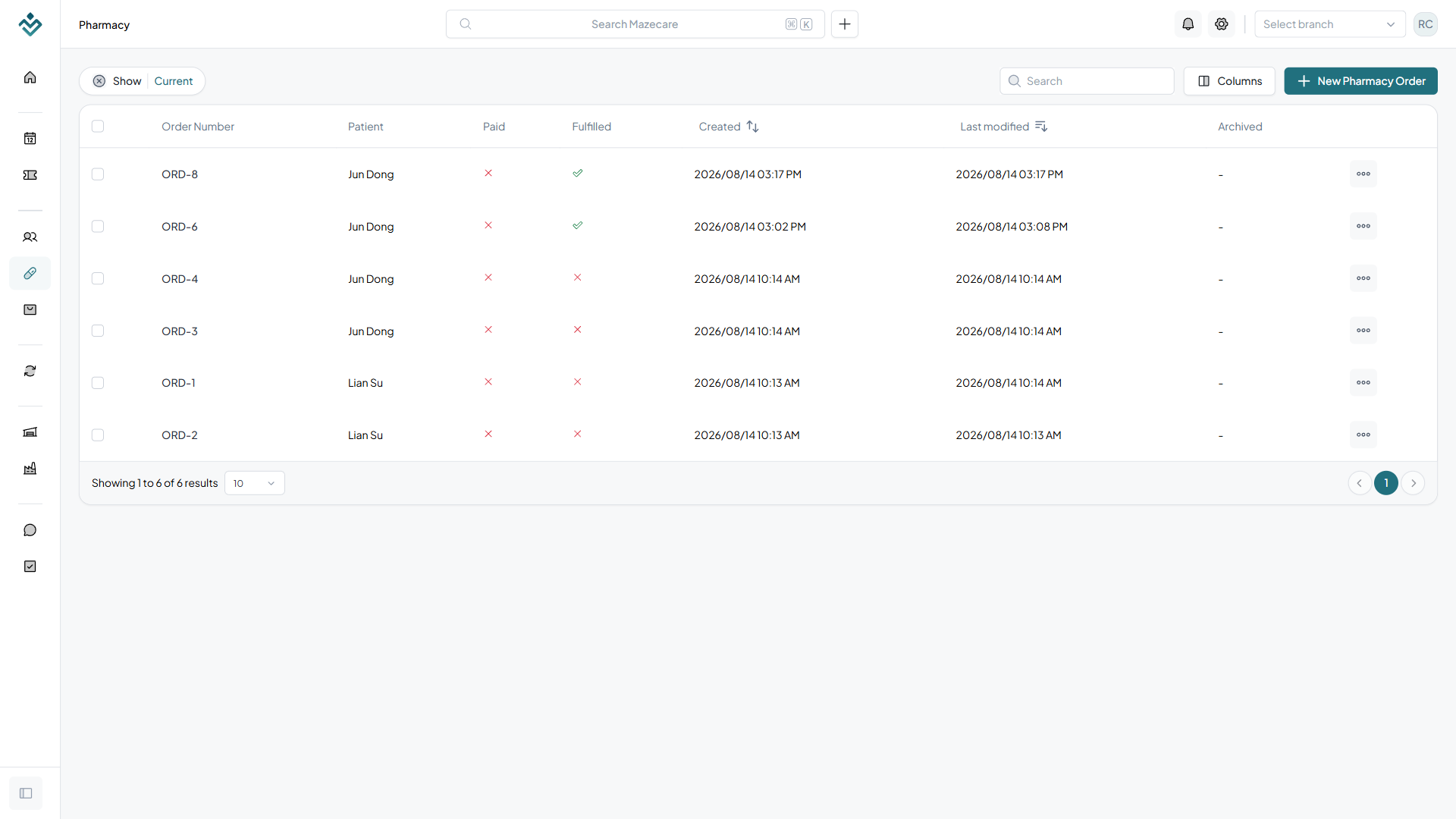
Step 1: Access the Pharmacy Order Queue
- Navigate to Pharmacy (
/pharmacy). - The order table lists every pharmacy order with Order Number, Patient, Paid, Fulfilled, Created, Last modified, and Archived columns. Paid and Fulfilled are shown as simple green-check / red-cross indicators rather than a multi-stage status pipeline.
- Use Show Current to filter out archived orders, the Search box to find a specific order, or Columns to customize which columns are visible.
- Click + New Pharmacy Order to start one manually, or click any row to open its Pharmacy Order Detail view.
Step 2: Review the Order & Line Items
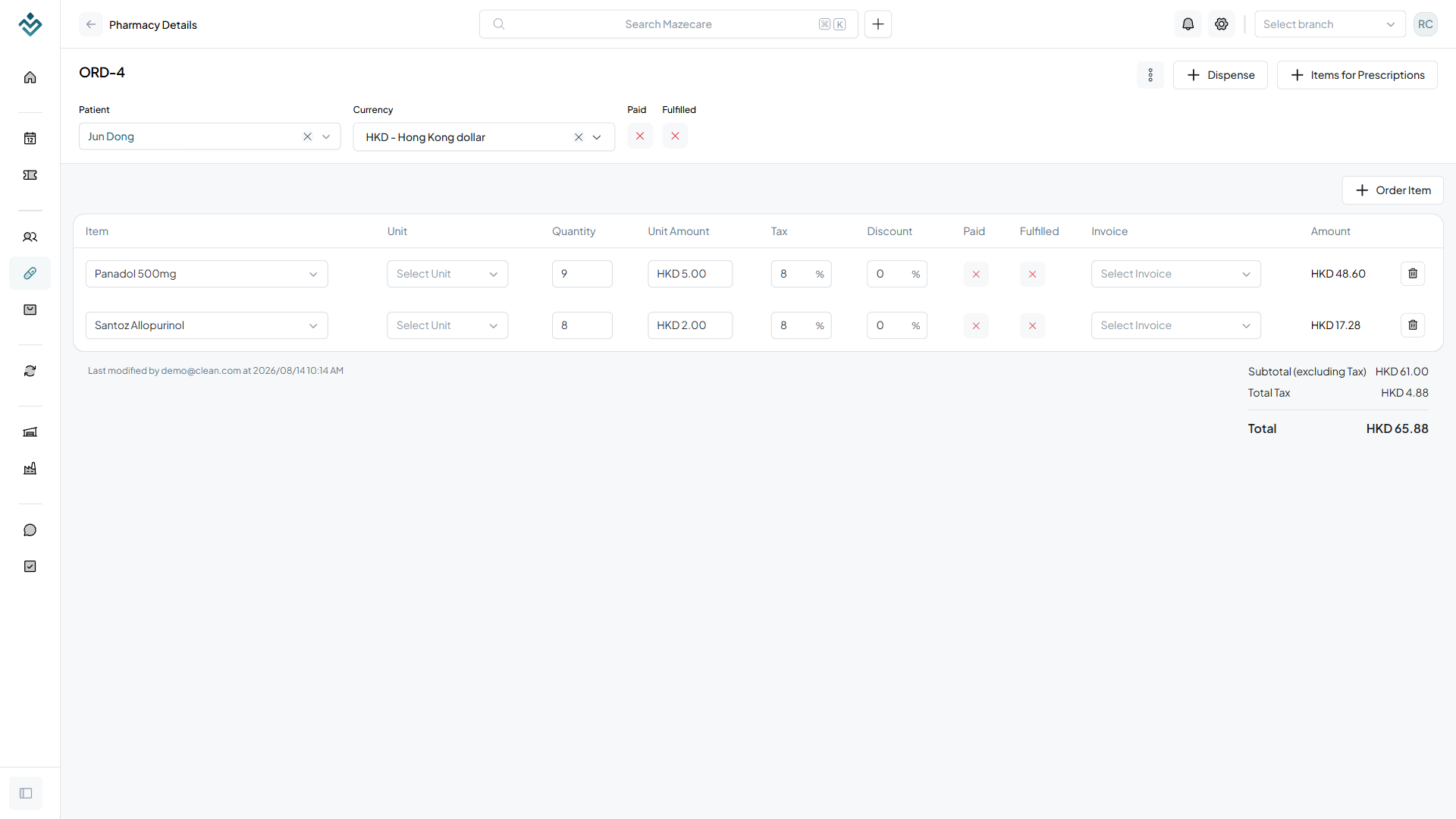
- On the order detail page, review each order line: item name, Unit, Quantity, Unit Amount, Tax %, Discount %, per-line Paid / Fulfilled flags, and a linked Invoice.
- Click + Order Item to add another line manually, or + Items for Prescriptions to pull items from the patient's prescriptions.
- The right-hand summary totals Subtotal (excluding Tax), Total Tax, and Total.
- Order-level actions live under the ⋮ menu next to Dispense: Link to Invoice and Archive. There's no separate flag-to-physician action on the order itself.
Step 3: Dispense (Review & Safety Check)
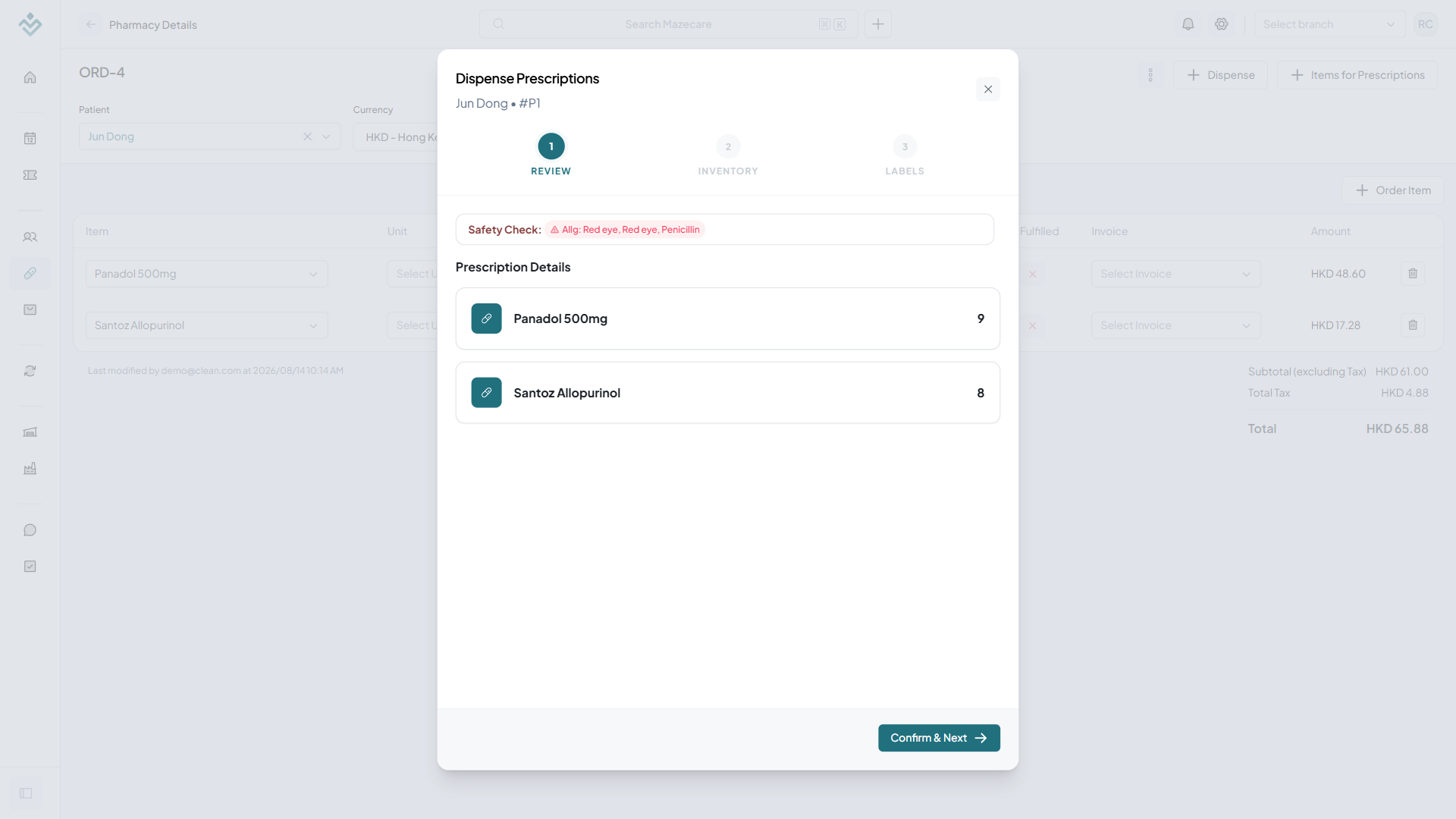
- Click Dispense to open the Dispense Prescriptions wizard.
- Step 1, Review, shows a Safety Check banner listing any active allergy flags recorded for the patient, followed by Prescription Details: each medication and its quantity.
- Click Confirm & Next.
Step 4: Dispense (Inventory Allocation, FEFO)
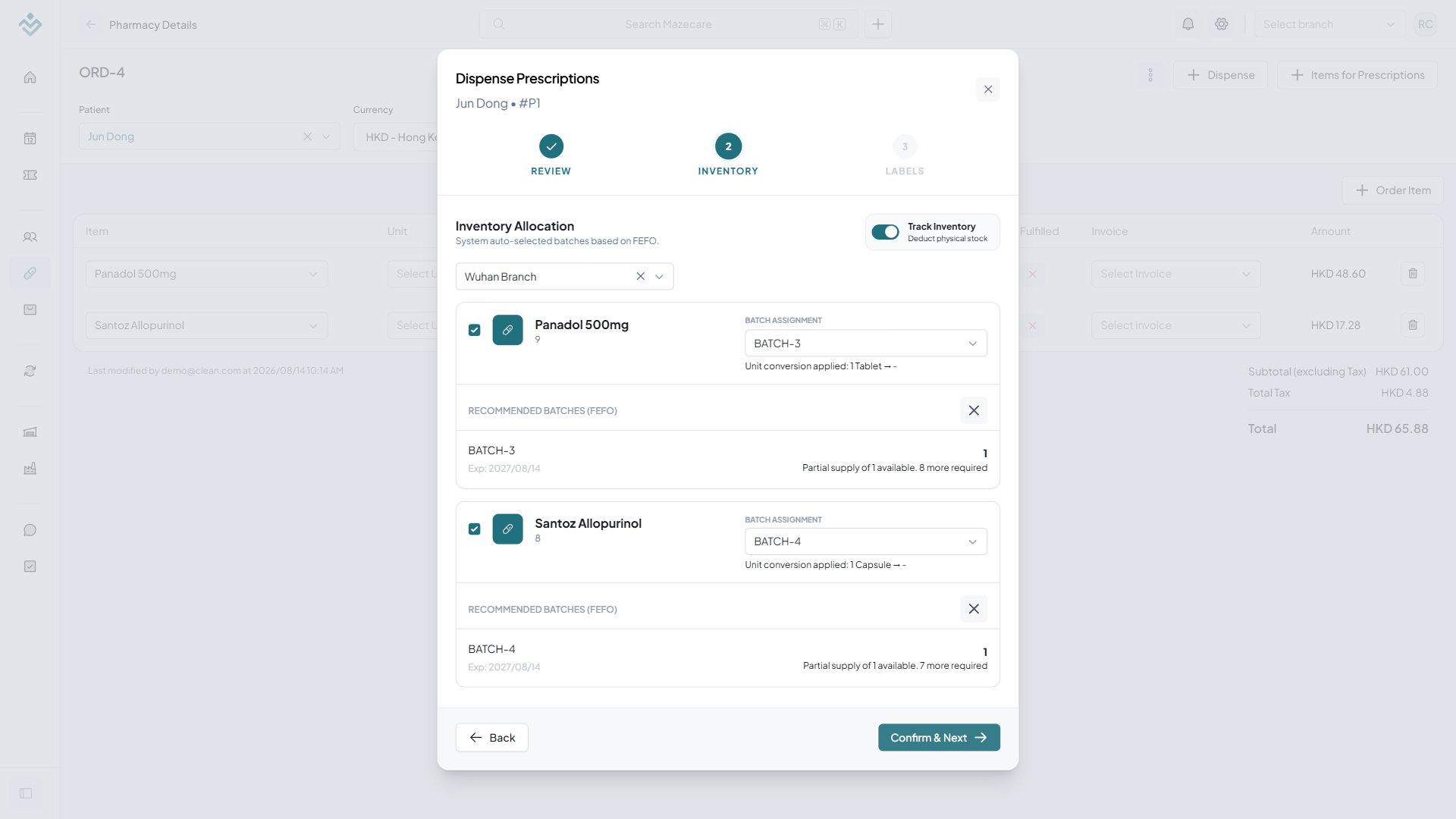
- Step 2, Inventory, is titled "System auto-selected batches based on FEFO." Mazecare recommends the batch expiring soonest for each item.
- Confirm the dispensing branch, then for each item review the Batch Assignment dropdown and the Recommended Batches (FEFO) panel, which shows the batch number, expiry date, and available quantity. It flags a partial supply warning if the assigned batch can't cover the full quantity ordered.
- Leave Track Inventory / Deduct physical stock on so the dispense decrements real stock; only turn it off for the rare case where stock was already accounted for elsewhere.
- Click Confirm & Next.
Step 5: Dispense (Labels & Completion)
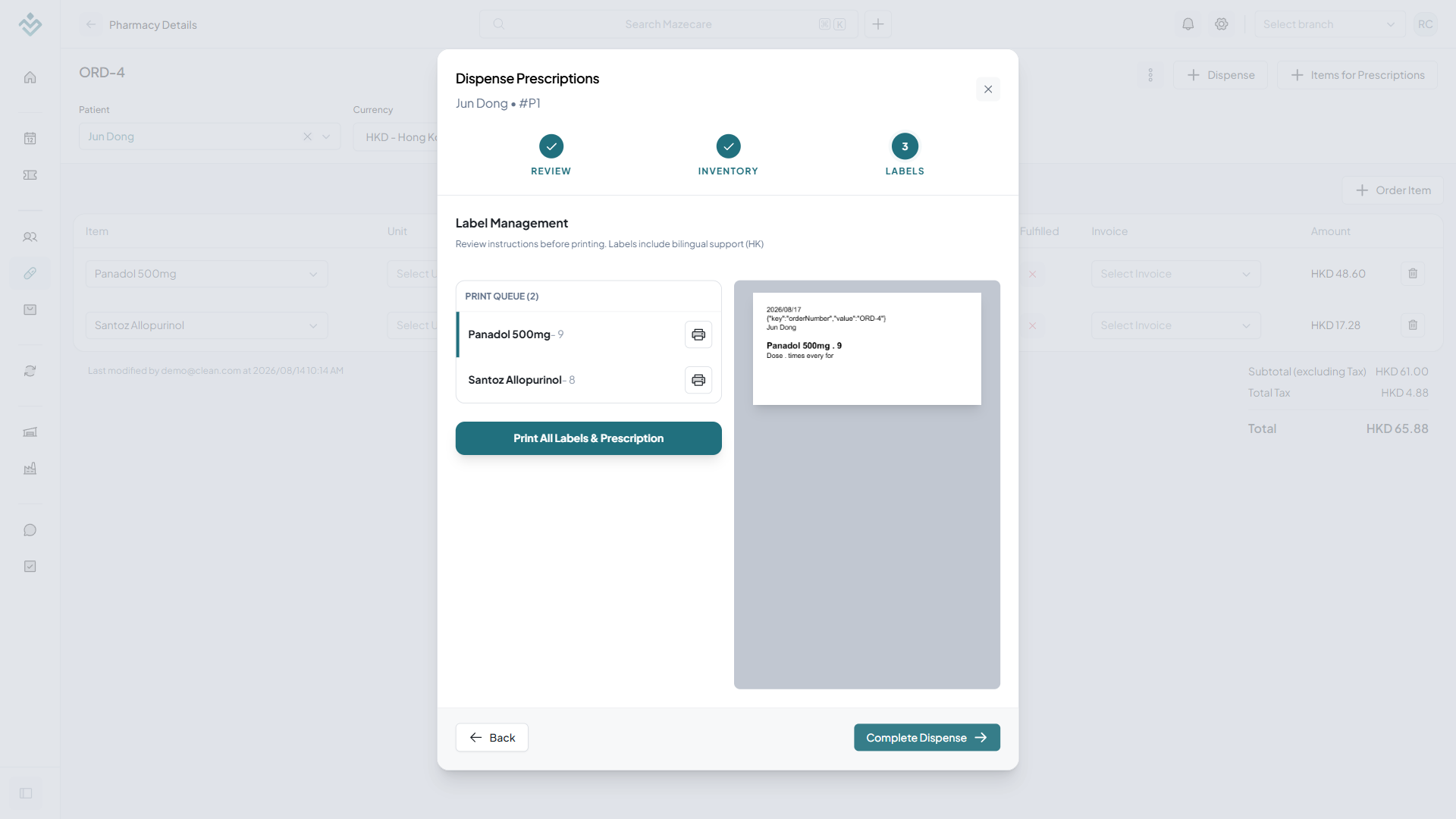
- Step 3, Labels, lists every item in the Print Queue with an individual print button, alongside a live label preview. Labels carry bilingual (HK) text.
- Click Print All Labels & Prescription to send every queued label and the prescription sheet to the printer.
- Click Complete Dispense. Mazecare deducts the allocated batch quantities, marks the order Fulfilled, and the balance updates immediately in Stocks.
- Settle payment separately by linking the order to an invoice (⋮ → Link to Invoice). Paid and Fulfilled are tracked independently.
Medical History & Records
Maintain longitudinal patient health records, including ICD-11 coded allergies, vital sign flowsheets, lab results, radiology, vaccines, and clinical documents.
Stock Management & Transfers
Navigate the Stock Management hub to move inventory between branches with tracked Stock Transfers, record variances with Stock Adjustments, and monitor reorder thresholds with Low Stock Settings in Mazecare OS.