

Insurance Claim Submission & Adjudication
In modern healthcare administration, Insurance Claim Submission & Adjudication is the vital operational process that transforms clinical services, procedures, diagnostic investigations, and dispensed medications into formalized financial claims for reimbursement by health insurance payors and Third Party Administrators (TPAs).
Within Mazecare OS, the Claims engine coordinates the complex transition between patient billing and payor settlement:
- Direct Invoice-to-Claim Mapping: Automatically converts line items from clinical invoices into structured claim expenses, ensuring complete accounting reconciliation.
- Prior Authorization Integration: Connects post-encounter claims directly to pre-approved Letters of Guarantee (LOG) to inherit pre-authorized financial ceilings and prevent claim rejections.
- Intelligent Benefit Auto-Mapping: Uses clinical diagnostic rules to automatically bind procedure codes (CPT, SNOMED CT, ICD-11) to policy benefit clauses.
- Real-Time Adjudication Engine: Instantly evaluates policy rules, sub-limits, deductibles, and co-insurance to determine the exact Approved Amount payable by the insurer versus the Excess Shortfall owed by the patient.
Detailed Step-by-Step Walkthrough
Step 1: Navigating the Claims Management Table
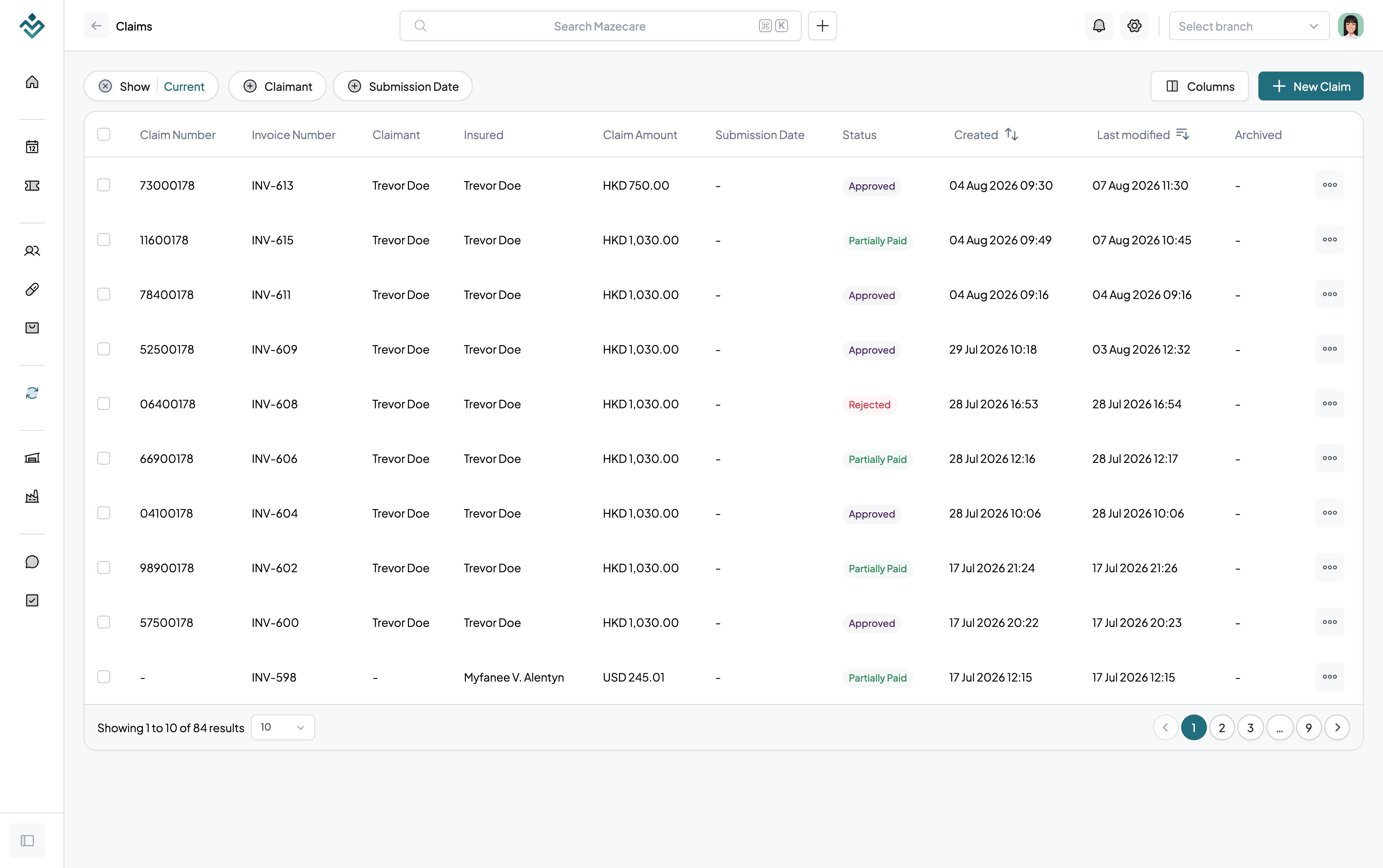
All institutional and individual insurance claims are centrally monitored within the Insurance module:
- In the sidebar navigation, go to Revenue Cycle → Insurance → Claims (
/revenue-cycle/insurance/claimsor/insurances/claims). - The dashboard displays a centralized table of all historical and active claims with real-time operational indicators:
- Claim Number: Unique internal or payor tracking number (e.g.,
73000178,CLM-00123). - Claimant & Insured: Names of the patient receiving care and the primary policyholder.
- Invoice Number: The linked clinic invoice generated during checkout (e.g.,
INV-615,INV-613). - Claim Amount: The total monetary value submitted for reimbursement.
- Submission Date: The date when the claim package was transmitted to the payor.
- Status: Current adjudication state (Draft, Not Adjudicated, Partially Paid, Approved, Rejected).
- Created & Last Modified: Administrative audit timestamps.
- Claim Number: Unique internal or payor tracking number (e.g.,
- Click the + New Claim button in the header toolbar to launch the multi-step claim creation wizard.
Step 2: Creating a New Claim (4-Step Stepper)
Clicking + New Claim opens the New Claim modal, which guides clinic billing staff through a structured 4-step workflow:
[ Step 1: PATIENT INFO ] ➔ [ Step 2: VISIT DETAILS ] ➔ [ Step 3: FINANCIALS ] ➔ [ Step 4: RELATED ]
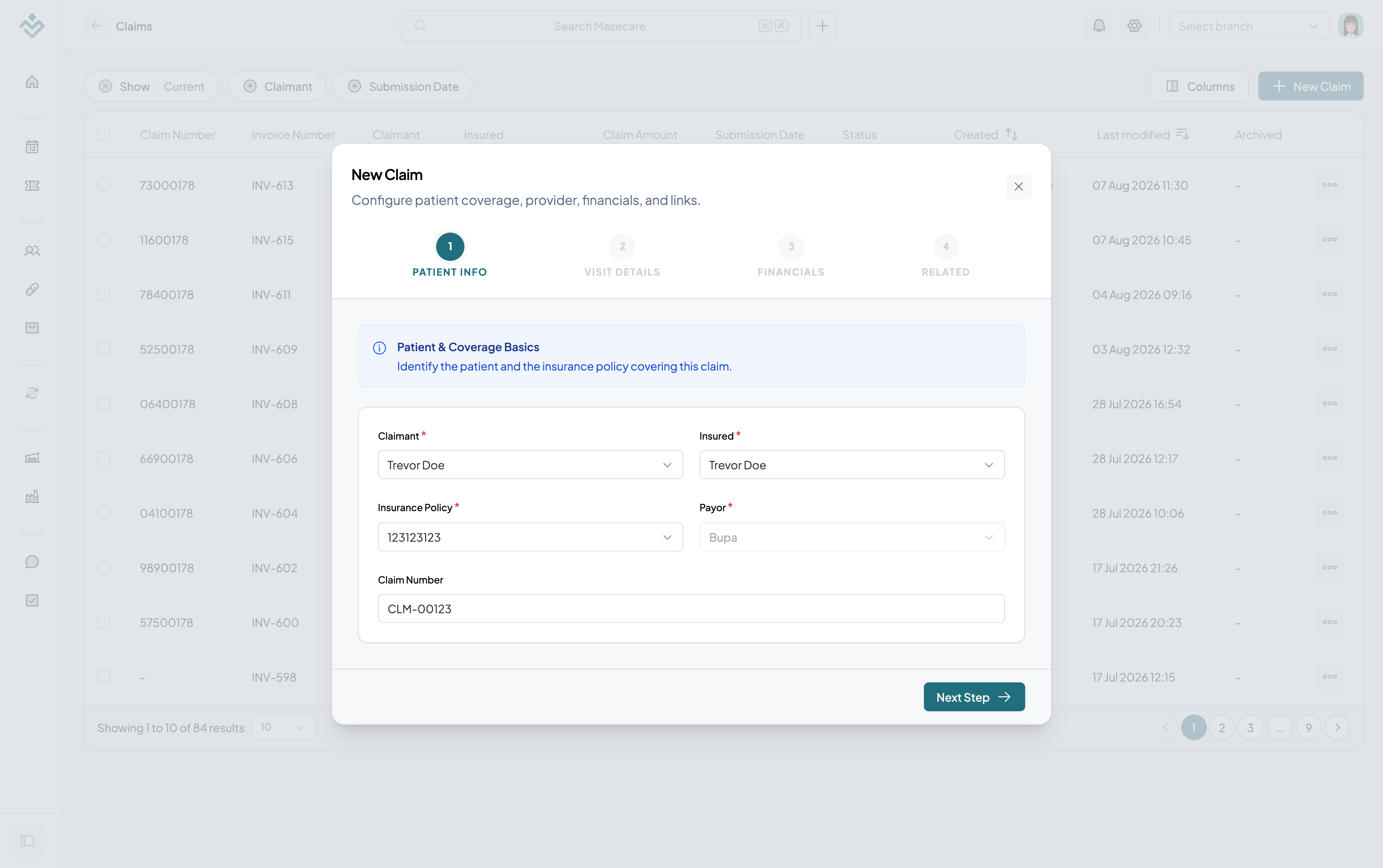
Step 1: Patient & Coverage Basics
Define the primary identity and policy parameters covering the claim:
- Claimant & Insured: Select the patient profile (e.g., Trevor Doe).
- Insurance Policy: Select the patient's active insurance policy (e.g.,
123123123). - Payor: The insurance carrier or TPA associated with the policy (e.g., Bupa).
- Claim Number: Enter a custom claim identifier or allow Mazecare to auto-generate one (e.g.,
CLM-00123). - Click Next Step →.
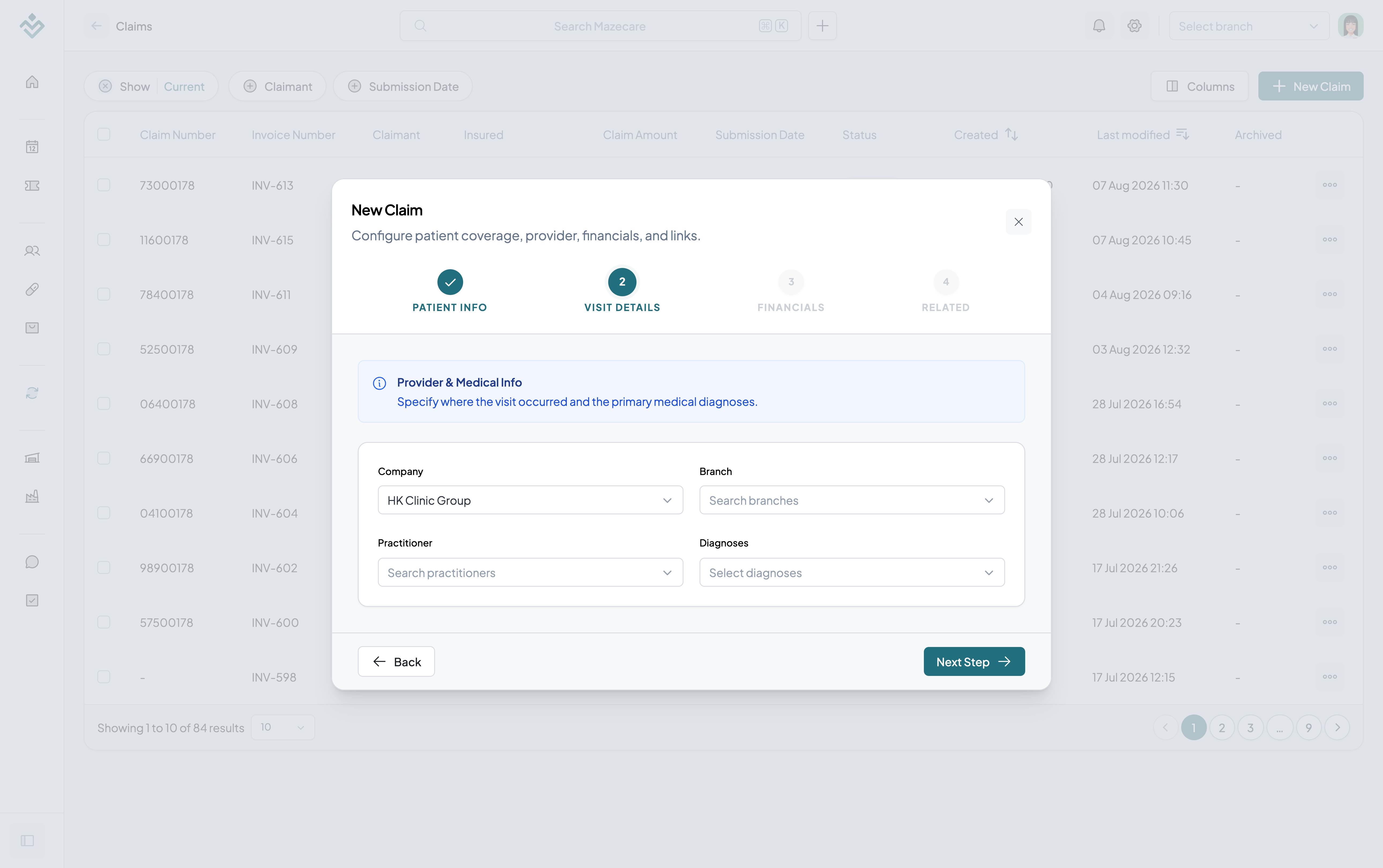
Step 2: Provider & Medical Information
Specify clinical context, facility location, and primary diagnoses:
- Company & Branch: Select the operating healthcare facility and branch location (e.g., HK Clinic Group).
- Practitioner: Assign the attending doctor who performed the consultation or procedure.
- Diagnoses: Bind the primary diagnostic codes justifying the claim.
- Click Next Step →.
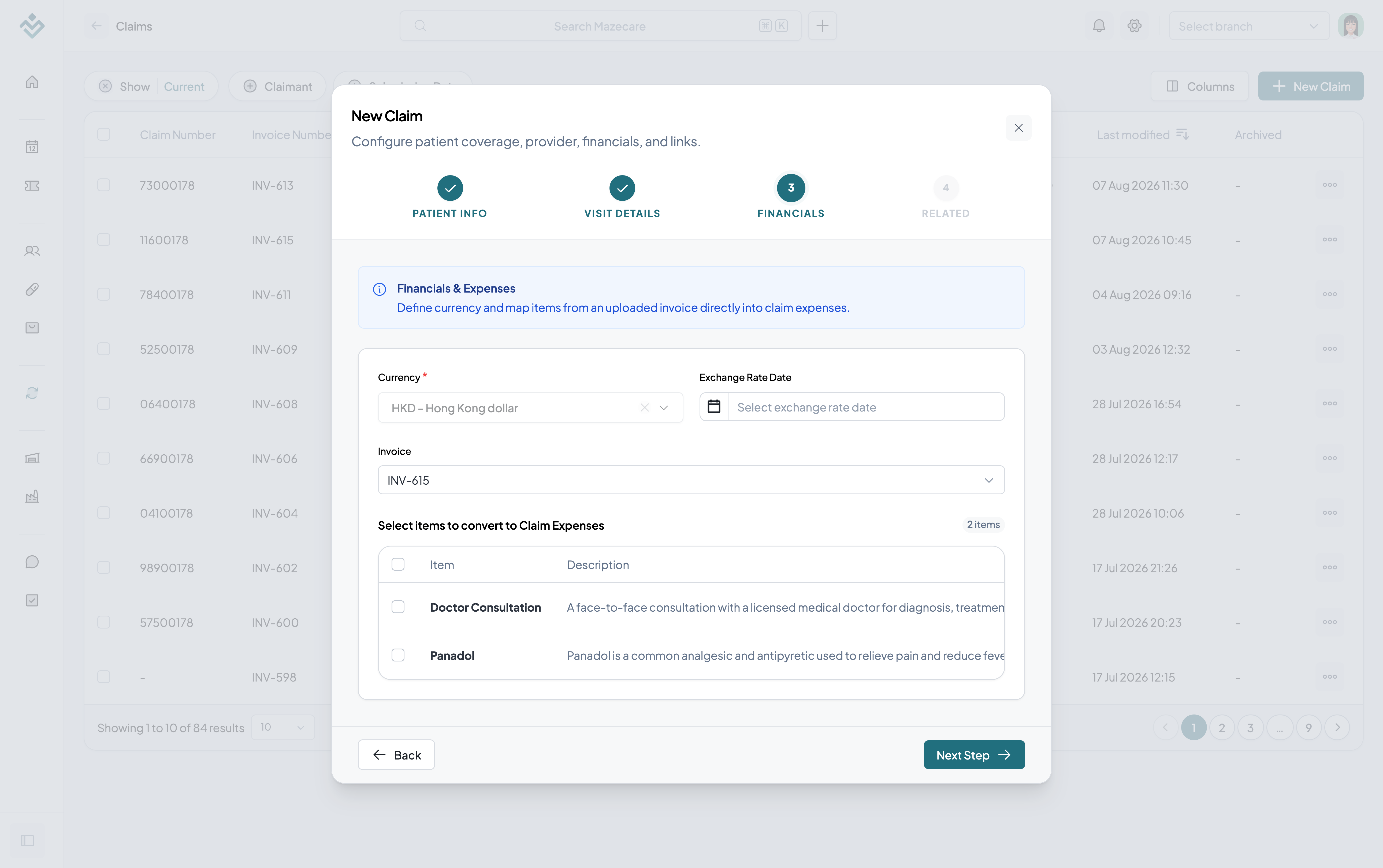
Step 3: Financials & Invoice Line Item Conversion
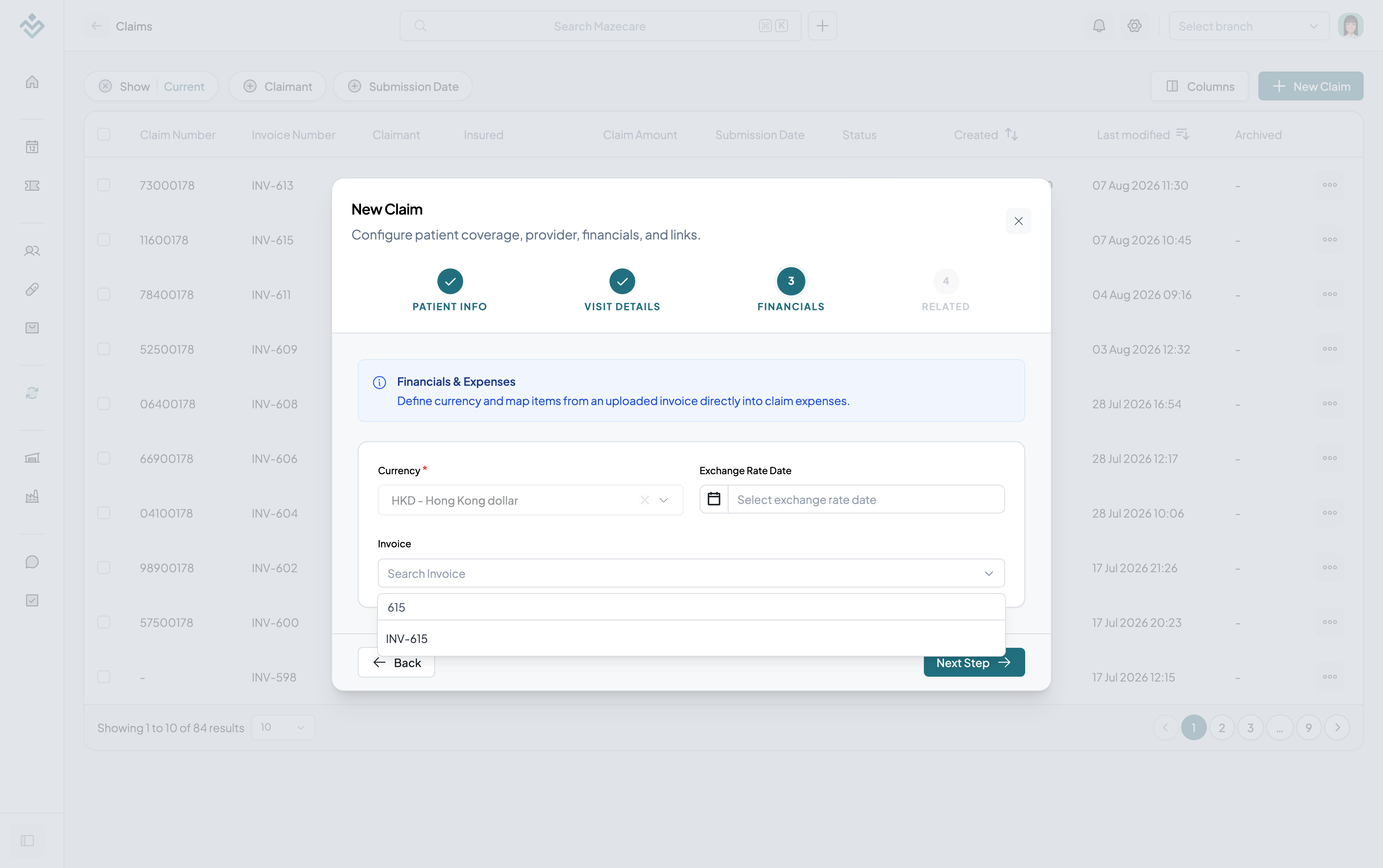
The Financials step bridges clinical accounting with insurance reimbursement by transferring billable items directly from an existing invoice:
- Currency & Exchange Rate: Select the settlement currency (e.g.,
HKD - Hong Kong dollar) and applicable exchange rate date. - Select Invoice: Search and select the patient's generated invoice (e.g.,
INV-615).
- Convert Invoice Items to Claim Expenses:
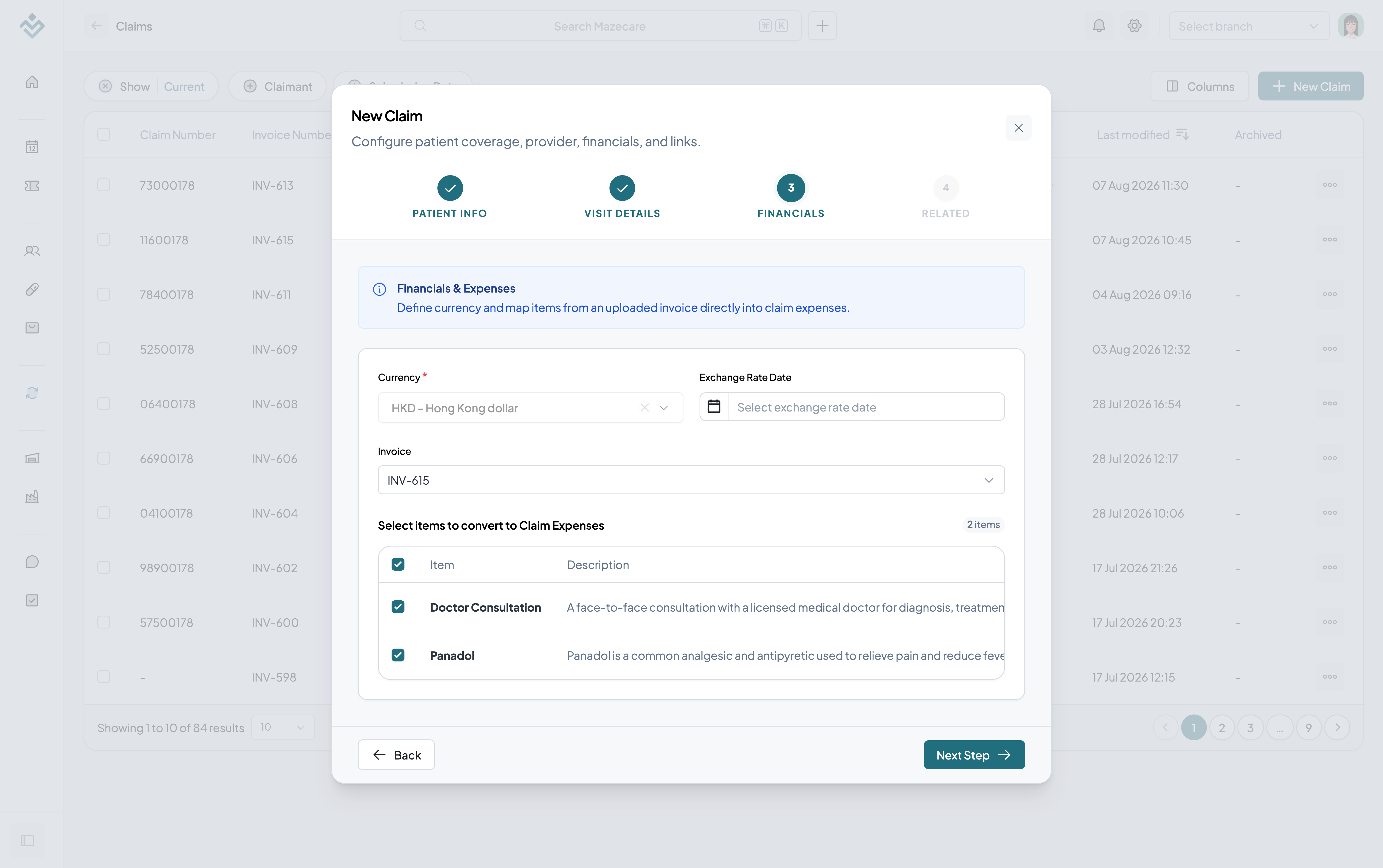
- The modal automatically pulls all billable line items from the selected invoice (e.g., Doctor Consultation, Panadol).
- Check the items that should be submitted for insurance coverage. Any unchecked items will remain purely patient self-pay.
- Click Next Step →.
Step 4: Linking Prior Authorizations & Related Claims
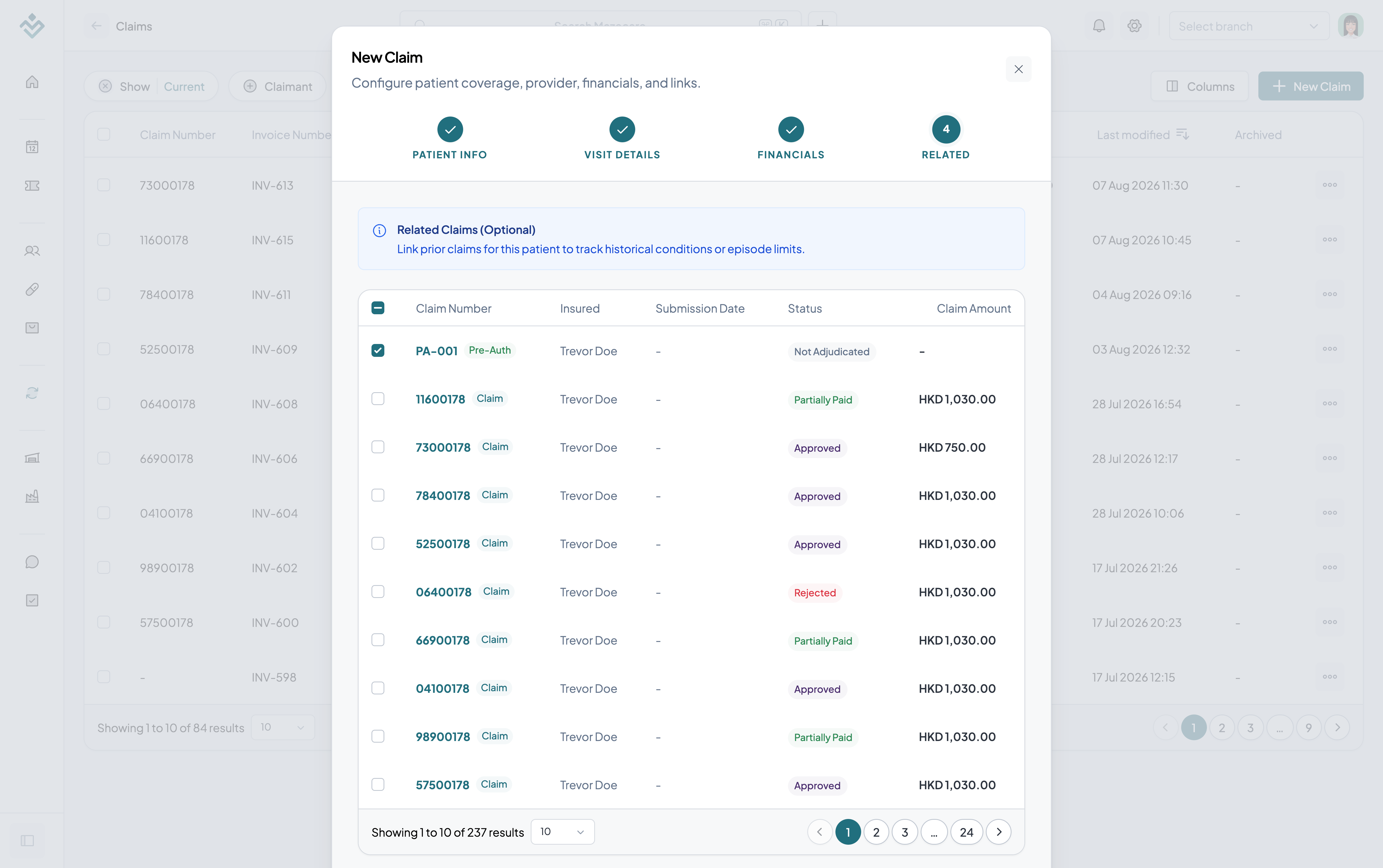
The Related step allows billing staff to connect pre-authorized guarantees or link historical claims:
- Link Prior Authorization:
- If the treatment required pre-approval, locate and select the corresponding Prior Authorization record (e.g.,
PA-001 Pre-Auth). - Linking the pre-authorization automatically imports the approved benefit limits, pre-certification reference codes, and Letters of Guarantee (LOG) into the active claim.
- If the treatment required pre-approval, locate and select the corresponding Prior Authorization record (e.g.,
- Track Episode Continuity:
- Link prior claims from the same episode of care to accurately calculate cumulative policy annual limits.
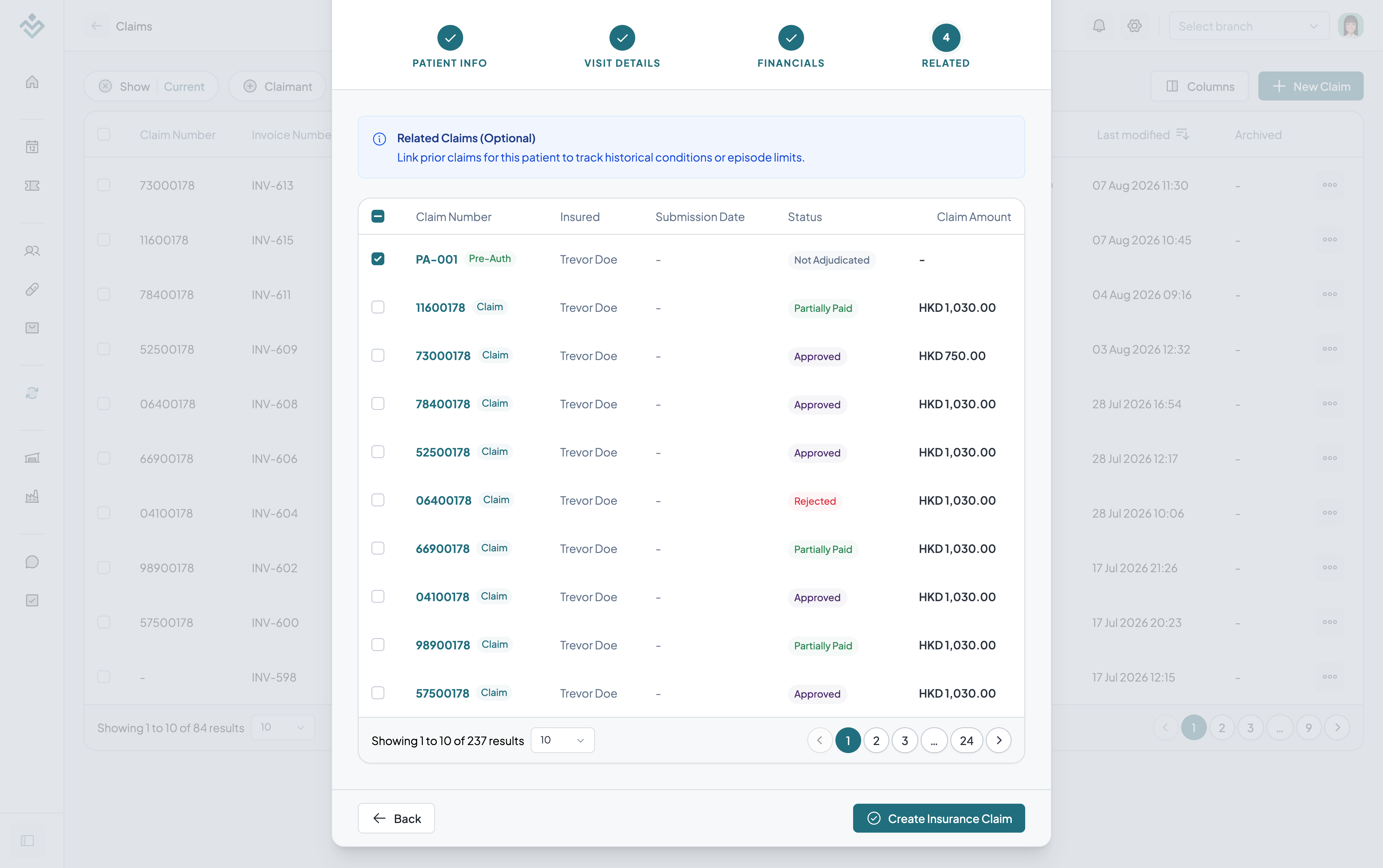
- Click Create Insurance Claim to instantiate the claim record.
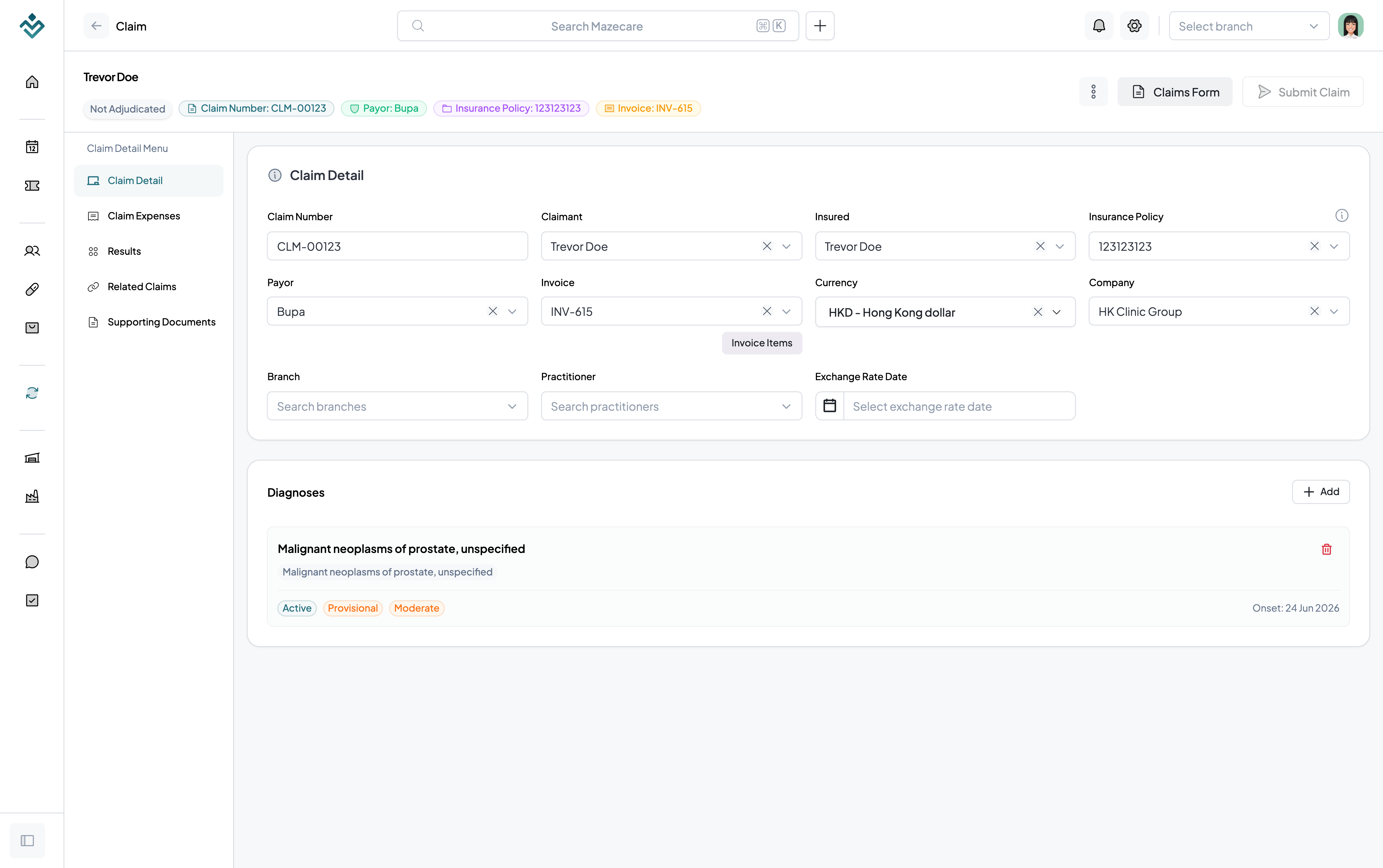
Step 3: Claim Detail & Core Header Configuration
Once created, opening the claim loads the comprehensive Claim Detail Workspace. The header displays the master tracking properties:
- Claim Header Badges: Displays the Claim Number (
CLM-00123), Payor (Bupa), Policy Number (123123123), Linked Invoice (INV-615), and current status (Not Adjudicated). - Claim Detail Overview: Summarizes claimant identity, currency, branch, company, and primary clinical diagnoses (e.g.,
Malignant neoplasms of prostate).
Below the header, the claim is divided into five dedicated sub-modules:
- Claim Detail
- Claim Expenses
- Results
- Related Claims
- Supporting Documents
Step 4: Sub-Module Deep Dive
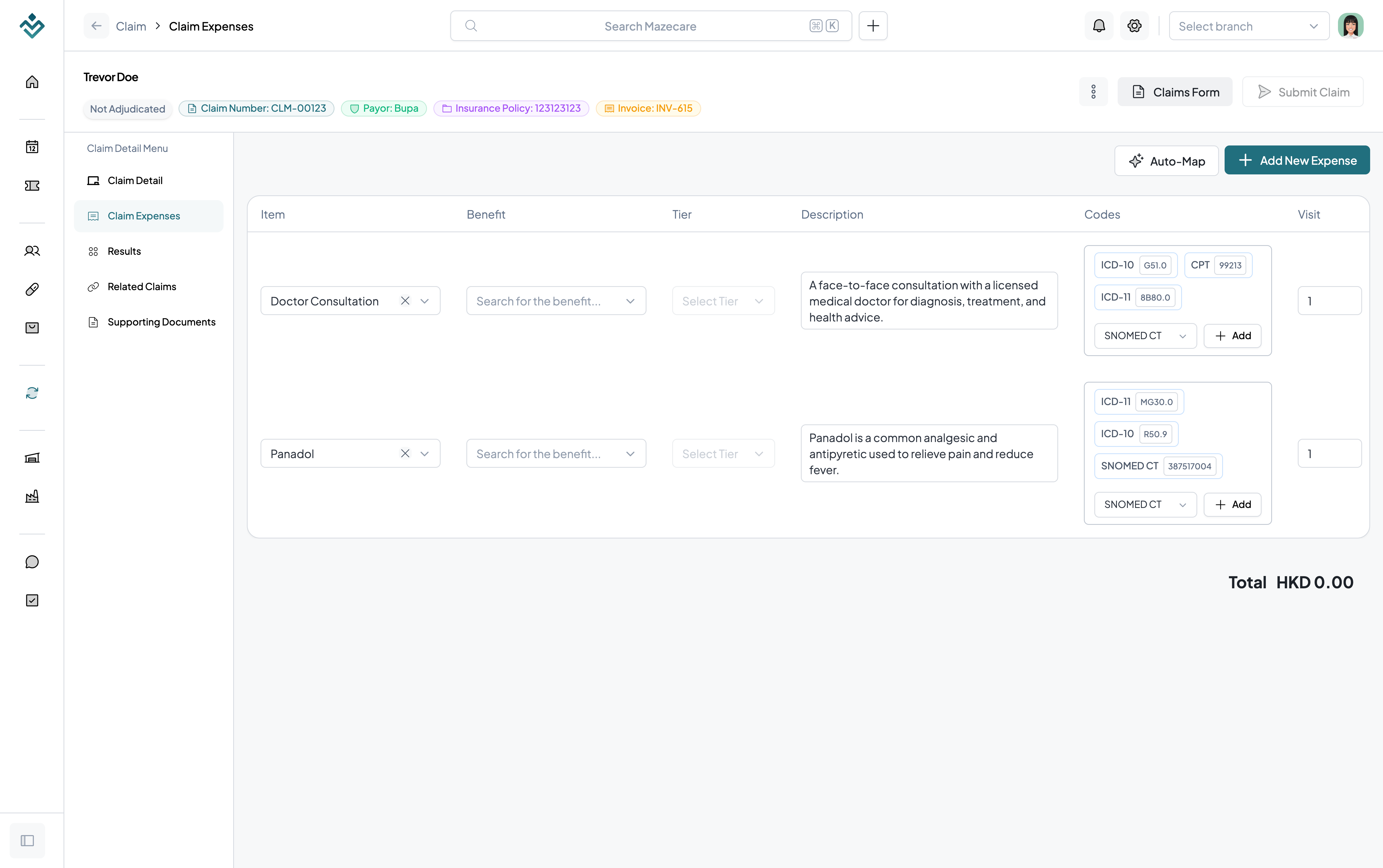
1. Claim Expenses Sub-Module (Automated Benefit & Medical Coding Auto-Map)
The Claim Expenses sub-module manages the itemized medical expenses transferred from the invoice:
- The Auto-Map Feature:
- Clicking the Auto-Map button initiates an intelligent rule-based mapping routine.
- The system analyzes the item descriptions and attached clinical records to automatically bind:
- Policy Benefit Tiers: Identifies the corresponding benefit clause (e.g., Outpatient Consultation, Prescription Drugs).
- Standardized Medical Taxonomies: Suggests standardized diagnostic codes (ICD-11
8B80.0,MG30.0), procedure codes (CPT99213), and clinical terms (SNOMED CT387517004).
- Manual Adjustments: Staff can manually adjust benefit categories, add additional procedure codes, or append new expense items as needed.
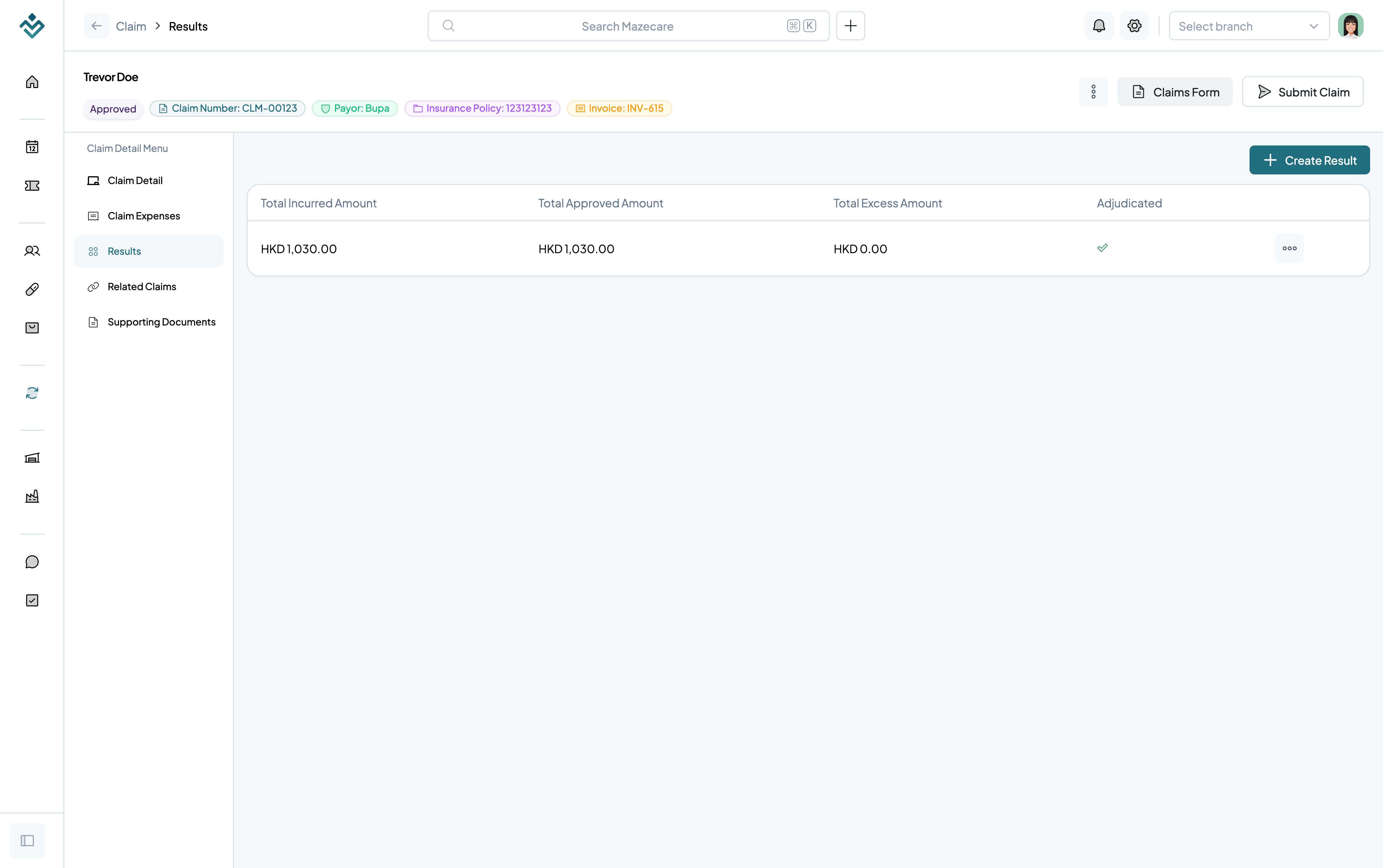
2. Results Sub-Module (Real-Time Policy Adjudication Engine)
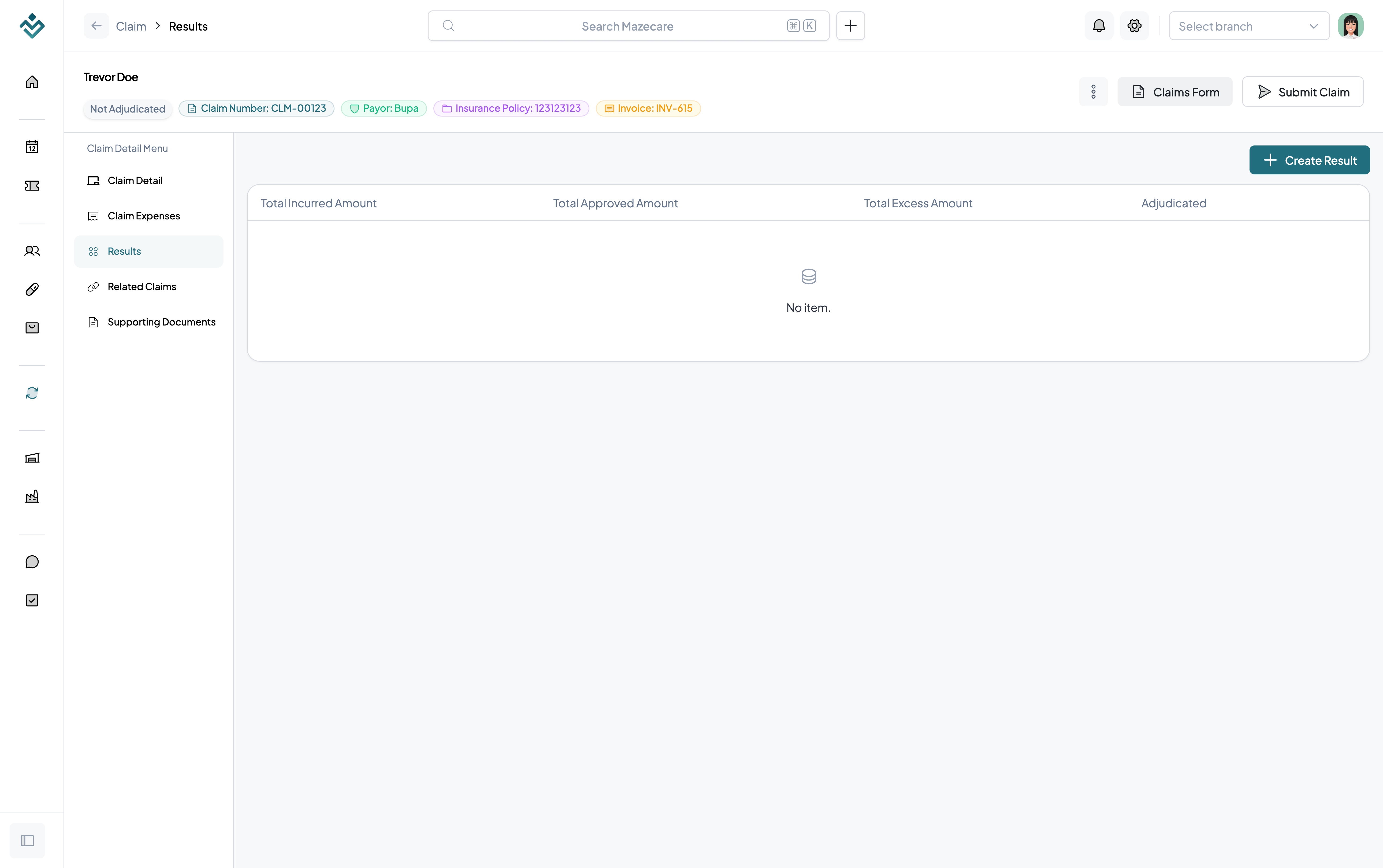
The Results sub-module is where Mazecare's deterministic Adjudication Engine evaluates the claim against the payor's contracted rules:
- Execute Adjudication: Click + Create Result or run adjudication.
- Adjudication Breakdown & Financial Calculations:
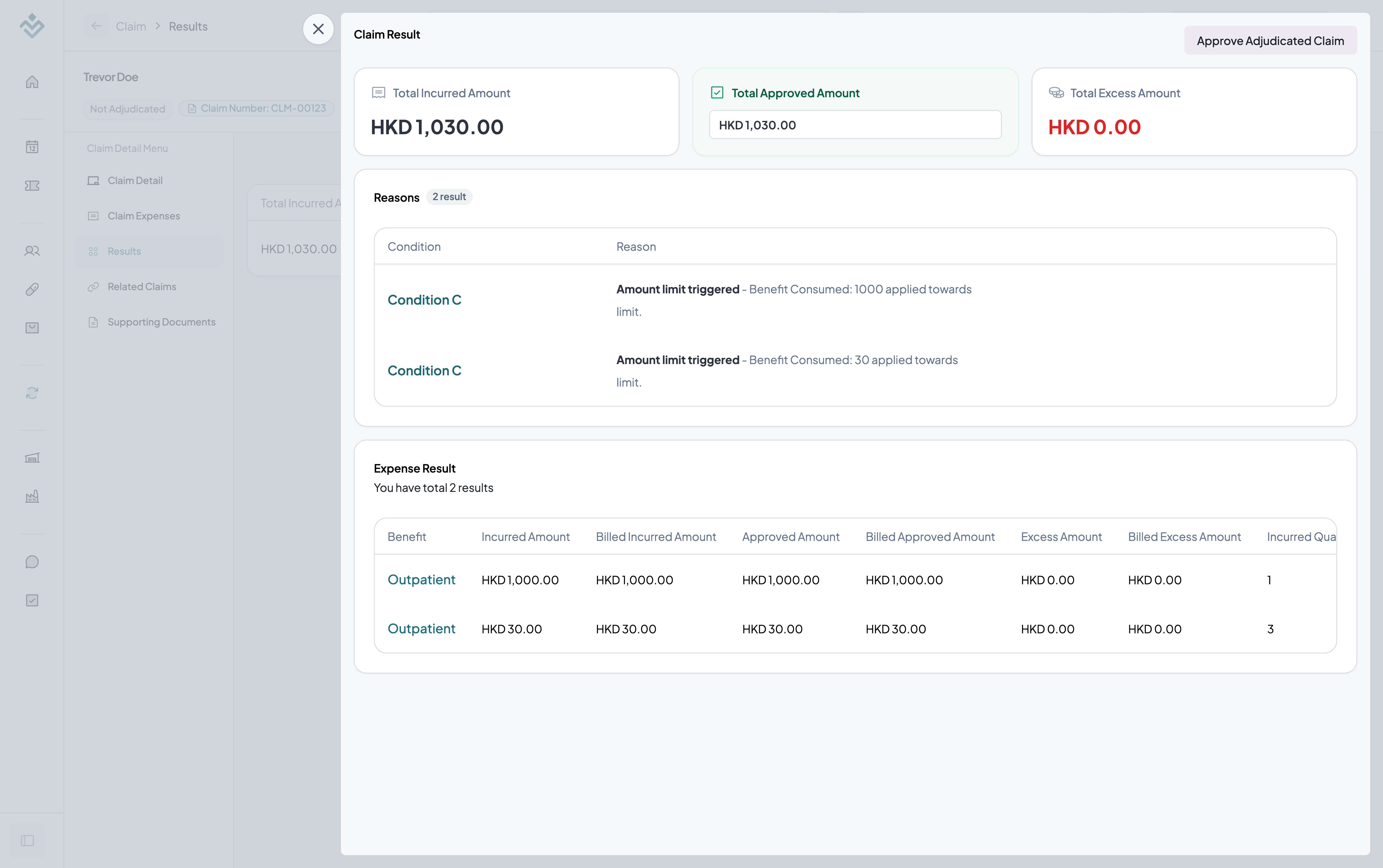
- The adjudication engine evaluates policy limits, deductibles, and co-insurance schedules, generating a complete financial breakdown:
- Total Incurred Amount: Aggregate billed expense (e.g.,
HKD 1,030.00). - Total Approved Amount: The portion covered by the insurance carrier (e.g.,
HKD 1,030.00). - Total Excess Amount: The patient out-of-pocket responsibility (e.g.,
HKD 0.00).
- Total Incurred Amount: Aggregate billed expense (e.g.,
- Conditions & Triggered Reasons: Displays exact benefit limits consumed during calculation (e.g., "Amount limit triggered - Benefit Consumed: 1000 applied towards limit").
- Itemized Expense Results: Line-by-line breakdown of incurred amount, approved amount, and excess shortfall for each item.
- The adjudication engine evaluates policy limits, deductibles, and co-insurance schedules, generating a complete financial breakdown:
- Approve Adjudicated Claim:
- After reviewing the adjudication results, click the prominent Approve Adjudicated Claim button.
- The claim status transitions to Approved, locking the adjudication values and preparing the claim for transmission or settlement.
3. Related Claims Sub-Module
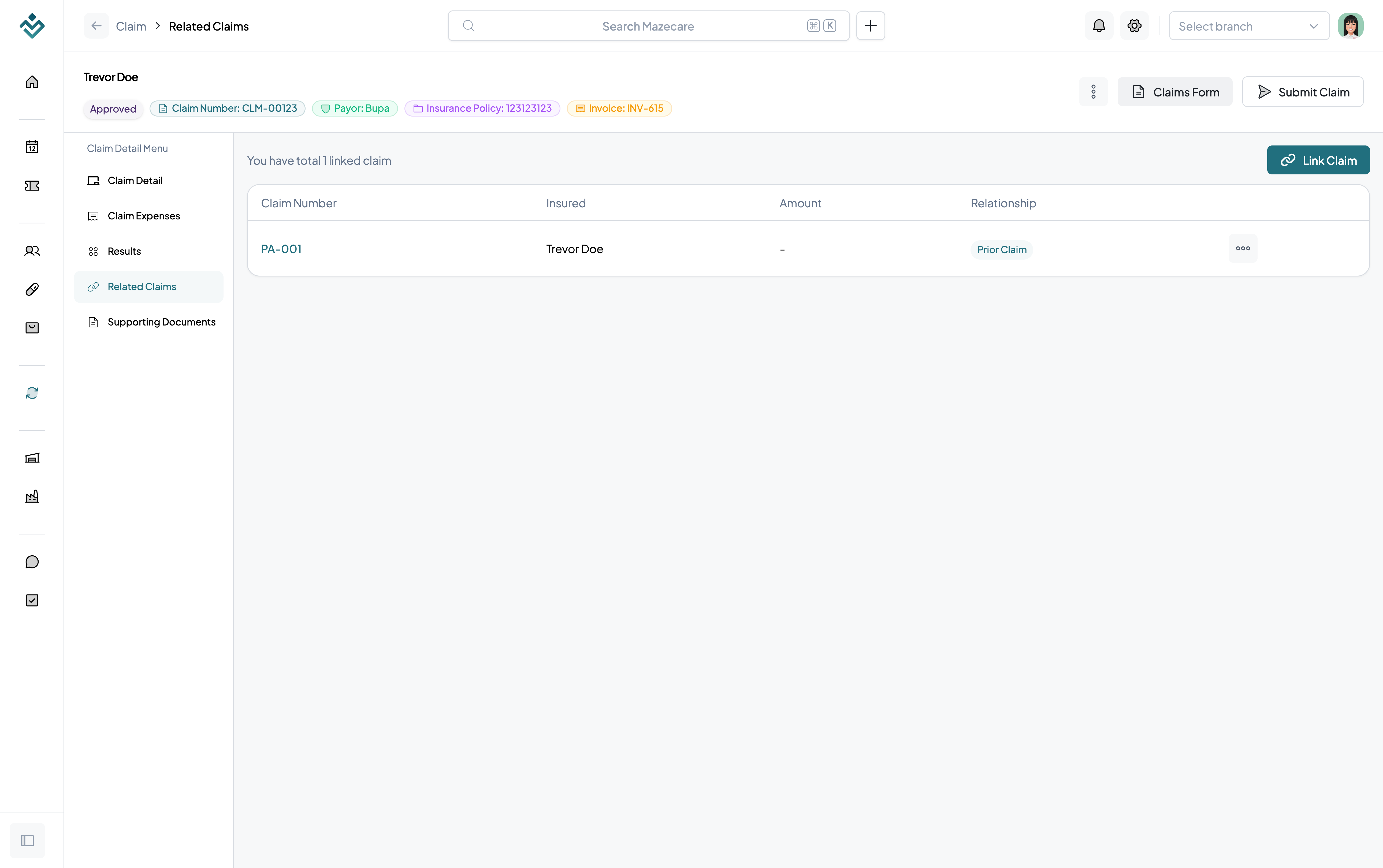
The Related Claims sub-module displays all interconnected claims and pre-authorizations:
- Displays linked prior authorizations (e.g.,
PA-001 Prior Claim). - Allows linking additional claims on the fly using the Link Claim action to ensure that cross-visit aggregate policy limits are calculated accurately.
4. Supporting Documents Sub-Module
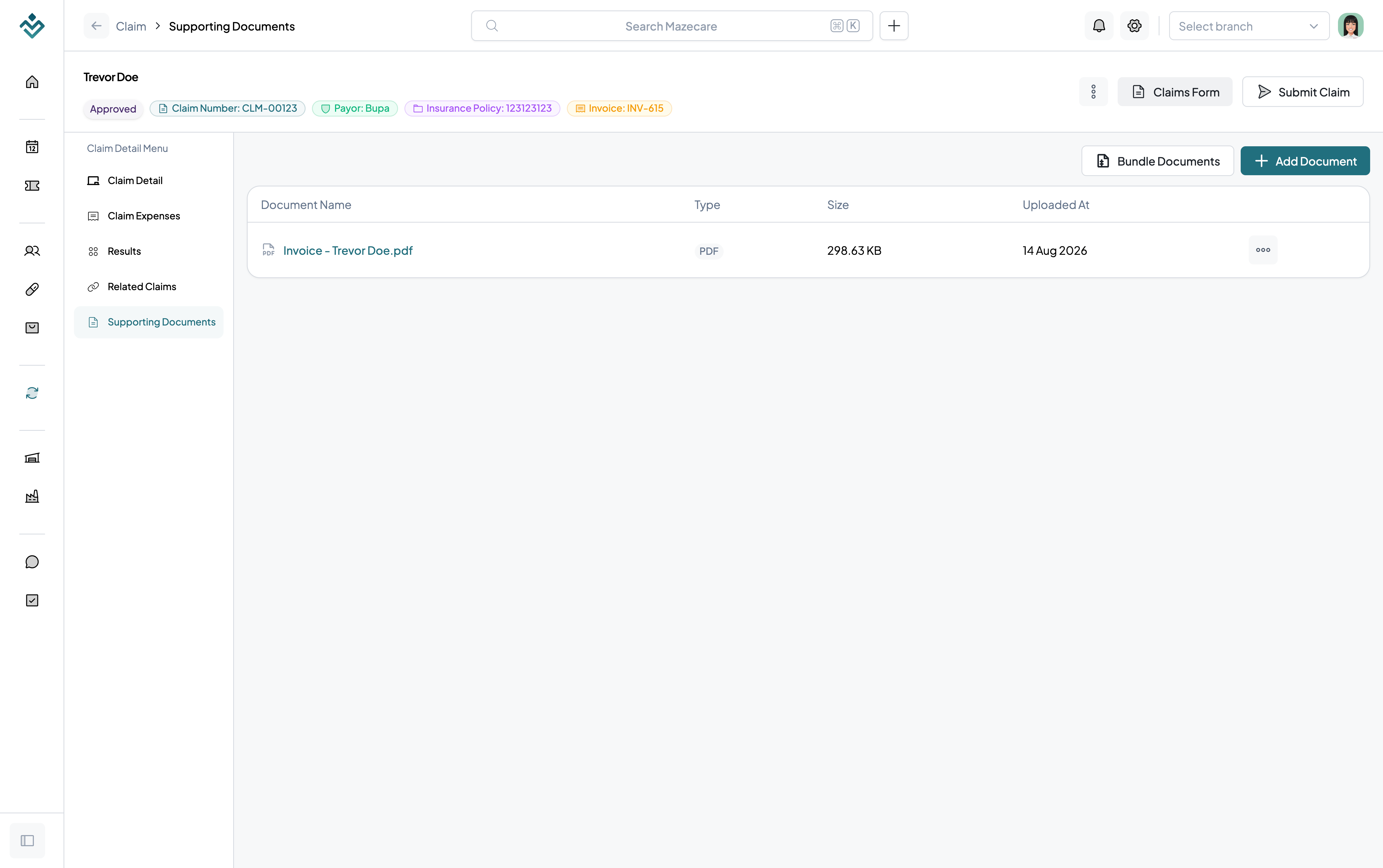
The Supporting Documents sub-module provides a comprehensive digital archive for all claim documentation required by payors:
- Attached Invoices & Receipts: Stores the official coded invoice (e.g.,
Invoice - Trevor Doe.pdf). - Bundle Documents: Consolidates clinical notes, lab results, itemized receipts, and Letters of Guarantee into a single unified submission package.
- Add Document: Allows uploading supplementary doctor referral letters, diagnostic scans, or payor clarification forms.
Step 5: Generating Co-Payor Invoices & Settling Original Patient Invoices
Once the claim is adjudicated and approved, Mazecare automates the financial settlement between the insurance payor and the original patient invoice:
1. Creating the Co-Payor Invoice
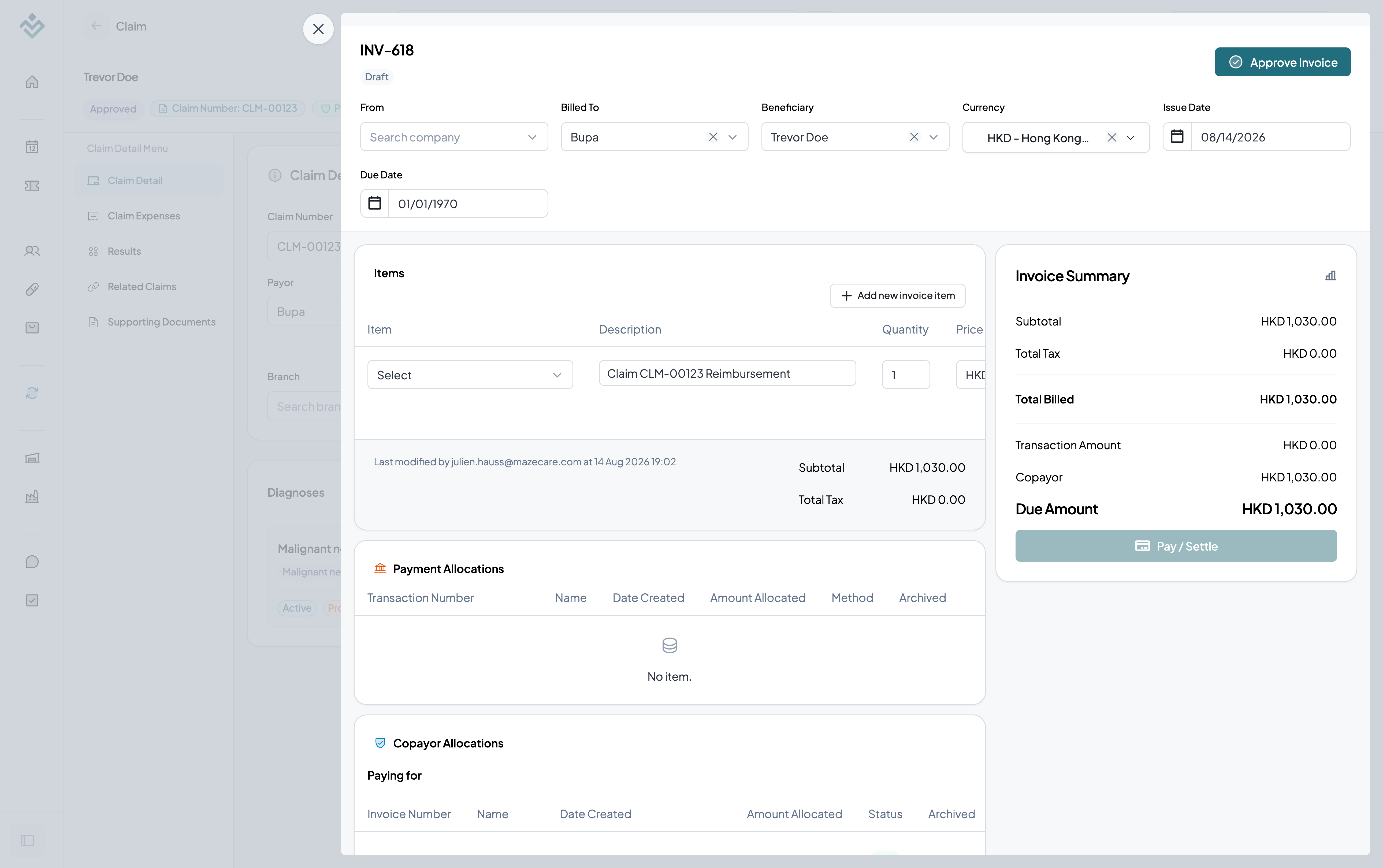
- In the header toolbar of the approved Claim Detail view, click the Create Co-Payor button.
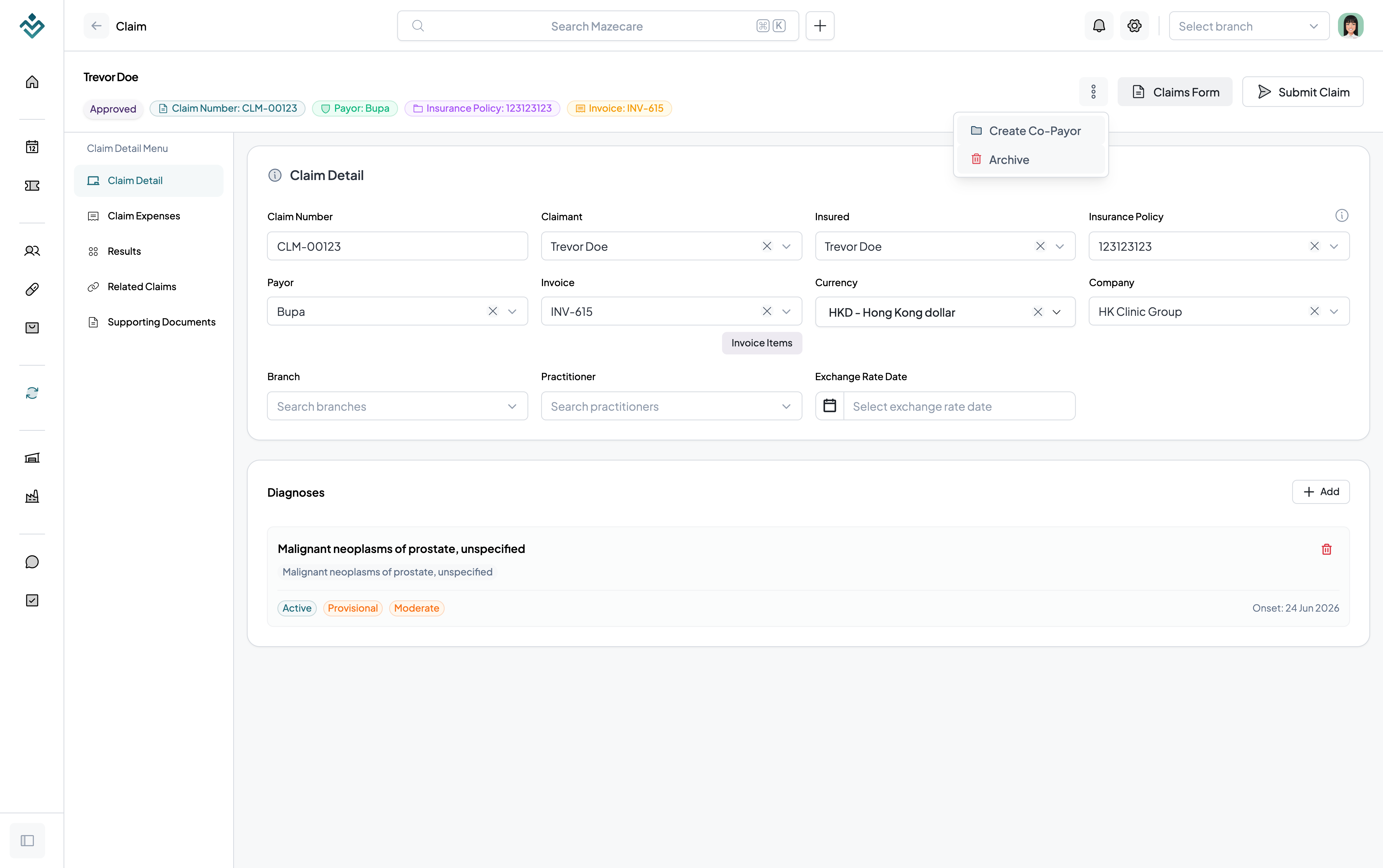
- The system automatically creates a dedicated Co-Payor Invoice (e.g.,
INV-618) billed directly to the insurance carrier (e.g., Bupa):- Line Item Mapping: Automatically creates a reimbursement line item (e.g.,
Claim CLM-00123 Reimbursement) with the exact approved amount (HKD 1,030.00). - Beneficiary: Preserves the patient profile (Trevor Doe) while assigning the institutional payor (Bupa) as the billing recipient.
- Direct Settlement Linkage: The co-payor invoice is immediately linked to pay down the patient's original consultation invoice (
INV-615).
- Line Item Mapping: Automatically creates a reimbursement line item (e.g.,
2. Automatic Allocation & Patient Invoice Settlement
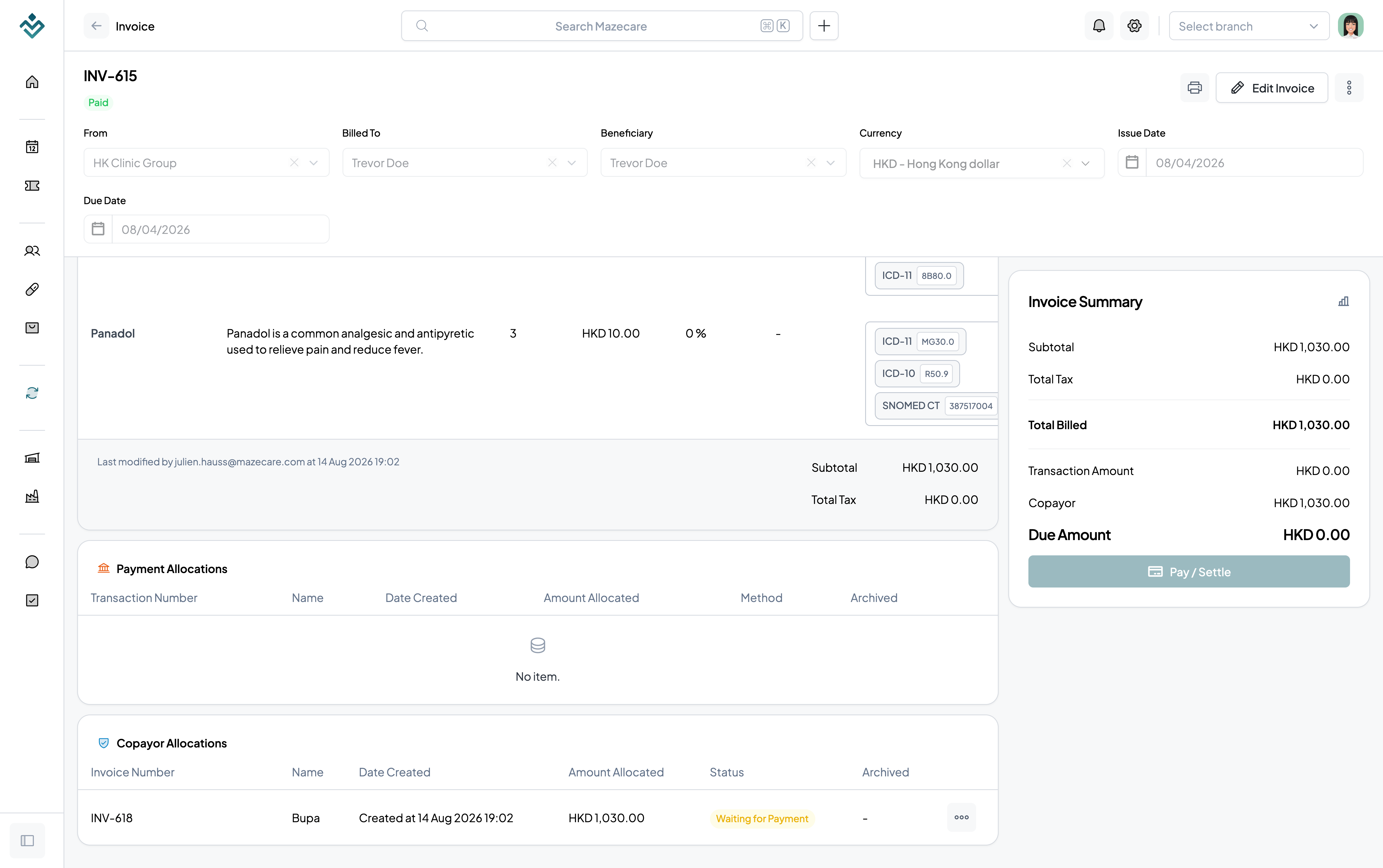
Navigate to the original patient invoice (e.g., INV-615):
- Copayor Allocations Table:
- Open
INV-615and scroll to the Copayor Allocations section. - The table displays the newly created Co-Payor invoice (
INV-618) from Bupa allocated for the approved amount ofHKD 1,030.00.
- Open
- Invoice Balance Offset:
- The allocated insurance payment directly offsets the invoice total (
Total Billed: HKD 1,030.00 • Copayor: HKD 1,030.00). - The Due Amount updates to HKD 0.00, transitioning the invoice status to Paid.
- The allocated insurance payment directly offsets the invoice total (
3. Claim Submission & Forms Export
- Submit Claim: Click Submit Claim in the claim header to transmit the finalized electronic claim package to the insurer clearinghouse.
- Print Claims Form: Click Claims Form to export standardized physical insurance forms with itemized diagnosis and CPT codes for patient records or mail-in submission.
Prior Authorizations
Comprehensive standard operating procedure for submitting prior authorization requests, assembling clinical evidence, managing requested procedure expenses, and digitizing Letters of Guarantee (LOG) from insurance payors.
Accounting Management
Comprehensive standard operating procedure for managing clinic accounting ledgers, split-invoicing, multi-invoice payment allocations, refund disbursements, and payor master directories in Mazecare OS.