

Clinical Decision Support & Knowledge Base
The Knowledge Base module houses Mazecare's Clinical Decision Support (CDS) engine. It enables healthcare organizations to establish rule-based clinical safeguards, automated diagnostic suggestions, contraindication alerts, consultation scripts, and recommended clinical protocols.
By combining rule-based evaluation with AI intent matching, the Knowledge Base ensures clinicians receive timely, actionable guidance during patient encounters, prescription ordering, and triage workflows.
Accessing the Knowledge Base Hub
To manage your organization's clinical rules and actions, navigate to Settings → Knowledge Base in the main navigation menu.
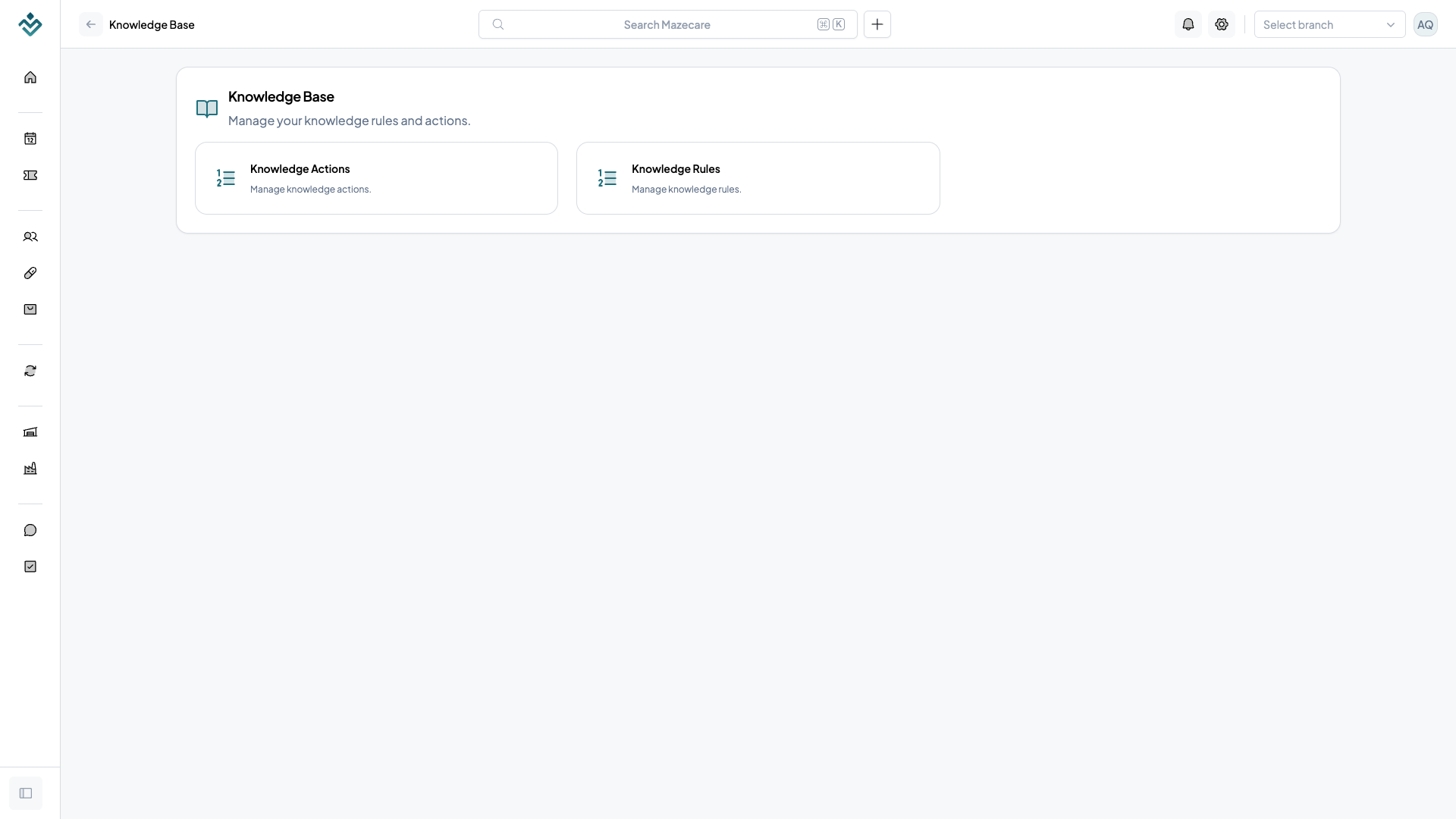
The Knowledge Base hub is organized into two primary sub-modules:
- Knowledge Actions: Define the content, scripts, disclaimers, and interactive shortcuts that are triggered by clinical rules.
- Knowledge Rules: Establish the clinical conditions, triggers (AI intent, system events, semantic search), and priority rankings that govern when actions appear.
Managing Knowledge Actions
Knowledge Actions represent the specific deliverables, warnings, or interactive workflows presented to clinicians and administrative staff when a rule is triggered.
Navigate to Settings → Knowledge Base → Knowledge Actions to view your action catalog:
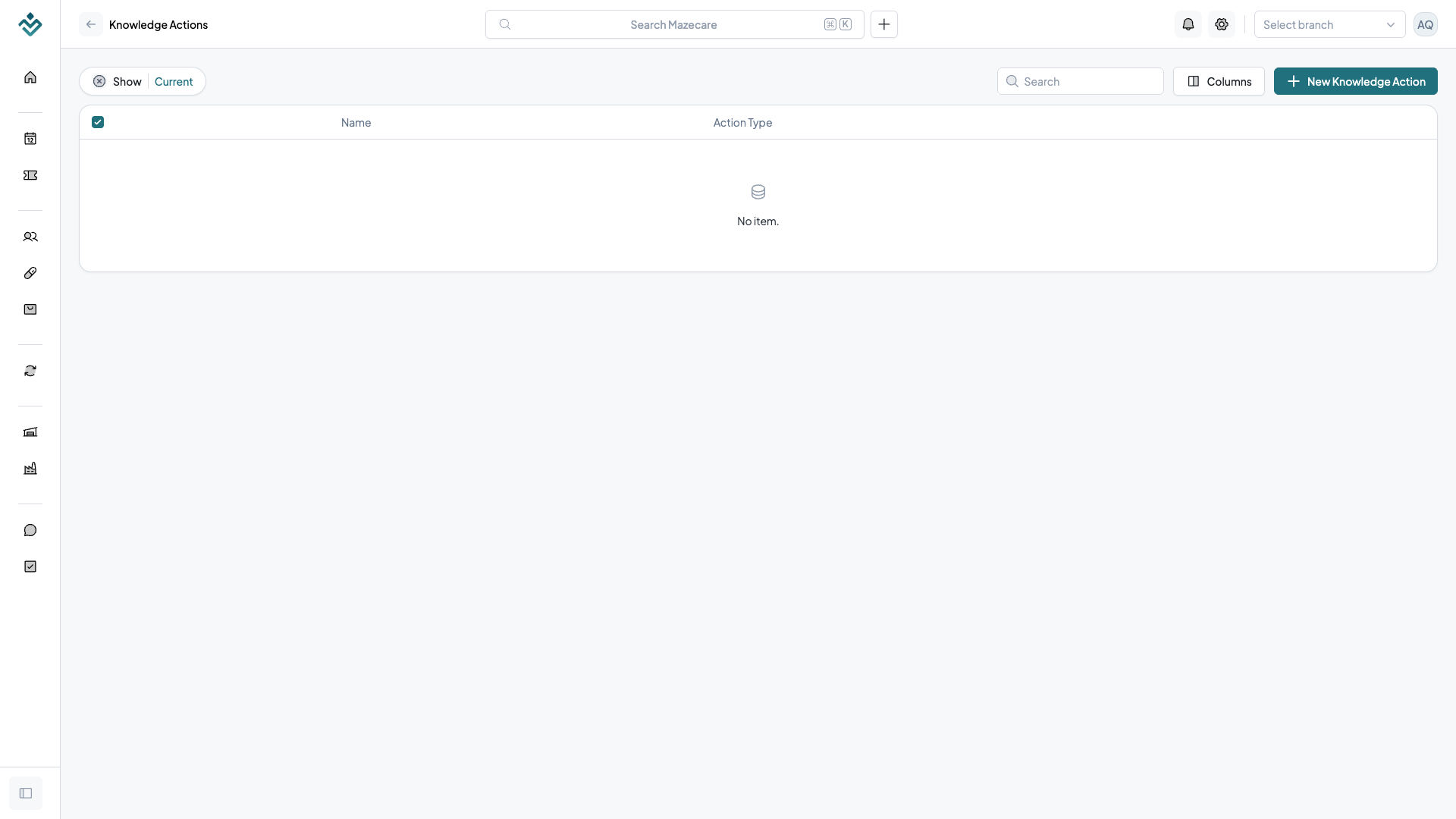
Action Catalog Features:
- Search Bar: Quickly locate actions by name, description, or action type.
- Filter by Status: Switch between active items and archived records.
- Columns Customization: Toggle table columns to customize your view.
- New Knowledge Action: Click the button in the top right corner to create a new action record.
- Row Action Menu: Archive or delete actions no longer in clinical use.
Configuring Knowledge Action Details
Clicking any action row or creating a new action opens the Knowledge Action configuration screen:
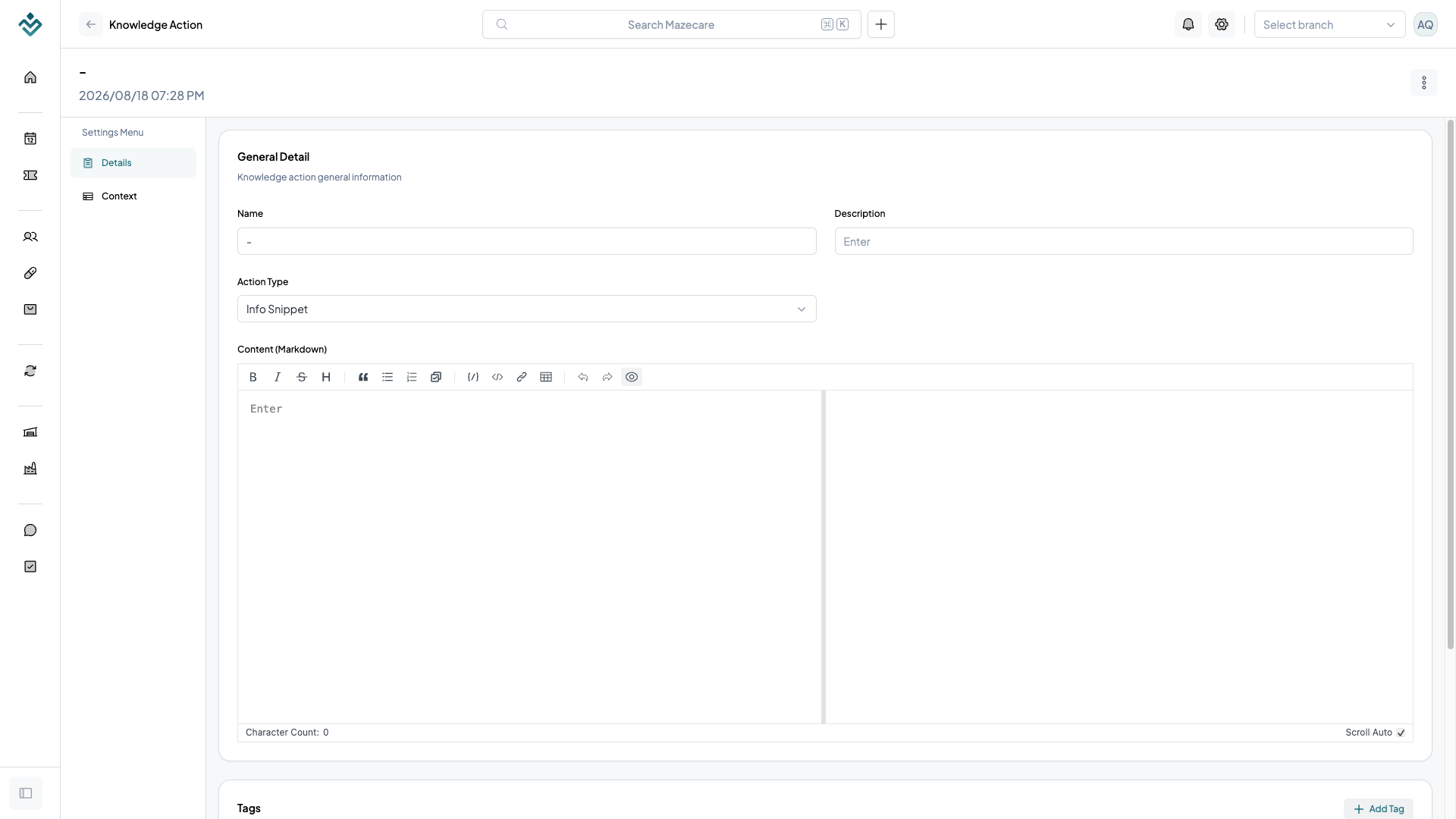
Action Fields & Configuration:
| Configuration Field | Requirement | Description |
|---|---|---|
| Name | Required | Descriptive title of the action (e.g., Warfarin - NSAID Gastrointestinal Risk Alert). |
| Description | Optional | Internal summary explaining the clinical rationale and target use case. |
| Action Type | Required | The behavioral type determining how the action is rendered and executed (detailed below). |
| Content (Markdown) | Optional | Rich text / Markdown editor for formatted clinical messaging, warning banners, clinical guidance, or scripts. |
| Tags | Optional | Custom organizational tags for categorization, indexing, and filtering. |
Supported Action Types:
- Info Snippet: Renders an informational guidance card or clinical reference note in the consultation screen.
- Suggested Script: Provides recommended dialogue or consultation scripts for front-desk staff or healthcare practitioners.
- Mandatory Disclaimer: Displays a formal clinical safety disclaimer requiring practitioner acknowledgment before proceeding.
- UI Quick Action: Generates an interactive button in the interface that executes a pre-defined UI task or shortcut when clicked.
- System Auto Execute: Automatically runs a background system task or workflow when the corresponding rule criteria are met.
- AI Voice Prompt: Provides conversational voice prompts for AI-assisted voice consultation workflows.
- Suggested Adjudicated Result: Recommends claim adjudication decisions or clinical review recommendations.
- Suggested Email: Pre-configures an automated email notification template with recipient and subject rules.
Knowledge Action Context Variables
Under the Context tab of the action editor, administrators can define dynamic context variables:
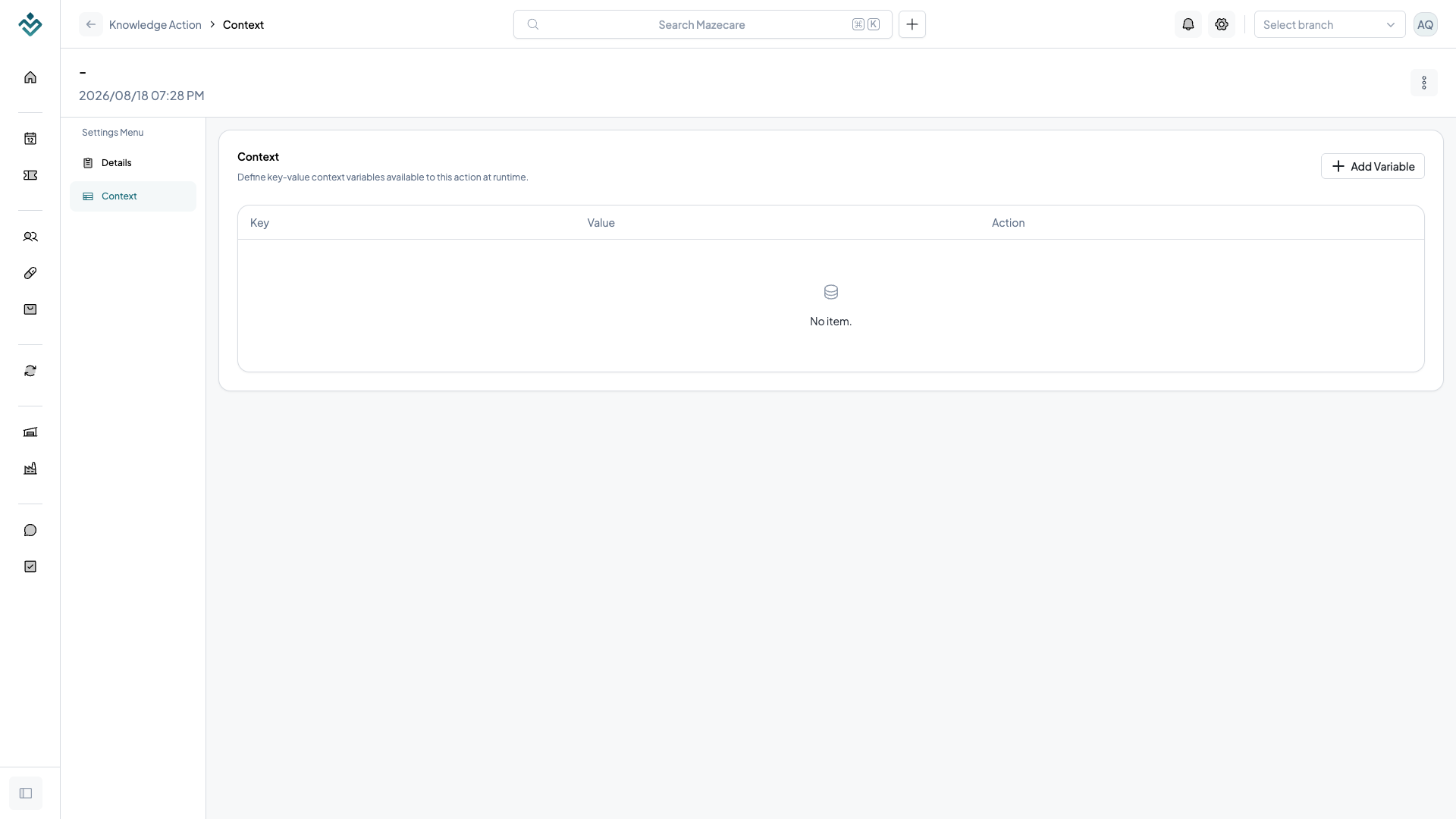
Context variables allow templates and scripts to dynamically interpolate live data from the active consultation (such as patient names, vital signs, medication dosages, or doctor names) during execution.
Managing Knowledge Rules
Knowledge Rules define the logic, trigger events, and clinical criteria that evaluate patient encounters in real time.
Navigate to Settings → Knowledge Base → Knowledge Rules to view configured rules:
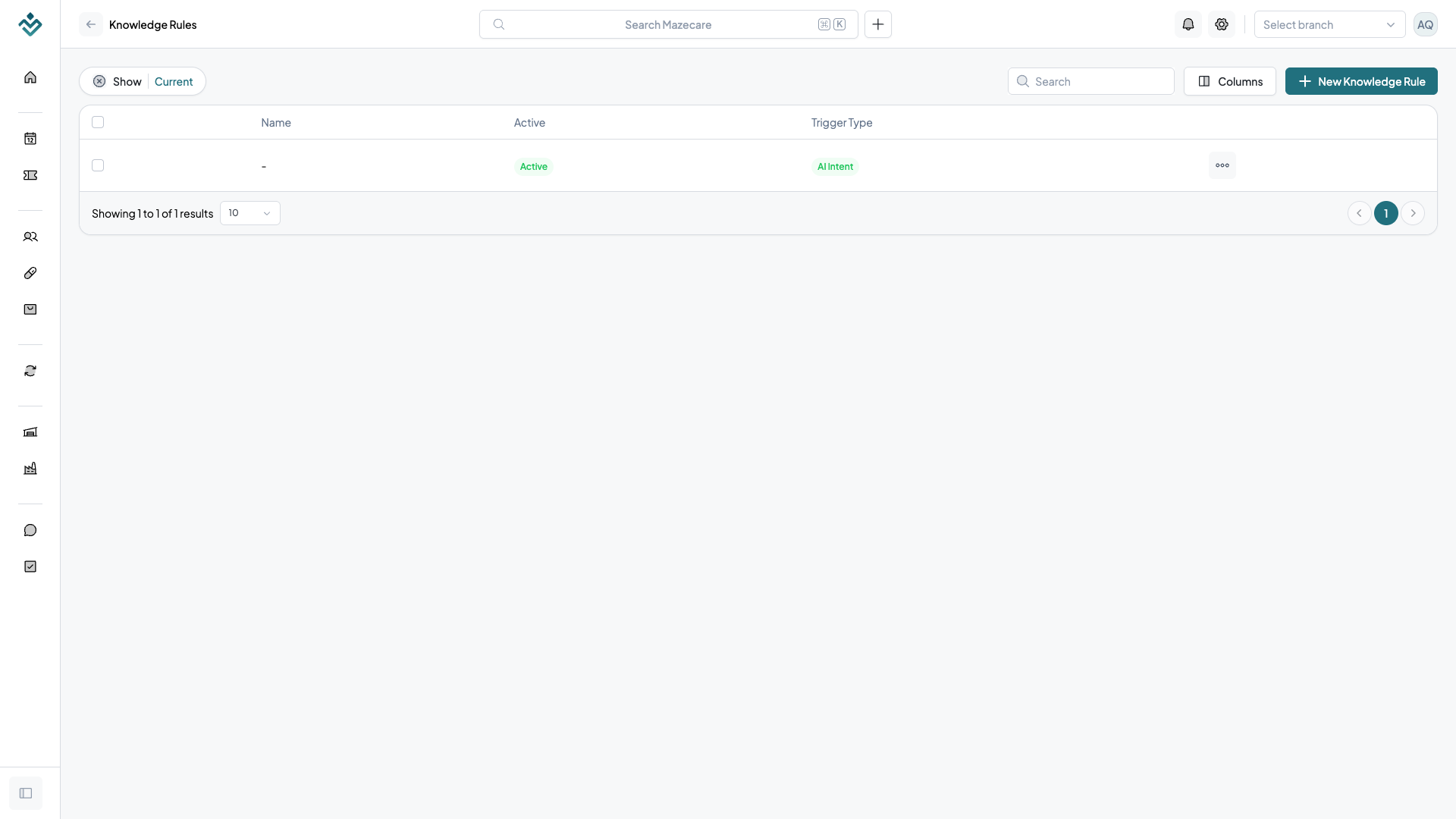
Rule Catalog Features:
- Search & Filter: Filter rules by keyword or lifecycle status.
- Trigger Type Badges: Clearly distinguish AI intent rules from system-event rules and search-triggered rules.
- Priority Indicator: View rule execution precedence.
- Active Toggle: Enable or disable rules directly from the table without entering the detail view.
Configuring Knowledge Rule General Details
Clicking any rule row opens the comprehensive Knowledge Rule editor:
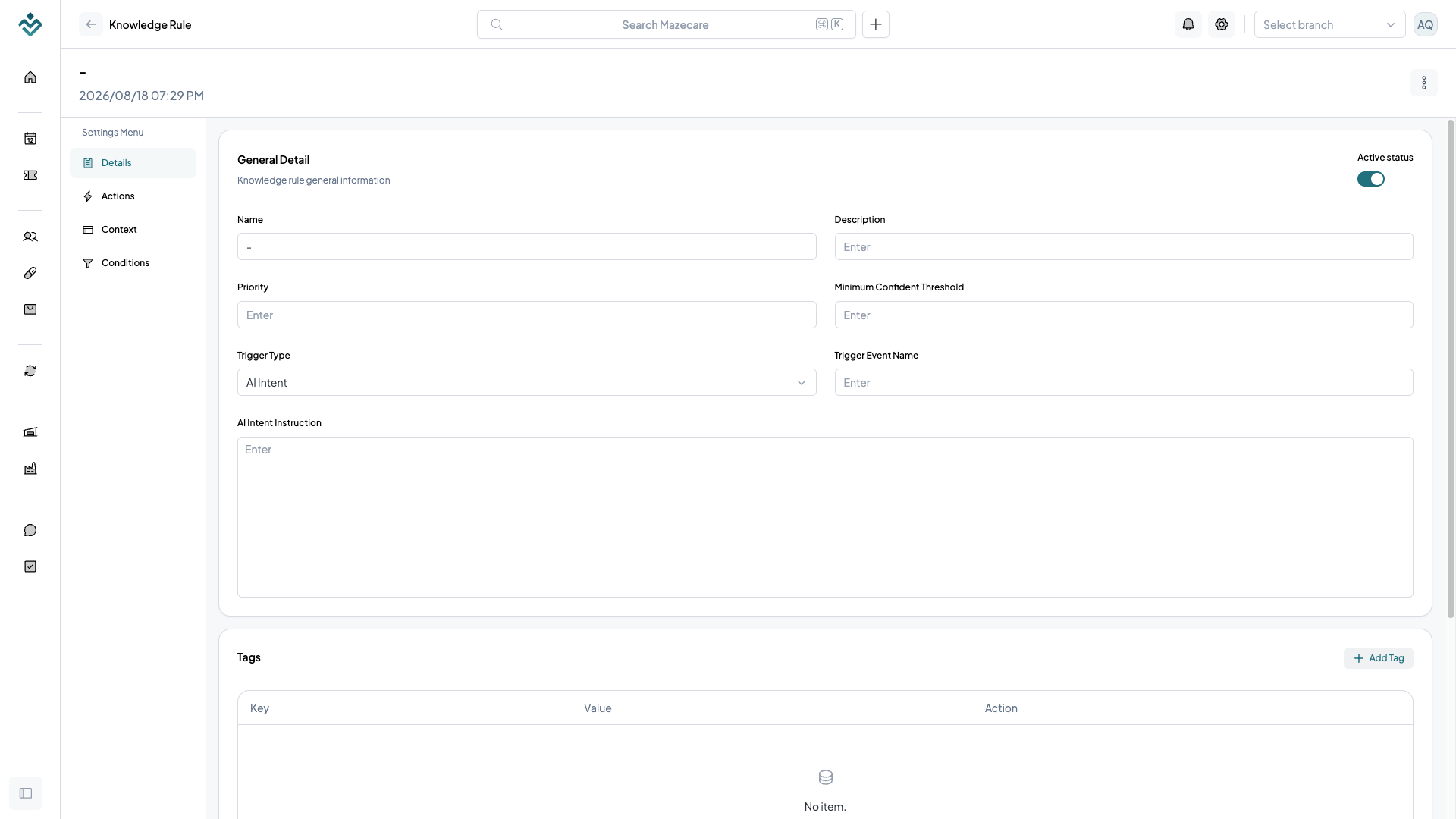
Rule Header & General Settings:
| Setting | Type | Description |
|---|---|---|
| Active Status | Toggle | Global switch to activate or pause rule evaluation across the clinic. |
| Name | Text | Human-readable name identifying the clinical safeguard or protocol rule. |
| Description | Text | Summary of clinical objectives and scope of the rule. |
| Priority | Number | Numeric priority ranking determining execution and display order when multiple rules match simultaneously. |
| Minimum Confidence Threshold | Number | The AI confidence score threshold required to trigger AI-driven intent matching. |
| Trigger Type | Selection | Defines the mechanism that initiates rule evaluation (detailed below). |
| Trigger Event Name | Text | Specific system event identifier when using event-based triggers. |
| AI Intent Instruction | Long Text | Natural language instructions guiding the AI model on clinical intent detection during consultation charting. |
| Intent Utterances | List | Clinical phrases, keywords, and example expressions used to train and refine intent recognition. |
| Tags | Table | Key-value tags for departmental grouping and workflow management. |
Supported Trigger Types:
- AI Intent: Continuously analyzes physician charting, clinical notes, and transcription to match intent against configured instructions and utterances.
- Manual Search: Evaluates and suggests actions when practitioners manually search the Knowledge Base during an encounter.
- System Event: Automatically fires when specific operational events occur (e.g., patient check-in, order creation, vitals recorded).
- Semantic Match: Uses vector semantic similarity to identify related clinical scenarios from free-text notes.
Building Rule Conditions
The Conditions tab provides a granular multi-domain condition builder to restrict rule execution to specific clinical parameters:
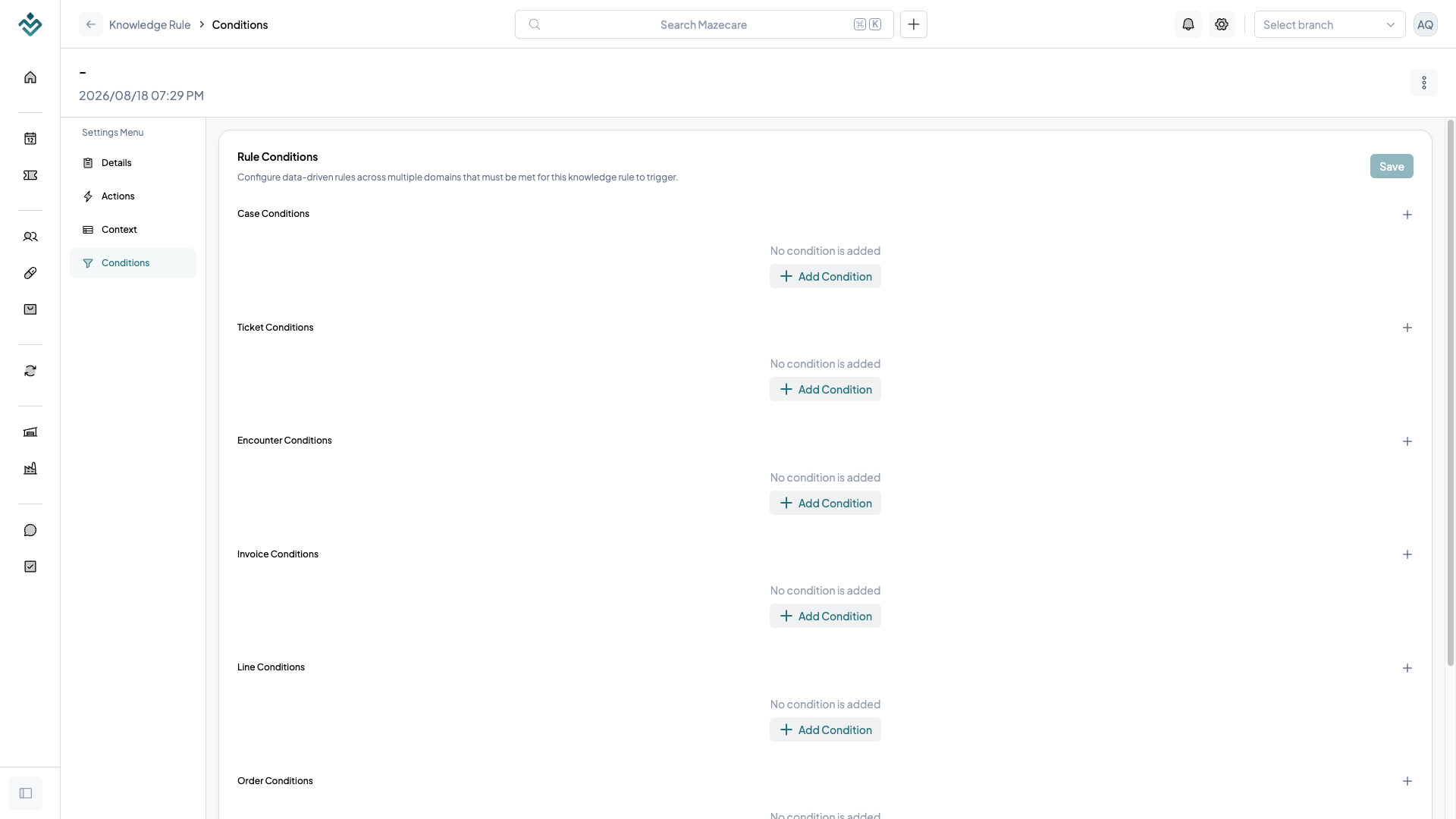
Administrators can configure condition criteria across seven clinical and operational domains:
- Case Conditions: Match patient case status, case categories, assignment, or priority tiers.
- Ticket Conditions: Match queue ticket status, triage priority, service type, or waiting time thresholds.
- Encounter Conditions: Match diagnosis codes (ICD-11), encounter type (e.g., Inpatient, Outpatient, Telehealth), attending doctor specialty, or clinical department.
- Invoice Conditions: Match billing amounts, outstanding balances, payment status, or billing items.
- Line Conditions: Match specific medication codes, active ingredients, dosage forms, or consumables.
- Order Conditions: Match requisition types (e.g., Laboratory, Diagnostic Imaging, Pharmacy Prescription) and order statuses.
- Policy Conditions: Match insurance provider, policy type, co-payment terms, or pre-authorization status.
Attaching & Sequencing Actions
The Actions tab allows you to bind one or more Knowledge Actions to the rule:
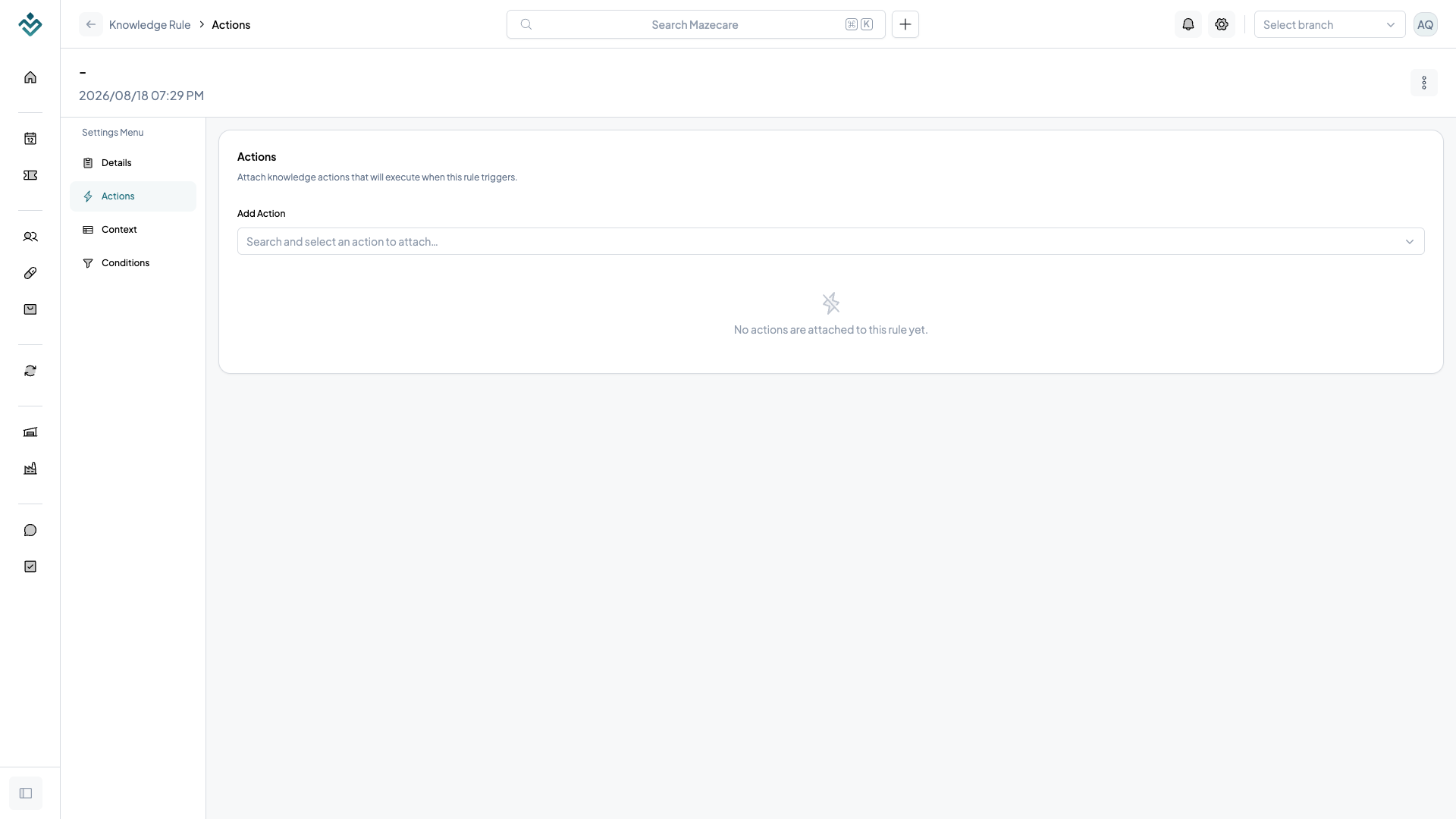
Action Binding Capabilities:
- Search & Attach: Search the action repository and attach existing actions with one click.
- Inline Creation: Type a new action name and create it immediately without leaving the rule editor.
- Execution Order Sequencing: Set numeric order values to dictate the exact presentation sequence (e.g., display a safety disclaimer first, followed by a suggested prescription script, followed by a quick order button).
- Quick Slideover Inspection: Click any attached action to view or edit its parameters directly in a side drawer.
Acuity & Triage Rules
Configure clinical triage scoring systems, emergency acuity levels, coding standards (SNOMED CT/HL7), and automated triage workflows in Mazecare.
Ingredients & Tags
Manage active pharmaceutical substances, INN radical/CAS identifiers, and clinical taxonomy tags across products and services in Mazecare.