

Purchase Orders, Suppliers & Goods Receiving
The Purchase Orders & Suppliers module connects supplier pricing to physical stock intake. Maintain a supplier directory with time-boxed price quotations, take a purchase order through a real multi-step approval chain, and receive goods against it (capturing batch number and expiry date per item), with tenant-wide unit conversion rules doing the packaging-to-dispense-unit math throughout.
Supply Chain & Goods Receiving Lifecycle
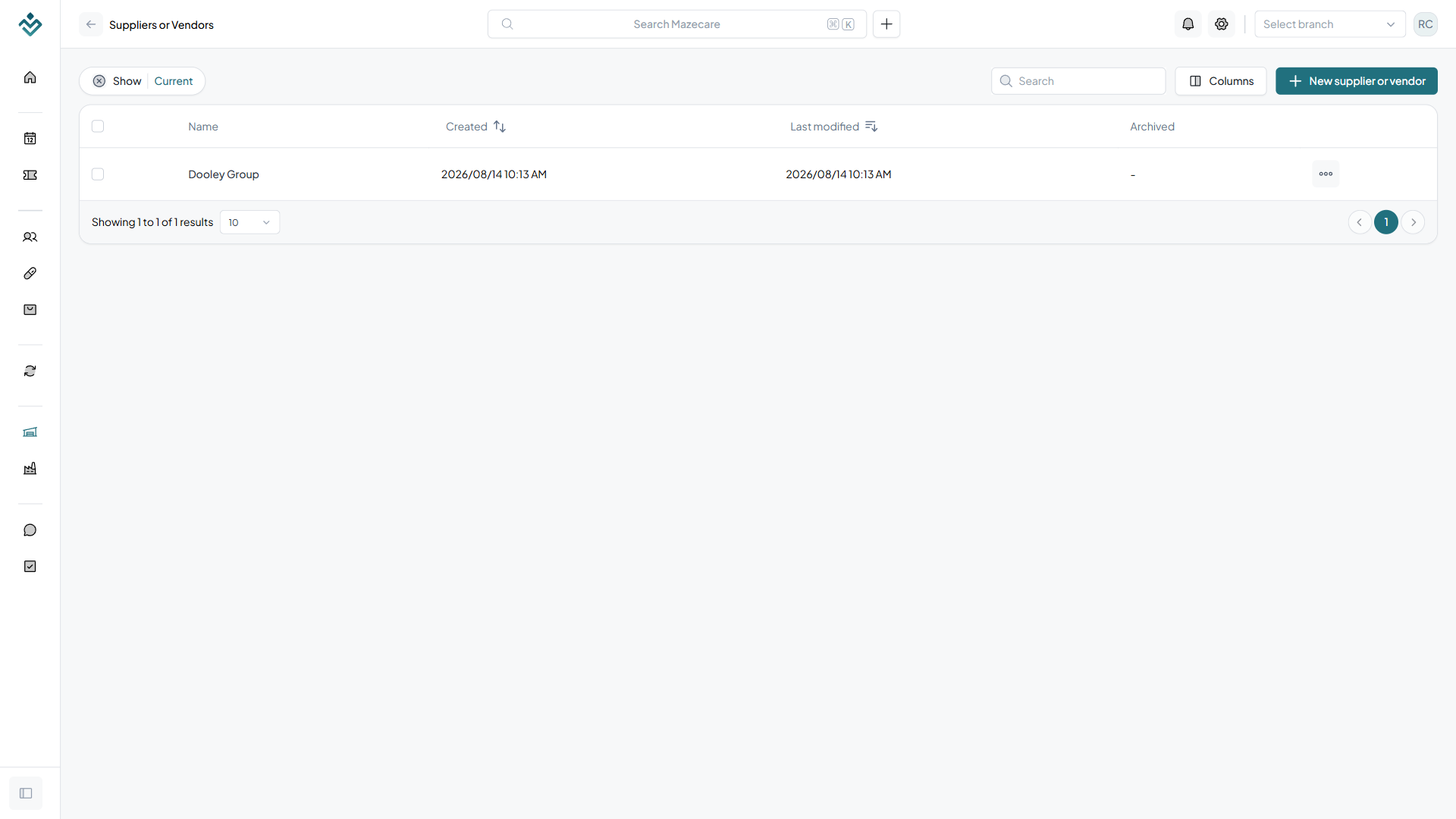
Step-by-Step Procurement Procedures
Step 1: Manage the Supplier Directory & Quotations
- Navigate to Stocks → Suppliers or Vendors (
/stocks/suppliers) and click + New supplier or vendor. - A supplier record holds a Name, a free-text Description, and expandable Contacts and Address sections.
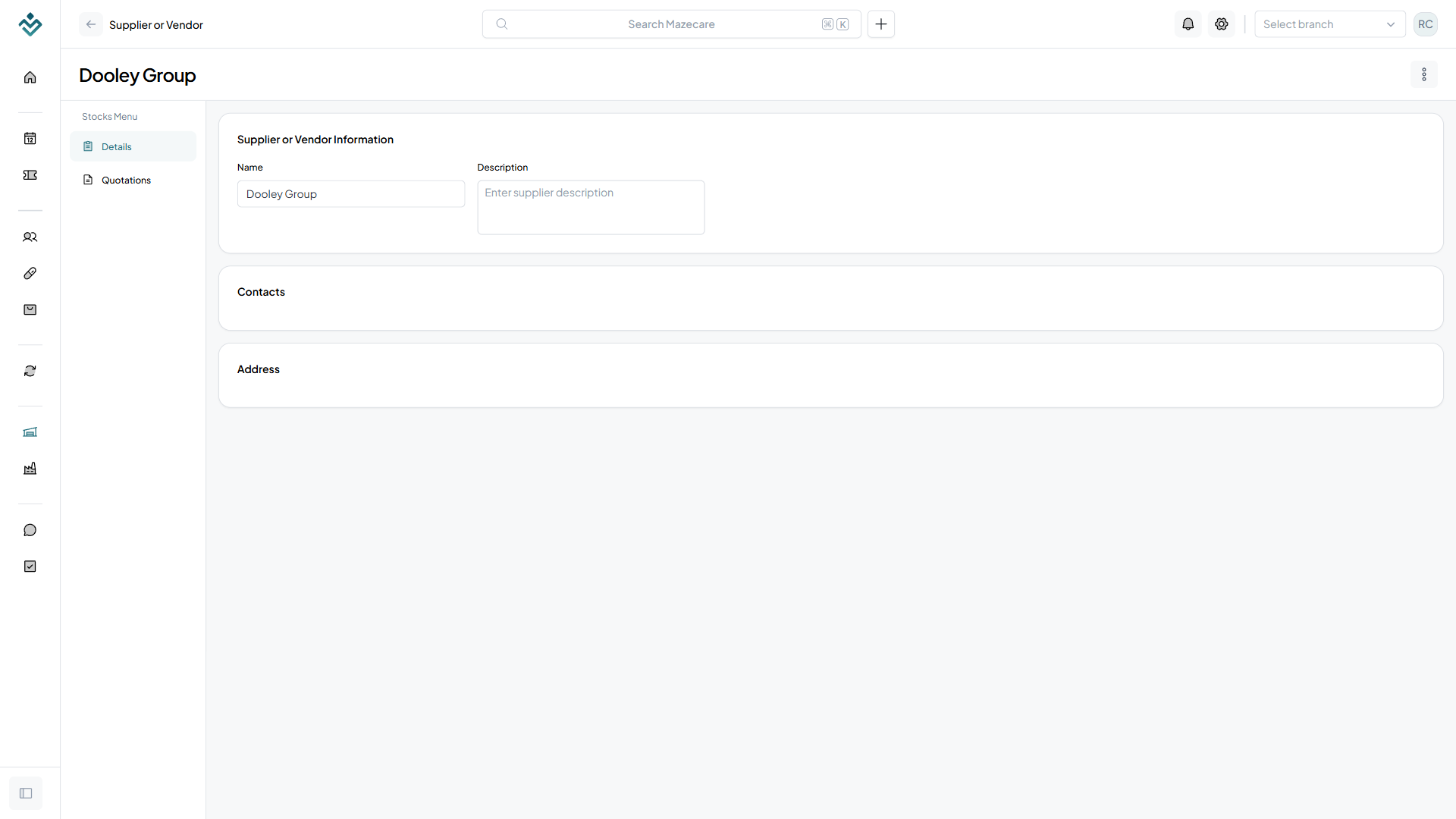
- Under the supplier's Quotations tab (
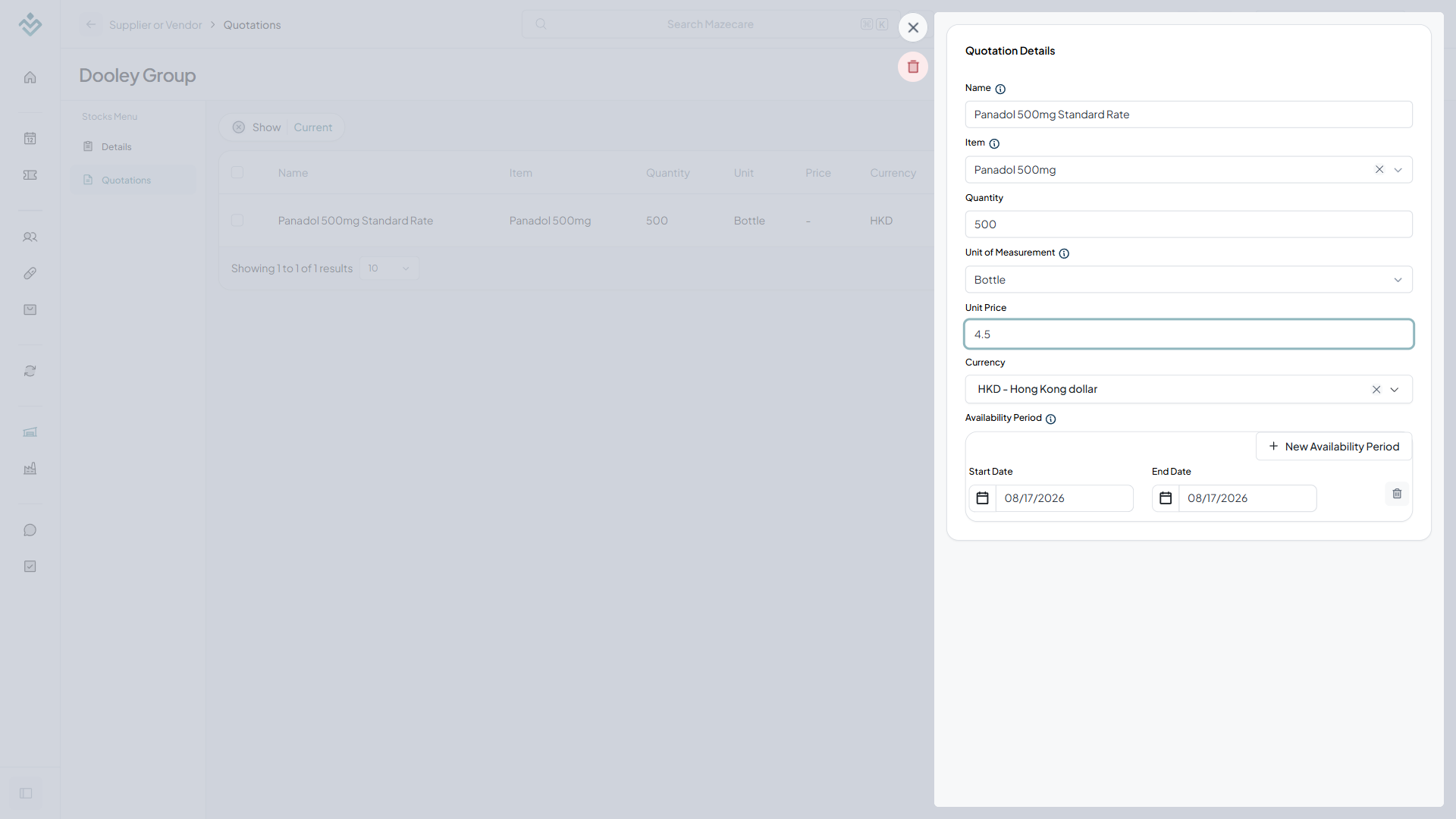
/stocks/suppliers/[supplierId]/quotations), click + New Quotation to record a priced offer: pick the Item, Quantity, Unit of Measurement, Unit Price and Currency, then set an Availability Period (Start Date / End Date) defining when that rate is valid.
Step 2: Create & Approve a Purchase Order
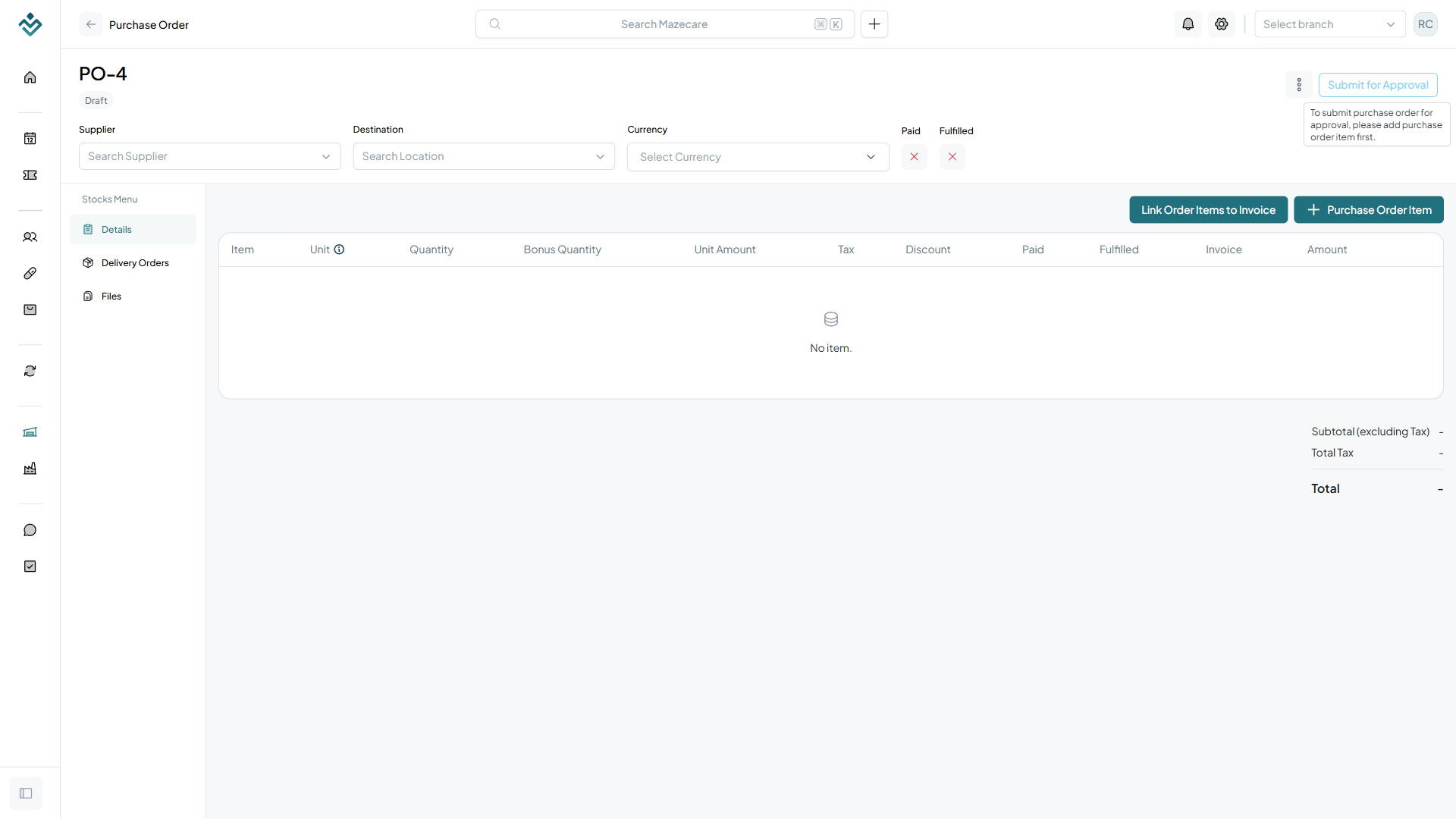
- Navigate to Stocks → Purchase Orders (
/stocks/purchase-orders) and click + New Purchase Order. It starts in Draft. Submit for Approval stays disabled until at least one line item is added. - Set the Supplier, Destination branch, and Currency, then click + Purchase Order Item to add lines: Item, Unit, Quantity, Bonus Quantity, Unit Amount, Tax %, and Discount %. The line Amount and the Subtotal / Total Tax / Total summary update live.
- Click Submit for Approval and confirm the prompt. The order moves to Waiting for Approval.
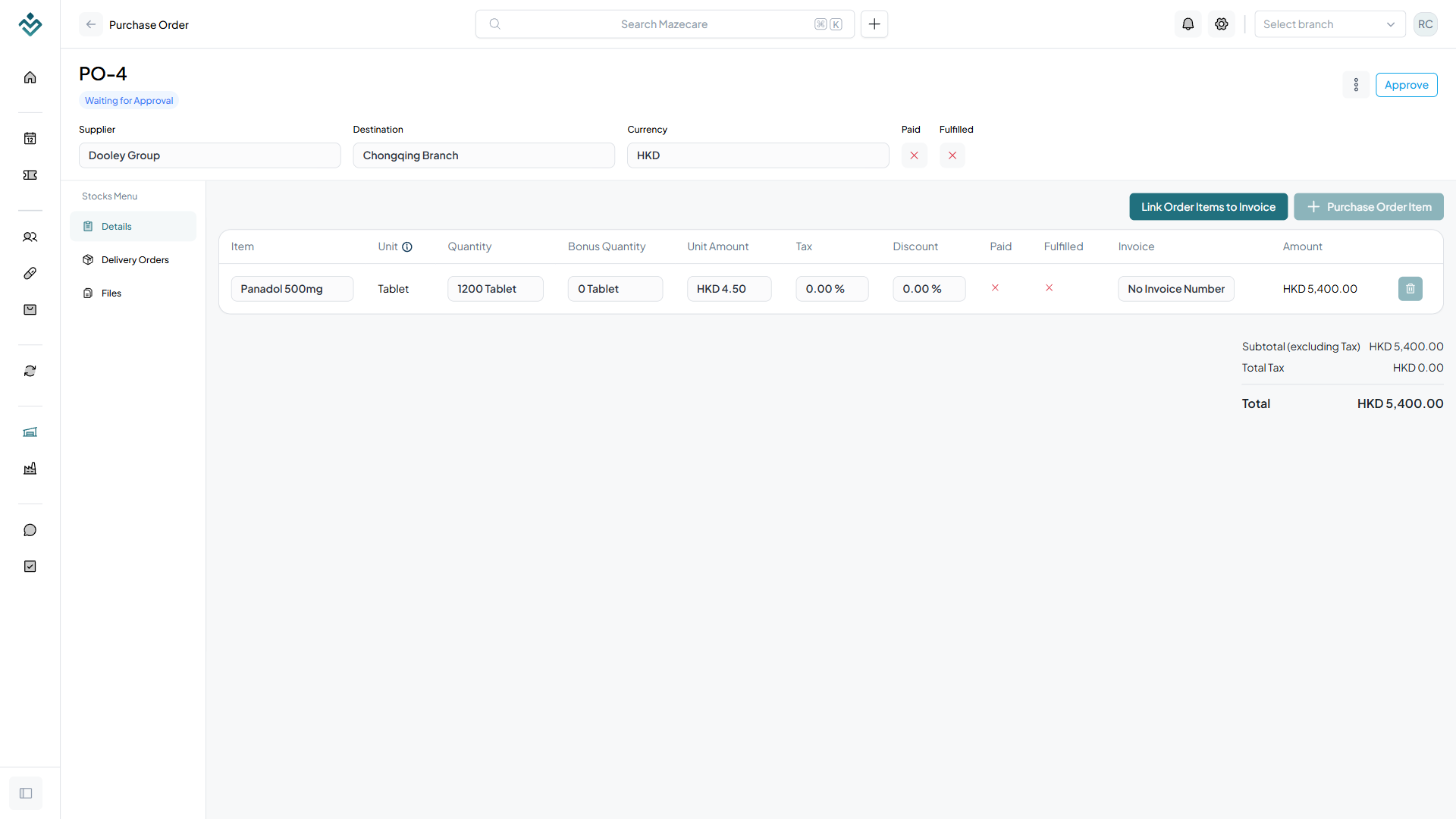
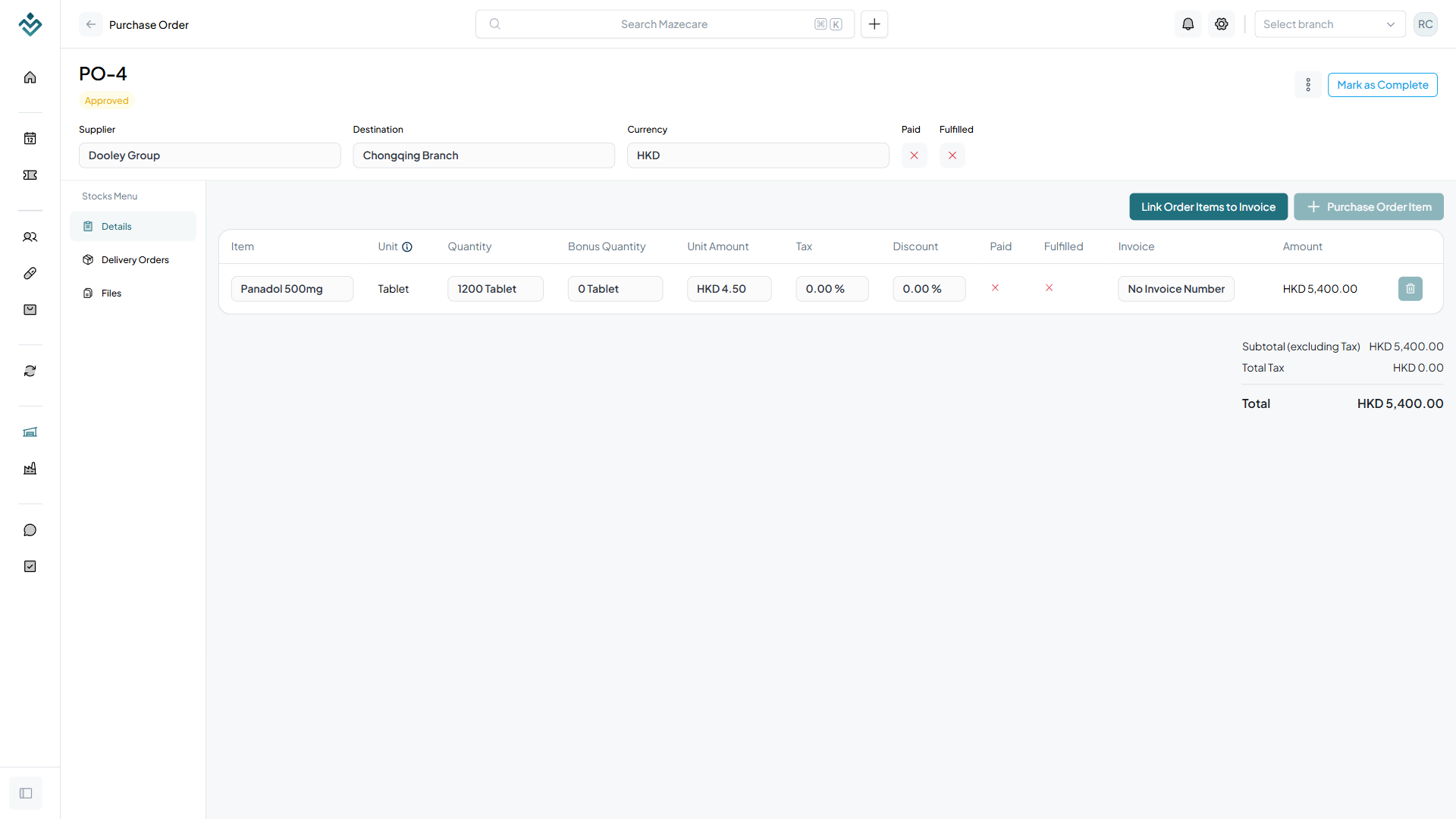
- An approver clicks Approve (confirm the prompt) to move it to Approved, then Mark as Complete once it's fully received. The real lifecycle is Draft → Waiting for Approval → Approved → Completed, with a confirmation dialog at every transition. There's no separate multi-level manager sign-off chain, just this single sequential approval.
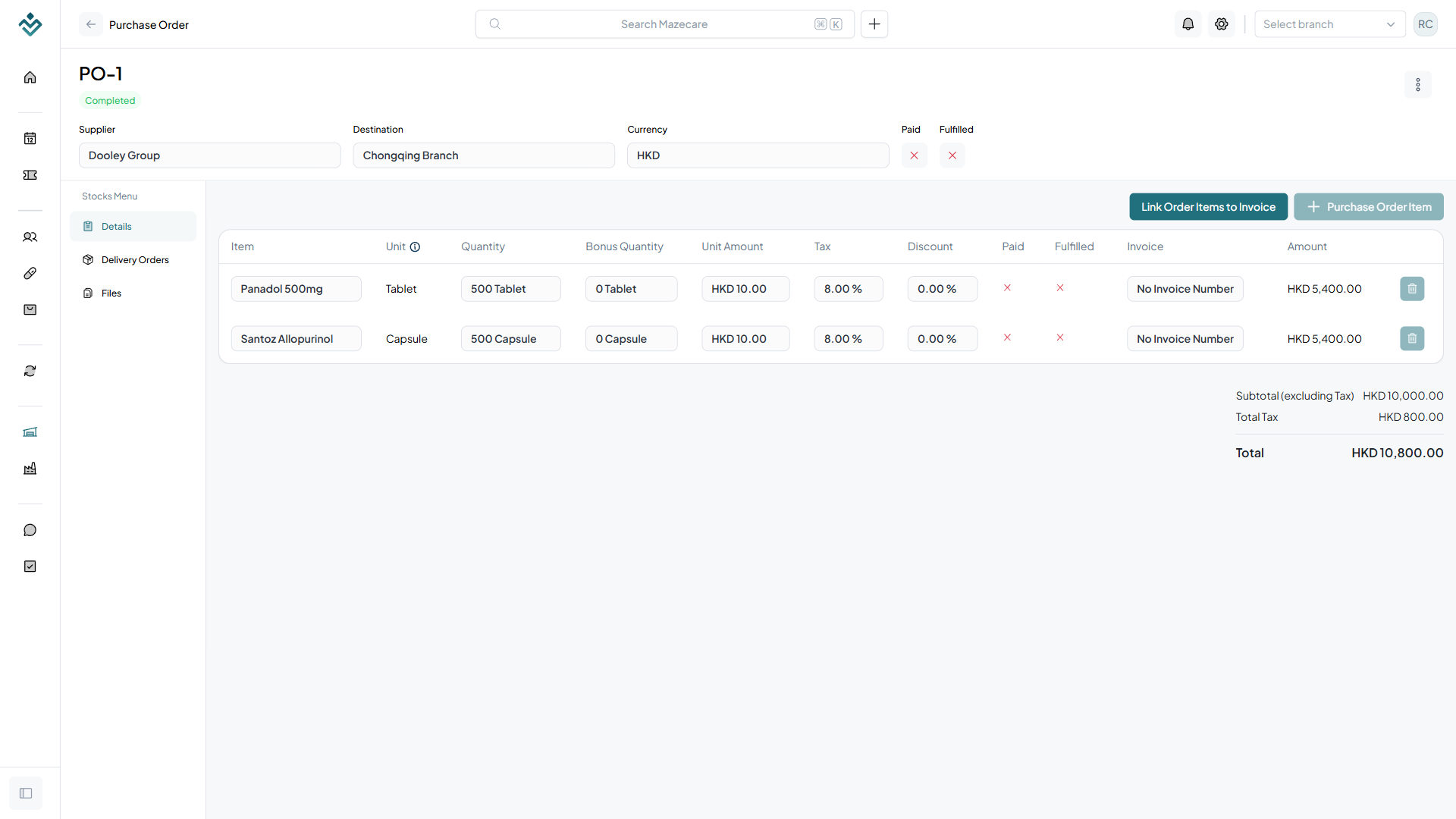
- A completed order keeps its line items, per-line Paid / Fulfilled flags, and an Invoice link per line for reconciliation:
Step 3: Goods Receiving via Delivery Orders
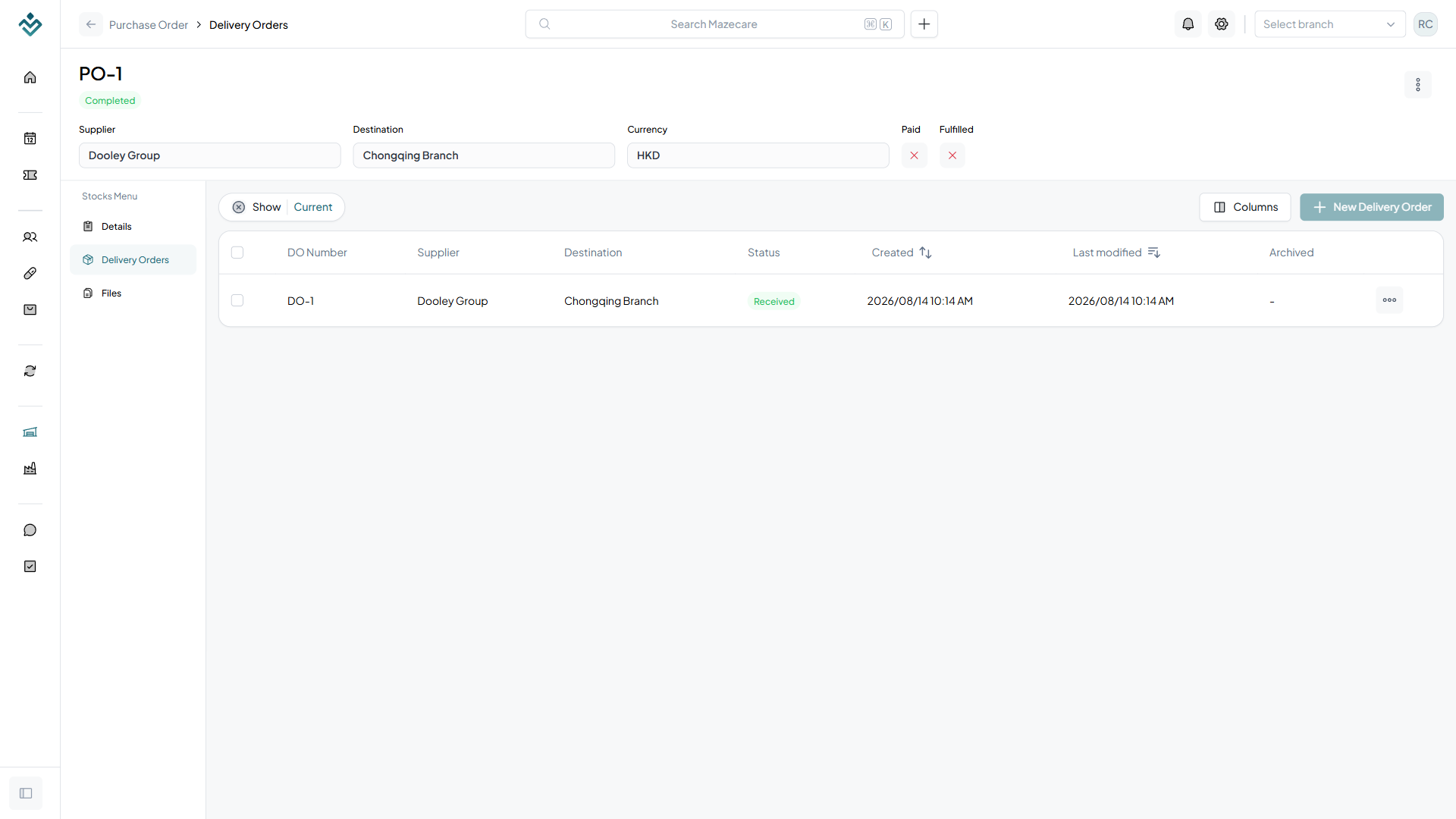
- On a purchase order, open its Delivery Orders tab (
/stocks/purchase-orders/[purchaseOrderId]/delivery-orders). Every delivery tied to that PO is listed with its own status: Created → Sent → Delivered → Received.
- Open a delivery order to record the goods receipt. For each item, compare Expected Quantity against Received Quantity, then click + Batch to log the Batch Number, Quantity, and Expiry Date (tick Month/year format if the packaging only prints a month).
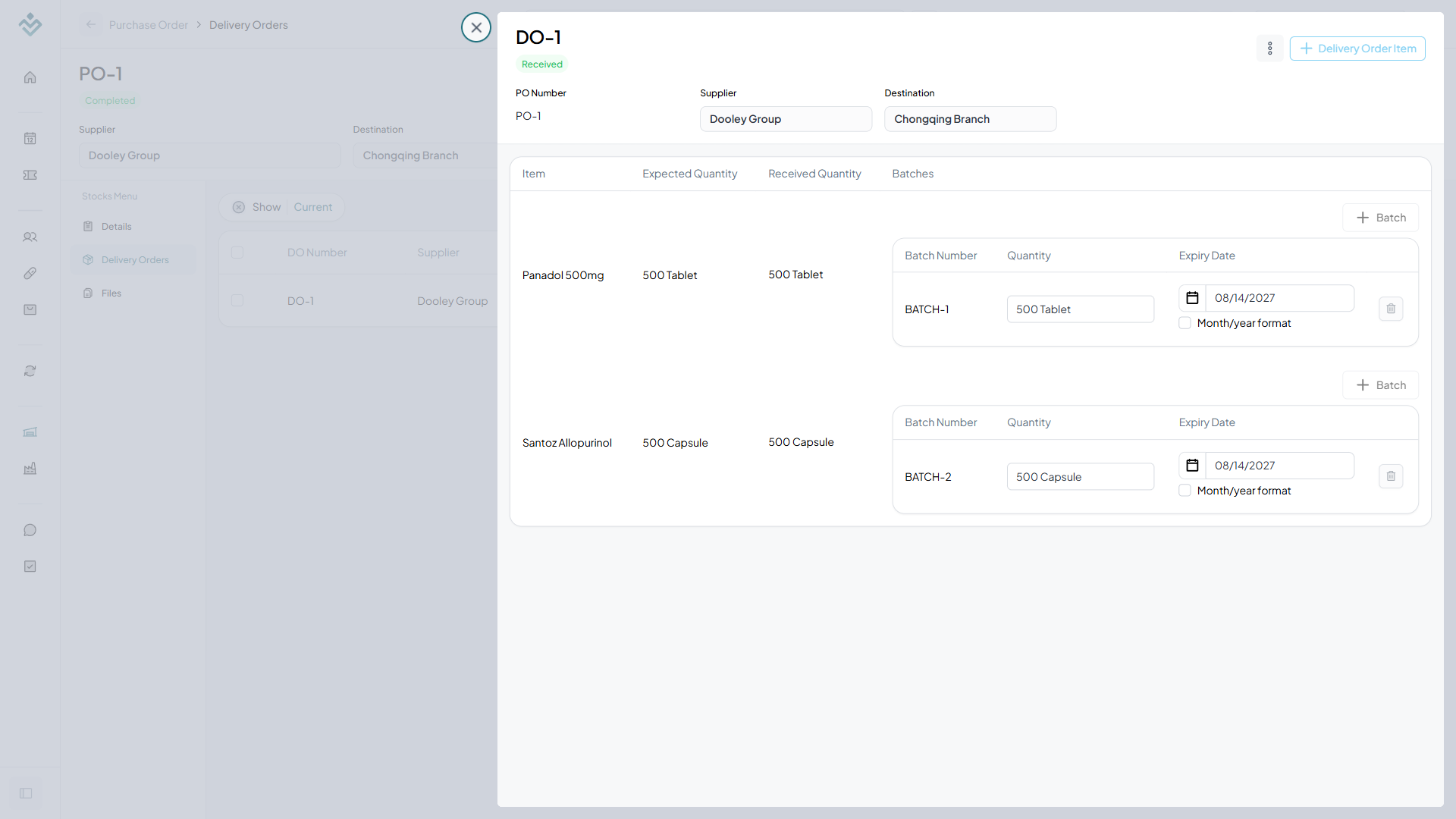
- Accepted batches become immediately available for dispensing, transfers, and adjustments. This is where the batch numbers referenced elsewhere in Mazecare (e.g.
BATCH-1,BATCH-2) originate.
Step 4: Unit Conversions
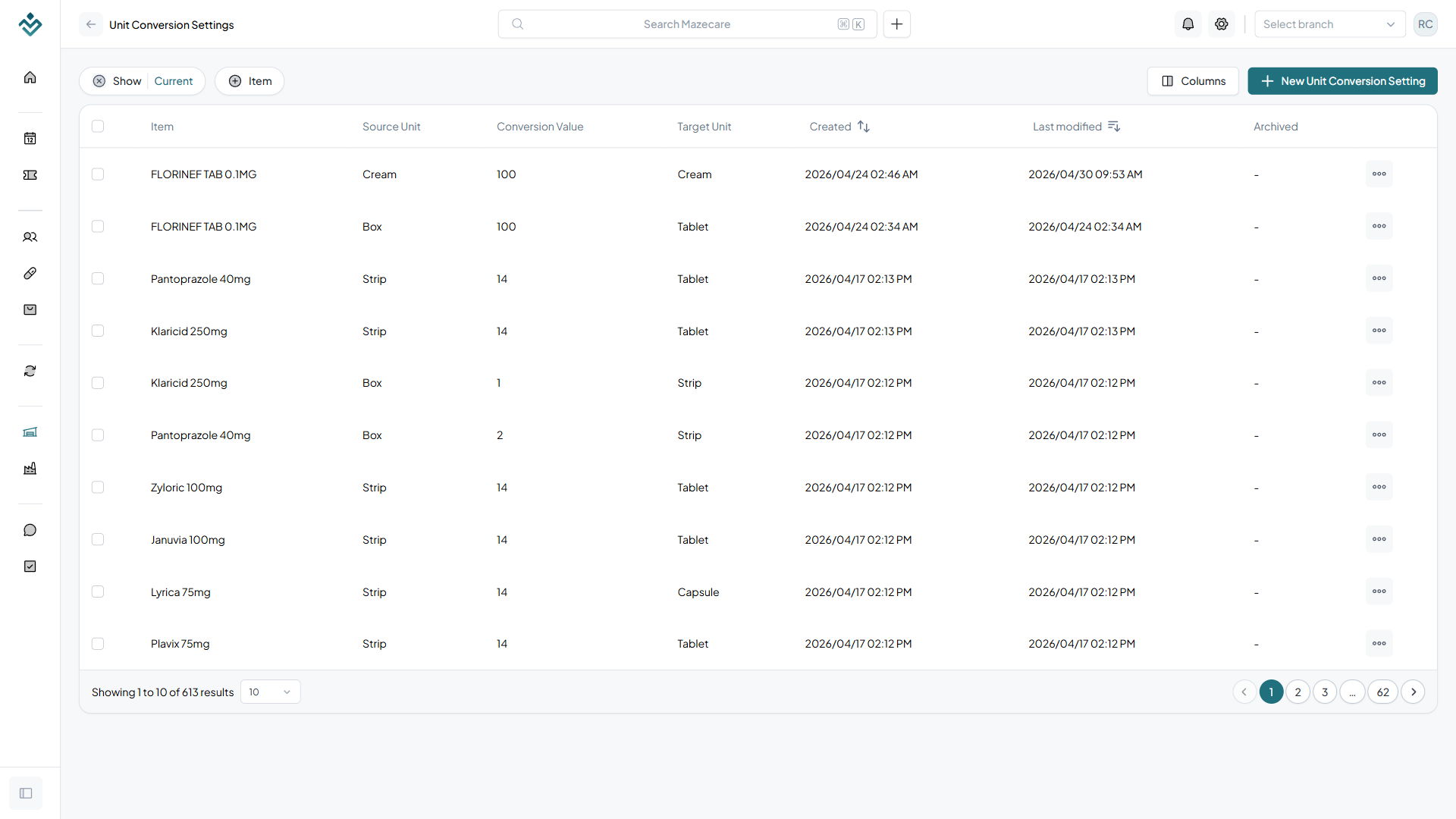
- Stocks → Unit Conversion Settings (
/stocks/unit-conversion-settings) holds the tenant-wide conversion rules every dispense, transfer, adjustment, and PO line draws on: Item, Source Unit, Conversion Value, Target Unit (e.g. Pantoprazole 40mg: 1 Strip = 14 Tablet).
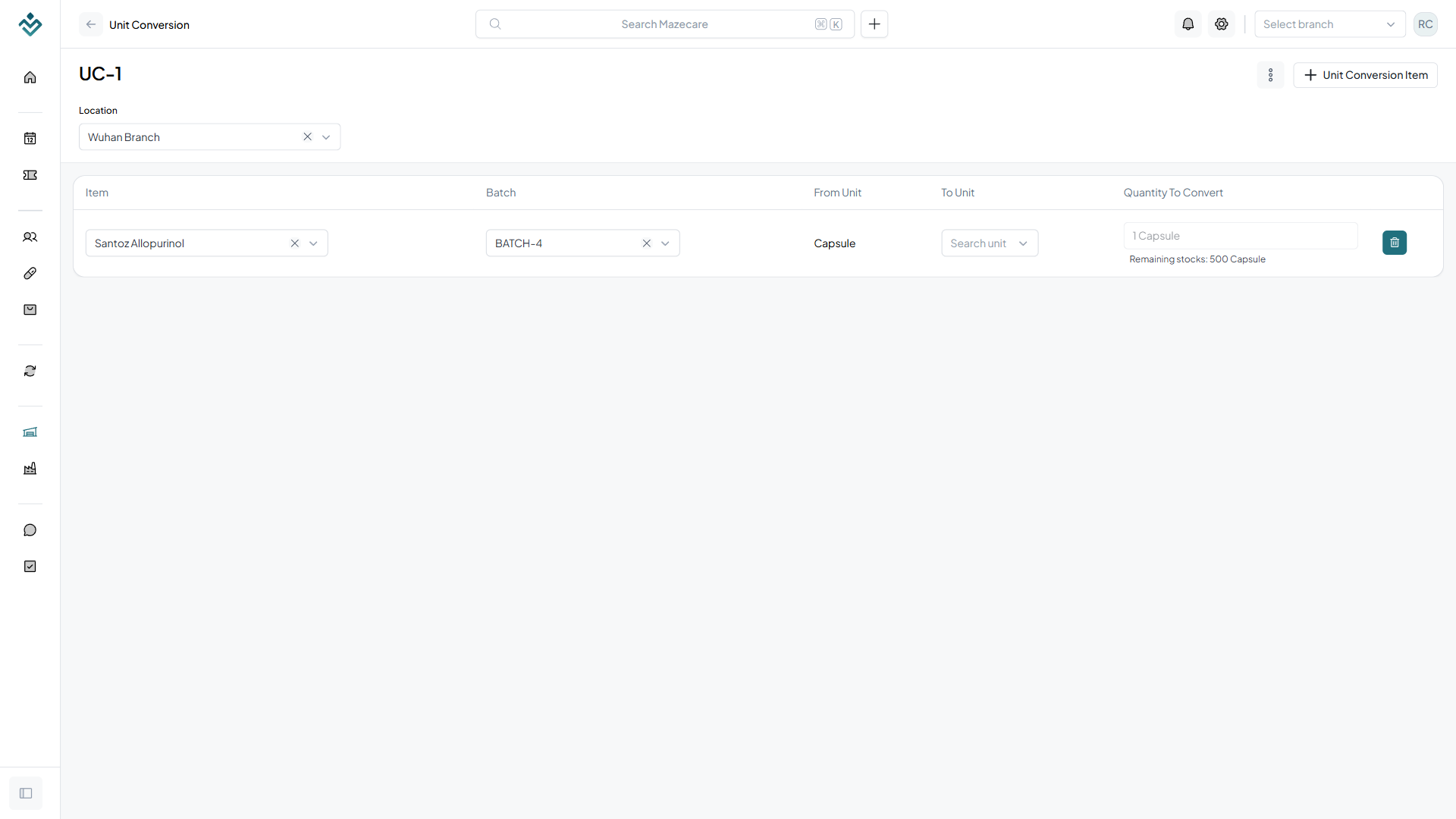
- Stocks → Unit Conversions (
/stocks/unit-conversions) holds the resulting per-location, per-batch conversion records: Item, Batch, From Unit, To Unit, Quantity To Convert. Mazecare creates one of these automatically whenever an operation needs a conversion that doesn't have a matching rule yet, so staff can complete it manually rather than the operation silently failing.
Stock Management & Transfers
Navigate the Stock Management hub to move inventory between branches with tracked Stock Transfers, record variances with Stock Adjustments, and monitor reorder thresholds with Low Stock Settings in Mazecare OS.
Report Templates & Analytics
Comprehensive standard operating procedure for building dynamic analytics reports, utilizing natural language AI generation, and configuring customized resource builders across patients, encounters, invoices, transactions, appointments, and inventory.