

Insurance Networks & Payor Directory
In modern healthcare operations and medical revenue cycle management, an Insurance Network (or Payor Network) represents the institutional umbrella, carrier network, or Third-Party Administrator (TPA) that coordinates contracted relationships, network tiers, and provider agreements across healthcare facilities, insurance payors, and insured patients.
Managing insurance networks in Mazecare OS allows clinics, multi-specialty practices, and hospital systems to:
- Centralize Network Governance: Maintain a single directory of commercial insurer networks (e.g., AIA, Bupa, Cigna, AXA) and Third-Party Administrator (TPA) networks (e.g., Quality HealthCare, MSH China).
- Configure Network Types & Payor Links: Categorize networks into standard industry models (HMO, PPO, EPO, POS) and bind them directly to institutional payor entities.
- Define Network Tiers: Structure hierarchical provider panels and coverage tiers (such as Tier 1 - Specialist & Surgical Panel, Tier 2 - General Outpatient Panel).
- Bind Contracted Provider Agreements: Direct-link pre-negotiated provider agreements, contracted tariffs, and clinical billing rules to each payor network.
- Automate Downstream Policy Routing & Claims: Enable patient policies and prior authorization workflows to automatically inherit network agreements and tier pricing during encounter adjudication.
System Architecture & Network Relationships
Within the Mazecare OS Insurance Suite, Insurance Networks serve as the administrative backbone linking payor institutions with contracted clinical agreements and patient policies:
- Insurance Networks: Defines carrier network identity, network type classification, linked institutional payor, and network tiers.
- Linked Payors: Connects the network to its institutional entity profile for accounts receivable and claims settlement.
- Network Tiers: Configures ordered benefit panels and specialty tiers operating within the network.
- Provider Agreements: Negotiated contracts specifying clinical packages, consultation fee caps, item discounts, and service exclusions.
- Patient Policies & Claims: Patient-level insurance coverage records inheriting network tariffs and tier parameters during checkout adjudication.
Detailed Step-by-Step Walkthrough
Step 1: Navigating the Insurance Networks Directory
To access and manage your healthcare facility's contracted insurance networks:
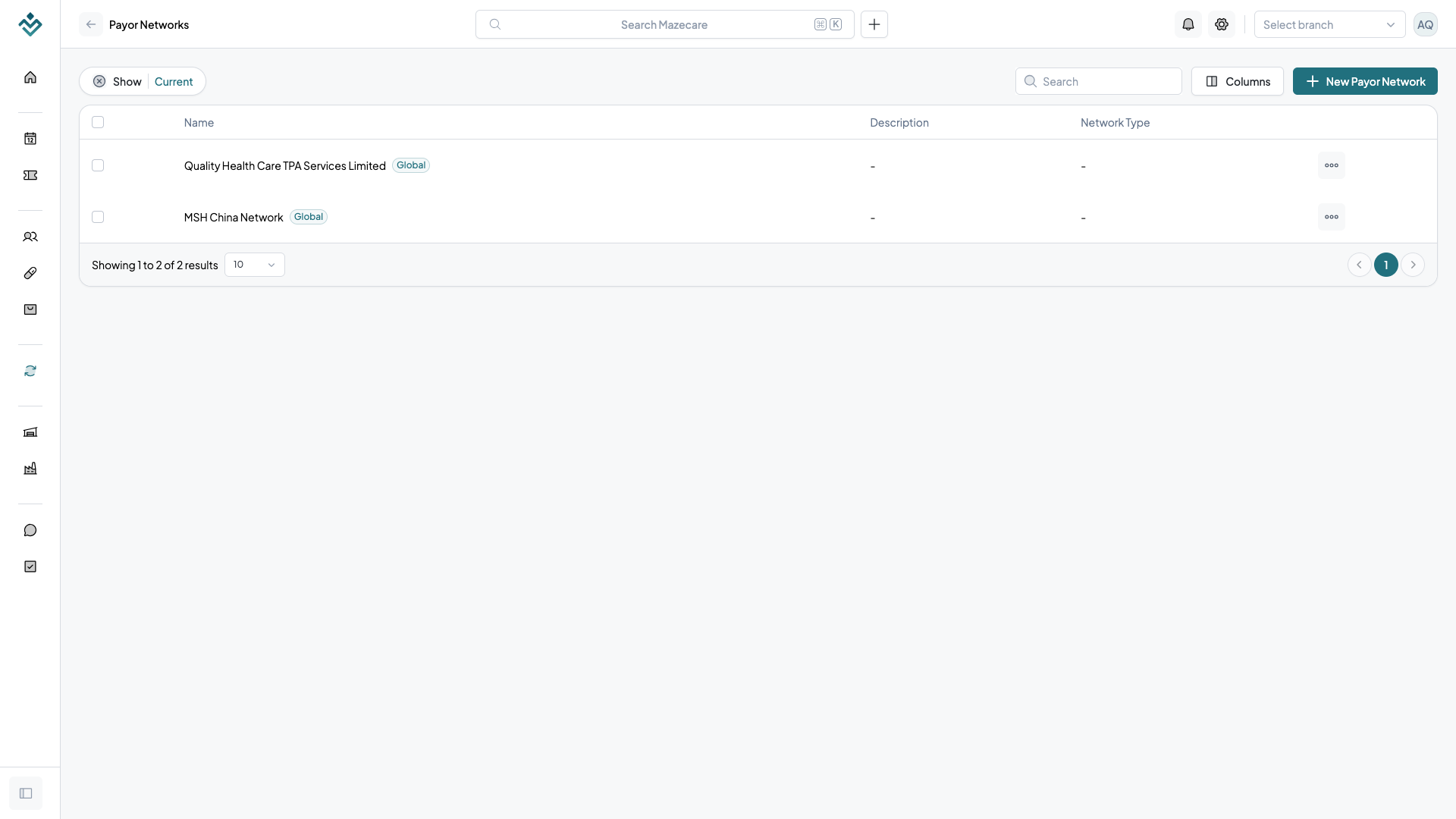
- In the primary sidebar navigation, navigate to Revenue Cycle → Insurance → Insurance Networks.
- The Insurance Networks table displays all active and archived payor networks with real-time operational indicators:
- Name: The registered name of the insurer network or TPA (e.g., Quality Health Care TPA Services Limited, MSH China Network).
- Description: Summary notes on network scope, geographic validity, and member eligibility.
- Network Type: Classification of the network structure (e.g.,
HMO,PPO,EPO,POS).
- Click New Payor Network in the top action toolbar to launch the 3-step creation wizard, or click on any network row to open its full detail workspace.
Step 2: Onboarding an Insurance Network (3-Step Wizard)
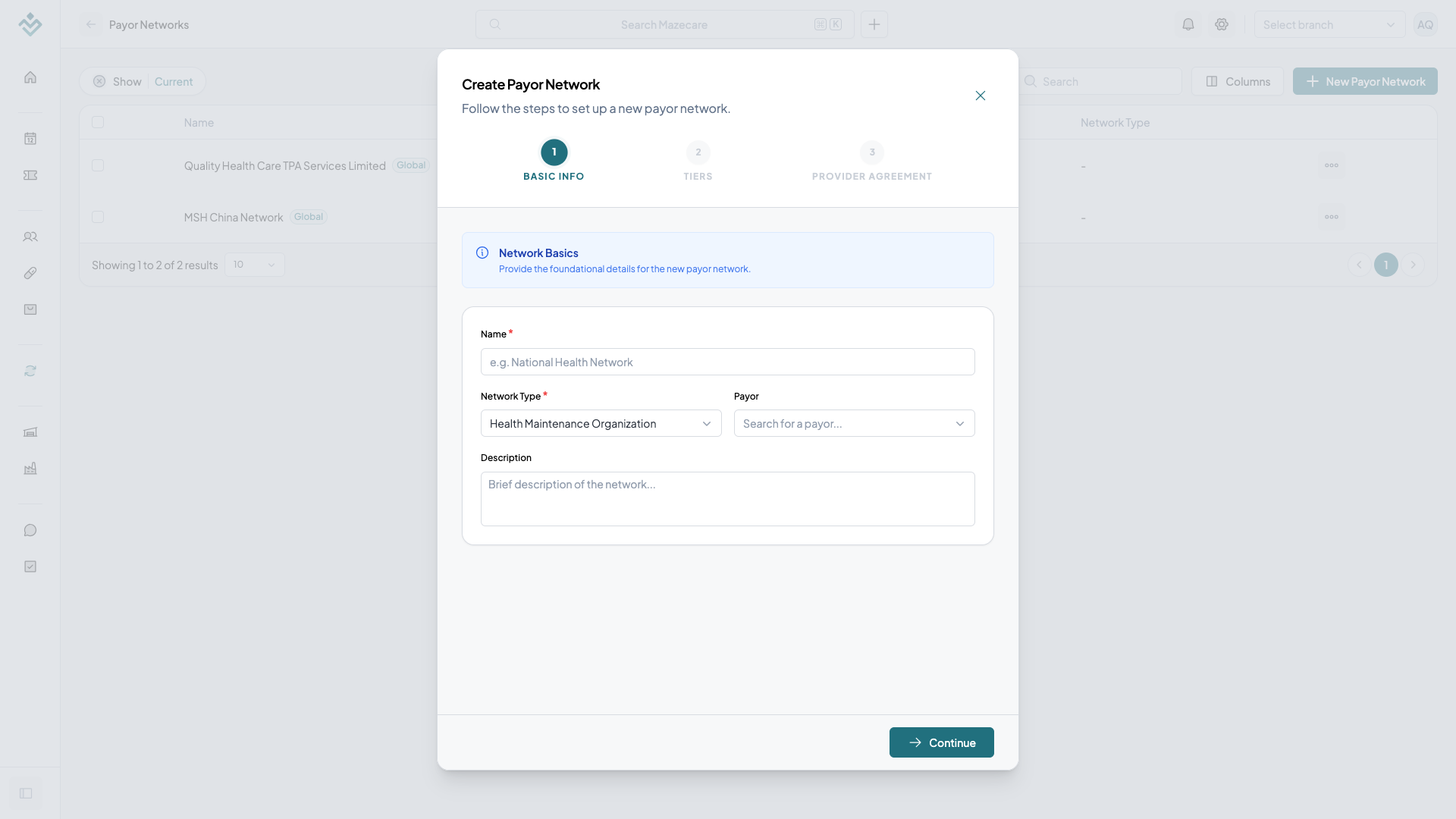
Clicking New Payor Network opens the structured creation wizard:
1. Step 1: Basic Info
Configure the primary organizational identity and carrier linkage:
- Name: Enter the official name of the insurance network (e.g., Bupa Global Healthcare Network).
- Network Type: Select the network operational classification:
- HMO (Health Maintenance Organization): Care restricted to panel providers with primary care coordination.
- PPO (Preferred Provider Organization): Comprehensive network with higher coverage for contracted panel providers.
- EPO (Exclusive Provider Organization): Panel provider coverage with no out-of-network benefits except emergencies.
- POS (Point of Service): Hybrid structure combining primary care coordination with out-of-network options.
- Payor: Search and link the institutional payor profile from the master payors registry (e.g., Bupa (Asia) Limited).
- Description: Add administrative context, corporate panel details, or clinical coverage notes.
- Click Continue →.
2. Step 2: Network Tiers
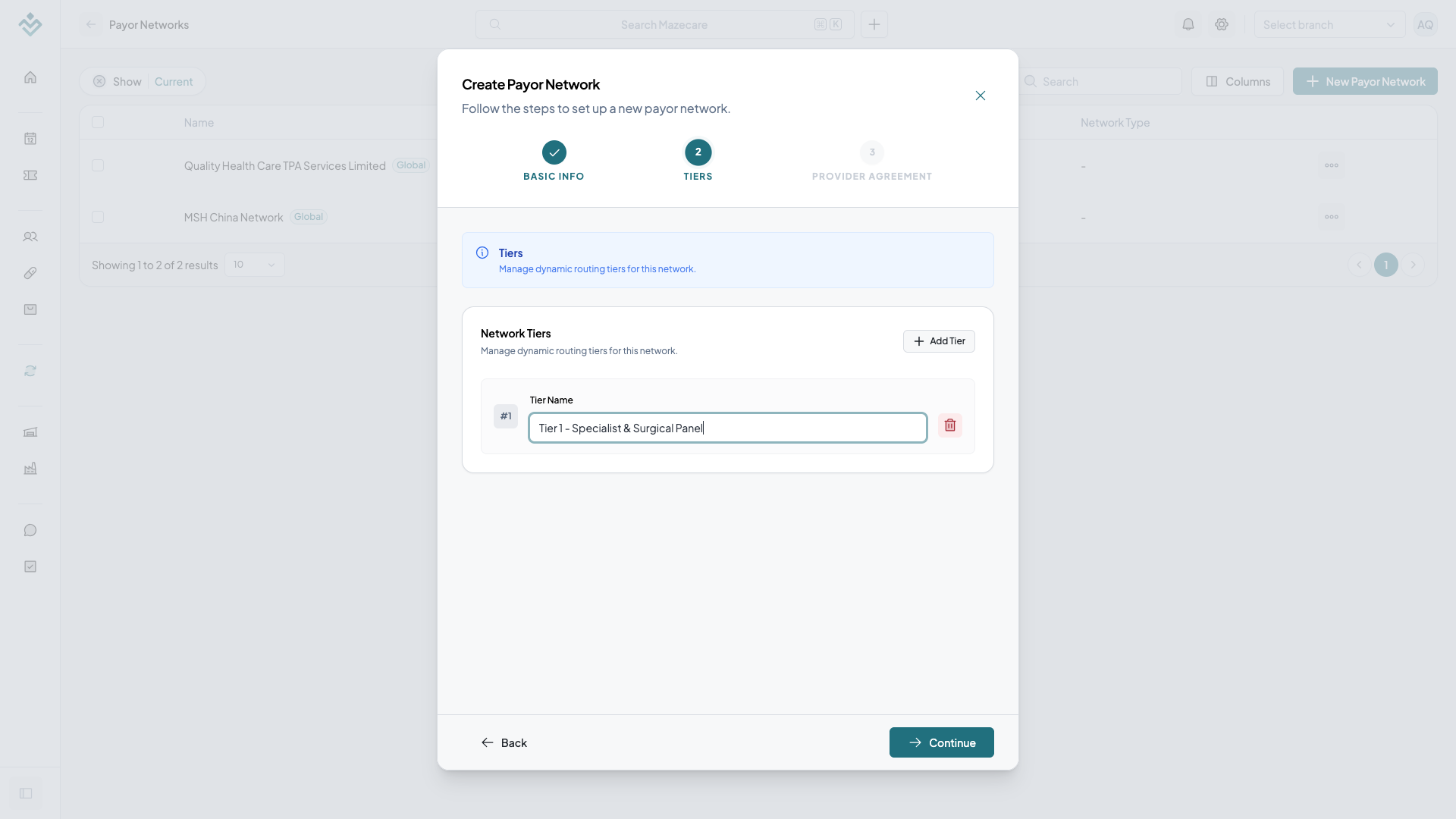
Configure hierarchical coverage tiers within the network:
- Click Add Tier to define custom network panels (e.g., Tier 1 - Specialist & Surgical Panel, Tier 2 - General Outpatient Panel).
- Tiers allow your practice to distinguish pricing schedules and authorization rules across different corporate benefit tiers.
- Click Continue →.
3. Step 3: Provider Agreements
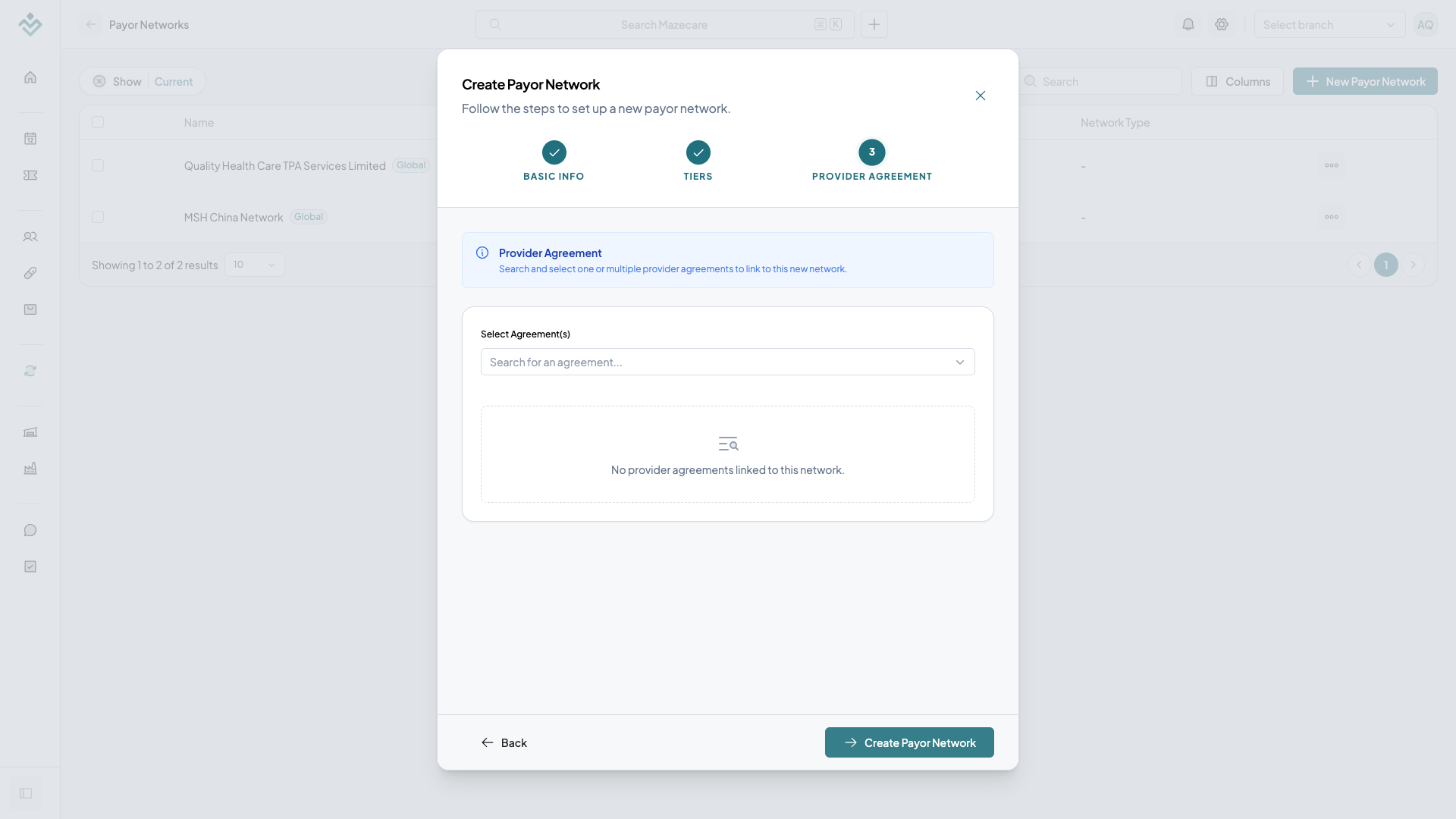
Associate pre-negotiated provider agreements with the newly configured network:
- Select Agreement(s): Search and attach active provider agreements (e.g., Specialist Consultation Tariff 2026, Standard Outpatient Surgical Fee Schedule).
- Click Create Payor Network to finalize and activate the record.
Step 3: Insurance Network Workspace & Detail Layout
Clicking any row in the Insurance Networks table opens the Insurance Network Detail Workspace.
The workspace is organized into three dedicated management tabs:
- Network Details
- Tiers
- Provider Agreements
Step 4: Tab 1 — Network Details & Payor Configuration
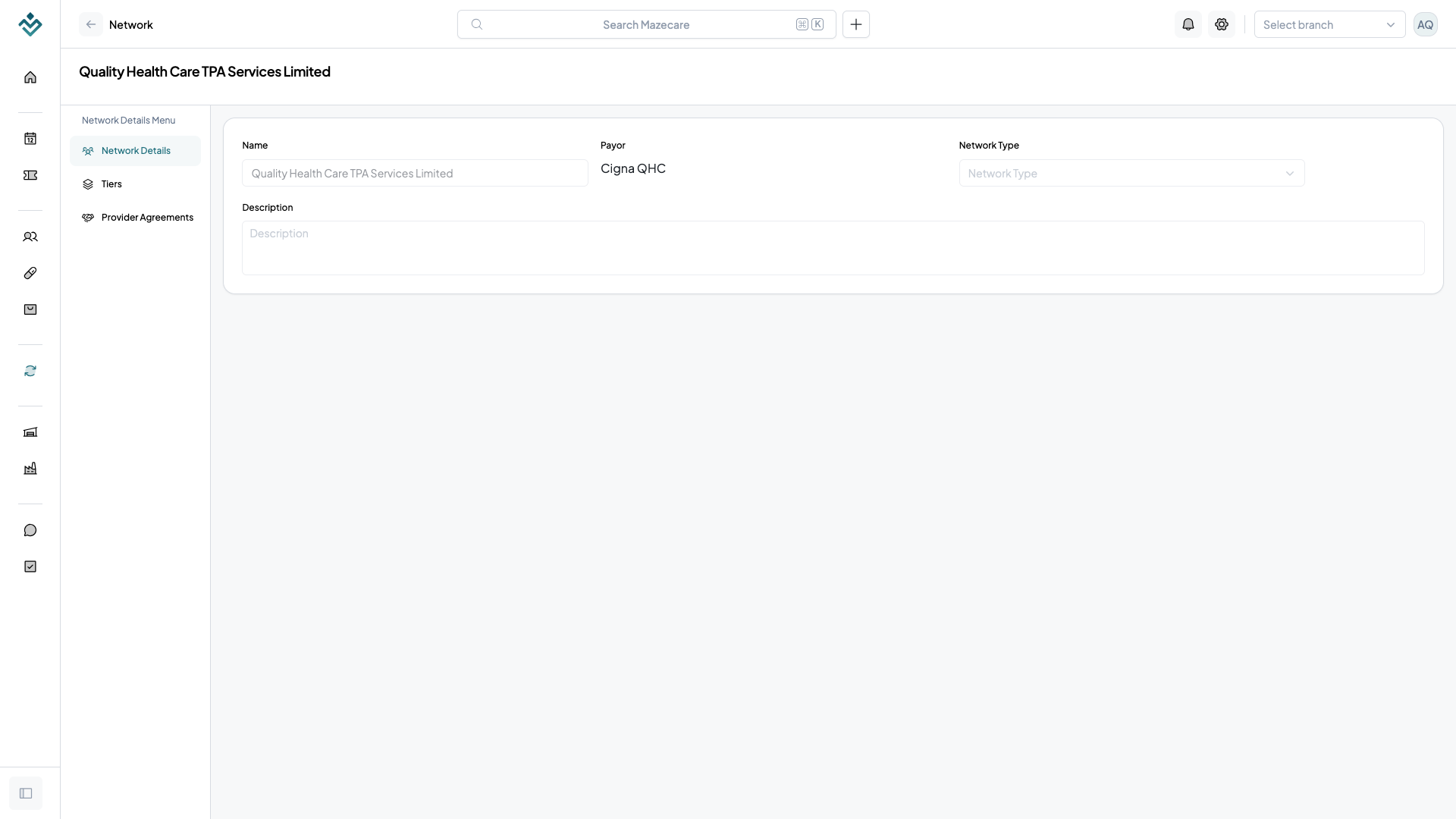
The Network Details tab manages foundational network parameters with real-time field synchronization:
- Name: Editable legal entity or network brand name.
- Payor: Bound institutional payor entity. You can link existing payors or click Create Payor inline to register a new institutional carrier profile without leaving the screen.
- Network Type Badge: Displays the active network classification (HMO, PPO, EPO, POS).
- Description: Detailed clinical guidelines, pre-approval requirements, and billing instructions.
Step 5: Tab 2 — Network Tiers Management
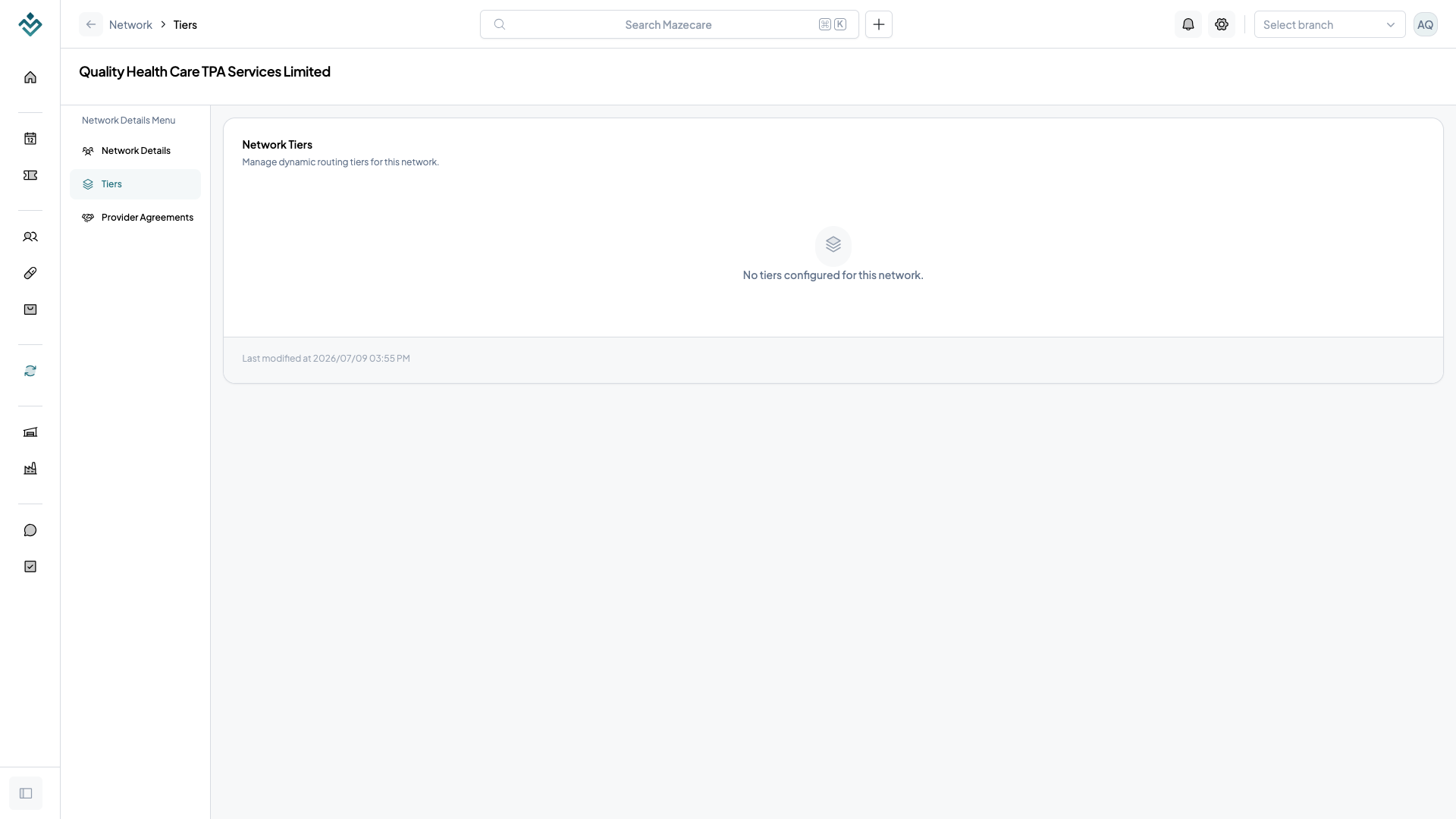
The Tiers tab manages the multi-tiered panel structure for the network:
- Configured Tiers List: Displays all active benefit tiers associated with the network.
- Add / Remove Tiers: Clinic administrators can dynamically add new tier levels or update existing tier designations as corporate contracts evolve.
- Audit Labels: Tracks creation and last modified timestamps for each tier configuration.
Step 6: Tab 3 — Linked Provider Agreements & Contracted Tariffs
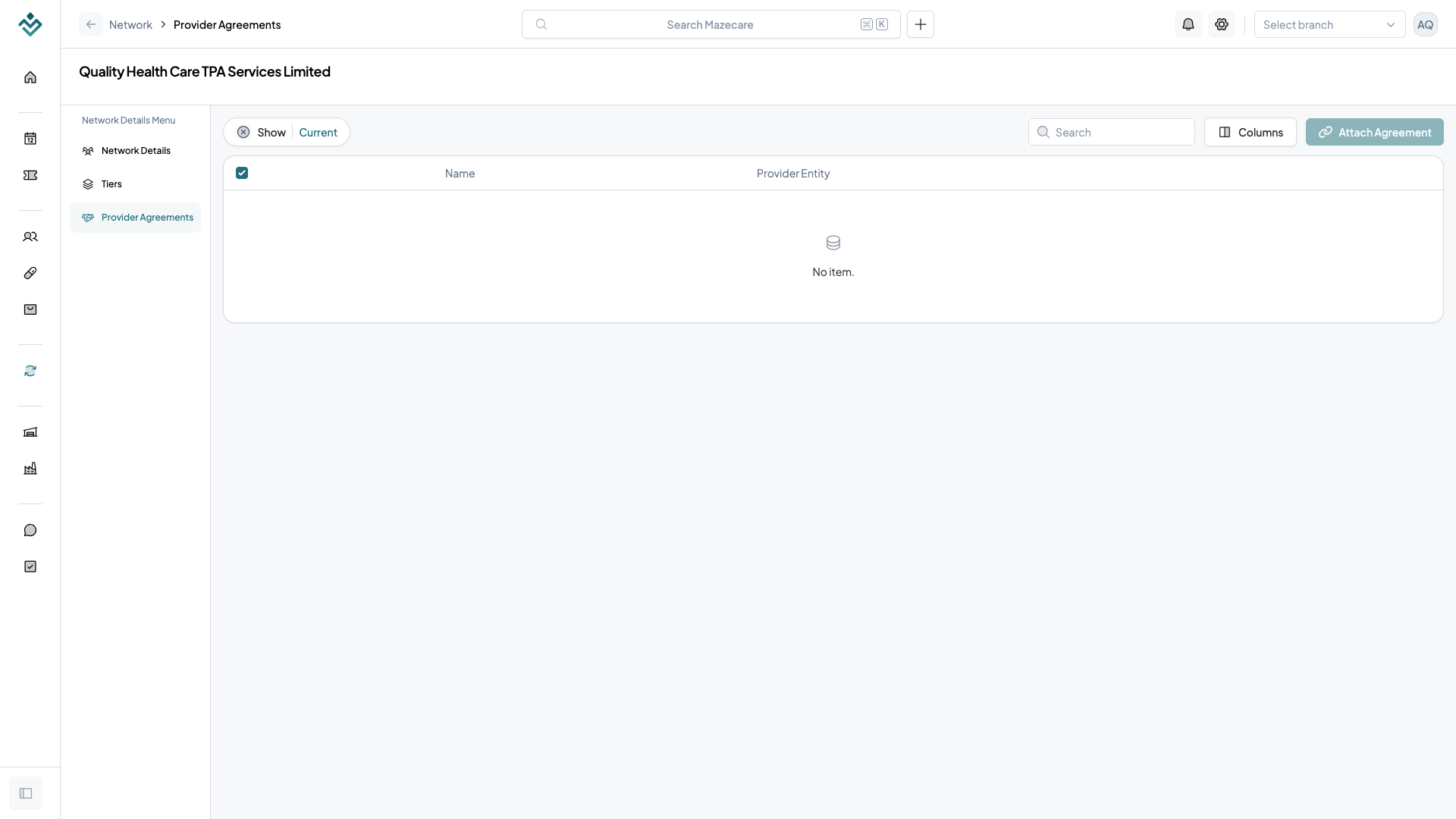
The Provider Agreements tab displays all binding contracts attached to this network:
- Contracted Agreements Ledger: Lists all attached provider agreements with agreement names, effective date ranges, pricing schemes, and operational statuses.
- Link Existing Agreements: Click + Add Agreement to bind additional negotiated fee schedules from the central provider agreements repository.
- Contract Inspection: Clicking any linked agreement navigates directly to its full pricing scheme and semantic clinical rules configuration.
Step 7: Quick-View Slideover & Workflow Integrations
- Zero-Context Switching Drawer: When viewing patient insurance policies or scrubbing claims, staff can click any network badge to open a slide-over preview showing network details, active tiers, and linked provider agreements without leaving their active page.
- Patient Policy Association: When registering patient coverage under Policies, selecting the insurance network binds the patient's record to the correct network tiers and negotiated tariff schedules.
- Automated Claims Adjudication: During cashier checkout and claim generation, the system automatically looks up the network's linked provider agreements to compute contracted discounts and generate accurate co-payor split invoices.
Digitization
Comprehensive standard operating procedure for digitizing paper invoices, payment receipts, and insurance documents into structured clinic accounting records with AI extraction, validation issue hubs, relationship graphs, and bulk ledger synchronization.
WhatsApp Setup
How to link your WhatsApp Business API credentials to Mazecare to send patient appointment reminders, prescriptions, and digital MCs via Workflow Definitions.