

Body Measurements & Weight Tracking
The Body Measurements module in Mazecare OS allows healthcare organizations to configure measurement classification standards and maintain longitudinal anthropometric records for patients.
Clinicians can track body weight trends over time, switch between metric and imperial display units on the fly, classify measurements by specific clinical conditions (such as post-dialysis dry weight or wheelchair tare weight), and maintain complete historical vitals flowsheets.
1. Accessing Body Measurements Settings
To configure measurement parameters and classification types for your organization:
- In the top-right header or navigation bar, click Settings.
- Select Body Measurements to view the available measurement configuration modules.
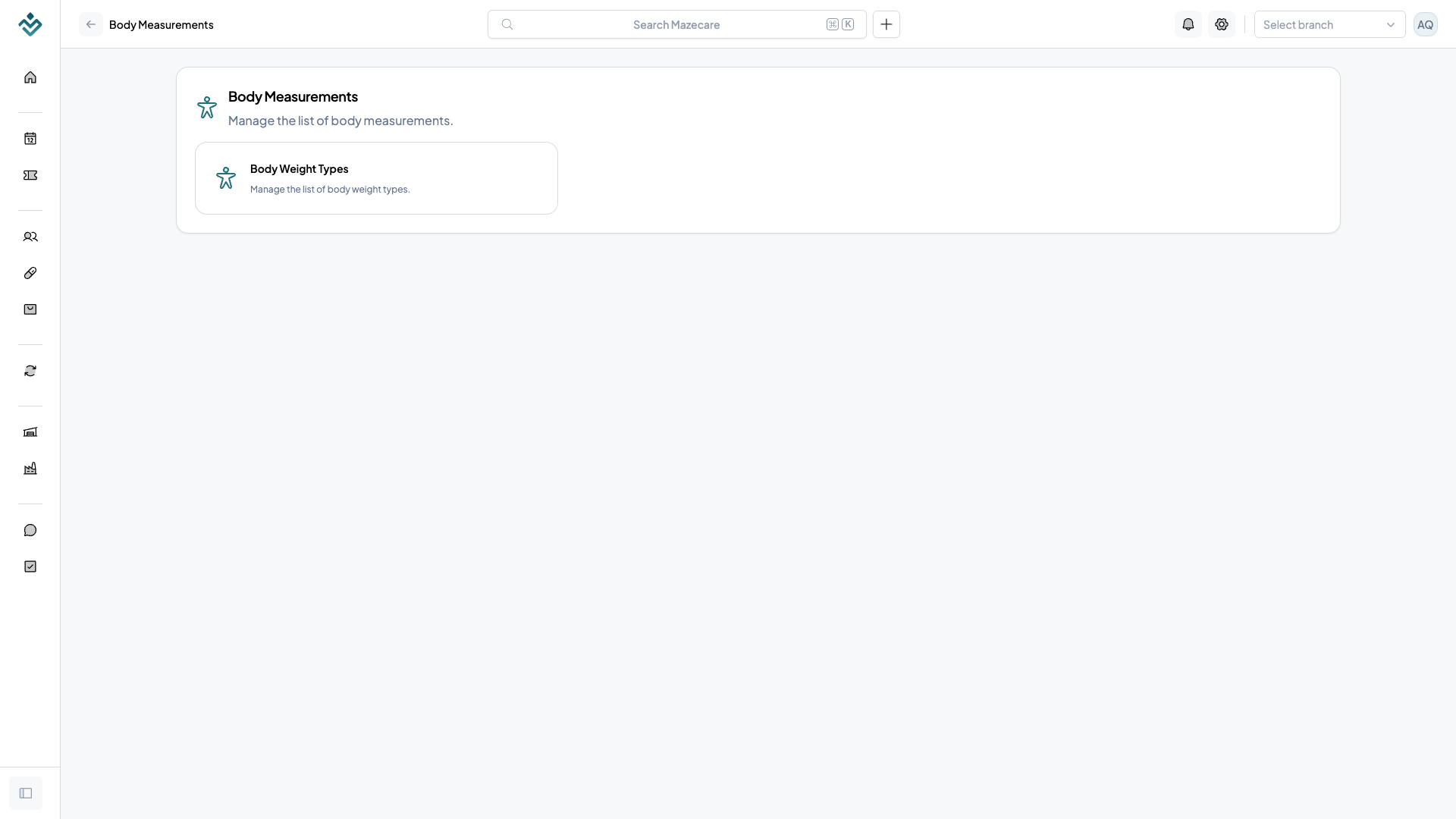
2. Managing Body Weight Types
Clicking Body Weight Types opens the organization-wide classification catalog.
Body Weight Types allow clinics to distinguish between different weighing methods and clinical contexts (such as standard standing scale, wheelchair tare weight, bed-bound estimated weight, or post-dialysis dry weight).
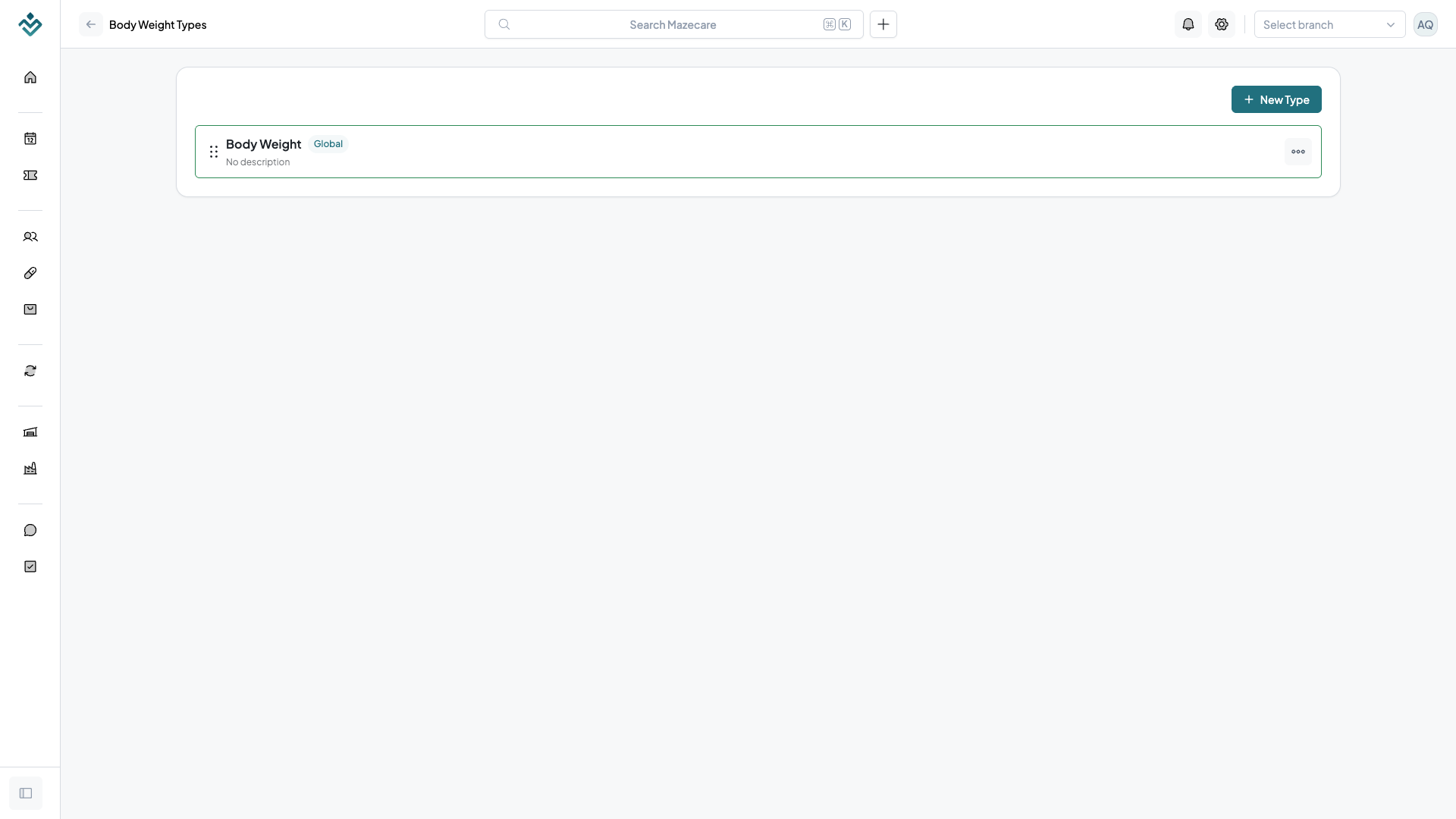
Features & Capabilities:
- Global & Custom Types: Mazecare provides standard global presets (such as default Body Weight), while allowing organizations to define custom measurement types tailored to their specialty.
- Draggable Rank Ordering: Use the drag handle on the left of each row to reorder types. The top-ranked type automatically serves as the primary default selection across clinical recording forms.
- Action Menu: Click the three-dot menu on any custom type to View, Edit, or Delete the entry.
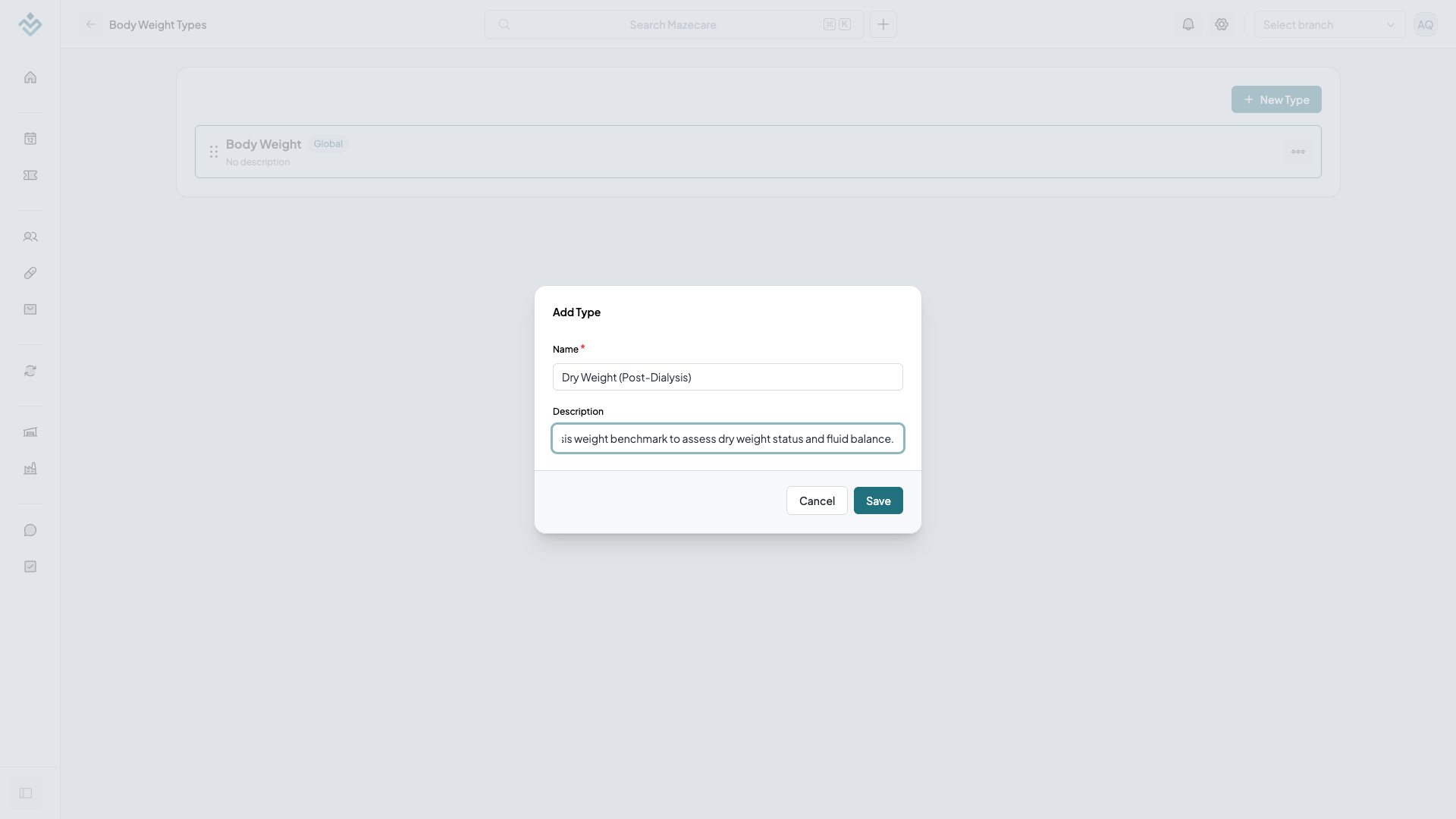
3. Creating & Editing a Body Weight Type
To add a new measurement classification type:
- On the Body Weight Types page, click + New Type in the top-right corner.
- Complete the modal form fields:
- Name (Required): Enter a clear clinical title for the measurement type (e.g.,
Dry Weight (Post-Dialysis)orWheelchair Tare Weight). - Description (Optional): Enter clinical guidance or intake instructions explaining when and how this weight type should be recorded by nursing and medical staff.
- Name (Required): Enter a clear clinical title for the measurement type (e.g.,
- Click Save to create the type and apply it immediately to all clinical forms.
4. Patient Body Weight Records & Flowsheet
To review a patient's longitudinal weight history and record new readings:
- Navigate to Patients and open the patient profile.
- In the patient navigation menu, select Records, then click Body Weight.
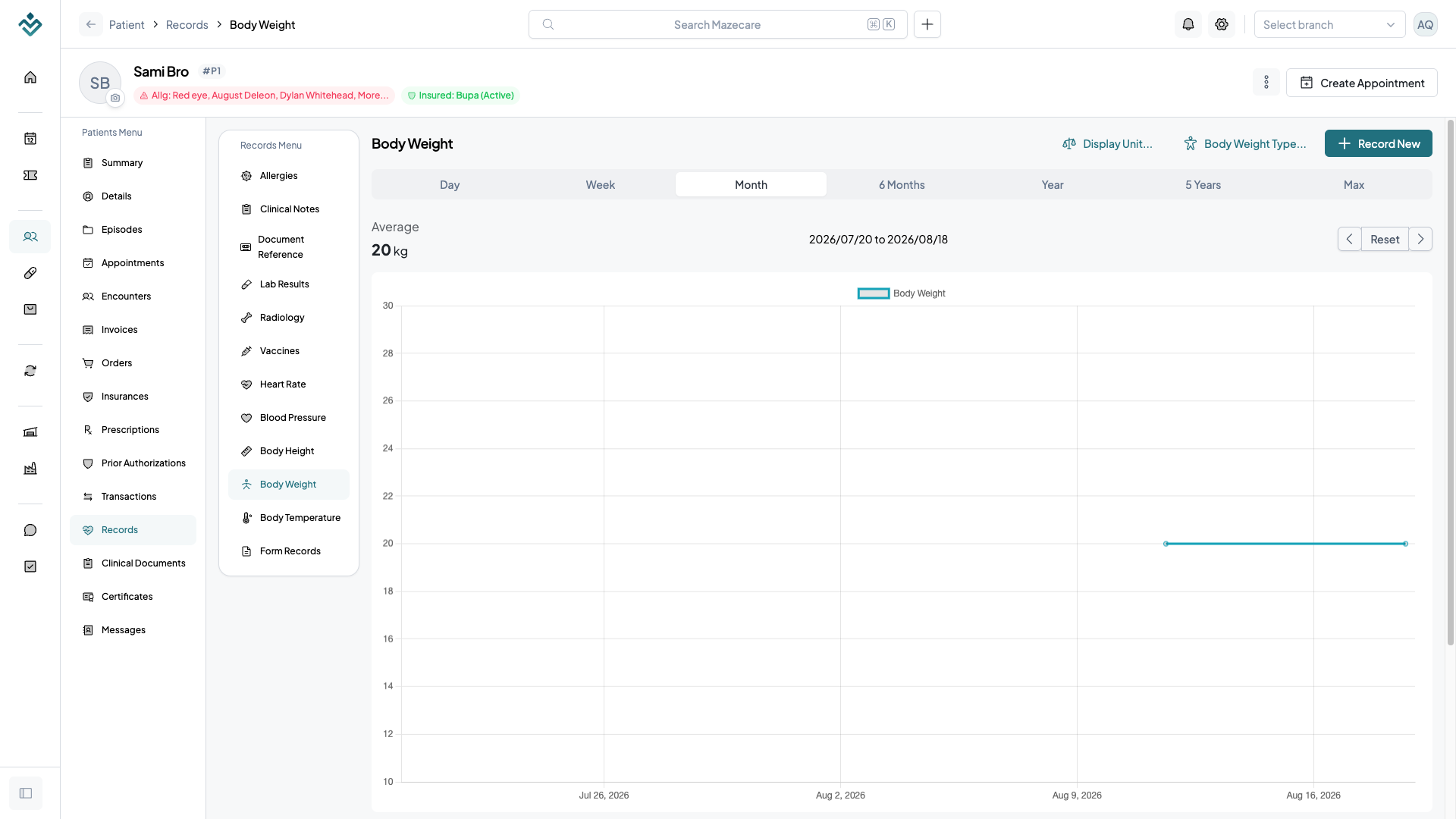
Flowsheet Components:
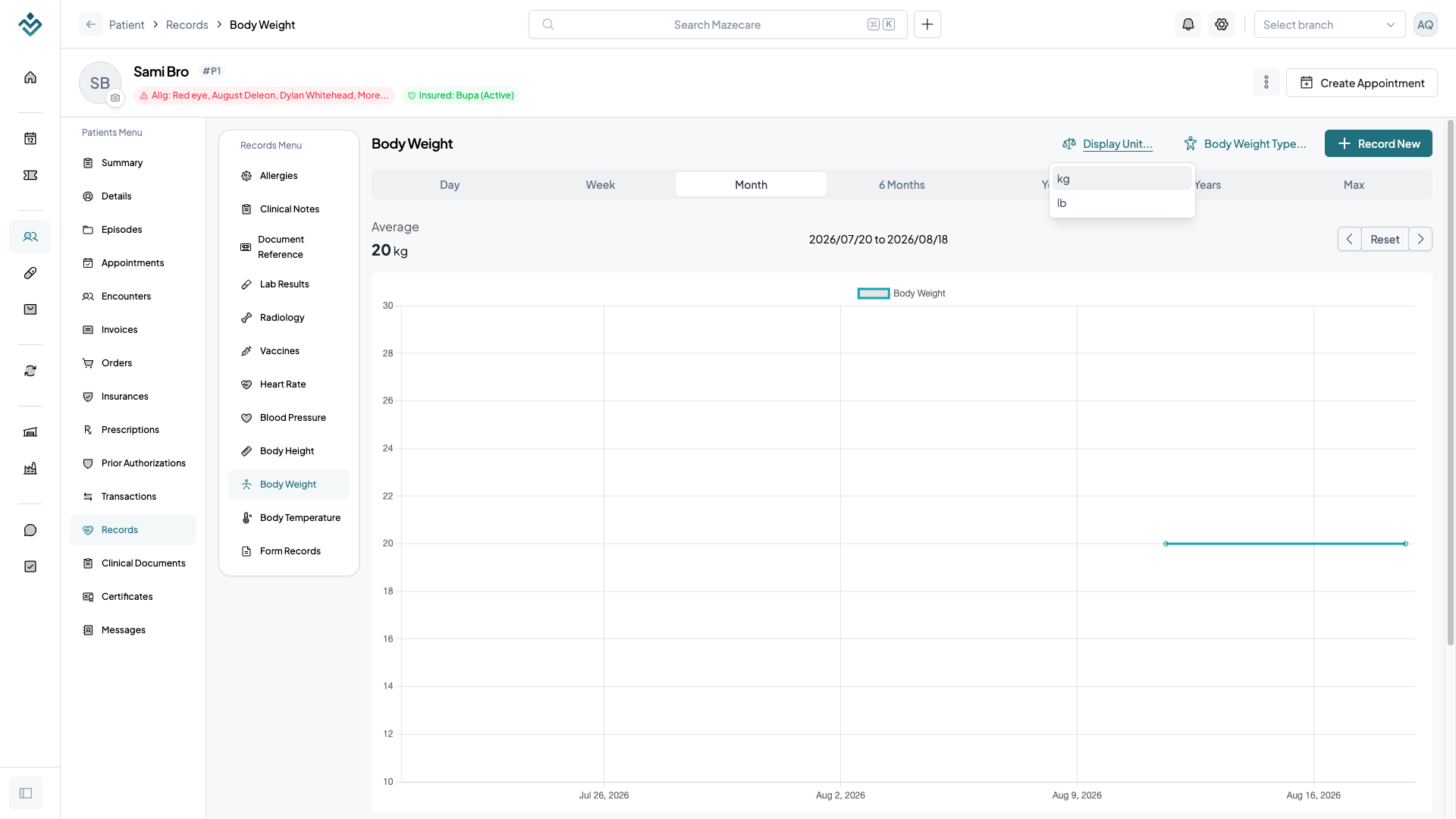
- Interactive Trend Chart:
- Plots all recorded weight entries over time.
- Filter timeframes using the quick-range tabs: Day, Week, Month, 6 Months, Year, 5 Years, and Max.
- Displays summary statistics including the Average weight and date range for the active filter.
- Clicking any data point highlights the corresponding entry in the list below.
- Body Weight Type Switcher: Filter the flowsheet to display records for a specific weight classification (e.g. comparing standard weight vs. dry weight).
- Display Unit Switcher: Switch between kg and lb seamlessly. Mazecare automatically converts historical values to the chosen unit while retaining the original captured value.
- Chronological History List:
- Groups records by date.
- Displays the converted value in the selected unit alongside the raw recorded entry.
- Shows the exact recording timestamp.
- Provides a row action menu to Edit or Archive individual records.
5. Recording a New Body Weight Measurement
To capture a weight measurement during patient check-in or consultation:
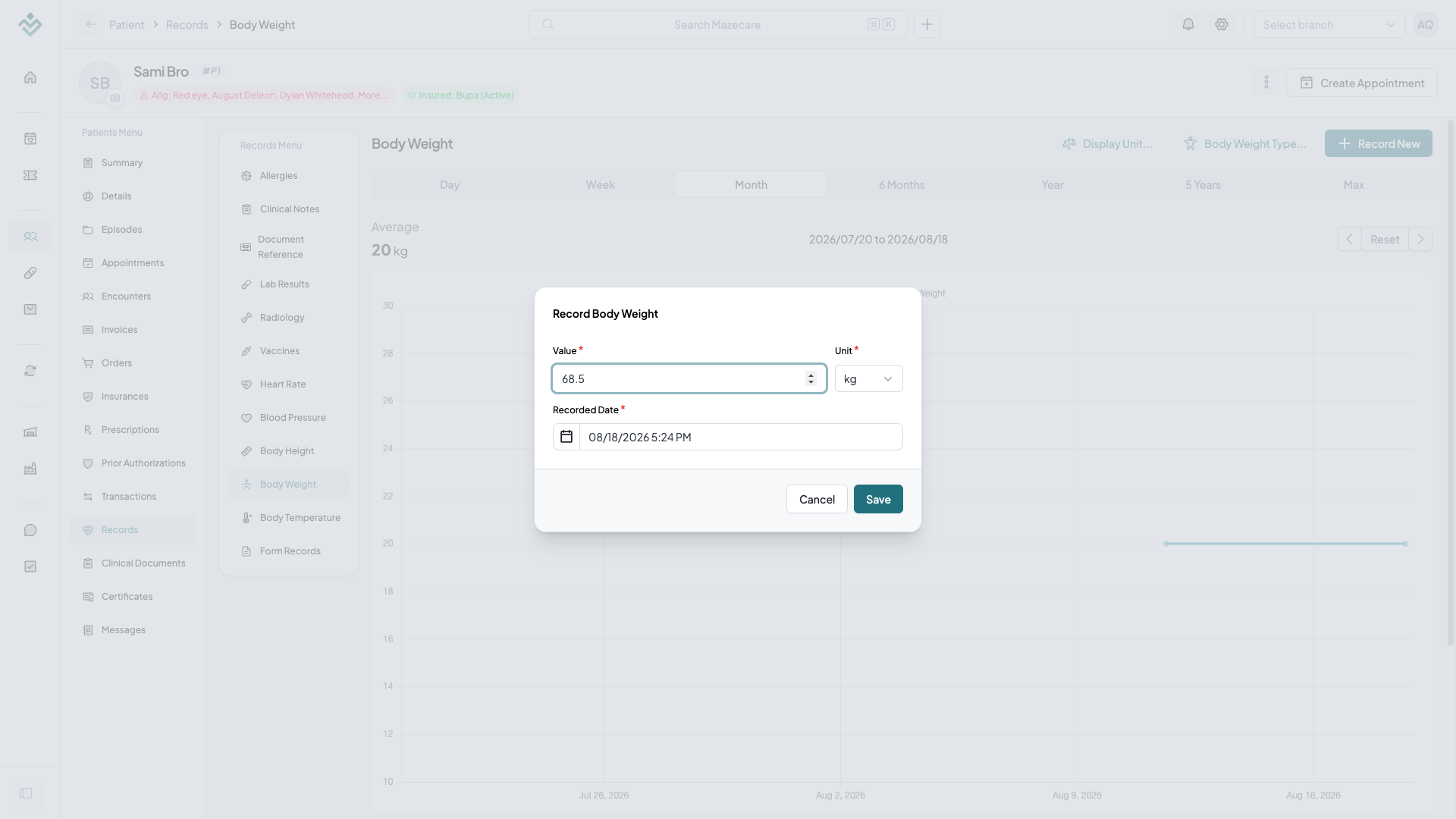
- On the patient's Body Weight record page, click + Record New.
- Fill in the measurement details:
- Value (Required): Enter the patient's weight reading (supports two decimal places, e.g.
68.50). - Unit (Required): Select the unit of measurement (
kgorlb). - Recorded Date (Required): Select the date and time the reading was taken using the integrated date-time picker (defaults to the current timestamp).
- Value (Required): Enter the patient's weight reading (supports two decimal places, e.g.
- Click Save. The new entry is instantly plotted on the trend chart and added to the chronological record list.
Ingredients & Tags
Manage active pharmaceutical substances, INN radical/CAS identifiers, and clinical taxonomy tags across products and services in Mazecare.
Numbering & Identifier Keys
Configure custom identification keys for patients and doctors, and define auto-incrementing numbering sequence patterns for tickets, encounters, and prescriptions.