

Workflow Definitions Setup
Workflow Definitions are interactive care pathways that automate and govern your clinic's patient journey. Each workflow defines the states (clinical and administrative stages such as Registration, Triage, Consultation, Dispensary, Invoicing, and Discharge) and transitions (the authorized pathways and conditional gates between stages) that regulate an Episode of Care from intake to completion.
When reception or clinical staff create an Episode of Care for a patient, they select a Workflow Definition. The engine strictly enforces clinical protocols, prevents unauthorized skipping of steps, executes automated actions (such as generating queue tickets, launching encounters, or sending WhatsApp notifications), and evaluates transition conditions in real time.
For example, in a standard outpatient encounter, a workflow definition guides the patient across successive care stages with automated actions and gate checks at each transition:
!IMPORTANTCore Concepts of Workflow Definitions
- States (Nodes): Clinical or administrative milestones. States can be flagged as Initial (starting point) or Final (completion), contain Entry/Exit Actions, or encapsulate Sub-Workflows.
- Transitions (Edges): Directed pathways connecting states that define valid progression paths. Transitions support Transition Actions and multi-domain Conditions.
- Automated Actions & Integrations: Automated tasks and system communications triggered on state entry, state exit, or transition crossing.
- Transition Conditions: Guard rules (Case, Ticket, Encounter, Invoice, Order, Task, Insurance Policy, Service Request, Transaction, Appointment) that must be satisfied before a patient can advance.
- Workflow Context Parameters: Parameterized configuration variables (such as service item references and queue line assignments) that allow workflows to be portable and reusable across different clinic locations.
- Sub-Workflows: Hierarchical modular workflows embedded within a parent state, with optional blocking until completion.
Workflow Definitions Hub
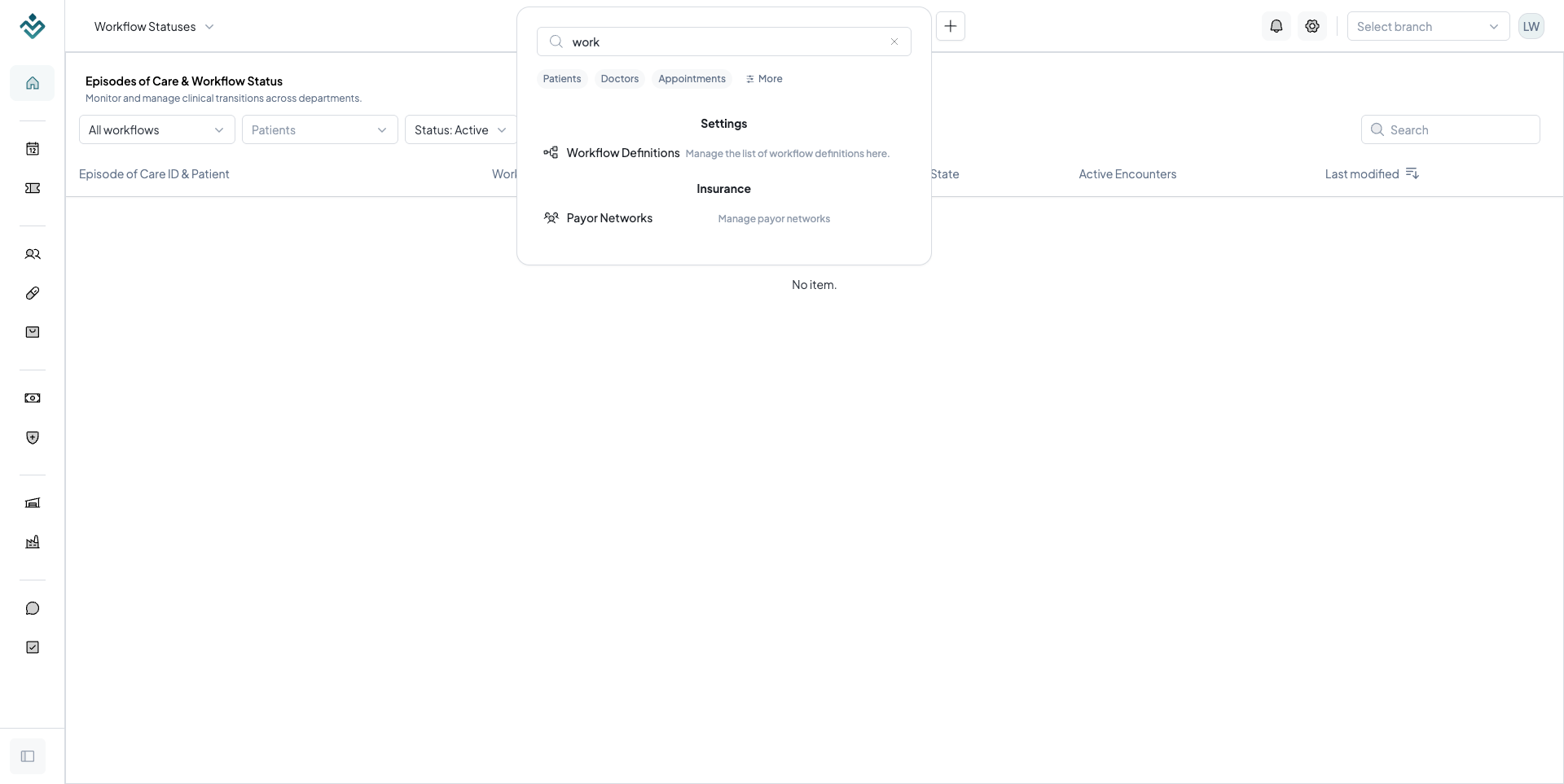
To access the Workflow Definitions dashboard, log in with an Administrator account with workflow management permissions and navigate to Settings → Workflow Definitions, or press Cmd + K / Ctrl + K and search for Workflow Definitions.
Dashboard Features
- Workflow Table Overview:
- Name & Description: Identifies the clinical pipeline and its operational objective.
- Default Badge: Visual indicator for the organization's default workflow applied automatically to newly created Episodes of Care.
- Search, Sorting & Dynamic Filtering:
- Real-time search across workflow titles, descriptions, and system IDs.
- Filter by active vs. archived workflows.
- Customizable dynamic column visibility.
- Row Actions Menu:
- Set as Default: Designates the selected workflow as the organization-wide default for new patient episodes.
- Archive: Soft-deletes/archives obsolete workflow definitions with single or bulk confirmation modals.
- Creation Initiation:
- Click + New Workflow Definition to open the creation modal.
Workflow Creation Modalities
Clicking + New Workflow Definition opens the creation modal offering three distinct paths:
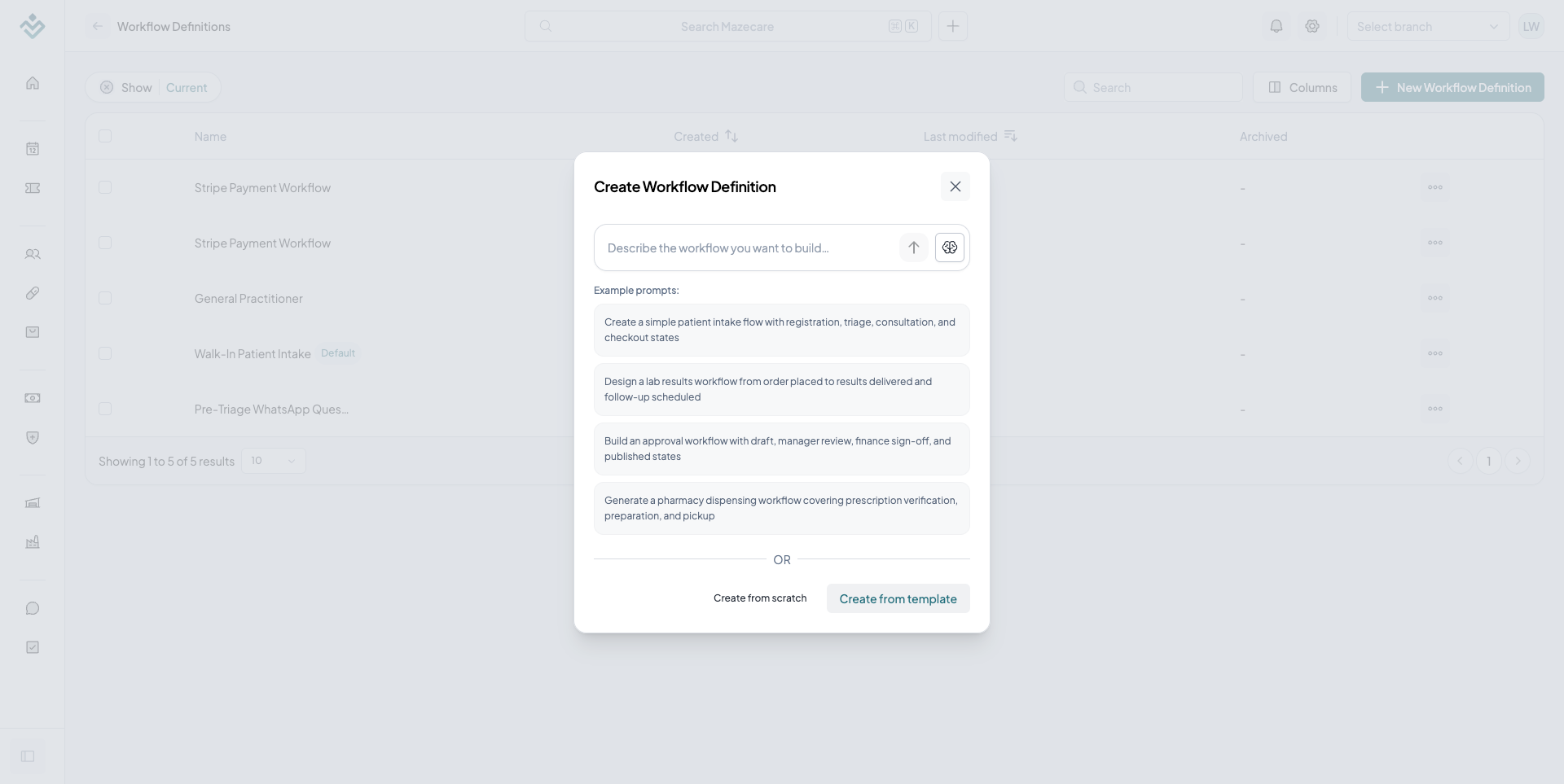
1. AI-Powered Workflow Generation (Mazecare Intelligent)
Mazecare Intelligent allows administrators to generate complete, production-ready care pipelines from natural language prompts.
┌────────────────────────────────────────────────────────────────────────┐
│  Describe the workflow you want to build...               [↑] [🧠 AI]  │
└────────────────────────────────────────────────────────────────────────┘
- Enter a Natural Language Prompt:
- Type your clinical requirements into the prompt box (e.g., "Create a general practitioner flow with triage, doctor consultation, pharmacy dispensing, billing, and follow-up scheduling").
- Select AI Model:
- Click the brain icon to choose the desired AI reasoning model.
- One-Click Example Prompts:
- Quick-select pre-curated prompts for patient intake, lab result review pipelines, multi-tier manager approvals, or pharmacy fulfillment.
- Interactive Draft Mode & Refinement:
- The system creates a workflow canvas and opens the AI Assistant side drawer.
- Streaming updates render the nodes and transitions directly onto your canvas in real time.
- Converse with the AI to make refinements (e.g., "Add insurance prior authorization check before pharmacy dispensing").
- Click Accept to map and persist all states and transitions, or Undo to revert.
2. Predefined Workflow Templates
Mazecare provides 10 pre-engineered, specialized healthcare templates covering common ambulatory, surgical, diagnostic, and communication workflows.
For an in-depth walkthrough of template selection, blueprint breakdowns, context variable schemas, and configuration guides, see the dedicated guide:
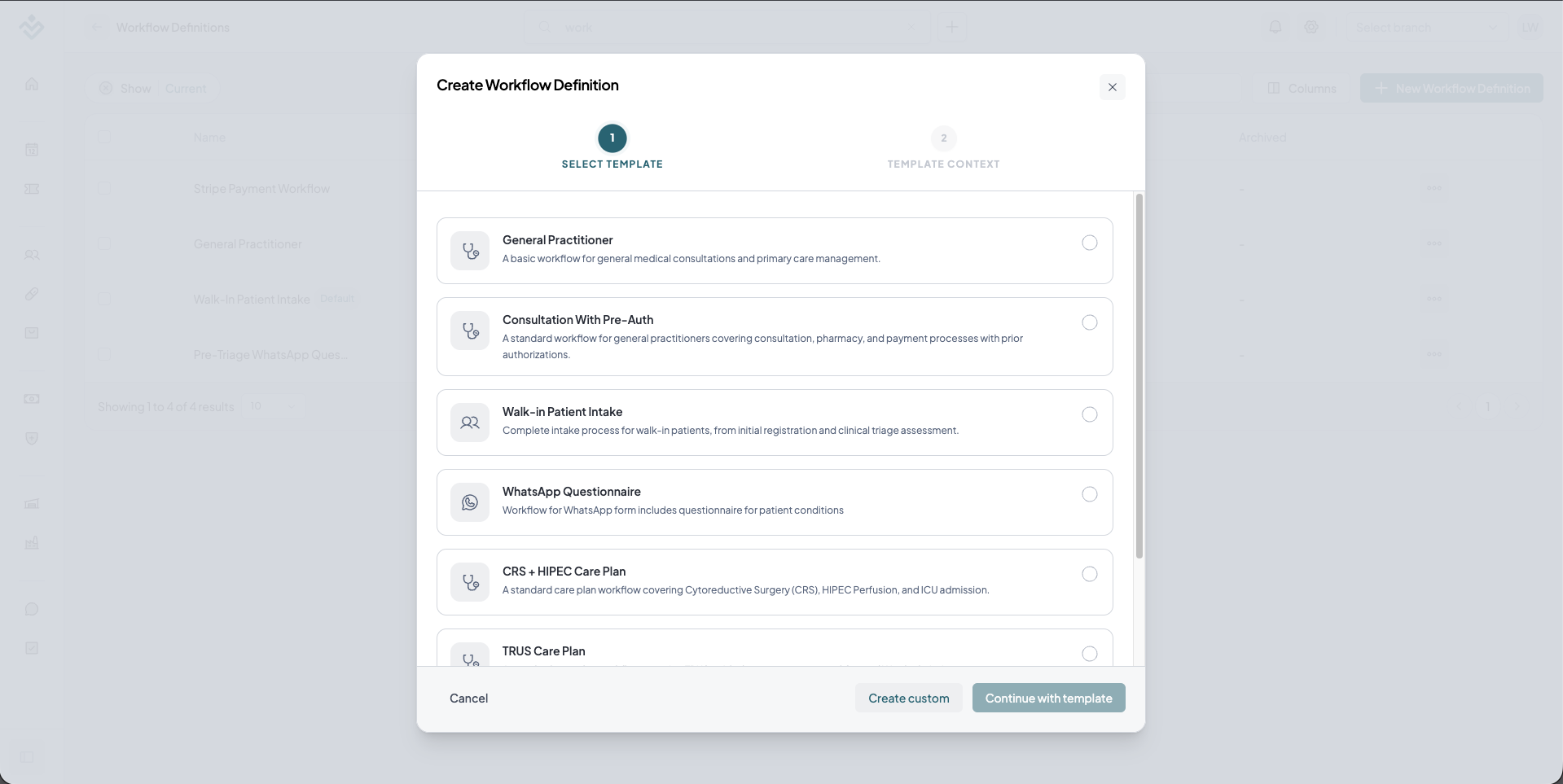
Available Starter Templates
| Template | Identifier | Description & Included Stages |
|---|---|---|
| General Practitioner | Primary Care | Standard outpatient primary care pipeline: Registration → Check-in → Triage → Queue → Consultation → Prescription → Discharge. |
| Consultation With Pre-Auth | Pre-Auth Care | Outpatient GP flow with automated insurance eligibility checking, prior authorization approval gating, pharmacy dispensing, and split-billing. |
| Walk-in Patient Intake | Walk-in Intake | Multi-line intake supporting doctor consultation, inpatient bed lines, and sub-workflow triggers for automated patient communications. |
| WhatsApp Questionnaire | Patient Chat Form | Digital pre-visit questionnaire delivering dynamic clinical intake forms to patients via official WhatsApp Business messaging. |
| CRS + HIPEC Care Plan | Oncology Surgical | Complex surgical oncology care plan: Cytoreductive Surgery (CRS), HIPEC Perfusion, ICU post-operative monitoring, and surgical ward step-down. |
| TRUS Care Plan | Urological Surgical | Urological surgical pipeline: Transrectal Ultrasound (TRUS) guided prostate biopsy/surgery, recovery observation, and General Ward admission. |
| Stripe Online Payment | Online Telehealth | Telehealth and appointment booking flow with conditional payment routing between online pre-payments and on-site clinic settlement. |
| Interacted Voice Response (IVR) | Telephony Triage | Telephony triage workflow integrating pre-authorization call queues, claims routing, and practitioner dispatching. |
| Health Check-Up | Health Screening | Executive health screening and wellness pipeline coordinating biometric vitals, blood panels, ECG/imaging, doctor debrief, and report delivery. |
| Send Pre-Form Intake | Pre-Visit Intake | Digital registration pipeline that triggers electronic clinical questionnaires to patients upon appointment confirmation. |
Two-Step Template Configuration Wizard
- Step 1: Select Template: Choose the template card and click Continue with template.
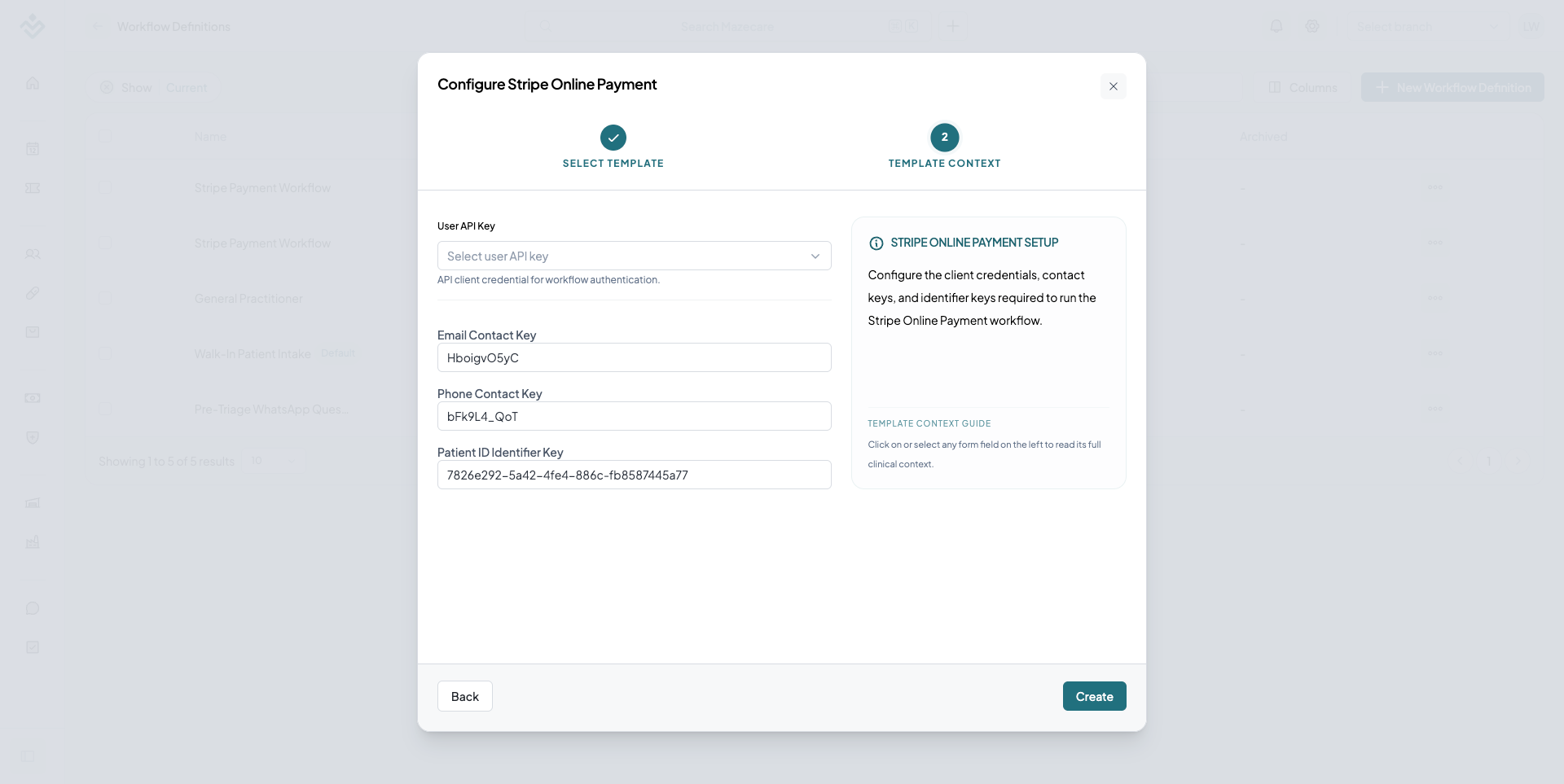
- Step 2: Configure Template Context:
- The wizard renders a dedicated configuration form specific to the selected template.
- Select required master data: Consultation Services, Doctor Consultation Procedures, Queue Lines, Consultation Units, or Communication Accounts.
- Refer to the built-in Template Context Guide panel on the right for parameter explanations.
- Click Create to automatically construct the state nodes, transition logic, and automated action hooks.
3. Create from Scratch
Click Create from scratch at the bottom of the creation modal to launch an empty visual canvas for fully custom care pathway architecture.
Interactive Visual Canvas & Editor (Editor Tab)
The workflow editor provides a full-screen, drag-and-drop visual canvas:
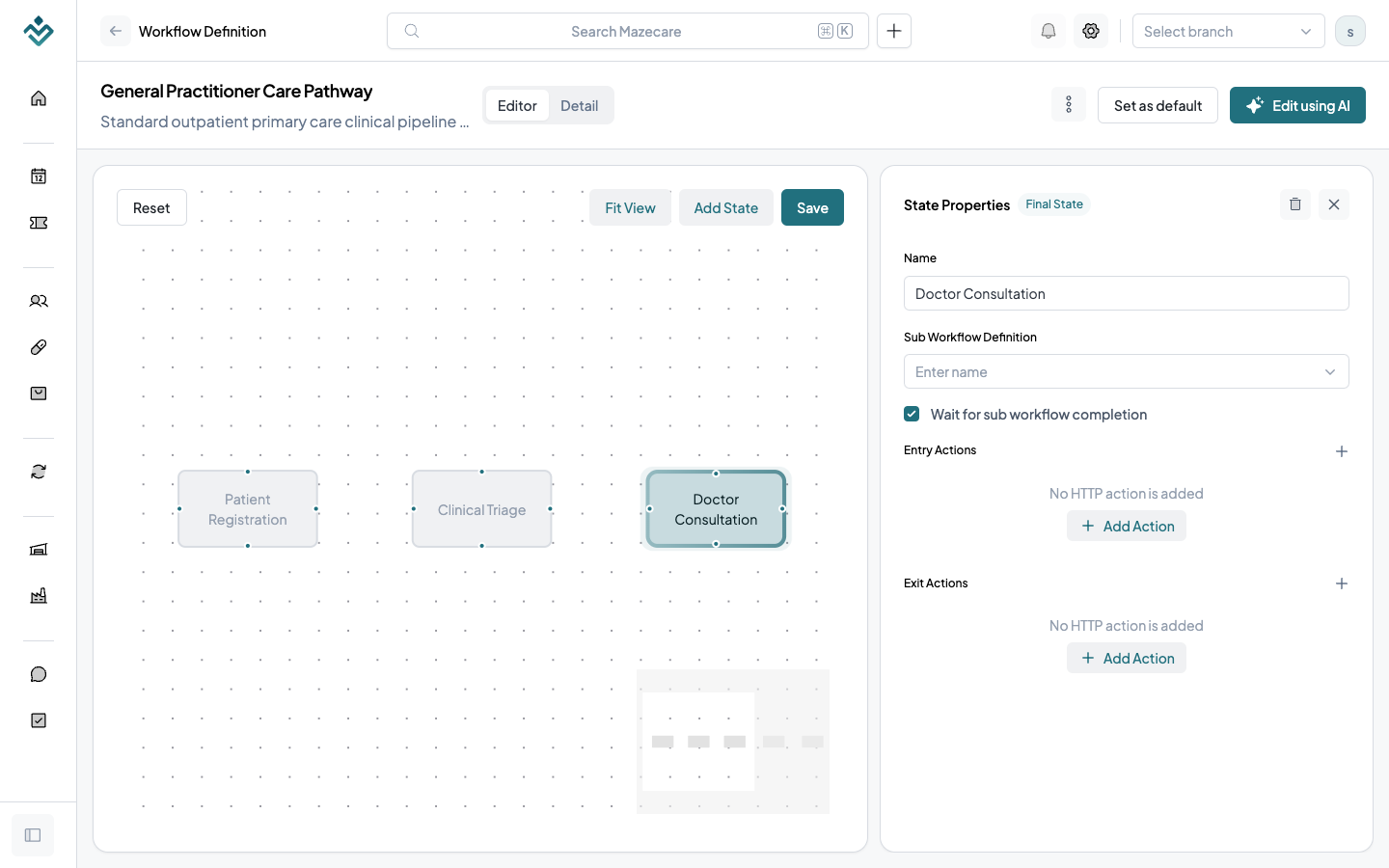
Canvas Controls & Shortcuts
- Add State: Places a new state node on the canvas.
- Fit View: Centers and zooms the viewport to encompass all nodes.
- Reset: Reverts unsaved canvas modifications back to the last saved database state.
- Save: Persists all state additions, coordinate updates, transition links, conditions, and action configurations.
- Shortcuts:
- Cmd + S / Ctrl + S: Save changes immediately.
- Escape: Close open side panels and deselect active nodes/edges.
- Cmd + W / Ctrl + W: Protected by an unsaved changes guard modal.
- Alignment Helper Lines: Magnetic snapping guides appear automatically when dragging nodes to align horizontally and vertically.
Configuring State Nodes
Clicking any state node opens the State Properties side panel:
- State Name: Clinical designation of the stage (e.g.,
Triage Assessment,Doctor Consultation,Dispensary Fulfillment). - Initial & Final State Badges:
- Initial State: The entry point where an Episode of Care starts.
- Final State: The terminal milestone where an Episode of Care is completed/closed.
- Calculated automatically based on incoming/outgoing transitions or manually adjustable.
- Sub-Workflow Embedding:
- Sub-Workflow Definition: Link a modular child workflow (e.g., an ancillary Diagnostic Lab Pipeline or WhatsApp Feedback Survey).
- Wait for Sub-Workflow Completion: When toggled ON, the parent episode cannot advance past this state until the sub-workflow completes its final state.
- Click the linked sub-workflow to open a slideover inspector without leaving the canvas.
- Entry Actions: Automated actions executed the instant a patient enters this state.
- Exit Actions: Automated actions executed when a patient transitions out of this state.
Configuring Transition Edges
Clicking any transition edge between two states opens the Transition Properties side panel:
- Transition Name: Action label displayed to clinical staff on the Episode of Care screen (e.g.,
Admit to Doctor Room,Send to Pharmacy,Discharge Patient). - From & To States: Visual verification of source and destination states.
- Transition Actions: Automated actions executed during the state switch.
- Multi-Domain Guard Conditions:
- Transitions can be locked until specified criteria are satisfied. Mazecare evaluates conditions across 10 system domains:
| Domain | Condition Scope & Criteria |
|---|---|
| Case / Episode | Case status, assigned clinician, or episode clinical category. |
| Ticket (QMS) | Ticket is called, Staff assigned, Consultation room assigned. |
| Encounter | Encounter signed, Diagnosis code attached, Clinical notes finalized. |
| Invoice | Invoice marked paid, Zero outstanding balance, Co-pay collected. |
| Order | Order marked dispensed, Prescription items verified by pharmacist. |
| Task | Nursing checklist completed, Pre-operative clearance signed off. |
| Insurance Policy | Policy validity verified, Active pre-authorization token attached. |
| Service Request | Lab tests completed, Diagnostic imaging series uploaded and reviewed. |
| Transaction | Payment gateway authorization successful, Transaction captured. |
| Appointment | Patient checked in at reception desk, Arrival timestamp recorded. |
Automated Actions & Integrations Engine
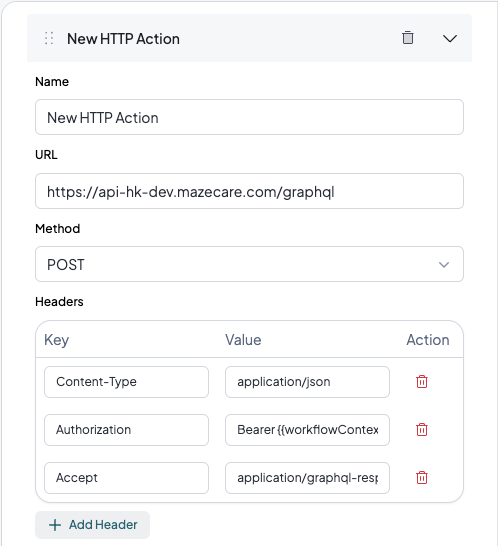
1. Integration Methods & Endpoints
- Select appropriate communication methods (
GET,POST,PUT,DELETE,PATCH). - Enter target endpoints or internal platform services.
2. Request Headers & Dynamic Values
- Custom headers support dynamic templating values:
Authorization: Bearer {{workflowContext.accessToken}}
Content-Type: application/json
X-Organization-ID: {{workflowContext.organizationId}}
3. Request Body Payload Modes
- GraphQL Payload: Select operation types, queries, and structured variable inputs with validation assistance.
- Raw JSON Body: Standard JSON payload with syntax validation and error highlight indicators.
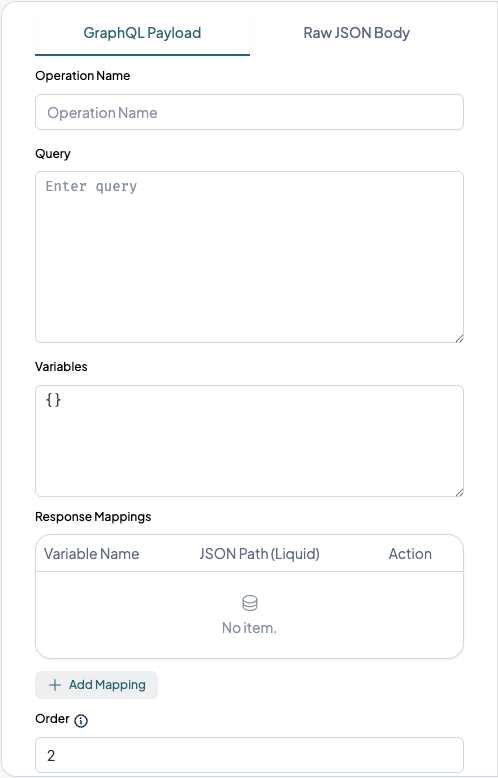
4. Response Mappings
Extract runtime response data directly into workflow context variables for use in downstream states:
- Variable Name: The target context variable name (e.g.,
Encounter ID,Payment Reference). - Response Path: The data path to capture values from the response.
5. Execution Order & Live Activity Log
- Reorder actions using drag-and-drop handles.
- Execution Inspector: When viewing live episode executions, inspect the execution timestamp, duration, status, and communication details.
Workflow Details & Context Parameters (Detail Tab)
The Detail tab provides global workflow configuration, context parameterization, and organizational taxonomy:
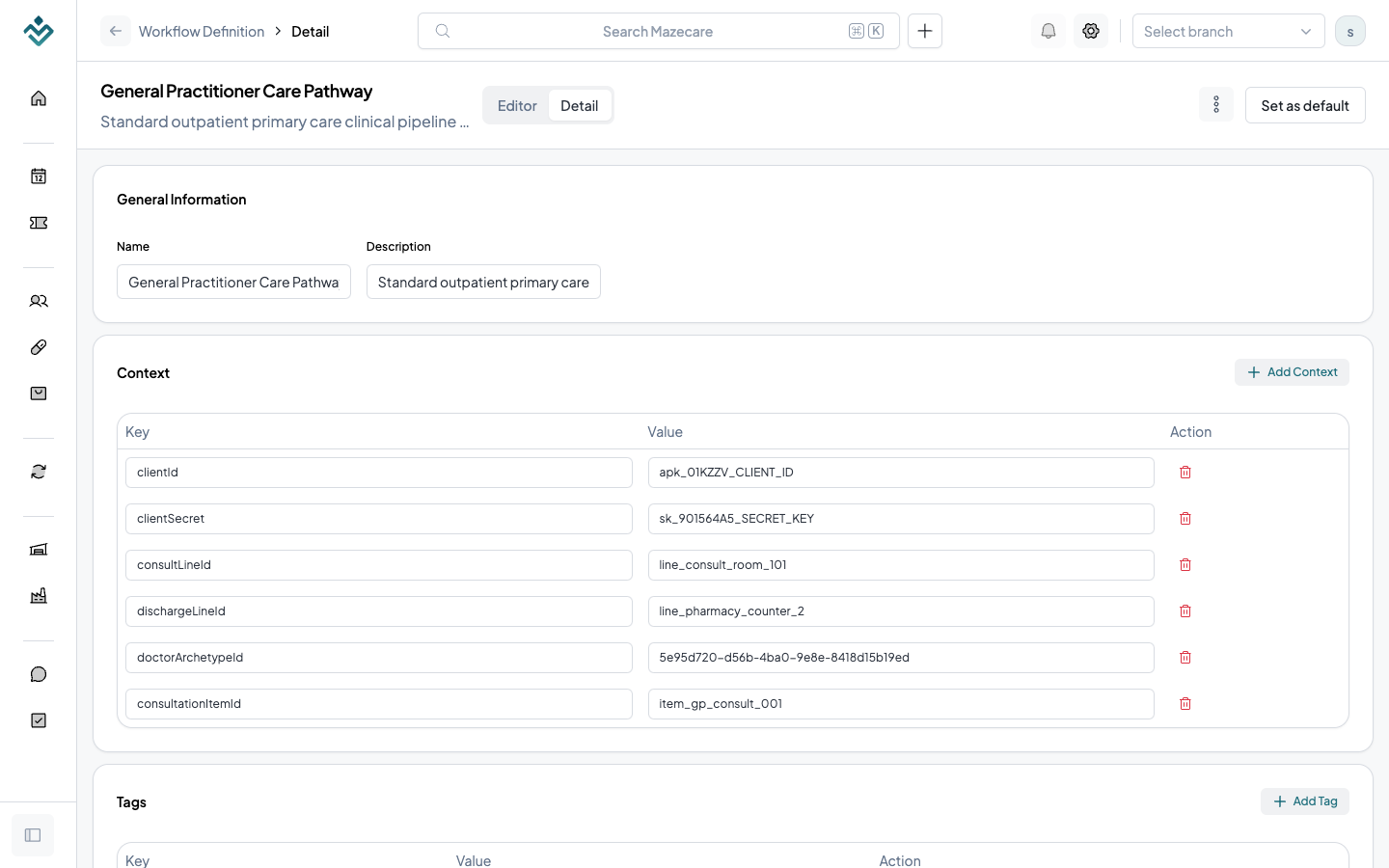
- General Information:
- Name: Display title of the workflow.
- Description: Operational notes, clinical indications, or department guidelines.
- Changes auto-save on field blur.
- Workflow Context Configuration:
- Manage the configuration parameters that power automated actions:
- Integration authentication credentials.
- Consultation service items for billing.
- Target queue lines for consultation and discharge.
- Clinician and staff role archetypes.
- Click + Add Context to define custom parameters.
- Manage the configuration parameters that power automated actions:
- Workflow Tags:
- Organizational taxonomy tags (e.g.,
department: oncology,acuity: high,tier: vip) for organizing, sorting, and reporting across hospital departments.
- Organizational taxonomy tags (e.g.,
- Reset to Template:
- Located under the top-right action dropdown (
...). Allows administrators to re-apply or reset an existing workflow definition to any of the starter templates while retaining the existing ID.
- Located under the top-right action dropdown (
Binding Workflows to Episodes of Care
Once configured and saved, Workflow Definitions drive live clinical workflows:
- Episode Creation: When creating a new Episode of Care for a patient at reception or triage, select the Workflow Definition from the dropdown (or allow the default workflow to auto-populate).
- Live Workflow Progress Bar: The Episode screen features a dedicated Workflow tab visualizing the patient's real-time position on the care path.
- One-Click Progression: Authorized staff click available transition buttons (e.g. Start Consultation, Send to Dispensary) to advance the patient. If guard conditions are not met, the system displays explanatory validation alerts.
- Autonomous Execution: Entry actions, exit actions, and queue dispatches fire reliably in the background.
Queue Setup & QMS
Configure QMS Lines, Service Points, triage priorities, ticket sequences, and clinician assignments for hospital queueing.
Create from Template
Comprehensive step-by-step guide to search, select, parameterize, and launch clinical care pipelines from the 10 pre-engineered Mazecare workflow templates.