

Master Product & Drug Catalog
The Master Product & Drug Catalog serves as the central clinical and operational registry for all billable items, pharmaceutical medications, consumables, surgical supplies, medical diagnostic tests, and clinical procedures in Mazecare.
By unifying item master records, global standard terminology, multi-level unit conversions, clinical decision support rules, standardized diagnostic and procedural coding, and multi-tier pricing matrices into a single source of truth, Mazecare ensures accurate e-prescribing, seamless pharmacy dispensing, automated inventory deduction, and error-free insurance billing.
Catalog Architecture & Operational Pipeline
Mazecare structures catalog items to support clinical accuracy, global standards, unit conversions, and flexible inventory-to-billing mapping:
Global Standard Items vs. Practice-Specific Items
Mazecare operates a dual-scope catalog architecture that balances system-wide clinical standardization with individual practice autonomy:
┌──────────────────────────────────────────────────────────────────────────────────┐
│                             MAZECARE GLOBAL CATALOG                              │
│  (Centrally maintained, standardized medications, ICD/CPT codes, global items)    │
└────────────────────────────────────────┬─────────────────────────────────────────┘
                                         │
                                         ▼
   ┌─────────────────────────────────────┴─────────────────────────────────────┐
   │                                                                           │
   ▼                                                                           ▼
┌─────────────────────────────────────────┐ ┌─────────────────────────────────────────┐
│          PRACTICE ORGANIZATION A        │ │          PRACTICE ORGANIZATION B        │
│ • Uses Global Items (Shared Terminology)│ │ • Uses Global Items (Shared Terminology)│
│ • Custom Retail & Insurance Pricing     │ │ • Custom Retail & Insurance Pricing     │
│ • Own Inventory Batches & Stock Counts  │ │ • Own Inventory Batches & Stock Counts  │
│ • Practice-Specific Custom Items        │ │ • Practice-Specific Custom Items        │
└─────────────────────────────────────────┘ └─────────────────────────────────────────┘
1. Global Standard Items (Global Badge)
Global Items are standardized catalog records pre-configured and maintained across the entire Mazecare platform. They are identifiable by a prominent Global badge in the catalog tables and search pickers.
- Standardized Medical Nomenclature: Pre-populated with International Nonproprietary Names (INN), standardized brand names, accurate active ingredient formulations, and chemical strengths.
- Embedded Medical Coding: Directly mapped to international coding standards including WHO ICD-11, and CPT / HCPCS procedural codes, eliminating manual coding configuration for standard medications and clinical procedures.
- Zero-Setup Clinical Availability: Global items are immediately available for e-prescribing, clinical consultation charting, and insurance billing across all clinic branches without requiring individual practice setup.
- Clinical Governance & Read-Only Protection: The core clinical attributes (chemical formulation, active ingredients, standard coding) of Global items are protected against accidental alteration by non-owner tenants, ensuring consistent patient safety cross-checks across the platform.
- Tenant-Specific Commercial Customization: While core clinical attributes are globally standardized, each practice maintains full flexibility to configure its own Selling Prices, Pricing Blocks (VIP/Corporate panels), Physical Stock Batches, Location Quantities, and Supplier Quotations on any Global item.
2. Practice-Specific (Local) Items
Practice-Specific Items are custom catalog entries created and owned by an individual practice tenant.
- Custom Clinical Offerings: Ideal for clinic-specific compounding medications, customized wellness packages, OTC retail merchandise, or exclusive in-house clinical procedures not covered in the global registry.
- Tenant-Scoped Data: Local items are visible and billable only within the creating practice tenant and its authorized branch locations.
- Full Operational Control: Practice administrators have full edit and delete rights over all fields, including item name, SKU numbers, custom tags, active ingredients, and unit hierarchies.
Configuration Settings & Field Definitions
1. General Item Information
The core identity fields defined directly on each catalog record establish how the item is tracked, searched, and displayed across clinical and administrative workflows.
| Setting | Operational Utility & Purpose |
|---|---|
| Item Number | Unique system identifier assigned to the catalog item (e.g. PRODUCT-1 or SERVICE-16). Supports automated sequence generation or custom clinic SKU formats. |
| Item Name | Commercial trade name or brand designation (e.g. Augmentin 625mg Tablet or Standard GP Consultation). Visible on patient invoices, prescriptions, and search menus. |
| Global Scope Badge | Indicates whether the item is a Global Standard Item (available platform-wide with pre-mapped coding) or a Practice-Specific Item (owned locally by the tenant). |
| Generic / Description | Detailed pharmacological descriptor, International Nonproprietary Name (INN), or procedure preparation instructions (e.g. Amoxicillin and Clavulanate Potassium). |
| Active Status | Toggles whether the item is active and available for prescribing, scheduling, and billing across all clinical workflows. Inactive items are hidden from search pickers while maintaining historical record integrity. |
| Item Tags | Categorical taxonomy labels (e.g. Medication, Antibiotic, Cold Chain, Consumable) used for catalog filtering, reporting, and dispensatory workflow routing. |
2. Unit of Measurement (UOM) Hierarchy
| Setting | Operational Utility & Purpose |
|---|---|
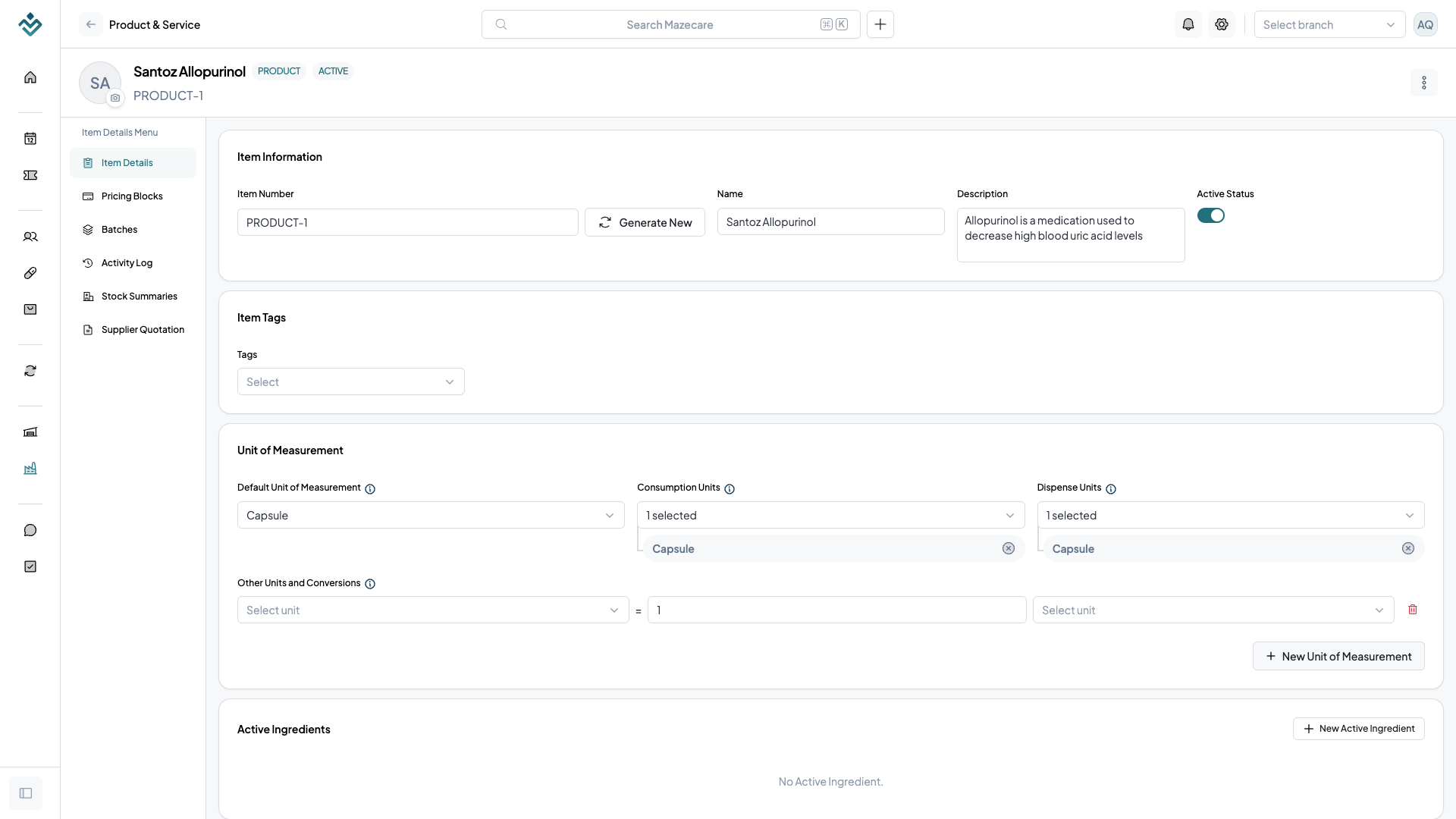
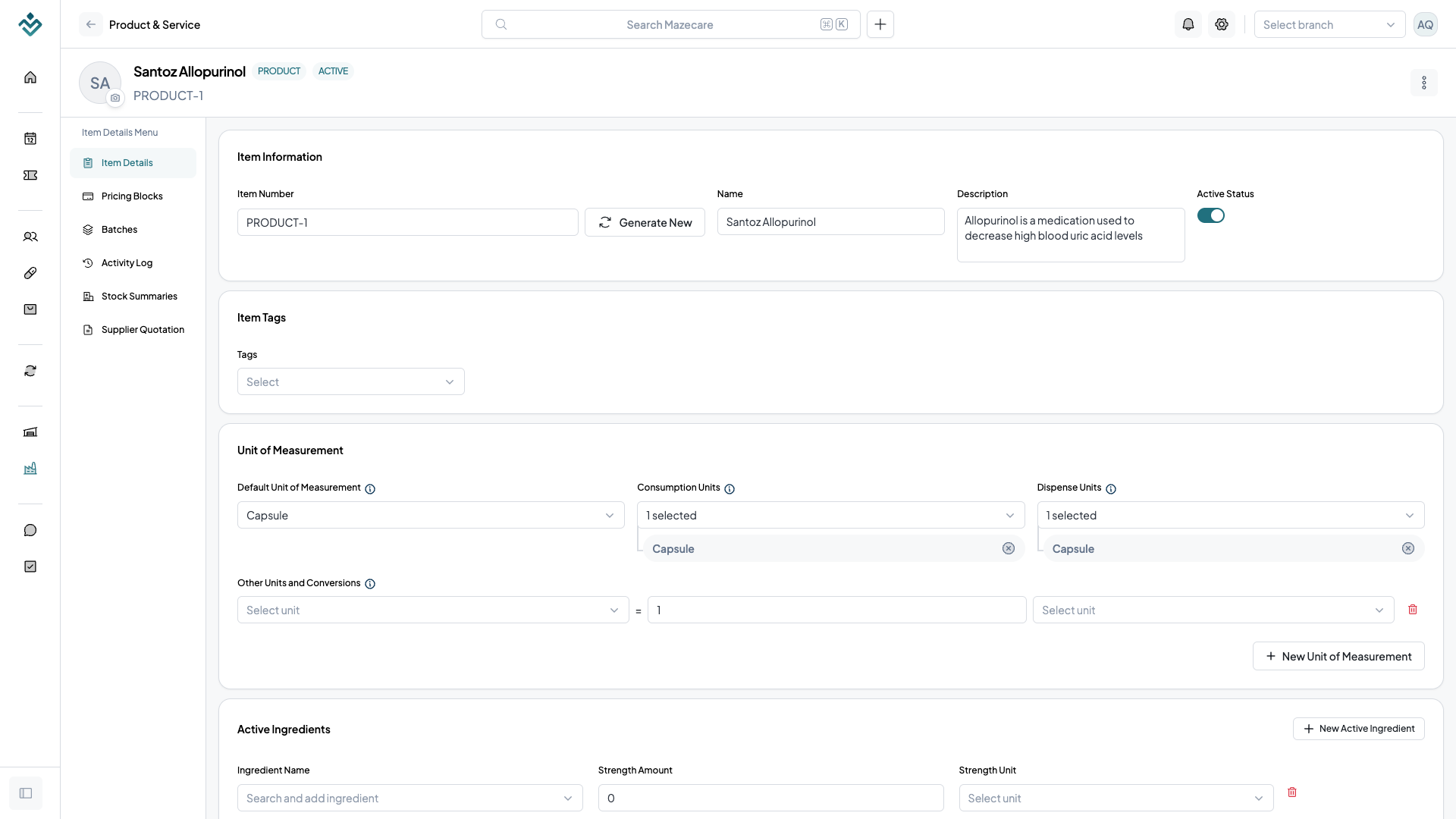
| Default Unit of Measurement | The primary base stock unit in which physical inventory is received and counted in bulk (e.g. Box, Bottle, Vial). Configured in Settings and selected on the product. |
| Consumption Units | The smallest individual unit consumed or administered during patient treatment (e.g. Tablet, Capsule, ml, mg). Used by clinicians during e-prescribing. |
| Dispense Units | The intermediate packaging unit dispensed to the patient at the pharmacy counter (e.g. Blister Strip of 10, Bottle of 60ml). |
| Conversion Rules | Mathematical conversion factors linking units (e.g. 1 Box = 10 Strips = 100 Tablets). Automatically computes fractional stock deductions during dispensary fulfillment. |
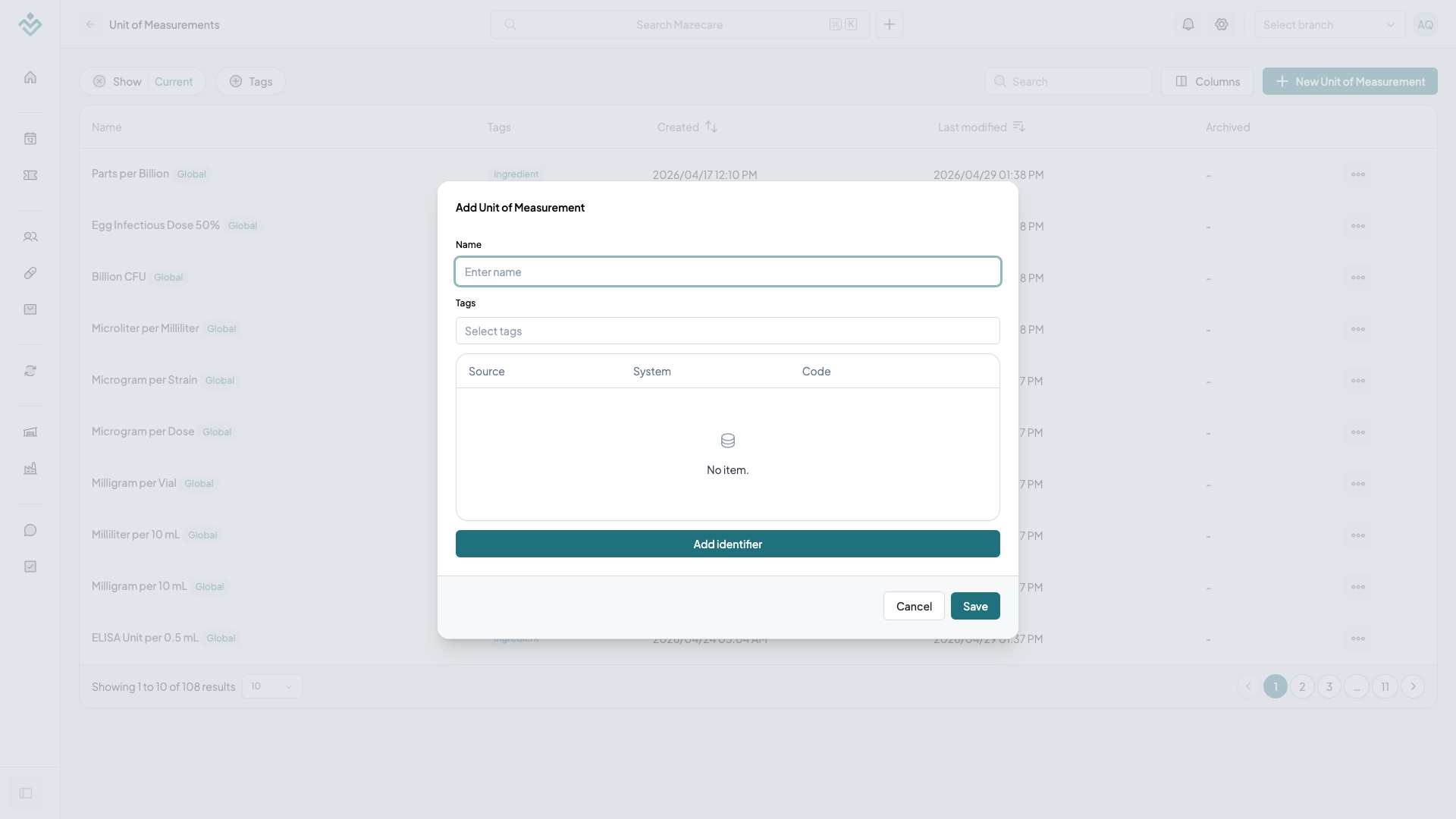
Settings Module Configuration Required: Master Unit of Measurement definitions (e.g.
Box,Bottle,Blister Strip,Tablet,Capsule,ml,mg) are centrally managed under Settings → Unit of Measurements. You must first configure any required custom clinical or packaging units in the Settings module so they become selectable within the Product creation and conversion setup pages.
3. Active Ingredients
| Setting | Operational Utility & Purpose |
|---|---|
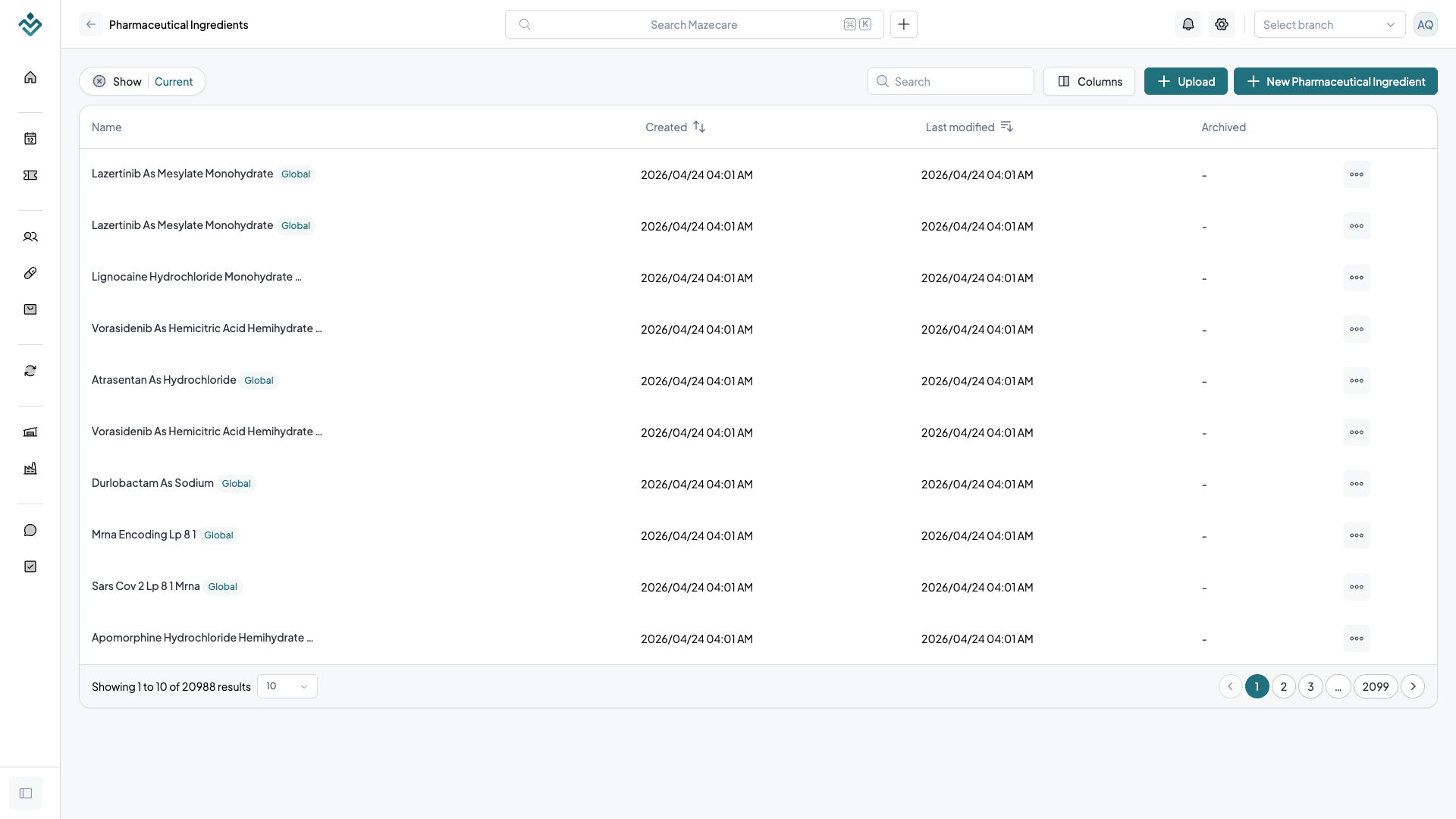
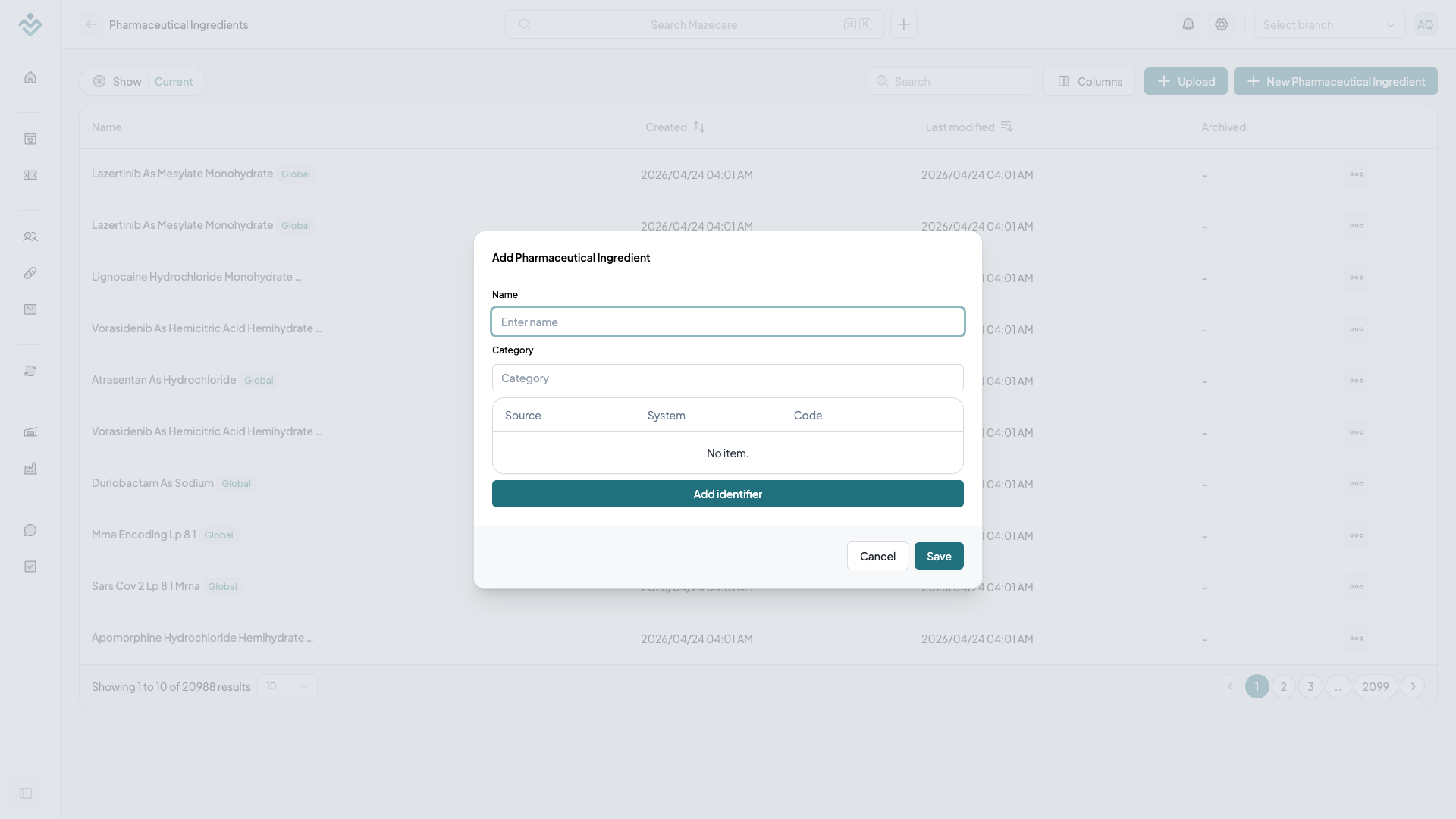
| Active Ingredient Formulation | Chemical compounds and active pharmacological agents present in the medication (e.g. Amoxicillin Trihydrate). Managed in Settings and selected on the product. |
| Strength Amount & Unit | Exact dosage quantity and measurement unit per single dose (e.g. 500 mg, 125 mg, 5 ml). |
| Allergy Cross-Matching | Automated engine cross-referencing active ingredients against patient documented allergies to trigger critical safety warnings before order confirmation. |
Settings Module Configuration Required: Master active pharmacological compounds and chemical formulations are centrally managed under Settings → Pharmaceutical Ingredients. Practice administrators configure standard chemical names, pharmacological categories, and standard identifier coding (RxNorm, UNII, ATC) in the Settings module so they can be attached to pharmaceutical products in the catalog to enforce automated allergy cross-checking and drug-drug interaction warning rules.
4. Medication Administration Codes
| Category | Operational Utility & Purpose |
|---|---|
| Route of Administration | Pharmacological delivery path (e.g. Oral, Intravenous, Intramuscular, Sublingual, Topical, Inhalation). Configured in Settings. |
| Method of Intake | Technique for taking medication (e.g. Swallow whole, Dissolve in water, Apply thin layer, Chew). Configured in Settings. |
| Application Site | Specific anatomical location for topical or localized medications (e.g. Left Eye, Right Ear, Affected Skin Area). Configured in Settings. |
| Timing & Frequency Codes | Standardized dosing frequency codes (e.g. Once Daily, Twice Daily, Every 8 Hours, Four Times Daily) configured with scale code systems and period units in Settings. |
| As-Needed (PRN) Indications | Specific symptom triggers for conditional medications (e.g. As needed for severe pain, As needed for fever > 38.5°C). Configured in Settings. |
| Additional Instructions | Standard cautionary labels printed on pharmacy medication bags (e.g. Take after meals, Complete full course of antibiotics, May cause drowsiness). |
Settings Module Configuration Required: Standardized medication administration taxonomy (Routes, Intake Methods, Application Sites, Timing/Frequency Codes, and PRN Indications) is maintained in Settings → Medication Codes. Practice administrators configure standard codes in the Settings module, which then populate the autocomplete menus used by clinicians when prescribing and managing products.
5. Medical Coding Standards (ICD-11 & CPT)
| Coding Standard | Operational Utility & Purpose |
|---|---|
| WHO ICD-11 | International standard diagnostic coding used during clinical encounters. Supports primary diagnosis tagging and comorbid secondary diagnosis tracking. Pre-mapped on Global Items. |
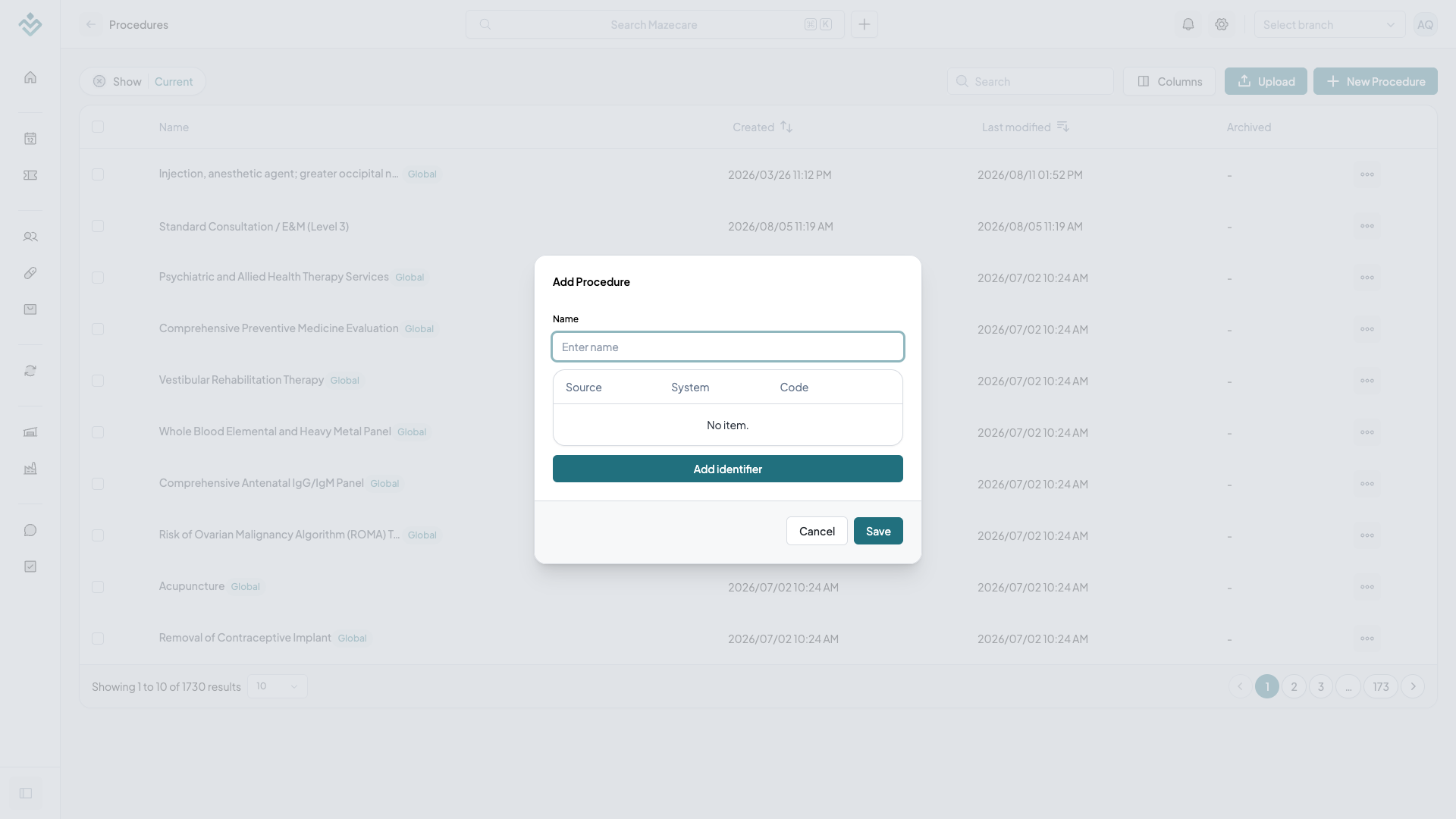
| CPT / Procedure Codes | Standardized Current Procedural Terminology mapped directly to clinical service items, driving fee schedules, insurance pre-authorizations, and claims adjudication. Configured in Settings. |
| Custom Clinic Codes | Internal practice fee codes or specialty alias codes cross-referenced with official insurer coding dictionaries. |
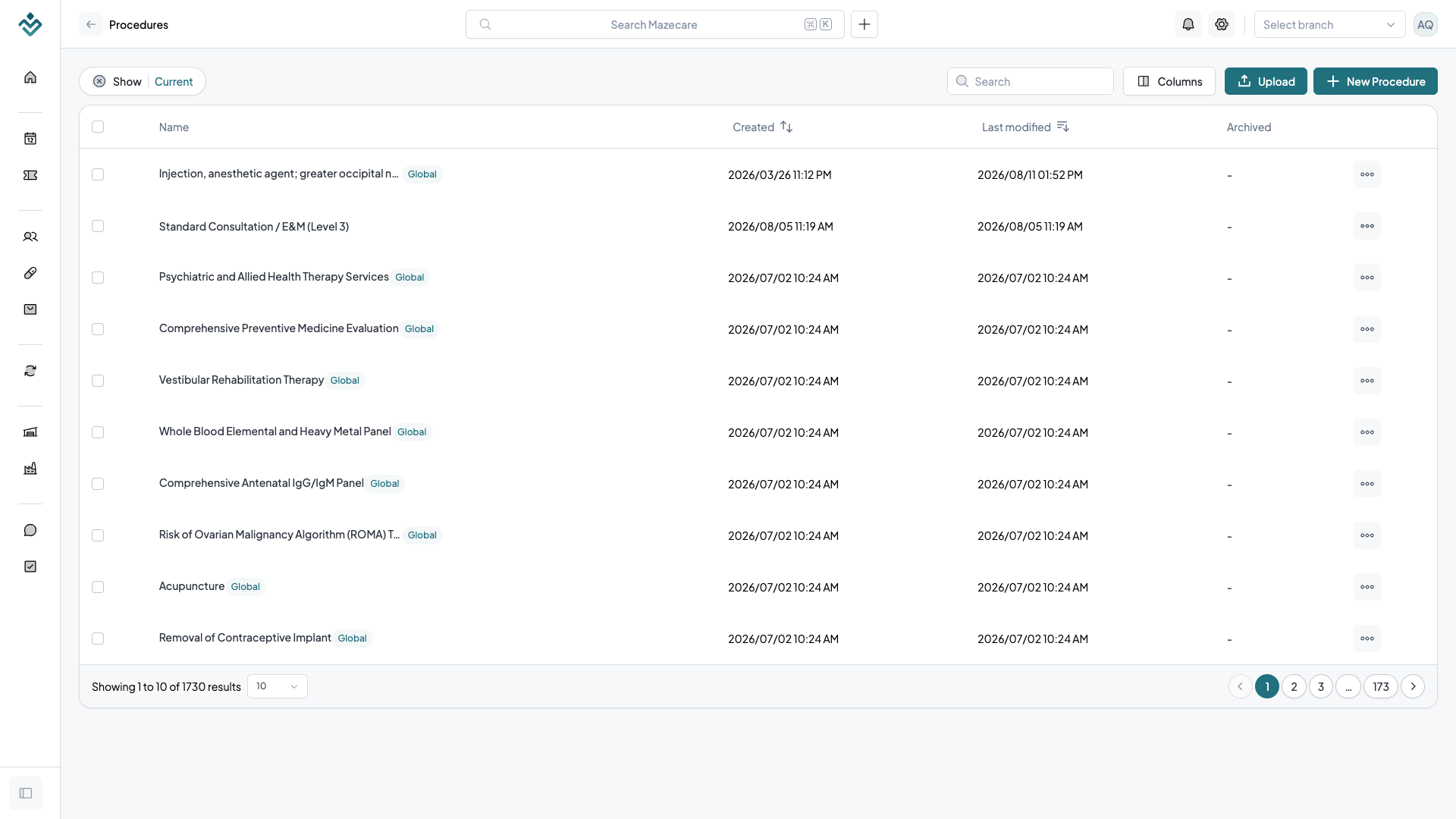
Settings Module Configuration Required: Master clinical procedures, CPT codes, and identifier coding dictionaries are maintained in Settings → Procedures. Practice administrators configure standard procedure definitions, coding systems (CPT, ICD-11, local codes), and identifiers in the Settings module so they can be mapped to clinical services in the catalog and consultation order templates.
6. Pricing Blocks, Inventory Governance & Supply Chain
A. Pricing Blocks
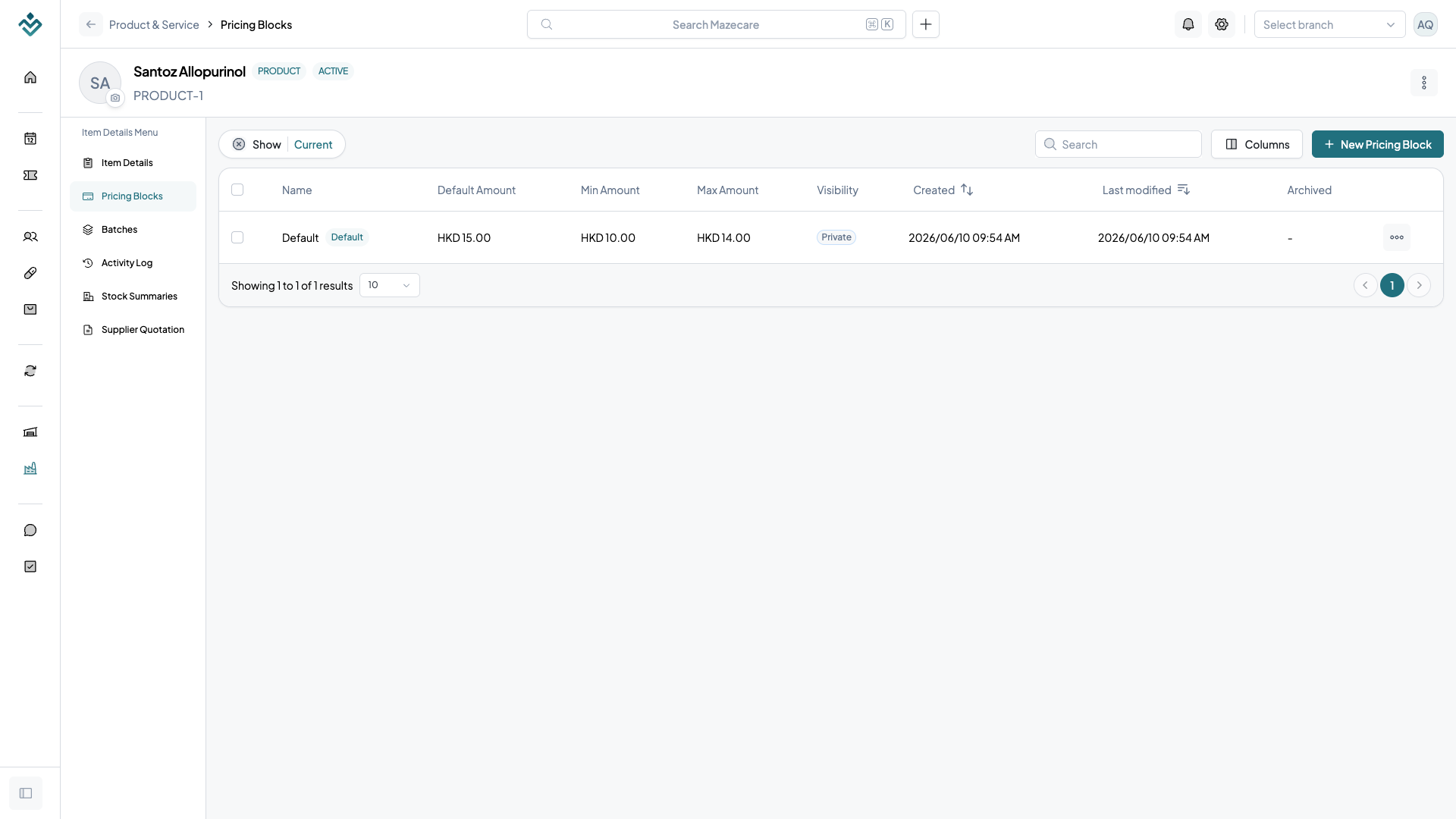
Mazecare allows practices to establish flexible, pricing structures on both Global Standard items and practice-specific items to accommodate private self-paying patients,
| Setting | Operational Utility & Purpose |
|---|---|
| Default Selling Price | Configurable pricing on both Global and local items. |
| Visibility | The price visibility for public listing page (e.g. if you want to show price on public page or not). |
B. Physical Inventory Batches & FEFO Expiry Tracking
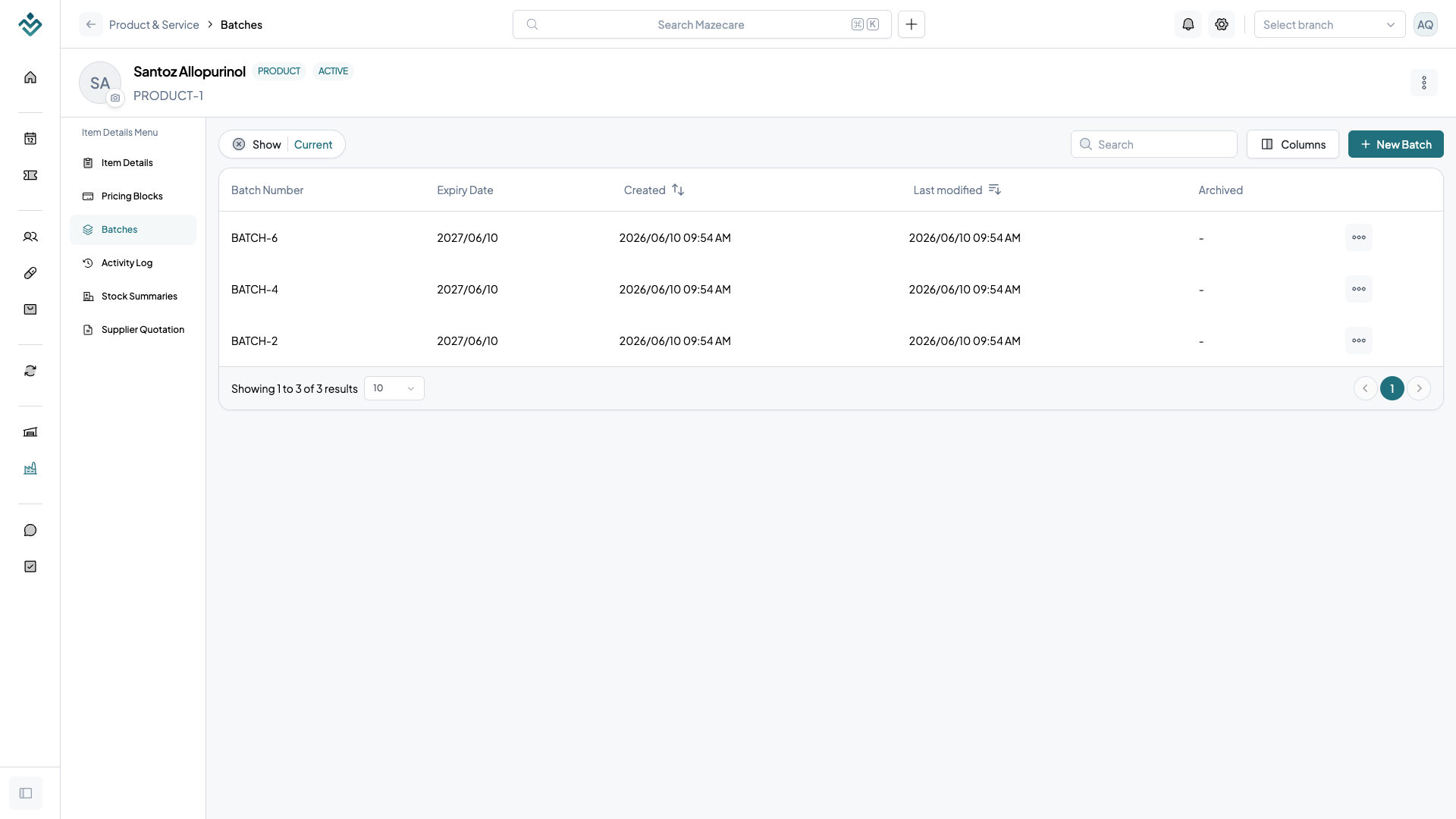
For physical pharmaceutical products, consumables, and surgical supplies, Mazecare tracks granular inventory lot numbers to ensure regulatory traceability and patient safety.
| Batch Field | Operational Utility & Purpose |
|---|---|
| Batch / Lot Number | Unique manufacturer lot identifier assigned during production and recorded during stock receipt (Delivery Order). |
| Expiry Date | Manufacturer expiration date. Drives Mazecare's automated First-Expiry-First-Out (FEFO) dispensing engine to allocate the nearest-expiring stock first. |
C. Multi-Location Stock Summaries & Low-Stock Alerts
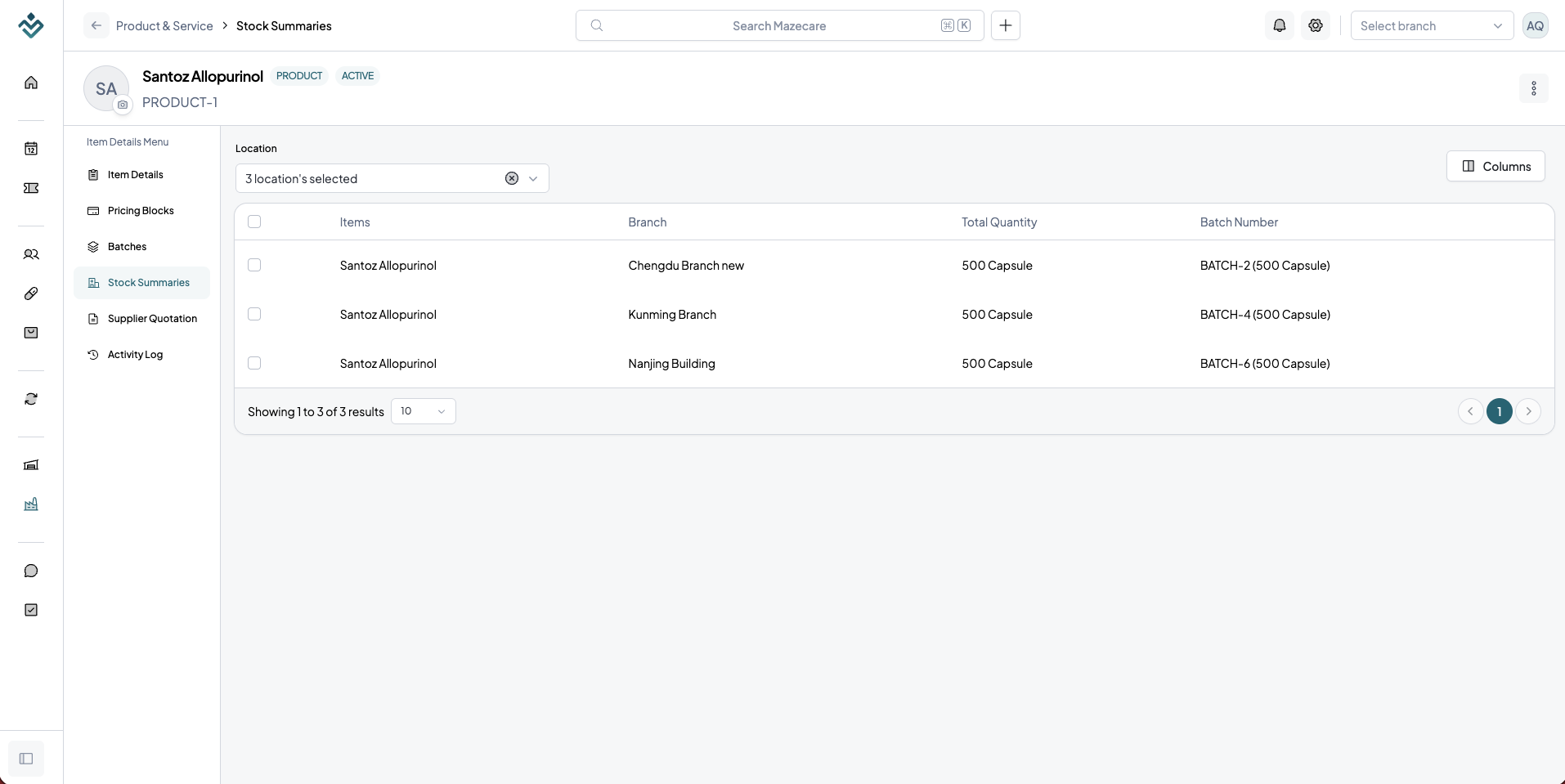
Mazecare monitors physical inventory balances across multiple facilities, clinics, central warehouses, and satellite dispensaries within the practice organization, the settings can be configured by following this link: Stock Management & Transfers
| Metric / Setting | Operational Utility & Purpose |
|---|---|
| Facility Stock Distribution | Real-time breakdown of on-hand inventory across distinct clinic locations and pharmacy store rooms. |
| Low-Stock Safety Threshold | Minimum inventory count configured per facility. When stock dips below this limit, the system triggers alerts on the inventory dashboard. |
| Automated Reorder Suggestions | Feeds low-stock balance triggers directly into the Purchase Order requisition module to initiate vendor replenishment. |
D. Supplier Quotations & Procurement Integration
Contracted vendor quotations link catalog items directly with pharmaceutical distributors and medical device suppliers for automated purchasing.
| Supplier Setting | Operational Utility & Purpose |
|---|---|
| Supplier Name | Contracted vendor entity configured in the master supplier directory. |
| Contracted Cost Price | Negotiated purchasing price per unit agreed upon in vendor supply agreements. |
| Minimum Order Quantity (MOQ) | Mandatory minimum packaging units or purchase amounts required per purchase order. |
| Delivery Lead Time | Expected transit duration in days from purchase order confirmation to clinic delivery. |
| Preferred Vendor Ranking | Designates primary vs. secondary suppliers to automate purchasing order recommendations during stock replenishment. |
E. Product & Service Taxonomy Tags
!NOTESettings Module Configuration Required: Master taxonomy tag dictionaries are centrally managed under Settings → Product & Service Tags (
/settings/product-service-tags/product-tagsand/settings/product-service-tags/service-tags). Practice administrators configure tag titles, display ordering, and custom badge color tokens in Settings before assigning them to catalog items.
| Taxonomy Tag Type | Operational Utility & Purpose |
|---|---|
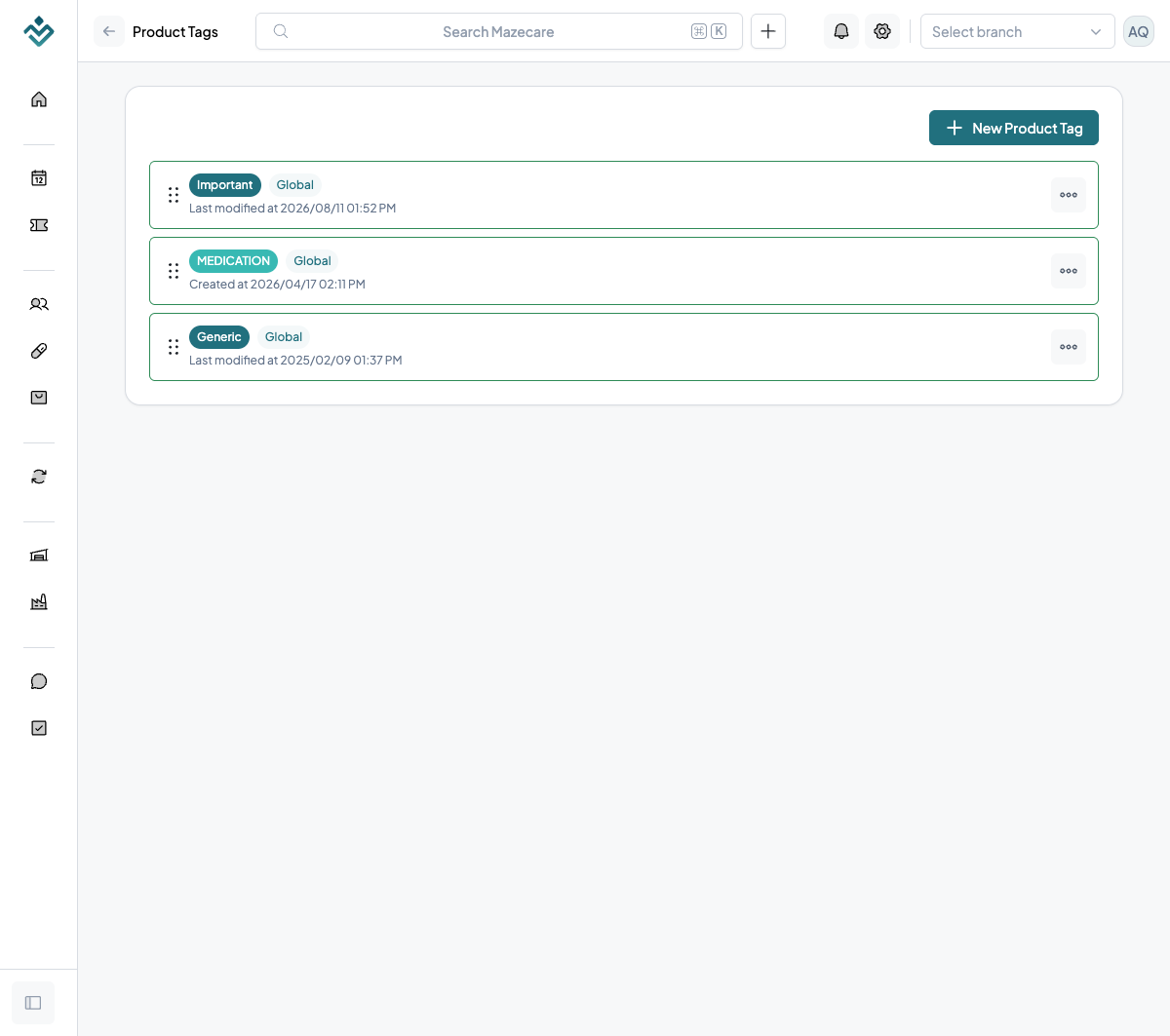
| Product Tags | Categorical labels (e.g. MEDICATION, ANTIBIOTIC, COLD_CHAIN, HIGH_ALERT, SURGICAL_SUPPLY) used for catalog filtering, inventory auditing, and dispensary queue routing. |
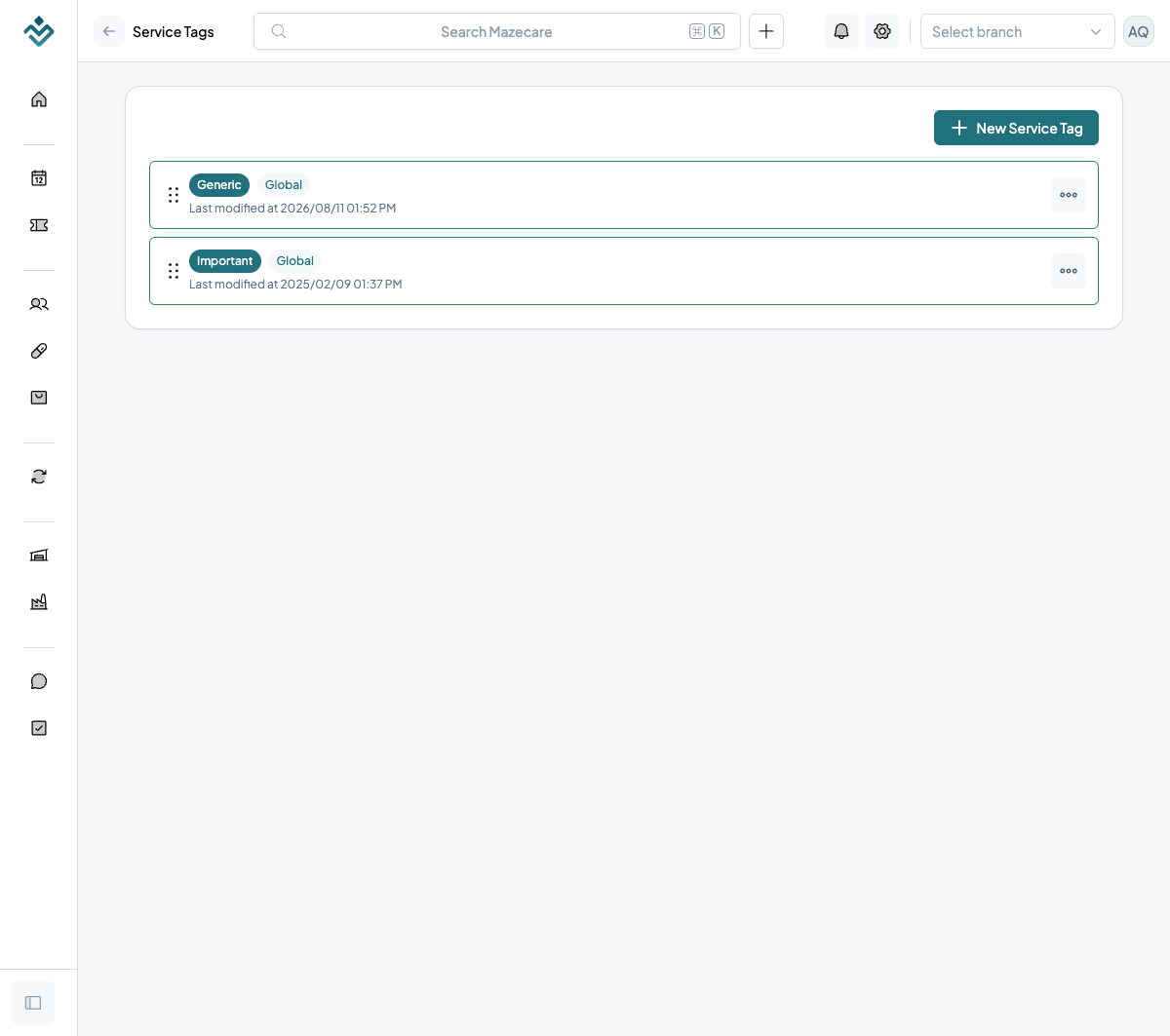
| Service Tags | Clinical procedure and encounter categories (e.g. CONSULTATION, PROCEDURE, IMAGING, LAB_TEST, NURSING) used for appointment scheduling and billing claim breakdowns. |
| Display Order & Color Tokens | Visual badge prioritization and color highlighting in search pickers and patient invoice summaries. |
Step-by-Step Configuration Guide
Step 1: Access the Products & Services Catalog
- Navigate to Operations → Products & Services.
- The catalog overview displays all practice inventory and service items with real-time stock levels, selling prices, item types, active statuses, scope badges (Global vs. Local), and assigned tags.
- Use the search bar to instantly query items by Item Number, Trade Name, Generic Name, or Barcode SKU.
- Utilize the Columns dropdown to customize visible table columns (e.g. Low Stock Locations, Selling Price, Created Date, Last Modified Date).
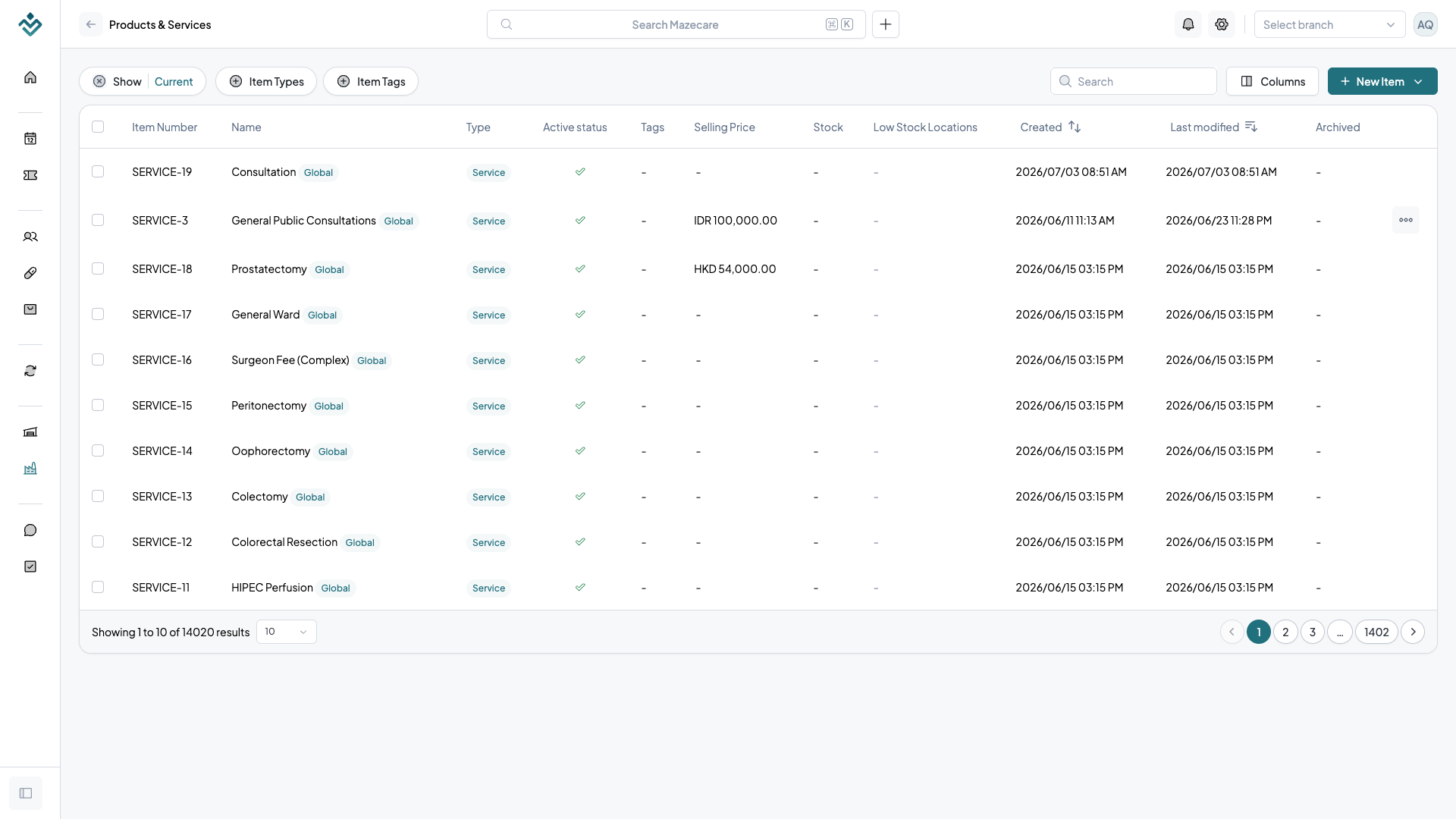
Step 2: Filter Catalog Items by Type, Global Scope, and Taxonomy Tags
- Click Item Types to isolate catalog records by classification:
- Product: Physical medications, pharmaceutical drugs, OTC retail items, consumables, and surgical supplies.
- Service: Non-inventory clinical offerings such as Doctor Consultations, Minor Procedures, Nursing Care, and Lab Diagnostics.
- Package: Health screening packages, pre-bundled procedure kits, and multi-service care plans.
- Review the Global badge to distinguish centrally standardized items from local practice-specific items.
- Click Item Tags to filter by operational categories (e.g.
Medication,Antibiotic,Cold Chain,Dangerous Drug). - Combine filters to quickly audit specific departments or identify low-stock categories across clinics.
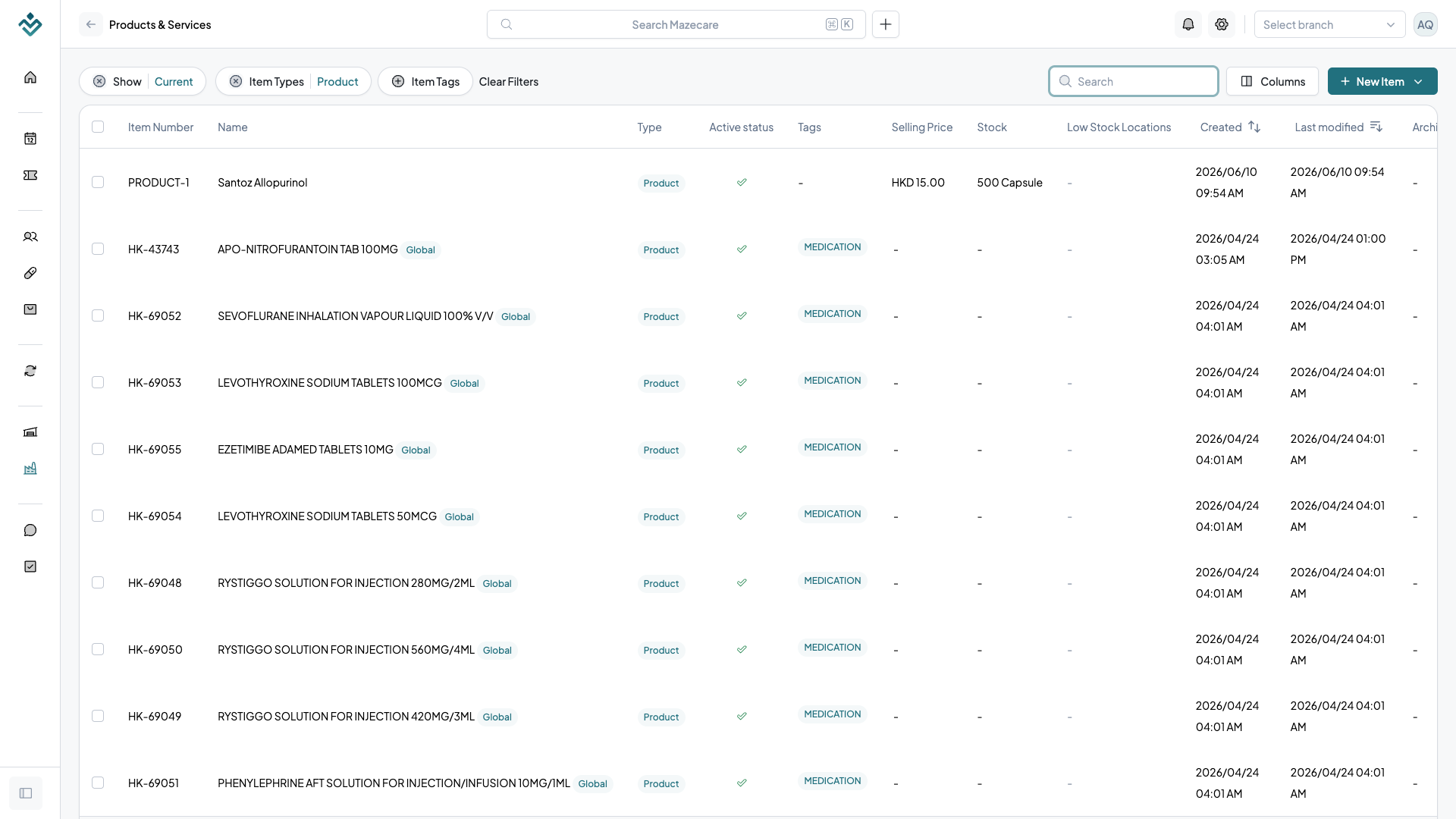
Step 3: Create and Configure a Pharmaceutical Product
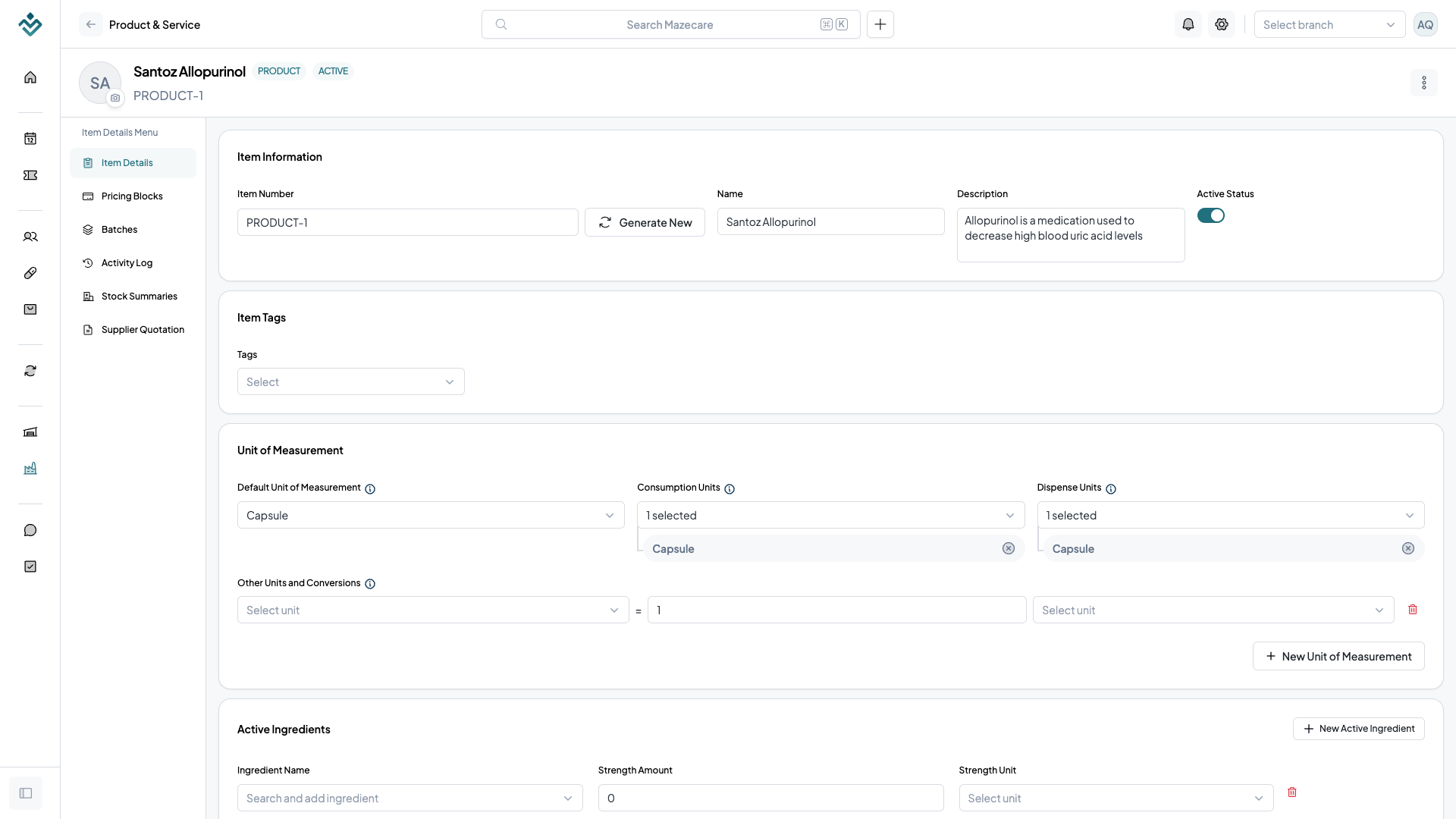
- Click the New Item button and select Product.
- Complete the core item details:
- Item Number: Click Generate New to produce the next sequential identifier (e.g.
PRODUCT-1), or input a custom barcode/SKU. - Name: Input the official brand or commercial trade name (e.g. Santoz Allopurinol or Augmentin 625mg Tablet).
- Description: Add pharmacological context, indications, or clinical guidance notes.
- Active Status: Ensure the toggle is switched ON to make the item available for clinical prescribing and dispensary fulfillment.
- Item Number: Click Generate New to produce the next sequential identifier (e.g.
- In the Item Tags section, select applicable tags (e.g.
Medication,Prescription Only) to ensure proper dispensary queue routing.
Step 4: Configure Unit of Measurement (UOM) Multi-Level Conversions
To maintain accurate inventory balances when purchasing in bulk containers but dispensing in smaller clinical units:
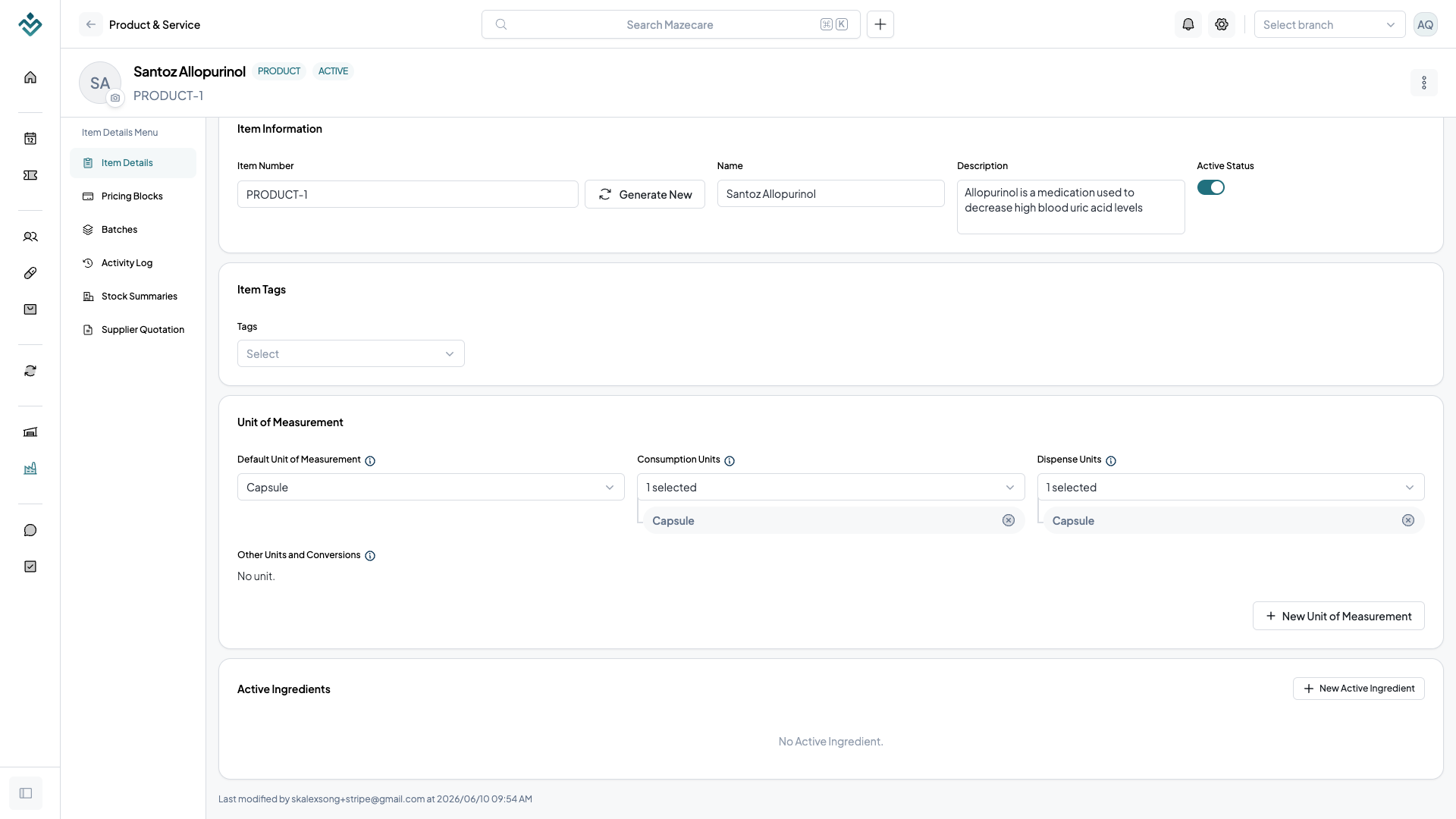
- Scroll to the Unit of Measurement section on the Product Details page.
- Select the Default Unit of Measurement (e.g.
BoxorBottle). This represents the primary stock tracking unit. - Configure the Consumption Units (e.g.
Tablet,Capsule,ml) used by clinicians during consultation e-prescribing. - Configure the Dispense Units (e.g.
Blister Strip,Pack) used by pharmacy staff when assembling patient medication orders. - In the Other Units and Conversions section, click + New Unit of Measurement to establish conversion ratios (e.g.
1 Box = 10 Strips,1 Strip = 10 Tablets). - Mazecare automatically calculates fractional stock deductions during prescription dispensing.
Step 5: Define Active Ingredients, Strengths & Clinical Decision Support (CDS)
- Under the Active Ingredients card on the Product Details page, click + New Active Ingredient.
- Search and select the pharmacological active compound (e.g. Allopurinol, Amoxicillin, Paracetamol).
- Enter the Strength Amount (e.g.
100,500) and select the Strength Unit (e.g.mg,g,ml,IU). - For combination medications, add multiple active ingredient rows with their respective strengths.
- Clinical Decision Support Integration:
- Allergy Cross-Matching: If a patient has a documented allergy matching an active ingredient or chemical group, Mazecare triggers an immediate high-severity warning banner during e-prescribing.
- Drug-Drug Interaction (DDI) Alerts: Prescribing conflicting active ingredients flags an interaction alert with severity level (Low advisory, Moderate warning, or Critical hard stop).
- Dosage Ceilings: Cumulative daily doses exceeding predefined therapeutic limits require explicit clinical override notes before the prescription can be finalized.
Step 6: Configure Medication Administration Codes
Standardized medication administration codes power autocomplete menus in the consultation e-prescribing module:
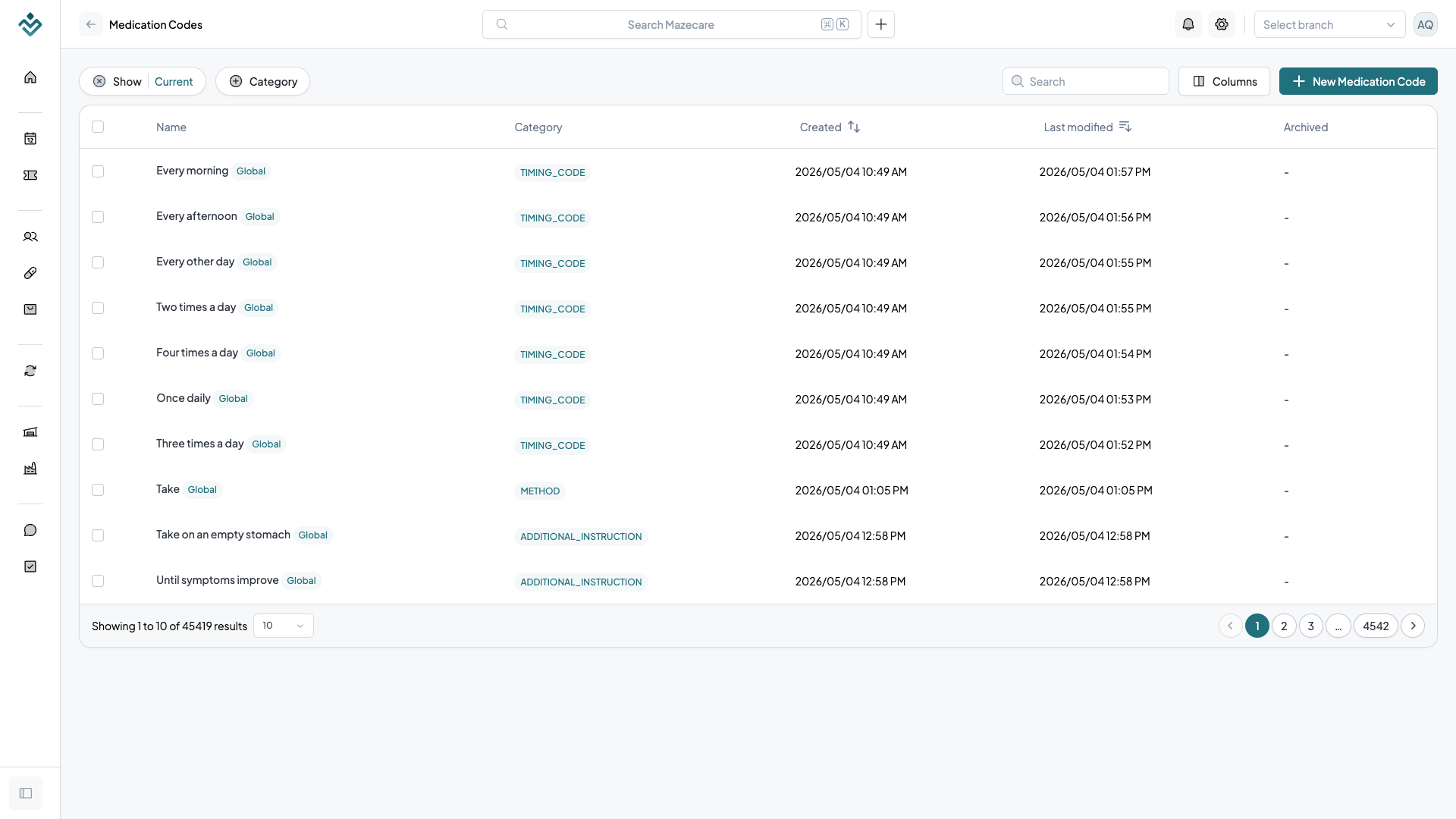
- Navigate to Settings → Medication Codes.
- The table displays all active administration codes categorized by type:
- Route: Oral, Intravenous (IV), Intramuscular (IM), Subcutaneous (SC), Topical, Inhalation.
- Method: Swallow whole, Dissolve in water, Inhale through nebulizer, Apply to skin.
- Site: Left eye, Right ear, Upper arm, Gluteal area.
- Timing Code / Frequency: Once daily (QD), Twice daily (BID), Three times daily (TID), Four times daily (QID), Every 8 hours (Q8H), At bedtime (QHS).
- As Needed (PRN): For pain relief, For nausea, For high temperature.
- Additional Instruction: Take after food, Take with full glass of water, Finish entire course.
- Click New Medication Code or select an existing code to configure its parameters.
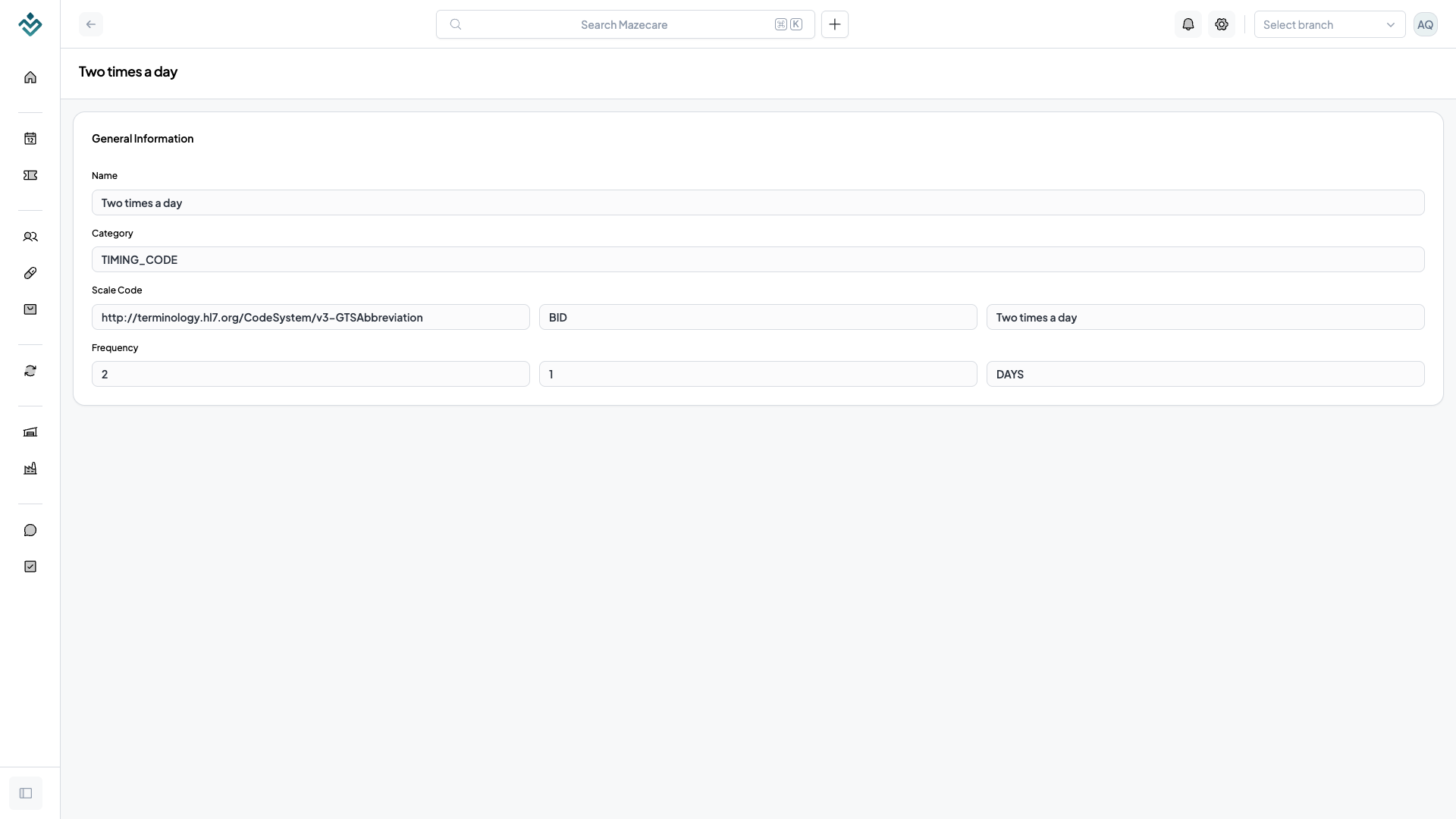
- In the Medication Code Details page, configure:
- Name: Clinician-friendly display name (e.g. Two times a day).
- Category: Select the code category (
TIMING_CODE,ROUTE,METHOD,SITE,AS_NEEDED_FOR,ADDITIONAL_INSTRUCTION). - Scale Code: Enter the standard medical coding terminology system, code identifier, and display name.
- Frequency & Period: For timing codes, specify the numeric frequency (e.g.
2), the period value (e.g.1), and the period unit (day,week,month,hour).
Step 7: Create Clinical Services & Standard Medical Coding (ICD & CPT)
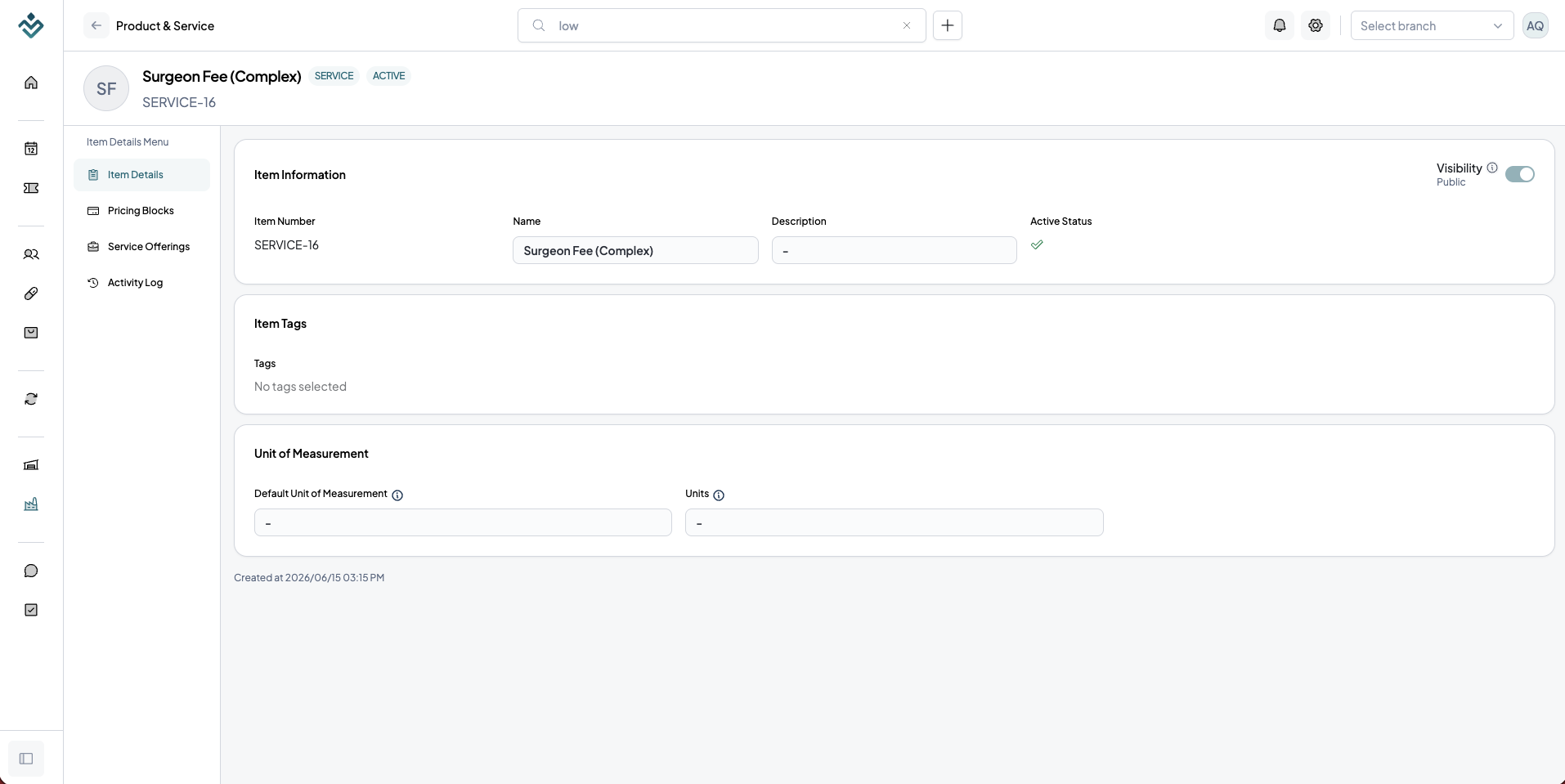
- In Operations → Products & Services, click New Item and choose Service.
- Configure the service parameters:
- Service Number: Auto-generated identifier (e.g.
SERVICE-16). - Service Name: Official procedure or consultation title (e.g. Surgeon Fee (Complex), General Outpatient Consultation, Wound Debridement).
- Description: Clinical instructions or service scope.
- Is Public Toggle: When enabled, the service offering is published to public appointment booking directories.
- Service Tags: Assign clinical specialty tags (e.g.
Surgery,Consultation,Diagnostic).
- Service Number: Auto-generated identifier (e.g.
- Medical Coding Mapping:
- CPT / Procedure Codes: Map standard Current Procedural Terminology codes (e.g.
99213for mid-level outpatient visit,12001for simple wound repair) to ensure automated inclusion on insurance claim submission forms. - Diagnostic Coding Triggers (ICD-11): Link standard diagnostic codes to clinical note templates so entering a diagnosis automatically populates relevant examination templates and care pathways.
- CPT / Procedure Codes: Map standard Current Procedural Terminology codes (e.g.
Step 8: Configure Multi-Tier Pricing Blocks & Fee Schedules
- From the item profile, switch to the Pricing Blocks tab.
- The pricing table lists active price schedules and contract tariffs:
- Default Selling Price: Standard retail price charged to self-paying patients (e.g.
HKD 15.00). - To Patient / Customer Tier Pricing: Create specific rate blocks for patient categories (VIP members, staff, senior discounts).
- Corporate & Payor Contract Rates: Link contracted fee schedules for corporate health panels and private insurance providers.
- Default Selling Price: Standard retail price charged to self-paying patients (e.g.
- Click + New Pricing Block to add a new rate with effective start and expiration dates.
Step 9: Manage Inventory Batches, FEFO Dispensing & Expiry Dates
- On the Product Details page, navigate to the Batches tab.
- The Batches table displays all physical inventory lots received into the practice:
- Batch Number / Lot ID: Manufacturer reference code.
- Expiry Date: Expiration date used for First-Expiry-First-Out (FEFO) dispensing logic.
- Quantity On Hand: Available stock units in each batch.
- Batch Status: Active, Near-Expiry Warning (< 90 days), or Expired (locked from dispensing).
- When pharmacy staff fulfill prescriptions, Mazecare automatically suggests the nearest-expiring batch to minimize stock waste.
Step 10: Monitor Multi-Location Stock Summaries & Low-Stock Alerts
- Navigate to the Stock Summaries tab.
- Review real-time inventory balances broken down by practice facility (e.g. Main Clinic, Satellite Branch, Central Pharmacy Warehouse).
- Configure Low Stock Warning Thresholds per location (Configutation guides here):
- When quantity falls below the minimum safety threshold, the system flags the item on the main inventory dashboard and triggers automated purchase order reorder recommendations.
Step 11: Configure Supplier Quotations & Procurement Pricing
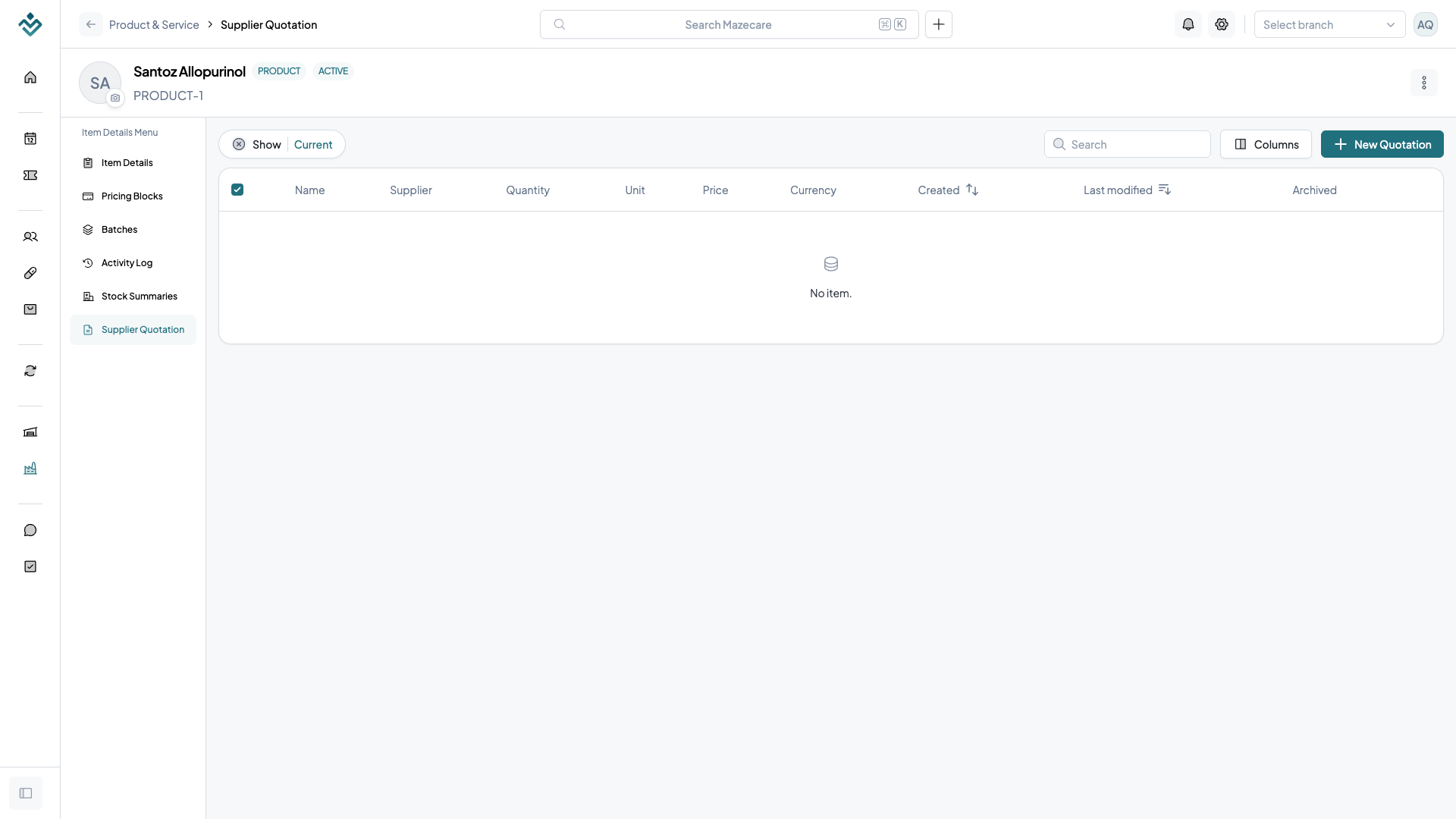
- Navigate to the Supplier Quotation tab.
- Link approved pharmaceutical distributors and medical supply vendors:
- Supplier Name: Contracted vendor entity.
- Unit Cost Price: Agreed purchasing cost per unit.
- Minimum Order Quantity (MOQ): Minimum package units required per purchase order.
- Lead Time: Expected delivery duration from order placement.
- Supplier quotation data automatically feeds into the Purchase Order workflow when generating replenishment orders.
Step 12: Manage Taxonomy Tags & Hierarchy Governance
- Navigate to Settings → Product & Service Tags → Product Tags.
- Manage custom product tags used for inventory categorization (e.g.
MEDICATION,VACCINE,HIGH_ALERT,SURGICAL_SUPPLY):- Reorder tags using drag-and-drop handles to control their visual display priority in selection dropdowns.
- Click + New Product Tag to define tag title and custom badge color token.
- Navigate to Settings → Product & Service Tags → Service Tags to configure taxonomy tags for clinical procedures and consultation service items (e.g.
CONSULTATION,PROCEDURE,IMAGING,LAB_TEST).
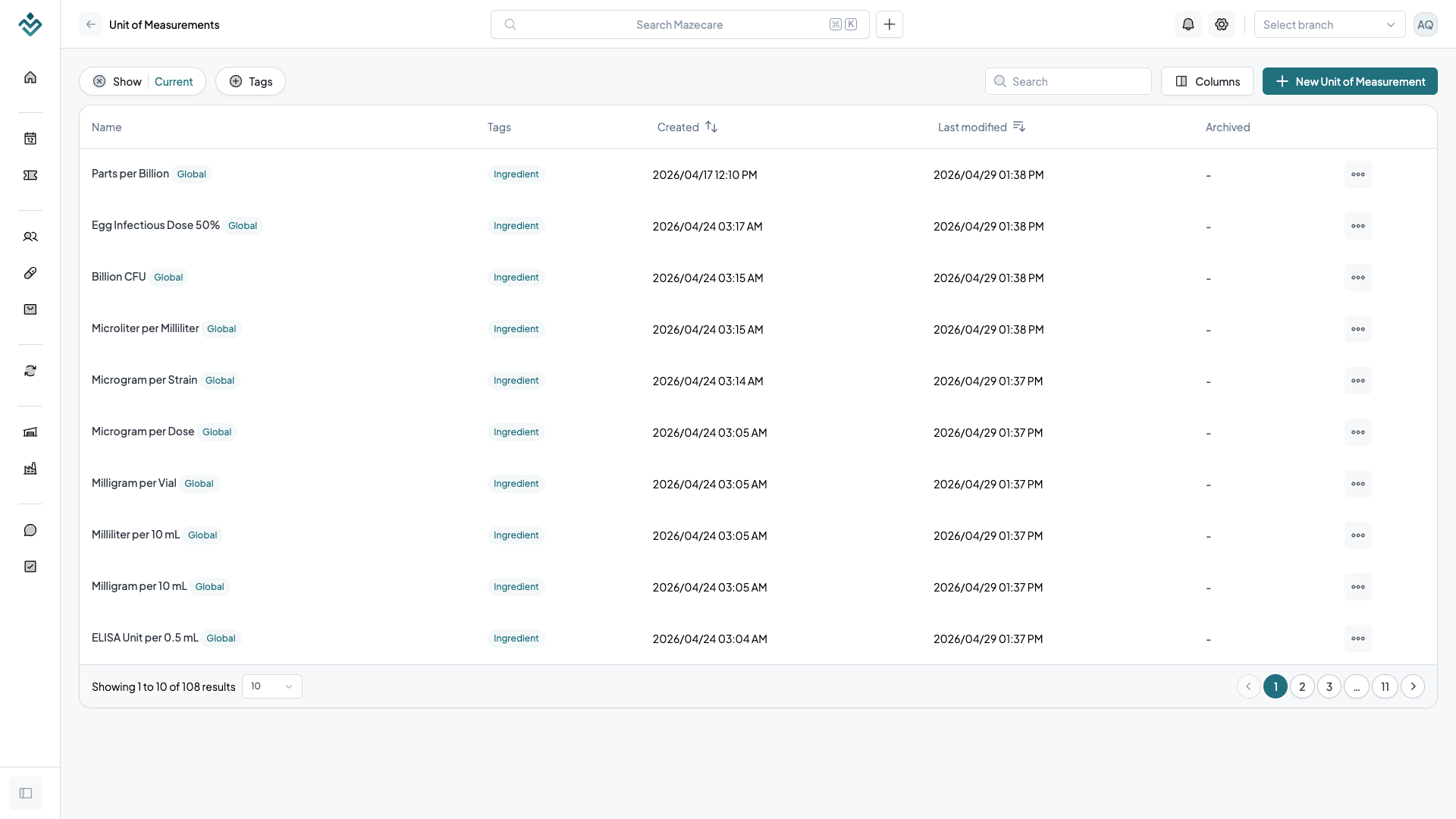
Step 13: Unit of Measurements Master Settings (/settings/unit-of-measurements)
- Navigate to Settings → Unit of Measurements (
/settings/unit-of-measurements). - The master UOM table lists all standardized units recognized across the practice:
- Unit Name & Symbol: Full terminology and abbreviation (e.g.
Tablettab,Capsulecap,Milligrammg,Milliliterml,Boxbx,Vialvl). - Unit Categories: Tagged applicable scopes (
Medication,Product,Service,Ingredient).
- Unit Name & Symbol: Full terminology and abbreviation (e.g.
- Click + New Unit of Measurement to introduce specialized clinical or packaging units with strict category bindings.
Best Practices & Clinical Governance
Leverage Global Items for Clinical Standardization: Utilize Global Items (
Globalbadge) for standard pharmaceutical medications and diagnostic procedures. This provides pre-mapped WHO ICD-11 / CPT codes and active ingredient formulations, while allowing you to define your own practice selling prices and stock batches.
Maintain Complete Active Ingredient Formulations: Ensure every pharmaceutical drug entry contains its precise active ingredient and strength specification. Incomplete ingredient mapping disables automated allergy cross-checking and drug-drug interaction warning rules.
Standardize Medication Administration Codes: Ensure timing codes and intake methods are properly configured with FHIR/standardized scale codes to ensure clear, multilingual patient instructions on prescription labels.
Schedules & Rostering
Comprehensive guide for configuring doctor clinical calendars, weekly working hours, recurrence patterns, special date blockouts, multi-location rosters, internal calendar bookings, and public directory appointment slot generation in Mazecare.
Service Offerings
Configure clinical service offerings, booking channels, practitioner schedules, and publish them to the public Maze.care directory for patient self-booking.