

Multi-Location Stock Management, Transfers & Adjustments
The Stock Management hub is a set of focused tools for multi-branch inventory: move stock between locations through a tracked Created → Sent → Delivered → Received lifecycle, record adjustments for damage, loss, or count variance against a specific batch, and set per-item low-stock thresholds that surface which branch needs replenishing.
Inventory Hierarchy & Transfer Flow
Step-by-Step Inventory Management Procedures
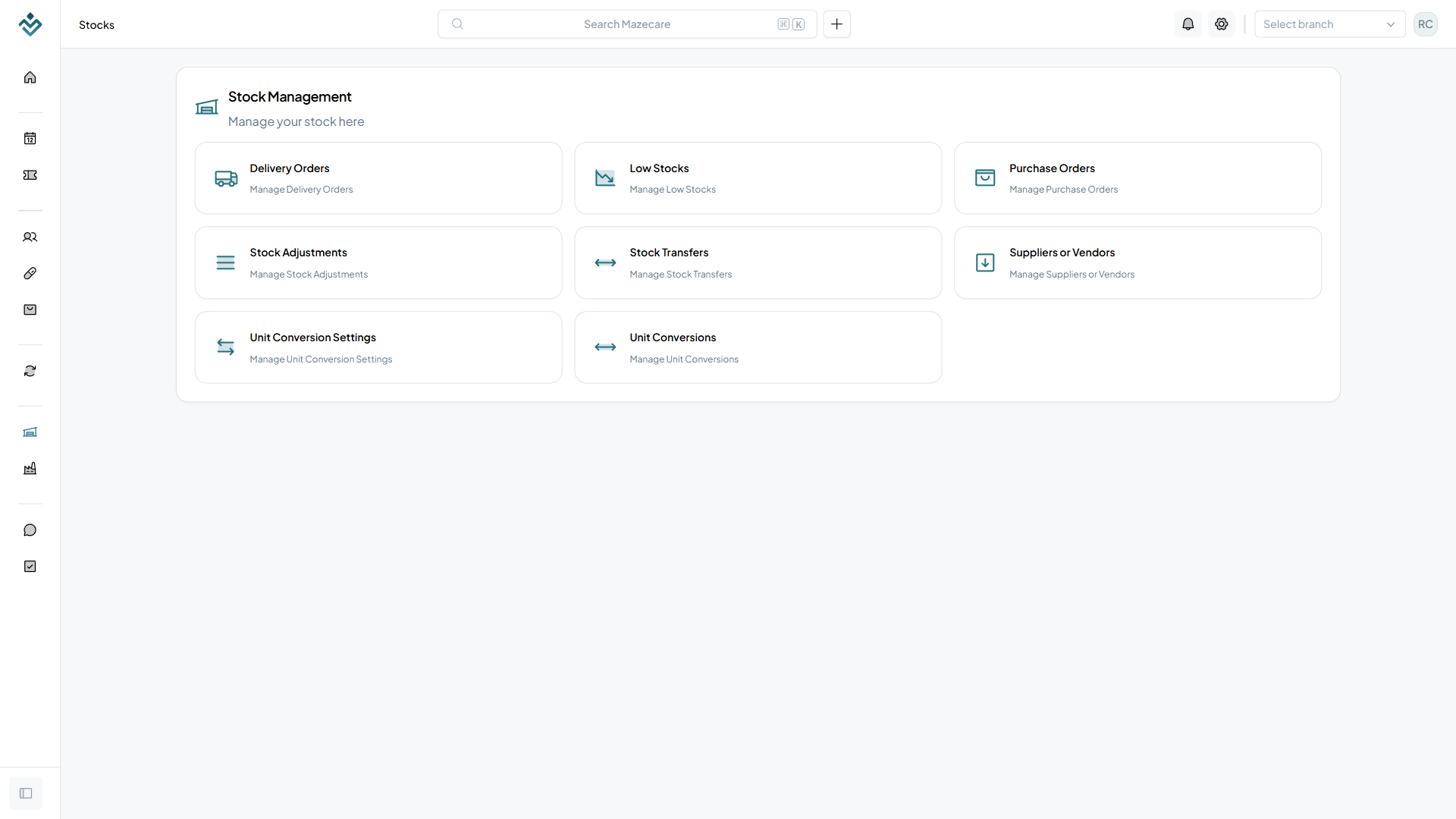
Step 1: The Stock Management Hub
- Navigate to Stocks (
/stocks). This is a hub of module cards, not a stock table itself: Delivery Orders, Low Stocks, Purchase Orders, Stock Adjustments, Stock Transfers, Suppliers or Vendors, Unit Conversion Settings, and Unit Conversions. - To see actual on-hand balances for a specific item, open it under Operations → Products & Services. Its Stock Summaries tab shows quantity by branch, and its Activity Log tab shows the full movement history for that item.
Step 2: Create & Track a Stock Transfer
- Navigate to Stocks → Stock Transfers (
/stocks/stock-transfers) and click + New Stock Transfer. - Confirm the Origin branch, then click + Stock Transfer Item to add a line: search for the item, pick a Batch (the picker shows each batch's expiry date and remaining stock), confirm the Unit, and enter the Expected Quantity (a live "Remaining stocks: N" hint updates as you type). Set the Destination branch once items are added.
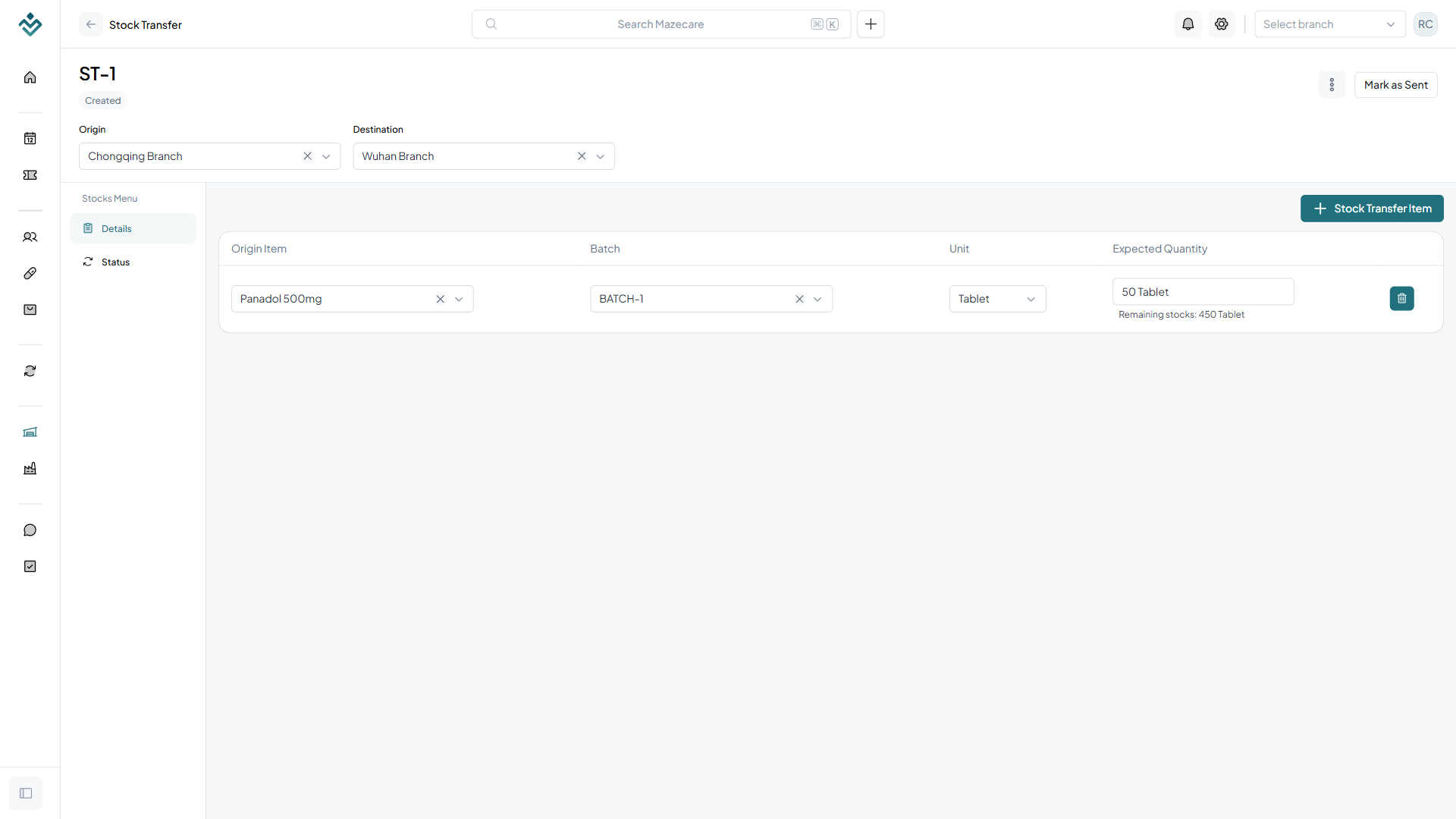
- Click Mark as Sent and confirm the prompt to advance the transfer along its lifecycle: Created → Sent → Delivered → Received. The Status tab in the left-hand menu shows a timeline of every transition, its timestamp, and who made it.
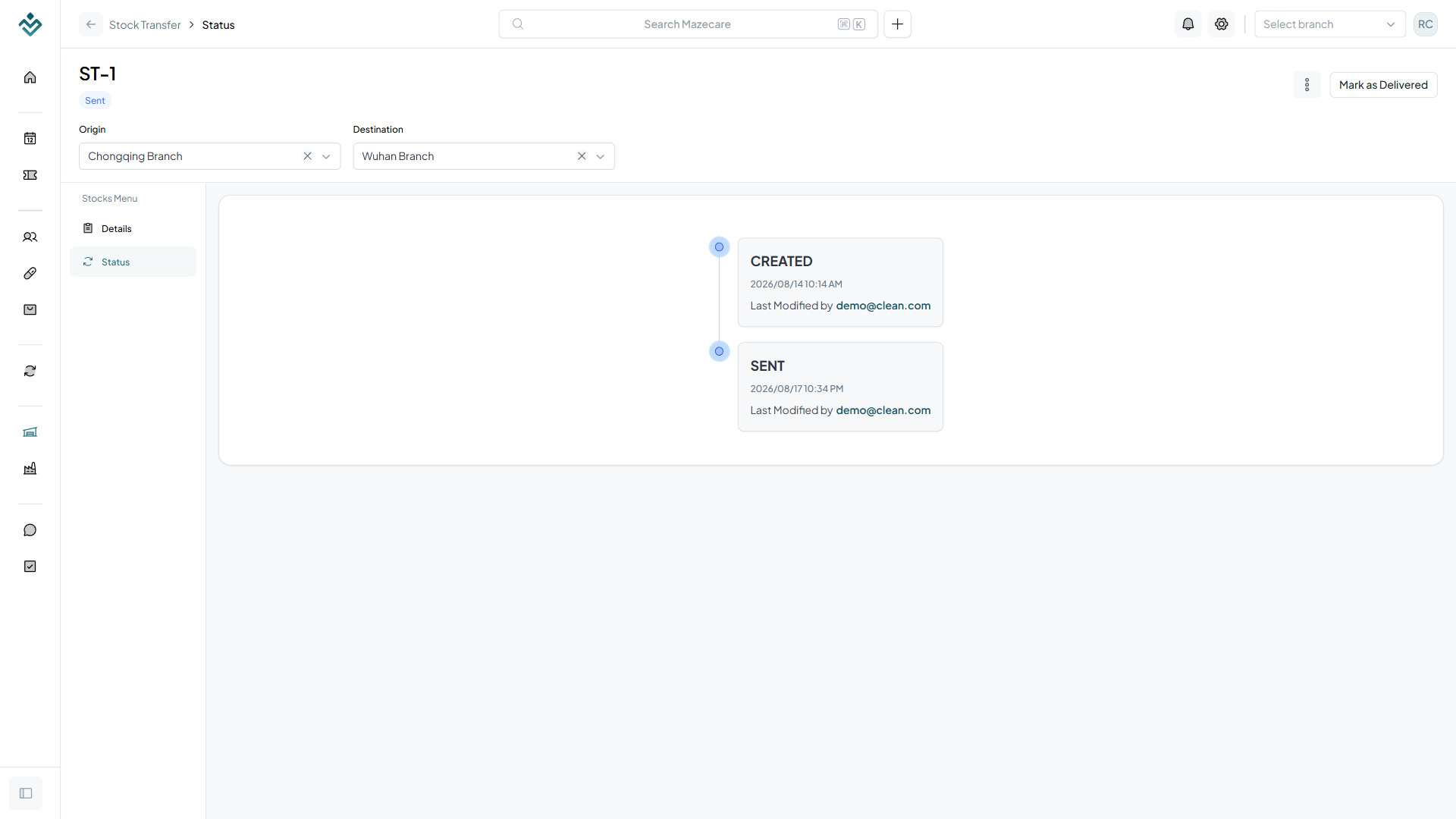
- The receiving branch marks the transfer Delivered, then Received once they've counted the physical stock. At that point, the destination branch's balance is credited.
Step 3: Record a Stock Adjustment
- Navigate to Stocks → Stock Adjustments (
/stocks/stock-adjustments) and click + New Stock Adjustment. - Set the Location, then click + Stock Adjustment Item to select the item, its batch, and the adjustment Quantity.
- Pick an Adjustment Reason: Damage, Expire, Misplacement, Thief, Stock Variance (for cycle-count corrections), or Custom. Choosing Custom reveals a free-text Notes field for anything the presets don't cover.
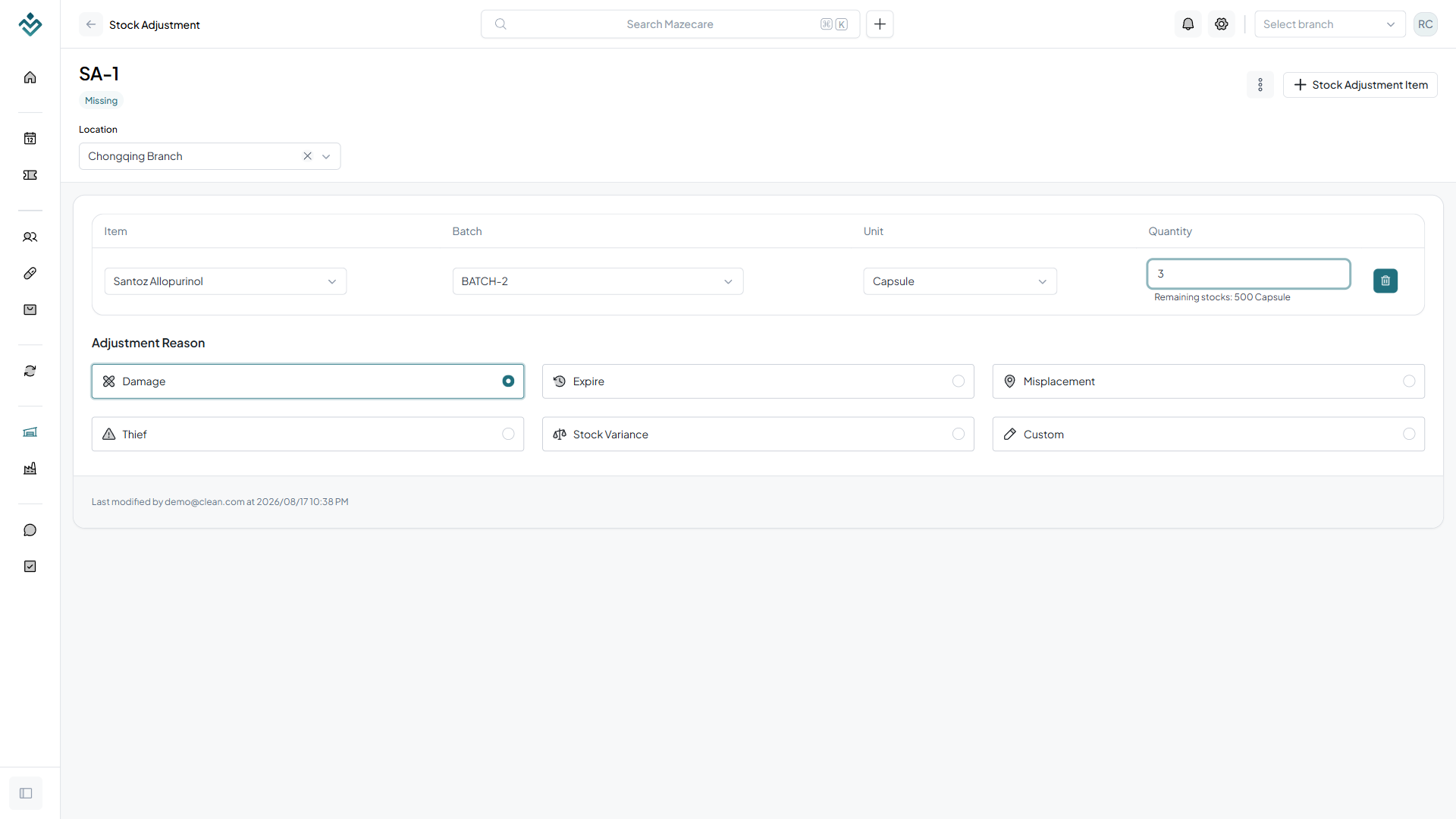
- There's no separate "post" or "approve" step. The adjustment saves as you fill it in. The only other action available on the record is Archive.
Step 4: Configure Low-Stock Thresholds & Monitor the Summary
- Navigate to Stocks → Low Stocks → Low Stock Settings (
/stocks/low-stock/low-stock-settings) and click + New Low Stock Setting. - Pick an Item and Location, then set the Low Stock Quantity: a single numeric trigger per item/branch. There isn't a separate "critical" tier.
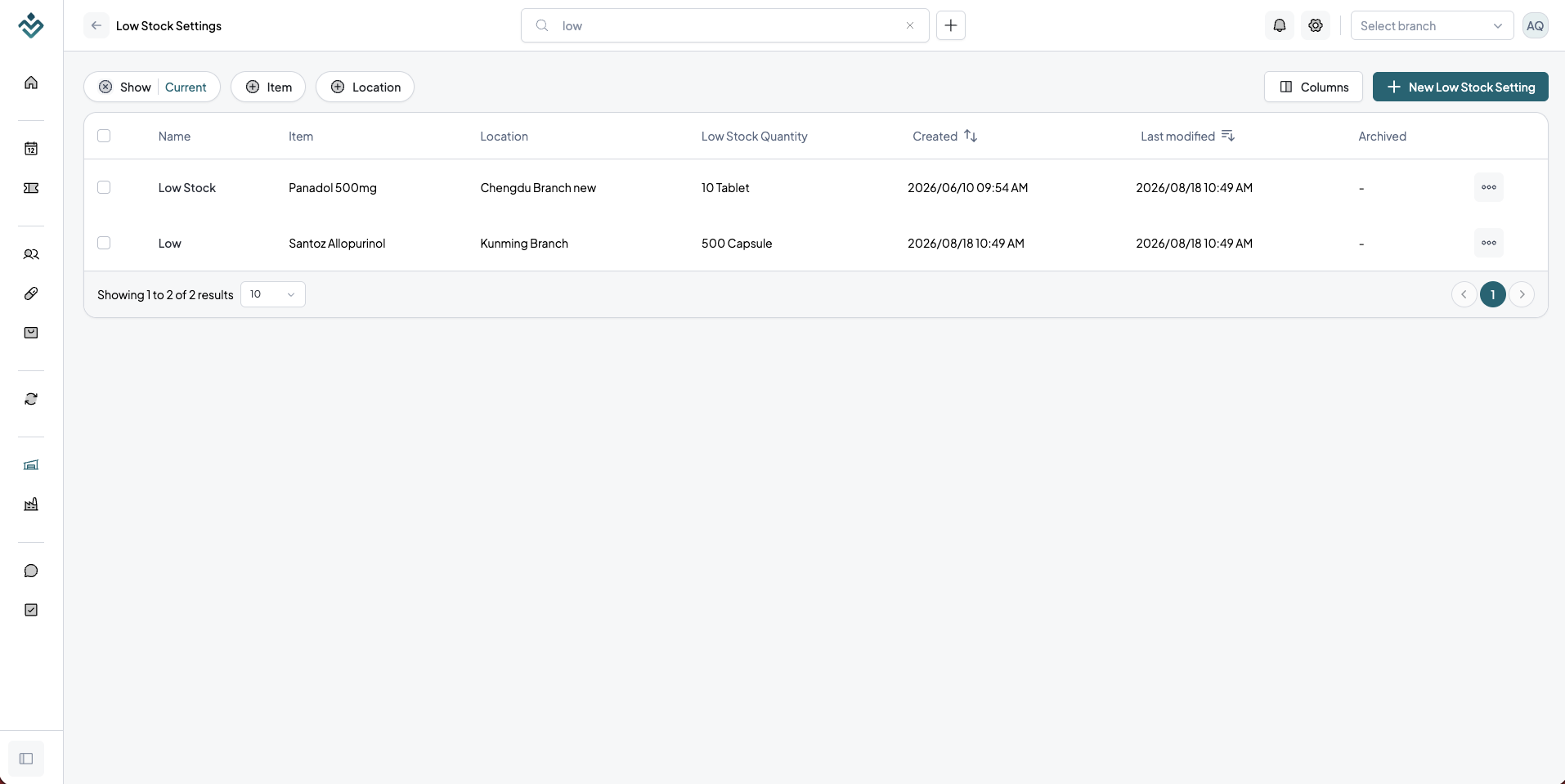
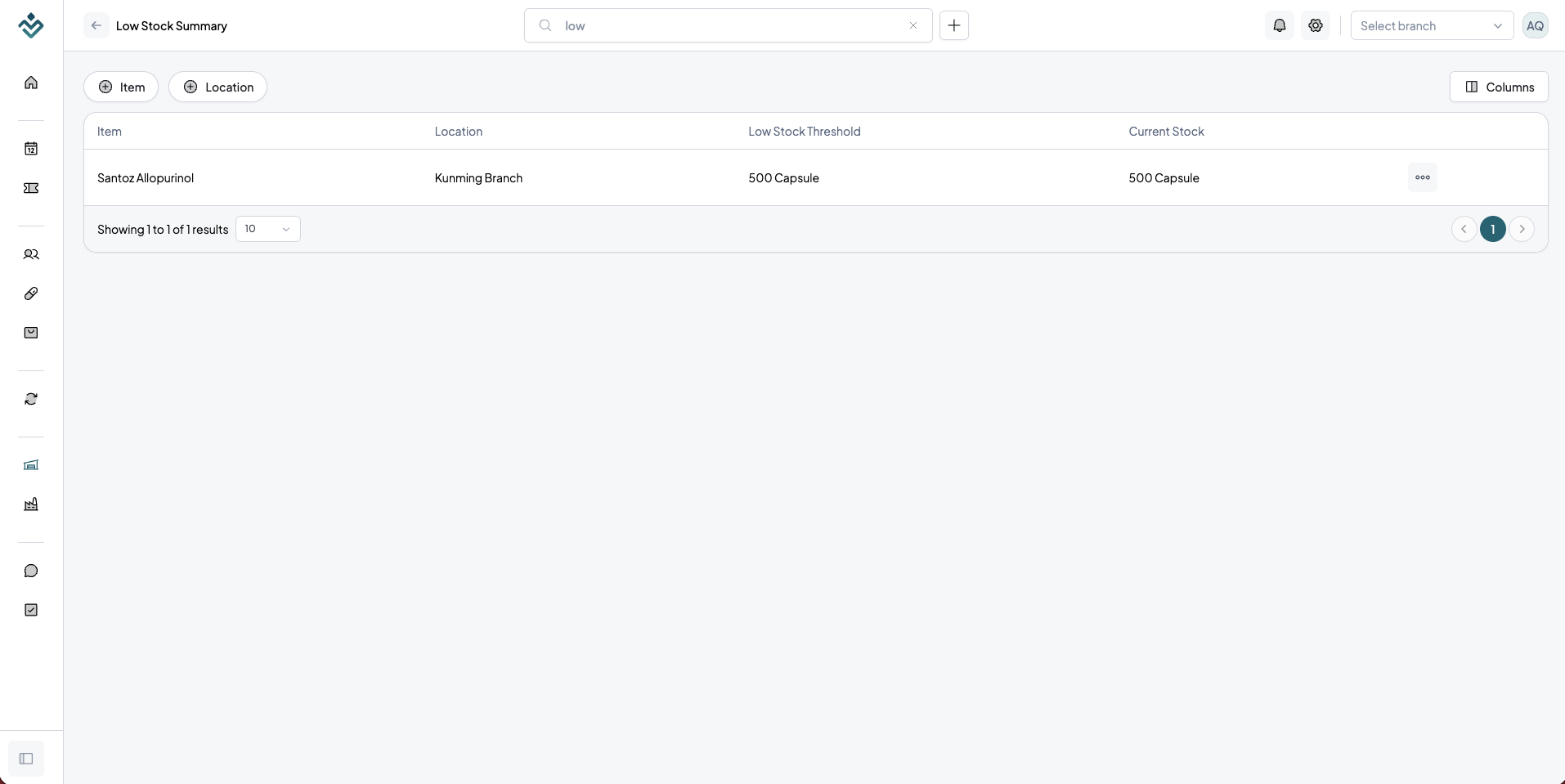
- Stocks → Low Stocks → Low Stock Summary (
/stocks/low-stock/low-stock-summary) lists Item, Location, Low Stock Threshold, and Current Stock for every item currently below its configured threshold. It stays empty whenever nothing has breached, as shown below (the seeded Panadol 500mg batch is well above its 10-tablet threshold).
Medication Fulfillment
Manage the pharmacy order queue, dispense prescriptions through the guided Review → Inventory → Labels wizard with FEFO batch allocation, and print bilingual medication labels in Mazecare OS.
Purchase Orders & Suppliers
Maintain the supplier directory and price quotations, take a purchase order through its Draft → Waiting for Approval → Approved → Completed lifecycle, and receive goods with batch and expiry capture in Mazecare OS.