

Prescription & Invoice Print Templates
The Prescription Print Templates, Prescription Packages, and Invoice Print Templates modules allow healthcare facilities to customize, automate, and standardize physical and digital outputs across clinical dispensaries, consultation rooms, and billing counters.
Healthcare administrators can design pixel-perfect thermal medication labels, standard A4/A5 prescription slips, multi-drug treatment packages, and itemized billing receipts with dynamic variable merging, automated calculation logic, and multi-branch routing.
Output Types & Medium Specifications
Mazecare provides dedicated printing engines tailored to specific clinical workflows and hardware types:
| Print Type | Hardware / Medium | Typical Dimensions | Core Elements Included |
|---|---|---|---|
| Medication Dispensing Label | Thermal Roll Sticker | 80mm x 50mm70mm x 40mm50mm x 30mm | Drug name, dosage strength, intake frequency, cautionary warning badges, administration instructions, expiry date, dispensing. |
| Prescription Slip / Sheet | Laser / Inkjet (A4 / A5) | 148mm x 210mm (A5)210mm x 297mm (A4) | Multi-item prescription list, doctor name, license number, clinical notes, clinic letterhead, electronic doctor signature line. |
| Prescription Package | Digital Encounter Bundle | Pre-configured Catalog Bundle | Pre-grouped medications with predefined dosages, frequencies, and durations linked to standard diagnosis codes. |
| Patient Invoice & Tax Receipt | Thermal Roll / Sheet (A4) | 80mm Thermal210mm x 297mm (A4) | Itemized consultation, procedure, and pharmacy charges, tax breakdown (VAT/GST), insurer co-pay split, payment. |
Liquid & Dynamic Layout Engine
Mazecare utilizes a powerful templating engine that allows dynamic data binding, conditional styling, and line-item iteration across all printed documents.
Core Dynamic Merge Variables
| Variable Tag | Data Source | Example Output |
|---|---|---|
{{patient.fullName}} | Patient Demographics | Jane Doe |
{{patient.identifierNumber}} | National ID / Medical Record Number | MRN-884920 |
{{encounter.date}} | Clinical Encounter Date | 2026-08-18 |
{{practitioner.fullName}} | Prescribing Doctor Full Name | Dr. Alexander Sterling |
{{practitioner.licenseNumber}} | Medical Council Registration No. | MC-789012 |
{{medication.name}} | Master Drug Formulation | Amoxicillin Clavulanate 625mg |
{{medication.dosageInstructions}} | Patient-facing Directions | Take 1 tablet twice daily after meals for 7 days |
{{medication.cautionaryAdvice}} | Warning Labels & Cautions | Complete full course. Avoid alcohol. |
{{invoice.invoiceNumber}} | Billing Invoice Sequence | INV-2026-00452 |
{{invoice.subtotalAmount}} | Total Before Tax & Discounts | $150.00 |
{{invoice.insuranceCoveredAmount}} | Insurer / Payor Portion | $120.00 |
{{invoice.patientPayableAmount}} | Patient Out-of-Pocket Co-Pay | $30.00 |
Line-Item Looping & Logic Examples
You can iterate through prescription items or invoice billing entries seamlessly using template control tags:
<!-- Medication Items Table Loop -->
<table class="rx-table">
  <thead>
    <tr>
      <th>Medication</th>
      <th>Dosage & Frequency</th>
      <th>Duration</th>
      <th>Qty</th>
    </tr>
  </thead>
  <tbody>
    {% for item in prescription.items %}
    <tr>
      <td class="font-bold">{{ item.medicationName }}</td>
      <td>{{ item.dosage }} - {{ item.frequencyDescription }}</td>
      <td>{{ item.durationDays }} Days</td>
      <td>{{ item.quantity }} {{ item.unit }}</td>
    </tr>
    {% endfor %}
  </tbody>
</table>
Step-by-Step Configuration Guide
Step 1: Configure Medication Print Templates (Thermal Labels)
Medication print templates govern the adhesive thermal labels attached to pill bottles, blister packs, and ointment boxes.
- Navigate to Settings → Prescription → Medication Print Templates.
- Review the list of active medication print templates across branches.
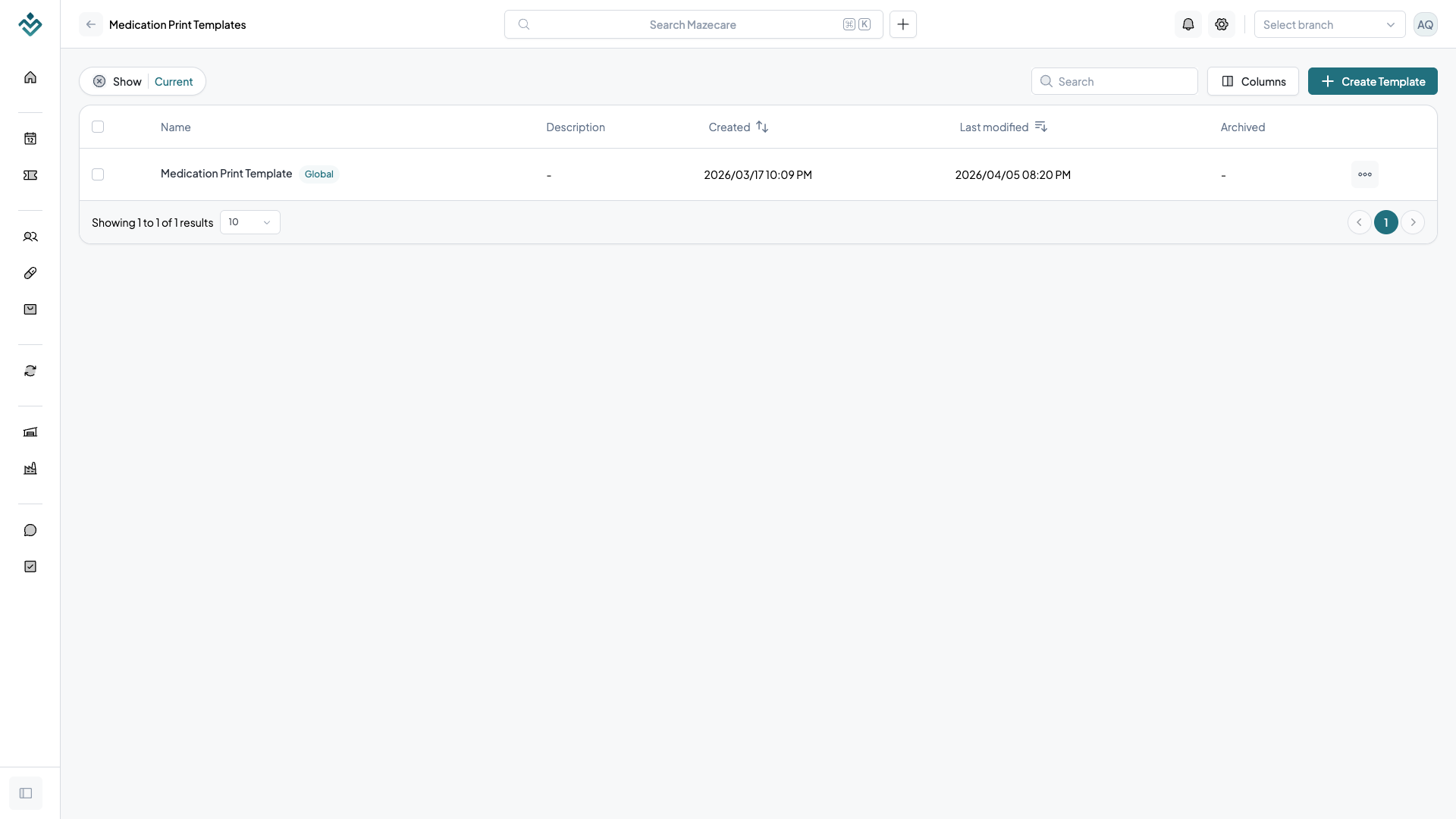
- Click Create Template or select an existing template to open the template designer.
- Configure layout dimensions and display sections:
- Label Width & Height: Define physical millimeter dimensions (e.g.
80mm x 50mm). - Caution Flags & Warning Icons: Toggle cautionary tags (e.g., "Take with Food", "May cause drowsiness").
- Label Width & Height: Define physical millimeter dimensions (e.g.
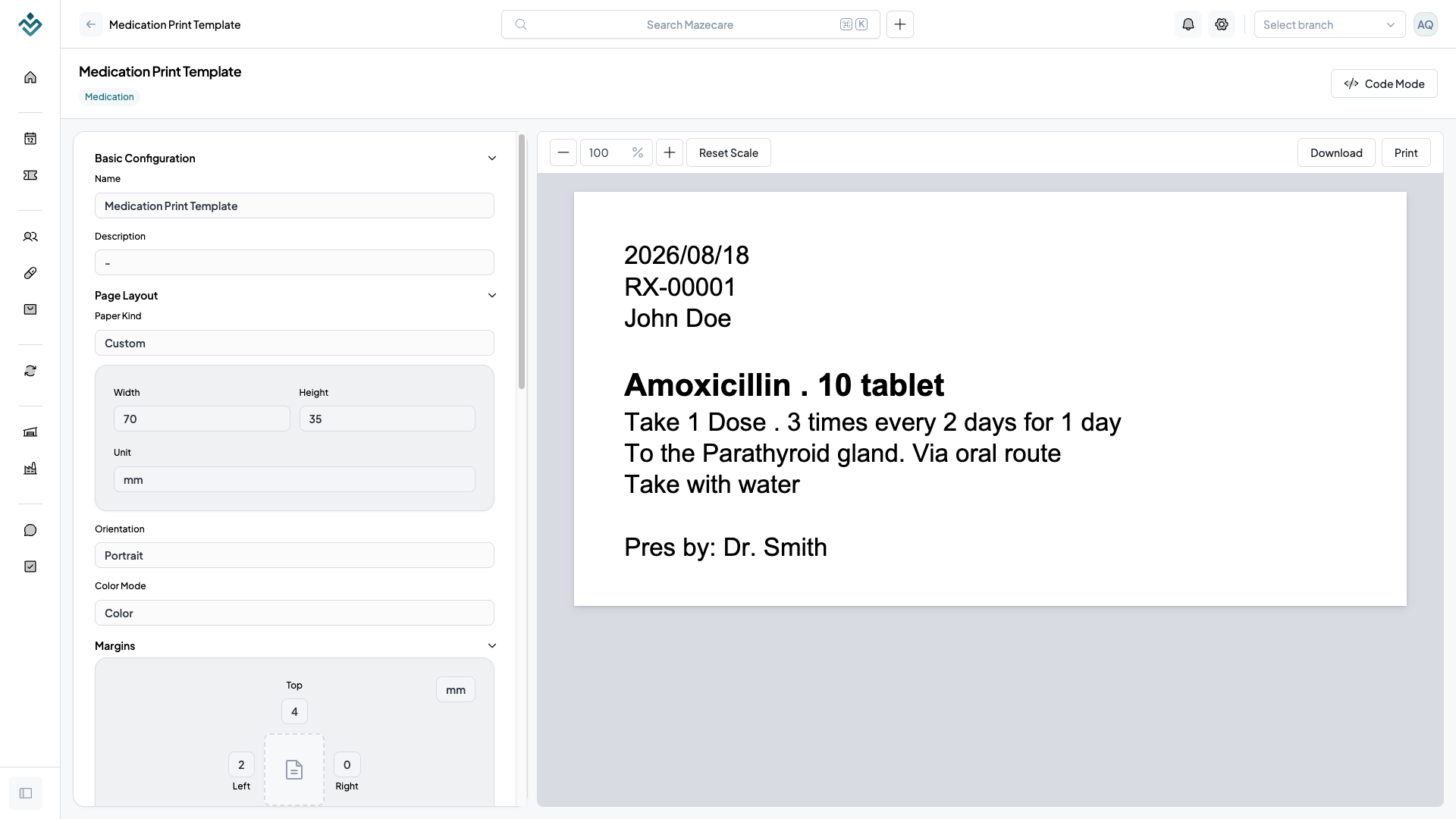
- Click Save Template to deploy to dispensary label printers.
Step 2: Manage Prescription Packages & Treatment Bundles
Prescription Packages enable medical staff to order standard multi-drug regimens with a single click during clinical encounters, speeding up consultations and ensuring clinical protocol consistency.
- Navigate to Settings → Prescription → Prescription Packages.
- Review existing clinical packs (e.g., pediatric fever bundles, hypertension first-line packs, acute gastroenteritis protocols).
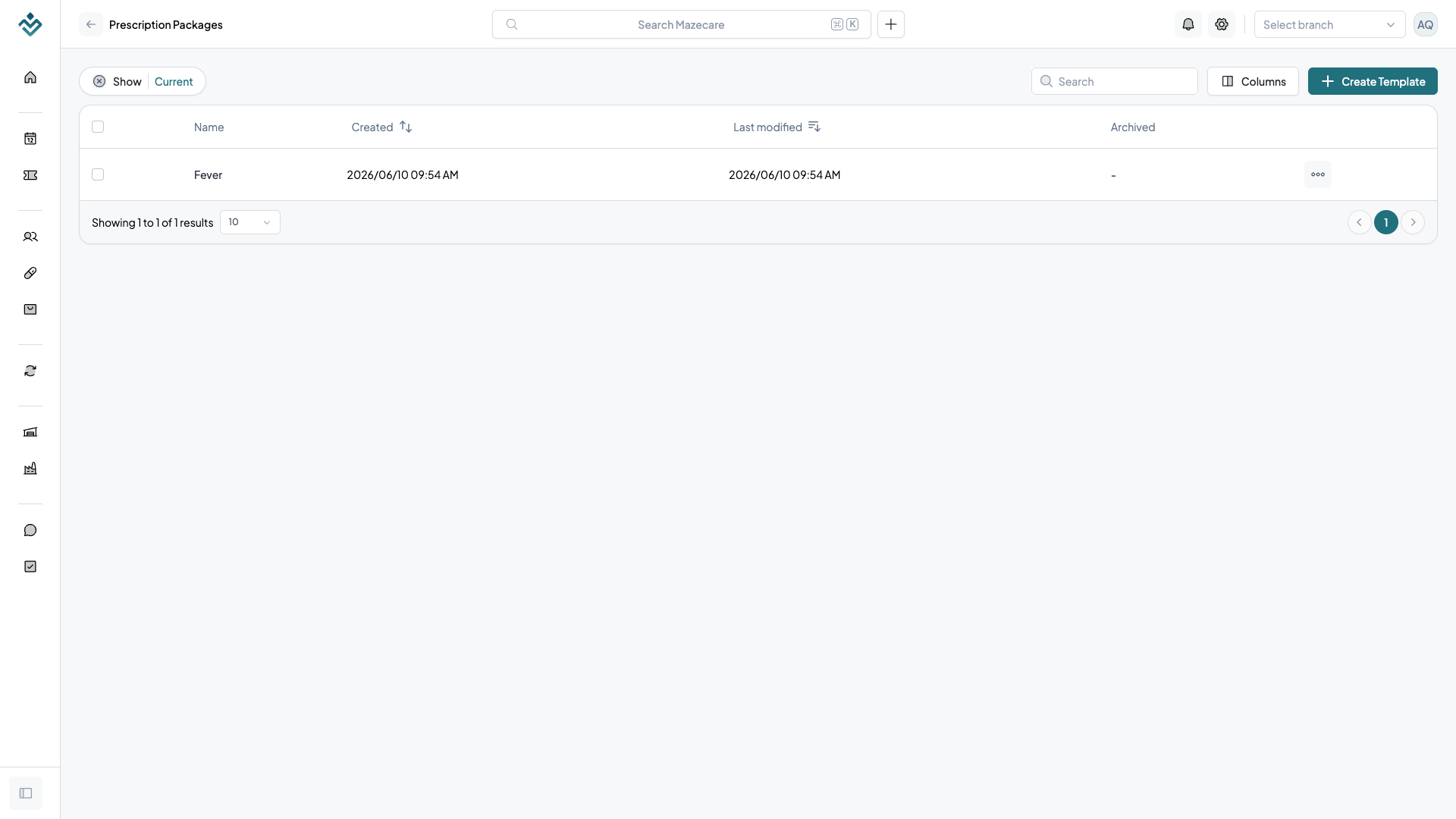
- Click Create Package to assemble a new treatment bundle:
- Package Title: e.g., "Adult Acute Pharyngitis 5-Day Protocol".
- Linked Diagnosis (ICD-11): Associate relevant diagnostic codes for intelligent recommendations in the doctor encounter screen.
- Prescription Items: Add medications with preset dosages, administration routes, frequencies, and durations.
- Patient Advisory Notes: Pre-fill standard lifestyle recommendations and dispensing precautions.
- Click Save Package. When doctors select this bundle in the consultation room, all medications and instructions populate automatically.
Step 3: Configure Prescription Print Templates (Doctor Slips & A4/A5 Sheets)
Prescription Print Templates define the formal paper prescriptions handed to patients for external dispensaries or hospital pharmacy records.
- Navigate to Settings → Prescription → Prescription Print Templates.
- View the global and branch-specific prescription sheet layouts.
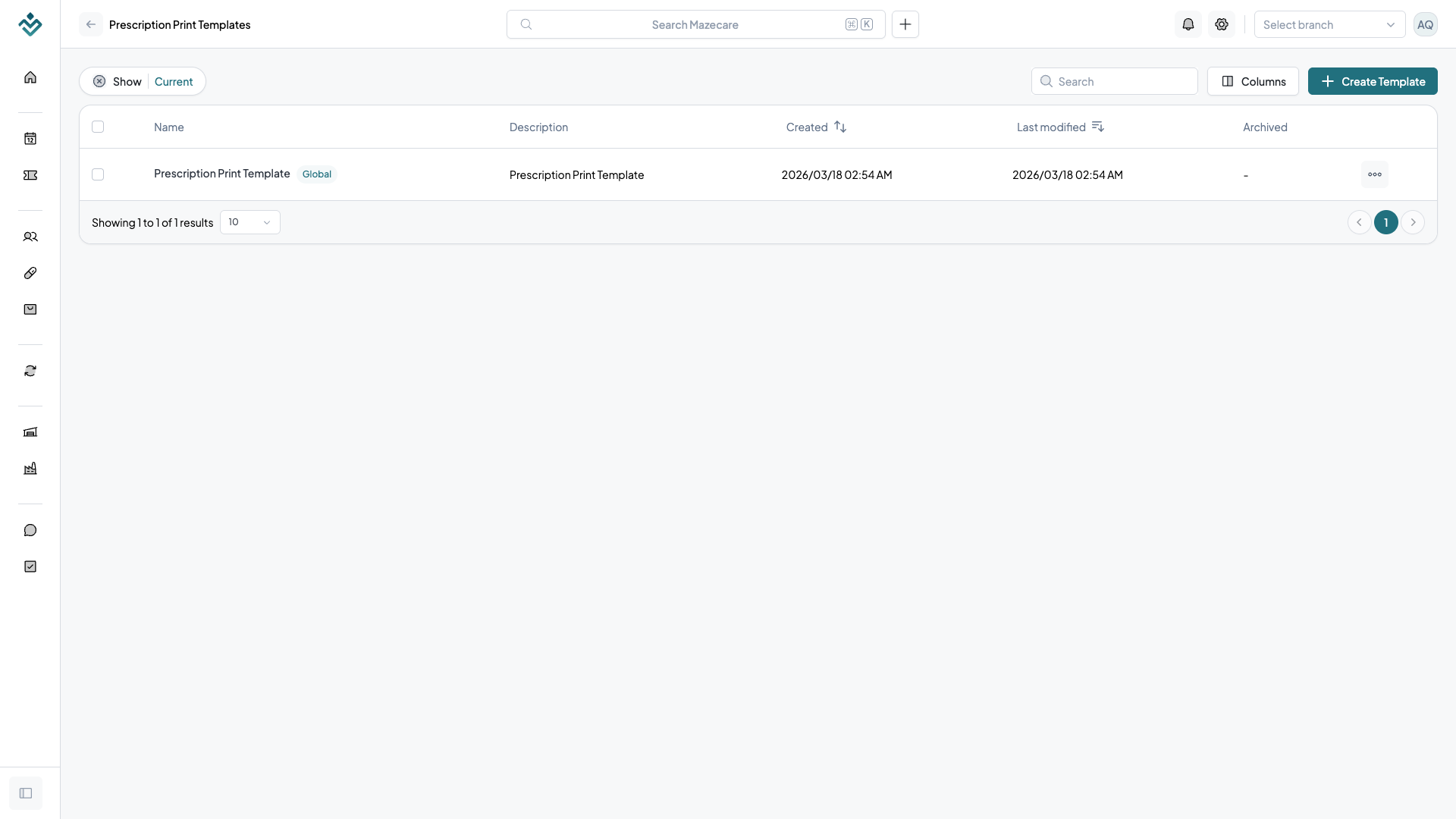
- Select a layout or click Create Template to customize.
- Save and activate the template.
Step 4: Configure Invoice & Billing Print Templates
Invoice Print Templates govern how financial receipts, tax statements, and insurance claim itemizations appear when printed or exported as PDF.
- Navigate to Settings → Invoice → Invoice Print Templates.
- Review existing billing templates.
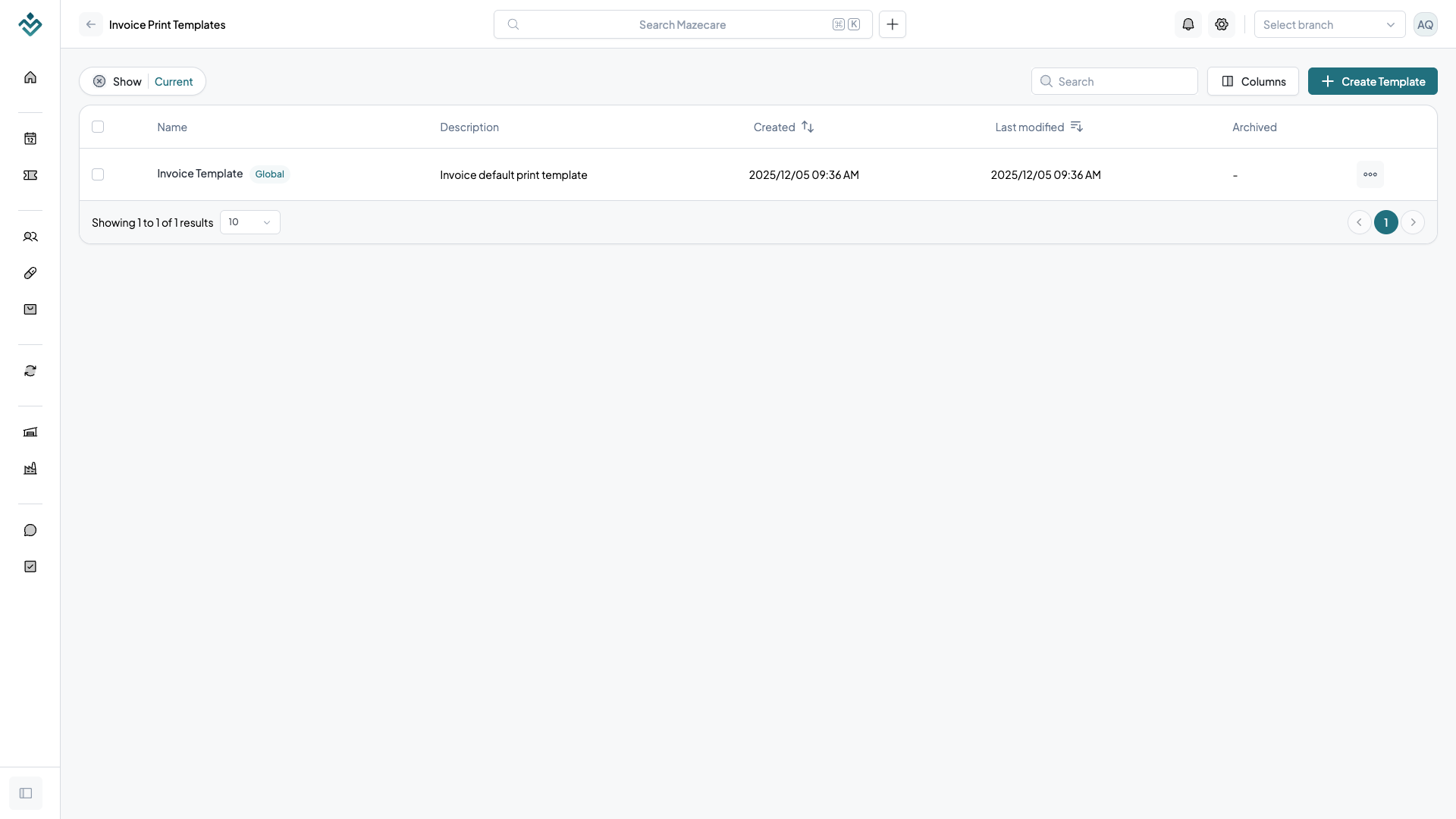
- Click into a template to access the template properties and layout designer.
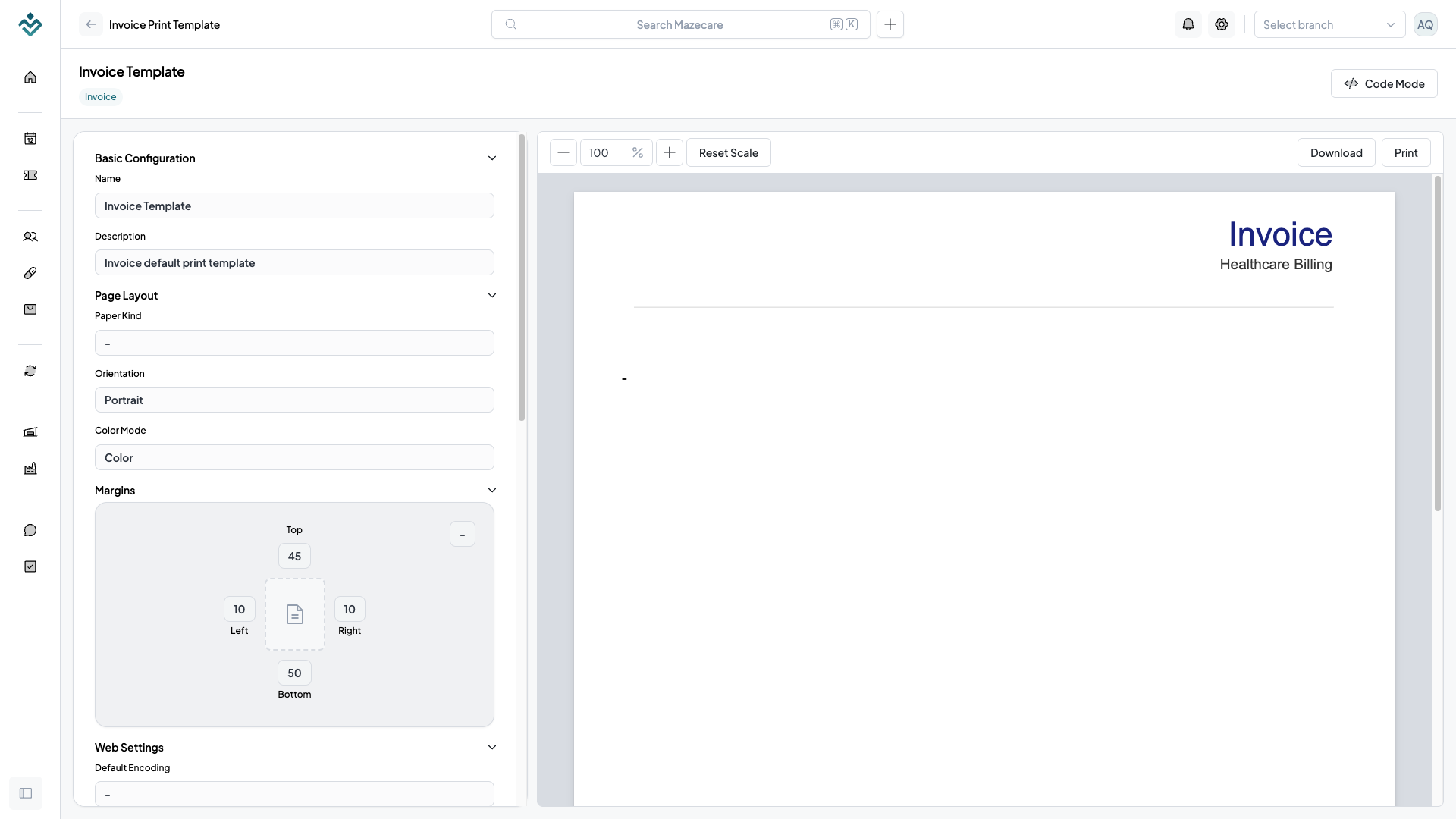
- Configure key billing sections:
- Header & Tax Identification: Set clinic business registration number, VAT/GST tax identification, and billing branch information.
- Itemized Charge Breakdown: Group charges by category (Consultations, Procedures, Laboratory, Pharmacy Dispense).
- Insurance Co-Pay Splitting: Display total gross charges, covered insurance benefits, deductible deductions, and net patient payable balances.
- Payment Confirmation: Print dynamic settlement receipt vouchers and instant payment verification.
- Click Save & Activate.
Best Practices & Clinical Compliance
- Label Legibility: Ensure dosage text uses a minimum font size of
10pton thermal labels to prevent patient dosing errors. - Privacy Compliance on Invoices: Use template toggle settings to suppress sensitive diagnosis names on public receipts while retaining ICD-11 codes on official insurer claim statements.
PDF & Drawing Templates
Configure standardized PDF headers, footers, clinic branding letterheads, legal disclaimers, and interactive PDF drawing templates in Mazecare.
Acuity & Triage Rules
Configure clinical triage scoring systems, emergency acuity levels, coding standards (SNOMED CT/HL7), and automated triage workflows in Mazecare.