

Accounting & Financial Management
The Accounting & Financial Management module (/revenue-cycle/accounting or /billing) serves as the financial backbone of Mazecare OS. Designed to handle both self-pay outpatient cashiering and complex institutional insurance billing, the module orchestrates three closely interconnected financial sub-systems:
- Invoices: Captures itemized clinical charges, procedure tariffs, and medications from patient encounters, orchestrating split-billing between patient out-of-pocket liabilities and insurance co-payors.
- Transactions: Records physical and electronic payment receipts (Cash, Credit Card, Stripe, Bank Transfer), maintains multi-invoice payment allocation ledgers, and tracks refund disbursements.
- Payors: Acts as the master institutional directory for health insurance companies, Third Party Administrators (TPAs), and corporate clients, aggregating certified insurance plans and submitted claims portfolios.
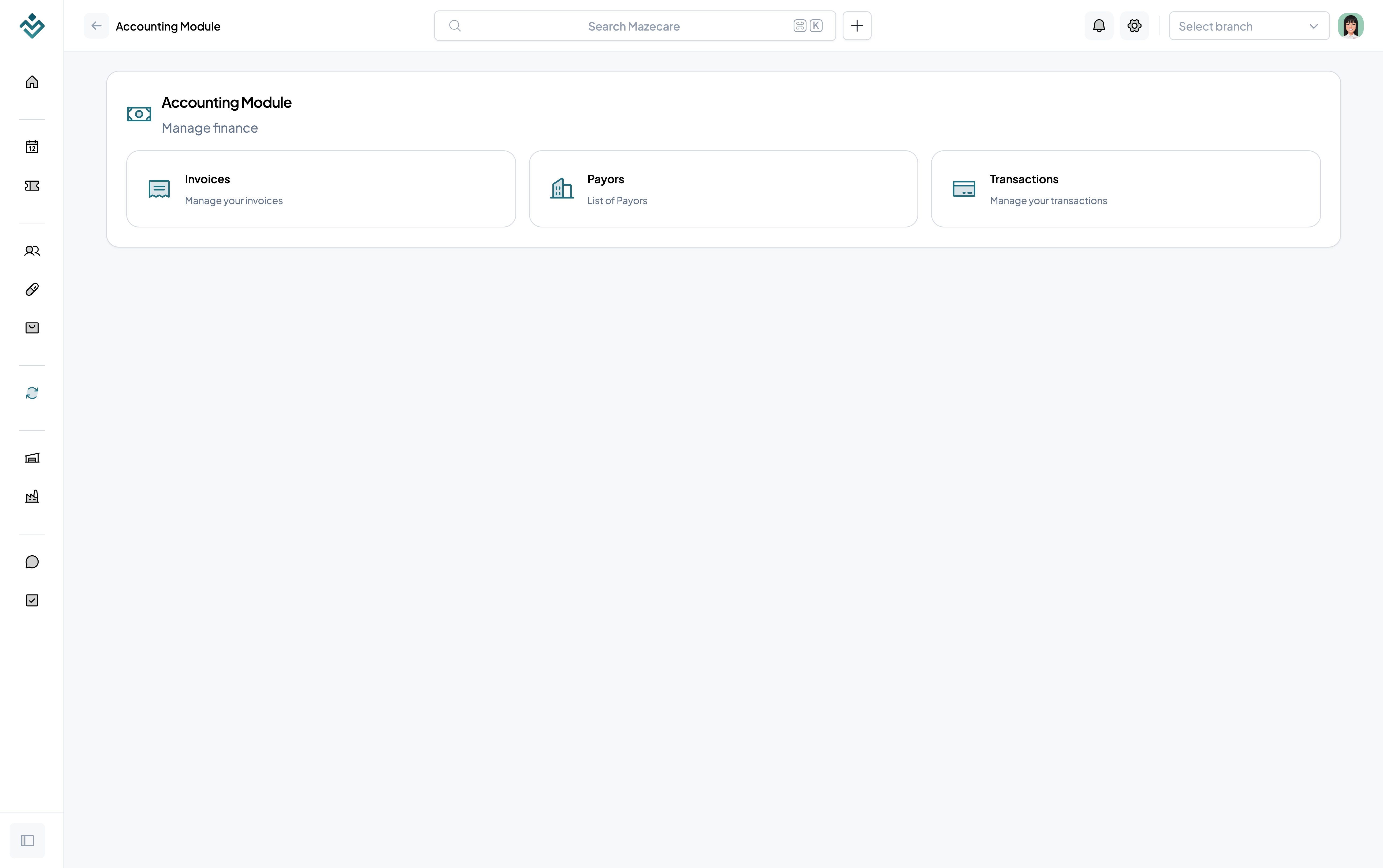
How the Three Modules Interconnect
The relationship between Invoices, Transactions, and Payors forms an automated, closed-loop financial reconciliation workflow:
- Encounter to Invoice: Completing a clinical consultation generates an Invoice billed initially to the patient.
- Insurance Split-Billing: If the patient is insured, the claim adjudication process creates a linked Co-Payor Invoice assigned to the Payor, allocating the insurer-covered portion directly against the original patient invoice.
- Patient Cashiering & Transactions: When the patient settles their remaining co-pay or deductible at the front desk, a Transaction is created and allocated to clear the patient's invoice balance.
- Payor Settlement: When the insurance company issues bulk reimbursement, an institutional Transaction is recorded and allocated across multiple co-payor invoices linked to that Payor.
Detailed Step-by-Step Walkthrough
Module 1: Invoices & Split-Billing Management
The Invoices sub-module manages all accounts receivable (AR) generated across clinical workflows:
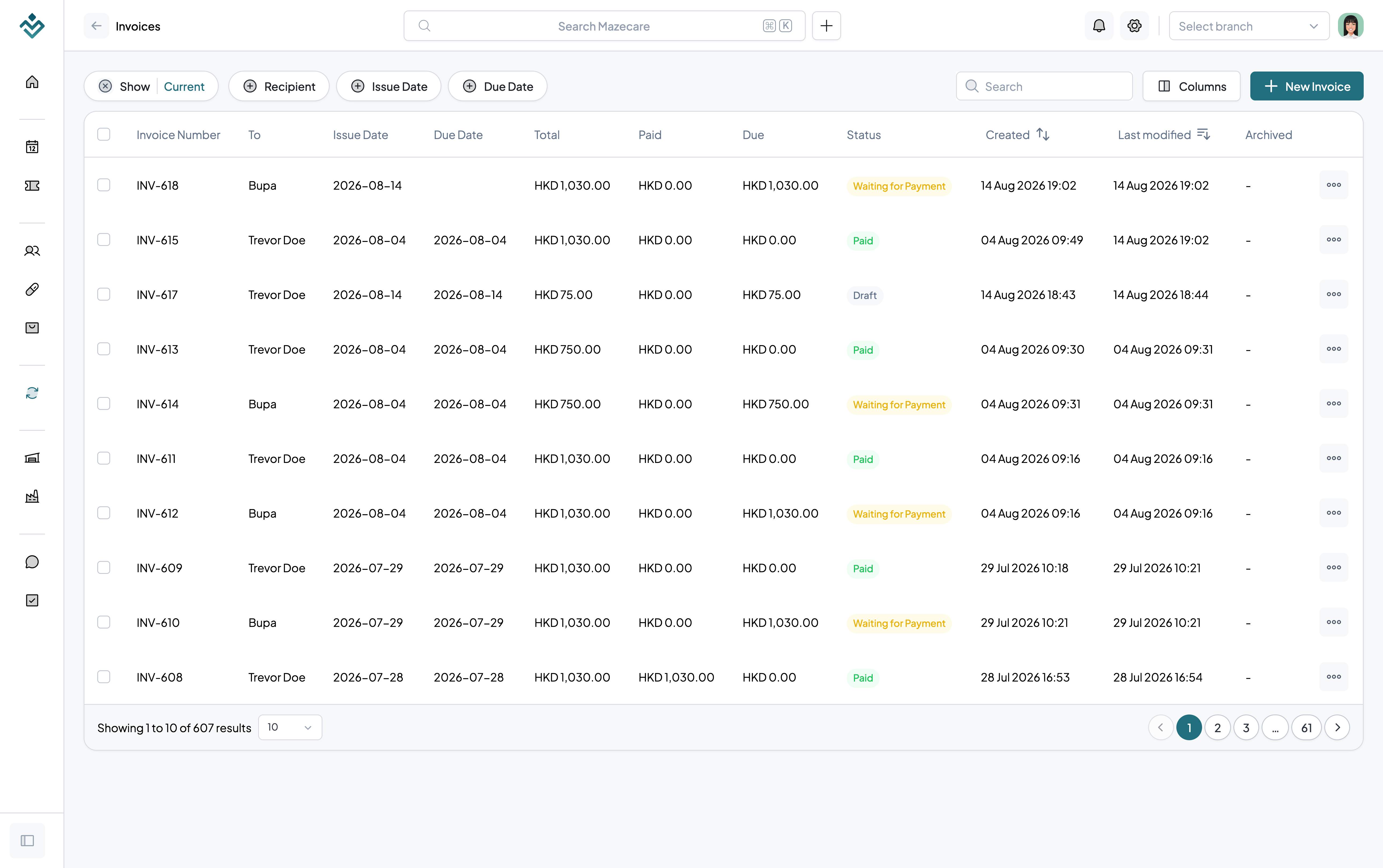
1. Invoices Table Dashboard
- In the sidebar navigation, go to Revenue Cycle → Accounting → Invoices (
/revenue-cycle/accounting/invoices). - The dashboard displays all generated invoices with real-time financial balances:
- Invoice Number: Unique invoice tracking number (e.g.,
INV-618,INV-615,INV-608). - To (Recipient): The designated billing entity (either an individual patient like Trevor Doe or an institutional payor like Bupa).
- Issue Date & Due Date: Transaction and payment deadline timestamps.
- Total, Paid & Due: Financial balance columns tracking the total billed amount, settled amounts, and outstanding balances.
- Status: Lifecycle standing (Draft, Waiting for Payment, Paid).
- Invoice Number: Unique invoice tracking number (e.g.,
- Click any invoice row to open the full invoice detail layout.
2. Detailed Split-Billing & Allocations View (INV-608)
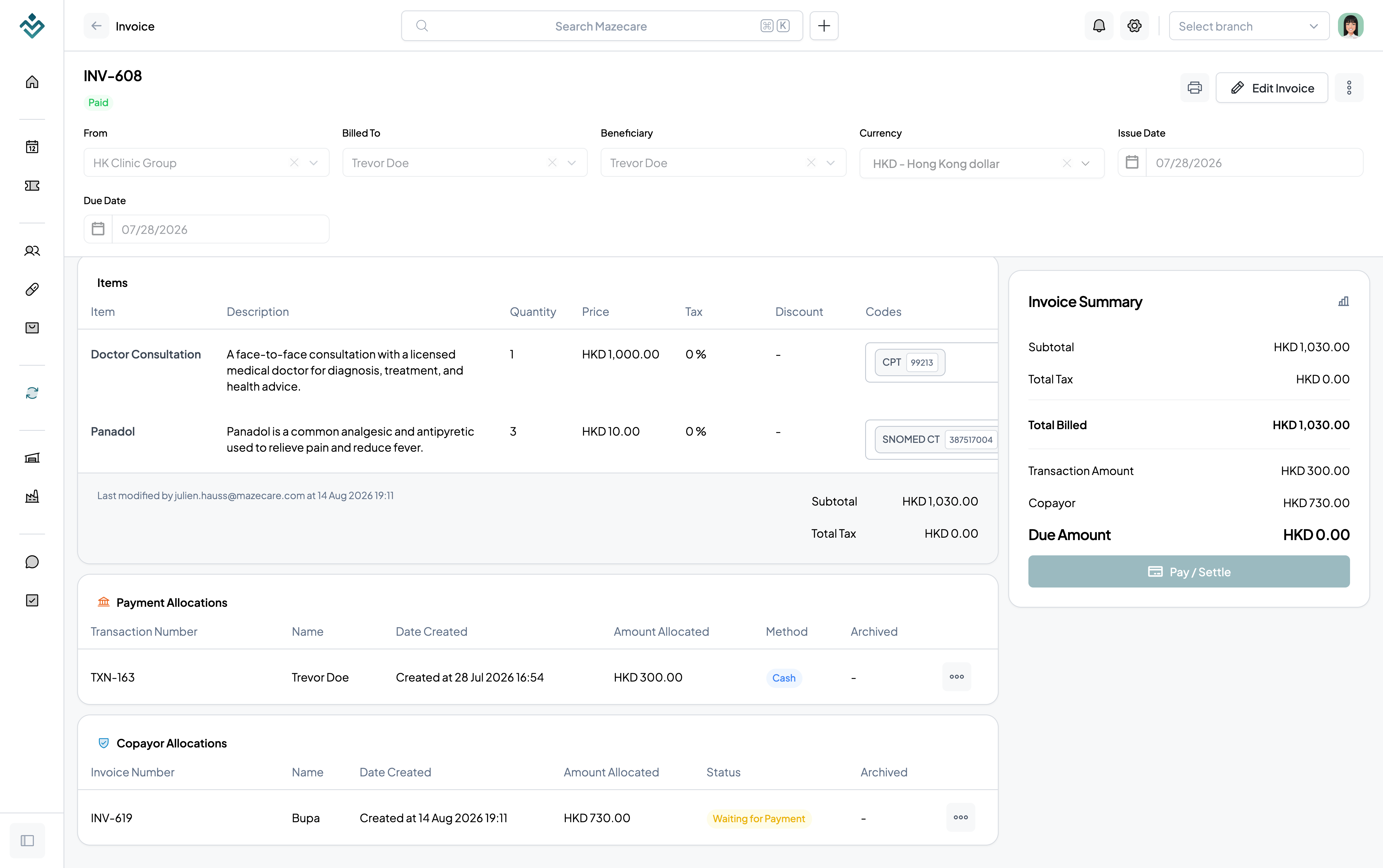
Opening an invoice displays its itemized clinical charges and dual allocation tables:
- Billed Line Items: Displays consultation charges and pharmacy orders with attached medical coding (e.g.,
Doctor Consultationwith CPT99213forHKD 1,000.00,Panadolwith SNOMED CT387517004forHKD 30.00, Total Billed:HKD 1,030.00). - Payment Allocations Section:
- Displays direct patient payment transactions allocated to this invoice (e.g.,
TXN-163paid by Trevor Doe inCashforHKD 300.00).
- Displays direct patient payment transactions allocated to this invoice (e.g.,
- Copayor Allocations Section:
- Displays institutional co-payor invoices assigned to insurance payors (e.g.,
INV-619billed to Bupa forHKD 730.00with status Waiting for Payment).
- Displays institutional co-payor invoices assigned to insurance payors (e.g.,
- Invoice Summary Calculation:
- Total Billed (HKD 1,030.00) = Transaction Amount (HKD 300.00) + Copayor Amount (HKD 730.00).
- The Due Amount reduces to HKD 0.00, transitioning the invoice status to Paid.
Module 2: Transactions, Multi-Invoice Allocations & Refunds
The Transactions sub-module records every monetary inflow and outflow across physical counters and electronic gateways:
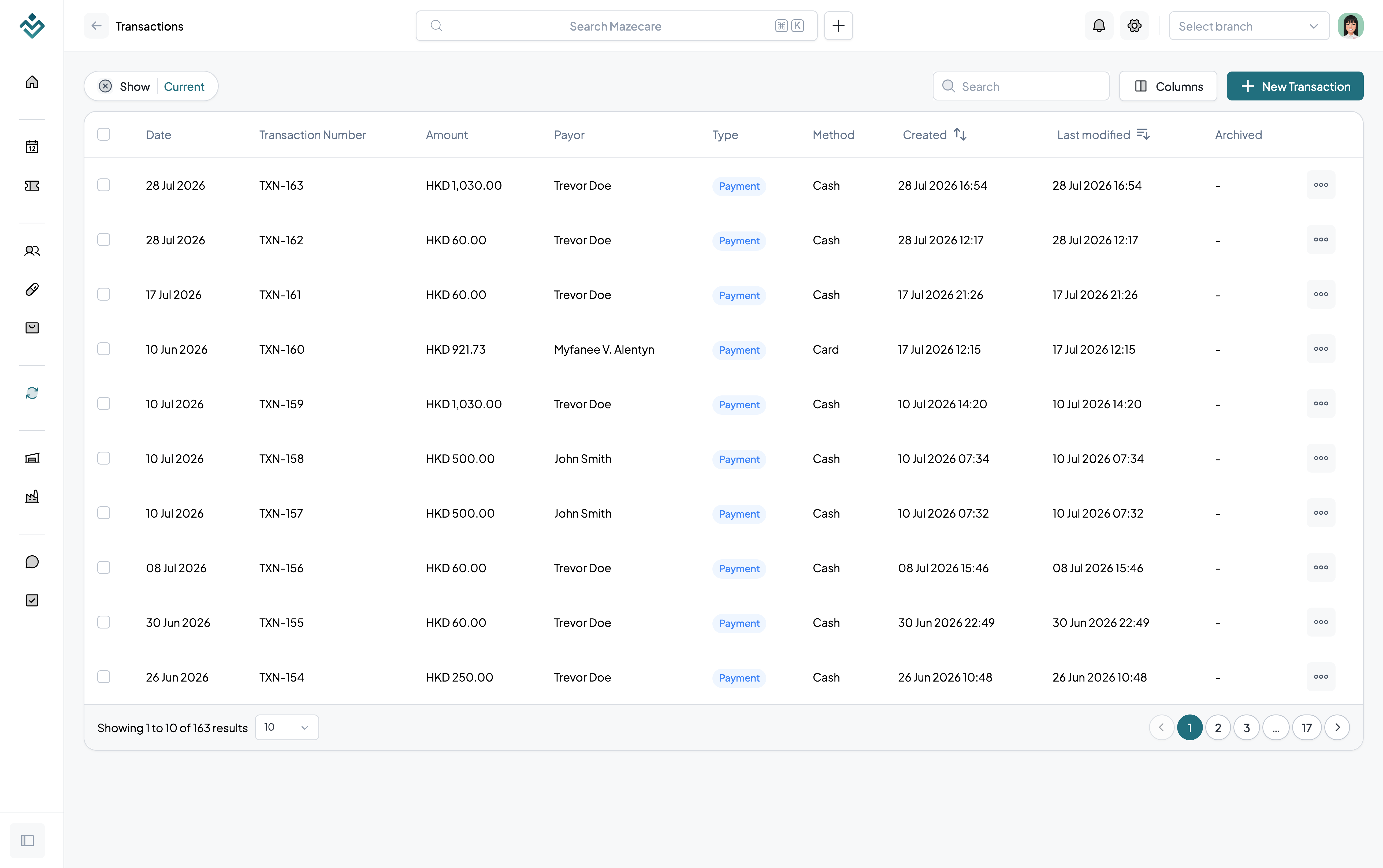
1. Transactions Table Dashboard
- Navigate to Revenue Cycle → Accounting → Transactions (
/revenue-cycle/accounting/transactions). - The dashboard lists all financial transactions across payment tenders:
- Transaction Number: Unique payment receipt number (e.g.,
TXN-163,TXN-162). - Amount & Currency: Monetary value settled (e.g.,
HKD 1,030.00). - Payer: Name of the individual or organization making the payment (e.g., Trevor Doe).
- Type: Transaction classification (Payment, Refund).
- Method: Tender type (Cash, Card, Stripe, Bank Transfer).
- Date & Audit Timestamps: Real-time payment processing times.
- Transaction Number: Unique payment receipt number (e.g.,
- Click + New Transaction to record an unlinked payment, or select a transaction row to view its allocation details.
2. Transaction Detail Sub-Modules
Opening a transaction (e.g., TXN-163) reveals three specialized sub-views:
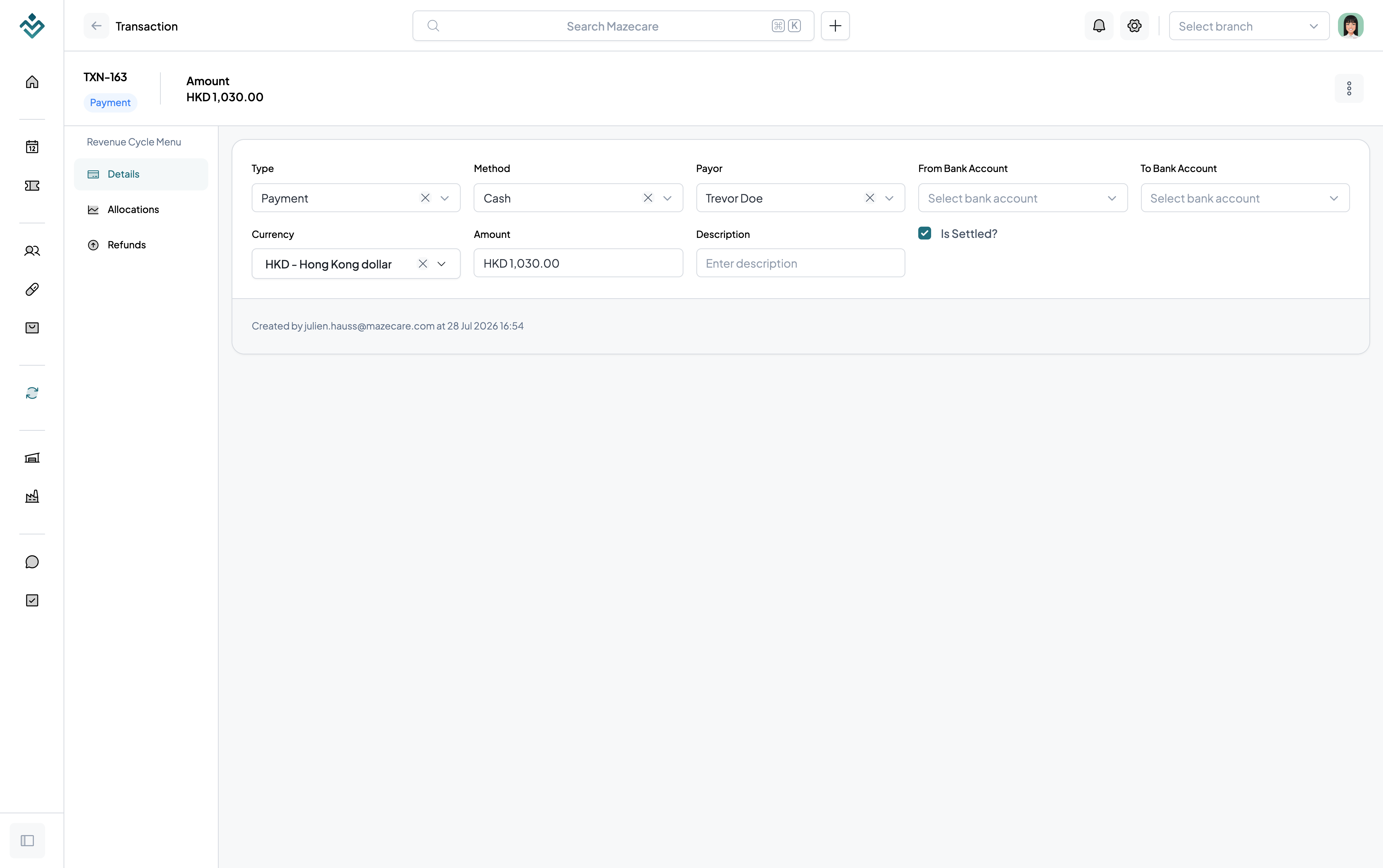
A. Details Sub-Module
- Displays master payment metadata: Type (Payment), Method (Cash), Total Amount (
HKD 1,030.00), Currency (HKD), and Payer profile (Trevor Doe). - Bank Account Ledger Bindings: Tracks the specific From Bank Account and To Bank Account entities to maintain accurate general ledger journal balances.
- Settlement Toggle: Displays whether the funds have been cleared (
IsSettled).
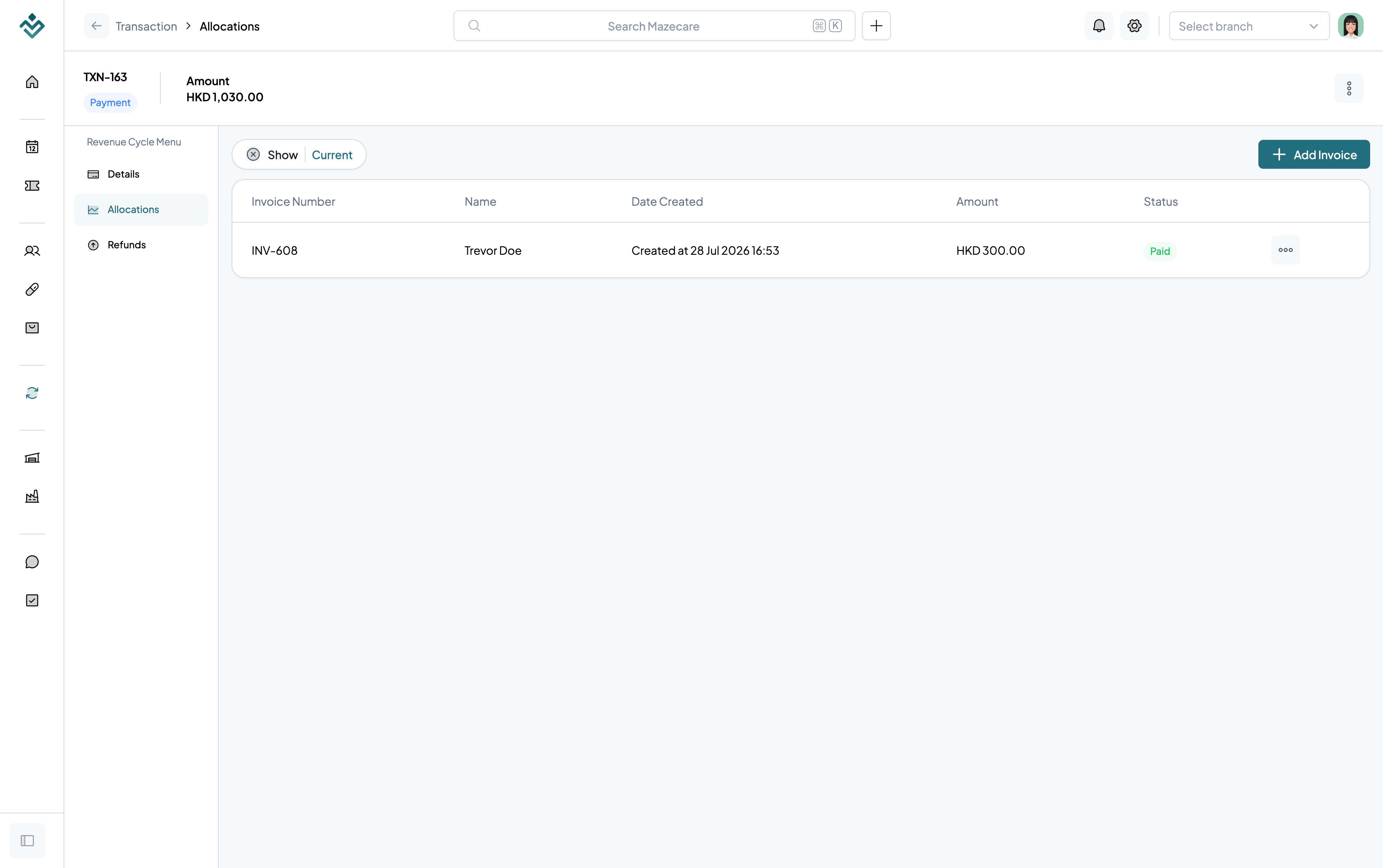
B. Allocations Sub-Module (Multi-Invoice Payment Allocation)
- A single transaction can be split across multiple outstanding invoices.
- Displays all invoices currently paid down by this transaction (e.g.,
INV-608allocatedHKD 300.00). - Click + Add Invoice to allocate remaining unassigned transaction balances to other open patient or corporate invoices.
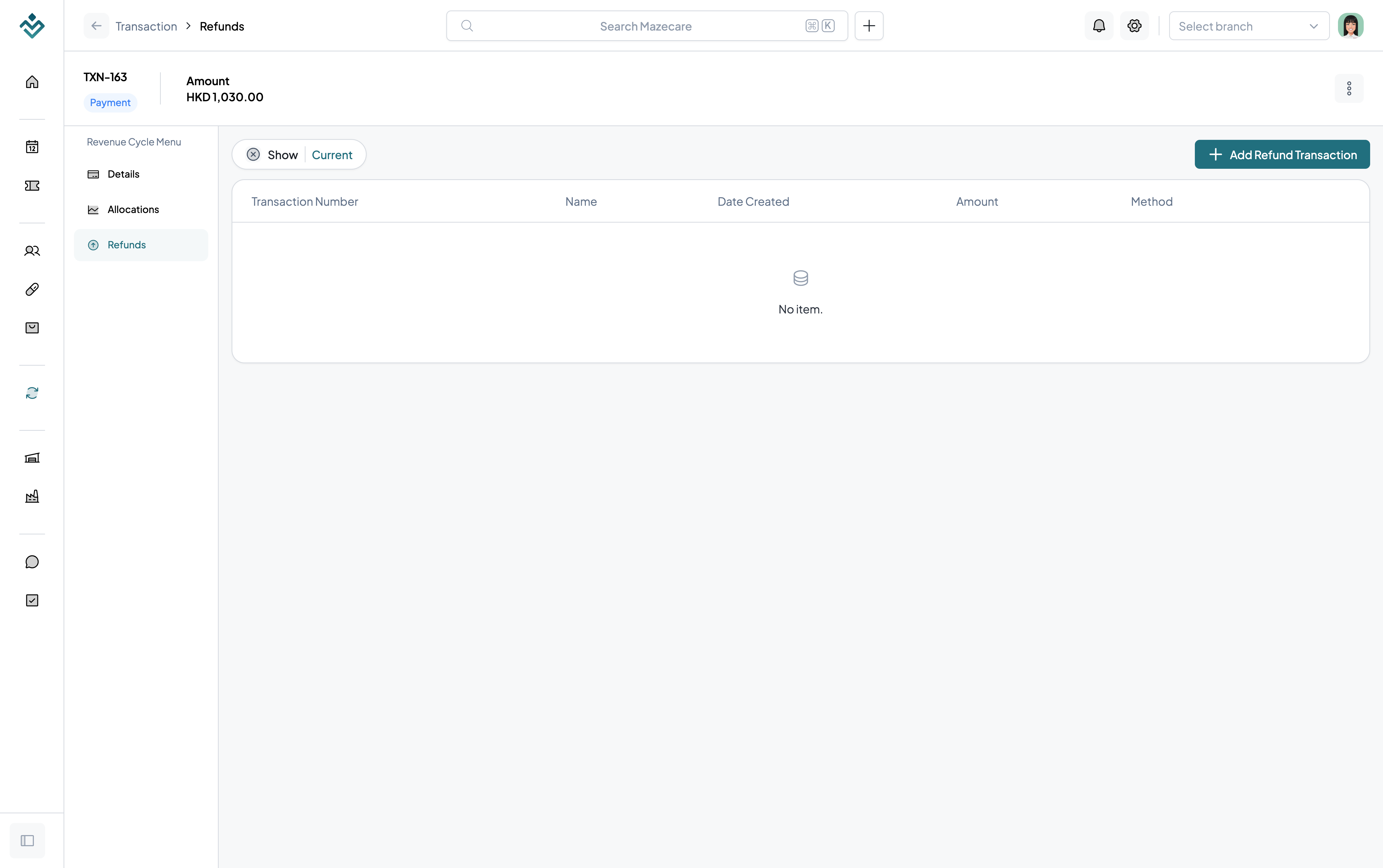
C. Refunds Sub-Module
- If a patient overpays or a clinical service is cancelled, staff can execute a linked refund directly from the transaction.
- Displays any existing refund records and provides a + Add Refund Transaction action to issue credit notes or return funds via the original tender method.
Module 3: Payors, Insurance Plans & Claims Portfolios
The Payors sub-module serves as the master directory for all institutional insurance carriers, TPAs, and corporate benefit providers:
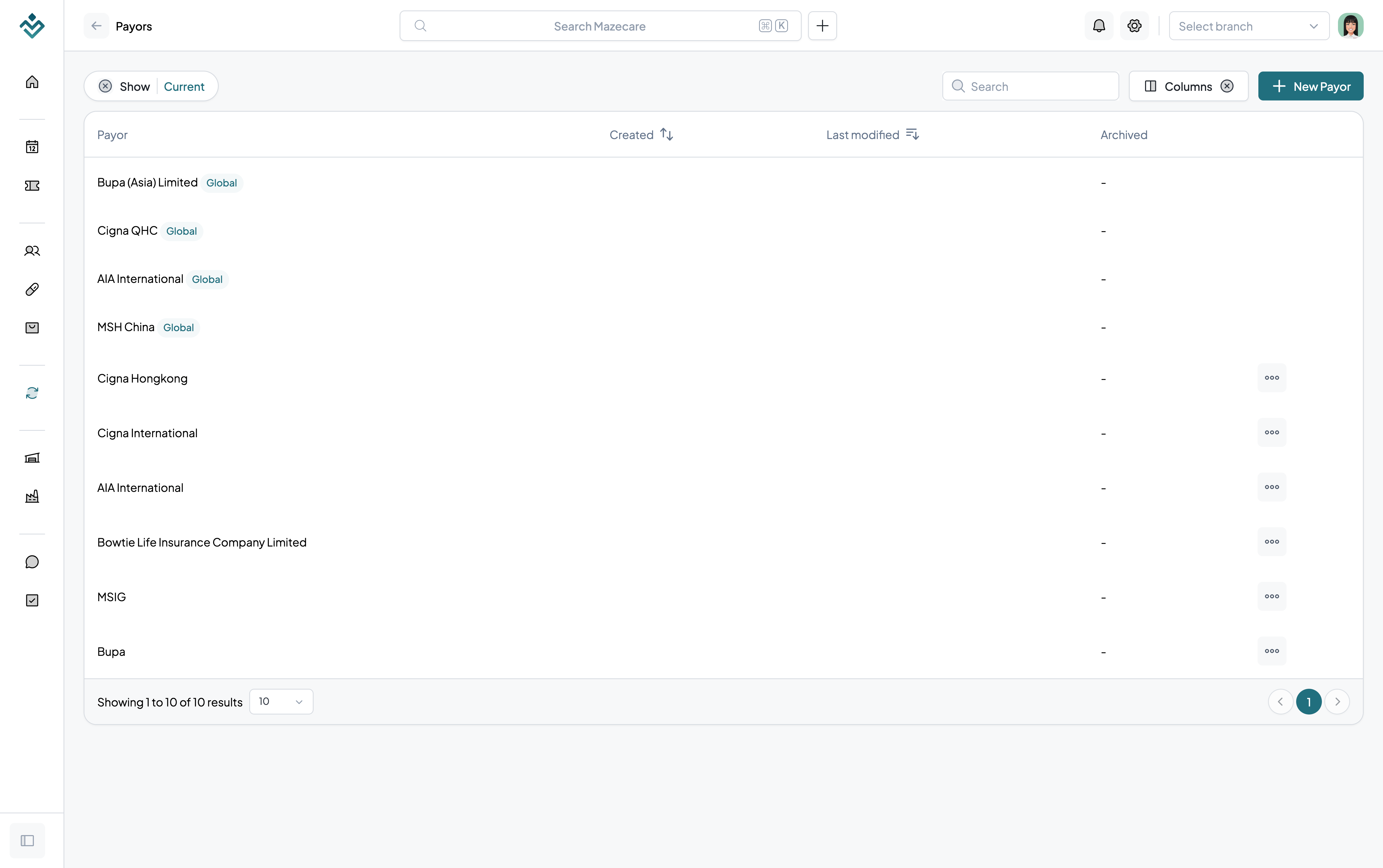
1. Payors Table Dashboard
- Navigate to Revenue Cycle → Accounting → Payors (
/revenue-cycle/accounting/payors). - The directory lists all configured payor institutions (e.g., Bupa (Asia) Limited, Cigna QHC, AIA International, MSH China, Bowtie Life Insurance, MSIG).
- Click + New Payor to onboard a new insurance company, or click any payor row to open its master profile.
2. Payor Detail Sub-Modules
Opening an institutional payor profile (e.g., Bupa (Asia) Limited) provides three comprehensive management tabs:
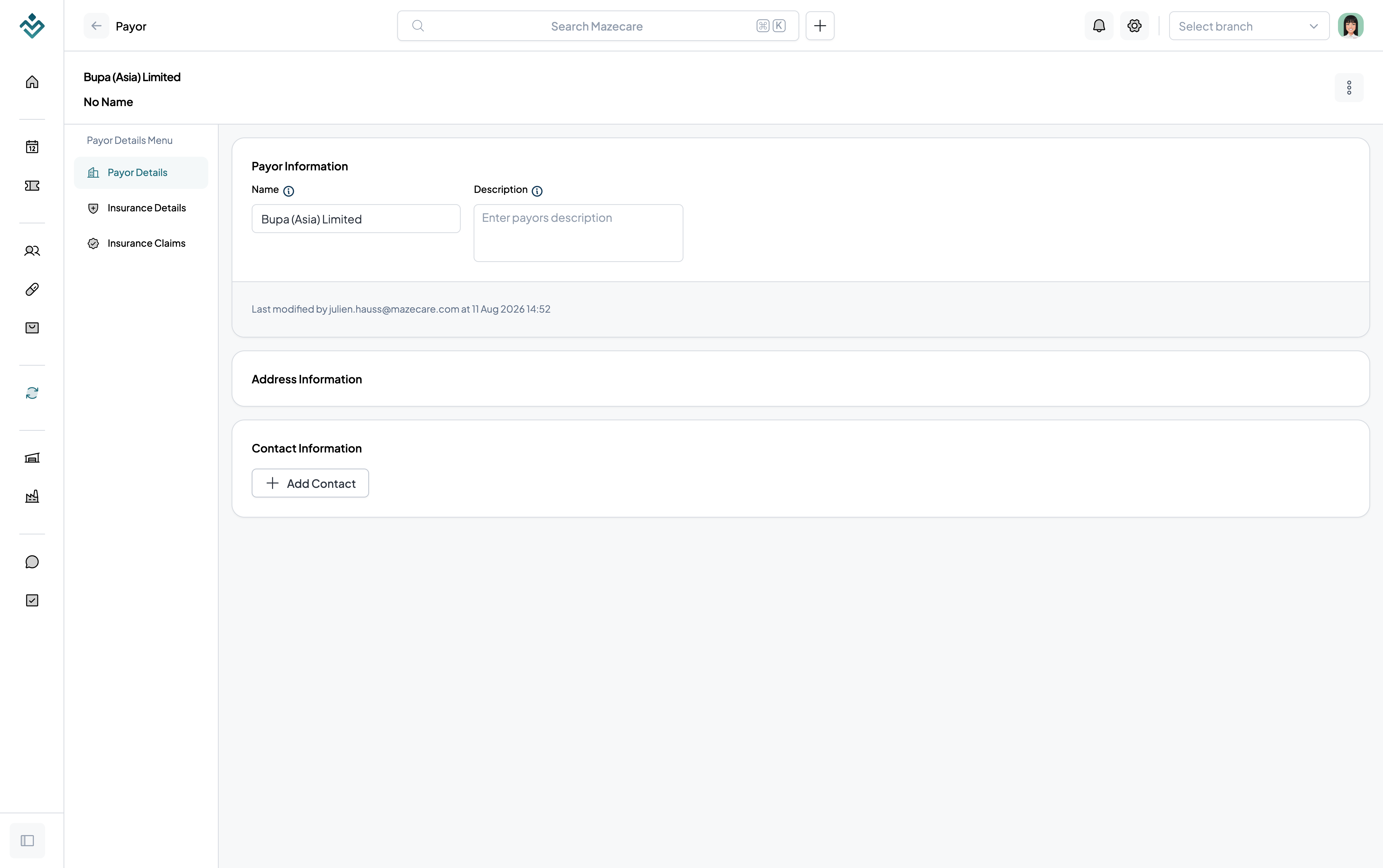
A. Payor Details Sub-Module
- Payor Information: Official corporate entity name, description, and institutional code.
- Address Information: Headquarters and regional claims office physical addresses.
- Contact Information: Contact directory for claims adjusters, medical directors, and billing representatives.
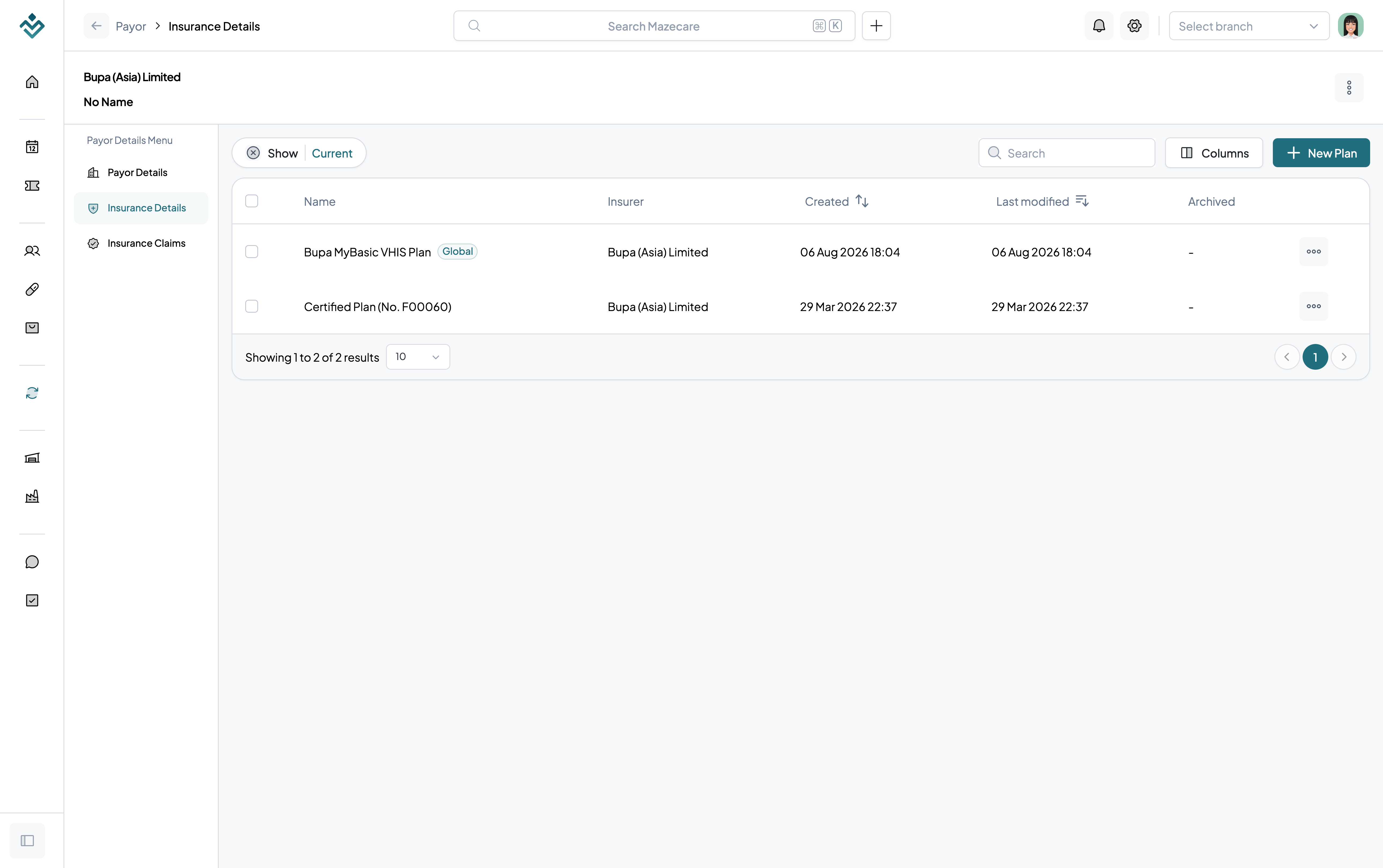
B. Insurance Details / Plans Sub-Module
- Lists all active Insurance Plans offered by this payor (e.g., Bupa MyBasic VHIS Plan (Global), Certified Plan No. F00060).
- Allows clinic administrators to configure coverage tiers, benefit limits, and co-payment formulas per plan.
- Click + New Plan to introduce new insurance products under this carrier.
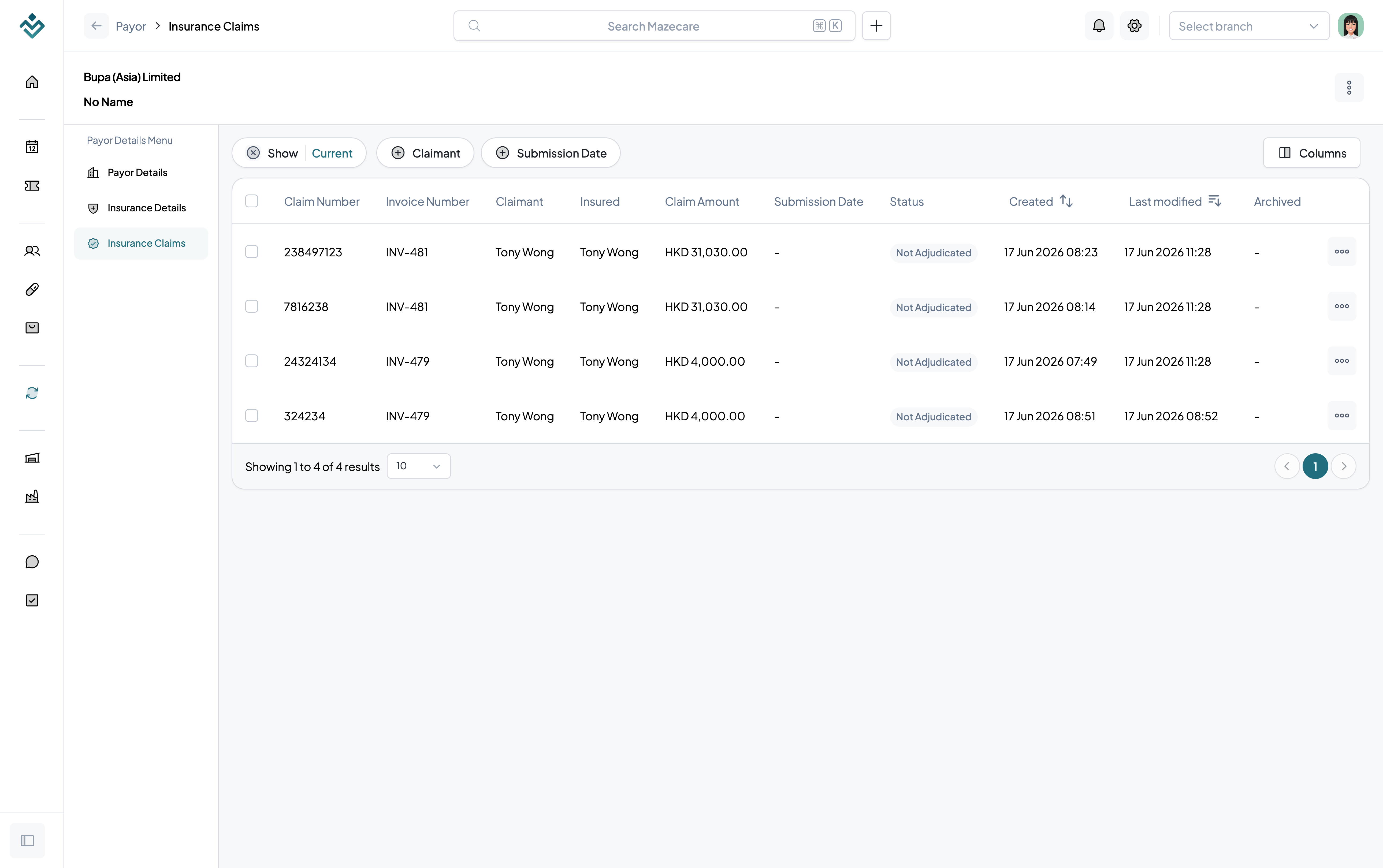
C. Insurance Claims Sub-Module (Payor Claims Portfolio)
- Acts as a dedicated claims ledger showing all claims filed with this specific insurer.
- Displays Claim Number, Claimant Name, Insured Name, Linked Invoice (
INV-481,INV-479), Claimed Amount (e.g.,HKD 31,030.00), Submission Date, and Adjudication Status (Not Adjudicated, Partially Paid, Approved). - Allows finance managers to audit payor turnaround times and track aggregate outstanding accounts receivable per insurer.
Step 4: Accounting & Financial Reconciliation Best Practices
To maintain flawless accounting integrity across your healthcare enterprise:
- Daily Cashier Balancing: Reconcile front-desk cashier transactions against the Transactions table at the close of every shift.
- Split-Billing Verification: Ensure all insurance encounters have generated corresponding Co-Payor Invoices to prevent unassigned invoice balances.
- Payor AR Aging Monitoring: Use the Payors claims ledger to track overdue insurer reimbursements and identify claims requiring follow-up or additional clinical justification.
Claim Submission
Comprehensive standard operating procedure for generating insurance claims from patient invoices, linking prior authorizations, utilizing automated medical coding and benefit Auto-Map, and executing real-time policy adjudication.
Digitization
Comprehensive standard operating procedure for digitizing paper invoices, payment receipts, and insurance documents into structured clinic accounting records with AI extraction, validation issue hubs, relationship graphs, and bulk ledger synchronization.