

Medical Note (SOAP) & In-App Message Templates
The Medical Note (SOAP) & In-App Message Templates module in Mazecare empowers clinical teams and healthcare administrators to standardize clinical documentation workflows and automate operational alerts. By designing reusable note templates and structured in-app messages, clinics ensure consistent medical charting, improve compliance, reduce clinician administrative burden, and streamline internal care-team communication.
Architecture & Clinical Workflow Overview
Mazecare separates clinical consultation documentation and operational communication into two specialized template engines:
- Medical Note Templates: Standardize physician charting during consultations using structured SOAP (Subjective, Objective, Assessment, Plan) formats, clinical exam macros, and dynamic patient/provider merge variables.
- In-App Message Templates: Automate internal notification banners, critical lab result alerts, appointment schedule updates, and task assignment reminders delivered directly within the Mazecare web application interface.
Medical Note Templates
Medical Note Templates streamline clinical encounters by providing pre-structured templates tailored to different medical specialties (e.g., General Practice, Ophthalmology, Pediatrics, Orthopedics, and Dental care).
Specialty SOAP Structures & Examples
Standardizing note templates allows healthcare facilities to enforce consistent clinical documentation across departments:
| Note Category | Primary Specialty | Key SOAP Components | Recommended Dynamic Variables |
|---|---|---|---|
| Standard Adult SOAP | General Practice / Internal Medicine | Chief complaint, review of systems (ROS), physical exam, assessment, differential diagnosis, prescription & follow-up plan. | {{ patient.name }}, {{ createdBy.userName }}, {{ createdAtUtc }} |
| Ophthalmology Exam | Ophthalmology / Optometry | Visual acuity (OD/OS), intraocular pressure (IOP), slit-lamp examination, fundoscopy findings, refractive error plan. | {{ patient.valueAsJson.firstName }}, {{ provider.name }} |
| Pediatric Well-Child | Pediatrics | Developmental milestones, immunization tracking, growth chart percentiles (weight, height, head circumference), nutrition guidance. | {{ patient.valueAsJson.gender }}, {{ patient.name }} |
| Orthopedic Evaluation | Orthopedics / Physical Therapy | Range of motion (ROM), joint stability tests, weight-bearing tolerance, imaging correlation (X-Ray/MRI), physical rehabilitation plan. | {{ patient.name }}, {{ provider.name }} |
| Dental Charting Note | Dental / Oral Surgery | Periodontal probing depths, tooth surface restoration notes, oral hygiene score, anesthesia administration, treatment phases. | {{ patient.name }}, {{ createdBy.userName }} |
Creating a Medical Note Template
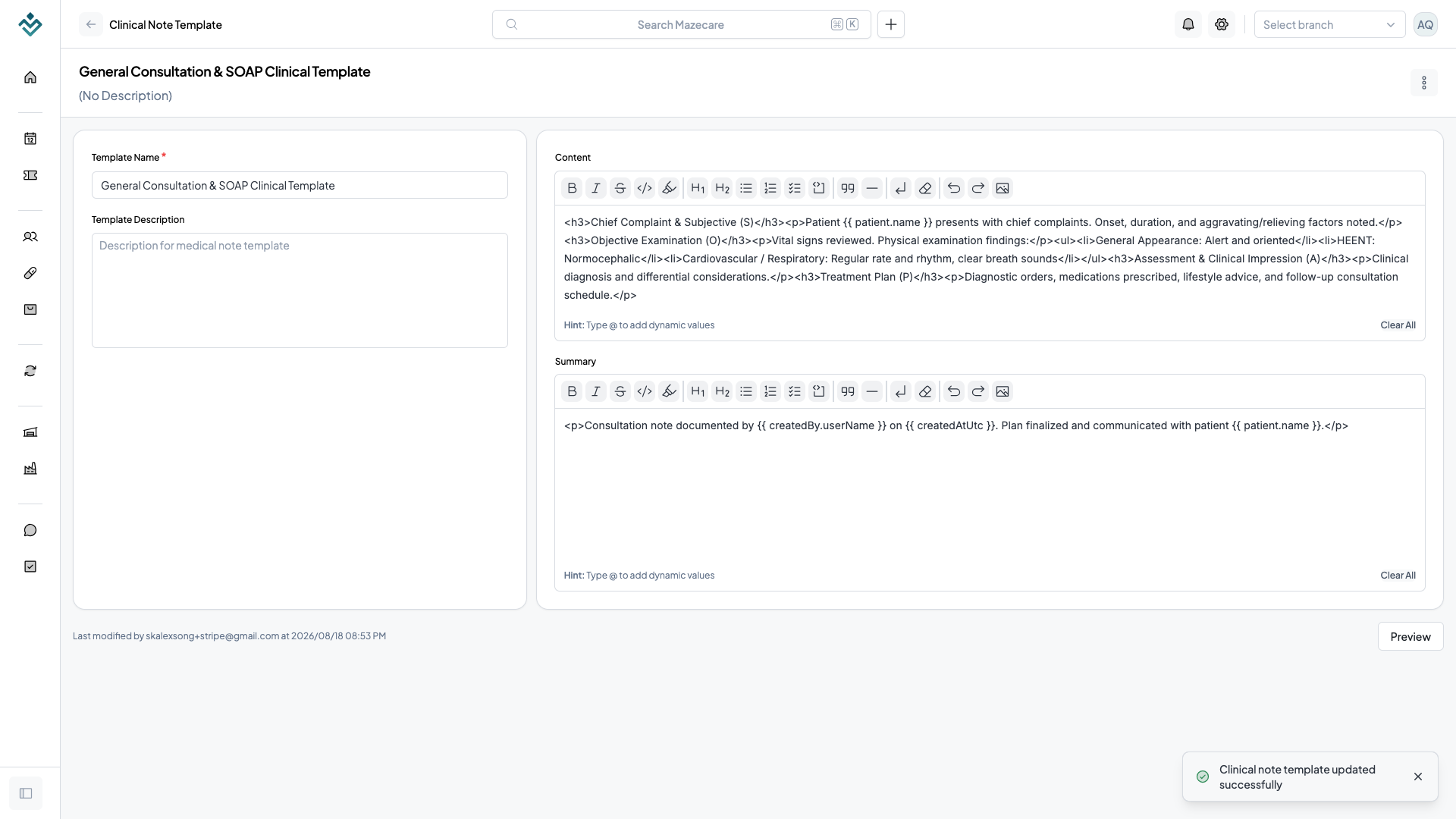
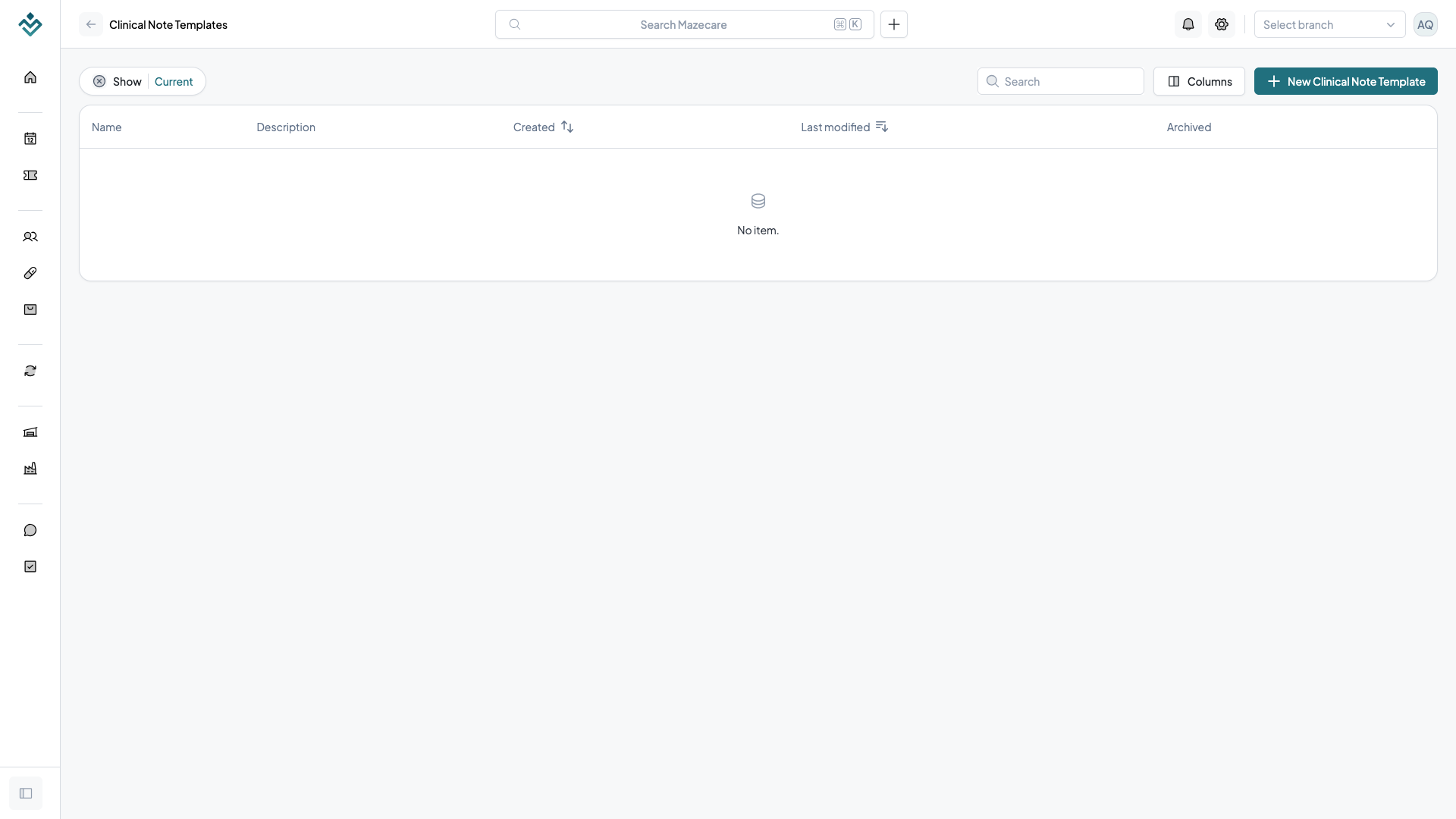
- Navigate to Integrations & Settings > Clinical Note Templates
- Click New Clinical Note Template in the upper right.
- Configure the primary template fields:
- Template Name: Enter a clear, descriptive title (e.g., General Consultation & SOAP Clinical Template).
- Template Description: Provide an internal description to help clinicians select the correct template during consultations.
- Compose the Content Template:
- Utilize the rich-text WYSIWYG editor to structure standard headings (Subjective, Objective, Assessment, and Plan).
- Include bulleted physical examination checklists, default review of systems prompts, or specialized clinical boilerplate text.
- Define the Summary Template:
- Specify a concise consultation summary layout that auto-populates in patient timeline previews and referral attachments.
- Insert dynamic merge variables by typing
@or inserting Liquid tags.
Dynamic Clinical Merge Variables
The template engine dynamically resolves patient, provider, and system context into the consultation record at runtime:
| Variable Tag | Description | Sample Output |
|---|---|---|
{{ patient.name }} | Full legal name of the patient. | John Doe |
{{ patient.valueAsJson.salutation }} | Patient title / salutation. | Mr. / Ms. / Dr. |
{{ patient.valueAsJson.firstName }} | Patient first name. | John |
{{ patient.valueAsJson.lastName }} | Patient family name / surname. | Doe |
{{ patient.valueAsJson.gender }} | Gender identity of the patient. | Male / Female |
{{ patient.valueAsJson.nationality }} | Nationality of the patient. | Hong Kong |
{{ provider.name }} | Full name of the consulting physician. | Dr. Jane Doe |
{{ provider.valueAsJson.salutation }} | Salutation of the consulting physician. | Dr. |
{{ createdBy.userName }} | Account username of the note author. | dr.jane |
{{ createdAtUtc }} | UTC timestamp when note was authored. | 2026-08-18T13:52:00Z |
In-App Message Templates
In-App Message Templates allow clinics to configure automated notification banners, system alerts, and task messages delivered within the Mazecare clinical console.
Common In-App Alert Scenarios
In-app notifications keep multi-disciplinary healthcare teams synchronized without requiring external SMS or email channels:
- Critical Diagnostic & Lab Alerts: Alert attending physicians immediately when panic lab values or urgent radiology reports are published.
- Queue & Patient Arrival Notifications: Notify nursing and consultation rooms when an appointment check-in occurs at reception.
- Inventory & Pharmacy Low-Stock Warnings: Alert clinic managers and pharmacy dispensers when essential medication stock drops below configured reorder levels.
- Care Plan & Task Reassignments: Notify staff members when clinical tasks, chart reviews, or insurance pre-authorizations are reassigned.
Configuring In-App Message Templates
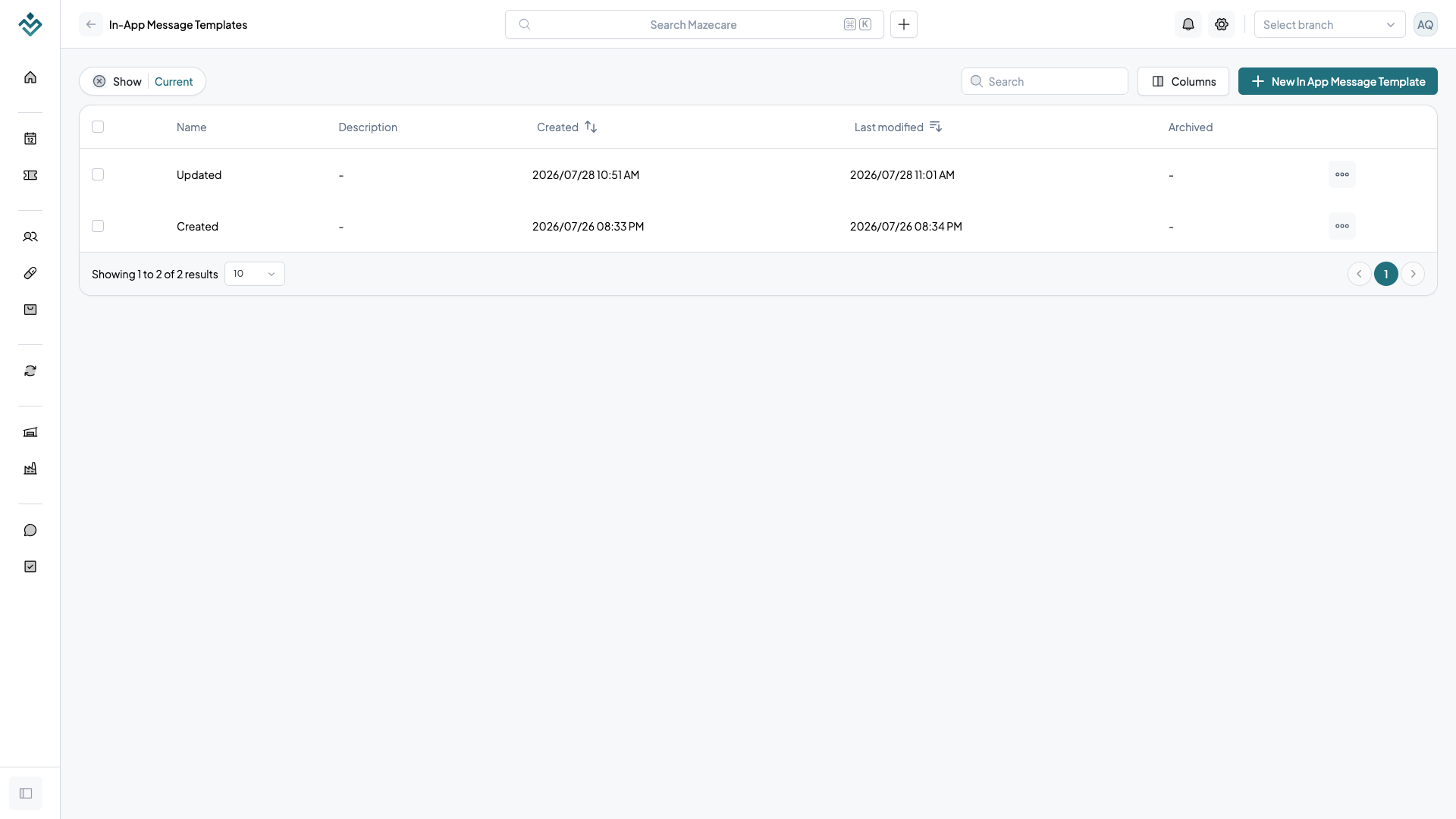
- Navigate to Integrations & Settings > In-App Message Templates.
- Click New In App Message Template or select an existing template to edit.
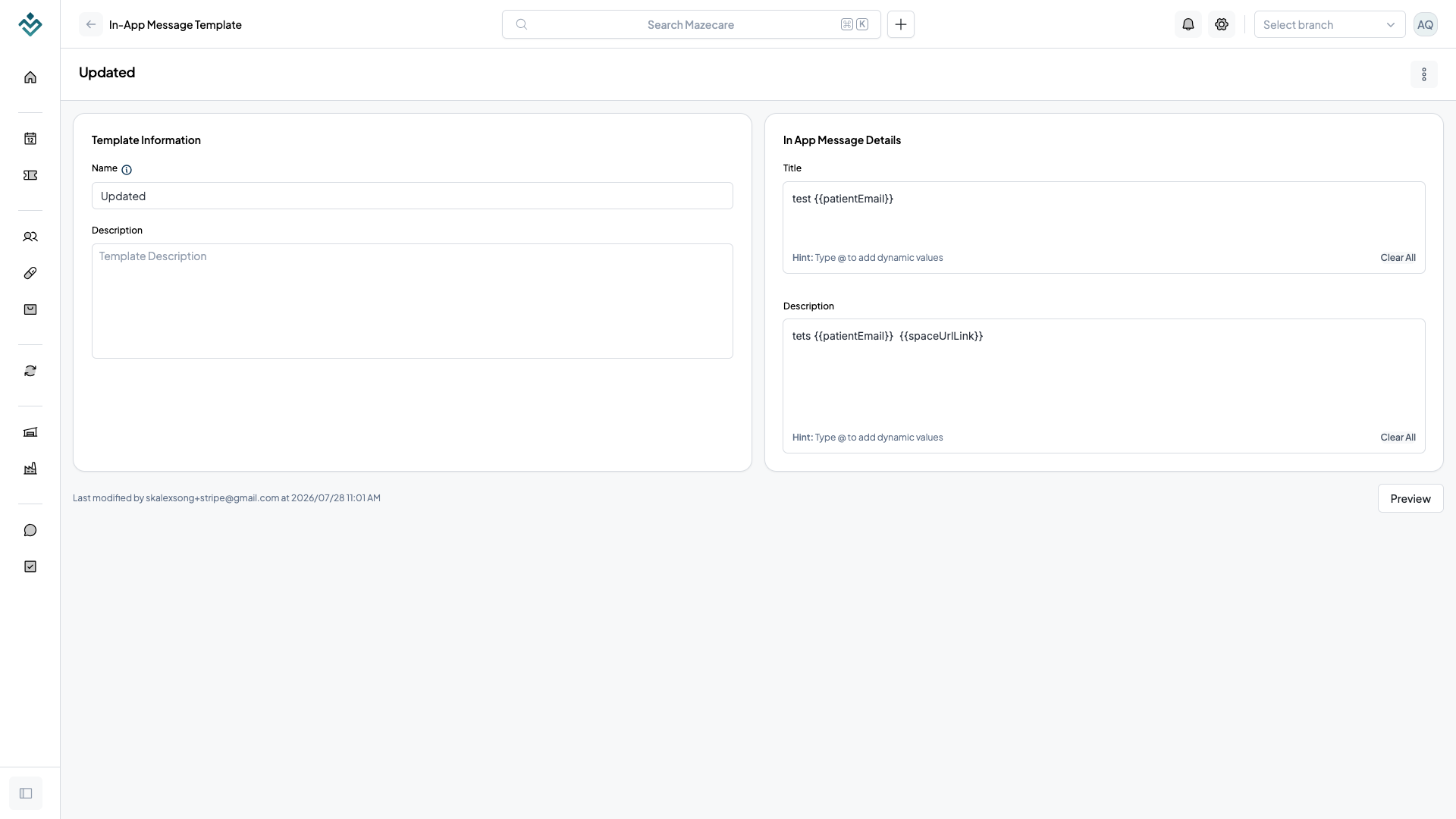
- Configure the Template Information:
- Name: Enter a distinctive title (e.g., Low Stock Alert, Encounter Reassignment Notification).
- Description: Add contextual guidance regarding when this notification is triggered.
- Author the In App Message Details:
- Title: Enter the short notification header shown in the user's notification tray and toast popups (e.g.,
Urgent Alert: Low stock for {{ productsNames }}). - Description / Body: Provide the detailed message narrative with actionable instructions and context links.
- Title: Enter the short notification header shown in the user's notification tray and toast popups (e.g.,
- Use
@or merge tags to insert dynamic clinical or operational values.
In-App Message Merge Variables
| Variable Tag | Category | Description | Sample Output |
|---|---|---|---|
{{ patientName }} | Patient | Patient's full name. | John Doe |
{{ patientEmail }} | Patient | Registered email address of the patient. | johndoe@example.com |
{{ doctorName }} | Practitioner | Name of the assigned physician. | Dr. Jane Doe |
{{ doctorNames }} | Practitioner | Multi-provider team names. | Dr. Jane Doe, Dr. Alex Smith |
{{ date }} | Scheduling | Scheduled encounter or appointment date. | 2026-08-20 |
{{ startTime }} / {{ endTime }} | Scheduling | Time window for the scheduled clinical event. | 09:00 AM / 09:30 AM |
{{ productsNames }} | Inventory | Names of low-stock medication or consumables. | Paracetamol 500mg, Amoxicillin 250mg |
{{ branchesNames }} | Organization | Clinic branch or facility locations affected. | Central Medical Clinic - Suite 4A |
{{ lowStockQuantity }} | Inventory | Minimum threshold quantity triggering the alert. | 15 units |
{{ currentStock }} | Inventory | Remaining available inventory quantity on hand. | 3 units |
{{ spaceUrlLink }} | System | Direct deep link to the patient record or inventory item. | https://cms-hk-dev.mazecare.com/... |
Previewing In-App Messages
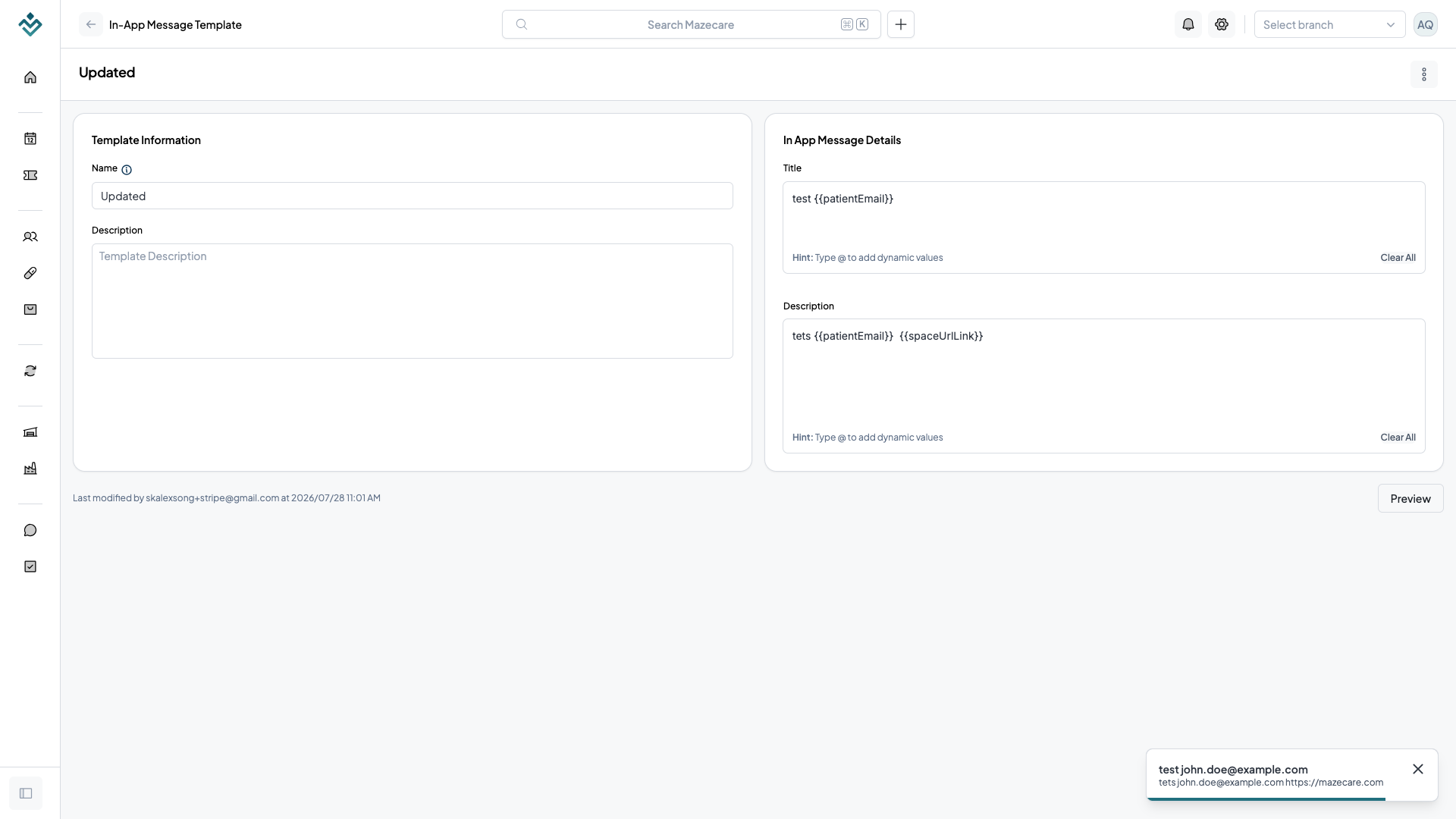
- Select Preview in the template details view to preview how variables populate in real time.
- Verify that notification titles, message bodies, and deep links render cleanly without broken markup.
Best Practices for Clinical Templates
Documentation Guidelines for Clinical Administrators:
- Use Descriptive Placeholder Prompts: Include clear prompts (e.g., Enter visual acuity: OD / OS or Document allergy status) so covering physicians never miss critical physical exam data.
- Verify Notification Brevity: Keep in-app message titles under 60 characters so they display cleanly on notification cards across mobile tablets and desktop workstations.
- Regularly Audit Templates: Periodically archive outdated clinical note structures and update medication lists to align with latest clinical guidelines.
Clinical Document Templates
Configure standardized clinical document templates, surgical consents, discharge summaries, care plans, print layouts, and electronic signatures in Mazecare.
Vaccination & Immunization
Manage systemic vaccine catalogs, national immunization schedules, pediatric milestones, clinical encounter administration, and lot batch traceability in Mazecare.