

Dashboard Template Builder
The Dashboard Template Builder in Mazecare OS provides healthcare administrators and clinical operations managers with a flexible visual layout designer to build tailored, role-specific home screens. Located under Settings → Dashboard Templates, this tool allows clinics and hospital systems to craft specialized operational views for doctors, triage nurses, ward coordinators, receptionists, billing officers, and executive directors.
By combining drag-and-drop widget placement with multi-zone docking, healthcare organizations can eliminate interface clutter, surface critical patient flow data, and streamline everyday clinical and administrative duties.
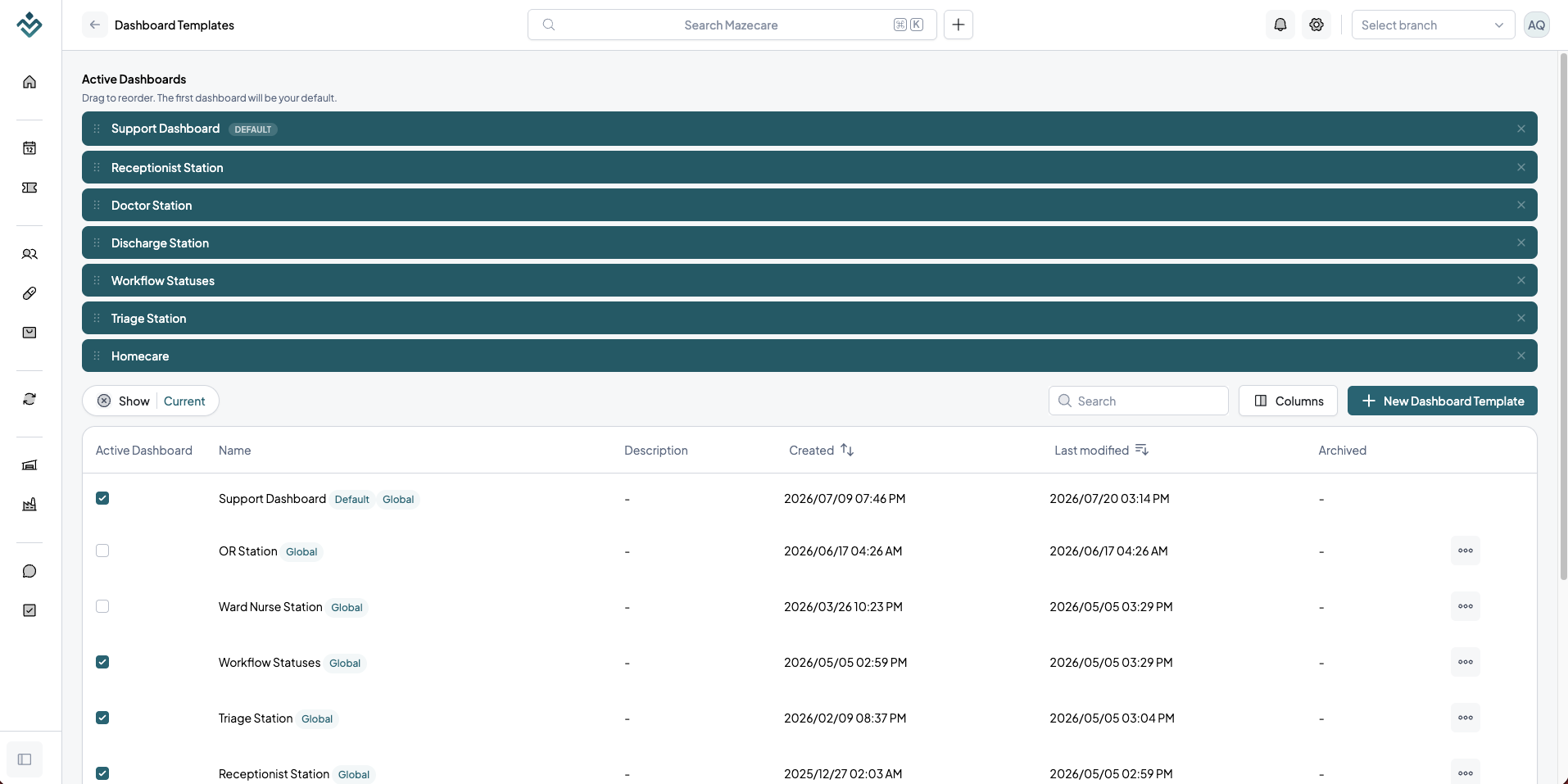
Global & Out-of-the-Box Dashboard Templates
Mazecare provides a comprehensive library of pre-built system dashboards ready for immediate deployment across different hospital and clinic roles:
- Doctor Station: A focused clinical workstation pairing the real-time doctor queue with an embedded consultation encounter screen and instant AI documentation tools.
- Receptionist Station: A high-efficiency front-desk workspace featuring daily receptionist checklists, multi-counter queue management, and patient check-in controls.
- Triage Station: An intake hub for rapid clinical assessment, vital sign logging, and emergency acuity scoring before physician assignment.
- Ward Nurse Station & Bed Board: A centralized inpatient management layout tracking ward bed occupancy, pending admissions, and active patient care plans.
- Operating Room (OR) Station: A specialized surgical suite overview organizing upcoming operations, surgeon assignments, and perioperative tracking.
- Pharmacy & Inventory Station: An analytics-driven layout highlighting critical low-stock alerts, fast-moving drug rankings, active suppliers, and procurement shortcuts.
- Executive & Financial Overview: High-level clinic operations monitoring patient loads, doctor productivity, billed revenue, and outstanding insurance balances.
Detailed Step-by-Step Configuration Walkthrough
Step 1: Navigating the Dashboard Templates Management Hub
To access and manage dashboard templates:
- In the sidebar navigation, click Settings → Dashboard Templates.
- The management hub is divided into two operational sections:
- Active Dashboards Ribbon: Displays the list of currently activated dashboards. The first item in this sequence acts as your clinic's primary default dashboard. You can drag and drop cards to reorder workstation priorities.
- Template Catalog Table: Lists all available templates with columns for Active Dashboard status, Name, Description, Created Date, and Last Modified Date.
- Toggle the checkbox in the Active Dashboard column to instantly enable or disable a template from the clinic's active workstation switcher.
Step 2: Creating a New Dashboard & The Visual Canvas
To build a new dashboard from scratch:
- In the upper-right corner of the templates table, click New Dashboard Template.
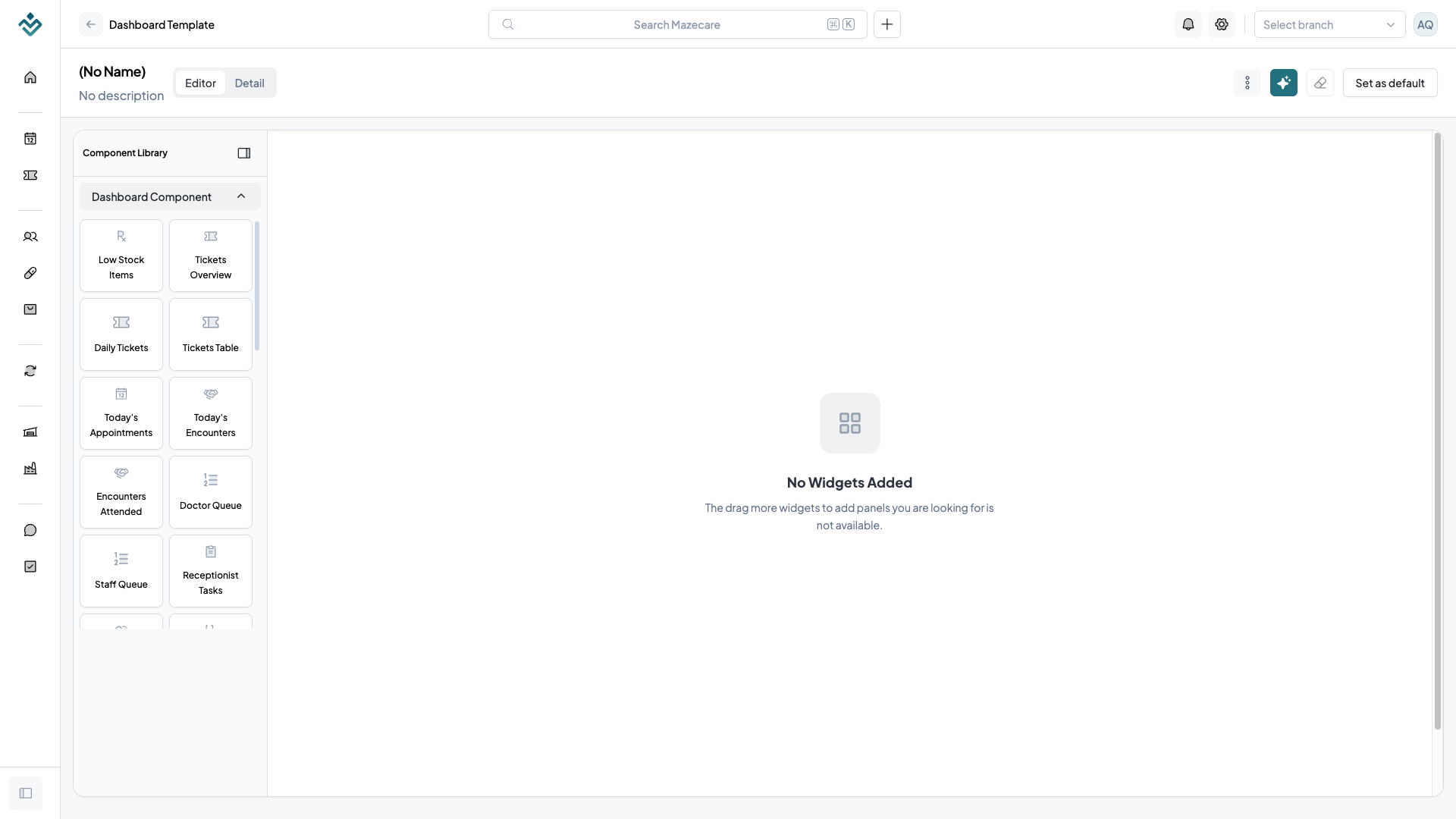
- Mazecare opens the visual builder workspace with two primary tabs:
- Editor Tab: The visual layout canvas where modular widgets are arranged and docked.
- Detail Tab: The administrative settings panel for template naming, descriptions, and audit details.
- On the left side of the Editor tab, the Component Library drawer categorizes all available operational and clinical widgets.
Step 3: Template Metadata Configuration (Detail Tab)
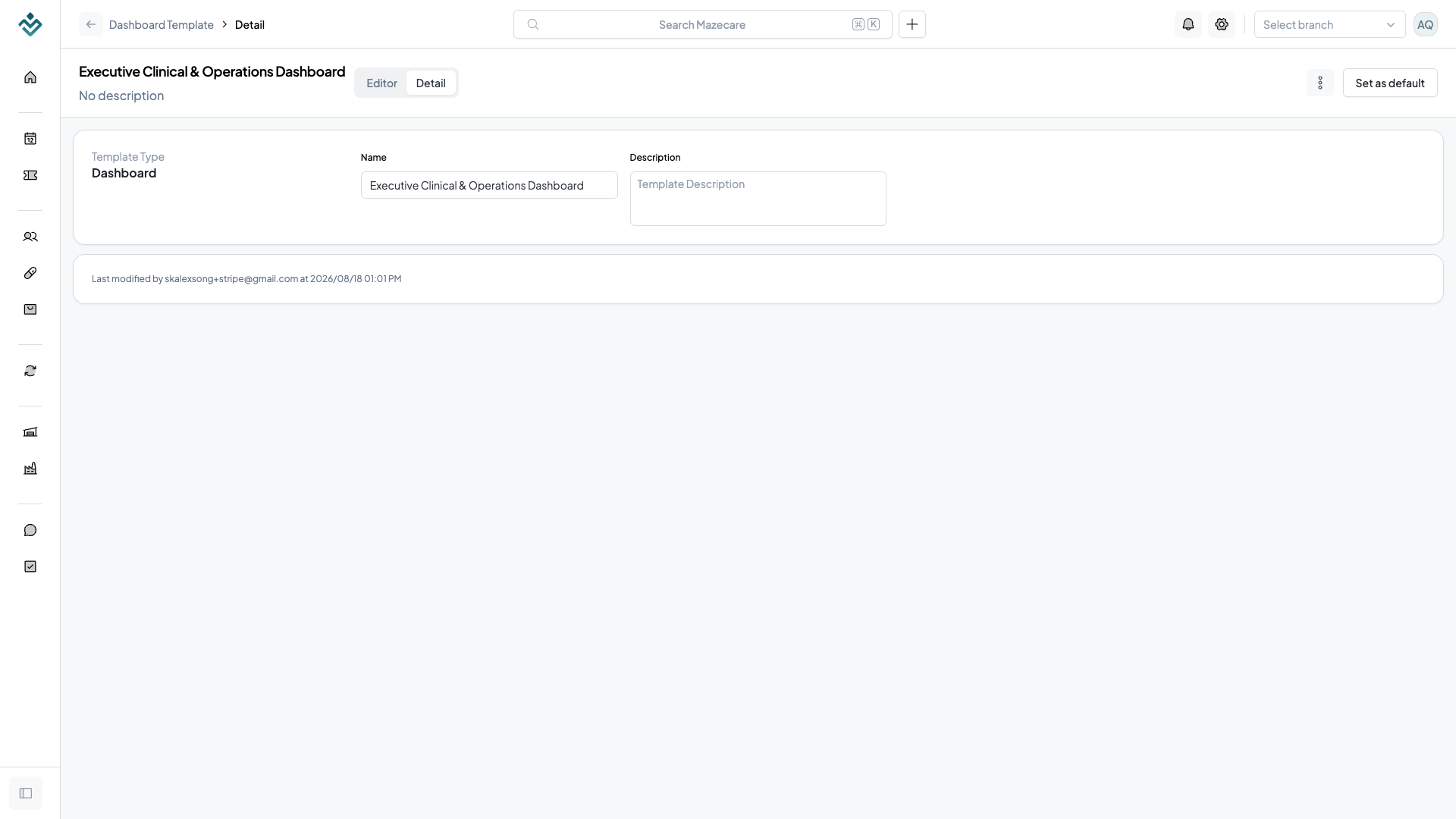
Switch to the Detail tab to specify administrative properties for the template:
- Template Type: Automatically assigned as
Dashboard. - Name: Enter a clear, descriptive title (e.g., Executive Clinical & Operations Dashboard, Pediatric Outpatient Station).
- Description: Add contextual guidance detailing which department or staff role should use this layout.
- Audit Details: Shows the authoring account and timestamp of the last revision.
All metadata changes are saved automatically as you complete each field.
Step 4: Adding, Arranging, and Resizing Widgets
- Switch back to the Editor tab.
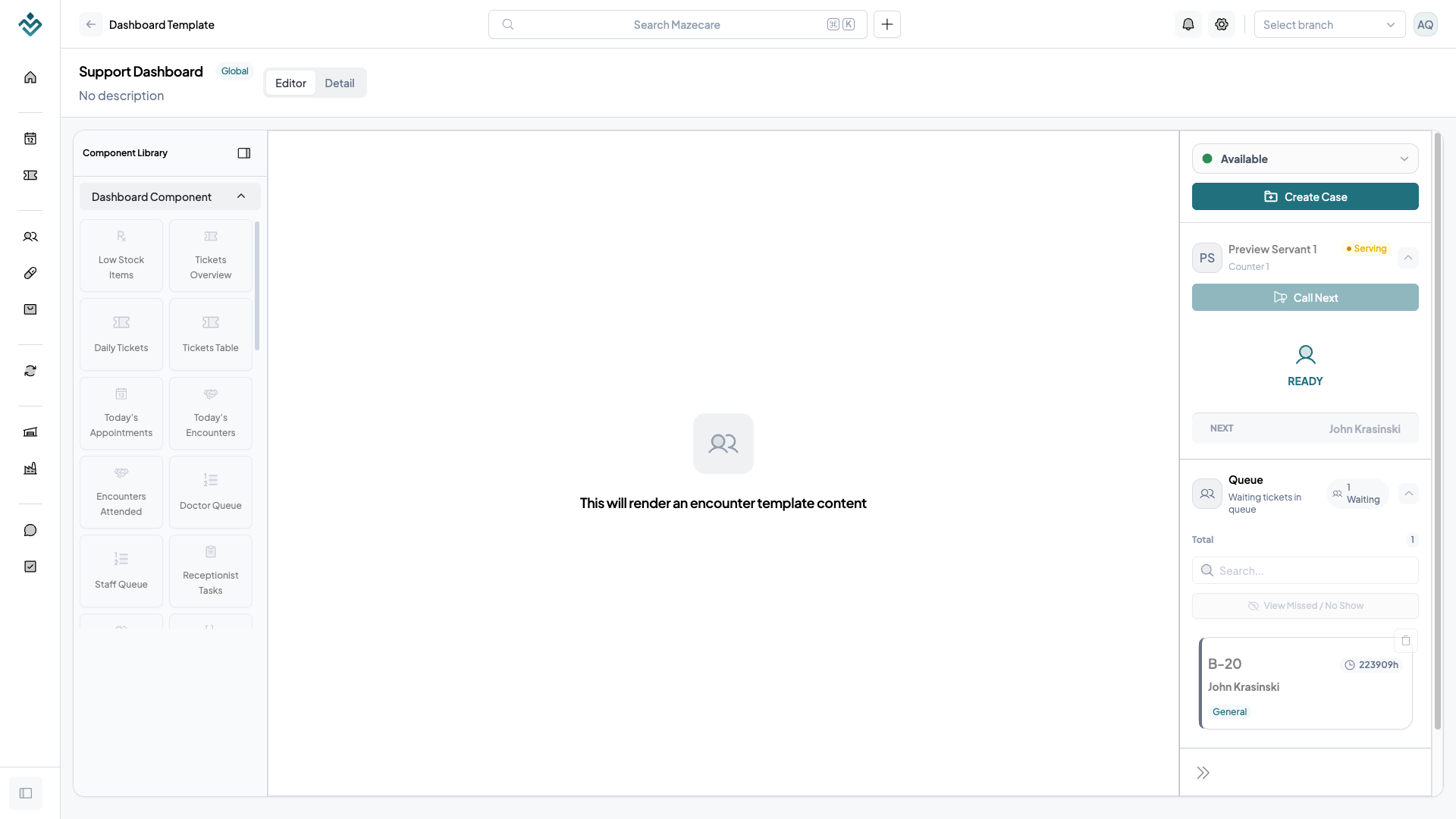
- Open the Component Library in the left drawer to browse available widgets.
- Drag and Drop: Grab any widget card from the library and drag it onto the central canvas.
- Docking & Splitting:
- Drag widgets to the top, bottom, left, or right edge of an existing panel to split the layout into multi-column or multi-row configurations.
- Drop a widget directly onto the center header of an existing card to create a Tabbed Group, allowing users to flip between related tools within the same screen area.
- Resizing: Hover over the borders between panels and drag the separator lines to adjust proportional heights and widths.
- Automatic Saving: Every layout change, widget repositioning, and panel resize is synchronized in real time.
Step 5: Customizing Widget Properties
Each widget on the dashboard can be fine-tuned to match departmental policies and reporting thresholds:
- Card Title: Customize the header text displayed on the widget panel (e.g., rename Low Stock Items to Critical Pharmacy Shortages).
- Time Windows & Lookback Intervals: For analytical and ranking widgets, define reporting periods (e.g., last 7, 14, 30, or 90 days).
- Ranking Sample Sizes: Set the number of top-performing items, doctors, or payors to display on leaderboard cards.
- Greeting & Header Controls: For workstation navigation panels, toggle staff greeting banners and personalized workstation shortcuts.
Step 6: AI-Assisted Dashboard Generation
Mazecare includes an intelligent Dashboard Architect AI to accelerate layout creation:
- In the top toolbar of the builder, click Ask AI.
- Select from recommended prompt templates or describe your clinic's workflow in natural language (e.g., "Create an Emergency Department Triage Station with live acuity queues and bed occupancy").
- The AI assistant drafts the optimal grid layout, docks corresponding widgets, and presents a visual preview.
- Click Accept Layout to apply the generated design or Undo to revert to the previous configuration.
Comprehensive Widget Catalog
The Dashboard Template Builder includes over 30 modular widgets organized across five core operational categories:
1. Clinical Consultations & Provider Tools
| Widget Name | Description | Key Capabilities |
|---|---|---|
| Doctor Queue | Real-time queue of waiting patients assigned to the active practitioner. | Shows patient ticket numbers, wait times, triage priority badges, and instant "Call Next" triggers. |
| Encounter Template | Live clinical consultation workspace embedded directly within the dashboard. | Displays patient banners, vitals history, SOAP documentation, ICD-11 coding, and e-prescriptions side-by-side with the queue. |
| Staff Queue | Universal service queue for general clinical and support staff. | Multi-practitioner call lists, serving statuses, and service point assignments. |
| Today's Encounters | Snapshot of all clinical visits scheduled or underway today. | Displays encounter statuses, attending providers, and visit categories. |
| Encounters Attended | Completion summary of finalized consultations. | Tracks daily clinician throughput and completed appointment counts. |
2. Patient Flow, Front Desk & Triage
| Widget Name | Description | Key Capabilities |
|---|---|---|
| Receptionist Tasks | Actionable checklist for administrative reception staff. | Tracks pending patient check-ins, document verification, payment collections, and manual tasks. |
| Today's Appointments | Daily appointment roster. | Summarizes scheduled arrival times, appointment types, booking channels, and arrival statuses. |
| Appointment List | Calendar-filtered appointment browser. | Allows receptionists to filter appointments across future dates and specific practitioner rosters. |
| Queue Monitor | Bird's-eye oversight of all clinic waiting areas. | Live tracking of queue volume, average waiting durations, and counter throughput across service lines. |
| Triage Queue | Priority-based intake queue for triage nurses. | Displays incoming emergency cases, pain scores, acuity levels, and vital sign readiness. |
| Admission Queue | Inpatient admission processing list. | Tracks patients approved for hospital ward admission awaiting bed allocation. |
| Discharge Queue | Post-consultation checkout and discharge list. | Coordinates medication dispensing, invoice clearance, medical certificates, and follow-up bookings. |
3. Inpatient Wards, Surgical & Homecare
| Widget Name | Description | Key Capabilities |
|---|---|---|
| Bed Board | Real-time interactive map of ward bed occupancy. | Visualizes available, occupied, cleaning, and reserved beds across ward rooms and specialty units. |
| Nurse Inpatient List | Dedicated patient roster for ward nursing teams. | Summarizes admitted patients, bed numbers, active care plans, medication schedules, and vital alerts. |
| Doctor Inpatient List | Attending physician's rounding list. | Displays admitted patients under the doctor's care with quick access to progress notes and lab orders. |
| Inpatient Detail | Detailed overview card for a selected hospitalized patient. | Quick access to admission diagnoses, attending consultant, current diet orders, and care trajectory. |
| Surgical Queue | Schedule of surgical procedures slated for today. | Lists operative cases, designated operating rooms, lead surgeons, and pre-op clearance statuses. |
| Operation Room | Active operating suite management workstation. | Tracks perioperative milestones, anesthesia records, and surgical team checklists. |
| Homecare | Roster and monitoring board for home-visit medical services. | Coordinates mobile nurse dispatch, scheduled home visits, and remote care coordination. |
4. Pharmacy & Inventory Analytics
| Widget Name | Description | Key Capabilities |
|---|---|---|
| Low Stock Items | Automated inventory threshold monitor. | Highlights medications and medical consumables that have dropped below safety reorder points. |
| Pharmacy Stats | High-level dispensary figures. | Summarizes active product catalog size, triggered low-stock alerts, date of last stocktake, and active vendor counts. |
| Procurement Center | Direct supplier directory and purchase order shortcuts. | Lists authorized distributors and allows single-click creation of new stock purchase orders. |
| Usage Ranking | Leaderboard of most frequently dispensed items. | Ranks medications by total dispensed volume over configurable lookback windows (e.g., last 30 days). |
| Stock Ranking | Inventory valuation and stock-on-hand leaderboard. | Ranks top stock-keeping units (SKUs) by current physical warehouse and dispensary quantities. |
5. Administration, Financial KPIs & Navigation
| Widget Name | Description | Key Capabilities |
|---|---|---|
| Clinic Patient Stats | Patient volume breakdown across medical staff. | Visualizes daily consultation loads per practitioner over rolling time windows. |
| Revenue Analysis | Billed financial performance breakdown. | Highlights top corporate payors, insurance partners, and individual debtors with paid vs. outstanding totals. |
| Workstation Hub | Quick-navigation launchpad for role-based stations. | Dynamic cards enabling one-click switching to Reception, Doctor Station, Pharmacy, or Administration. |
| Module Shortcuts | Quick-access tiles to administrative modules. | Fast links directly into Doctor Rostering, Marketing Campaigns, System Settings, and Insurance Contracts. |
| Episode Workflow Status | Care pathway monitoring widget. | Tracks multi-visit episodes of care, clinical milestone transitions, and associated clinical encounters. |
| Tickets Overview & Tables | Operational helpdesk and internal request tracking. | Summarizes internal IT, facility maintenance, and patient inquiry tickets by status and urgency. |
Deploying Dashboards & Switching Workstations
Once templates are configured and activated, staff members can interact with their customized screens seamlessly:
1. Activating and Defaulting Dashboards
- In Settings → Dashboard Templates, check the Active Dashboard toggle next to any template you want visible in the clinic's top navigation.
- Reorder active dashboards in the top ribbon. The first dashboard automatically serves as the default landing view upon user login.
2. One-Click Workstation Switching
Staff members with access to multiple clinical or administrative roles can instantly switch their dashboard view using the Role Switcher Dropdown in the top navigation bar:
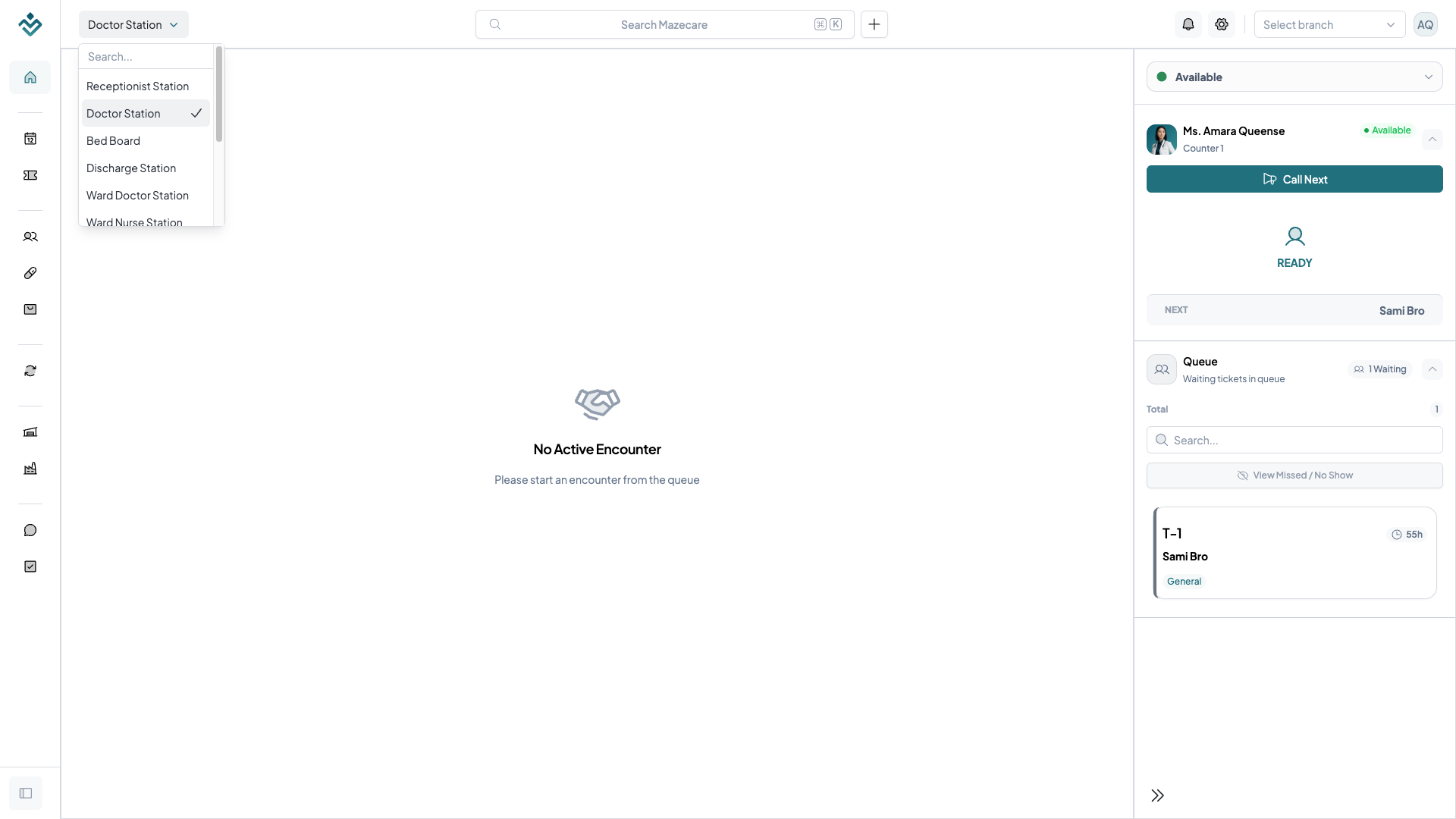
Selecting any workstation instantly reconfigures the user's workspace without reloading the application:
Example 1: Inpatient Bed Board Station
When a ward coordinator or charge nurse switches to the Bed Board, the system loads the bed layout alongside the real-time Admission Queue:
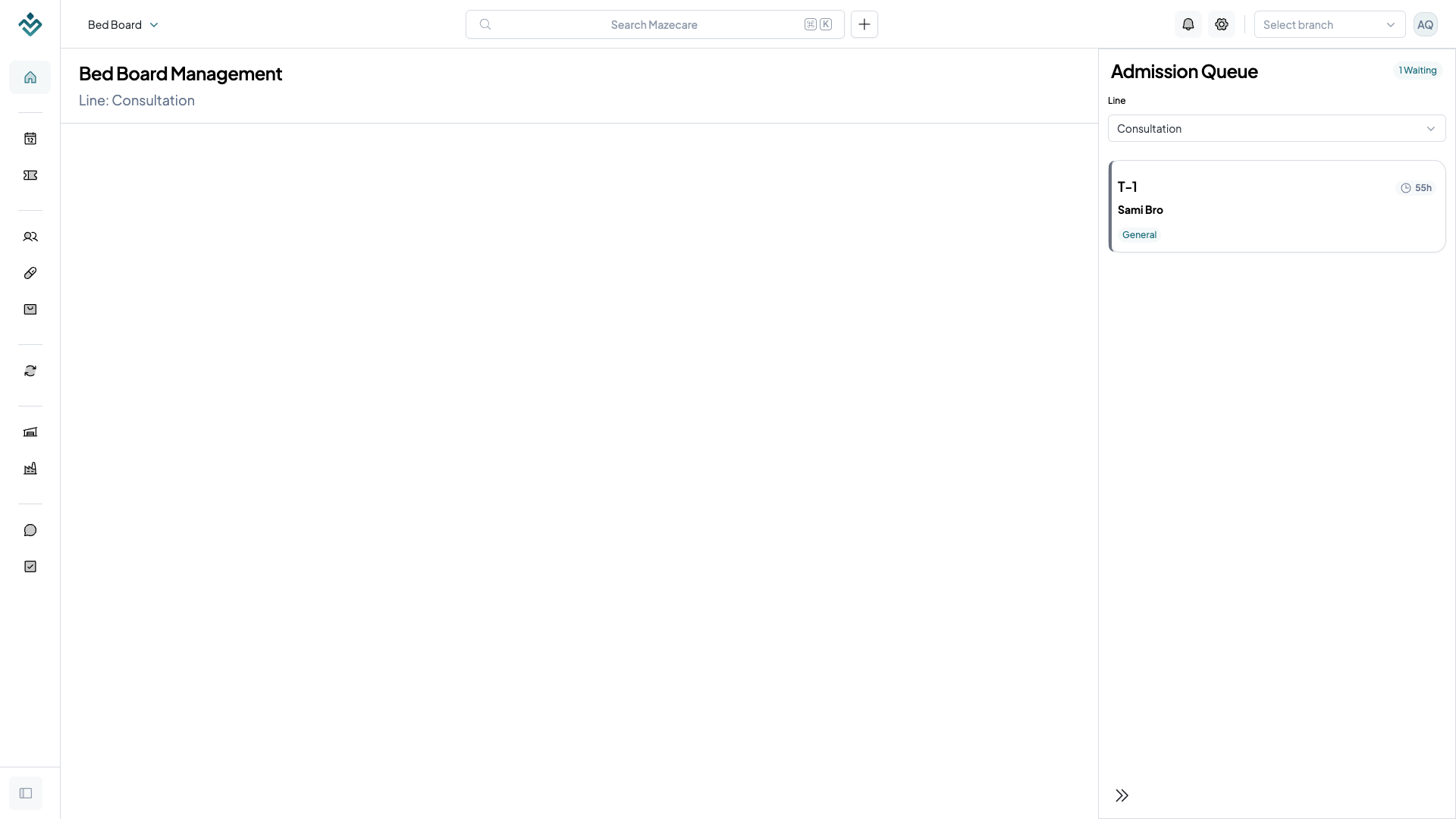
Example 2: Front Desk Receptionist Station
When administrative staff switch to the Receptionist Station, the interface renders the daily task checklist alongside multi-counter queue calling controls:
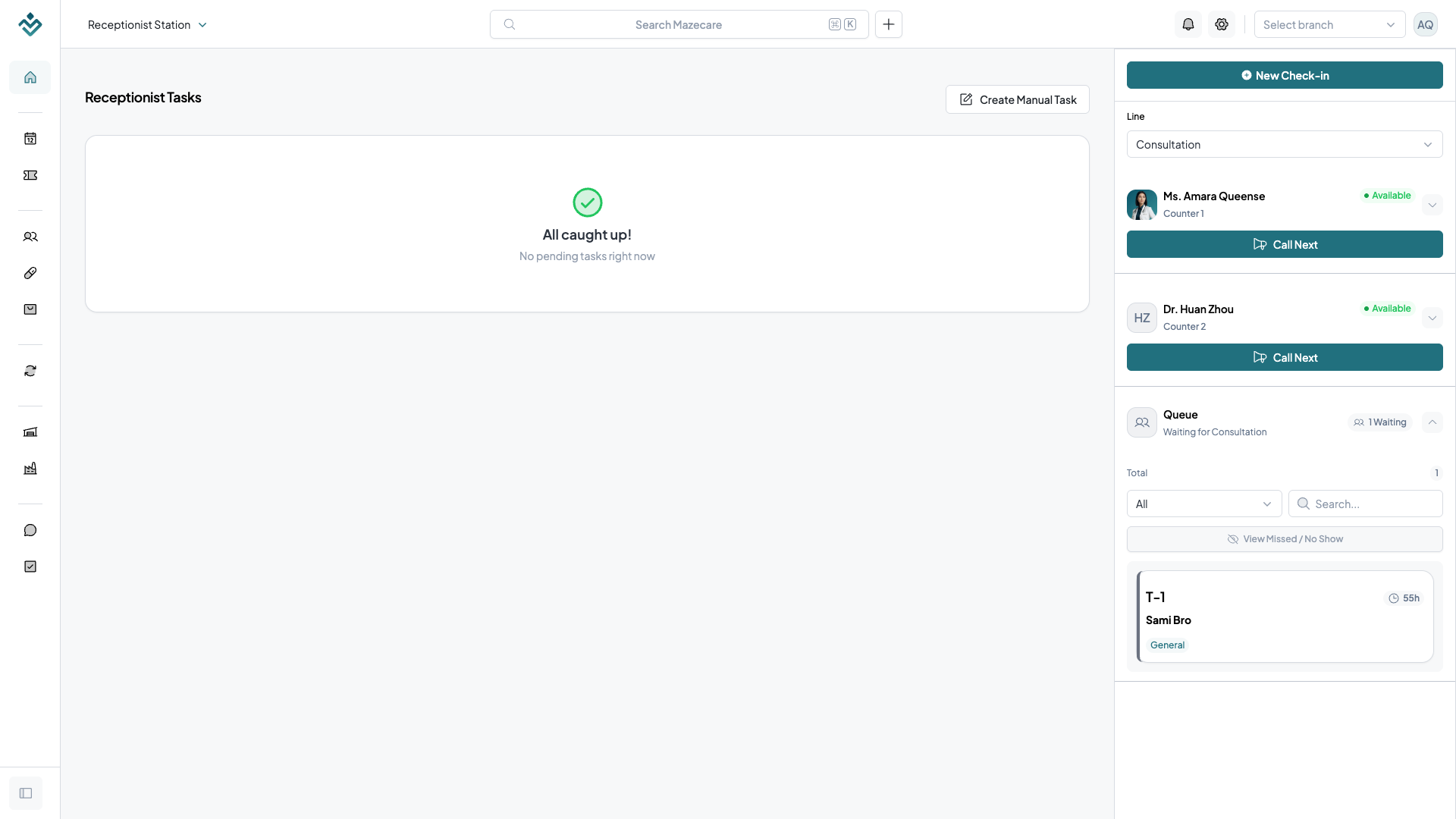
Encounter Template Builder
Design, configure, and customize modular clinical encounter screens by arranging header, body, and footer widgets in Mazecare OS.
Access Rights & Policies
Configure role-based access control, define granular resource access statements, build custom permission policies, and enforce clinical security governance in Mazecare OS.