

Clinical Document Generator & Print Templates
The Clinical Document Generator & Print Templates module in Mazecare provides healthcare organizations with an enterprise-grade document creation, live authoring, and printing engine. Clinicians and administrators can author structured document templates—such as Discharge Summaries, Operative & Care Plan Reports, Referrals, Specialist Consultations, and Surgical Consents—with automated clinical data binding, multi-provider electronic signatures, and pixel-perfect print layout controls.
Document Architecture & Core Lifecycle
Clinical document generation in Mazecare follows a unified two-tier architecture:
- Clinical Document Template: Defines the clinical narrative, structured sections, dynamic merge tags (e.g., patient demographics, vitals, problem lists, diagnoses, medications, procedures, and referral reasons), and default editor views (Rich Text WYSIWYG or Raw HTML/Liquid).
- Clinical Document Print Template: Governs the physical output formatting, paper sizes (A4, Letter, A5), page orientation, margin spacing, header/footer branding, clinic logos, confidentiality disclaimers, and interactive drag-and-drop body builder components (such as dual clinician-patient signature boxes, date underlines, and care plan action tables).
Clinical Document Types & Use Cases
Mazecare supports distinct document categories to meet clinical, surgical, and administrative workflows:
| Document Type | Purpose & Scope | Key Clinical Data Points | Typical Destination |
|---|---|---|---|
| Discharge Summary | Formal summary provided to patients and referring physicians upon completion of inpatient admission or major day surgery. | Admission/discharge dates, chief complaint, clinical progression notes, final diagnosis, discharge medications, post-care instructions. | Patient portal, referring practitioner, medical records archive. |
| Consultation Report | Comprehensive clinical assessment prepared after specialist outpatient consultation or inpatient evaluation. | History of present illness, examination findings, vital signs, differential diagnosis, recommended treatment plan. | Patient health record, internal care team review. |
| Referral Letter | Inter-facility or inter-specialty clinical transfer document directing patient care to another physician or department. | Receiving doctor/specialist department, clinical urgency, clinical summary, attached diagnostic tests, specific reason for referral. | External specialist clinic, hospital diagnostic unit. |
| Care Plan & Surgical Consent | Structured procedural agreements, informed consents, surgical coordinator pathways, and gross cost estimations. | Planned treatment pathways, surgical scope, clinical risks/alternatives, billable expense estimates, dual signatures. | Inpatient registration, insurance pre-authorization (VHIS). |
| General Clinical Note | Multi-purpose clinical records, progress notes, and free-form clinical attestations. | Practitioner notes, vital sign readings, observations, timestamped provider signature. | Patient timeline & clinical encounter records. |
Clinical Document Template Builder
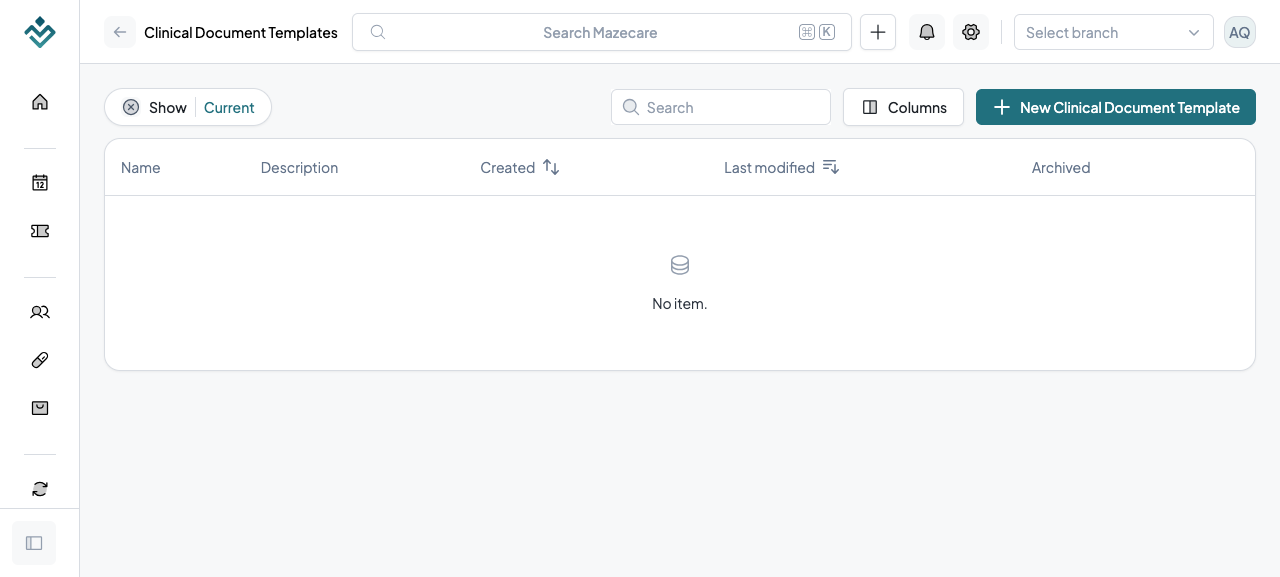
The Clinical Document Template builder provides a collaborative interface for designing standardized clinical narratives.
Creating & Managing Document Templates
- Navigate to Integrations & Settings > Clinical Document Templates.
- Click New Clinical Document Template in the upper-right corner.
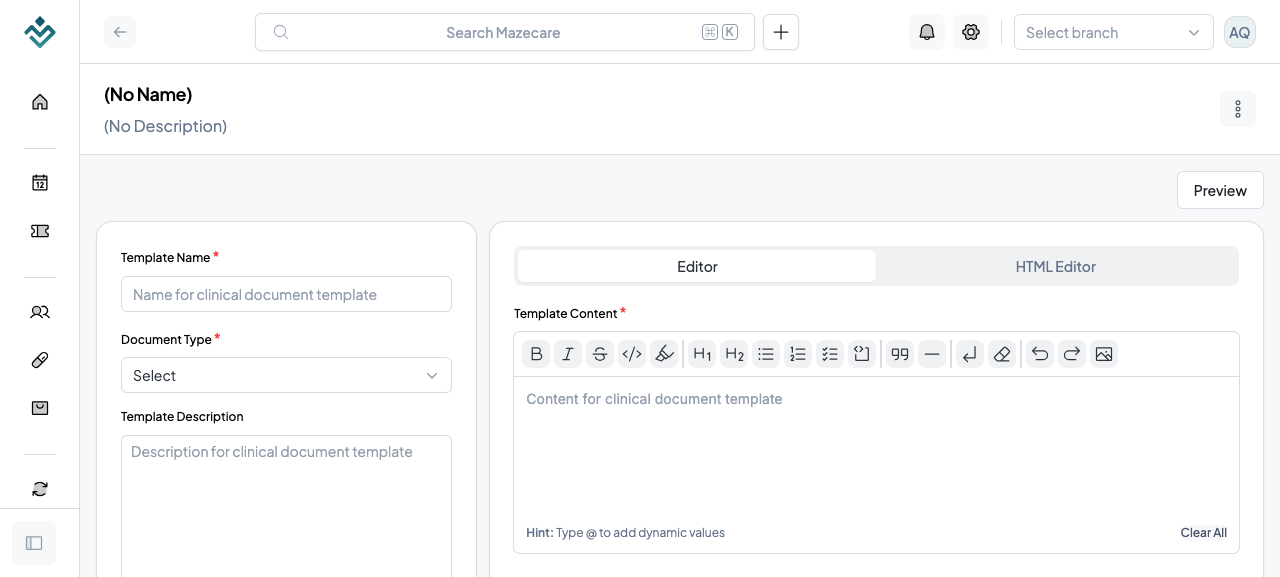
- Configure the essential metadata:
- Template Name: Enter a distinct title (e.g., Standard Inpatient Discharge Summary, Specialist Referral Note).
- Document Type: Select the clinical category (General, Referral, Discharge Summary, Consultation Report, or Consent).
- Template Description: Enter an optional summary for internal clinical teams.
Dynamic Merge Variables & Tags
The templating engine seamlessly binds real-time clinical data from active consultations and patient medical profiles:
| Dynamic Merge Tag | Source Data Model | Rendered Example |
|---|---|---|
{{patientName}} | Patient Demographics | Jane Doe |
{{patientDOB}} | Patient Birth Record | 1988-11-23 |
{{patientEmail}} | Contact Profile | jane.doe@example.com |
{{currentDate}} | Consultation Date / System Clock | 2026-08-18 |
{{providerName}} | Attending Clinician Profile | Dr. Alexander Sterling |
{{specialistName}} | Assigned Specialist Profile | Dr. Victoria Chen |
{{specialistDepartment}} | Specialty Care Department | Cardiology & Electrophysiology |
{{facility}} | Operating Branch / Medical Facility | Mazecare Central Medical Centre |
{{chiefComplaint}} | Patient Intake Symptoms | Persistent retrosternal chest discomfort for 3 days |
{{historyOfPresentIllness}} | Clinical Encounter History | 42-year-old female presenting with exertion-triggered dyspnea... |
{{examinationFindings}} | Vital Signs & Physical Examination | BP: 124/82 mmHg, HR: 74 bpm, Temp: 36.8°C, SpO2: 99% |
{{diagnosis}} | Active Encounter Diagnoses (ICD-10/11) | Essential Hypertension (I10), Hyperlipidemia (E78.5) |
{{medications}} | Active Prescription & Dispensing Records | Amlodipine 5mg OD, Atorvastatin 20mg ON |
{{procedures}} | Encounter Service Requests & Orders | Transthoracic Echocardiogram (TTE), 12-Lead ECG |
{{reasonForReferral}} | Referral Module Specifics | Further evaluation of suspected supraventricular tachycardia |
{{attesters}} | Verified E-Signatures & Attestations | Electronically signed by Dr. Alexander Sterling on Aug 18, 2026 at 10:30 AM |
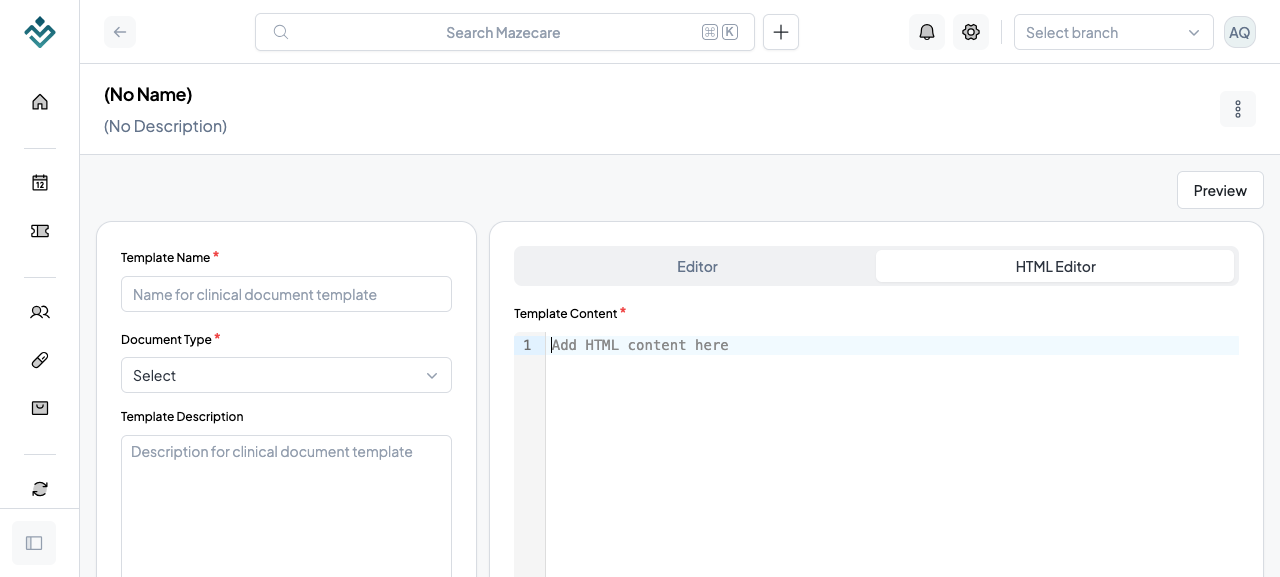
Dual-Mode Editor: WYSIWYG vs. HTML/Liquid
The template builder provides two editing modes depending on complexity:
- Rich Text WYSIWYG Editor: Designed for intuitive drafting with standard formatting toolbars (headings, bold, lists, tables, callouts, and quote blocks).
- HTML & Liquid Code Editor: Full-featured code editor with syntax highlighting, indentation formatting, and conditional logic support (
{% if %},{% for %}).
Clinical Document Print Layouts & Visual Builder
To ensure exported PDFs and printed forms conform to hospital and clinic branding, Mazecare separates visual print geometry from narrative clinical content.
Print Layout Configuration
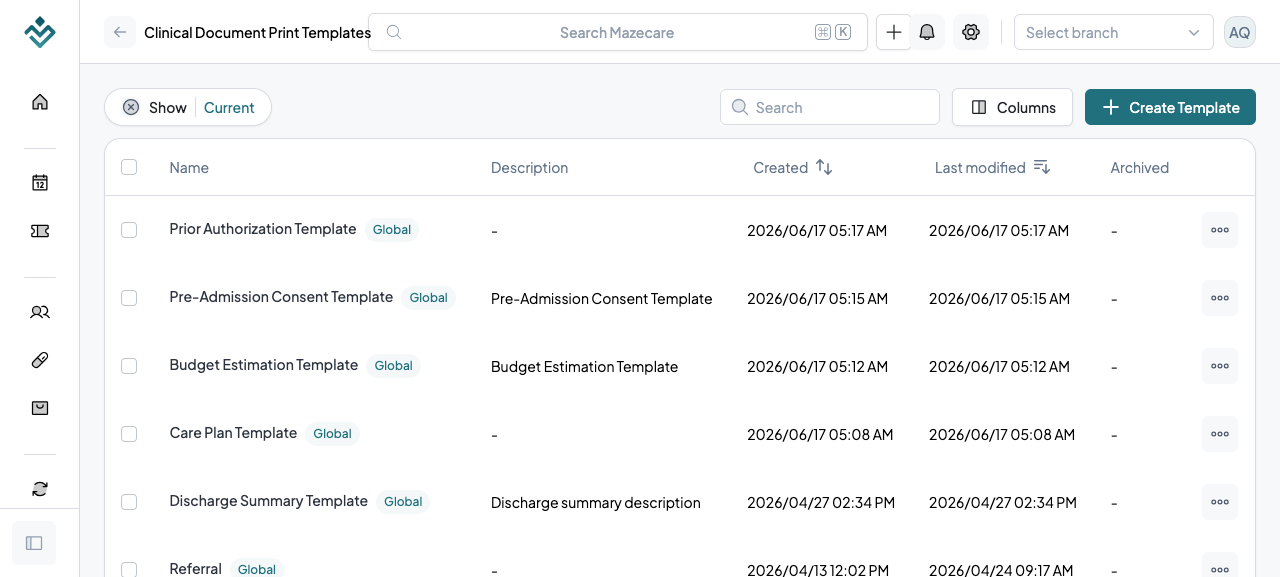
Access print layouts under Integrations & Settings > Clinical Document Print Templates.
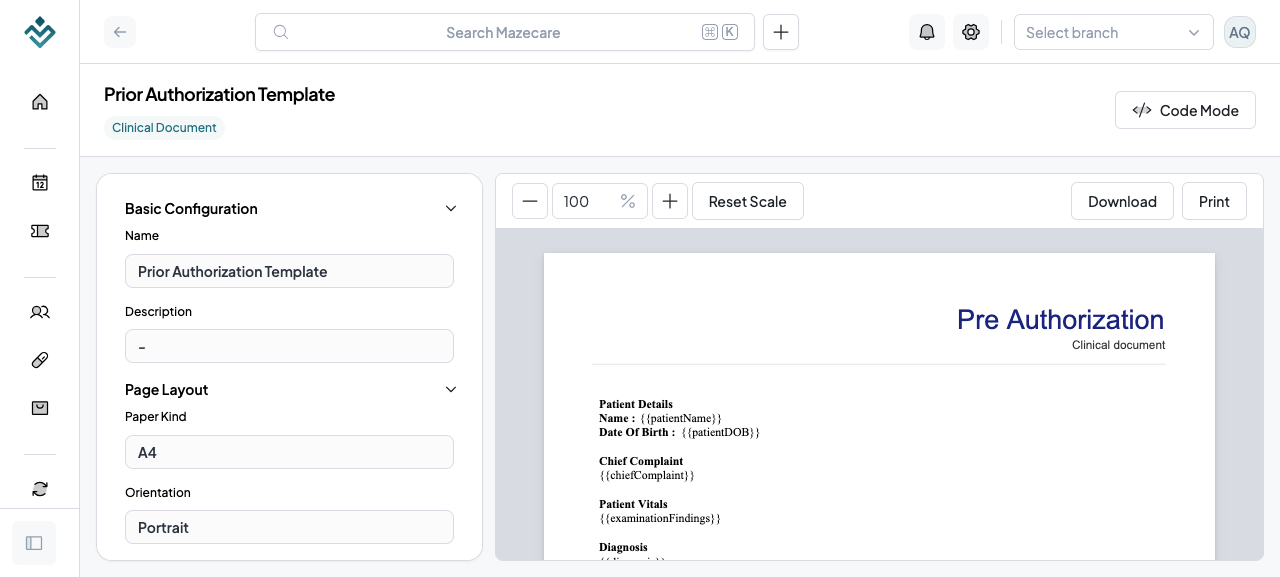
Core Layout Settings
- Basic Configuration:
- Template naming and document orientation (Portrait or Landscape).
- Global typography, primary brand accent colors, and font scaling.
- Page Layout & Paper Size:
- Standard paper media sizes: A4 (
210mm x 297mm), Letter (8.5in x 11in), or A5 (148mm x 210mm). - Page margins (Top, Bottom, Left, Right in millimeters) with automatic page-break calculations.
- Standard paper media sizes: A4 (
- Header & Footer Branding:
- Clinic licensing logo, facility address, telephone, and registration numbers.
- Dynamic page numbering tags (e.g.,
Page [page] of [topage]). - Legal confidentiality notices and institutional disclaimers.
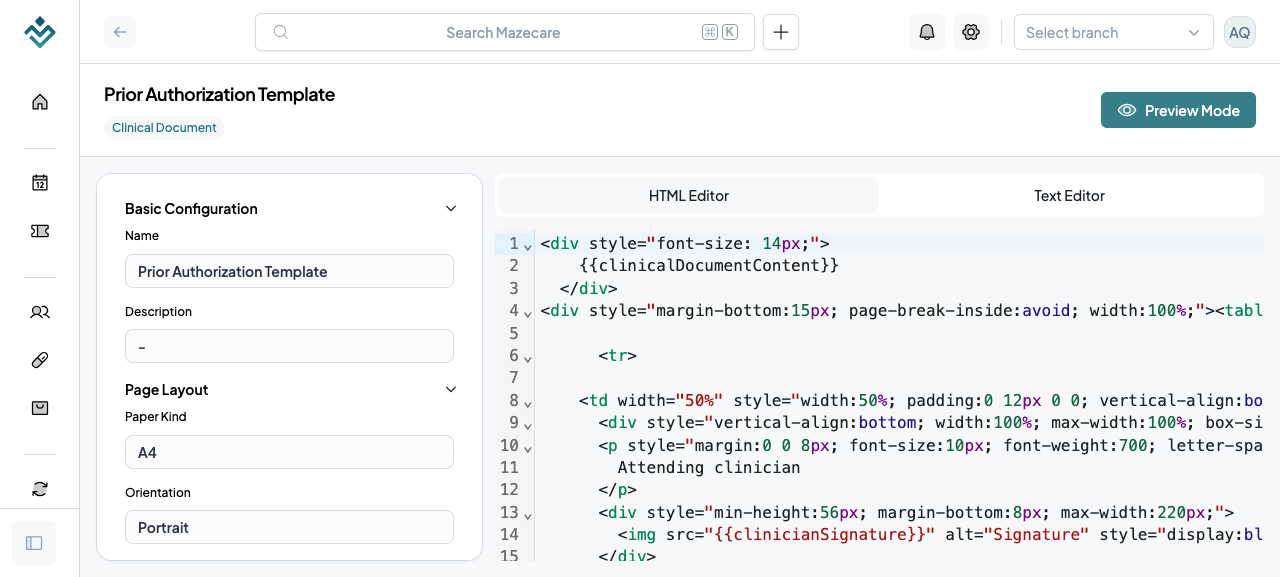
Visual Canvas Body Builder
The visual body builder enables drag-and-drop customization of structured components:
- Surgery Consent & Care Plan Layout: Pre-formatted structured tables with hospital duration, ICU plans, and service request lists.
- Dual Signature Row: Side-by-side attestation blocks with configurable column widths (e.g., 50%/50% or 60%/40%) for clinician and patient signatures.
- Standalone Clinician / Patient Signature: Dedicated digital signature containers with automatic timestamp and license number captions.
- Underline Input Fields: Name, Date, and Free-text underline placeholders with magnetic alignment snaps.
Encounter Workflow & Patient Record Integration
During consultations, doctors and coordinators generate, edit, and sign clinical documents directly within the patient profile.
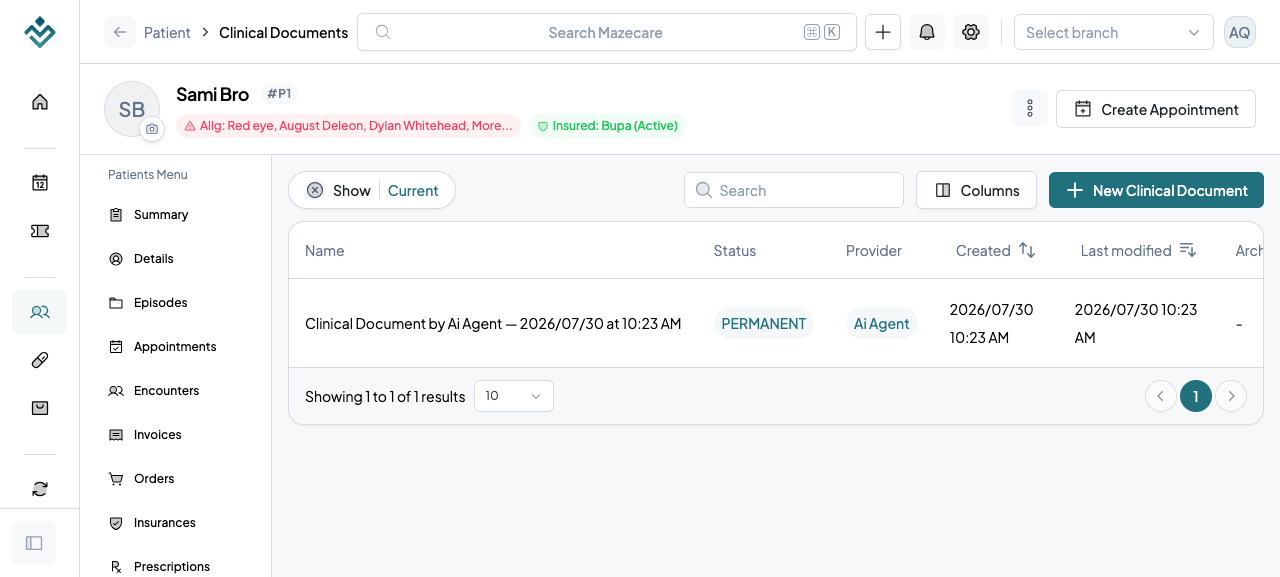
Generating a Clinical Document
- Open a patient record under Patients > Clinical Documents.
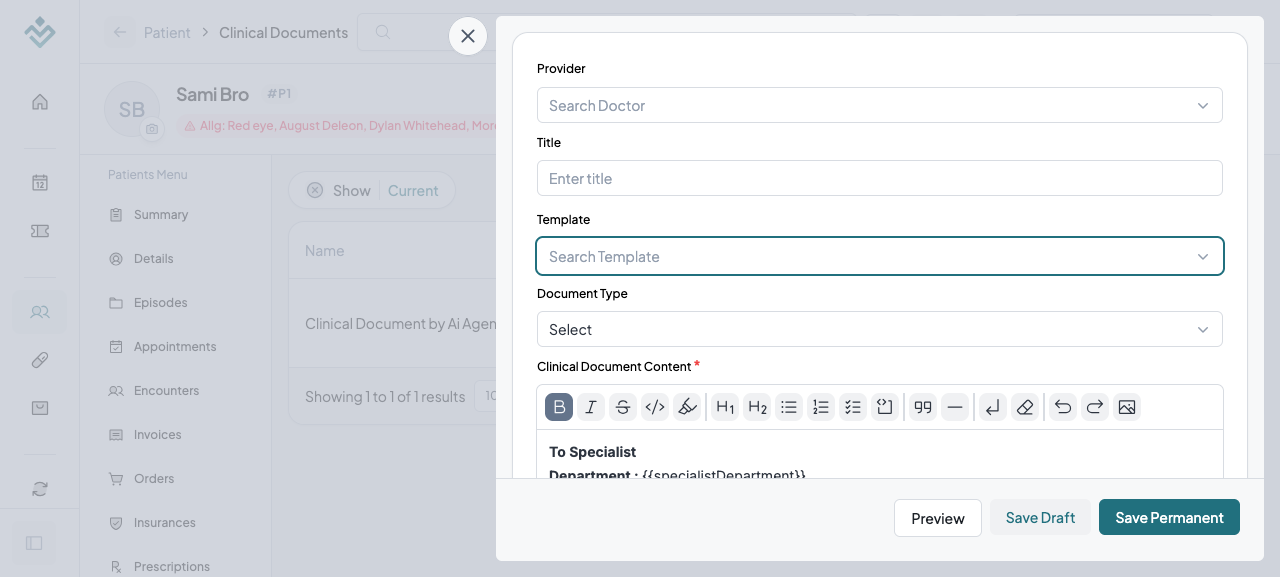
- Click New Clinical Document.
- Select the Template (e.g., Discharge Summary, Referral, Care Plan).
- Review the auto-populated clinical values (Demographics, Vitals, Diagnoses, Medications).
- Add case-specific clinical notes or discharge instructions directly in the document editor.
Draft vs. Permanent Archival
- Save Draft: Saves work-in-progress notes. Drafts remain fully editable and can be updated across multiple consultation shifts.
- Save Permanent: Locks the document against further modifications, applies the doctor's electronic signature and timestamp, and archives the document as a permanent legal medical record.
Document Preview & Export
Click Preview to render the exact pixel-perfect document prior to signing or printing.
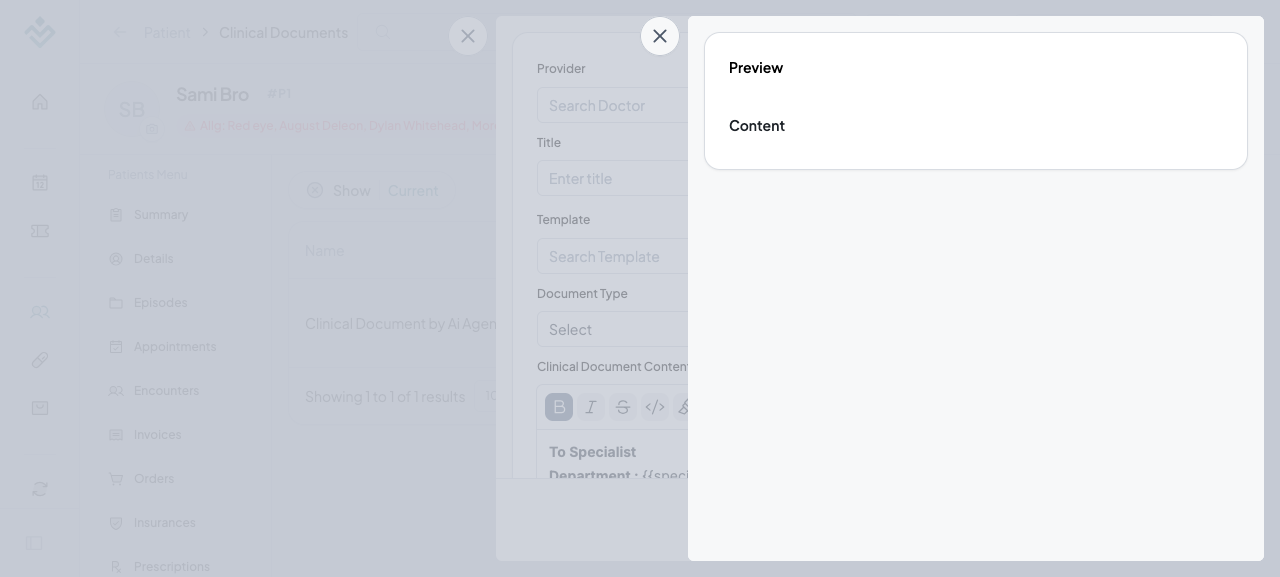
From the preview window, clinicians can immediately:
- Download PDF: Generates a high-resolution PDF document with embedded fonts.
- Direct Print: Sends the document directly to connected clinic laser printers.
- Share to Patient Portal: Publishes signed summaries directly to the patient's authenticated portal.
Best Practices & Clinical Governance
- Standardize Section Headers: Utilize standardized clinical headers (Subjective, Objective, Assessment, Plan - SOAP) across all specialty templates for consistency.
- Review Dynamic Merge Variables: Always verify that required clinical fields (such as diagnoses, active allergies, and medications) are entered into the consultation before generating the document.
- Verify Header/Footer Paper Margins: Ensure adequate top and bottom margins (minimum 15mm) when configuring pre-printed letterheads to avoid overlapping clinic logos with narrative clinical text.
Users & Access Management
Provision staff user accounts, invite team members, assign clinical roles and direct access rights, link practitioner entities, and manage account security in Mazecare OS.
Medical Note & In-App Templates
Configure standardized clinical consultation notes, SOAP documentation structures, quick macros, and automated in-app notifications for healthcare teams in Mazecare.