Staff Roles & Access Management
Mazecare enforces role-based access control and permission policies to manage access across all operational, clinical, and administrative modules. Operational rights, clinical records, and financial ledgers are strictly governed based on staff member identity, assigned roles, and facility boundaries.
!IMPORTANTOrganization Administrator Provisioning By default, the first user created upon onboarding a new organization is provisioned as the Super Admin of that organization. The Super Admin possesses unrestricted master permissions across all clinic branches, user management, role configuration, clinical templates, and financial ledger exports.
Roles & Access Management Overview
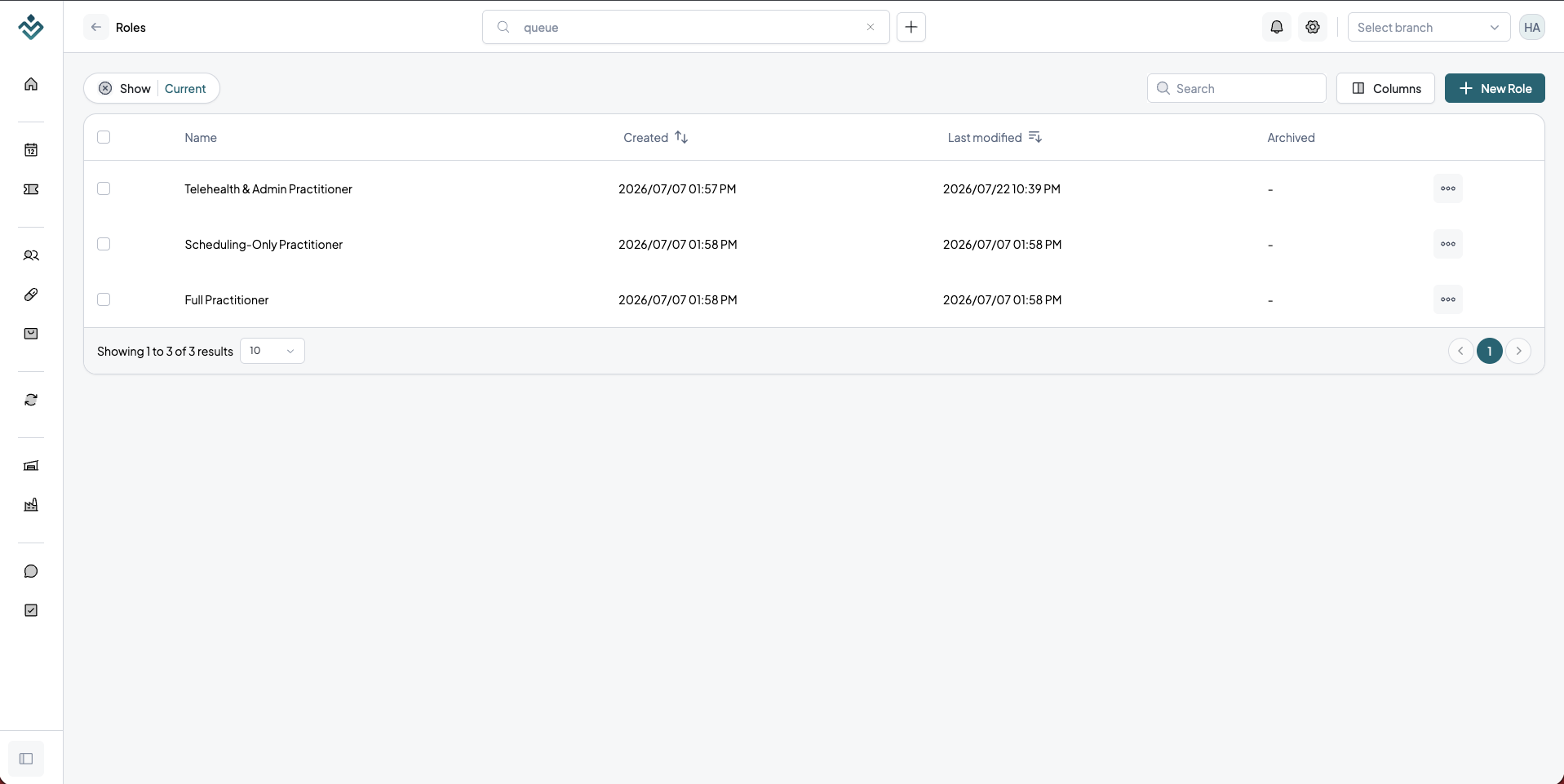
Administrators can inspect all active and archived roles from the Roles dashboard. Each role combines one or more granular access policies and maps them to staff accounts.
Creating a Permission Role
Custom permission roles can be tailored to any clinical or administrative workflow. To launch the creation wizard, navigate to Settings > Access Management > Roles and click New Role.
Step 1: Role Details
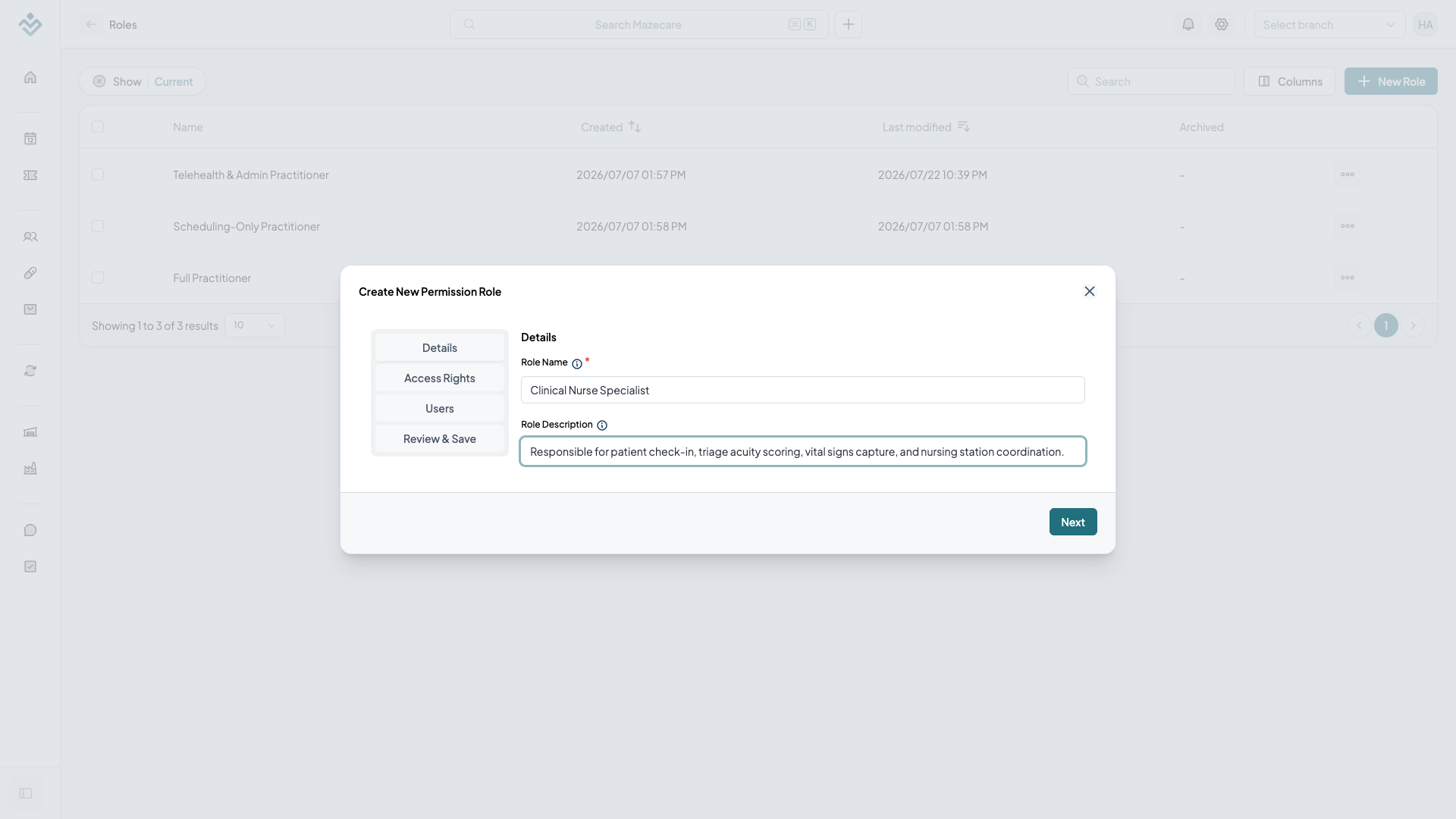
Define the role's primary identification and purpose within your healthcare facility:
- Role Name: A concise, descriptive identifier for the operational position (e.g.,
Clinical Nurse Specialist,Triage Officer,Billing Lead). - Role Description: Operational scope outlining responsibilities, facility access expectations, or clinical duties.
Step 2: Access Rights (Permission Policies)
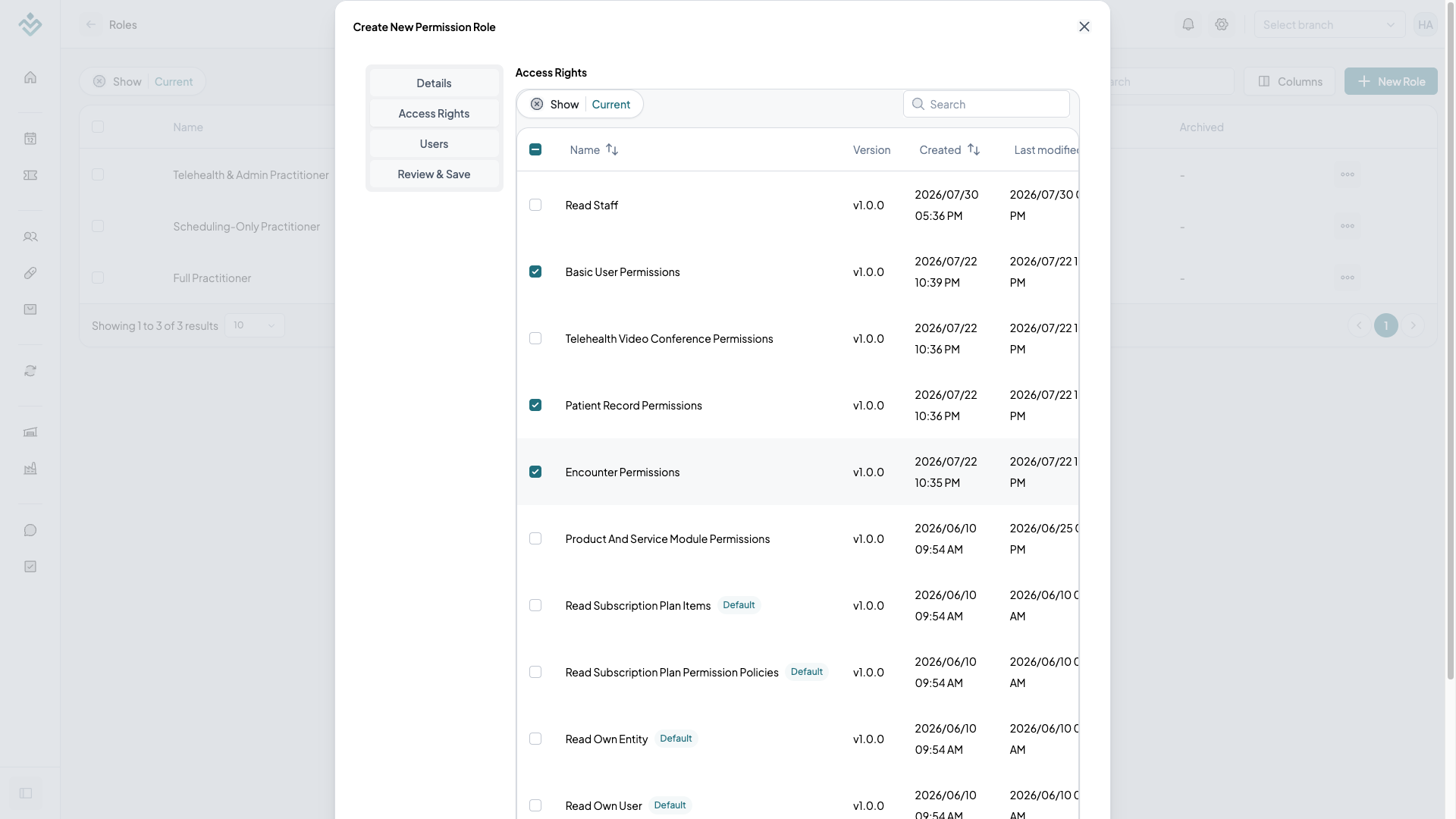
Attach granular permission policies that dictate which actions and modules this role is authorized to access.
- Browse through available system policies (such as
Basic User Permissions,Patient Record Permissions,Encounter Permissions,Read Staff, andProduct And Service Module Permissions). - Select the checkboxes corresponding to the exact privileges required for the role.
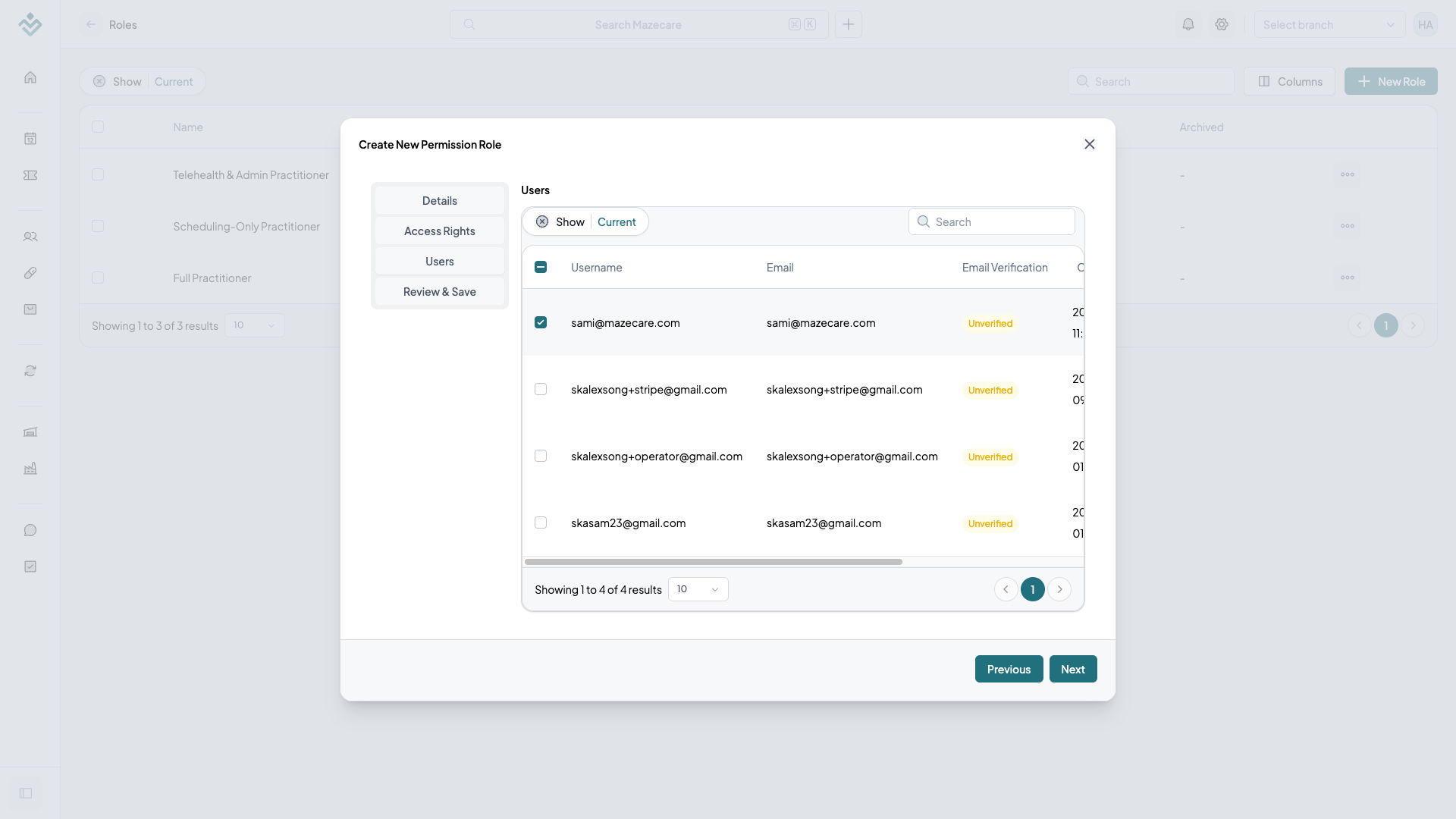
Step 3: Assign Users
Optionally attach existing staff members and user accounts directly to this new role during setup:
- Search and select from the list of registered clinic users.
- Multiple practitioners and operational staff can be linked in a single workflow.
Step 4: Review & Save
The final step provides a consolidated summary of the configured role parameters:
- Verify the Role Name and Description.
- Confirm the Selected Access Rights and attached Users.
- Click Save to persist the role and immediately apply the policy rules across the workspace.