

Procedures, Specialties & Clinical Taxonomy Tags
The Procedures, Specialties & Clinical Taxonomy Tags configuration suite provides healthcare organizations with standardized medical vocabularies, clinical coding frameworks, departmental classifications, and visual operational tags. By standardizing these taxonomies, clinical teams ensure consistent electronic health record (EHR) documentation, accurate fee schedule billing, streamlined appointment scheduling, and robust clinical audit trails across all facilities.
Core Modules
- Procedure Catalog (
/settings/procedures): Master directory of medical, surgical, diagnostic, and therapy procedures mapped to standard clinical vocabularies (such as CPT, SNOMED CT, and UCUM) and linked to service pricing. - Medical Specialties Taxonomy (
/settings/specialities): Hierarchical clinical departments and practitioner specialty classifications governing clinician directory indexing, referral routing, and scheduling queues. - Medication Administration Codes (
/settings/medication-codes): Structured drug administration vocabularies defining routes, anatomical application sites, administration methods, dosage timing frequencies, and HL7/ATC scale codes. - Operational & Tagging Taxonomies:
- Appointment Tags (
/settings/appointment-tags): Color-coded categorization tags for booking prioritization, VIP status, visit types, and schedule visibility. - Clinical Note Tags (
/settings/medical-note-tags): Metadata tags attached to SOAP notes and medical records for specialty tagging and rapid chart filtering. - Article Version Tags (
/settings/article-version-tags): Semantic revision and compliance tags for clinical knowledge base articles and institutional standard operating procedures (SOPs).
- Appointment Tags (
Procedure Catalog Management
The Procedure Catalog serves as the single source of truth for all clinical interventions, minor surgeries, diagnostic scans, and preventive evaluations performed within your medical practice.
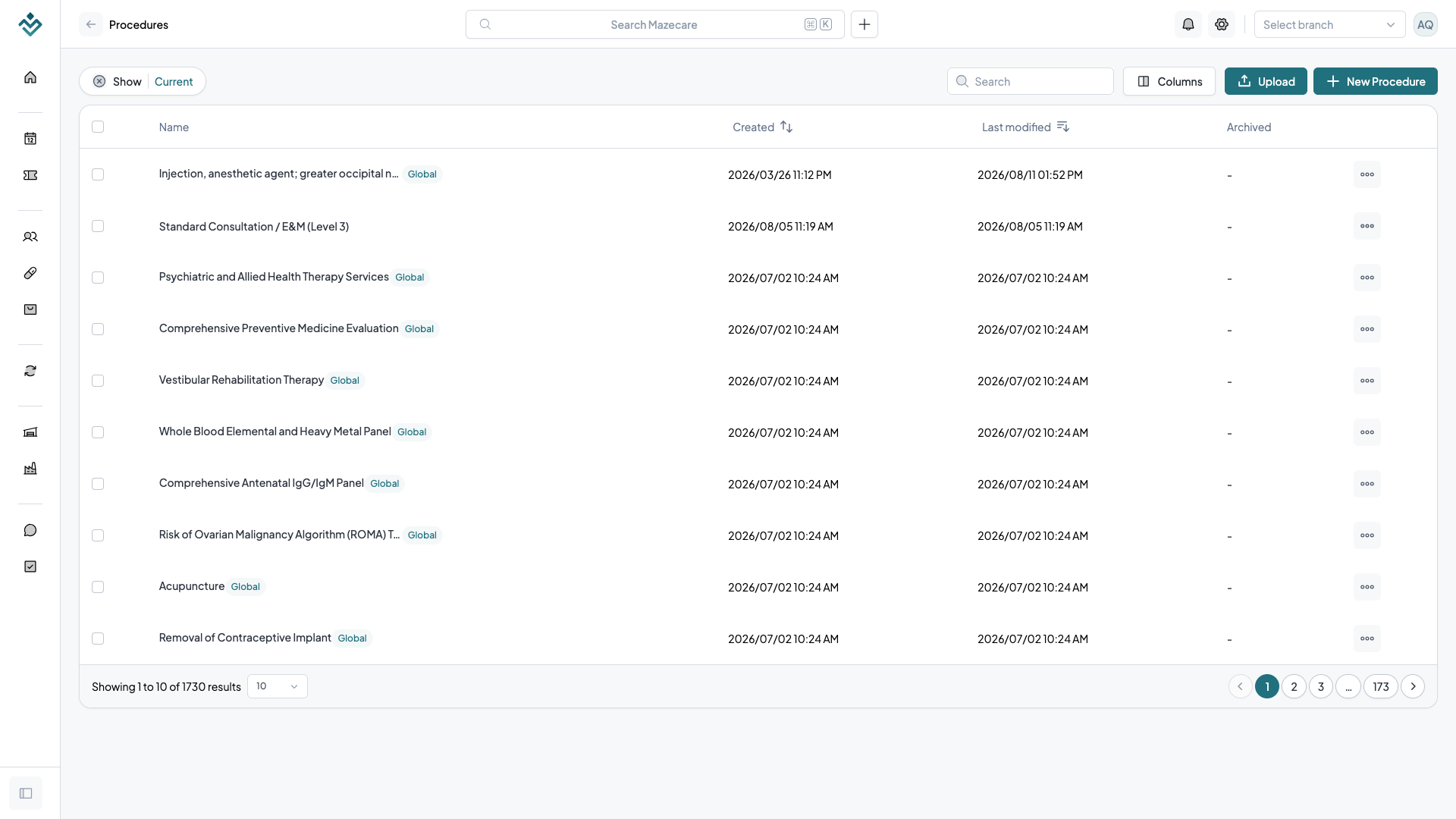
Creating a Clinical Procedure Item
To register a new procedure in your clinic's catalog:
- Navigate to Integrations & Settings > Procedures (
/settings/procedures). - Click New Procedure in the top-right toolbar.
- In the configuration modal, specify the procedure details and coding identifiers:
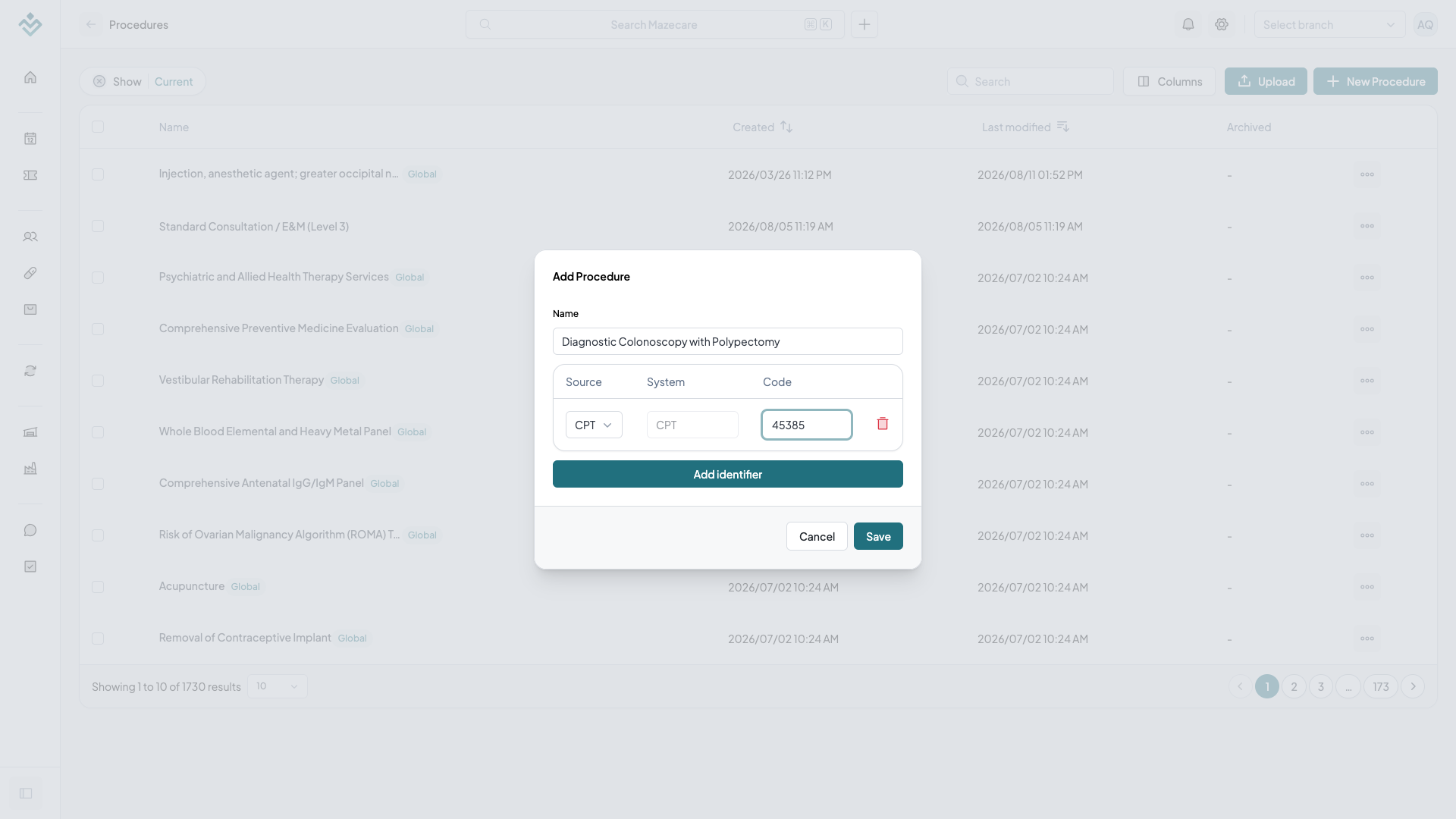
| Configuration Field | Description | Example Value |
|---|---|---|
| Procedure Name | The standardized clinical or commercial title of the procedure. | Diagnostic Colonoscopy with Polypectomy |
| Identifier Source | The terminology system used for classification (Custom, CPT, SNOMED CT, or UCUM). | CPT / SNOMED CT |
| System | The formal vocabulary namespace or coding authority (automatically populated for standard systems). | CPT or SNOMED CT |
| Code | The specific alphanumeric code corresponding to the procedure in the selected coding system. | 45385 (CPT) or 73761001 (SNOMED CT) |
- Click Add Identifier if you need to attach multiple cross-referenced coding standards (for example, combining a national billing code with a global clinical terminology code).
- Click Save to publish the procedure item to your catalog.
Medical Specialties Taxonomy
Medical specialties define the clinical disciplines and departments represented across your medical centers, guiding provider profiles, department-level appointment booking, and multi-specialty clinical workflows.
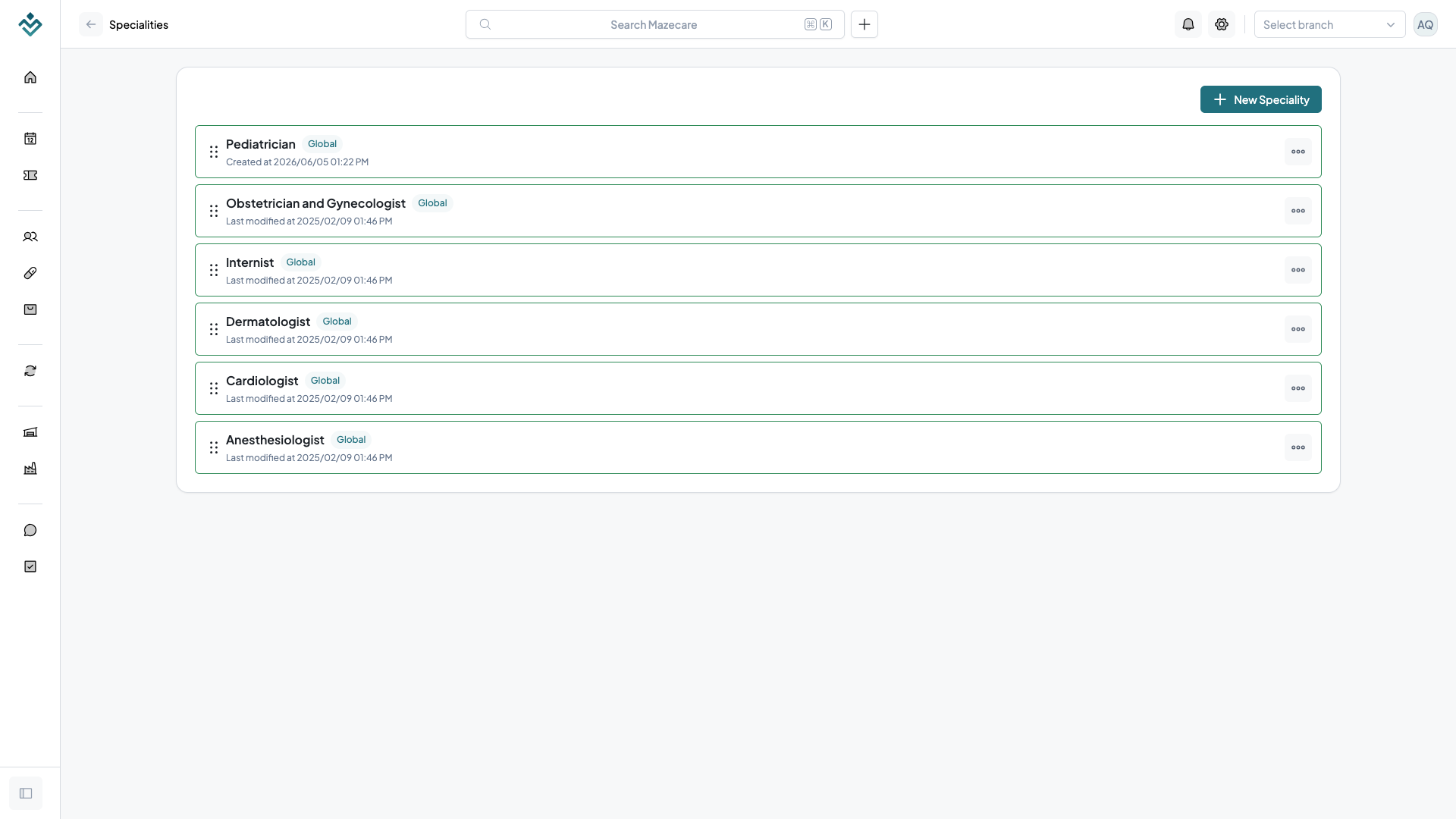
Creating & Ordering Medical Specialties
- Navigate to Integrations & Settings > Specialities (
/settings/specialities). - Click New Speciality in the upper-right corner.
- In the dialog, enter the department or specialty name:
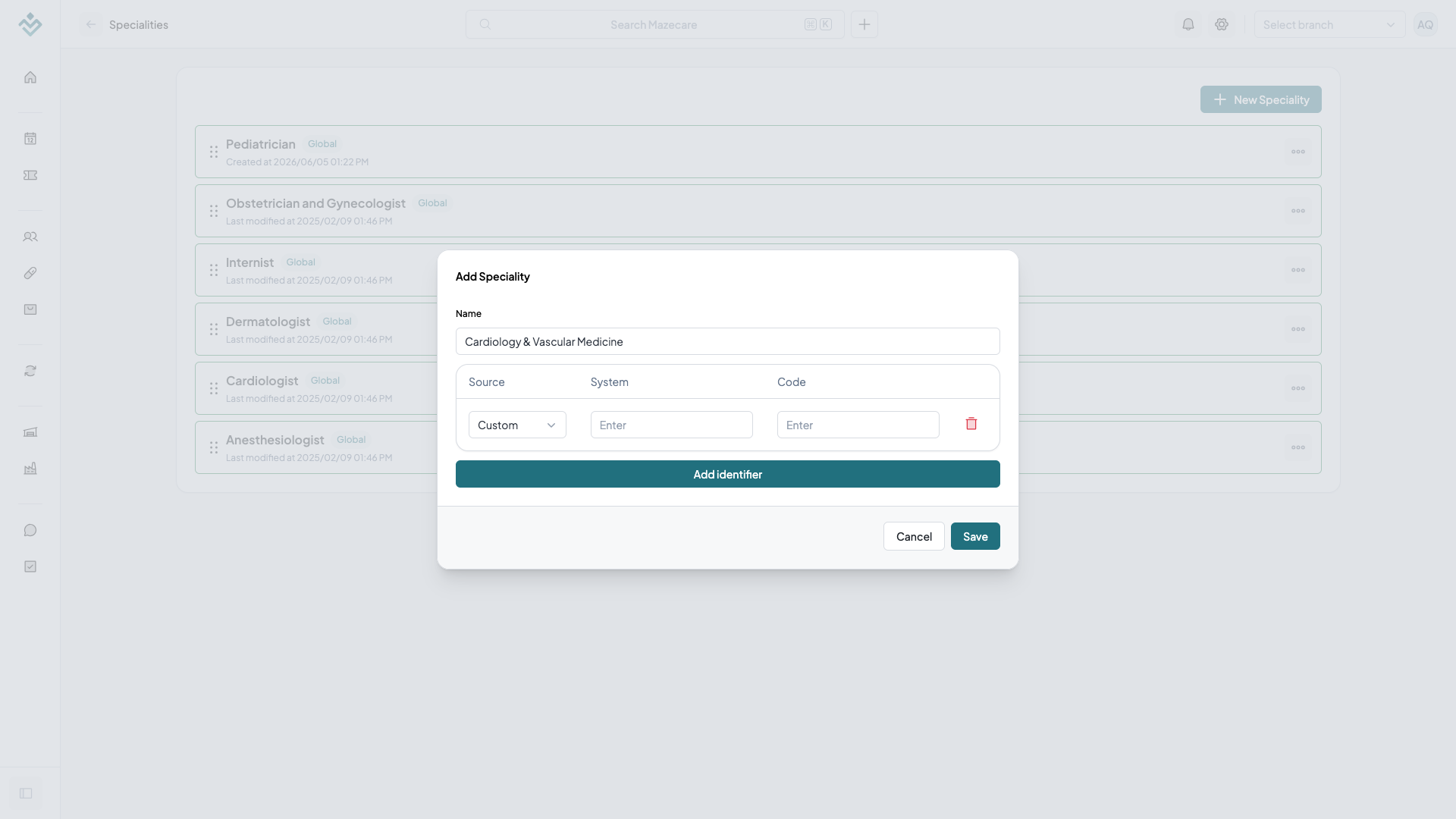
| Attribute | Purpose | Example |
|---|---|---|
| Speciality Name | The official display name of the clinical specialty or medical division. | Cardiology & Vascular Medicine |
| Terminology Identifiers | Standard SNOMED CT specialty concept codes or internal department references. | SNOMED CT: 394579002 (Cardiology) |
- Click Save to persist the specialty.
- Reordering Specialties: On the main Specialties list, click and drag the drag handle next to any specialty row to adjust its priority rank. The custom rank determines the display order in provider search filters, online booking portals, and clinical dropdowns.
Medication Administration Codes
The Medication Codes module provides standardized vocabulary definitions for prescription instructions, dosing frequencies, anatomical administration routes, and timing rules.
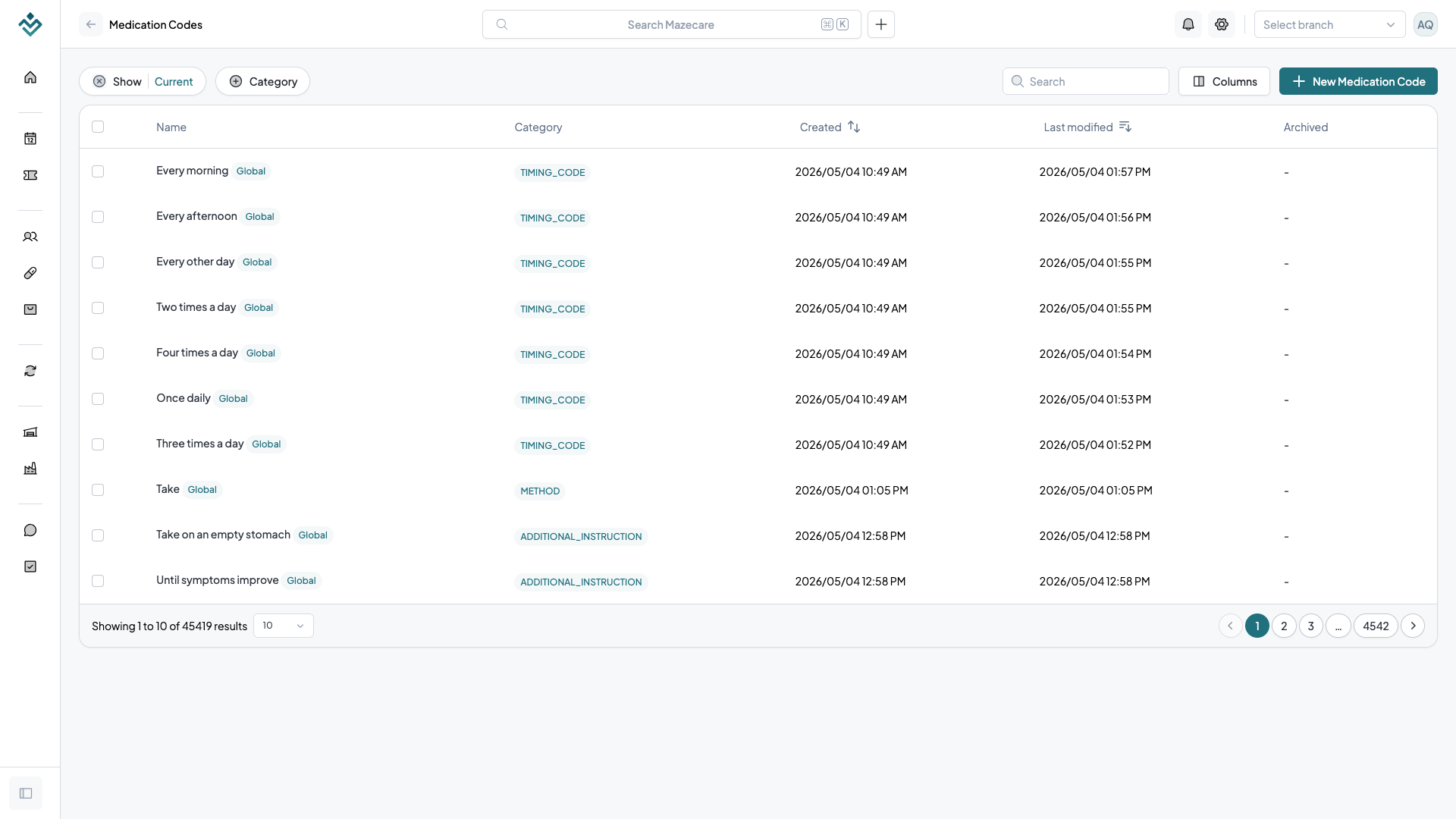
Medication Code Categories
Medication codes are organized into standardized functional categories:
| Category | Clinical Function | Common Examples |
|---|---|---|
| Timing Code | Dosing intervals and standardized frequency schedules. | Once daily, Two times a day, Every morning, Every other day |
| Route | Physiological path through which medication is administered. | Oral, Intravenous (IV), Subcutaneous (SC), Topical, Inhalation |
| Method | The physical action or technique for drug administration. | Swallow, Apply, Inhale, Inject, Dissolve |
| Site | Specific anatomical body location for medication application. | Left Eye, Right Deltoid, Abdomen, Upper Arm |
| Additional Instruction | Precautionary guidelines and contextual directives. | Take on an empty stomach, Take with food, Until symptoms improve |
| As Needed For | Clinical indication or symptom trigger for PRN medications. | Pain relief, Fever, Nausea, Shortness of breath |
Configuring Timing & Scale Code Rules
Click on any medication code row to view and configure its underlying clinical scale rules and timing parameters:
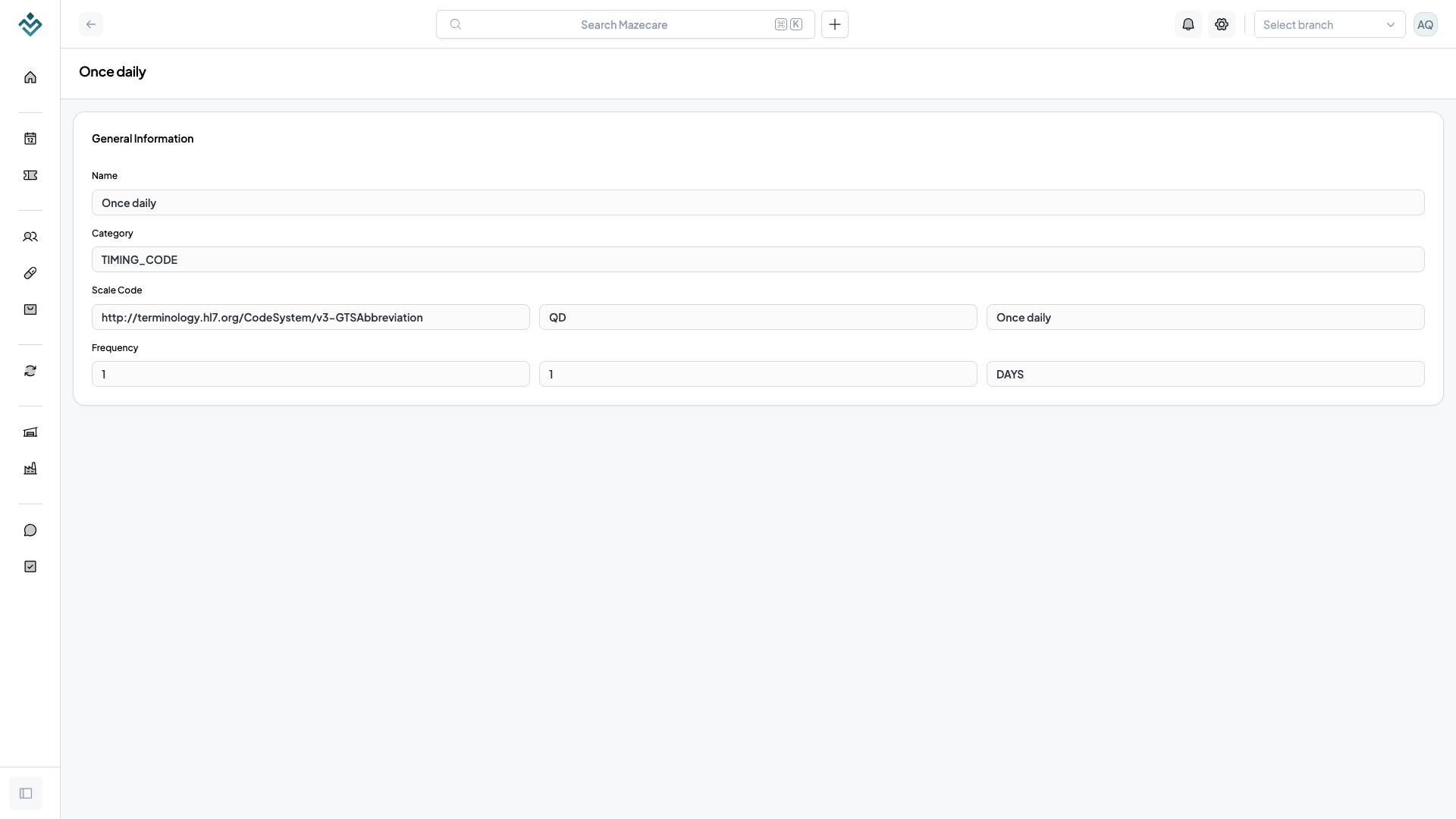
Scale Code & Timing Parameters
- Category: Classifies the instruction type (e.g.,
TIMING_CODE,ROUTE,METHOD). - Scale Code System: The interoperability terminology system URL (such as
http://terminology.hl7.org/CodeSystem/v3-GTSAbbreviation). - Scale Code: The standard abbreviation or symbol (e.g.,
QDfor once daily,BIDfor twice daily,TIDfor three times daily). - Display Text: The human-readable label displayed to patients on prescription printouts and medication labels.
- Frequency: The numeric count of administrations per cycle (e.g.,
1dose). - Period & Unit: The recurrence cycle duration and time unit (e.g.,
1DAYS,8HOURS,1WEEKS).
Operational & Workflow Tagging Taxonomies
Visual color-coded tags streamline clinical operations by highlighting patient priority, appointment nature, medical record categories, and documentation revision stages.
1. Appointment Tags (/settings/appointment-tags)
Appointment tags allow receptionists, doctors, and nurses to classify scheduled calendar bookings at a glance.
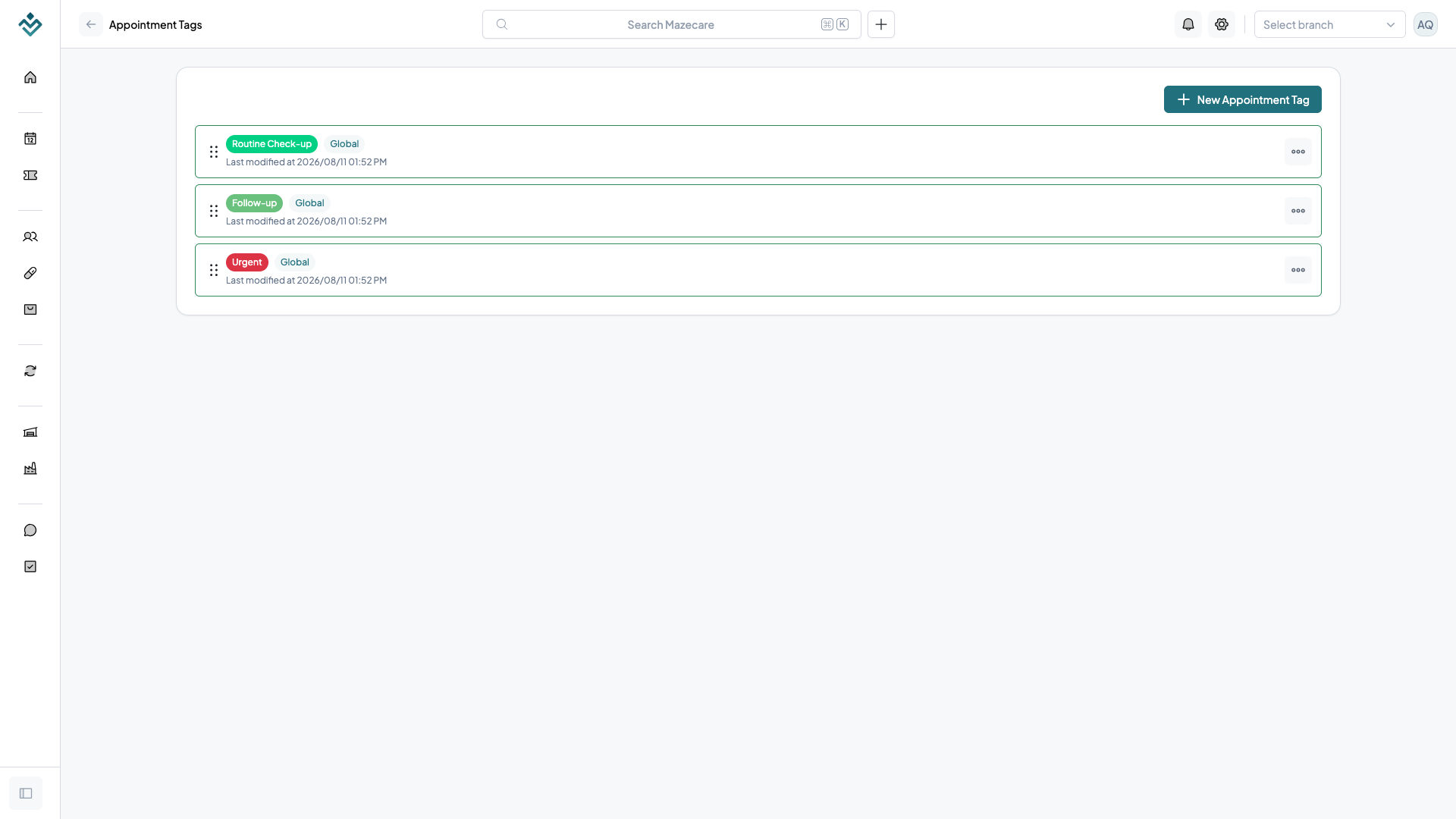
To configure a new appointment tag:
- Navigate to Integrations & Settings > Appointment Tags (
/settings/appointment-tags). - Click New Appointment Tag.
- Enter the tag name and select an accent color using the integrated color picker or hex input:
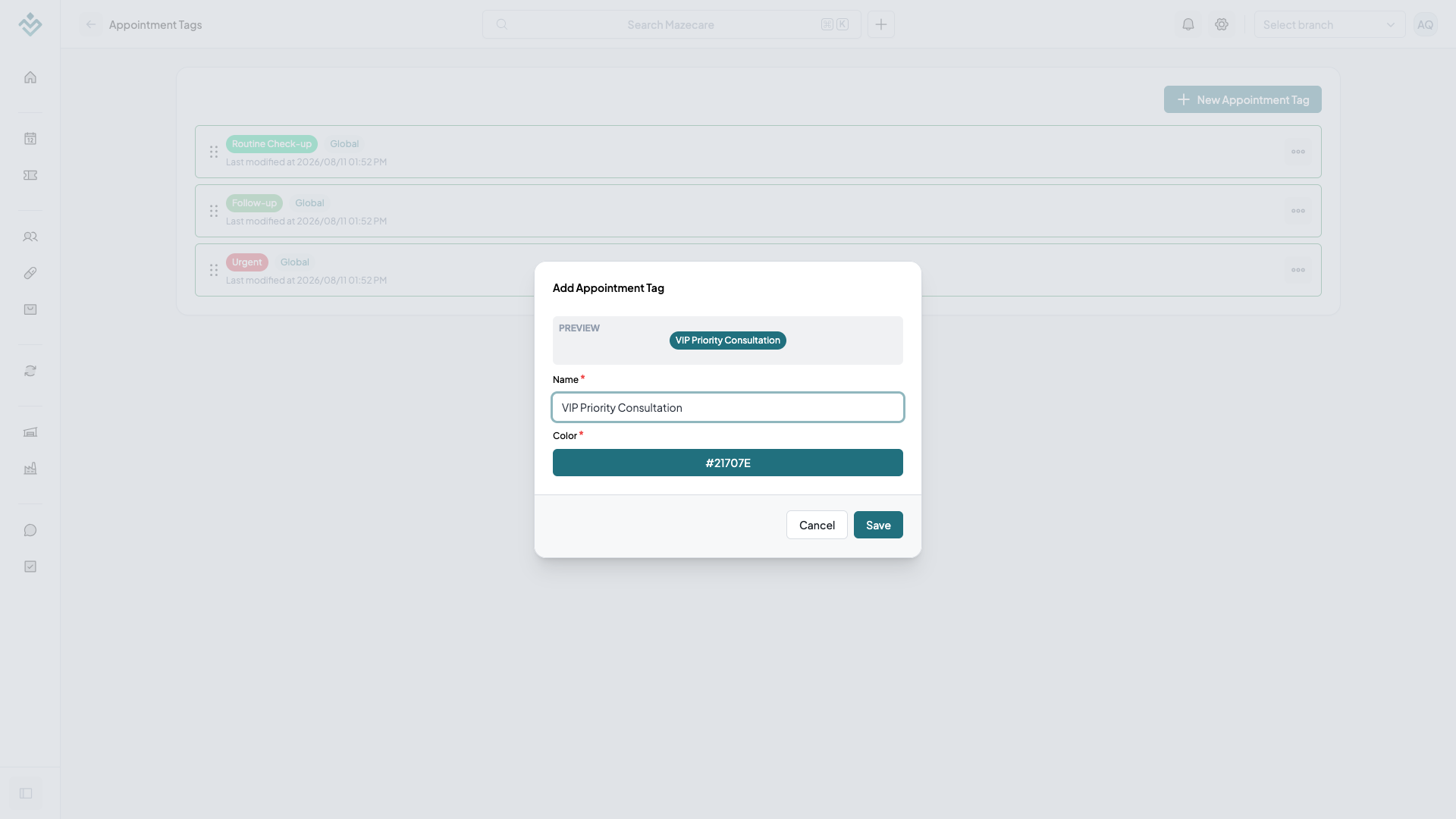
- Tag Name: Enter an intuitive descriptor (e.g., VIP Priority Consultation, First Visit, Procedure Booking, Follow-up Teleconsult).
- Color Accent: Select a high-visibility badge color to differentiate appointments on the calendar grid.
- Rank Ordering: Drag and drop tags on the list view to control tag sorting in booking dropdown menus.
2. Clinical Note Tags (/settings/medical-note-tags)
Clinical Note tags categorize electronic medical records, consultation notes, and SOAP assessments for rapid retrieval during patient care.
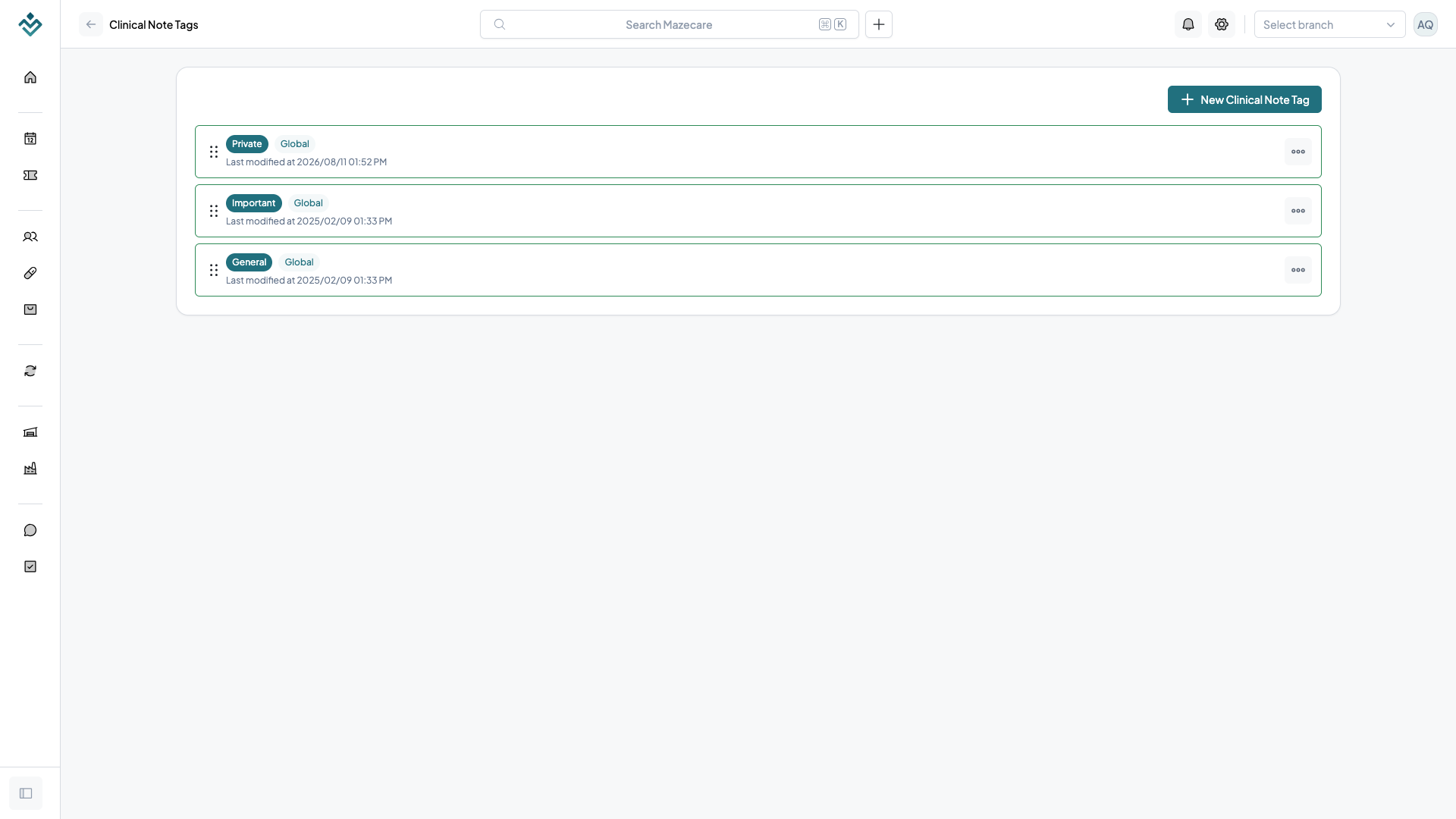
To create a clinical note tag:
- Navigate to Integrations & Settings > Clinical Note Tags (
/settings/medical-note-tags). - Click New Clinical Note Tag.
- Specify the tag title and theme badge color:
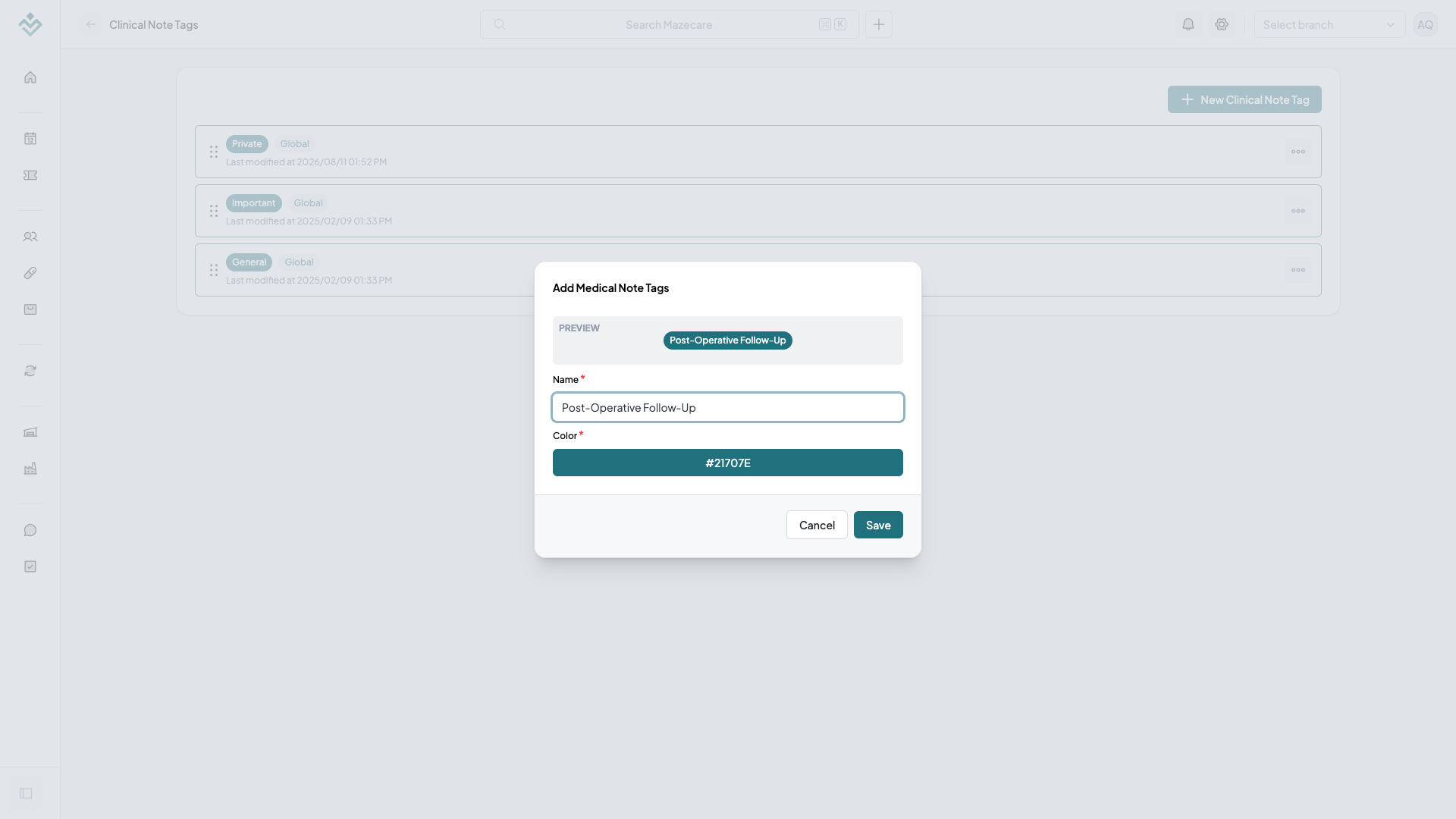
- Tag Examples: Post-Operative Follow-Up, Chronic Disease Management, Urgent Triage, Telehealth Consultation.
- Chart Filtering: Clinicians can filter longitudinal patient histories by note tag to view all relevant specialty assessments in one focused timeline view.
Best Practices for Clinical Master Data Management
- Standardize Medical Vocabularies: Always bind global standard identifiers (CPT, SNOMED CT, HL7, UCUM) to catalog items. This ensures seamless interoperability with diagnostic laboratories, national insurance payers, and health information exchanges (HIE).
- Harmonize Color Coding: Assign distinct color palettes to appointment and note tags according to urgency levels (e.g., Red for Urgent/Emergency, Amber for Follow-up, Green for Routine, Blue for VIP).
- Audit Active Tags Periodically: Archive obsolete procedure codes and retired tags rather than renaming active ones to maintain historical integrity across finalized medical records and invoices.
- Maintain Ordered Ranks: Review specialty and tag ranks regularly so that high-volume departments and frequently used tags appear at the top of clinician selection menus.
Frequently Asked Questions
Vaccination & Immunization
Manage systemic vaccine catalogs, national immunization schedules, pediatric milestones, clinical encounter administration, and lot batch traceability in Mazecare.
Maze.care Listing
How to configure and list your branches, doctors, service offerings, and appointment schedules on the public Maze.care directory to enable patient self-booking.