

Medical History, Allergies & Clinical Records
As a clinician, you review and maintain the patient's longitudinal health data from the Records tab of their profile. It groups allergies, clinical notes, documents, lab results, radiology, vaccines, and per-metric vital sign flowsheets into one records menu, so what you record here follows the patient into every future encounter.
Step-by-Step Clinical Guide
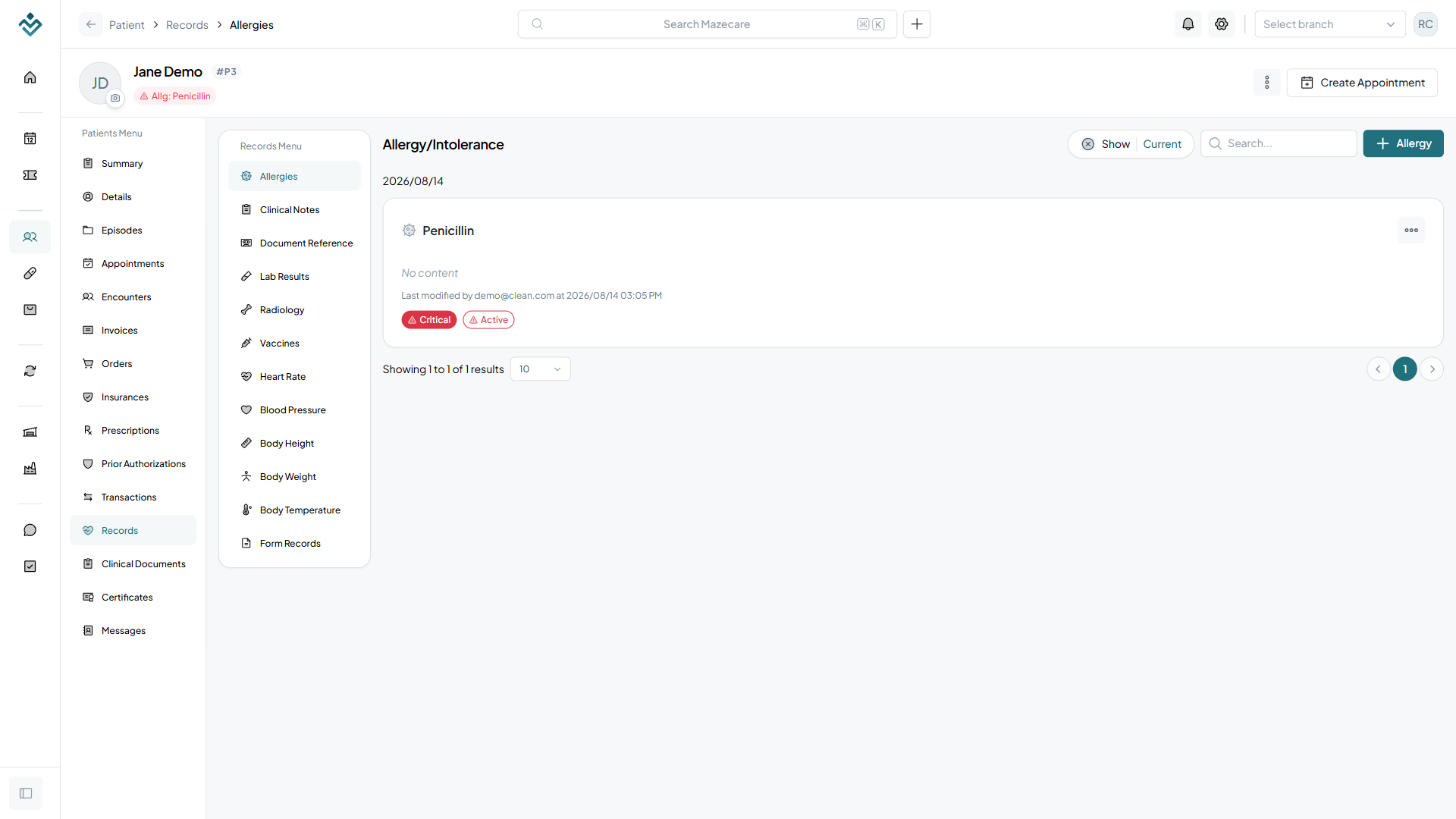
Step 1: Open the Patient's Records
- Navigate to Patients (
/patients) and open the patient profile. - Click Records in the patient menu. The view opens on Allergies (
/patients/[patientId]/records/allergies). - The Records Menu offers: Allergies, Clinical Notes, Document Reference, Lab Results, Radiology, Vaccines, Heart Rate, Blood Pressure, Body Height, Body Weight, Body Temperature, and Form Records.
Step 2: Record Allergies & Intolerances
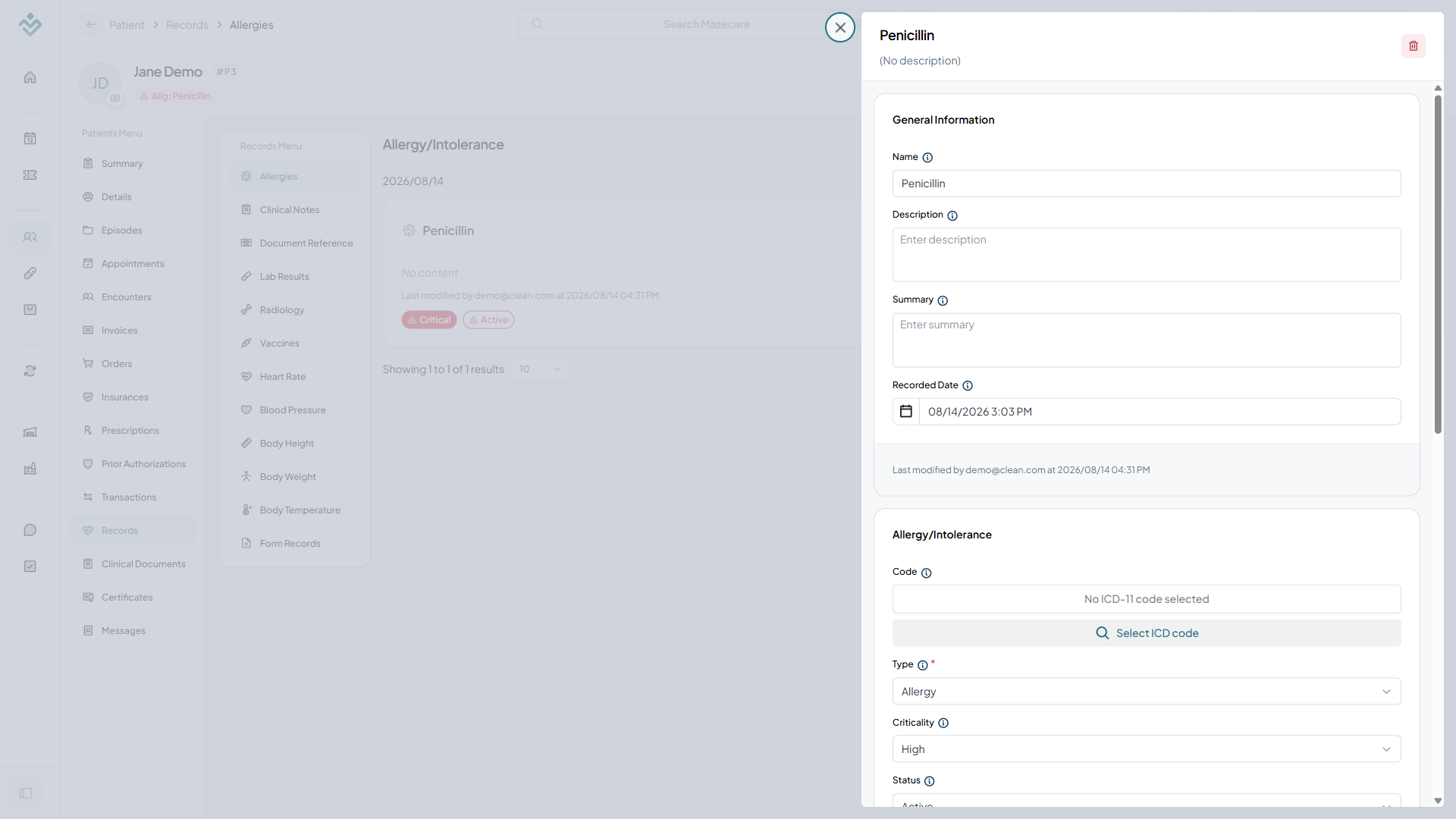
- In the Allergy/Intolerance panel, click Allergy. A new record is created and opens in a slideover.
- Under General Information, name the allergen (e.g. Penicillin) and optionally add a description, summary, and recorded date.
- Under Allergy/Intolerance, classify the record:
- Code: bind an ICD-11 code via Select ICD code.
- Type: Allergy or Intolerance.
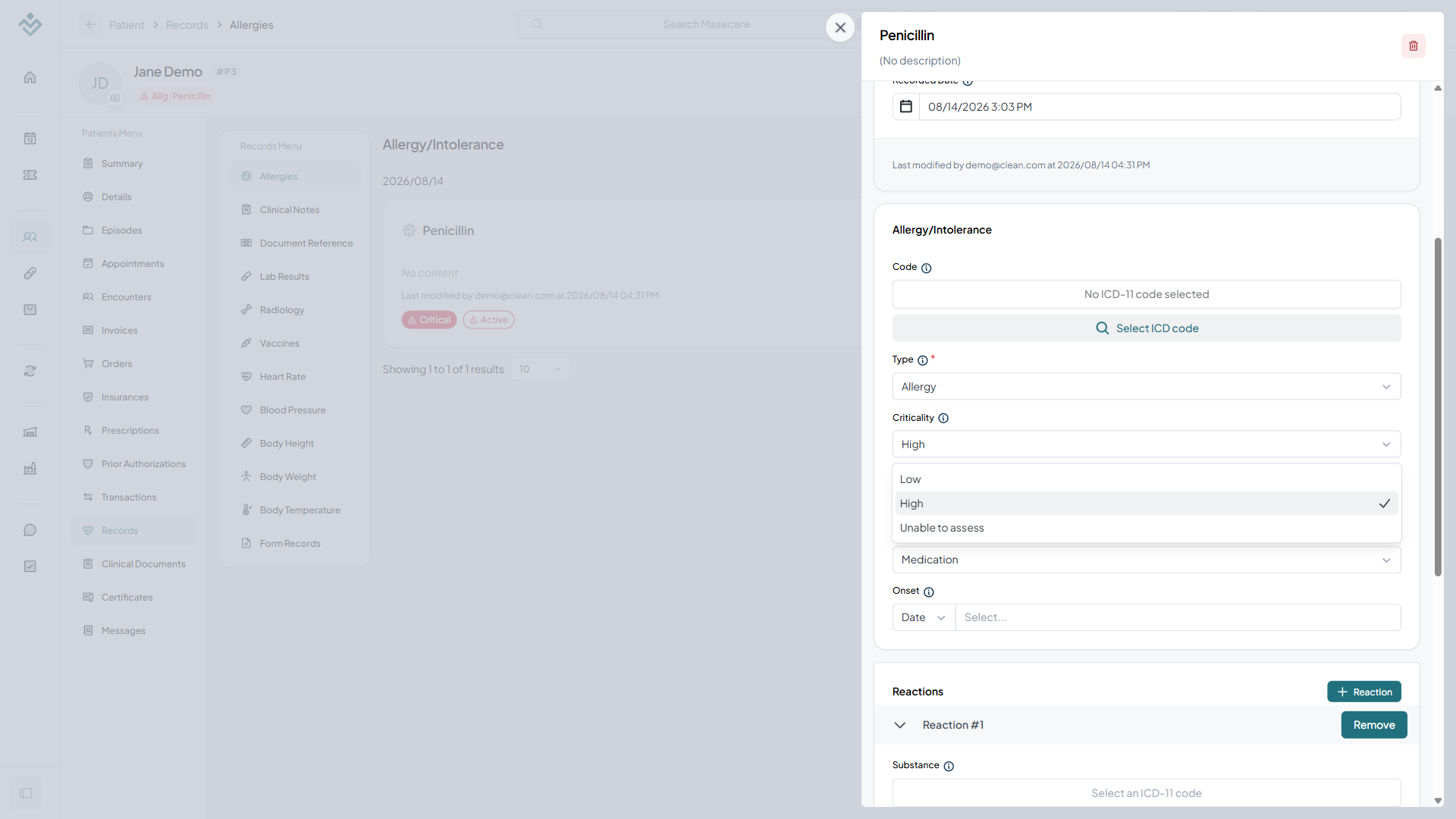
- Criticality: Low, High, or Unable to assess.
- Status: Active, Inactive, or Resolved.
- Category: Biologic, Environment, Food, or Medication.
- Onset: when the allergy first appeared.
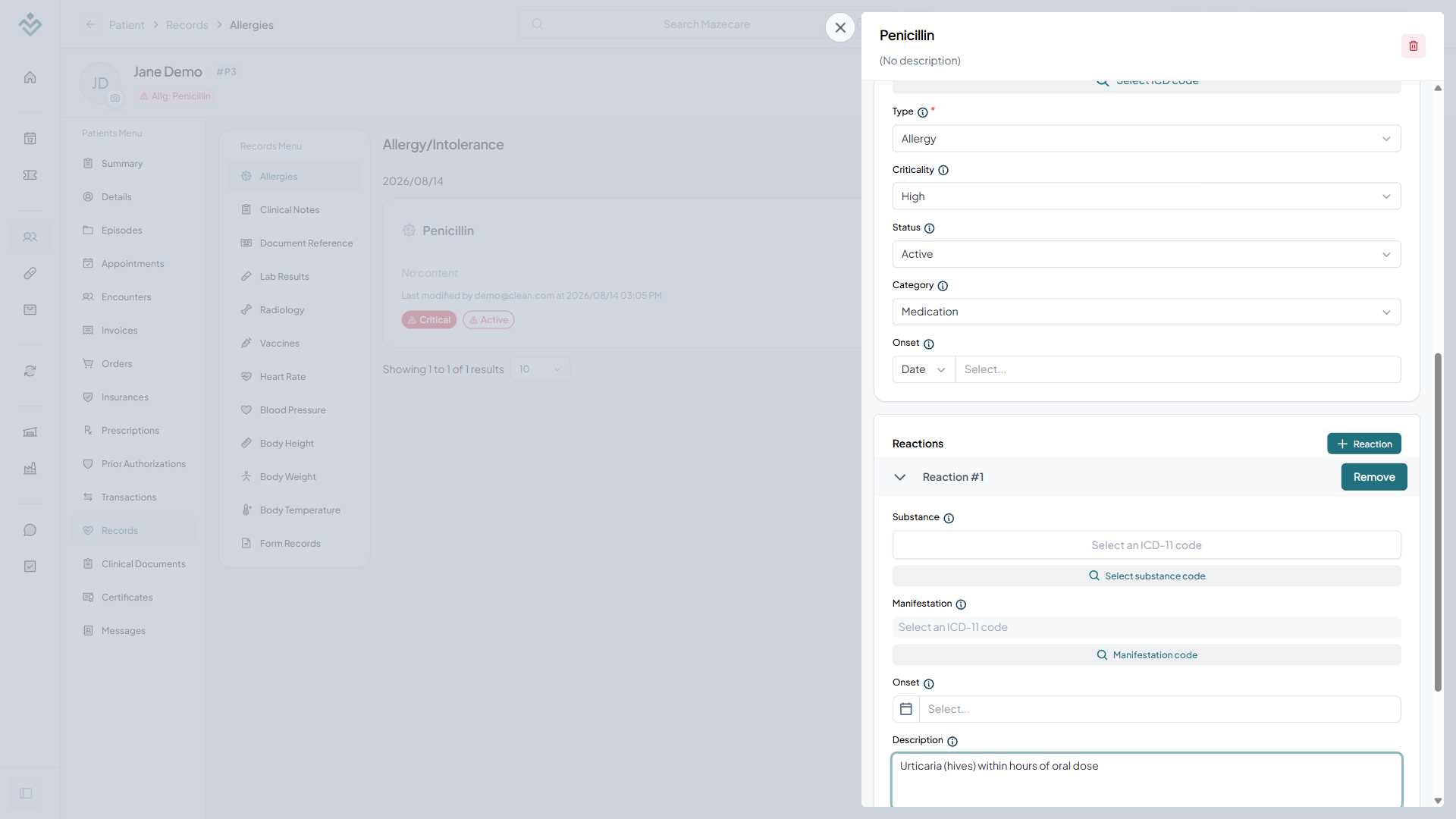
- Click Reaction to document each reaction, coding the Substance and Manifestation with ICD-11 plus an onset and description. Supporting scans can be attached with Upload file.
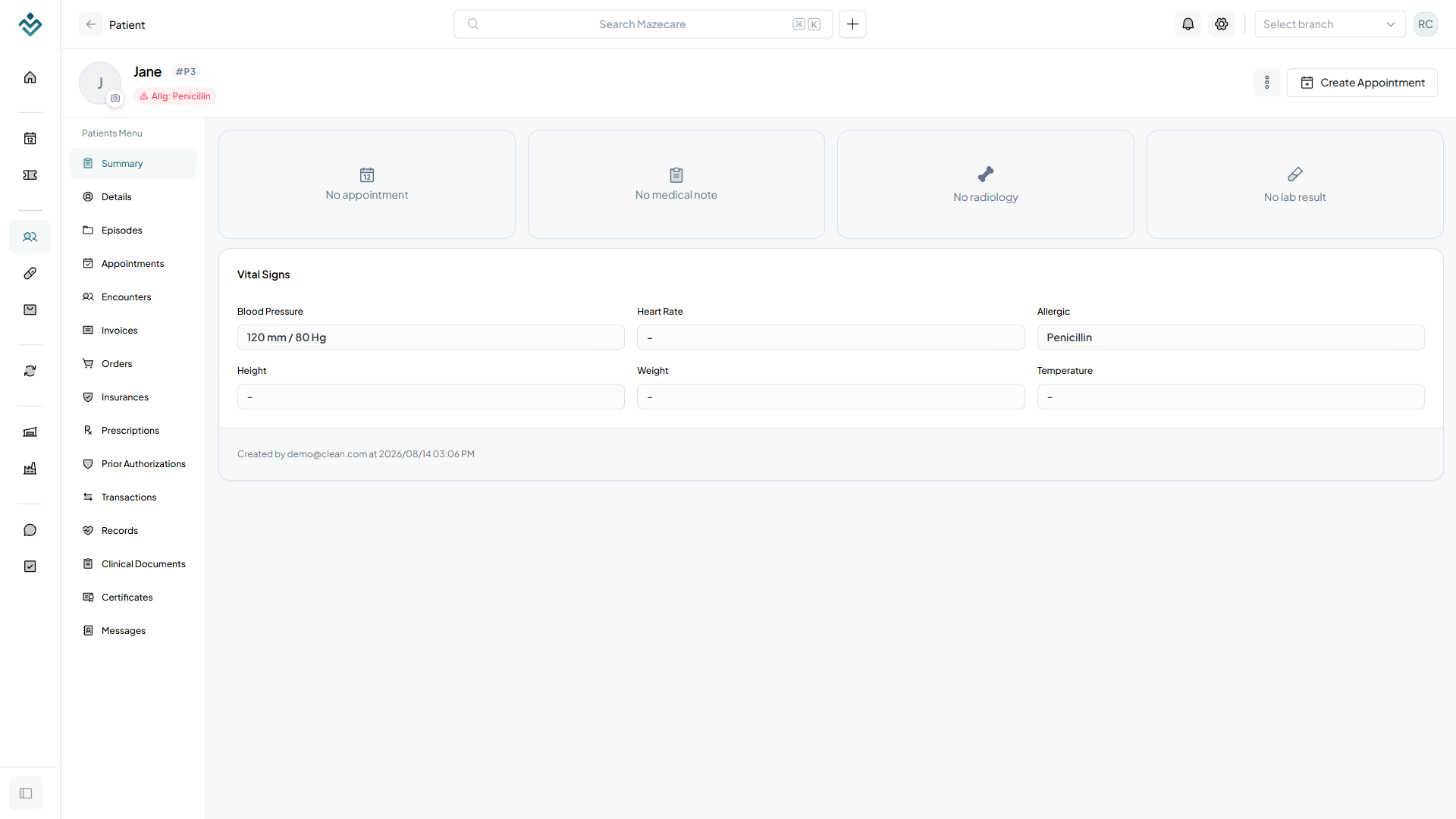
Active allergies are pinned as a red chip on the patient header (e.g. Allg: Penicillin) and shown on the patient Summary, so they stay visible across encounters.
Step 3: Track Vital Signs
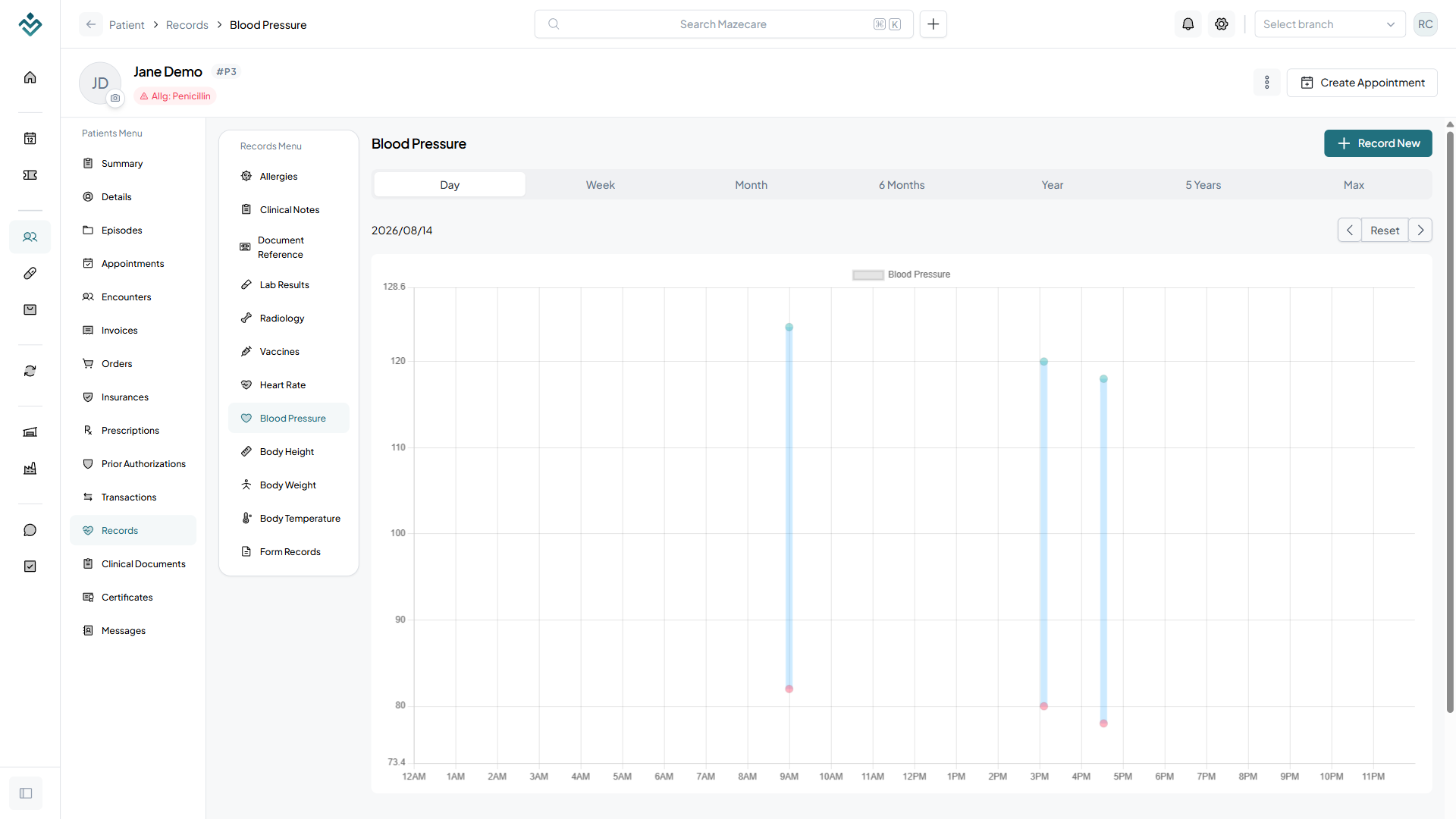
Each vital sign (Heart Rate, Blood Pressure, Body Height, Body Weight, Body Temperature) has its own flowsheet:
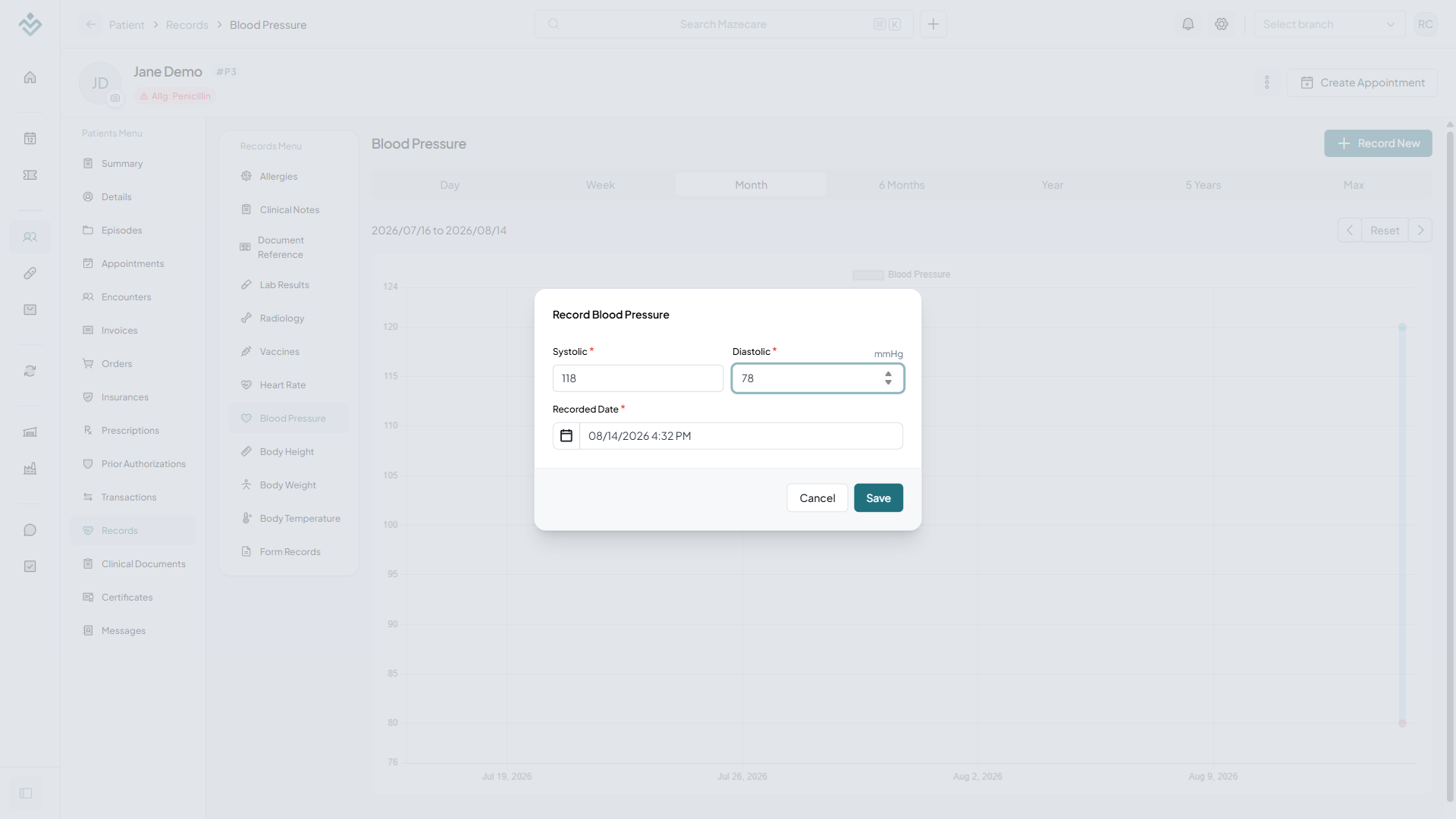
- Select the metric from the Records Menu and click Record New.
- Enter the reading (for blood pressure: Systolic and Diastolic in mmHg) and the Recorded Date, then click Save.
- Readings are plotted on a time-series chart with range tabs (Day, Week, Month, 6 Months, Year, 5 Years, Max) above the dated history list.
The latest readings also appear on the patient Summary card (/patients/[patientId]) alongside the allergy list.
Step 4: Capture Lab Results, Radiology & Vaccines
- Open Lab Results and click Lab Results to add a result. Select the ordering Provider and the Questionnaire Item (the lab panel or form template configured for your clinic), then fill in the result values.
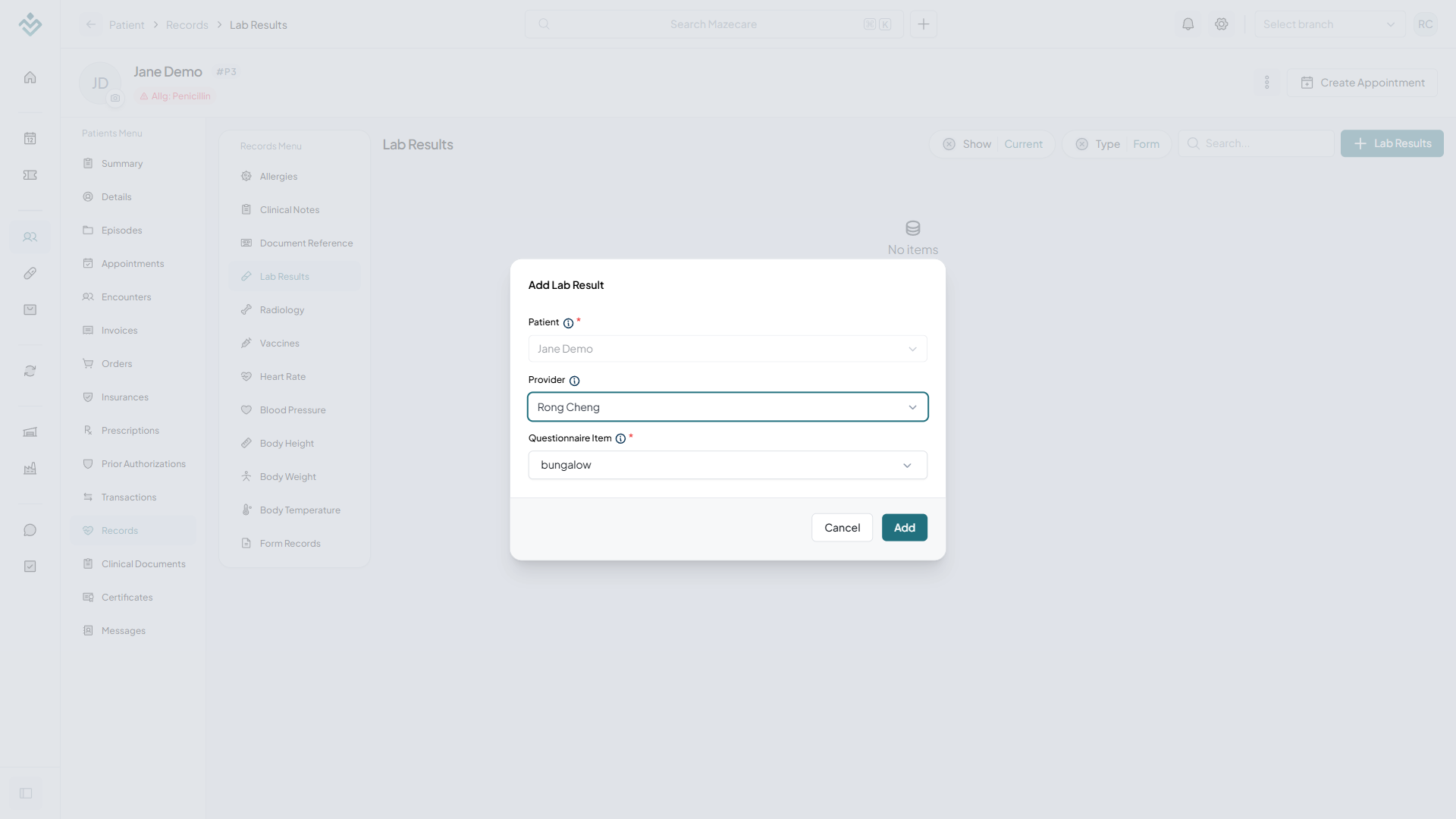
- Radiology records are added the same way via Radiology Record, and immunizations via the Vaccines panel.
- Free-form notes live under Clinical Notes (click Clinical Note to add one).
Step 5: Review Documents & Medication History
- Document Reference lists the patient's clinical documents for review; entries are generated from encounters and clinical document workflows rather than uploaded here.
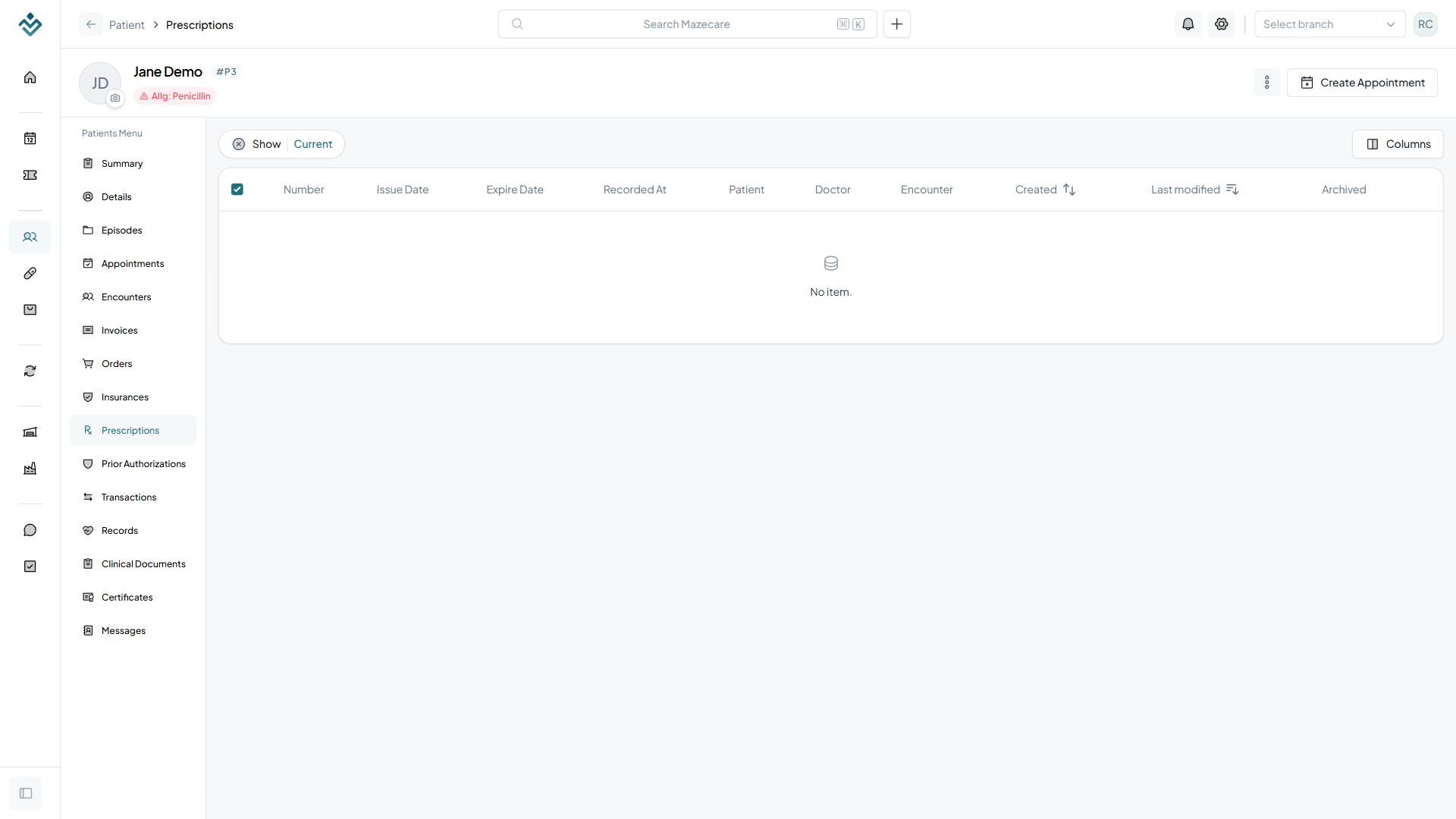
- Medication history lives on the Prescriptions tab of the patient menu (
/patients/[patientId]/prescription-history): a chronological table of every prescription with its number, issue and expiry dates, prescribing doctor, and originating encounter.
Coverage & Check-In
Verify a patient's insurance coverage from their policy record, then check them in at the front desk by creating a queue ticket bound to an episode of care.
Medication Fulfillment
Manage the pharmacy order queue, dispense prescriptions through the guided Review → Inventory → Labels wizard with FEFO batch allocation, and print bilingual medication labels in Mazecare OS.