

Operational Schedules & Doctor Rostering
In Mazecare, Operational Schedules & Doctor Rostering powers all clinical availability calculations, internal appointment bookings, and public patient self-service scheduling across your medical facilities. By separating clinician operational availability into distinct calendar and schedule layers, Mazecare prevents double bookings, respects clinician leaves and holiday closures, supports split shifts and multi-branch rotations, and provides synchronized slot availability for internal staff and public patient booking channels.
Dual-Tier Scheduling Architecture
Mazecare structures clinical scheduling into two distinct, interconnected operational layers: the Doctor Calendar Layer (the fundamental availability envelope and internal booking attendee target) and the Appointment Schedule Layer (which packages availability into bookable slots published to public directories).
Key Architectural Layers
- Doctor Calendar Layer (
/operations/doctors/[id]/calendar):- Defines the clinician's core operational availability, working days, facility locations, recurring shift patterns (e.g., 1st & 3rd weeks of the month), split shifts (e.g., morning and afternoon blocks), and exception dates (leaves, public holidays, emergency closures).
- Internal Appointment Attendee Target: The Doctor Calendar object is the direct attendee entity utilized by clinic staff and practitioners when scheduling appointments via the internal Appointment Form on the Calendar page (
/calendar).
- Appointment Schedule Layer (
/operations/doctors/[id]/appointment-schedules):- Packages the doctor's calendar working hours into structured, bookable consultation offerings for external patient self-service booking.
- Defines consultation modes (In Person at a clinic facility or Virtual / Telehealth via Mazecare Video Call or Google Meet), slot durations (e.g., 15 or 30 minutes), and buffer intervals between appointments.
- Computes real-time bookable slots and publishes them directly to Public Directories and Patient Self-Service Portals.
- Slot Resolution & Conflict Prevention Engine:
- Dynamically evaluates doctor working hours, subtracts special dates and leaves, and overlays existing internal calendar bookings to compute live, conflict-free appointment slots for public directories.
Configuration Settings & Fields
1. Doctor Calendar Settings
The Doctor Calendar represents the clinician's primary scheduling entity. The settings configured here govern both how the doctor appears on the main Calendar grid (/calendar) and how working shifts are calculated.
| Setting | Description & Operational Utility |
|---|---|
| Calendar Name | Descriptive calendar title (e.g., Dr. Jane Doe - Outpatient Consultation). Identified when assigning attendees in the internal appointment form. |
| Event Color | Visual color token assigned to the doctor's events on the global calendar grid (/calendar). Includes automated contrast calculation for light and dark UI themes. |
| Notification Email | Operational email address receiving appointment confirmations, cancellations, schedule modifications, and daily roster digests. |
| Description | Internal clinical roster notes, scope of practice, or department affiliations. |
| Public Availability | Controls whether this calendar's availability is exposed for appointment schedule binding and public booking directories. |
| External Calendar Sync | Two-way Google Calendar integration settings for bi-directional event synchronization with external clinician calendars. |
| Timezone | Standard IANA timezone identifier (e.g., Asia/Hong_Kong, UTC, America/New_York) ensuring timezone conversion accuracy across multi-region practices. |
| Working Days | Active practice days (Monday through Sunday) on which the doctor accepts consultations. |
| Shift Start & End Time | Working hours for each selected day, with real-time validation enforcing start times strictly precede end times. |
| Clinic Branch | Clinic facility or branch location assigned to the specific shift period. |
| Weeks of Month | Recurrence filter restricting shifts to specific weeks (First, Second, Third, Fourth, Fifth, Last, or All). |
| Months of Year | Annual recurrence filter limiting shifts to specific calendar months (Months 1 through 12). |
| Special Date | Specific calendar date designated for an exception or roster override. |
| All-Day Unavailable | Blocks the full 24-hour cycle for clinician annual leave, sick leave, conference attendance, or public holidays. |
2. Doctor Appointment Schedule Settings
Appointment Schedules wrap doctor calendar working hours to publish bookable consultation slots to public patient directories.
| Setting | Description & Operational Utility |
|---|---|
| Schedule Name | Patient-facing appointment schedule title (e.g., General Outpatient Consultation, Cardiology Follow-Up). |
| Consultation Mode | Delivery modality for appointments under this schedule (In-Person or Virtual). |
| Public Visibility | When active, publishes bookable slots to the public provider directory and patient self-service booking portal. |
| Description | Patient intake instructions, preparation guidance (e.g., fasting requirements), and consultation policies. |
| Clinic Branch Location | Clinic branch facility where in-person consultations take place. Automatically disabled in Virtual mode. |
| Virtual Video Provider | Video conferencing platform (Mazecare Telehealth Call or Google Meet) with linked host practitioner credentials. |
| External Event Sync | Practitioner Google Calendar link to push booked telehealth visits to the doctor's external calendar. |
| Appointment Duration | Consultation slot duration in hours and minutes (e.g., 15 minutes, 30 minutes, 45 minutes). |
| Buffer Time | Inter-appointment buffer time in minutes (e.g., 5 or 10 minutes) reserved for clinical charting, sanitization, and room turnover. |
| Effective Start Date | Date on which the appointment schedule becomes active and begins generating slots. |
| Effective End Date | Optional expiration date for temporary, visiting, or seasonal practitioner rosters. |
| Linked Calendar | The underlying Doctor Calendar entity providing shift availability. |
| Linked Shift Schedule | The specific recurring working schedule within the selected Doctor Calendar. |
Step-by-Step Workflow: Doctor Calendar Management
The Doctor Calendar establishes a clinician's availability foundation and serves as the attendee target for internal appointment scheduling.
Step 1: Navigate to Doctor Calendar
- Log in to Mazecare OS as an Administrator, Clinic Manager, or Doctor.
- From the left navigation sidebar, navigate to Operations → Doctors (
/operations/doctors).
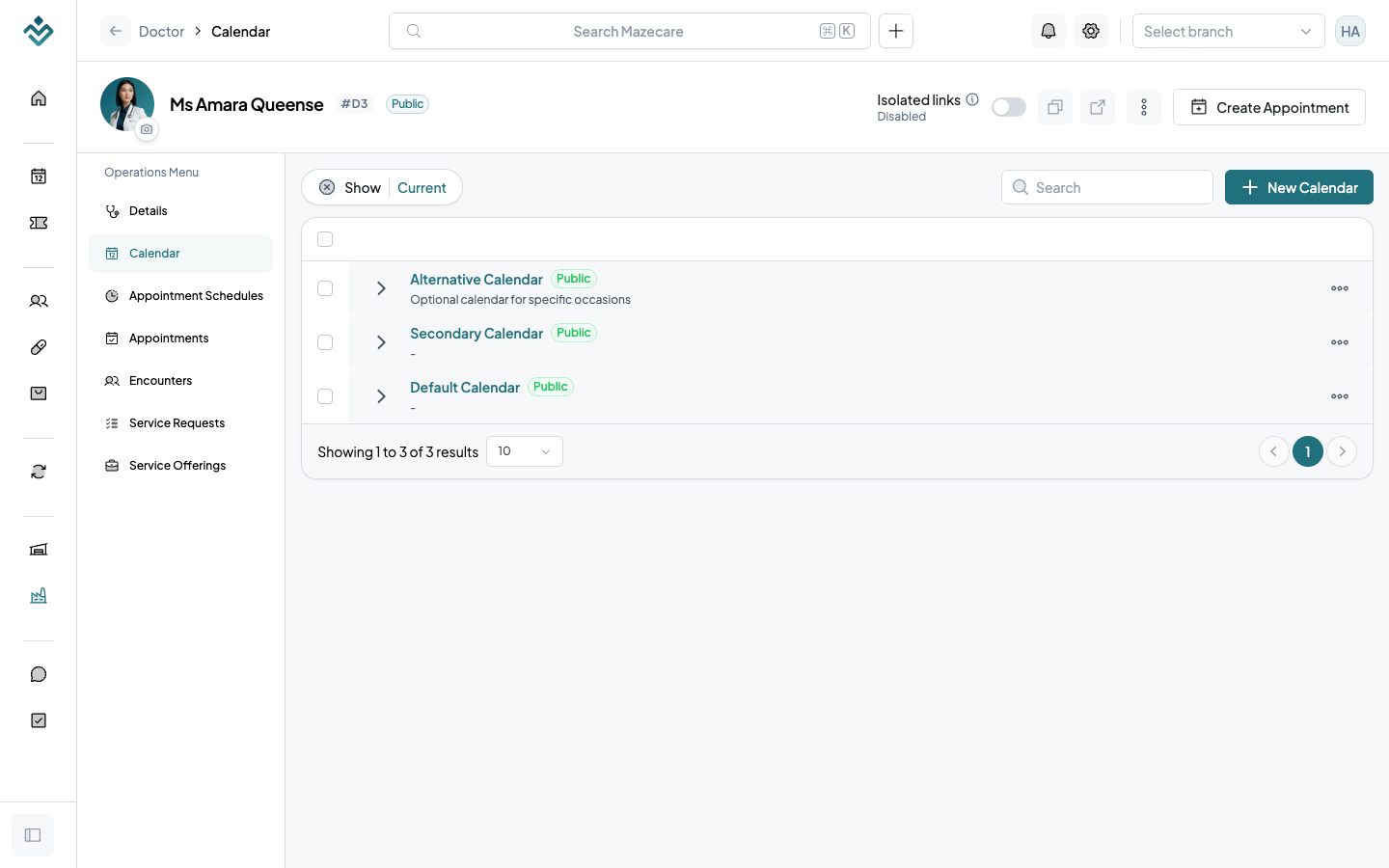
- Select the clinician from the doctor directory table to open their Doctor Profile view.
- Click the Calendar tab in the secondary navigation bar to access
/operations/doctors/[id]/calendar. - The view displays all active and archived calendars configured for this clinician.
Step 2: Create or Configure a Doctor Calendar
- Click the + New Calendar button to create a calendar, or click an existing calendar card to edit.
- The Calendar settings drawer opens from the right side of the screen.
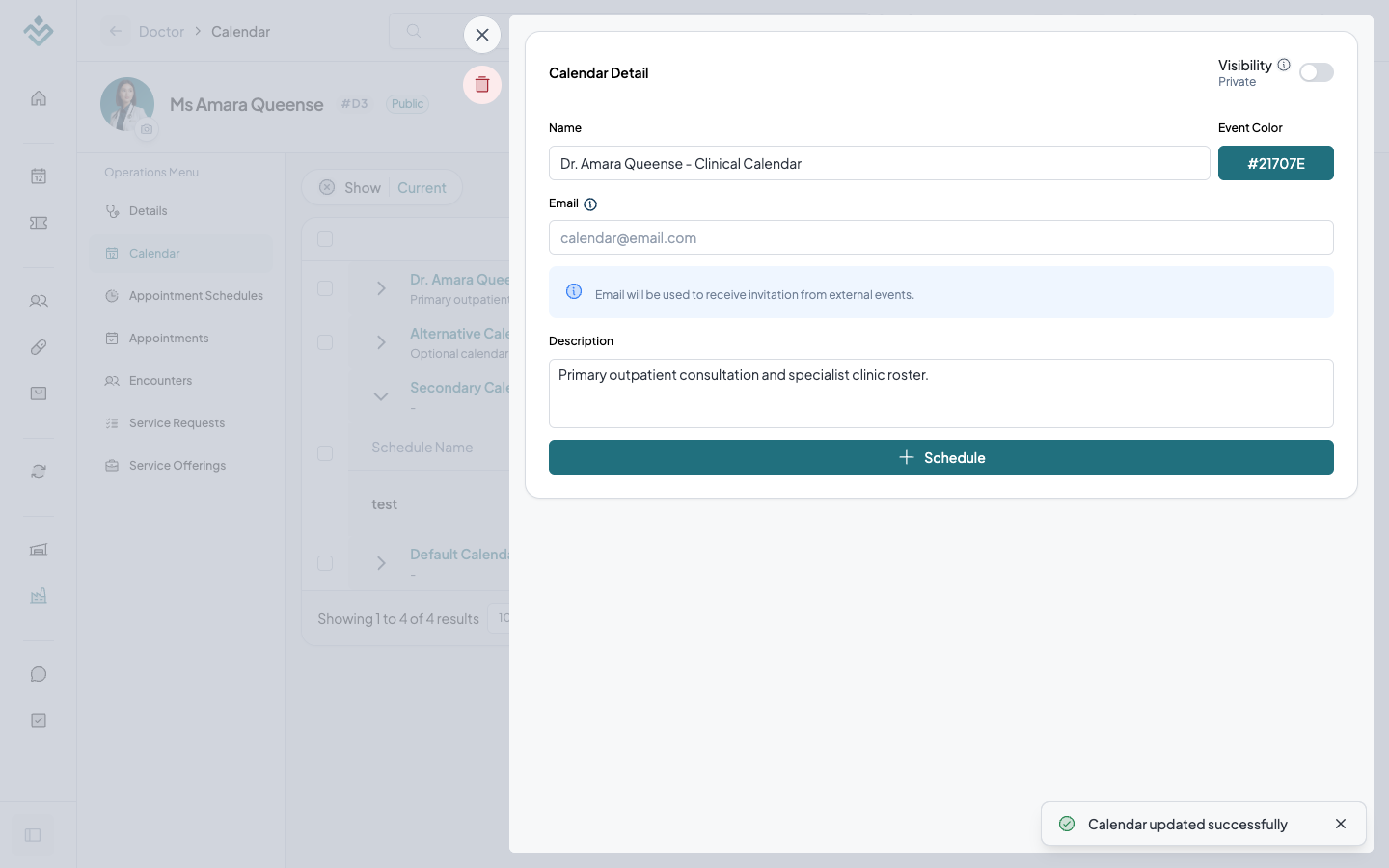
- In the Calendar Detail section, configure the core metadata:
- Name: Enter a recognizable calendar title (e.g., Dr. Jane Doe - Primary Clinical Calendar).
- Event Color: Select a visual color token. This color is used on the global appointment calendar (
/calendar) to distinguish appointments attended by this doctor. - Email: Specify the clinician's notification email for booking alerts and schedule change notifications.
- Description: Document internal clinical scope and department notes.
- Visibility (Public/Private Switch): Toggle Public if availability should be exposed for public appointment schedules, or Private for internal clinical use.
- External Integration: Configure two-way Google Calendar synchronization if external calendar alignment is required.
Step 3: Configure Weekly Working Hours & Locations
Within the Schedules section of the calendar slideover, define recurring shifts and location assignments:
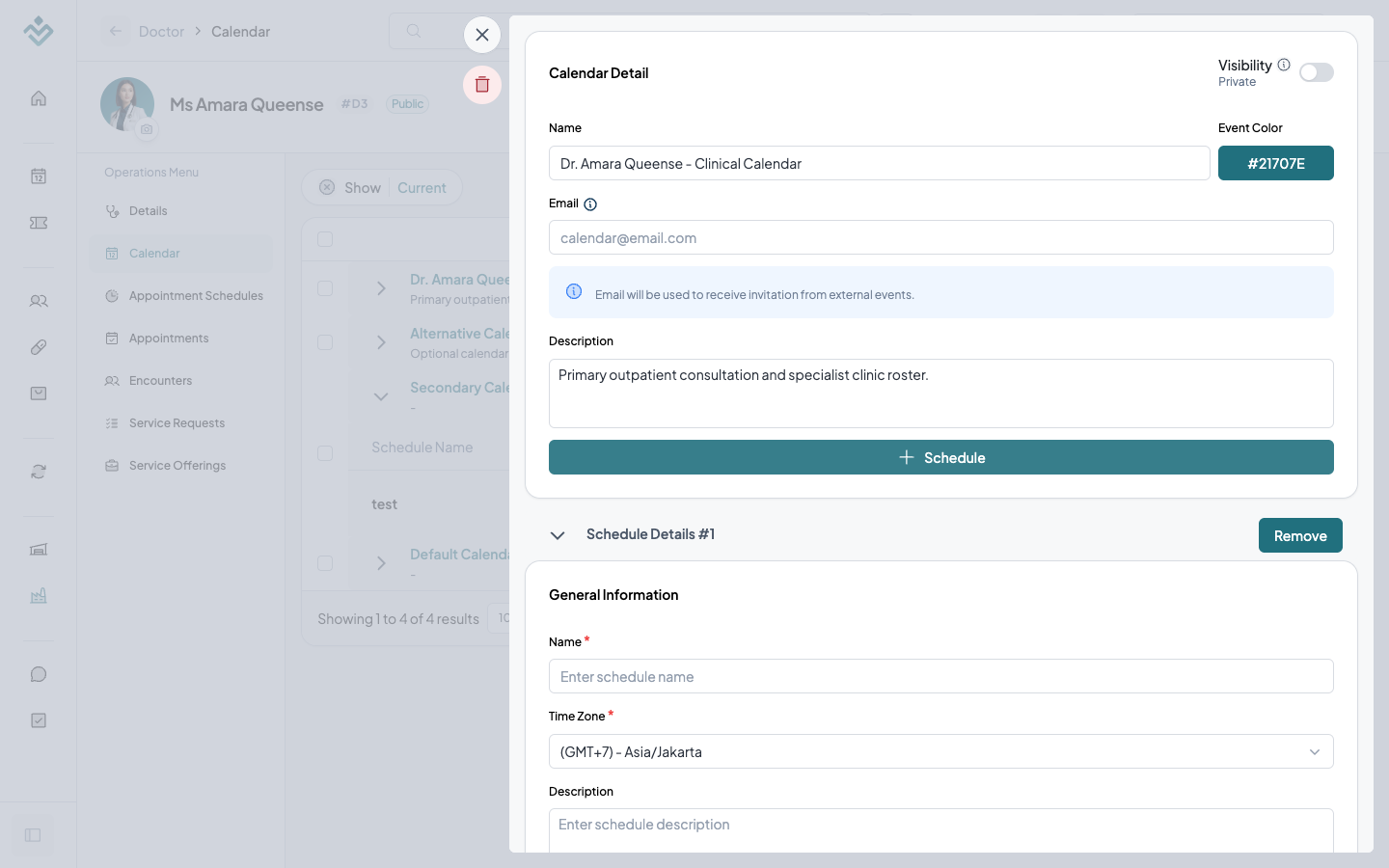
- Schedule General Information:
- Schedule Name: Name the shift template (e.g., Standard Weekly Consultation Roster).
- Time Zone: Set the operational timezone (e.g.,
Asia/Hong_Kong). - Description: Add shift guidance (e.g., Morning Outpatient & Afternoon Specialist blocks).
- Day Selector:
- Toggle the day pills (Mon, Tue, Wed, Thu, Fri, Sat, Sun) to activate or deactivate working days.
- Activating a day generates default shift hours (
09:00:00 - 17:00:00).
- Working Hours Table Rows:
- Time Range: Set shift start and end times. The system validates that start times precede end times and flags overlapping intervals in red.
- Working Location: Select the facility or clinic branch where the doctor will practice during this shift period.
- Add Split Shift Period: Click to configure multiple shift blocks within a single day (e.g., Morning Shift:
09:00 - 13:00at Central Clinic, Afternoon Shift:14:00 - 18:00at Kowloon Branch). - Remove Period: Delete unneeded shift blocks.
- Copy to All: Click Copy to All to instantly replicate the first day's working hours and location across all active days.
- Advanced Recurrence Filtering:
- Weeks of Month: Select specific weeks (
First,Second,Third,Fourth,Fifth,Last, orAll) for rotating or alternating consultant rosters. - Months of Year: Select specific months to support seasonal or rotational clinic attachments.
- Weeks of Month: Select specific weeks (
Step 4: Manage Special Dates, Leaves & Blockouts
Under the Special Dates section, record exceptions to the doctor's standard weekly schedule:
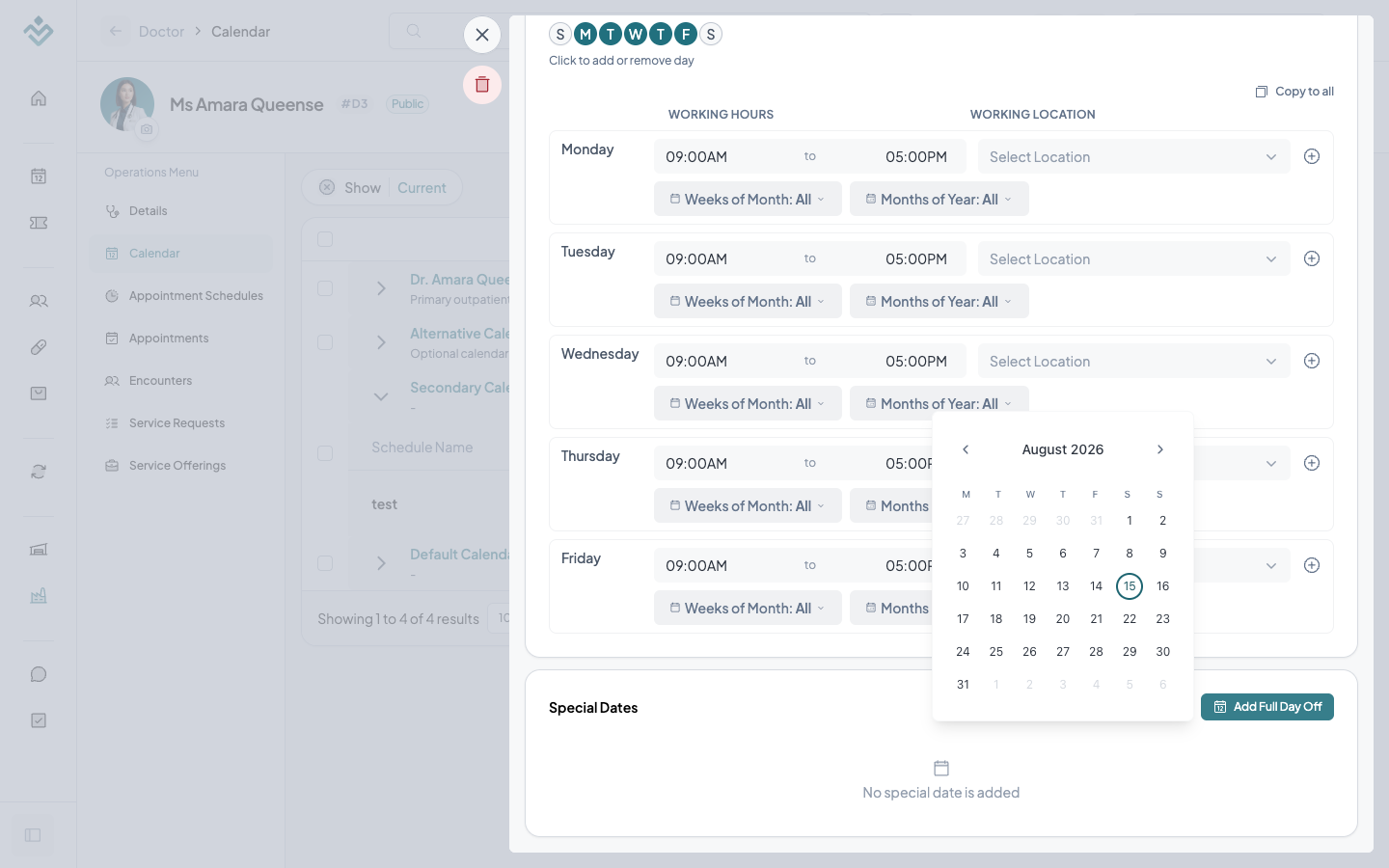
- Add Full Day Off (Leave / Public Holiday):
- Click Add Full Day Off.
- Select the date on the calendar picker (e.g., Annual Leave, Sick Leave, CME Conference, Public Holiday).
- The date is marked as
UNAVAILABLEfor the entire 24 hours, blocking internal appointment booking and public slot generation.
- Add Partial Day Availability (Custom Date Overrides):
- Click Add Partial Day Availability.
- Select the date, then define custom start time, end time, and clinic branch location for that single date (e.g., special Sunday morning clinic).
- Toggle Unavailable / Remove:
- Click the Prohibit icon to convert a partial date into full-day unavailable.
- Click the Remove icon to delete an exception and restore standard working hours.
Step 5: Internal Appointment Attendee Integration
The Doctor Calendar object directly integrates with the Calendar module (/calendar):
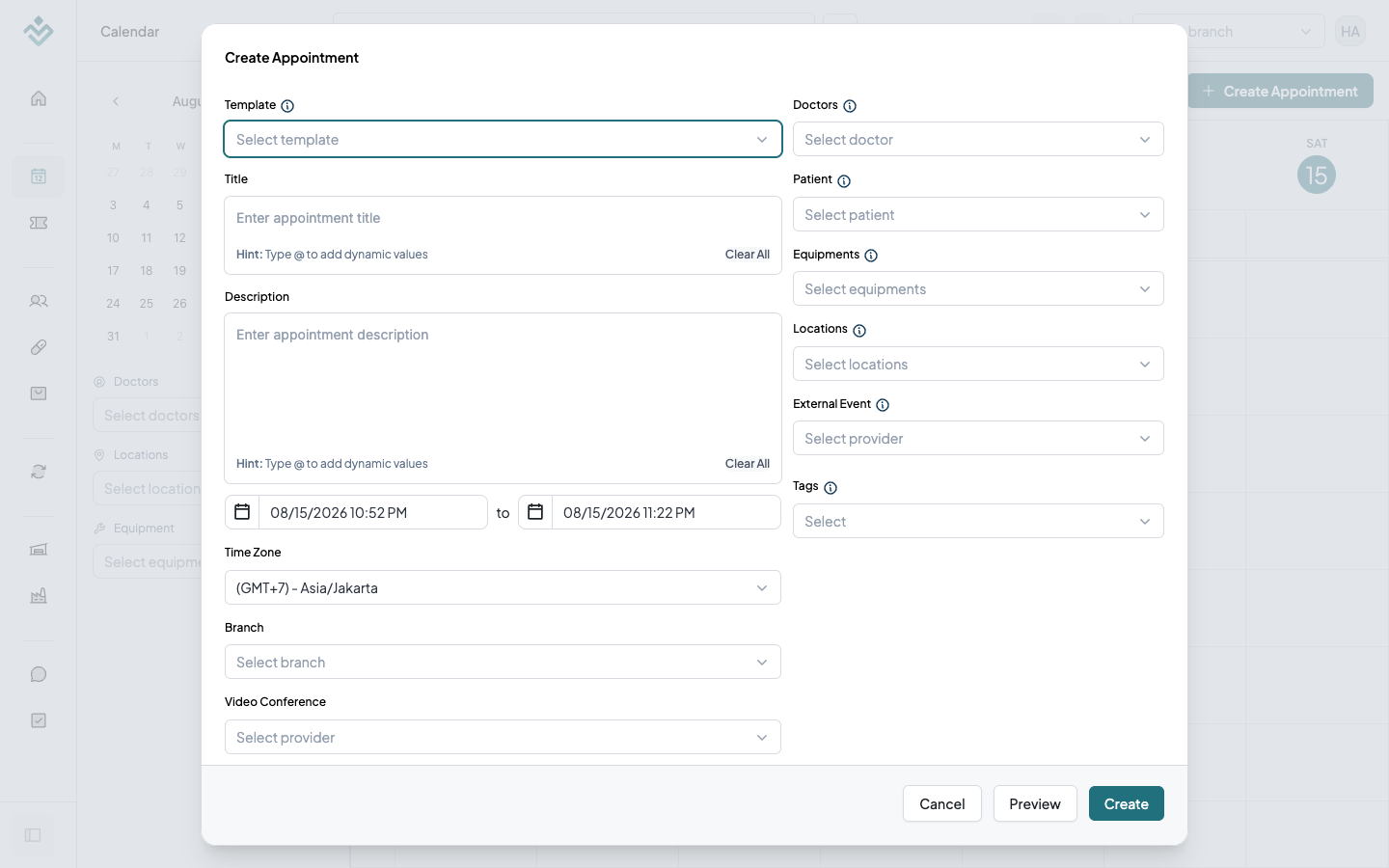
- When clinic staff or doctors open the Appointment Form in the main Calendar view (
/calendar), the system presents the list of configured Doctor Calendars as available Attendees. - Selecting a Doctor Calendar links the booking directly to that clinician's schedule, renders the appointment on the calendar grid using the doctor's assigned Event Color, and immediately reserves the clinician's availability.
- Any appointment booked internally against the Doctor Calendar automatically subtracts that time window from public directory slot availability, preventing scheduling conflicts.
Step-by-Step Workflow: Doctor Appointment Schedules
Appointment Schedules transform doctor calendar availability into structured, bookable appointment slots published to public directories.
Step 1: Open Doctor Appointment Schedules
- From the Doctor Profile view, click the Appointment Schedules tab to access
/operations/doctors/[id]/appointment-schedules.
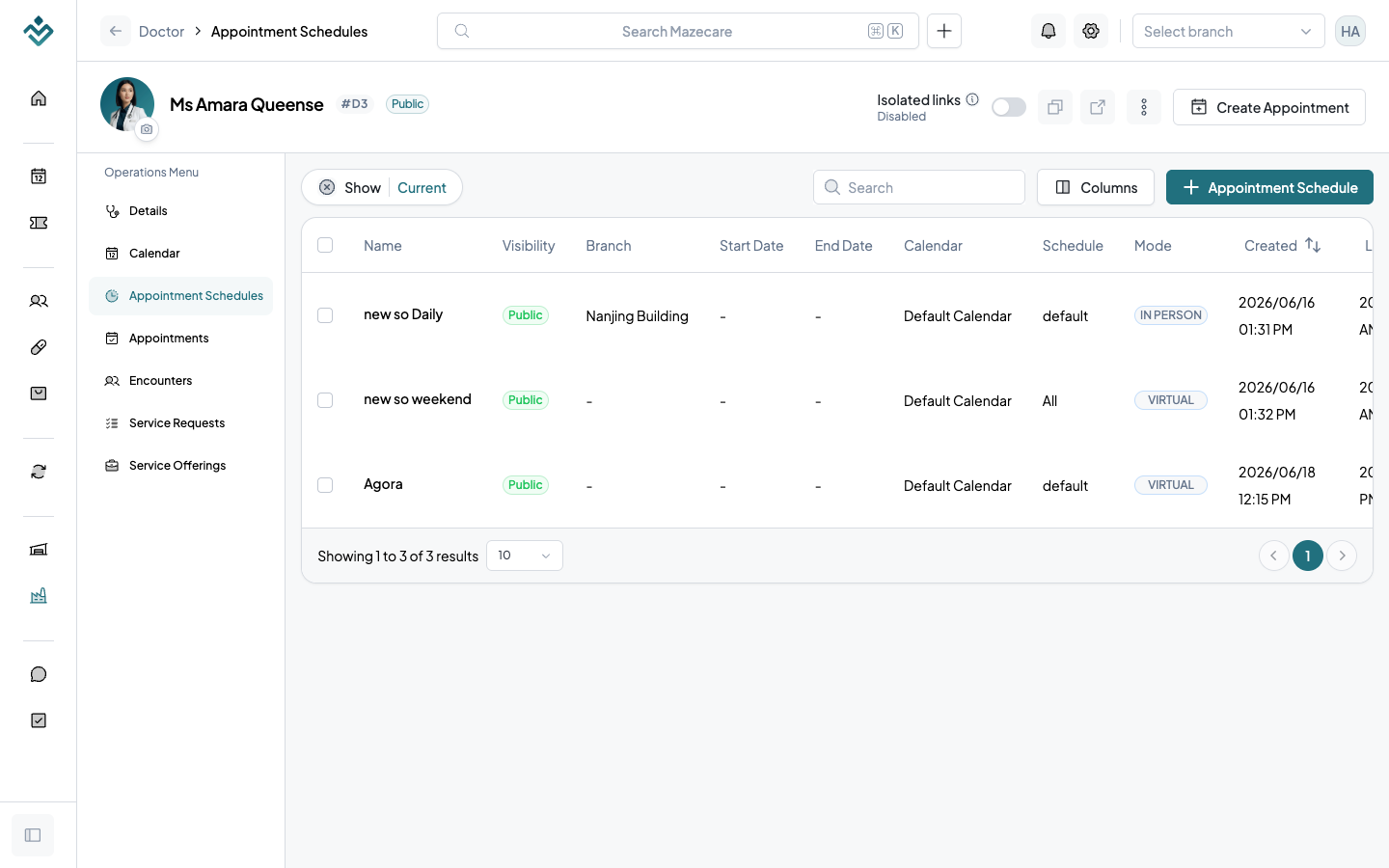
- The table displays all active appointment schedules:
- Name & Description: Schedule title and patient intake notes.
- Visibility:
Public(green badge) orPrivate(gray badge). - Branch: Assigned clinic facility.
- Start & End Dates: Effective operational timeframe.
- Calendar & Schedule: Linked doctor calendar and shift schedule.
- Mode:
In-PersonorVirtualbadge. - Actions: Edit, Archive, or Delete with confirmation dialogs.
Step 2: Create a New Appointment Schedule
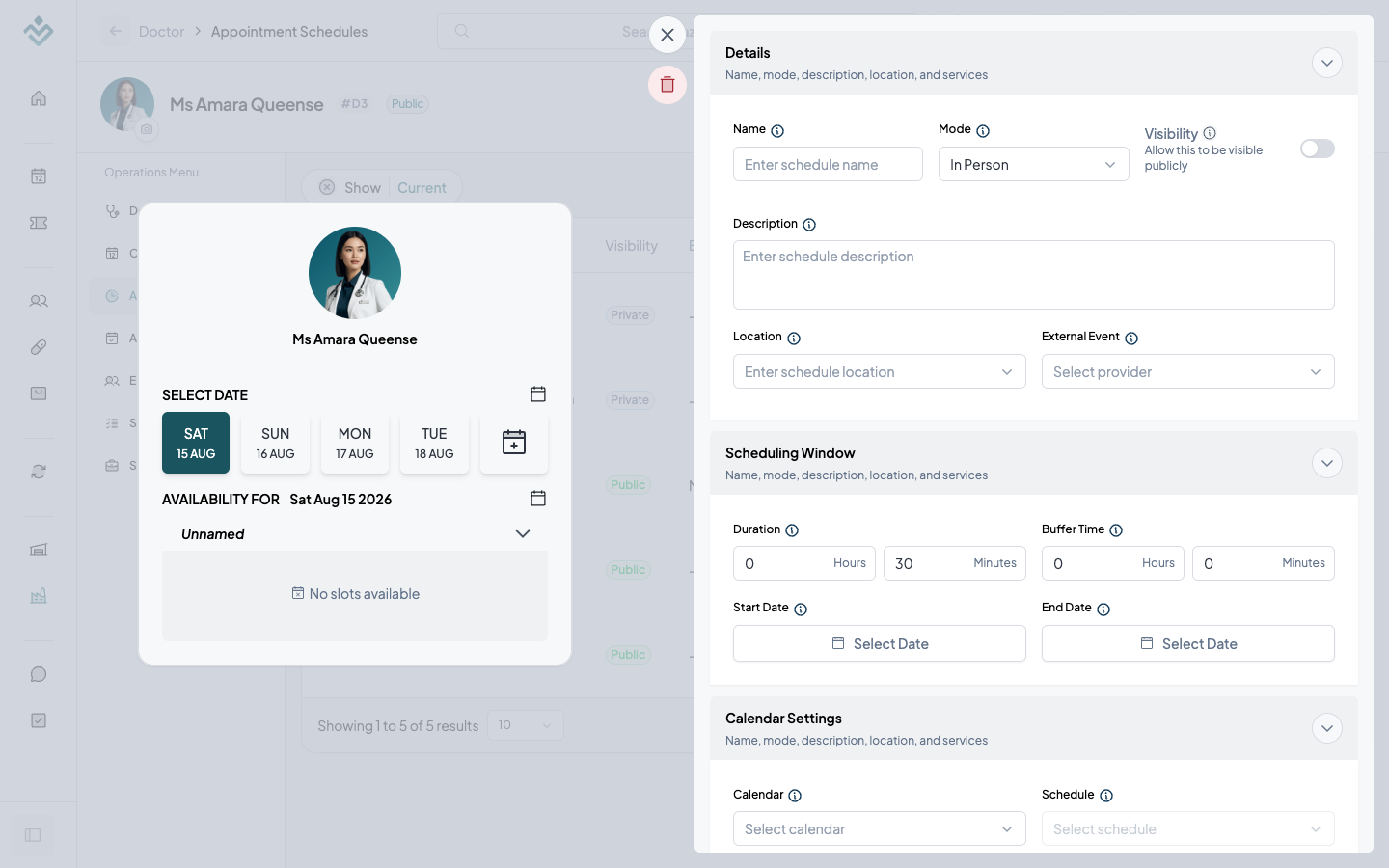
- Click the + Appointment Schedule button.
- The schedule configuration drawer opens alongside the live slot calculator preview.
Step 3: Configure Schedule Details
In the right drawer, expand the Details accordion:
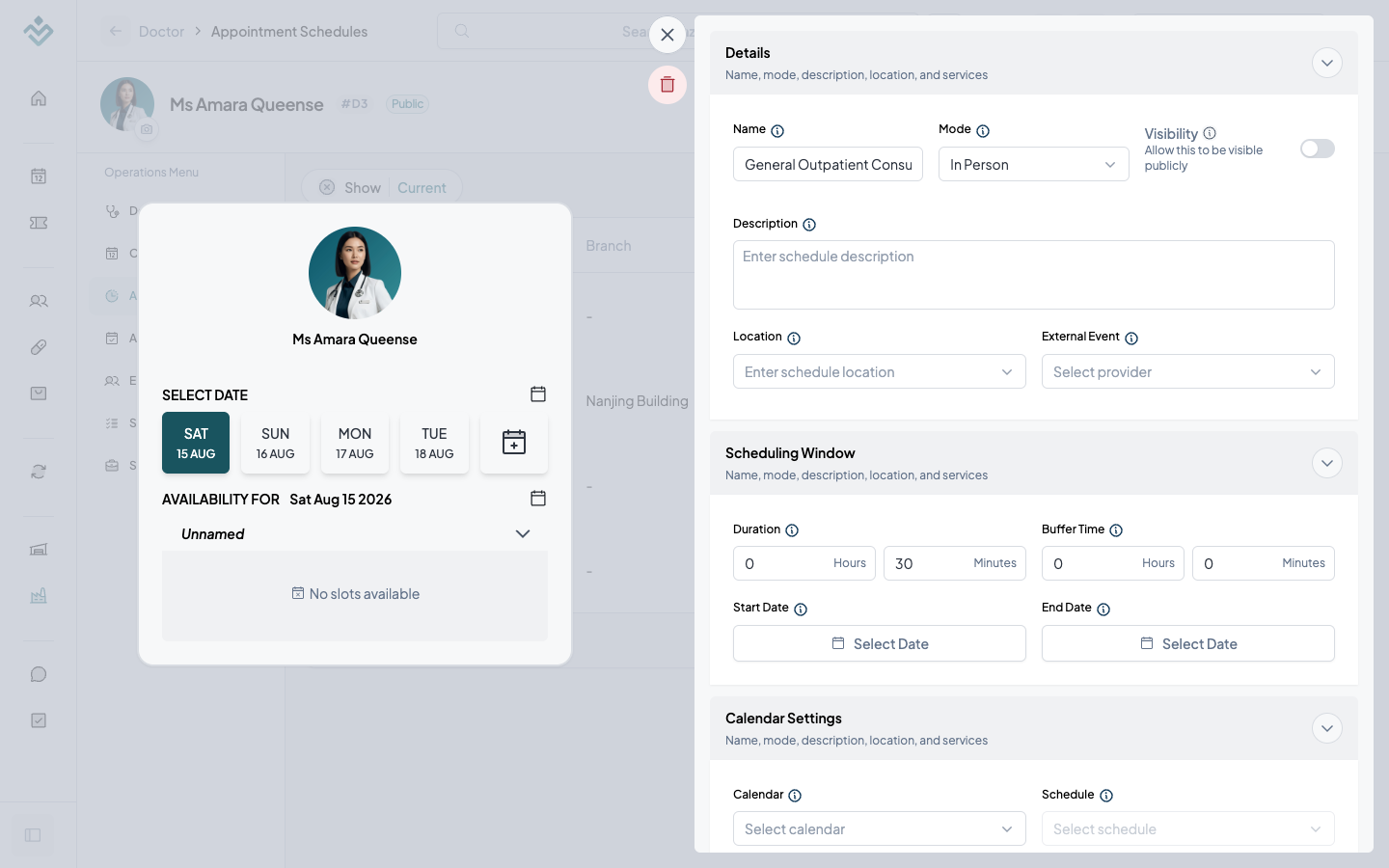
- Schedule Name: Enter a public title (e.g., General Outpatient Consultation, Cardiology Specialist Consultation).
- Consultation Mode:
- In Person: The Location dropdown activates. Select the clinic branch where the consultation takes place.
- Virtual: The Location dropdown is cleared and disabled.
- Virtual / Telehealth Configuration (Virtual Mode):
- Video Conference Provider: Select Mazecare Telehealth Call or Google Meet.
- Virtual Host Selection: Link the practitioner account for host meeting privileges.
- External Event Setting: Enable Google Calendar integration to sync appointments to the doctor's external calendar.
- Public Directory Visibility:
- Set to Public to publish slots to the public provider directory and patient self-service booking portal.
- Set to Private for internal reference or administrative restriction.
- Description: Enter consultation instructions, preparation requirements, and cancellation terms.
Step 4: Set Scheduling Window & Slot Durations
Expand the Scheduling Window accordion:
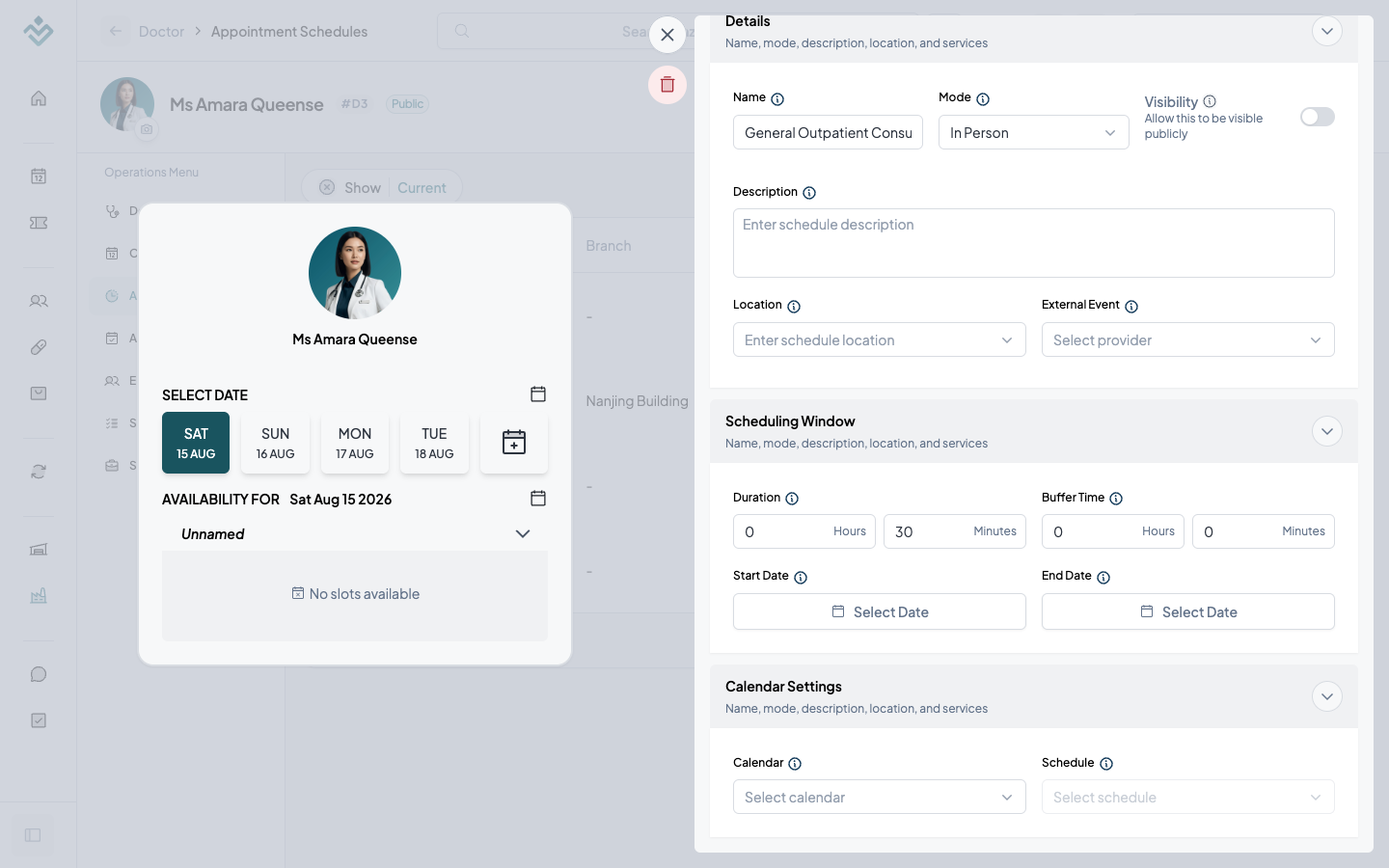
- Appointment Duration: Specify Hours and Minutes for each consultation slot (e.g.,
15minutes for standard follow-ups,45minutes for initial specialist consults). - Buffer Time: Configure inter-appointment buffer minutes (e.g.,
5or10minutes) reserved for clinical charting, disinfection, and room preparation. - Start Date & End Date:
- Start Date: Date when this schedule begins generating bookable slots.
- End Date: Optional expiration date for temporary or term-based doctor schedules.
Step 5: Link Doctor Calendar & Schedule
Expand the Calendar Settings accordion:
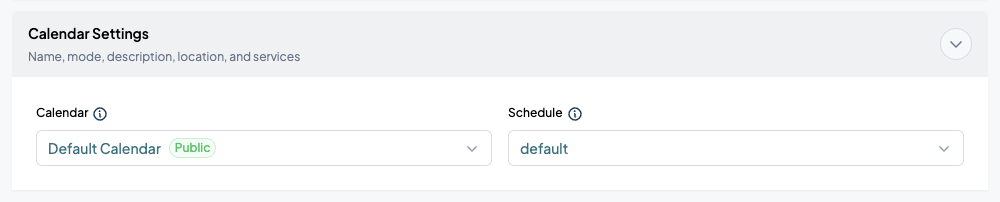
- Select Calendar: Select the underlying Doctor Calendar from the searchable dropdown menu.
- Select Schedule: Select the recurring working schedule defined within that calendar.
- In-Line Slideover Drilldown: Click the linked calendar or schedule name to open a nested editor and modify working hours, branch assignments, or leave dates directly without leaving the appointment schedule drawer.
Step 6: Verify with Real-Time Live Slot Preview
The left panel features a Real-Time Slot Calculator that dynamically updates as settings change:
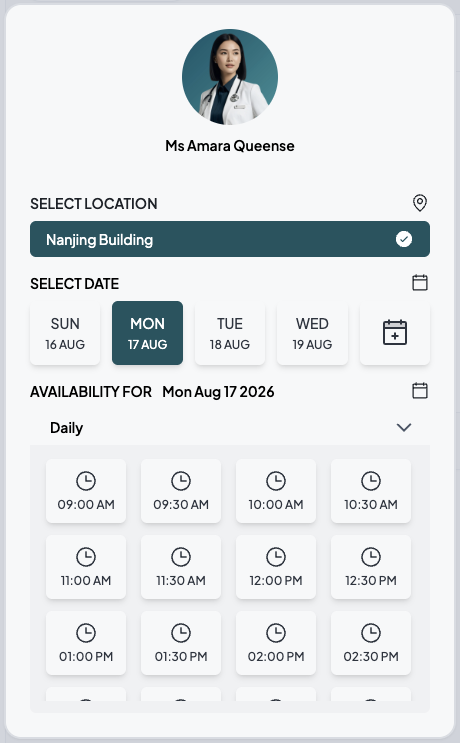
- Practitioner Profile Header: Confirms clinician avatar, salutation, full name, and selected clinic location badge.
- Date Strip Selector: Displays interactive day cards for the next 4 days, with a date picker popover to jump to any future date.
- Live Generated Slot Grid:
- Dynamically calculates available consultation time blocks by combining calendar working hours, shift start/end times, appointment duration, buffer time, existing calendar bookings, and special date exceptions.
- Confirms that public directories will display accurate, conflict-free booking slots.
Integrated Clinician Workflows & Operational Alignment
Doctor calendars and appointment schedules connect directly with broader practice operations:
1. Digital Clinician Signature Capture
When consultations booked via internal appointments or public directories are concluded, the doctor's digital signature (configured under /profile/signatures) is automatically applied to e-prescriptions, referral letters, and medical certificates.
2. Consultation Room & QMS Station Assignment
During active shift hours, doctors log into their Doctor Station / Queue Monitor dashboard:
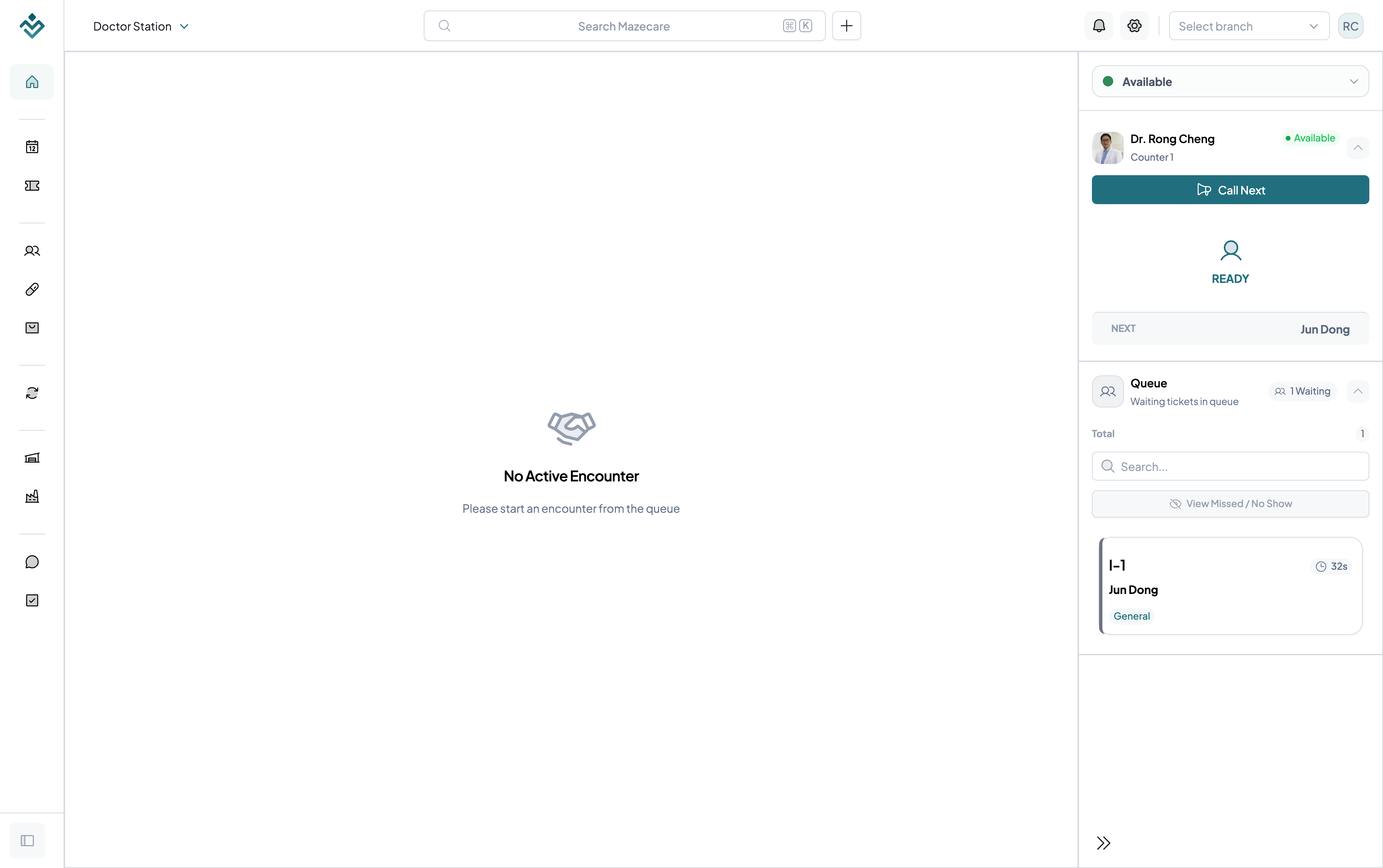
- Clinicians select their assigned Service Point (Consultation Room) (e.g., Consultation Room 2 - Cardiology).
- Doctors update their live availability state:
AVAILABLE: Ready for the QMS engine to route the next waiting patient ticket.BUSY: Actively engaged in a consultation encounter.UNAVAILABLE: Offline, charting, or on break.
- Patients checking in for scheduled appointments are automatically queued for the doctor's consultation room.
4. Public Directory Visibility & Online Patient Self-Service
When both Doctor Profile and Appointment Schedule have public visibility active:
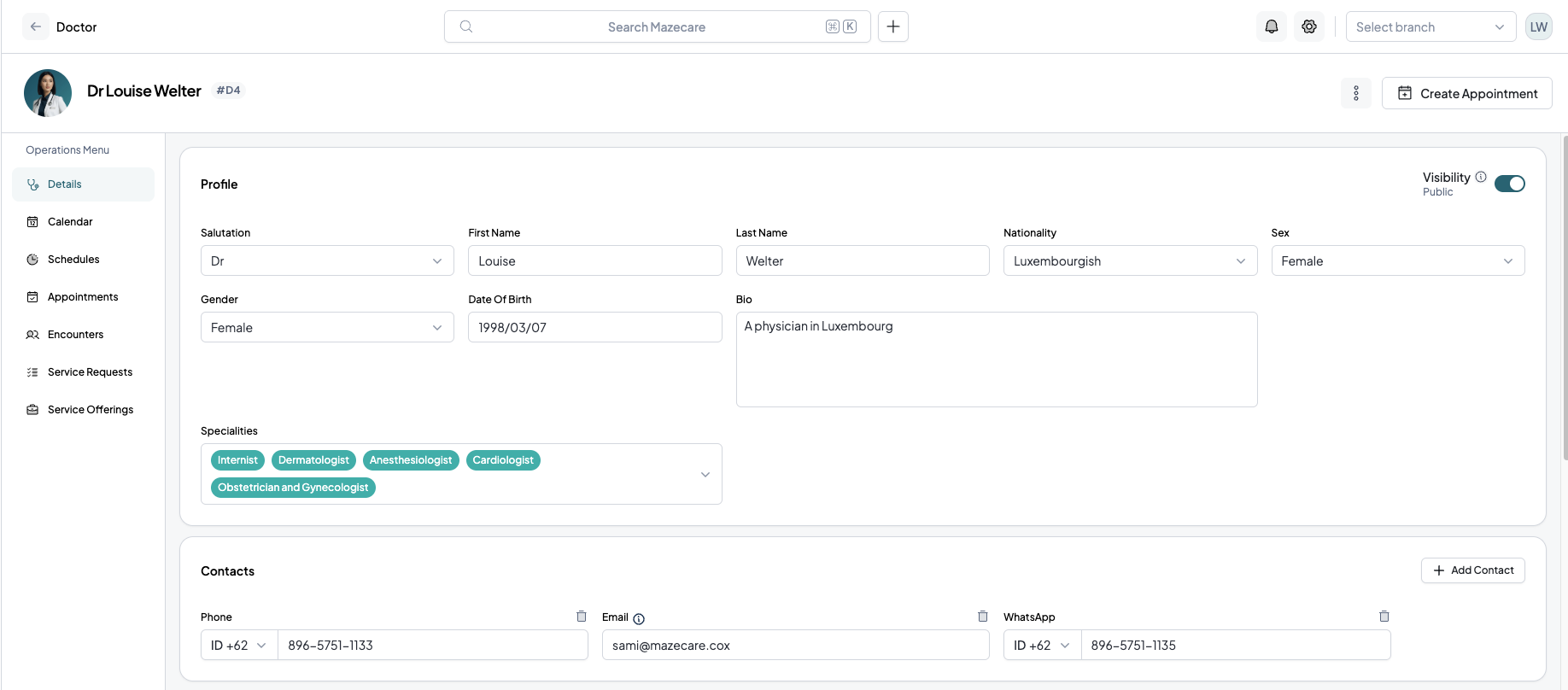
- The doctor appears in the public provider directory with bio, specialties, and nationalities.
- Patients select available time slots of a services and book in-person or telehealth appointments online with immediate confirmation.
Operational Best Practices & Troubleshooting
- Preventing Roster Overlaps: When adding split shifts or multiple working hour periods in a day, verify that the end time of the earlier shift is strictly earlier than the start time of the subsequent shift. The interface highlights overlapping hours in red and disables saving until resolved.
- Handling Multi-Branch Rotations: For doctors rotating between different clinic facilities during the week, configure separate working hour entries per day with the corresponding branch location selected in the Working Location dropdown.
- Managing Emergency Clinic Closures & Annual Leaves: Always record clinician time off under Special Dates → Add Full Day Off rather than deleting regular working hours. This preserves the underlying weekly template while instantly blocking online booking slots and notifying receptionists of affected existing bookings.
- Buffer Time Optimization: Setting a
5or10minute buffer time between consultation slots provides clinicians with essential charting time to complete SOAP notes and sign e-prescriptions without creating patient backlog in the waiting lounge. - Internal Calendar Attendee Assignment: When booking internal appointments in the Calendar module (
/calendar), always select the doctor's specific Doctor Calendar object as the attendee to guarantee automatic conflict resolution against public directory slot generation.
Doctor Setup & Credentialing
Register clinical practitioners, configure medical licenses, regulatory identifiers, specialties, sub-specialties, digital signatures, consultation room assignments, and practice scopes.
Master Product Catalog
Comprehensive guide for setting up pharmaceutical drugs, active ingredients, global standard items, clinical safety alerts, medical coding dictionaries, unit of measurement conversions, service catalog, and procurement pricing in Mazecare.